在本快速入门中,你将从使用 Azure Functions MCP 扩展生成的模板项目中创建Model 上下文协议(MCP)应用。 MCP 应用是 MCP 服务器,带有工具,这些工具返回的是丰富的交互式用户界面,而不是文本。 使用 Azure 开发人员 CLI(azd)部署应用。 还可以使用 Azure Functions MCP 扩展创建具有基于 text 工具的 MCP 服务器。
在本地运行项目并使用GitHub Copilot验证代码后,可以在Azure Functions中将其部署到新的无服务器函数应用,该应用遵循当前安全且可缩放的部署最佳做法。
重要
MCP 扩展目前不支持 PowerShell 应用。
本文支持用于Azure Functions的 Node.js 编程模型版本 4。
本文支持用于Azure Functions的 Python 编程模型版本 2。
先决条件
Node.js (生成 MCP 应用 UI 所必需的)
使用以下扩展Visual Studio Code:
Azure Functions 扩展。 此扩展需要 Azure Functions Core Tools,并在不可用时尝试安装它。
具有活动订阅的Azure帐户。 创建帐户。
初始化项目
使用Azure开发人员 CLI 从模板创建Azure Functions代码项目。
从终端运行以下命令
azd init,从模板创建本地项目:azd init --template remote-mcp-functions-dotnet -e mcpweather-dotnet此命令从 template 存储库中拉取项目文件并在新文件夹中初始化项目。
-e标志设置当前环境的名称。 在azd,环境维护您应用程序的独特部署上下文,并且您可以定义多个。 它还用于在Azure中创建的资源的名称。更改为项目目录:
cd remote-mcp-functions-dotnet
从终端运行以下命令
azd init,从模板创建本地项目:azd init --template remote-mcp-functions-typescript -e mcpweather-ts此命令从 template 存储库中拉取项目文件并在新文件夹中初始化项目。 在
azd,环境维护您应用程序的独特部署上下文,并且您可以定义多个。 它还用于在Azure中创建的资源的名称。更改为项目目录:
cd remote-mcp-functions-typescript
从终端运行以下命令
azd init,从模板创建本地项目:azd init --template remote-mcp-functions-javascript -e mcpweather-js此命令从 template 存储库中拉取项目文件并在新文件夹中初始化项目。 在
azd,环境维护您应用程序的独特部署上下文,并且您可以定义多个。 它还用于在Azure中创建的资源的名称。更改为项目目录:
cd remote-mcp-functions-javascript
从终端运行以下命令
azd init,从模板创建本地项目:azd init --template remote-mcp-functions-python -e mcpweather-python此命令从 template 存储库中拉取项目文件并在新文件夹中初始化项目。 在
azd,环境维护您应用程序的独特部署上下文,并且您可以定义多个。 它还用于在Azure中创建的资源的名称。更改为项目目录:
cd remote-mcp-functions-python
从终端运行以下命令
azd init,从模板创建本地项目:azd init --template remote-mcp-functions-java -e mcpweather-java此命令从 template 存储库中拉取项目文件并在新文件夹中初始化项目。 在
azd,环境维护您应用程序的独特部署上下文,并且您可以定义多个。 它还用于在Azure中创建的资源的名称。更改为项目目录:
cd remote-mcp-functions-java
在 Visual Studio Code 中打开项目:
code .
启动存储模拟器
在本地运行代码项目时,使用 Azurite 模拟器模拟Azure 存储帐户连接。
如果尚未 安装,请安装 Azurite。
按 F1。 在命令面板中,搜索并运行命令
Azurite: Start以启动本地存储模拟器。
生成 MCP 应用 UI
MCP 应用天气工具包括一个前端应用程序,必须在运行项目之前生成该应用程序。
在终端中,转到 UI 应用文件夹并生成应用程序:
cd src/McpWeatherApp/app
npm install
npm run build
cd ../
在终端中,转到 UI 应用文件夹并生成应用程序:
cd samples/McpWeatherApp/app
npm install
npm run build
cd ..
在终端中,转到 UI 应用文件夹并生成应用程序:
cd src/McpWeatherApp/app
npm install
npm run build
cd ../../..
在终端中,转到 UI 应用文件夹并生成应用程序:
cd src/app
npm install
npm run build
cd ../..
在终端中,转到 UI 应用文件夹并生成应用程序:
cd mcp-weather-app/src/app
npm install
npm run build
cd ../../..
在本地运行 MCP 服务器
出现提示时,选择 src/McpWeatherApp。 之所以看到此提示,是因为解决方案中有两个项目,本文未使用其他项目。
在终端窗口中,请确保位于 samples/McpWeatherApp 项目文件夹中。
Visual Studio Code与Azure Functions Core工具集成,允许您在本地开发计算机上运行此项目。 若要在本地启动 Functions 应用,请按 F5 或在左侧活动栏中选择 “运行和调试 ”图标。
“终端”面板将显示 Core Tools 的输出。 应用在 终端 面板中启动,可以看到在本地运行的函数的名称。
使用 GitHub Copilot 进行验证
项目模板包含一个 .vscode/mcp.json 文件,该文件定义了一个指向本地 MCP 终结点的服务器。 使用此配置通过Visual Studio Code中的GitHub Copilot来验证代码:
在本地运行函数后,打开
.vscode/mcp.json该文件,然后选择配置上方的local-mcp-function”按钮。在 Copilot Chat 窗口中,确保选中 Agent 模式,选择配置工具图标,并验证是否在聊天中启用了
MCP Server:local-mcp-function。运行此命令:
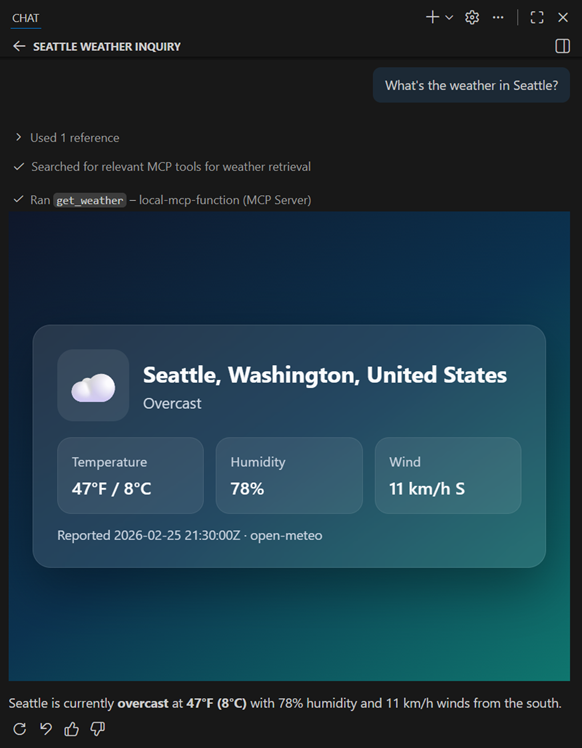
What's the weather in Seattle?当系统提示运行该工具时,选择 “在此工作区中允许” ,这样就不必继续授予权限。 提示符运行工具
GetWeather,该工具返回天气数据。 由于此工具声明了 UI 元数据,因此 MCP 主机还会提取 UI 资源,并在聊天中的沙盒 iframe 中呈现交互式天气小组件。完成测试后,按 Ctrl+C 停止 Functions 主机。
查看代码(可选)
可以查看定义 MCP 应用工具的代码。 MCP 应用工具需要两个组件:
- 一个具有 UI 元数据的工具,声明指向 UI 资源的
ui.resourceUri。 - 一个在匹配的 URI 下为捆绑的 HTML/JavaScript 提供服务的资源。
MCP 应用天气工具的函数代码在 src/functions/weatherMcpApp.js 文件中定义。 在此函数中,metadata 上的 app.mcpTool() 属性在 getWeather 工具注册时向其添加 UI 元数据。
  metadata: TOOL_METADATA,
  handler: getWeather,
});
处理程序 getWeather 提取位置的天气数据,并将其作为 JSON 返回。
  const location = mcptoolargs?.location ?? "";

  try {
    const result = await weatherService.getCurrentWeatherAsync(location);

    if ("TemperatureC" in result) {
      context.log(`Weather fetched for ${result.Location}: ${result.TemperatureC}°C`);
    } else {
      context.warn(`Weather error for ${result.Location}: ${result.Error}`);
    }

    return result;
  } catch (error) {
    context.error(`Failed to get weather for ${location}: ${error}`);
    return {
      Location: location || "Unknown",
      Error: `Unable to fetch weather: ${error instanceof Error ? error.message : String(error)}`,
      Source: "api.open-meteo.com"
    };
  }
}

// Register the GetWeatherWidget resource
app.mcpResource("getWeatherWidget", {
  uri: WEATHER_WIDGET_URI,
  resourceName: WEATHER_WIDGET_NAME,
  description: WEATHER_WIDGET_DESCRIPTION,
app.mcpResource() 函数注册 getWeatherWidget 处理程序,该处理程序提供 HTML 小部件。
  handler: getWeatherWidget,
});

// Register the GetWeather tool
// Note: metadata property is not yet supported in the JavaScript SDK for mcpTool
// The TOOL_METADATA is defined for future use when the SDK is updated
app.mcpTool("getWeather", {
  toolName: "GetWeather",
  description: "Returns current weather for a location via Open-Meteo.",
  toolProperties: {
处理程序 getWeatherWidget 读取并返回捆绑的 HTML 文件。
  context.log("Getting weather widget");

  try {
    // __dirname is src/functions, go up 1 level to src/, then into app/dist
    const filePath = path.join(__dirname, "..", "app", "dist", "index.html");
    return fs.readFileSync(filePath, "utf-8");
  } catch (error) {
    context.log(`Error reading weather widget file: ${error}`);
    // Return a fallback HTML if file not found
    return `<!DOCTYPE html>
<html>
<head><title>Weather Widget</title></head>
<body>
  <h1>Weather Widget</h1>
  <p>Widget content not found. Please ensure the app/dist/index.html file exists.</p>
</body>
</html>`;
  }
}

// GetWeather function - returns current weather for a location
async function getWeather(_toolArguments, context) {
  context.log("Getting weather");
常量 TOOL_METADATA 声明 ui.resourceUri,指示 MCP 主机在工具运行后从 ui://weather/index.html 获取交互式界面。
const TOOL_METADATA = JSON.stringify({
  ui: {
    resourceUri: "ui://weather/index.html"
  }
});
可以在 Azure Functions JavaScript MCP Server GitHub 存储库中查看完整的项目模板。
MCP 应用天气工具的函数代码在 src/McpWeatherApp 文件夹中定义。 在此函数中,该 [McpMetadata] 属性将 UI 元数据添加到 GetWeather 该工具。
    [Function(nameof(GetWeather))]
    public async Task<object> GetWeather(
        [McpToolTrigger(nameof(GetWeather), "Returns current weather for a location via Open-Meteo.")]
        [McpMetadata(ToolMetadata)]
            ToolInvocationContext context,
        [McpToolProperty("location", "City name to check weather for (e.g., Seattle, New York, Miami)")]
            string location)
    {
        try
        {
            var result = await _weatherService.GetCurrentWeatherAsync(location);

            if (result is WeatherResult weather)
            {
                _logger.LogInformation("Weather fetched for {Location}: {TempC}°C", weather.Location, weather.TemperatureC);
            }
            else if (result is WeatherError error)
            {
                _logger.LogWarning("Weather error for {Location}: {Error}", error.Location, error.Error);
            }

            return result;
        }
        catch (Exception ex)
        {
            _logger.LogError(ex, "Failed to get weather for {Location}", location);
            return new WeatherError(location ?? "Unknown", $"Unable to fetch weather: {ex.Message}", "api.open-meteo.com");
        }
    }
[McpResourceTrigger] 属性应用于 GetWeatherWidget 函数,该函数提供 HTML 小部件。
    [Function(nameof(GetWeatherWidget))]
    public string GetWeatherWidget(
        [McpResourceTrigger(
            "ui://weather/index.html",
            "Weather Widget",
            MimeType = "text/html;profile=mcp-app",
            Description = "Interactive weather display for MCP Apps")]
        [McpMetadata(ResourceMetadata)]
            ResourceInvocationContext context)
    {
        var file = Path.Combine(AppContext.BaseDirectory, "app", "dist", "index.html");
        return File.ReadAllText(file);
    }
常量 ToolMetadata 声明 ui.resourceUri,指示 MCP 主机在工具运行后从 ui://weather/index.html 获取交互式界面。
    private const string ToolMetadata = """
        {
            "ui": {
                "resourceUri": "ui://weather/index.html"
            }
        }
        """;
该 GetWeatherWidget 函数使用 [McpResourceTrigger] 将捆绑的 HTML 文件发布在该 URI 上。
可以在 Azure Functions .NET MCP Server GitHub 存储库中查看完整的项目模板。
MCP 应用天气工具的函数代码在 src/McpWeatherApp/function_app.py 文件中定义。 在此函数中,metadata@app.mcp_tool()的参数用于向get_weather工具添加 UI 元数据。
# Get Weather Tool - returns current weather for a location
@app.mcp_tool(metadata=TOOL_METADATA)
@app.mcp_tool_property(arg_name="location", description="City name to check weather for (e.g., Seattle, New York, Miami)")
def get_weather(location: str) -> Dict[str, Any]:
    """Returns current weather for a location via Open-Meteo."""
    logging.info(f"Getting weather for location: {location}")

    try:
        result = weather_service.get_current_weather(location)

        if "TemperatureC" in result:
            logging.info(f"Weather fetched for {result['Location']}: {result['TemperatureC']}°C")
        else:
            logging.warning(f"Weather error for {result['Location']}: {result.get('Error', 'Unknown error')}")

        return json.dumps(result)
    except Exception as e:
        logging.error(f"Failed to get weather for {location}: {e}")
        return json.dumps({
            "Location": location or "Unknown",
            "Error": f"Unable to fetch weather: {str(e)}",
            "Source": "api.open-meteo.com"
        })
@app.mcp_resource_trigger() 修饰器应用于提供 HTML 小组件的 get_weather_widget 函数。
@app.mcp_resource_trigger(
    arg_name="context",
    uri=WEATHER_WIDGET_URI,
    resource_name=WEATHER_WIDGET_NAME,
    description=WEATHER_WIDGET_DESCRIPTION,
    mime_type=WEATHER_WIDGET_MIME_TYPE,
    metadata=RESOURCE_METADATA
)
def get_weather_widget(context) -> str:
    """Get the weather widget HTML content."""
    logging.info("Getting weather widget")

    try:
        # Get the path to the widget HTML file
        # Current file is src/function_app.py, look for src/app/index.html
        current_dir = Path(__file__).parent
        file_path = current_dir / "app" / "dist" / "index.html"

        if file_path.exists():
            return file_path.read_text(encoding="utf-8")
        else:
            logging.warning(f"Weather widget file not found at: {file_path}")
            # Return a fallback HTML if file not found
            return """<!DOCTYPE html>
<html>
<head><title>Weather Widget</title></head>
<body>
  <h1>Weather Widget</h1>
  <p>Widget content not found. Please ensure the app/index.html file exists.</p>
</body>
</html>"""
    except Exception as e:
        logging.error(f"Error reading weather widget file: {e}")
        return """<!DOCTYPE html>
<html>
<head><title>Weather Widget Error</title></head>
<body>
  <h1>Weather Widget</h1>
  <p>Error loading widget content.</p>
</body>
</html>"""
常量 TOOL_METADATA 声明 ui.resourceUri,指示 MCP 主机在工具运行后从 ui://weather/index.html 获取交互式界面。
TOOL_METADATA = json.dumps({"ui": {"resourceUri": "ui://weather/index.html"}})
该 get_weather_widget 函数使用 @app.mcp_resource_trigger() 将捆绑的 HTML 文件发布在该 URI 上。
可以在 Azure Functions Python MCP Server GitHub 存储库中查看完整的项目模板。
MCP 应用天气工具的函数代码在 mcp-weather-app/src/functions/weatherMcpApp.ts 文件中定义。 在此函数中,metadata 上的 app.mcpTool() 属性在 getWeather 工具注册时向其添加 UI 元数据。
// Register the GetWeather tool
app.mcpTool("getWeather", {
  toolName: "GetWeather",
  description: "Returns current weather for a location via Open-Meteo.",
  toolProperties: {
    location: arg.string().describe("City name to check weather for (e.g., Seattle, New York, Miami)")
  },
  metadata: TOOL_METADATA,
  handler: getWeather,
});
处理程序 getWeather 提取位置的天气数据,并将其作为 JSON 返回。
// GetWeather function - returns current weather for a location
export async function getWeather(
  _toolArguments: unknown,
  context: InvocationContext
): Promise<object> {
  context.log("Getting weather");

  const mcptoolargs = context.triggerMetadata.mcptoolargs as {
    location?: string;
  };
  const location = mcptoolargs?.location ?? "";

  try {
    const result = await weatherService.getCurrentWeatherAsync(location);

    if ("TemperatureC" in result) {
      const weather = result as WeatherResult;
      context.log(`Weather fetched for ${weather.Location}: ${weather.TemperatureC}°C`);
    } else {
      const error = result as WeatherError;
      context.warn(`Weather error for ${error.Location}: ${error.Error}`);
    }

    return result;
  } catch (error) {
    context.error(`Failed to get weather for ${location}: ${error}`);
    return {
      Location: location || "Unknown",
      Error: `Unable to fetch weather: ${error instanceof Error ? error.message : String(error)}`,
      Source: "api.open-meteo.com"
    } as WeatherError;
  }
}
app.mcpResource() 函数注册 getWeatherWidget 处理程序,该处理程序提供 HTML 小部件。
// Register the GetWeatherWidget resource
app.mcpResource("getWeatherWidget", {
  uri: WEATHER_WIDGET_URI,
  resourceName: WEATHER_WIDGET_NAME,
  description: WEATHER_WIDGET_DESCRIPTION,
  mimeType: WEATHER_WIDGET_MIME_TYPE,
  metadata: RESOURCE_METADATA,
  handler: getWeatherWidget,
});
处理程序 getWeatherWidget 读取并返回捆绑的 HTML 文件。
// GetWeatherWidget function - returns the HTML content for the weather widget
export async function getWeatherWidget(
  resourceContext: unknown,
  context: InvocationContext
): Promise<string> {
  context.log("Getting weather widget");

  try {
    // __dirname is dist/src/functions — go up 3 levels to project root, then to src/app/dist
    const filePath = path.join(__dirname, "..", "..", "..", "src", "app", "dist", "index.html");
    return fs.readFileSync(filePath, "utf-8");
  } catch (error) {
    context.log(`Error reading weather widget file: ${error}`);
    return `<!DOCTYPE html>
<html>
<head><title>Weather Widget</title></head>
<body>
  <h1>Weather Widget</h1>
  <p>Widget content not found. Run <code>npm run build:app</code> first.</p>
</body>
</html>`;
  }
}
常量 TOOL_METADATA 声明 ui.resourceUri,指示 MCP 主机在工具运行后从 ui://weather/index.html 获取交互式界面。
// Metadata for the tool (as valid JSON string)
const TOOL_METADATA = JSON.stringify({
  ui: {
    resourceUri: "ui://weather/index.html"
  }
});
可以在 Azure Functions TypeScript MCP Server GitHub 存储库中查看完整的项目模板。
MCP 应用天气工具的函数代码在 samples/McpWeatherApp 文件夹中定义。 在这个函数中,@McpMetadata 注释将 UI 元数据添加到 GetWeather 工具上。
        try (InputStream is = getClass().getClassLoader().getResourceAsStream("app/dist/index.html")) {
            if (is != null) {
                return new String(is.readAllBytes(), StandardCharsets.UTF_8);
            }
        } catch (IOException e) {
            executionContext.getLogger().log(Level.WARNING, "Failed to read UI from classpath", e);
        }

        return "<html><body><p>Weather widget UI not found. Run <code>npm run build</code> in the <code>app/</code> directory.</p></body></html>";
    }

    /**
     * MCP Tool: fetches current weather for a given location.
     * <p>
     * Returns structured weather data (JSON) that the MCP host can pass to the
     * UI resource declared in the tool metadata.
     */
    @FunctionName("GetWeather")
    public String getWeather(
            @McpToolTrigger(
                    name = "GetWeather",
                    description = "Returns current weather for a location via Open-Meteo.")
            @McpMetadata(
                    name = "GetWeather",
                    json = TOOL_METADATA)
            String context,
            @McpToolProperty(
                    name = "location",
                    propertyType = "string",
                    description = "City name to check weather for (e.g., Seattle, New York, Miami)")
            String location,
            final ExecutionContext executionContext) {

        executionContext.getLogger().info("GetWeather: looking up weather for '" + location + "'");
@McpResourceTrigger 注释应用于 GetWeatherWidget 函数,该函数提供 HTML 小部件。
    @FunctionName("GetWeatherWidget")
    public String getWeatherWidget(
            @McpResourceTrigger(
                    name = "context",
                    uri = "ui://weather/index.html",
                    resourceName = "Weather Widget",
                    title = "Weather Widget",
                    description = "Interactive weather display for MCP Apps",
                    mimeType = "text/html;profile=mcp-app")
            @McpMetadata(
                    name = "context",
                    json = RESOURCE_METADATA)
            String context,
            final ExecutionContext executionContext) {
常量 TOOL_METADATA 声明 ui.resourceUri,指示 MCP 主机在工具运行后从 ui://weather/index.html 获取交互式界面。
    private static final String TOOL_METADATA = """
            {
                "ui": {
                    "resourceUri": "ui://weather/index.html"
                }
            }
            """;
该 GetWeatherWidget 函数使用 @McpResourceTrigger 将捆绑的 HTML 文件发布在该 URI 上。
可以在 Azure Functions Java MCP Server GitHub 存储库中查看完整的项目模板。
在本地验证 MCP 应用工具后,可以将项目发布到Azure。
部署到Azure
此项目配置为使用 azd 将此项目部署到 Azure 弹性消耗计划中的新函数应用。 该项目包括一组Bicep文件,azd用于创建符合最佳实践的消费型 Flex 计划的安全部署。
在Visual Studio Code中,按 F1 打开命令面板。 搜索并运行命令
Azure Developer CLI (azd): Package, Provision and Deploy (up)。 然后,使用Azure帐户登录。出现提示时,选择以下所需的部署参数:
参数 说明 Azure 订阅 在其中创建资源的订阅。 Azure 位置 Azure在其中创建包含新Azure资源的资源组的区域。 仅显示当前支持 Flex 消耗计划的区域。 vnetEnabled False若要跳过创建虚拟网络资源,可简化部署。命令成功完成后,你会看到指向所创建资源的链接。
此项目配置为使用 azd 将此项目部署到 Azure 弹性消耗计划中的新函数应用。 该项目包括一组Bicep文件,azd用于创建符合最佳实践的消费型 Flex 计划的安全部署。
在终端中,运行以下命令
azd env set:azd env set DEPLOY_SERVICE weather此命令设置
DEPLOY_SERVICE变量以预配weather应用相关资源azd provision运行命令并提供预配资源所需的参数:azd provision参数 说明 Azure 订阅 在其中创建资源的订阅。 Azure 位置 Azure在其中创建包含新Azure资源的资源组的区域。 vnetEnabled False若要跳过创建虚拟网络资源,可简化部署。出现提示时,请选择订阅、资源Azure区域,然后选择
false跳过创建虚拟网络资源以简化部署。运行
azd deploy命令,将weather应用部署到Azure:azd deploy --service weather
连接到远程 MCP 服务器
MCP 服务器现在在 Azure 中运行。 项目模板在 remote-mcp-function 中包含一个已配置为连接到远程服务器的 .vscode/mcp.json 条目。 启动此服务器时,VS Code 会提示你输入访问远程 MCP 终结点所需的函数应用名称和系统密钥。
运行此脚本,该脚本使用
azd和Azure CLI输出访问工具所需的函数应用名称和系统密钥(mcp_extension):eval $(azd env get-values --output dotenv) MCP_EXTENSION_KEY=$(az functionapp keys list --resource-group $AZURE_RESOURCE_GROUP \ --name $AZURE_FUNCTION_NAME --query "systemKeys.mcp_extension" -o tsv) printf "Function app name: %s\n" "$SERVICE_API_NAME" printf "MCP Server key: %s\n" "$MCP_EXTENSION_KEY"在
.vscode/mcp.json中,在配置上方选择remote-mcp-function。出现提示时,输入上一步中的函数应用名称和系统键值。
验证部署
现在,您可以像在本地一样使用 GitHub Copilot 与远程 MCP 工具,但现在代码安全地在 Azure 中运行。 为确保一切正常工作,请重复执行您之前使用的相同命令。
清理资源
使用 MCP 服务器和相关资源后,请使用此命令从Azure中删除函数应用及其相关资源,以避免产生进一步的成本:
azd down