使用专用终结点,可以允许事件通过专用链接安全地从虚拟网络直接进入自定义主题和域,而无需通过公共 Internet。 专用终结点会为你的自定义主题或域使用虚拟网络地址空间中的 IP 地址。 有关详细概念信息,请参阅网络安全。
本文介绍如何为自定义主题或域配置专用终结点。
注释
目前,系统主题不支持专用终结点。
使用 Azure 门户
本节介绍如何使用 Azure 门户为主题或域创建专用终结点。
注释
本部分中显示的步骤主要适用于自定义主题。 您可以使用类似的步骤为 域 创建专用终结点。
针对新主题
本部分介绍如何对事件网格主题或域启用专用网络访问。 有关创建新主题的分步说明,请参阅 “创建自定义主题”。
在“创建主题向导”的“基本信息”页上,填写必填字段,然后选择“下一步:网络”。
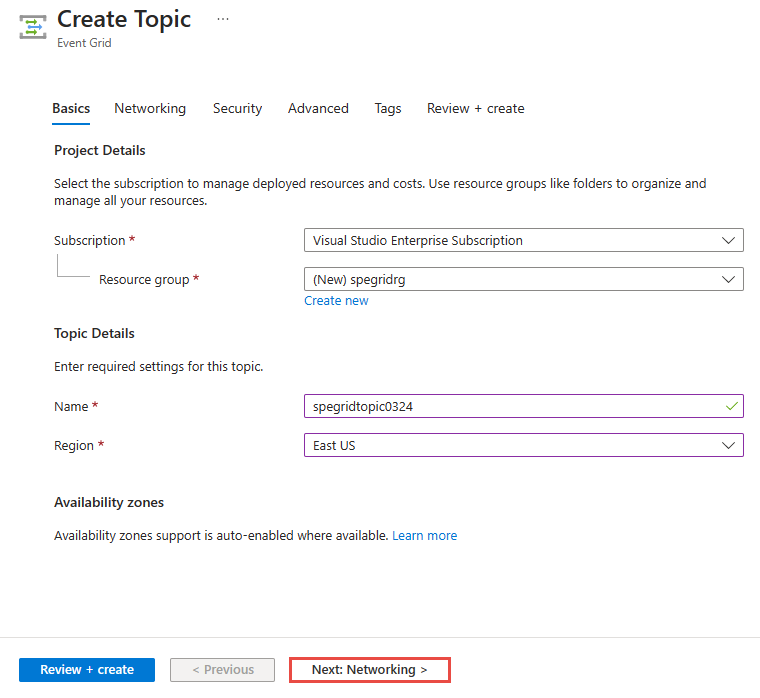
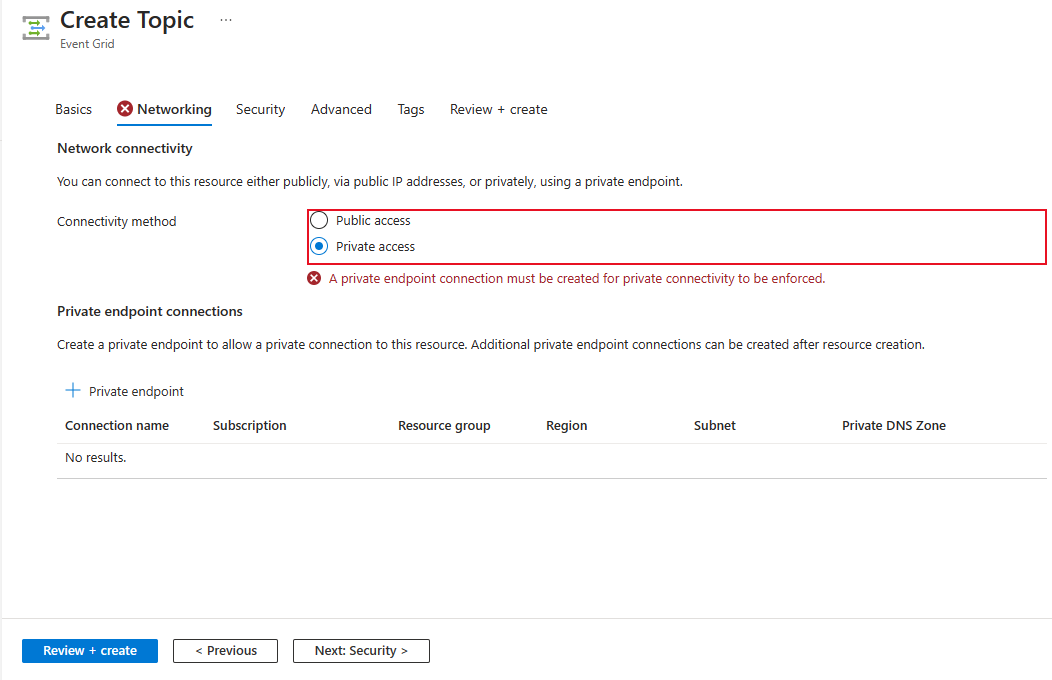
若要允许通过专用终结点访问事件网格主题,请选择 “专用访问 ”选项。
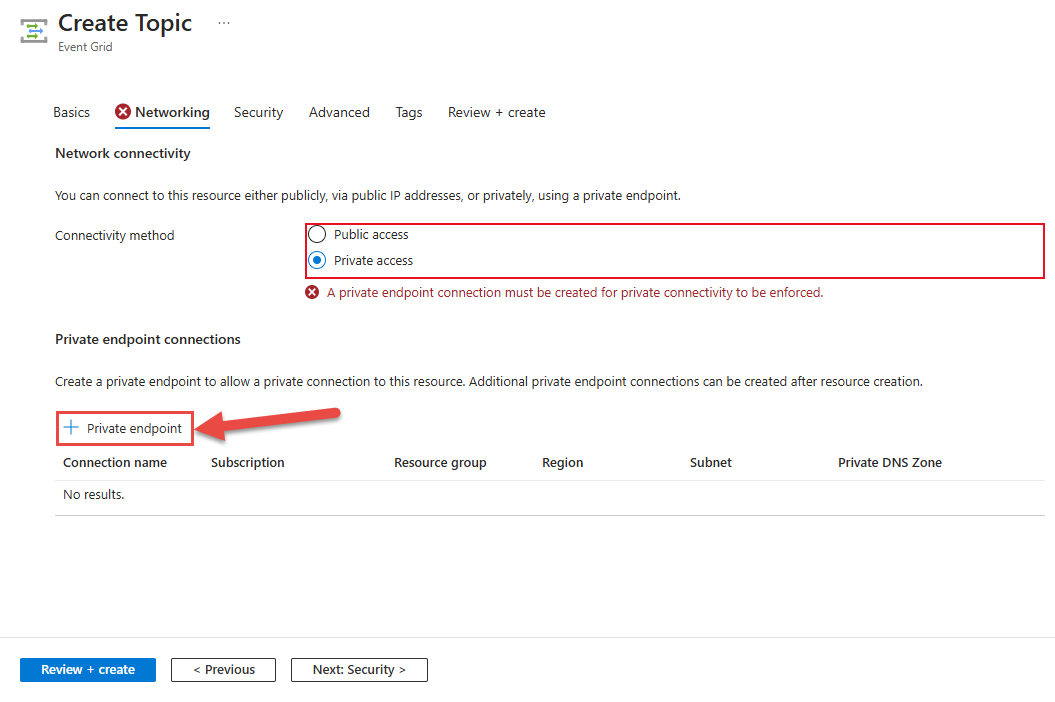
在“专用终结点连接”部分,选择“+ 专用终结点”按钮。
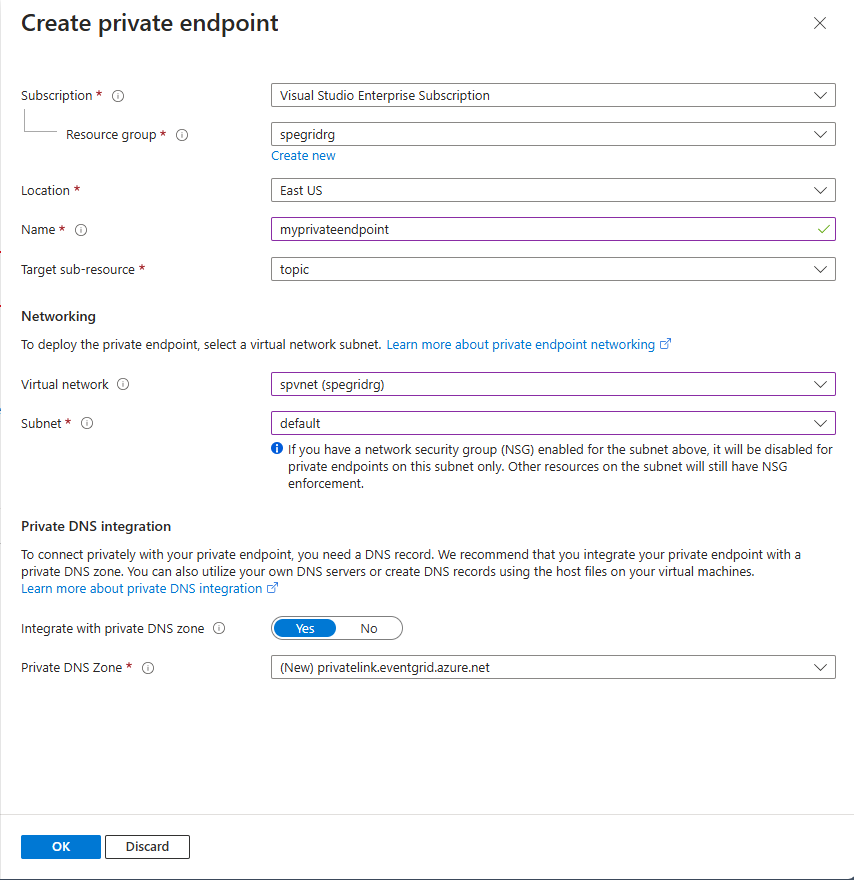
在“创建专用终结点”页上,按照以下步骤操作:
- 对于名称,请输入专用终结点的名称。
- 选择一个虚拟网络。 下拉列表中仅列出了当前所选订阅和位置中的虚拟网络。
- 在所选的虚拟网络中选择一个“子网”。
- 请选择是否要将专用终结点与专用 DNS 区域集成。
- 选择“确定”。
现在,在“创建主题”页上,选择页面底部的“查看 + 创建”。
在“查看 + 创建”页面上,选择“创建”。
对于现有主题
登录 Azure 门户并导航到主题或域。
切换到主题页的“网络”选项卡。 在 “公共访问 ”选项卡上, 仅选择“专用终结点”。
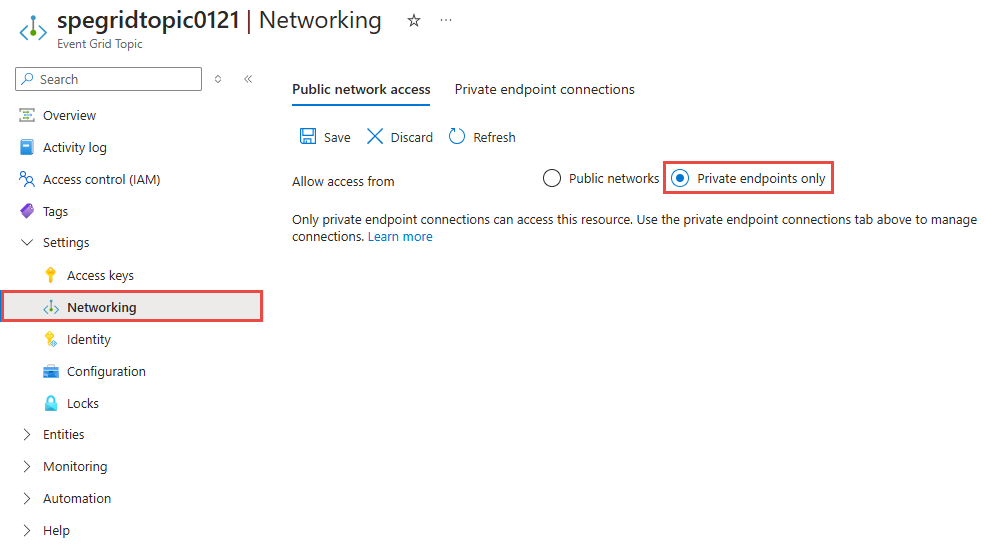
切换到“专用终结点连接”选项卡,然后选择工具栏上的“+ 专用终结点”。
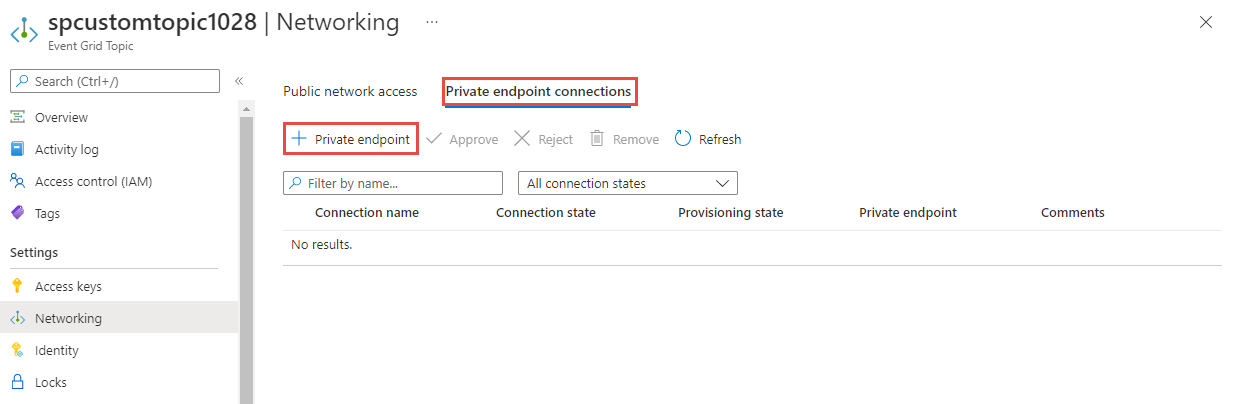
在“基本信息”页上执行以下步骤:
选择要在其中创建专用终结点的 Azure 订阅。
为专用终结点选择一个Azure 资源组。
为终结点输入名称。
如果需要,请更新网络接口的名称。
为该端点选择区域。 专用终结点必须与虚拟网络位于同一区域,但可以位于与专用链接资源不同的区域(在本示例中为事件网格主题)。
选择 “下一步:资源 >”。
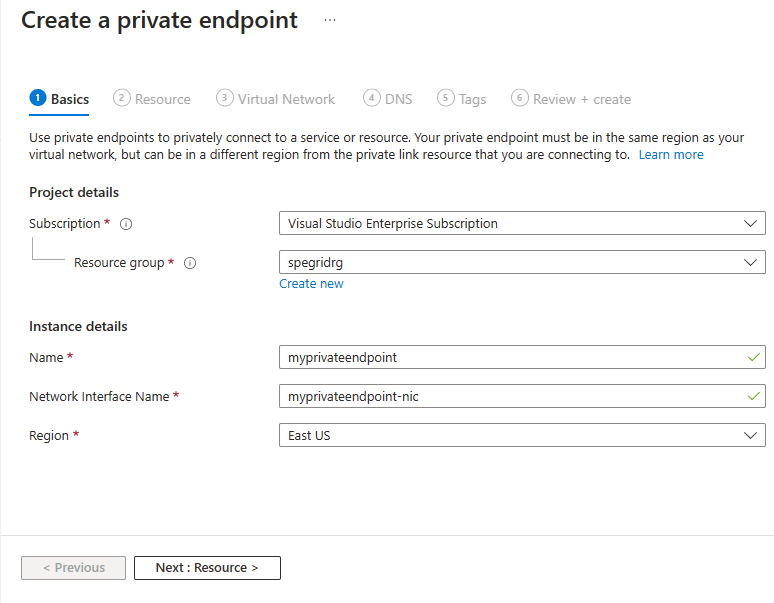
在“资源”页上,确认为“目标”子资源选择了主题,然后选择“下一步:虚拟网络>”。
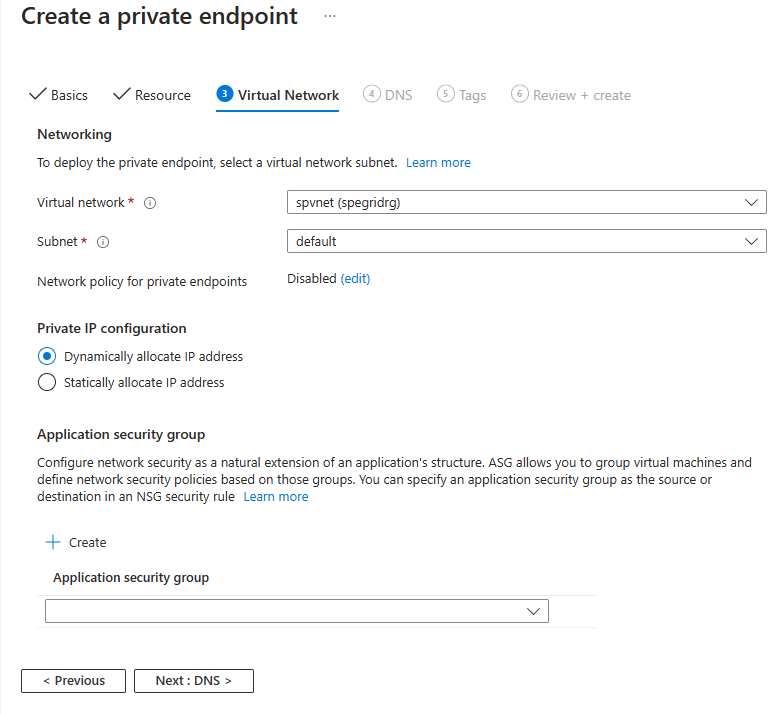
在虚拟网络页上,选择要在其中部署专用终结点的virtual network中的子网。
选择一个虚拟网络。 下拉列表中仅列出了当前所选订阅和位置中的虚拟网络。
在所选的虚拟网络中选择一个“子网”。
指定是要静态还是动态分配 IP 地址。
选择现有的应用程序安全组 或创建一个,然后与专用终结点关联。
选择 “下一步:DNS >”。
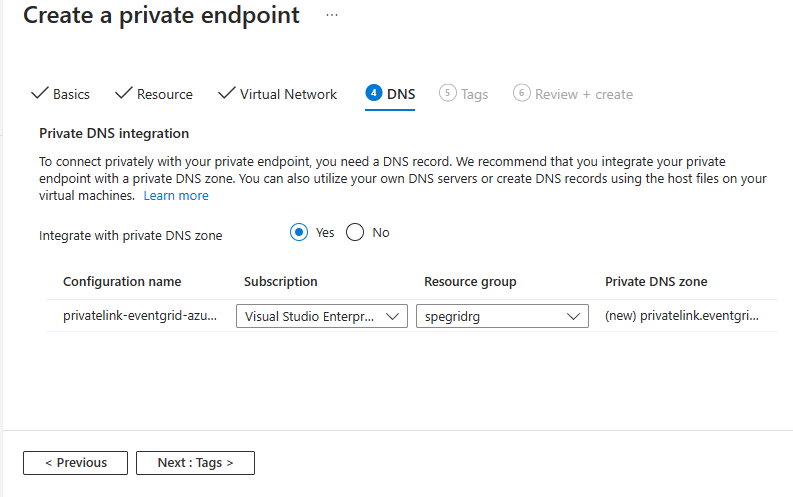
在 DNS 页上,选择是否希望专用终结点与 专用 DNS 区域集成,然后选择“ 下一步:标记”。
在“标记”页上,创建要与专用终结点资源关联的任何标记(名称和值)。 然后选择 “查看 + 创建”。
在“查看 + 创建”页上查看所有设置,然后选择“创建”以创建专用终结点 。
管理专用链接
创建专用终结点时,必须批准连接。 如果要为其创建专用终结点的资源位于你的目录中,在拥有足够权限的前提下,你可以批准连接请求。 如果要连接到另一个目录中的 Azure 资源,必须等待该资源的所有者批准你的连接请求。
有四种预配状态:
| 服务行动 | 服务使用者专用终结点状态 | Description |
|---|---|---|
| None | Pending | 连接是手动创建的,正等待专用链接资源所有者批准。 |
| 审批 | Approved | 连接已自动或手动批准,随时可供使用。 |
| 拒绝 | Rejected | 私有链接资源的所有者拒绝了连接。 |
| Remove | 已断开连接 | 连接已被专用链接资源所有者删除,专用终结点变为仅供参考,应将其删除以进行清理。 |
如何管理专用终结点连接
以下部分说明了如何批准或拒绝专用终结点连接。
- 登录到 Azure 门户。
- 在搜索栏中,输入 事件网格主题 或 事件网格域。
- 选择要管理的主题或域 。
- 选择“网络”选项卡。
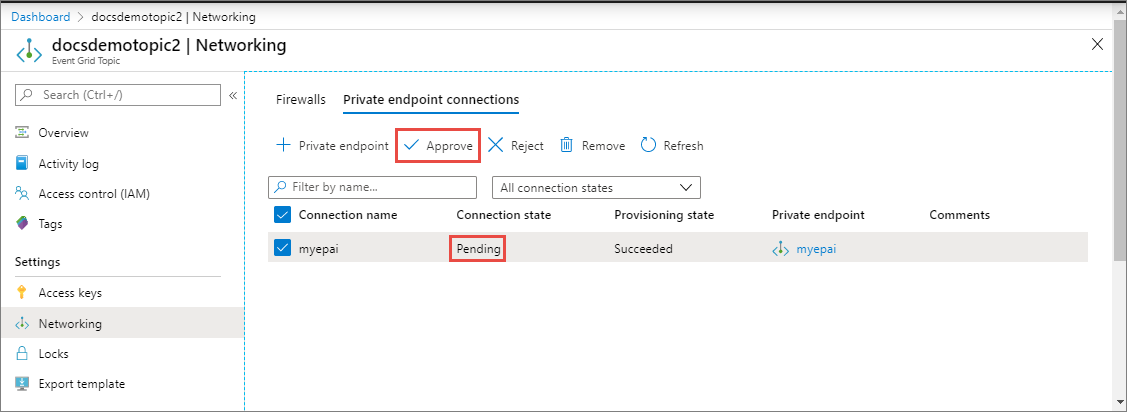
- 如果有任何待处理的连接,你将看到某个连接列出为其预配状态显示为 Pending。
批准专用终结点
可以批准处于待定状态的专用终结点。 若要批准,请按照下列步骤进行操作:
注释
本部分中显示的步骤主要适用于主题。 你可以使用类似步骤来批准 域 的专用终结点。
选择要批准的 专用终结点 ,然后选择工具栏上的 “批准 ”。
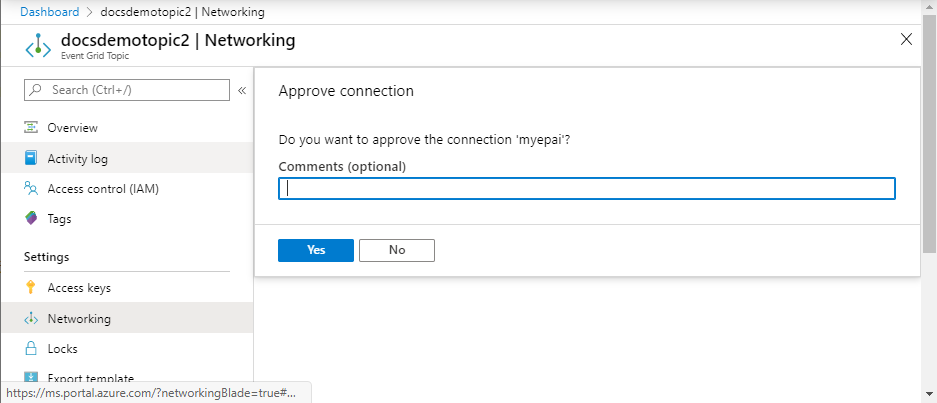
在“批准连接”对话框上,输入注释(可选),然后选择“是” 。
确认终结点的状态显示为 “已批准”。
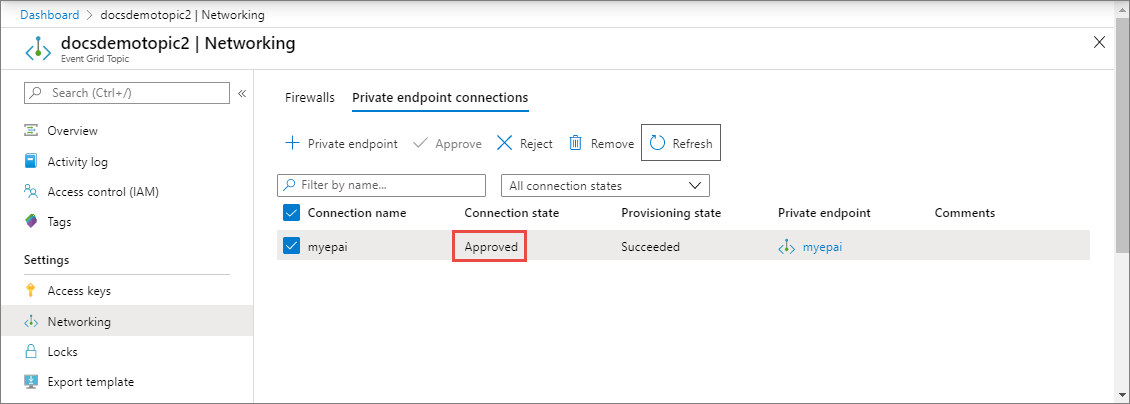
拒绝专用终结点
可以拒绝处于待定状态或已获批准状态的专用终结点。 若要拒绝,请按照下列步骤操作:
注释
本节介绍的步骤适用于专题。 你可以使用类似的步骤来拒绝 域名 的专用终结点。
选择要拒绝的 专用终结点 ,然后在工具栏上选择 “拒绝 ”。
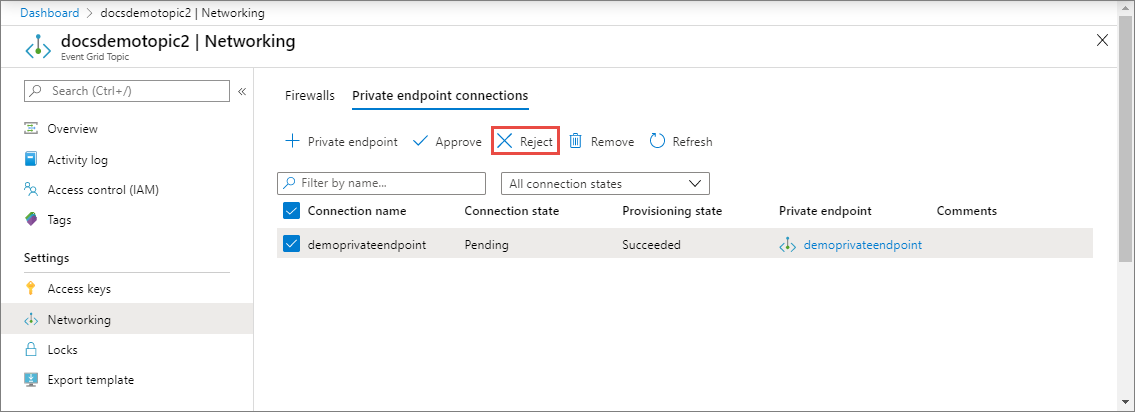
在“拒绝连接”对话框上,输入注释(可选),然后选择“是” 。
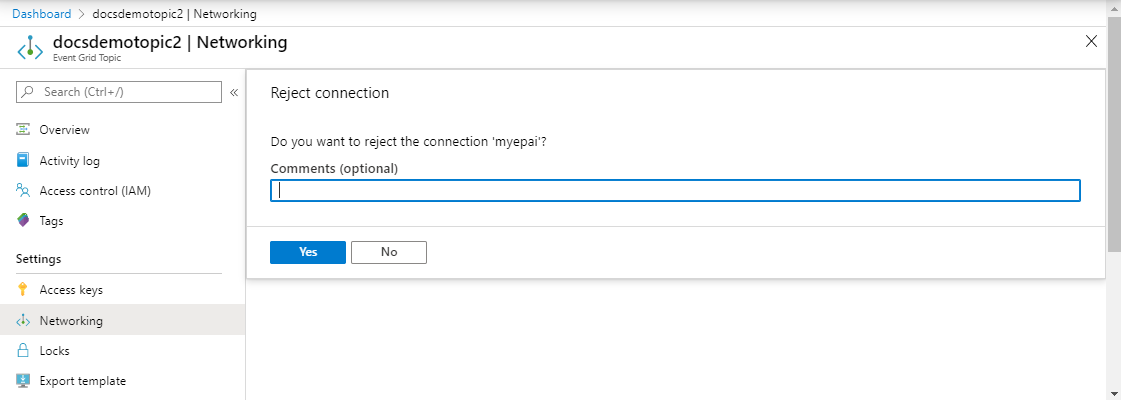
确认终结点的状态显示为 “已拒绝”。
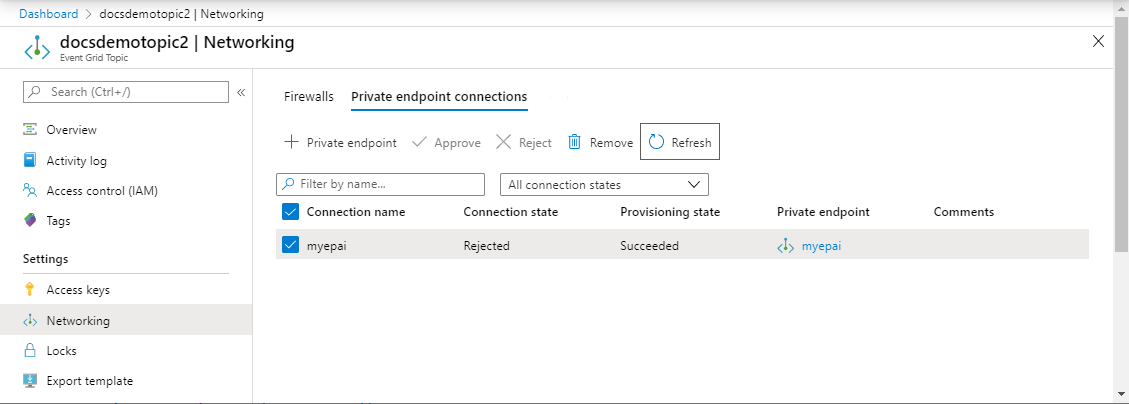
注释
专用终结点一旦被拒绝,就无法在 Azure 门户中批准。
使用Azure CLI
先决条件
通过运行以下命令更新适用于 CLI 的 Azure 事件网格扩展:
az extension update -n eventgrid
如果未安装扩展,请运行以下命令进行安装:
az extension add -n eventgrid
创建专用终结点
若要创建专用终结点,请使用 az network private-endpoint create 方法,如以下示例所示:
az network private-endpoint create \
    --resource-group <RESOURCE GROUP NAME> \
    --name <PRIVATE ENDPOINT NAME> \
    --vnet-name <VIRTUAL NETWORK NAME> \
    --subnet <SUBNET NAME> \
    --private-connection-resource-id "/subscriptions/<SUBSCRIPTION ID>/resourceGroups/<RESOURCE GROUP NAME>/providers/Microsoft.EventGrid/topics/<TOPIC NAME>" \
    --connection-name <PRIVATE LINK SERVICE CONNECTION NAME> \
    --location <LOCATION> \
    --group-ids topic
有关此示例中使用的参数的说明,请参阅关于 az network private-endpoint create 的文档。 在此示例中,需要注意以下几点:
- 对于
private-connection-resource-id,请指定主题或域的资源 ID 。 前面的示例使用的类型是主题。 - 对于
group-ids,请指定topic或domain。 在前面的示例中,使用的是topic。
若要删除专用终结点,请使用 az network private-endpoint delete 方法,如以下示例所示:
az network private-endpoint delete --resource-group <RESOURCE GROUP NAME> --name <PRIVATE ENDPOINT NAME>
注释
本节介绍的步骤适用于专题。 您可以使用类似的步骤为 域 创建专用终结点。
示例脚本
下面是创建以下 Azure 资源的示例脚本:
- 资源组
- 虚拟网络
- 虚拟网络中的子网
- Azure 事件网格主题
- 主题的专用终结点
注释
本节介绍的步骤适用于专题。 可以使用类似的步骤来创建域的专用终结点。
subscriptionID="<AZURE SUBSCRIPTION ID>"
resourceGroupName="<RESOURCE GROUP NAME>"
location="<LOCATION>"
vNetName="<VIRTUAL NETWORK NAME>"
subNetName="<SUBNET NAME>"
topicName = "<TOPIC NAME>"
connectionName="<ENDPOINT CONNECTION NAME>"
endpointName=<ENDPOINT NAME>

# resource ID of the topic. replace <SUBSCRIPTION ID>, <RESOURCE GROUP NAME>, and <TOPIC NAME>
# topicResourceID="/subscriptions/<SUBSCRIPTION ID>/resourceGroups/<RESOURCE GROUP NAME>/providers/Microsoft.EventGrid/topics/<TOPIC NAME>"

# select subscription
az account set --subscription $subscriptionID

# create resource group
az group create --name $resourceGroupName --location $location

# create vnet
az network vnet create \
    --resource-group $resourceGroupName \
    --name $vNetName \
    --address-prefix 10.0.0.0/16

# create subnet
az network vnet subnet create \
    --resource-group $resourceGroupName \
    --vnet-name $vNetName \
    --name $subNetName \
    --address-prefixes 10.0.0.0/24

# disable private endpoint network policies for the subnet
az network vnet subnet update \
    --resource-group $resourceGroupName \
    --vnet-name $vNetName \
    --name $subNetName \
    --disable-private-endpoint-network-policies true

# create event grid topic. update <LOCATION>
az eventgrid topic create \
    --resource-group $resourceGroupName \
    --name $topicName \
    --location $location

# verify that the topic was created.
az eventgrid topic show \
    --resource-group $resourceGroupName \
    --name $topicName

# create private endpoint for the topic you created
az network private-endpoint create \
    --resource-group $resourceGroupName \
    --name $endpointName \
    --vnet-name $vNetName \
    --subnet $subNetName \
    --private-connection-resource-id $topicResourceID \
    --connection-name $connectionName \
    --location $location \
    --group-ids topic

# get topic
az eventgrid topic show \
    --resource-group $resourceGroupName \
    --name $topicName
批准专用终结点
下面的示例 CLI 代码片段演示如何批准专用终结点连接。
az eventgrid topic private-endpoint-connection approve \
    --resource-group $resourceGroupName \
    --topic-name $topicName \
    --name  $endpointName \
    --description "connection approved"
拒绝专用终结点
下面的示例 CLI 代码片段演示如何拒绝专用终结点连接。
az eventgrid topic private-endpoint-connection reject \
    --resource-group $resourceGroupName \
    --topic-name $topicName \
    --name $endpointName \
    --description "Connection rejected"
禁用公共网络访问
默认情况下,为事件网格主题或域启用公共网络访问。 若仅允许通过专用终结点进行访问,请运行以下命令来禁用公共网络访问:
az eventgrid topic update \
    --resource-group $resourceGroupName \
    --name $topicName \
    --public-network-access disabled
使用 PowerShell
本部分演示如何使用 PowerShell 为主题或域创建专用终结点。 下面是包含注释的示例脚本。
# name of an Azure resource group to be created
$resourceGroupName = "contosorg"

# location where you want the resources to be created
$location ="chinanorth2"

# name of the VNet to be created
$vnetName = "contosovnet"

# name of the subnet to be created in the VNet
$subnetName = "example-privatelinksubnet"

# name of the Event Grid topic to be created
$egridTopicName = "contosotopic"

# name of the private link service connection to be created
$privateLinkServiceConnectionName = "spegridplsconn"

# name of the private endpoint connection to be created
$privateEndpointConnectionName = "spegridpe11"

#

# create resource group
New-AzResourceGroup -Name $resourceGroupName -Location $location

# create virtual network
$virtualNetwork = New-AzVirtualNetwork `
                    -ResourceGroupName $resourceGroupName `
                    -Location $location `
                    -Name $vnetName  `
                    -AddressPrefix 10.0.0.0/16

# create subnet with endpoint network policy disabled
$subnetConfig = Add-AzVirtualNetworkSubnetConfig `
                    -Name $subnetName `
                    -AddressPrefix 10.0.0.0/24 `
                    -PrivateEndpointNetworkPoliciesFlag "Disabled" `
                    -VirtualNetwork $virtualNetwork

# update virtual network
$virtualNetwork | Set-AzVirtualNetwork

# get virtual network (optional)
$virtualNetwork = Get-AzVirtualNetwork `
                    -ResourceGroupName $resourceGroupName `
                    -Name $vnetName

# create an Event Grid topic with public network access disabled.
$topic = New-AzEventGridTopic -ResourceGroupName $resourceGroupName -Name $egridTopicName -Location $location -PublicNetworkAccess disabled

# create a private link service connection to the Event Grid topic.
# For topics, set GroupId to 'topic'. For domains, it's 'domain'
$privateEndpointConnection = New-AzPrivateLinkServiceConnection `
                                -Name "privateLinkServiceConnectionName" `
                                -PrivateLinkServiceId $topic.id `
                                -GroupId "topic"

# get subnet info
$subnet = $virtualNetwork | Select -ExpandProperty subnets `
                             | Where-Object  {$_.Name -eq $subnetName }

# now, you are ready to create a private endpoint
$privateEndpoint = New-AzPrivateEndpoint -ResourceGroupName $resourceGroupName  `
                                        -Name privateEndpointConnectionName   `
                                        -Location $location `
                                        -Subnet  $subnet   `
                                        -PrivateLinkServiceConnection $privateEndpointConnection

# verify that the endpoint is created
Get-AzPrivateEndpoint -ResourceGroupName $resourceGroupName  -Name privateEndpointConnectionName
批准专用终结点连接
下面的示例 PowerShell 代码片段演示如何批准专用终结点。
注释
本节介绍的步骤适用于专题。 你可以使用类似步骤来批准 域 的专用终结点。
# list all private endpoints for the topic
$topic = Get-AzEventGridTopic -ResourceGroup <RESOURCE GROUP NAME> - Name <TOPIC NAME>
$endpointList = Get-AzPrivateEndpointConnection -PrivateLinkResourceId $topic.Id

# filter the private endpoints using a name
 $pseEndpoint = $endpointList | Where-Object {     $_.Name.StartsWith('<MYENDPOINTNAME>') }

# approve the endpoint connection
Approve-AzPrivateEndpointConnection -ResourceId $pseEndpoint.Id

# get the endpoint connection to verify that it's approved
Get-AzPrivateEndpointConnection -ResourceId $pseEndpoint.Id
拒绝专用终结点连接
以下示例演示如何使用 PowerShell 拒绝专用终结点。 可从上一个 GET 命令的结果中获取专用终结点的 GUID。
注释
本节介绍的步骤适用于专题。 你可以使用类似的步骤来拒绝 域名 的专用终结点。
# list all private endpoints for the topic
$topic = Get-AzEventGridTopic -ResourceGroup <RESOURCE GROUP NAME> - Name <TOPIC NAME>
$endpointList = Get-AzPrivateEndpointConnection -PrivateLinkResourceId $topic.Id


# filter the private endpoints using a name
 $pseEndpoint = $endpointList | Where-Object {     $_.Name.StartsWith('<MYENDPOINT>') }

# deny or reject the private endpoint connection
Deny-AzPrivateEndpointConnection -ResourceId $pseEndpoint.Id

# get the endpoint connection to verify that it's rejected
Get-AzPrivateEndpointConnection -ResourceId $pseEndpoint.Id
即使通过 API 拒绝连接后,仍可以批准该连接。 如果你使用 Azure 门户,则无法批准已被拒绝的终端节点。