Observação
O acesso a essa página exige autorização. Você pode tentar entrar ou alterar diretórios.
O acesso a essa página exige autorização. Você pode tentar alterar os diretórios.
用于.NET的 Application Insights Profiler 从正在运行的 ASP.NET Core 应用程序捕获性能跟踪,以显示哪些代码路径在负载下变慢。 当应用在容器中运行时,可以使用最少的代码更改来启用 Profiler,以查找并修复生产中的这些性能瓶颈。
本文介绍如何将 Profiler 添加到容器化 ASP.NET Core应用,将其连接到 Application Insights 资源,以及查看 Profiler 收集的跟踪。
在本文中,你将了解:
- 安装 NuGet 包并在项目中启用 Profiler。
- 在应用设置中设置 Application Insights 连接字符串。
- 生成并运行容器,然后查看.NET探查器跟踪。
先决条件
- Application Insights 资源。 记下连接字符串。
- Docker Desktop,用于生成 Docker 映像。
- 已安装 .NET 6 SDK。
设置示例项目并启用.NET探查器
克隆并使用以下示例项目:
git clone https://github.com/microsoft/ApplicationInsights-Profiler-AspNetCore.git转到容器应用示例:
cd ApplicationInsights-Profiler-AspNetCore

cd examples/EnableServiceProfilerForContainerAppNet6
运行以下 CLI 命令以创建此 barebones 示例项目:
dotnet new mvc -n EnableServiceProfilerForContainerAppControllers/WeatherForecastController.cs文件包含一个用于模拟瓶颈的延迟。[HttpGet(Name = "GetWeatherForecast")] public IEnumerable<WeatherForecast> Get() { SimulateDelay(); ... // Other existing code. } private void SimulateDelay() { // Delay for 500ms to 2s to simulate a bottleneck. Thread.Sleep((new Random()).Next(500, 2000)); }添加用于收集 .NET Profiler 跟踪的 NuGet 包:
dotnet add package Microsoft.ApplicationInsights.Profiler.AspNetCore启用 Application Insights 和 .NET Profiler。
在
builder.Services.AddApplicationInsightsTelemetry()中的builder.Services.AddServiceProfiler()方法后面添加WebApplication.CreateBuilder()和Program.cs:var builder = WebApplication.CreateBuilder(args); builder.Services.AddApplicationInsightsTelemetry(); // Add this line of code to enable Application Insights. builder.Services.AddServiceProfiler(); // Add this line of code to enable Profiler builder.Services.AddControllersWithViews(); var app = builder.Build();有关自定义设置,请参阅 “自定义 Application Insights Profiler”。
拉取最新的 ASP.NET Core 6.0 生成和运行时映像
转到 .NET Core 6.0 示例目录:
cd examples/EnableServiceProfilerForContainerAppNet6拉取最新的 ASP.NET Core 映像:
docker pull mcr.microsoft.com/dotnet/sdk:6.0
docker pull mcr.microsoft.com/dotnet/aspnet:6.0
提示
查找 .NET SDK 和 ASP.NET Core运行时的官方 Docker 映像。
添加 Application Insights 连接字符串
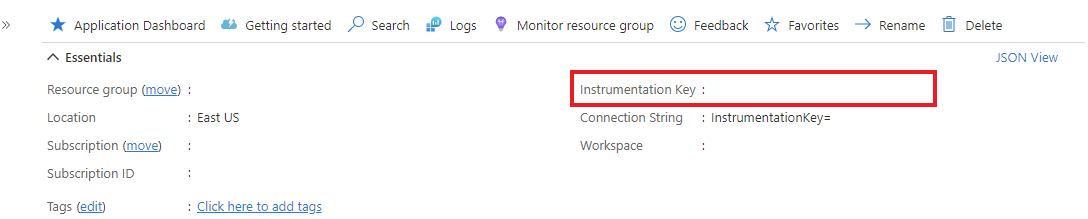
在 Azure 门户中,打开 Application Insights 资源。 在“概述”页面上,记下你的 Application Insights 连接字符串。
打开
appsettings.json并将您的 Application Insights 连接字符串添加到此代码部分:{ "ApplicationInsights": { "ConnectionString": "Your connection string" } }
生成并运行 Docker 映像
查看 Docker 文件。
生成示例映像:
docker build -t profilerapp .运行容器:
docker run -d -p 8080:80 --name testapp profilerapp
在浏览器中查看容器
若要访问示例应用的 weatherforecast 终结点,有两个选项:
在浏览器中,访问
http://localhost:8080/weatherforecast。使用
curl:curl http://localhost:8080/weatherforecast
检查性能分析会话的容器日志
(可选)检查本地日志,以查看.NET探查器会话是否已完成:
docker logs testapp
在本地日志中,请注意以下事件:
Starting application insights profiler with connection string: your-connection string # Double check the connection string
Service Profiler session started.               # Profiler started.
Finished calling trace uploader. Exit code: 0   # Uploader is called with exit code 0.
Service Profiler session finished.              # A profiling session is completed.
排查丢失的 .NET Profiler 跟踪问题
如果找不到应用中的跟踪,请考虑按照本 故障排除指南中的步骤操作。
查看 .NET Profiler 跟踪
等待两到五分钟,以便 Application Insights 可以聚合事件。
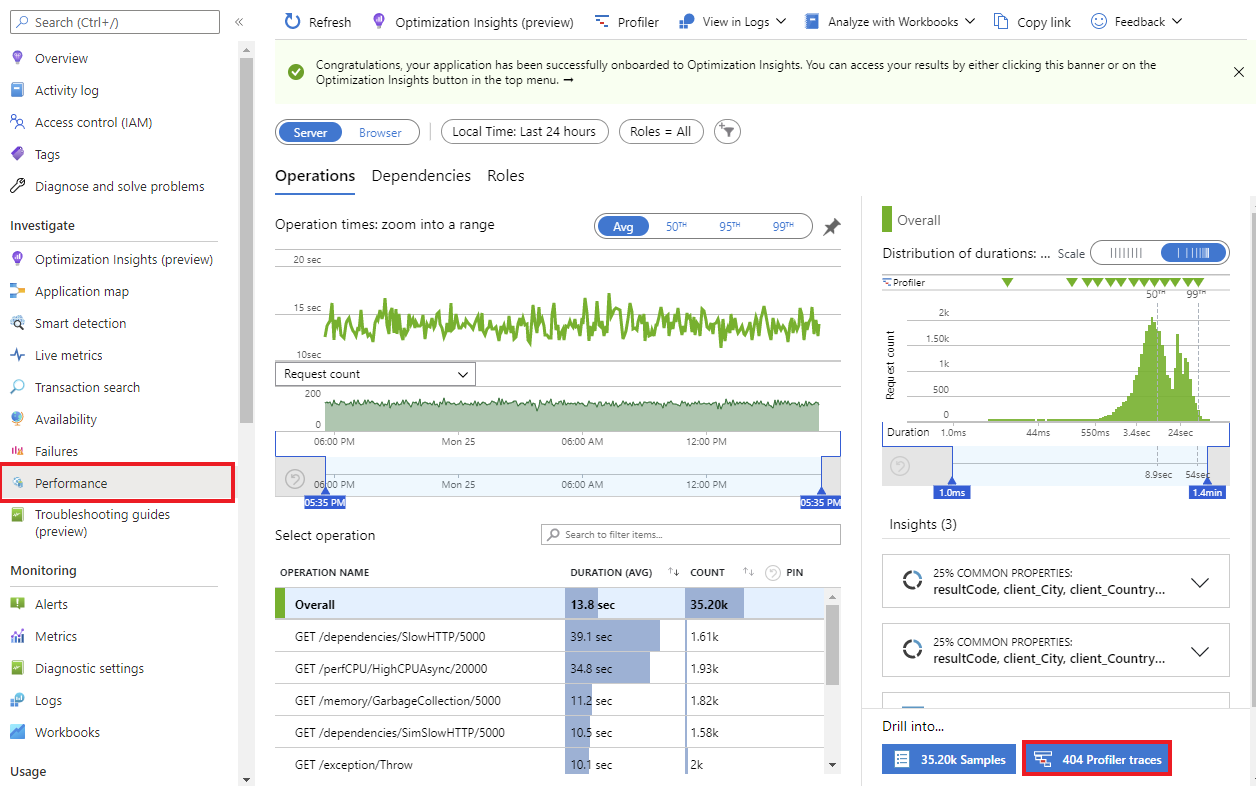
在 Azure 门户中,打开 Application Insights 资源。 在左侧菜单中,选择“ 调查>性能”。
跟踪过程完成后,将显示 “探查器跟踪 ”按钮。
清理资源
运行以下命令停止示例项目:
docker rm -f testapp