Observação
O acesso a essa página exige autorização. Você pode tentar entrar ou alterar diretórios.
O acesso a essa página exige autorização. Você pode tentar alterar os diretórios.
适用对象:
 Mongodb
重要
你是否正在寻找一种数据库解决方案,以应对需要高扩展性、99.999% 可用性服务级别协议(SLA)、即时自动扩展和跨多个区域的自动故障转移的场景? 请考虑使用 Azure Cosmos DB for NoSQL。
本文介绍了在 Azure Cosmos DB for MongoDB 中创建集合的不同方法。 它演示如何使用Azure portal、Azure CLI、PowerShell 或支持的软件开发工具包(SDK)创建集合。 本文演示如何创建集合、指定分区键和预配吞吐量。
注释
容器和集合类似于关系数据库中的表。 我们在适用于 NoSQL 的 Azure Cosmos DB 和整个 Azure portal 中引用 containers,而我们在 Azure Cosmos DB for MongoDB 的上下文中使用 collections 来匹配 MongoDB 中使用的术语。
本文介绍了在 Azure Cosmos DB for MongoDB 中创建集合的不同方法。 如果使用其他 API,请参阅 适用于 NoSQL 的 API、 Cassandra API、 Gremlin API 和 用于表 文章的 API 来创建集合。
注释
创建集合时,请确保不创建名称相同但大小写不同的两个集合。 这因为Azure平台的某些部分对集合的名称不区分大小写,这可能会导致遥测数据和操作在这些名称上发生混淆或碰撞。
使用Azure portal创建
注释
资源名称(例如表名、数据库名)和资源标签中不得包含任何个人、敏感或机密信息。 你在这些字段中输入的数据不被视为客户数据。
登录到 Azure portal。
创建新的 Azure Cosmos DB 帐户,或选择现有帐户。
打开 数据资源管理器 窗格,然后选择 New Container。 接下来,请提供以下详细信息:
- 指示是要创建新数据库还是使用现有数据库。
- 输入容器 ID。
- 输入分片键。
- 输入要进行预配的吞吐量(例如,1000 RU)。
- 选择“确定”。
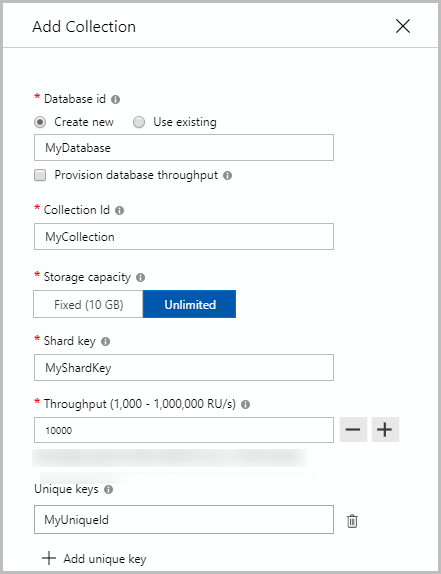
使用 .NET SDK 创建
var bson = new BsonDocument
{
    { "customAction", "CreateCollection" },
    { "collection", "<CollectionName>" },//update CollectionName
    { "shardKey", "<ShardKeyName>" }, //update ShardKey
    { "offerThroughput", 400} //update Throughput
};
var shellCommand = new BsonDocumentCommand<BsonDocument>(bson);
// Create a collection with a partition key by using Mongo Driver:
db.RunCommand(shellCommand);
如果创建集合时遇到超时异常,请执行读取操作来验证是否已成功创建集合。 成功完成集合创建操作之前,读取操作将引发异常。 有关创建操作支持的状态代码列表,请参阅 Azure Cosmos DB 的 HTTP 状态代码的文章。
使用 Azure 资源管理器 模板创建集合
使用 资源管理器 模板为 MongoDB 的 API 创建 Azure Cosmos DB 集合。
后续步骤
- Azure Cosmos DB 中的 分区
- Azure Cosmos DB 中的请求单位
- 在容器和数据库上预配吞吐量
- 与 Azure Cosmos DB 帐户合作
- 尝试为迁移到 Azure Cosmos DB 做容量规划? 可以使用有关现有数据库群集的信息进行容量规划。
- 如果你只知道现有数据库群集中的 vCore 和服务器数量,请阅读根据 vCore 或 vCPU 数量估算请求单位数
- 如果您知道当前数据库工作负荷的典型请求速率,请阅读有关使用 Azure Cosmos DB 容量规划工具来估计请求单位的文章