Observação
O acesso a essa página exige autorização. Você pode tentar entrar ou alterar diretórios.
O acesso a essa página exige autorização. Você pode tentar alterar os diretórios.
本快速入门介绍如何使用 Azure.Messaging.ServiceBus .NET 库将消息发送到 Service Bus 主题,并从该主题的订阅中接收消息。
在本快速入门中,你将执行以下步骤:
- 使用 Azure 门户创建Service Bus命名空间。
- 使用 Azure 门户创建Service Bus主题。
- 使用 Azure 门户为该主题创建 Service Bus 订阅。
- 编写.NET控制台应用程序以向主题发送一组消息。
- 编写.NET控制台应用程序以从订阅接收这些消息。
注意
本快速指南提供了分步说明,演示如何将一批消息发送到 Service Bus 主题,并从该主题的订阅中接收这些消息的简单场景。 有关其他和高级方案的更多示例,请参阅 GitHub 上的 Service Bus .NET 示例。
- 本快速入门指南介绍了两种连接到 Azure Service Bus 的方法:连接字符串 (connection string) 和 无密码认证 (passwordless)。 第一个选项演示如何使用connection string连接到Service Bus命名空间。 第二个选项演示如何在Microsoft Entra ID中使用安全主体和基于角色的访问控制(RBAC)连接到Service Bus命名空间。 不必担心在您的代码、配置文件或安全存储(例如 Azure Key Vault)中硬编码连接字符串。 如果你不熟悉Azure,你可能会发现connection string选项更易于遵循。 建议在实际应用程序和生产环境中使用无密码选项。 有关详细信息,请参阅身份验证和授权。
先决条件
在尝试本快速入门之前,如果您对该服务不熟悉,请参阅Service Bus 概述。
- Azure 订阅。 若要使用Azure服务(包括Azure Service Bus),需要订阅。 如果您还没有现有的 Azure 帐户,可以注册 试用订阅。
-
Visual Studio 2022 或更高版本。 示例应用程序利用 C# 10 中引入的新功能。 你仍然可以将Service Bus客户端库与以前的 C# 语言版本一起使用,但语法可能会有所不同。 若要使用最新的语法,建议安装 .NET 6.0 或更高版本,并将语言版本设置为
latest。 如果使用Visual Studio,则 Visual Studio 2022 之前的版本与生成 C# 10 项目所需的工具不兼容。
在 Azure 门户中创建命名空间
若要开始在Azure中使用Service Bus消息传送实体,请创建名称在Azure中唯一的命名空间。 命名空间为应用程序中Service Bus资源(如队列和主题)提供范围容器。
创建命名空间:
登录到 Azure 门户。
从左上角选择浮出控件菜单,然后转到“ 所有服务 ”页。
在左侧导航栏上,选择 “集成”。
向下滚动到 Messaging services,将鼠标悬停在 Service Bus 上,然后选择 Create。
屏幕截图显示选择“创建资源”、“集成”,然后在菜单中选择“服务总线”。 在“创建命名空间”页的“基本信息”选项卡中,执行以下步骤:
对于Subscription,请选择要用来创建命名空间的 Azure 订阅。
对于资源组,选择现有资源组或创建新的资源组。
输入符合以下命名约定的 命名空间名称 :
- 名称在Azure中必须唯一。 系统会立即检查该名称是否可用。
- 名称长度最少为 6 个字符,最多为 50 个字符。
- 名称只能包含字母、数字和连字符
-。 - 名称必须以字母开头,并且必须以字母或数字结尾。
- 名称不以
-sb或-mgmt结尾。
对于 “位置”,请选择要托管命名空间的区域。
对于“定价层”,请选择命名空间的定价层(“基本”、“标准”或“高级”)。 对于本快速入门,请选择“标准”。
如果选择 高级 层,可以为命名空间启用 异地复制 。 异地复制功能可确保命名空间的元数据和数据从主要区域持续复制到一个或多个次要区域。
重要
若要使用主题和订阅,请选择“标准”或“高级”。 基本定价层不支持主题和订阅。
如果选择了“高级”定价层,请指定“消息传送单元”数。 高级层在 CPU 和内存级别提供资源隔离,使每个工作负荷在隔离的环境中运行。 此资源容器称为 消息传送单元。 高级命名空间至少具有一个消息传送单元。 可以为每个Service Bus高级命名空间选择 1、2、4、8 或 16 个消息传送单元。 有关详细信息,请参阅Service Bus高级消息传送层。
在页面底部选择查看 + 创建。
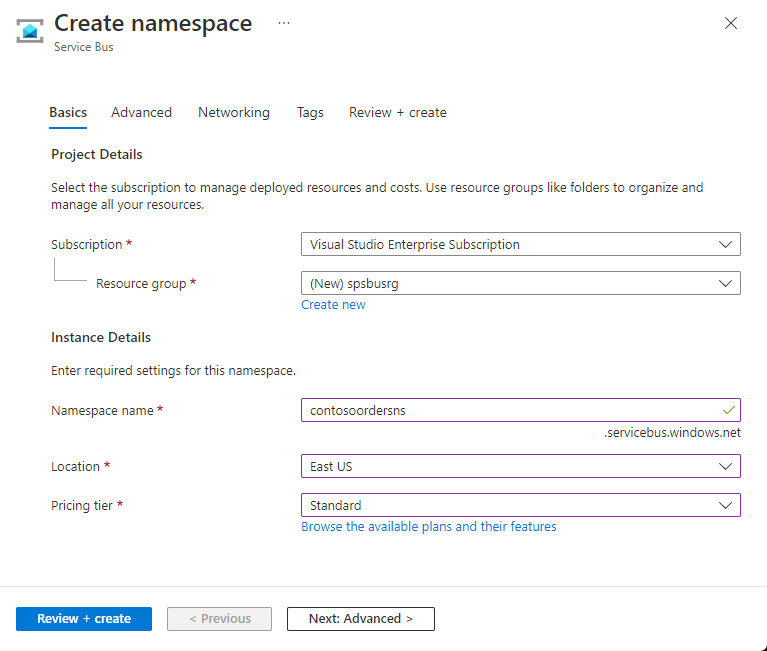
在 “审阅 + 创建 ”页上,查看设置,然后选择“ 创建”。
部署资源成功后,在部署页上选择 “转到资源 ”。
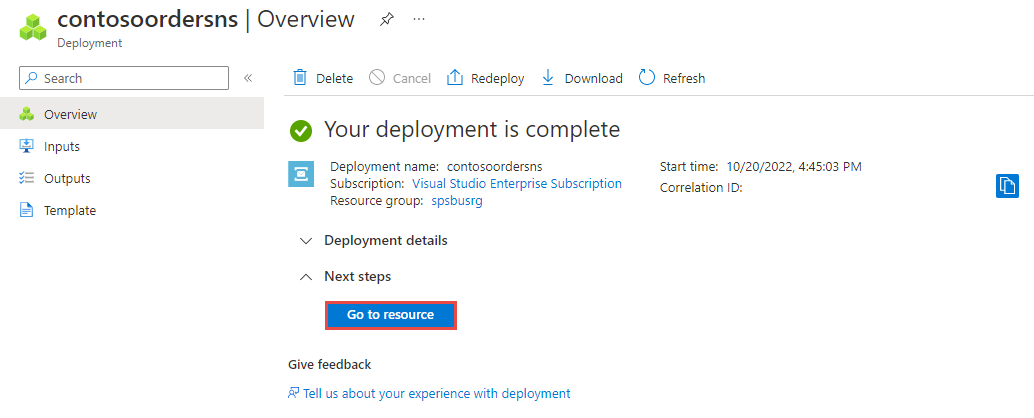
将会看到服务总线命名空间的主页。
Screenshot 显示 Service Bus 命名空间已创建的主页。
使用 Azure 门户创建主题
在Service Bus命名空间页上,展开左侧导航菜单上的Entities,然后在左侧菜单中选择Topics。
在工具栏中选择“+ 主题”。
输入主题名称。 将其他选项保留默认值。
选择 创建。
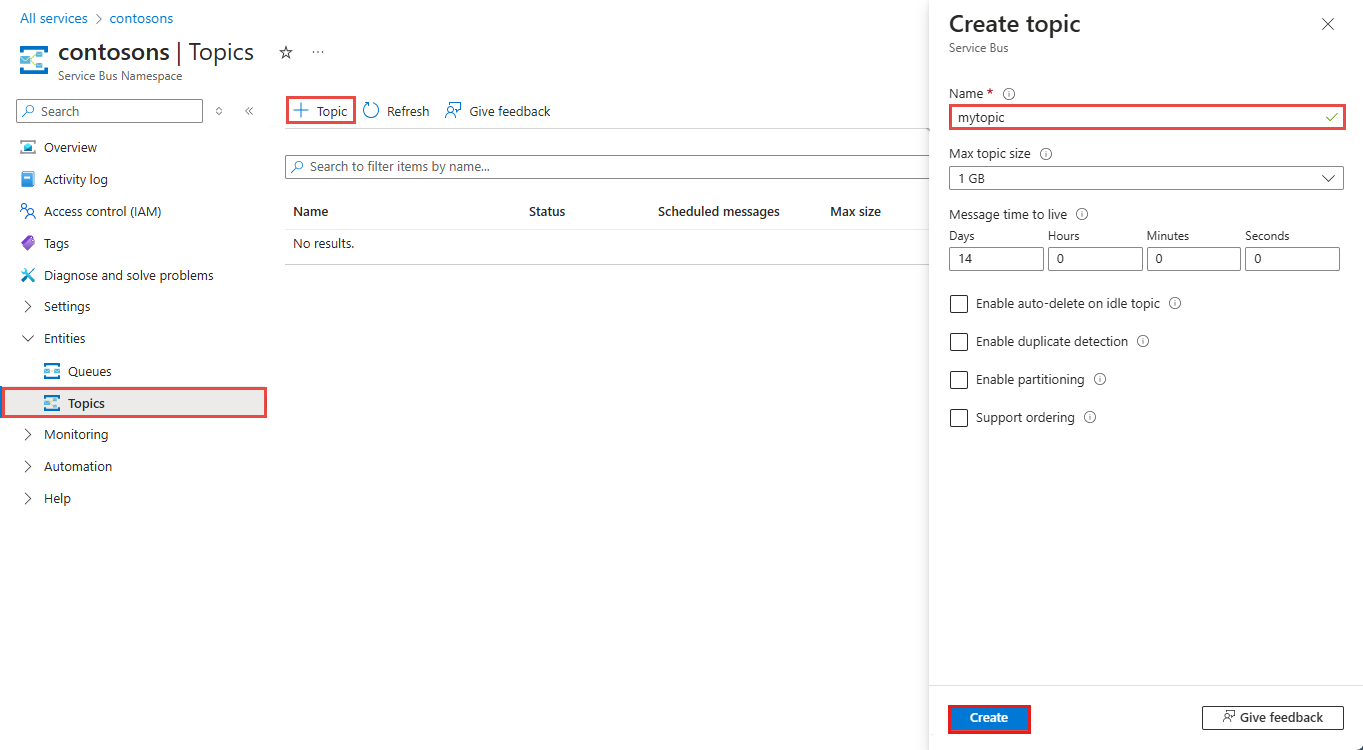
创建主题的订阅
选择在上一部分创建的“主题”。
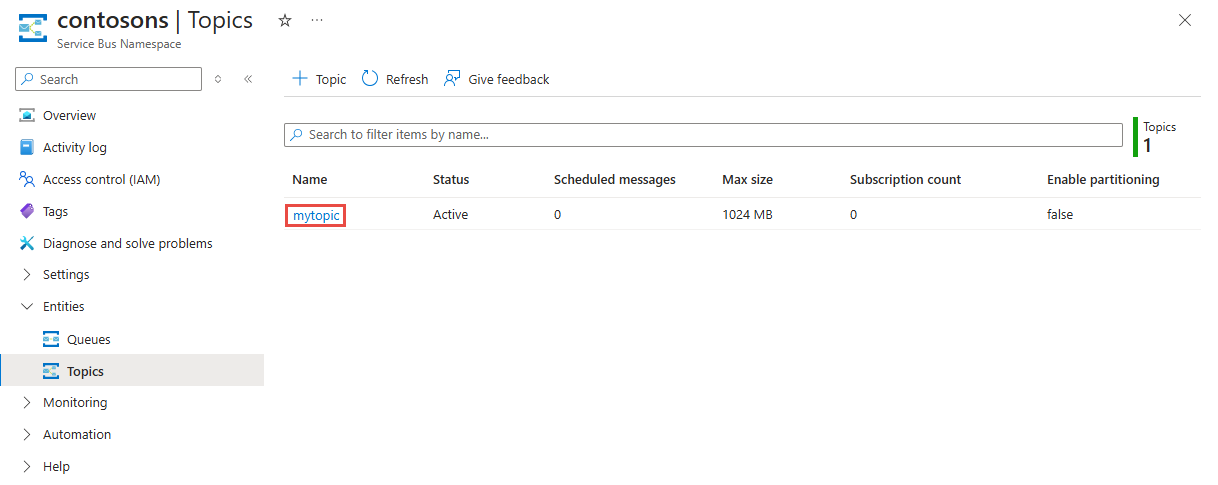
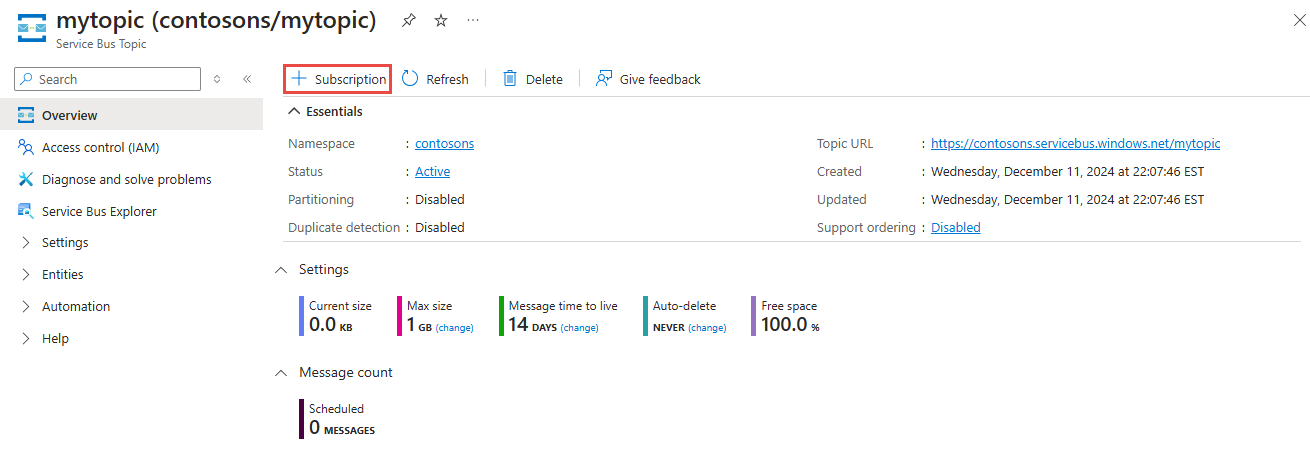
在Service Bus主题页上,选择工具栏上的+ 订阅。
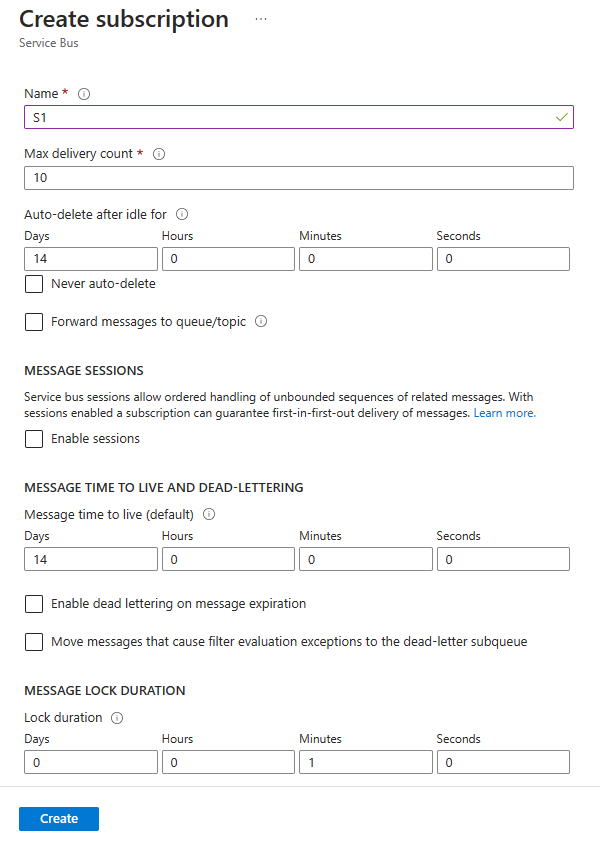
在“创建订阅”页上执行以下步骤:
对于订阅名称,输入“S1”。
然后,选择“创建”以创建订阅。
将应用程序认证到 Azure
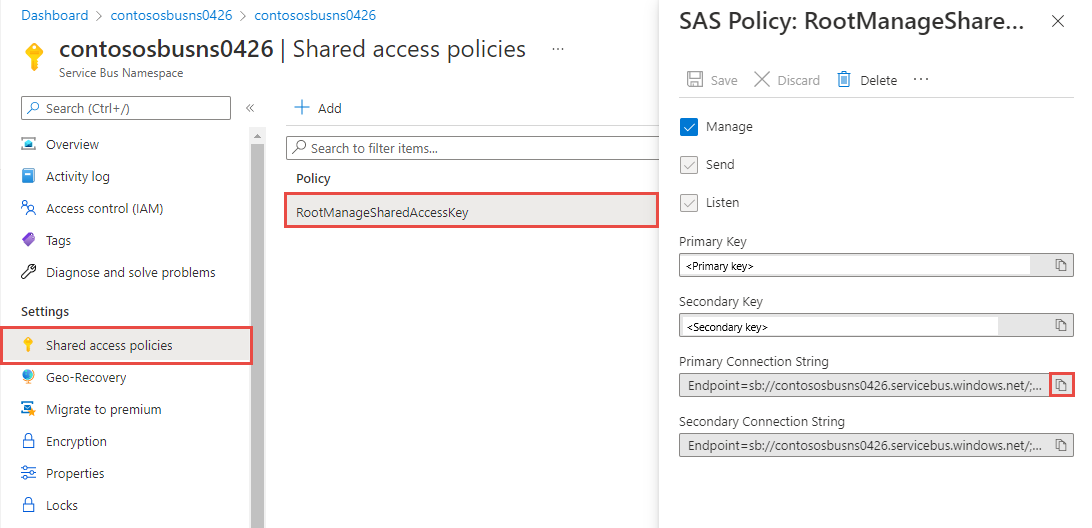
本文介绍了连接到 Azure Service Bus的两种方法:passwordless 和 connection string。
第一个选项演示如何在Microsoft Entra ID和基于角色的访问控制(RBAC)中使用安全主体连接到Service Bus命名空间。 不必担心在代码、配置文件或安全存储(如 Azure Key Vault)中使用硬编码的连接字符串。
第二个选项演示如何使用connection string连接到Service Bus命名空间。 如果你不熟悉Azure,你可能会发现connection string选项更易于遵循。 建议在实际应用程序和生产环境中使用无密码选项。 有关详细信息,请参阅 Service Bus身份验证和授权。 若要详细了解无密码身份验证,请参阅 Authenticate .NET 应用。
将角色分配给Microsoft Entra用户
在本地开发时,请确保连接到Azure Service Bus的用户帐户具有正确的权限。 需要Azure Service Bus数据所有者角色才能发送和接收消息。 若要将此角色分配给自己,您需要 "User Access Administrator" 角色或其他包含 Microsoft.Authorization/roleAssignments/write 操作的角色。
可以使用Azure门户、Azure CLI或Azure PowerShell向用户分配Azure RBAC 角色。 若要详细了解角色分配的可用范围,请参阅 Azure RBAC 的可用范围。
以下示例将 Azure Service Bus Data Owner 角色分配给用户帐户,该角色提供对Azure Service Bus资源的完全访问权限。 在实际方案中,遵循 最低特权原则 ,仅向用户授予更安全的生产环境所需的最低权限。
Azure Service Bus 的 Azure 内置角色
对于Azure Service Bus,通过 Azure 门户和Azure资源管理 API 管理命名空间和所有相关资源已使用 Azure RBAC 模型进行保护。 Azure提供以下Azure内置角色,用于授权访问Service Bus命名空间:
- Azure Service Bus数据所有者:允许数据访问Service Bus命名空间及其实体,包括队列、主题、订阅和筛选器。 此角色的成员可以从队列或主题/订阅发送和接收消息。
-
Azure Service Bus数据发送方:使用此角色授予对Service Bus命名空间及其实体
send访问权限。 -
Azure Service Bus数据接收器:使用此角色向
receive授予对Service Bus命名空间及其实体的访问权限。
若要创建自定义角色,请参阅 Service Bus 操作所需的权限。
将Microsoft Entra用户添加到Azure Service Bus所有者角色
将您的 Microsoft Entra 用户名添加到 Service Bus 命名空间层级的 Azure Service Bus 数据所有者 角色。 此配置允许在用户帐户上下文中运行的应用将消息发送到队列或主题。 它可以接收来自队列或主题订阅的消息。
重要
在大多数情况下,角色分配在 Azure 中需要一到两分钟才能传播。 在极少数情况下,最多可能需要 8 分钟才能完成。 如果在首次运行代码时收到身份验证错误,请稍等片刻再试。
如果没有在Azure门户中打开Service Bus命名空间页,请使用主搜索栏或左侧导航找到Service Bus命名空间。
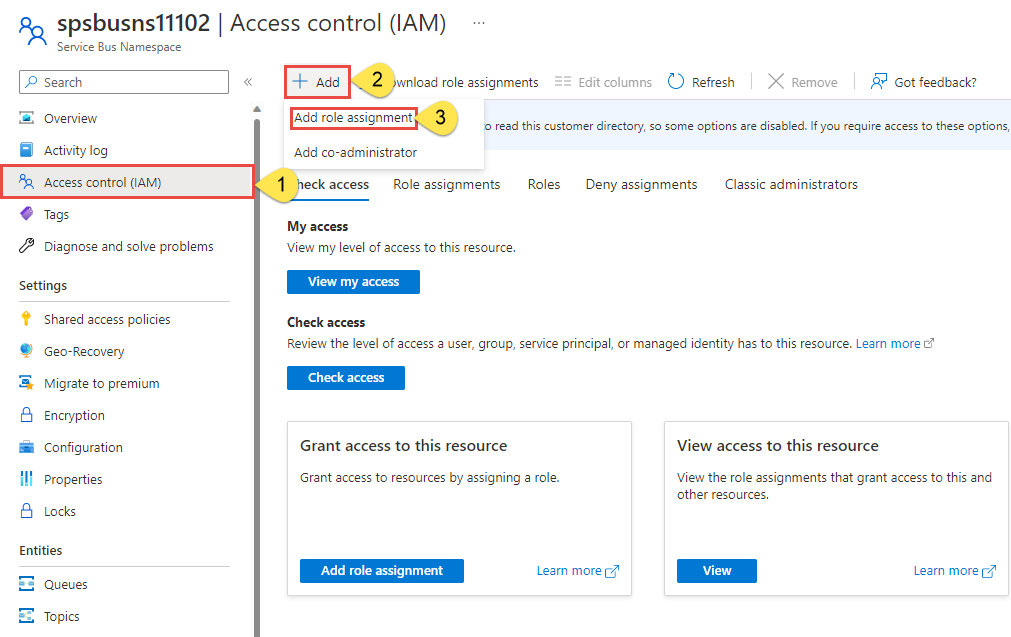
在 “概述 ”页上,从左侧菜单中选择 “访问控制”(IAM )。
在“访问控制 (IAM)”页上,选择“角色分配”选项卡。
从顶部菜单中选择 “+ 添加” ,然后 添加角色分配。
使用搜索框将结果筛选为所需角色。 对于此示例,请搜索
Azure Service Bus Data Owner并选择匹配的结果。 然后选择“下一步”。在“访问权限分配对象”下,选择“用户、组或服务主体”,然后选择“+ 选择成员”。
在对话框中,搜索Microsoft Entra用户名(通常是user@domain电子邮件地址),然后选择对话框底部的选择。
选择“审核 + 指派”转到最后一页,然后再次选择“审核 + 指派”以完成该过程。
启动Visual Studio
可以使用以下步骤授权对服务总线命名空间的访问:
启动Visual Studio。 如果看到“入门”窗口,请在右窗格中选择“在不使用代码的情况下继续”链接。
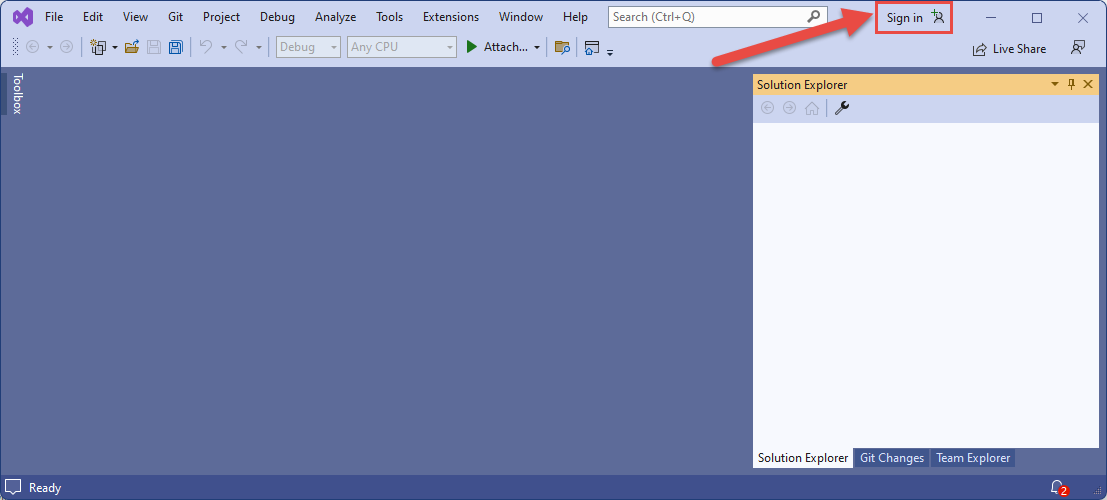
选择Visual Studio右上角的 Sign in 按钮。
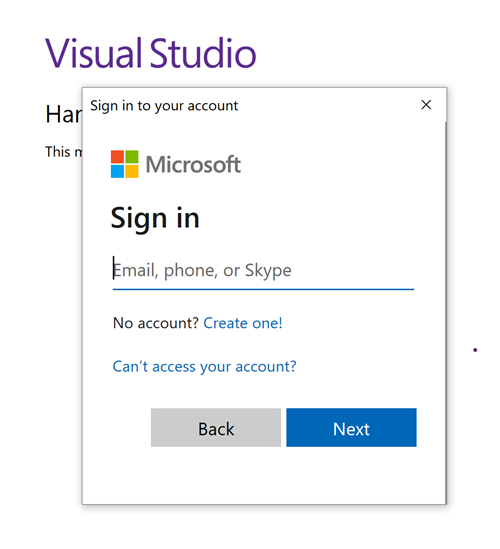
使用您之前分配了角色的 Microsoft Entra 帐户登录。
将消息发送到主题
本部分介绍如何创建.NET控制台应用程序以将消息发送到Service Bus主题。
注意
本快速指南提供了分步说明,演示如何将一批消息发送到 Service Bus 主题,并从该主题的订阅中接收这些消息的简单场景。 有关其他和高级方案的更多示例,请参阅 GitHub 上的 Service Bus .NET 示例。
创建控制台应用程序
- 在 Visual Studio 中,选择 File ->New ->Project 菜单。
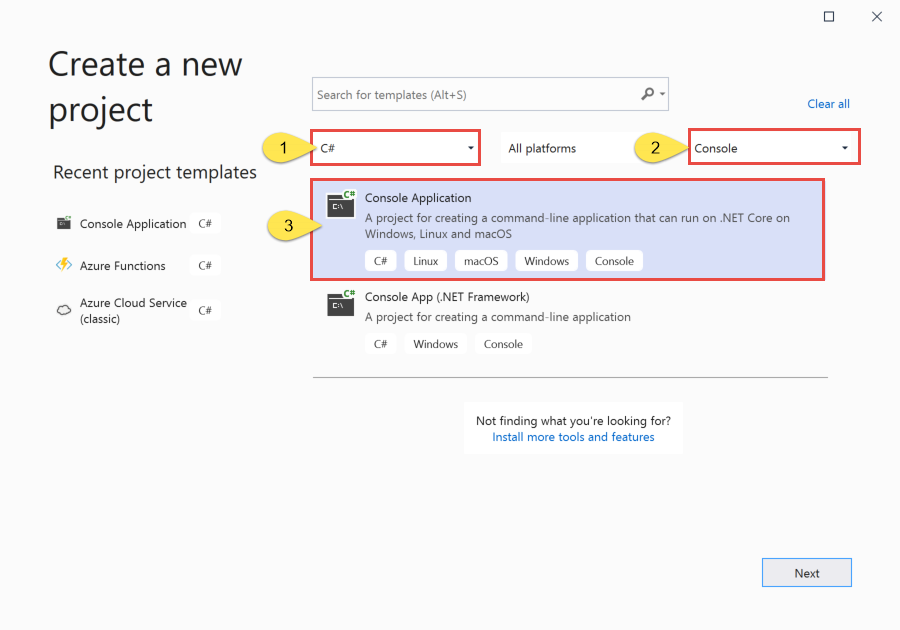
- 在“创建新项目”对话框中,执行以下步骤:如果看不到此对话框,请在菜单中选择“文件”,然后依次选择“新建”、“项目”。
选择“C#”作为编程语言。
选择“控制台”作为应用程序类型。
从结果列表中选择“控制台应用”。
然后,选择下一步。
- 输入 TopicSender 作为项目名称,输入 ServiceBusTopicQuickStart 作为解决方案名称,然后选择“下一步”。
- 在“其他信息”页面,选择“创建”来创建解决方案和项目。
向项目添加 NuGet 包
从菜单中选择 Tools>NuGet Package Manager>Package Manager Console。
运行以下命令以安装 Azure。Messaging.ServiceBus NuGet 包。
Install-Package Azure.Messaging.ServiceBus运行以下命令来安装 Azure.Identity NuGet 包。
Install-Package Azure.Identity
添加代码以将消息发送到主题
将 Program.cs 的内容替换为以下代码。 本部分概述了重要步骤,并在代码注释中提供了其他信息。
- 使用 对象创建
DefaultAzureCredential对象。DefaultAzureCredential会自动发现并使用Visual Studio登录的凭据对Azure Service Bus进行身份验证。 - 对 对象调用
ServiceBusClient方法,为特定Service Bus主题创建 ServiceBusSender 对象。 - 使用 ServiceBusSender.CreateMessageBatchAsync 创建 ServiceBusMessageBatch 对象。
- 使用 ServiceBusMessageBatch.TryAddMessage 将消息添加到该批次。
- 使用 ServiceBusSender.SendMessagesAsync 方法将批量消息发送到 Service Bus 主题。
重要
使用您的 Service Bus 命名空间和主题的名称更新代码片段中的占位符值(
<NAMESPACE-NAME>和<TOPIC-NAME>)。using System.Threading.Tasks; using Azure.Messaging.ServiceBus; using Azure.Identity; // the client that owns the connection and can be used to create senders and receivers ServiceBusClient client; // the sender used to publish messages to the topic ServiceBusSender sender; // number of messages to be sent to the topic const int numOfMessages = 3; // The Service Bus client types are safe to cache and use as a singleton for the lifetime // of the application, which is best practice when messages are being published or read // regularly. //TODO: Replace the "<NAMESPACE-NAME>" and "<TOPIC-NAME>" placeholders. client = new ServiceBusClient( "<NAMESPACE-NAME>.servicebus.chinacloudapi.cn", new DefaultAzureCredential()); sender = client.CreateSender("<TOPIC-NAME>"); // create a batch using ServiceBusMessageBatch messageBatch = await sender.CreateMessageBatchAsync(); for (int i = 1; i <= numOfMessages; i++) { // try adding a message to the batch if (!messageBatch.TryAddMessage(new ServiceBusMessage($"Message {i}"))) { // if it is too large for the batch throw new Exception($"The message {i} is too large to fit in the batch."); } } try { // Use the producer client to send the batch of messages to the Service Bus topic await sender.SendMessagesAsync(messageBatch); Console.WriteLine($"A batch of {numOfMessages} messages has been published to the topic."); } finally { // Calling DisposeAsync on client types is required to ensure that network // resources and other unmanaged objects are properly cleaned up. await sender.DisposeAsync(); await client.DisposeAsync(); } Console.WriteLine("Press any key to end the application"); Console.ReadKey();- 使用 对象创建
生成项目并确保没有错误。
运行程序并等待出现确认消息。
A batch of 3 messages has been published to the topic重要
在大多数情况下,角色分配在 Azure 中需要一到两分钟才能传播。 在极少数情况下,最多可能需要 8 分钟才能完成。 如果在首次运行代码时收到身份验证错误,请稍等片刻再试。
在 Azure 门户中,按照以下步骤做:
导航到 Service Bus 命名空间。
在 Overview 页上的底部中间窗格中,切换到 Topics 选项卡,然后选择Service Bus主题。 下面的示例中采用的是
mytopic。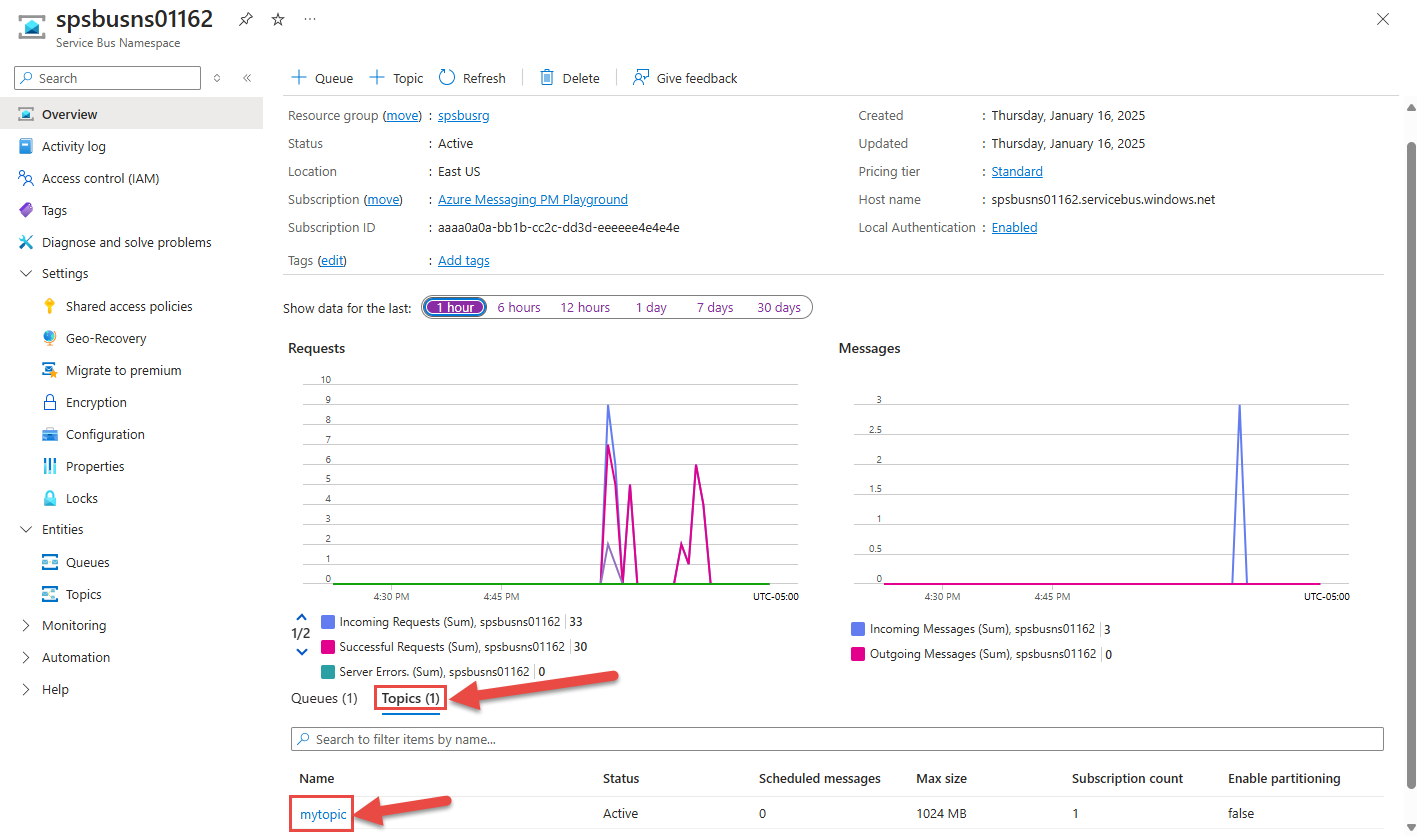
在Service Bus主题页面底部的消息图表中的指标部分,可以看到主题有三条传入消息。 如果未看到该值,请等待几分钟,然后刷新页面以查看更新后的图表。
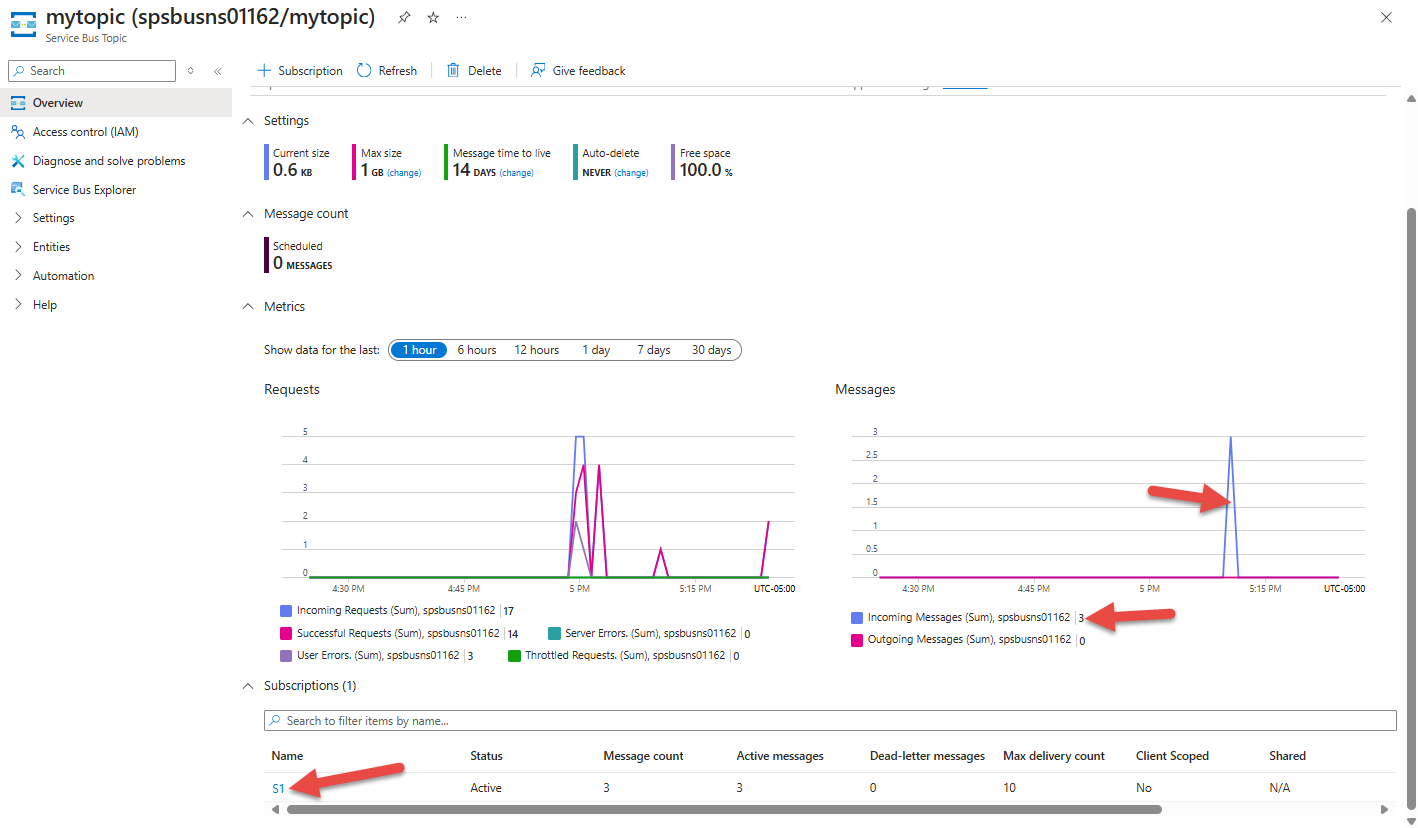
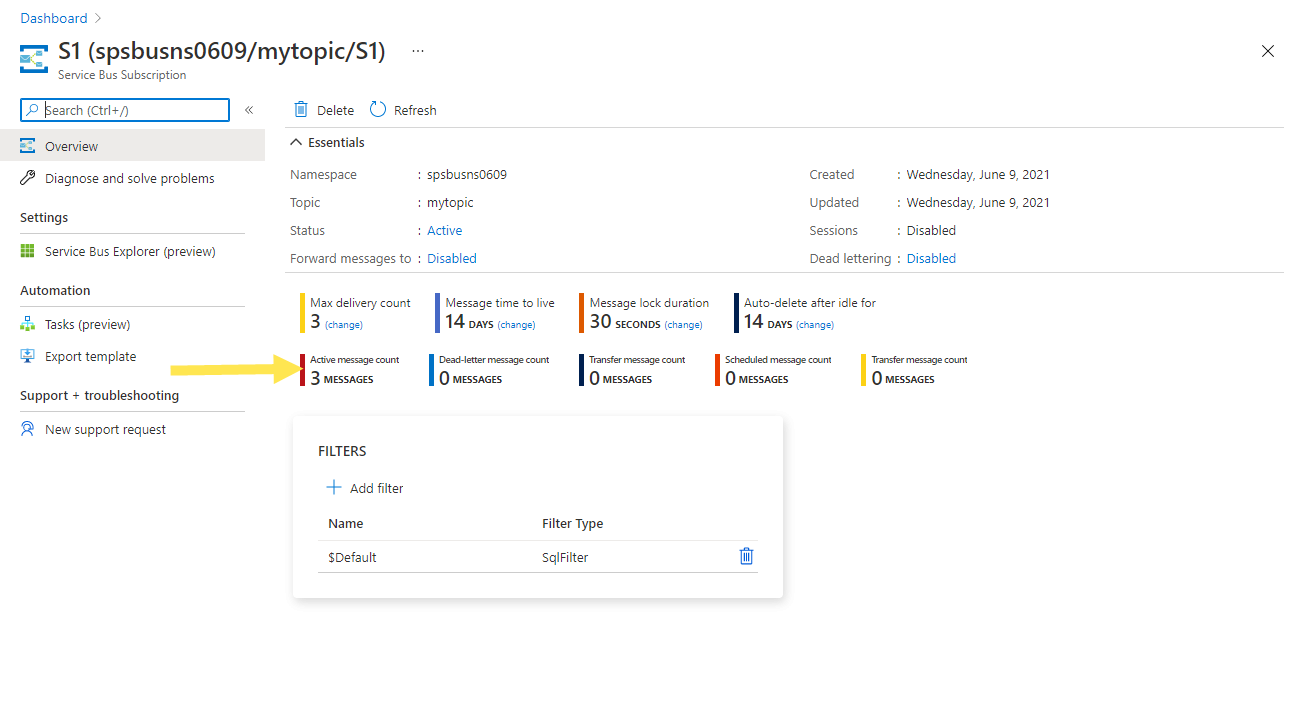
在底部窗格中选择订阅。 下面的示例中采用的是 S1。 在 Service Bus Subscription 页上,可以看到 Active message count 为 3。 订阅已接收你发送到主题的三条消息,但接收方尚未选择它们。
从订阅接收消息
在本节中,您将创建一个 .NET 控制台应用程序,该应用程序从服务总线主题的订阅中接收消息。
注意
本快速指南提供了分步说明,演示如何将一批消息发送到 Service Bus 主题,并从该主题的订阅中接收这些消息的简单场景。 有关其他和高级方案的更多示例,请参阅 GitHub 上的 Service Bus .NET 示例。
为接收器创建项目
- 在Solution Explorer窗口中,右键单击 ServiceBusTopicQuickStart 解决方案,指向 Add,然后选择 New Project。
- 选择控制台应用程序,然后选择下一步。
- 输入 SubscriptionReceiver 作为“项目名称”,然后选择“下一步”。
- 在“其他信息”页上,选择“创建”。
- 在 Solution Explorer 窗口中,右键单击 SubscriptionReceiver,然后选择 Set 作为启动项目。
向项目添加 NuGet 包
从菜单中选择 Tools>NuGet Package Manager>Package Manager Console。
在“默认项目”下拉列表处选择“SubscriptionReceiver”。
运行以下命令以安装 Azure。Messaging.ServiceBus NuGet 包。
Install-Package Azure.Messaging.ServiceBus运行以下命令来安装 Azure.Identity NuGet 包。
Install-Package Azure.Identity
添加代码以从订阅接收消息
在本部分中,你将添加用于从订阅检索消息的代码。
将
Program.cs的现有内容替换为以下属性和方法:using System.Threading.Tasks; using Azure.Messaging.ServiceBus; using Azure.Identity; // the client that owns the connection and can be used to create senders and receivers ServiceBusClient client; // the processor that reads and processes messages from the subscription ServiceBusProcessor processor; // handle received messages async Task MessageHandler(ProcessMessageEventArgs args) { string body = args.Message.Body.ToString(); Console.WriteLine($"Received: {body} from subscription."); // complete the message. messages is deleted from the subscription. await args.CompleteMessageAsync(args.Message); } // handle any errors when receiving messages Task ErrorHandler(ProcessErrorEventArgs args) { Console.WriteLine(args.Exception.ToString()); return Task.CompletedTask; }将以下代码追加到
Program.cs的末尾。- 使用 对象创建
DefaultAzureCredential对象。DefaultAzureCredential会自动发现并使用Visual Studio登录的凭据对Azure Service Bus进行身份验证。 - 对 对象调用
ServiceBusClient方法,为指定的Service Bus主题创建 ServiceBusProcessor 对象。 - 为 对象的 ProcessMessageAsync 和
ServiceBusProcessor事件指定处理程序。 - 通过对 对象调用
ServiceBusProcessor以开始处理消息。 - 当用户按下某个键结束处理时,将对 对象调用
ServiceBusProcessor。
重要
使用您的 Service Bus 命名空间、主题和订阅名称更新代码片段中的占位符值(
<NAMESPACE-NAME>、<TOPIC-NAME>、<SUBSCRIPTION-NAME>)。有关更多信息,请参阅代码注释。
// The Service Bus client types are safe to cache and use as a singleton for the lifetime // of the application, which is best practice when messages are being published or read // regularly. // // Create the clients that we'll use for sending and processing messages. // TODO: Replace the <NAMESPACE-NAME> placeholder client = new ServiceBusClient( "<NAMESPACE-NAME>.servicebus.chinacloudapi.cn", new DefaultAzureCredential()); // create a processor that we can use to process the messages // TODO: Replace the <TOPIC-NAME> and <SUBSCRIPTION-NAME> placeholders processor = client.CreateProcessor("<TOPIC-NAME>", "<SUBSCRIPTION-NAME>", new ServiceBusProcessorOptions()); try { // add handler to process messages processor.ProcessMessageAsync += MessageHandler; // add handler to process any errors processor.ProcessErrorAsync += ErrorHandler; // start processing await processor.StartProcessingAsync(); Console.WriteLine("Wait for a minute and then press any key to end the processing"); Console.ReadKey(); // stop processing Console.WriteLine("\nStopping the receiver..."); await processor.StopProcessingAsync(); Console.WriteLine("Stopped receiving messages"); } finally { // Calling DisposeAsync on client types is required to ensure that network // resources and other unmanaged objects are properly cleaned up. await processor.DisposeAsync(); await client.DisposeAsync(); }- 使用 对象创建
Program.cs应如下所示:using System; using System.Threading.Tasks; using Azure.Messaging.ServiceBus; using Azure.Identity; // the client that owns the connection and can be used to create senders and receivers ServiceBusClient client; // the processor that reads and processes messages from the subscription ServiceBusProcessor processor; // handle received messages async Task MessageHandler(ProcessMessageEventArgs args) { string body = args.Message.Body.ToString(); Console.WriteLine($"Received: {body} from subscription."); // complete the message. messages is deleted from the subscription. await args.CompleteMessageAsync(args.Message); } // handle any errors when receiving messages Task ErrorHandler(ProcessErrorEventArgs args) { Console.WriteLine(args.Exception.ToString()); return Task.CompletedTask; } // The Service Bus client types are safe to cache and use as a singleton for the lifetime // of the application, which is best practice when messages are being published or read // regularly. // // Create the clients that we'll use for sending and processing messages. // TODO: Replace the <NAMESPACE-NAME> placeholder client = new ServiceBusClient( "<NAMESPACE-NAME>.servicebus.chinacloudapi.cn", new DefaultAzureCredential()); // create a processor that we can use to process the messages // TODO: Replace the <TOPIC-NAME> and <SUBSCRIPTION-NAME> placeholders processor = client.CreateProcessor("<TOPIC-NAME>", "<SUBSCRIPTION-NAME>", new ServiceBusProcessorOptions()); try { // add handler to process messages processor.ProcessMessageAsync += MessageHandler; // add handler to process any errors processor.ProcessErrorAsync += ErrorHandler; // start processing await processor.StartProcessingAsync(); Console.WriteLine("Wait for a minute and then press any key to end the processing"); Console.ReadKey(); // stop processing Console.WriteLine("\nStopping the receiver..."); await processor.StopProcessingAsync(); Console.WriteLine("Stopped receiving messages"); } finally { // Calling DisposeAsync on client types is required to ensure that network // resources and other unmanaged objects are properly cleaned up. await processor.DisposeAsync(); await client.DisposeAsync(); }生成项目并确保没有错误。
运行接收器应用程序。 你应该会看到接收的消息。 按任意键来停止使用接收器和应用程序。
Wait for a minute and then press any key to end the processing
Received: Message 1 from subscription: S1
Received: Message 2 from subscription: S1
Received: Message 3 from subscription: S1

Stopping the receiver...
Stopped receiving messages
再次检查门户。
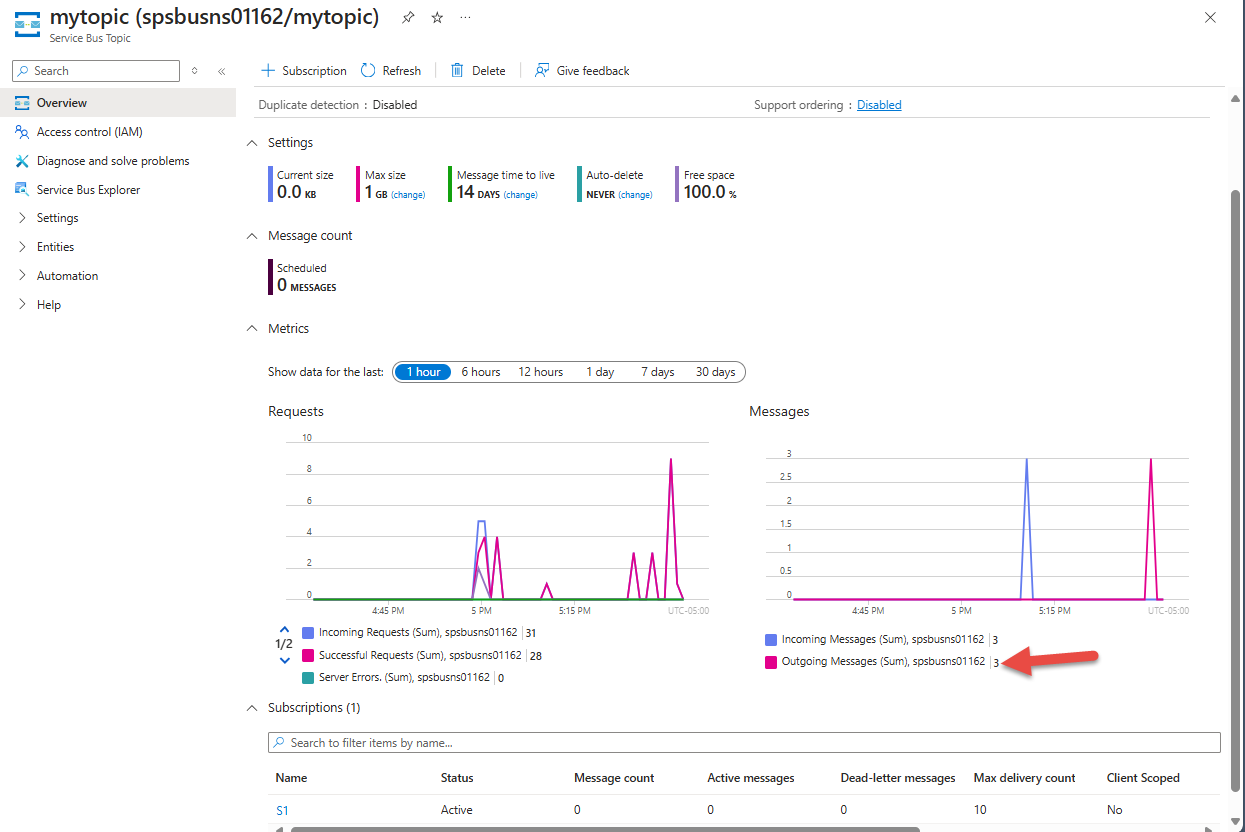
在Service Bus主题页上,在Messages图表中,可以看到三条传入消息和三条传出消息。 如果未看到这些值,请等待几分钟,然后刷新页面以查看更新后的图表。
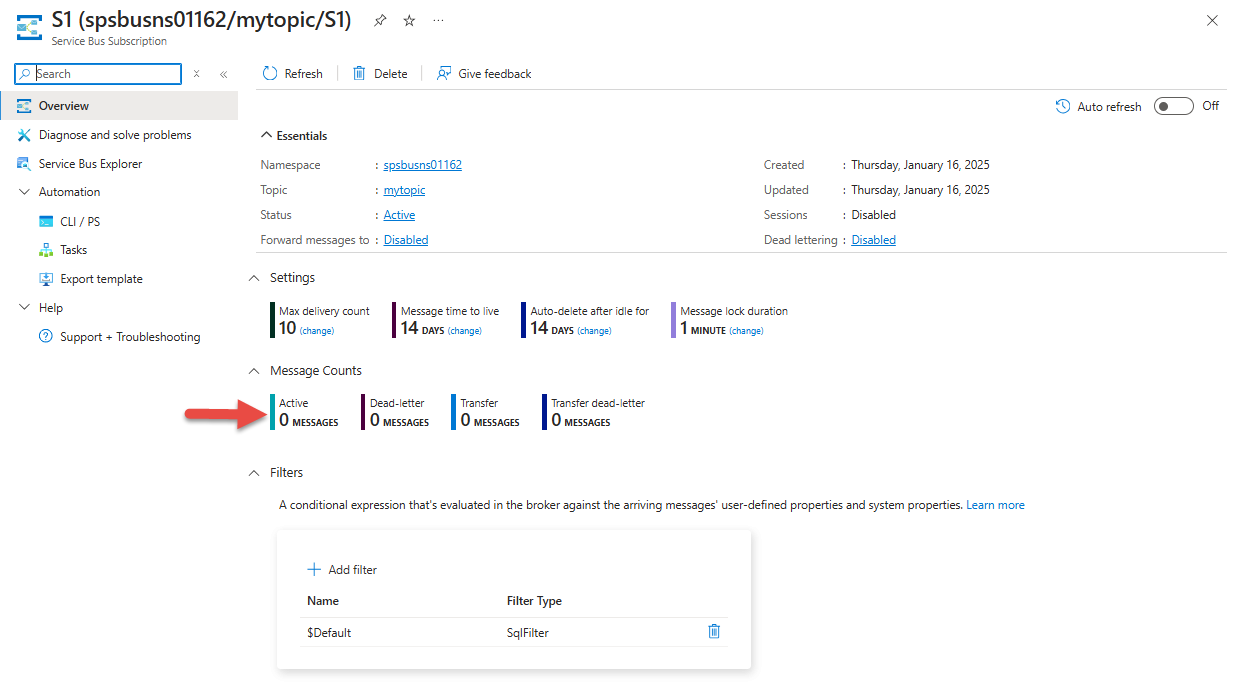
在 Service Bus Subscription 页上,可以看到 Active message count 为零。 这是因为接收器已接收并处理完毕来自此订阅的消息。
相关内容
请参阅以下文档和示例: