批处理终结点上的授权
Batch 终结点支持 Microsoft Entra 身份验证,或aad_token。 这意味着,若要调用批处理终结点,用户必须向批处理终结点 URI 提供有效的 Microsoft Entra 身份验证令牌。 授权在终结点级别执行。 以下文章解释了如何正确地与批处理终结点交互及其安全要求。
授权工作原理
若要调用批处理终结点,用户必须提供一个代表安全主体的有效 Microsoft Entra 令牌。 此主体可以是用户主体或服务主体。 在任一情况下,一旦调用终结点,就会在与令牌关联的标识下创建批处理部署作业。 该标识需要以下权限才能成功创建作业:
- 读取批处理终结点/部署。
- 在批量推理终结点/部署中创建作业。
- 创建试验/运行。
- 从/向数据存储读取和写入数据。
- 列出数据存储机密。
有关详细的 RBAC 权限列表,请参阅为批处理终结点的调用配置 RBAC。
重要
用于调用批处理终结点的标识可能无法用于读取基础数据,具体取决于数据存储的配置方式。 更多详细信息,请参阅配置计算群集以便进行数据访问。
如何使用不同类型的凭据运行作业
以下示例演示了使用不同类型的凭据启动批处理部署作业的不同方式:
重要
在启用了专用链接的工作区上工作时,无法从 Azure 机器学习工作室中的 UI 调用批处理终结点。 请改用 Azure 机器学习 CLI v2 来创建作业。
先决条件
- 此示例假定你已将模型正确部署为批处理终结点。 特别是,我们正在使用在批量部署中使用 MLflow 模型教程中创建的心脏病分类器。
使用用户的凭据运行作业
在这种情况下,我们需要使用当前登录用户的标识执行批处理终结点。 执行以下步骤:
使用 Azure CLI 通过交互式身份验证或设备代码身份验证登录:
az login完成身份验证后,使用以下命令运行批处理部署作业:
az ml batch-endpoint invoke --name $ENDPOINT_NAME \
                            --input https://azuremlexampledata.blob.core.chinacloudapi.cn/data/heart-disease-uci
使用服务主体运行作业
在这种情况下,我们需要使用已在 Microsoft Entra ID 中创建的服务主体执行批处理终结点。 若要完成身份验证,必须创建机密以执行身份验证。 请执行下列步骤:
按照选项 3:创建新的客户端机密中的说明创建用于身份验证的机密。
若要使用服务主体进行身份验证,请使用以下命令。 有关更多详细信息,请参阅使用 Azure CLI 登录。
az login --service-principal \
         --tenant <tenant> \
         -u <app-id> \
         -p <password-or-cert>
完成身份验证后,使用以下命令运行批处理部署作业:
az ml batch-endpoint invoke --name $ENDPOINT_NAME \
                            --input https://azuremlexampledata.blob.core.chinacloudapi.cn/data/heart-disease-uci/
使用托管标识运行作业
可以使用托管标识调用批处理终结点和部署。 注意,此管理标识不属于批处理终结点,但它是用于执行终结点(因此也用于创建批处理作业)的标识。 在此场景中,用户分配的标识和系统分配的标识都可使用。
在已针对 Azure 资源托管标识进行了配置的资源上,可以使用托管标识进行登录。 使用资源的标识登录是通过 --identity 标志执行的。 更多详细信息,请参阅使用 Azure CLI 登录。
az login --identity
完成身份验证后,使用以下命令运行批处理部署作业:
az ml batch-endpoint invoke --name $ENDPOINT_NAME \
                            --input https://azuremlexampledata.blob.core.chinacloudapi.cn/data/heart-disease-uci
为批处理终结点的调用配置 RBAC
批处理终结点会公开一个使用者可用于生成作业的持久 API。 调用程序会请求适当的权限,以便能够生成这些作业。 可使用一个内置安全角色,也可按需创建自定义角色。
若要成功调用批处理终结点,需要向用于调用终结点的标识授予以下显式操作。 有关分配权限的说明,请参阅分配 Azure 角色的步骤。
"actions": [
    "Microsoft.MachineLearningServices/workspaces/read",
    "Microsoft.MachineLearningServices/workspaces/data/versions/write",
    "Microsoft.MachineLearningServices/workspaces/datasets/registered/read",
    "Microsoft.MachineLearningServices/workspaces/datasets/registered/write",
    "Microsoft.MachineLearningServices/workspaces/datasets/unregistered/read",
    "Microsoft.MachineLearningServices/workspaces/datasets/unregistered/write",
    "Microsoft.MachineLearningServices/workspaces/datastores/read",
    "Microsoft.MachineLearningServices/workspaces/datastores/write",
    "Microsoft.MachineLearningServices/workspaces/datastores/listsecrets/action",
    "Microsoft.MachineLearningServices/workspaces/listStorageAccountKeys/action",
    "Microsoft.MachineLearningServices/workspaces/batchEndpoints/read",
    "Microsoft.MachineLearningServices/workspaces/batchEndpoints/write",
    "Microsoft.MachineLearningServices/workspaces/batchEndpoints/deployments/read",
    "Microsoft.MachineLearningServices/workspaces/batchEndpoints/deployments/write",
    "Microsoft.MachineLearningServices/workspaces/batchEndpoints/deployments/jobs/write",
    "Microsoft.MachineLearningServices/workspaces/batchEndpoints/jobs/write",
    "Microsoft.MachineLearningServices/workspaces/computes/read",
    "Microsoft.MachineLearningServices/workspaces/computes/listKeys/action",
    "Microsoft.MachineLearningServices/workspaces/metadata/secrets/read",
    "Microsoft.MachineLearningServices/workspaces/metadata/snapshots/read",
    "Microsoft.MachineLearningServices/workspaces/metadata/artifacts/read",
    "Microsoft.MachineLearningServices/workspaces/metadata/artifacts/write",
    "Microsoft.MachineLearningServices/workspaces/experiments/read",
    "Microsoft.MachineLearningServices/workspaces/experiments/runs/submit/action",
    "Microsoft.MachineLearningServices/workspaces/experiments/runs/read",
    "Microsoft.MachineLearningServices/workspaces/experiments/runs/write",
    "Microsoft.MachineLearningServices/workspaces/metrics/resource/write",
    "Microsoft.MachineLearningServices/workspaces/modules/read",
    "Microsoft.MachineLearningServices/workspaces/models/read",
    "Microsoft.MachineLearningServices/workspaces/endpoints/pipelines/read",
    "Microsoft.MachineLearningServices/workspaces/endpoints/pipelines/write",
    "Microsoft.MachineLearningServices/workspaces/environments/read",
    "Microsoft.MachineLearningServices/workspaces/environments/write",
    "Microsoft.MachineLearningServices/workspaces/environments/build/action",
    "Microsoft.MachineLearningServices/workspaces/environments/readSecrets/action"
]
为数据访问配置计算群集
批处理终结点确保只有授权用户才能调用批处理部署和生成作业。 但是,根据输入数据的配置方式,可以使用其他凭据来读取基础数据。 在下表中了解使用哪些凭据:
| 数据输入类型 | 存储中的凭据 | 使用的凭据 | 访问权限授予者 |
|---|---|---|---|
| 数据存储 | 是 | 工作区中的数据存储凭据 | 访问密钥或 SAS |
| 数据资产 | 是 | 工作区中的数据存储凭据 | 访问密钥或 SAS |
| 数据存储 | 否 | 作业的标识 + 计算群集上的托管标识 | RBAC |
| 数据资产 | 否 | 作业的标识 + 计算群集上的托管标识 | RBAC |
| Azure Blob 存储 | 不适用 | 作业的标识 + 计算群集上的托管标识 | RBAC |
对于显示计算群集作业标识和托管标识的表中的项,计算群集的托管标识用于装载和配置存储帐户。 但作业标识仍用于读取基础数据,从而可以实现精细的访问控制。 这意味着,若要成功地从存储中读取数据,运行部署的计算群集的托管标识对存储帐户至少需要拥有存储 Blob 数据读取器访问权限。
若要配置计算群集进行数据访问,请执行以下步骤:
转到 Azure 机器学习工作室。
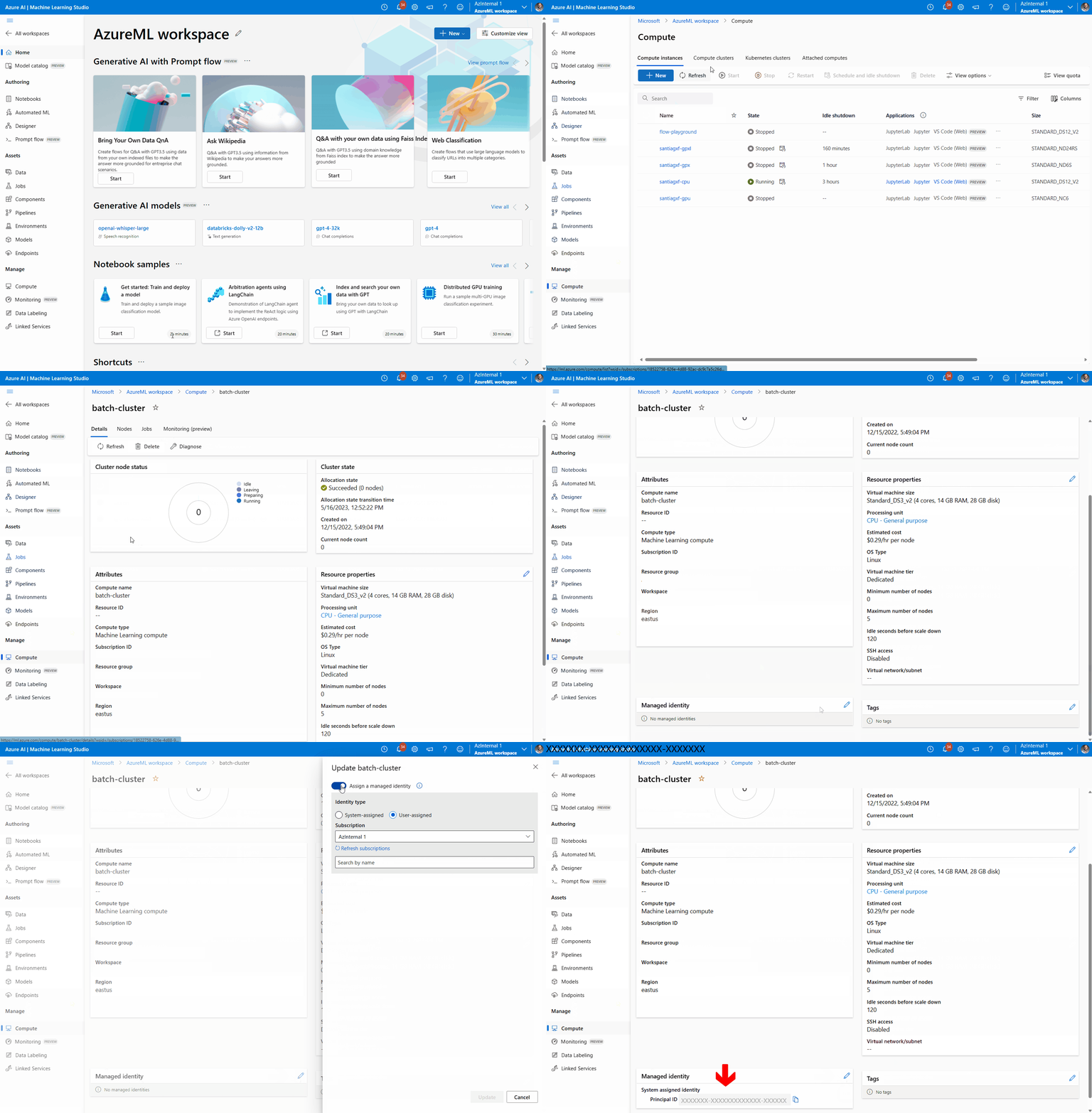
依次导航到“计算”和“部署集群”,选择部署正在使用的计算群集。
将托管标识分配给计算群集:
在“托管标识”部分中,验证计算是否分配了托管标识。 如果没有,请选择“编辑”选项。
选择“分配托管标识”,并根据需要对其进行配置。 可以使用系统分配的托管标识或用户分配的托管标识。 如果使用系统分配的托管标识,则系统会将其命名为“[工作区名称]/computes/[计算群集名称]”。
保存更改。
转到 Azure 门户并导航到数据所在的关联存储帐户。 如果输入的数据是数据资产或数据存储,请查找放置这些资产的存储帐户。
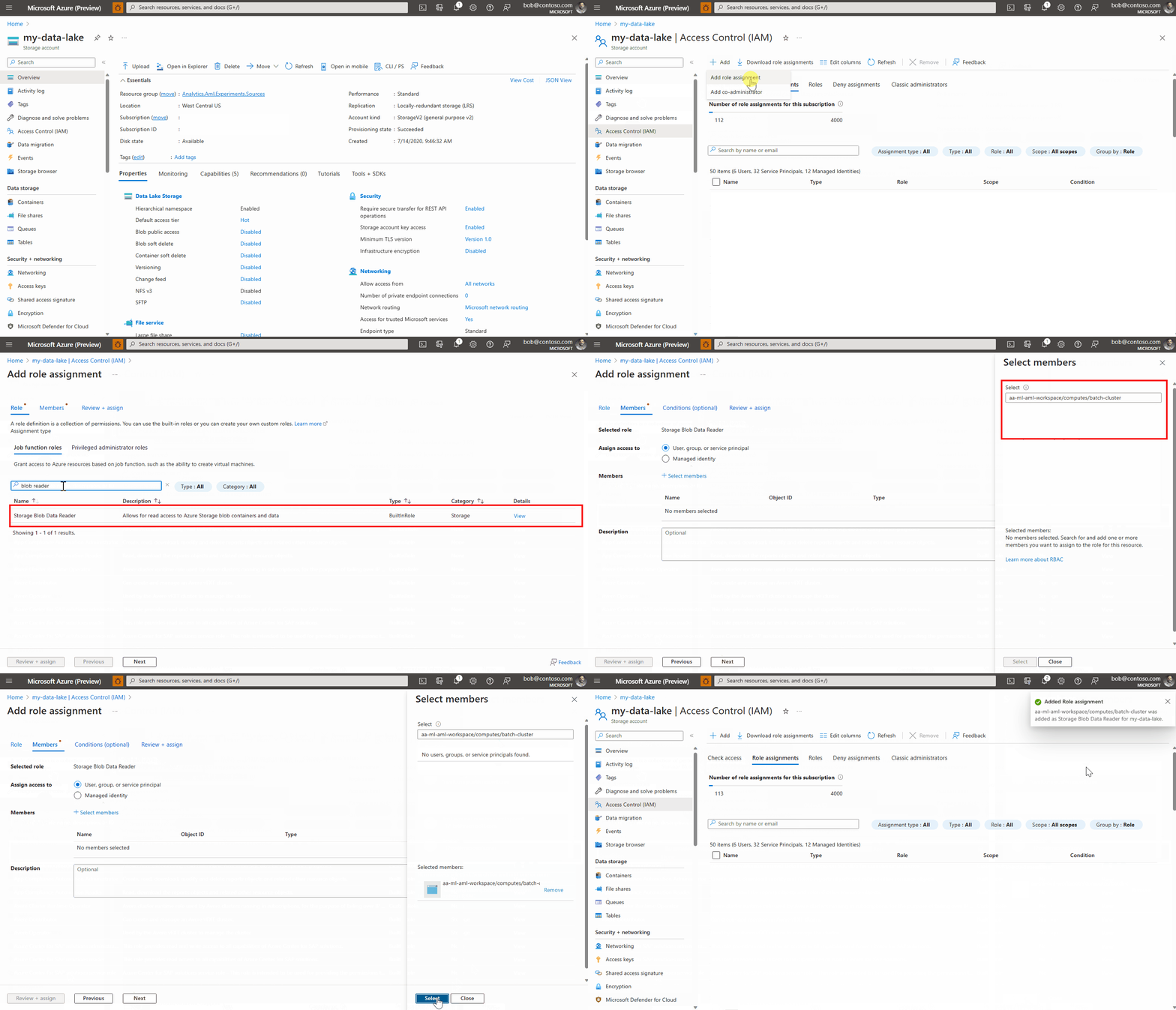
在存储帐户中分配存储 Blob 数据读取器访问级别:
转到访问控制(标识和访问管理)部分。
选择“角色分配”选项卡,然后单击“添加>角色分配”。
查找名为“存储 Blob 数据读取器”的角色并选中,然后单击“下一步”。
单击“选择成员”。
查找已创建的托管标识。 如果使用系统分配的托管标识,则系统会将其命名为“[工作区名称]/computes/[计算群集名称]”。
添加帐户并完成向导。
终结点已准备好从所选存储帐户接收作业和输入的数据。