注意
建议使用 Azure Az PowerShell 模块与 Azure 交互。 若要开始,请参阅安装 Azure PowerShell。 若要了解如何迁移到 Az PowerShell 模块,请参阅 将 Azure PowerShell 从 AzureRM 迁移到 Az。
用于 .NET 的 Application Insights Profiler 会收集跟踪,以显示哪些代码路径会在 Web 应用处于负载运行时拖慢其速度。 利用此信息,可以查明创建性能瓶颈的方法,并将优化工作放在最有效的地方。
本文介绍如何为在 Azure 中的 Windows 虚拟机 (VM) 或虚拟机规模集上运行的 Web 应用启用 .NET Profiler。 .NET探查器不支持本地服务器。
在这篇文章中,你将学会如何:
- 将 Application Insights SDK 添加到应用程序。
- 确认 Application Insights SDK 的最新稳定版本。
- 使用 Visual Studio 和 Azure 资源管理器 模板(ARM 模板),或使用 PowerShell 启用 .NET 探查器。
先决条件
一个正常运行的 ASP.NET Core 应用程序。
Azure 诊断扩展的 ARM 模板:
将 Application Insights SDK 添加到应用程序
在 Visual Studio 中打开 ASP.NET Core 项目。
选择项目>添加 Application Insights 遥测。
选择 Azure 应用程序 Insights,然后选择“ 下一步”。
选择 Application Insights 资源所在的订阅,然后选择“ 下一步”。
选择保存连接字符串的位置,然后选择“ 下一步”。
选择“完成”。
注意
有关完整说明(包括如何在不使用 Visual Studio 的 ASP.NET Core 应用程序上启用 Application Insights),请参阅 监视 .NET 和 Node.js 应用程序。
确认最新稳定版本的 Application Insights SDK
前往项目>管理 NuGet 软件包。
选择“Microsoft.ApplicationInsights.AspNetCore”。
在侧窗格中,从下拉列表中选择最新版本的 SDK。
选择“更新”。
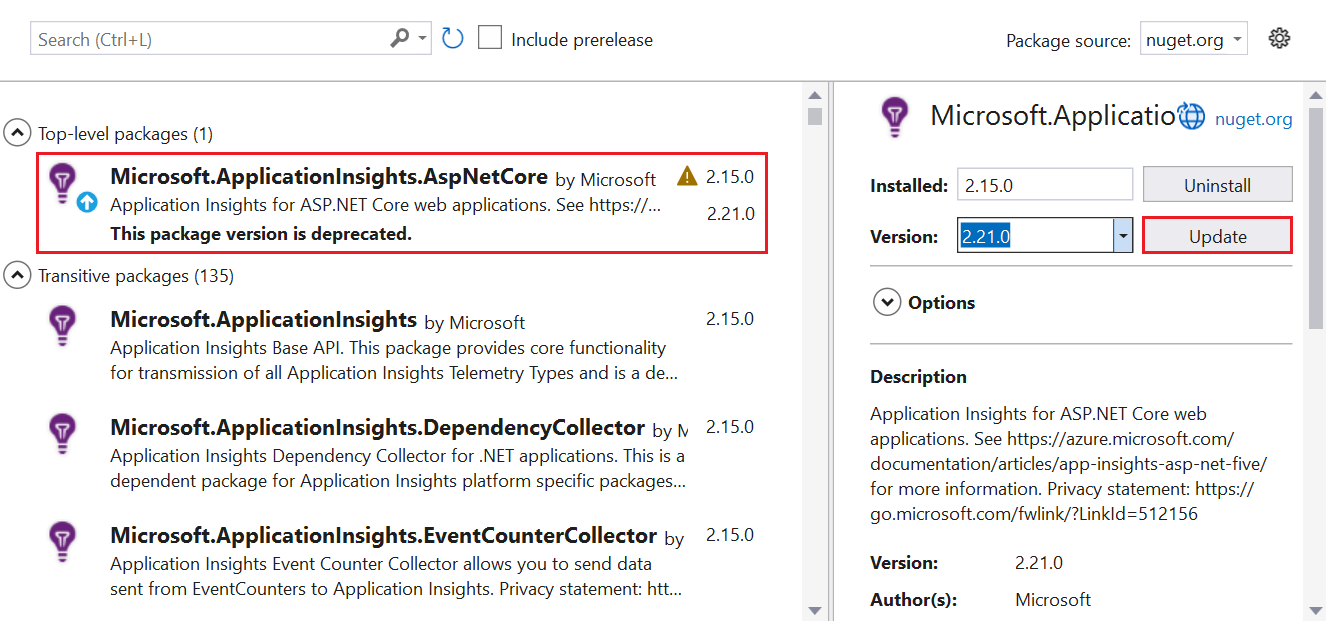
在 Windows 虚拟机或虚拟机规模集上启用 .NET 分析器
通过以下方式之一启用 Profiler:
- 在 ASP.NET Core 应用程序中使用 ARM 模板和 Visual Studio。 推荐。
- 使用 PowerShell 命令。
使用 ARM 模板和 Visual Studio 是在 Windows 虚拟机或虚拟机规模集上启用 .NET 探查器的推荐方法。
安装 Azure 诊断扩展
选择要使用的 ARM 模板:
在模板中,找到
extension类型的资源。在 Visual Studio 中,打开 Application Insights SDK 添加到你的 ASP.NET Core 应用程序中的
arm.json文件。将模板中的资源类型
extension添加到arm.json文件,以使用 Azure 诊断设置 VM 或虚拟机规模集。在
WadCfg节点中,将 Application Insights 连接字符串添加到MyApplicationInsightsProfilerSink。"WadCfg": { "SinksConfig": { "Sink": [ { "name": "MyApplicationInsightsProfilerSink", "ApplicationInsightsProfiler": "YOUR_APPLICATION_INSIGHTS_CONNECTION_STRING" } ] } }部署应用程序。