Azure AI 搜索可以使用知道如何读取 Markdown 数据的 indexer 为 Azure Blob 存储 中的 Markdown 文档和数组编制索引。
本教程介绍如何使用 oneToMany Markdown 分析模式和 搜索服务 REST API 为 Markdown 文件编制索引。
在本教程中,你将:
- 设置示例数据并配置
azureblob数据源 - 创建Azure AI 搜索索引以包含可搜索的内容
- 创建和运行索引器以读取容器和提取可搜索内容
- 搜索刚刚创建的索引
先决条件
具有活动订阅的Azure帐户。 创建试用版订阅。
使用
REST 客户端扩展 的Visual Studio Code 。
注释
可在本教程中使用免费搜索服务。 免费层将你限制为三个索引、三个索引器和三个数据源。 本教程每样创建一个。 在开始之前,请确保服务具有接受新资源的空间。
准备示例数据
创建 Markdown 文件
将以下 Markdown 复制并粘贴到名为 sample_markdown.md 的文件中。 示例数据是包含各种 Markdown 元素的单个 Markdown 文件。 我们选择了一个 Markdown 文件,以保持在免费层的存储限制下。
# Project Documentation
## Introduction
This document provides a complete overview of the **Markdown Features** used within this project. The following sections demonstrate the richness of Markdown formatting, with examples of lists, tables, links, images, blockquotes, inline styles, and more.
---
## Table of Contents
1. [Headers](#headers)
2. [Introduction](#introduction)
3. [Basic Text Formatting](#basic-text-formatting)
4. [Lists](#lists)
5. [Blockquotes](#blockquotes)
6. [Images](#images)
7. [Links](#links)
8. [Tables](#tables)
9. [Code Blocks and Inline Code](#code-blocks-and-inline-code)
10. [Horizontal Rules](#horizontal-rules)
11. [Inline Elements](#inline-elements)
12. [Escaping Characters](#escaping-characters)
13. [HTML Elements](#html-elements)
14. [Emojis](#emojis)
15. [Footnotes](#footnotes)
16. [Task Lists](#task-lists)
17. [Conclusion](#conclusion)
---
## Headers
Markdown supports six levels of headers. Use `#` to create headers:
"# Project Documentation" at the top of the document is an example of an h1 header.
"## Headers" above is an example of an h2 header.
### h3 example
#### h4 example
##### h5 example
###### h6 example
This is an example of content underneath a header.
## Basic Text Formatting
You can apply various styles to your text:
- **Bold**: Use double asterisks or underscores: `**bold**` or `__bold__`.
- *Italic*: Use single asterisks or underscores: `*italic*` or `_italic_`.
- ~~Strikethrough~~: Use double tildes: `~~strikethrough~~`.
## Lists
### Ordered List
1. First item
2. Second item
3. Third item
### Unordered List
- Item A
- Item B
- Item C
### Nested List
1. Parent item
- Child item
- Child item
## Blockquotes
> This is a blockquote.
> Blockquotes are great for emphasizing important information.
>> Nested blockquotes are also possible!
## Images

## Links
[Visit Markdown Guide](https://www.markdownguide.org)
## Tables
| Syntax | Description | Example |
|-------------|-------------|---------------|
| Header | Title | Header Cell |
| Paragraph | Text block | Row Content |
## Code Blocks and Inline Code
### Inline Code
Use backticks to create `inline code`.
### Code Block
```javascript
// JavaScript example
function greet(name) {
console.log(`Hello, ${name}!`);
}
greet('World');
```
## Horizontal Rules
Use three or more dashes or underscores to create a horizontal rule.
---
___
## Inline Elements
Sometimes, it's useful to include `inline code` to highlight code-like content.
You can also emphasize text like *this* or make it **bold**.
## Escaping Characters
To render special Markdown characters, use backslashes:
- \*Asterisks\*
- \#Hashes\#
- \[Brackets\]
## HTML Elements
You can mix HTML tags with Markdown:
<table>
<tr>
<th>HTML Table</th>
<th>With Markdown</th>
</tr>
<tr>
<td>Row 1</td>
<td>Data 1</td>
</tr>
</table>
## Emojis
Markdown supports some basic emojis:
- :smile: 😄
- :rocket: 🚀
- :checkered_flag: 🏁
## Footnotes
This is an example of a footnote[^1]. Footnotes allow you to add notes without cluttering the main text.
[^1]: This is the content of the footnote.
## Task Lists
- [x] Complete the introduction
- [ ] Add more examples
- [ ] Review the document
## Conclusion
Markdown is a lightweight yet powerful tool for writing documentation. It supports a variety of formatting options while maintaining simplicity and readability.
Thank you for reviewing this example!
上传文件并获取连接字符串
按照 这些指示 将 sample_markdown.md 文件上传到 Azure 存储 帐户中的容器。 还必须获取存储帐户的连接字符串。 记下连接字符串和容器名称供以后使用。
复制搜索服务 URL 和 API 密钥
在本教程中,连接到Azure AI 搜索需要终结点和 API 密钥。 可以从Azure门户获取这些值。 有关备用连接方法,请参阅托管标识。
在 Azure 门户中,转到你的搜索服务。
在左窗格中,选择“ 概述”。
记下 URL,应如下所示
https://my-service.search.azure.cn。在左窗格中,选择“设置”“密钥”。>
请记录下获得服务完整权限所需的管理员密钥。 有两个可交换的管理员密钥,为保证业务连续性而提供,以防需要滚动一个密钥。 可以对请求使用任一键来添加、修改和删除对象。
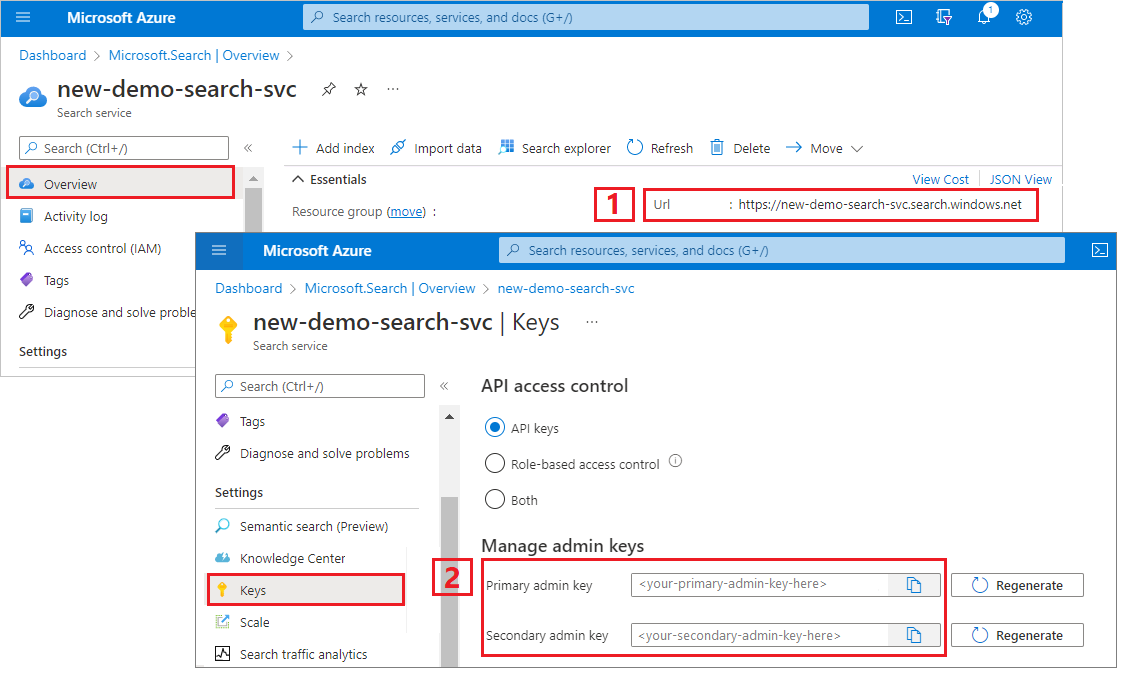
配置您的 REST 文件
在Visual Studio Code中创建文件。
为请求中使用的变量提供值。
@baseUrl = PUT-YOUR-SEARCH-SERVICE-ENDPOINT-HERE
@apiKey = PUT-YOUR-ADMIN-API-KEY-HERE
@storageConnectionString = PUT-YOUR-STORAGE-CONNECTION-STRING-HERE
@blobContainer = PUT-YOUR-CONTAINER-NAME-HERE
使用
.rest或.http文件扩展名保存文件。
有关 REST 客户端的帮助,请参阅 快速入门:使用 REST 进行全文搜索。
创建数据源
数据源 - 创建 (REST API) 创建数据源连接,用于指定要编制索引的数据。
### Create a data source
POST {{baseUrl}}/datasources?api-version=2026-04-01  HTTP/1.1
Content-Type: application/json
api-key: {{apiKey}}

{
    "name" : "sample-markdown-ds",
    "description": null,
    "type": "azureblob",
    "subtype": null,
    "credentials": {
        "connectionString": "{{storageConnectionString}}"
    },
    "container": {
        "name": "{{blobContainer}}",
        "query": null
    },
    "dataChangeDetectionPolicy": null,
    "dataDeletionDetectionPolicy": null
}
发送请求。 响应应如下所示:
HTTP/1.1 201 Created
Transfer-Encoding: chunked
Content-Type: application/json; odata.metadata=minimal; odata.streaming=true; charset=utf-8
ETag: "0x8DCF52E926A3C76"
Location: https://<YOUR-SEARCH-SERVICE-NAME>.search.azure.cn:443/datasources('sample-markdown-ds')?api-version=2026-04-01
Server: Microsoft-IIS/10.0
Strict-Transport-Security: max-age=2592000, max-age=15724800; includeSubDomains
Preference-Applied: odata.include-annotations="*"
OData-Version: 4.0
request-id: 0714c187-217e-4d35-928a-5069251e5cba
elapsed-time: 204
Date: Fri, 25 Oct 2024 19:52:35 GMT
Connection: close

{
  "@odata.context": "https://<YOUR-SEARCH-SERVICE-NAME>.search.azure.cn/$metadata#datasources/$entity",
  "@odata.etag": "\"0x8DCF52E926A3C76\"",
  "name": "sample-markdown-ds",
  "description": null,
  "type": "azureblob",
  "subtype": null,
  "credentials": {
    "connectionString": null
  },
  "container": {
    "name": "markdown-container",
    "query": null
  },
  "dataChangeDetectionPolicy": null,
  "dataDeletionDetectionPolicy": null,
  "encryptionKey": null,
  "identity": null
}
创建索引
索引 - 创建 (REST API) 在搜索服务上创建搜索索引。 索引指定所有字段及其属性。
在一对多分析中,搜索文档定义关系的“多”端。 索引中指定的字段决定了搜索文档的结构。
只需要分析程序支持的 Markdown 元素的字段。 这些字段是:
content:一个字符串,其中包含基于文档中该点处的标题元数据在特定位置找到的原始 Markdown。sections:一个对象,其中包含标题元数据的子字段,最高为所需的标题级别。 例如,当markdownHeaderDepth设置为h3时,包含字符串字段h1、h2和h3。 这些字段通过镜像索引中的此结构或通过格式/sections/h1/sections/h2的字段映射等来编制索引。 有关上下文中的示例,请参阅以下示例中的索引和索引器配置。 包含的子字段有:-
h1- 一个包含 h1 标题值的字符串。 如果在文档中此点处未设置,则为空字符串。 - (可选)
h2- 一个包含 h2 标题值的字符串。 如果在文档中此点处未设置,则为空字符串。 - (可选)
h3- 一个包含 h3 标题值的字符串。 如果在文档中此点处未设置,则为空字符串。 - (可选)
h4- 一个包含 h4 标题值的字符串。 如果在文档中此点处未设置,则为空字符串。 - (可选)
h5- 一个包含 h5 标题值的字符串。 如果在文档中此点处未设置,则为空字符串。 - (可选)
h6- 一个包含 h6 标题值的字符串。 如果在文档中此点处未设置,则为空字符串。
-
ordinal_position:一个整数值,指示该节在文档层次结构中的位置。 此字段用于按原始顺序对文档中的各节进行排序,从序号位置 1 开始,每个内容块的序号依次递增。
此实现使用索引器中的字段映射从扩充内容映射到索引。 若要详细了解分析的一对多文档结构,请参阅为 Markdown Blob 编制索引。
该例子提供了示例来介绍如何在使用和不使用字段映射的情况下为数据编制索引。 在本例中, h1 包含文档的标题,并映射到名为 title的字段。
h2和h3字段分别映射到h2_subheader和h3_subheader。
content 和 ordinal_position 字段不需要映射,因为它们直接从 Markdown 提取到使用这些名称的字段中。 有关不需要字段映射的完整索引架构的示例,请参阅本节末尾的内容。
### Create an index
POST {{baseUrl}}/indexes?api-version=2026-04-01  HTTP/1.1
Content-Type: application/json
api-key: {{apiKey}}

{
  "name": "sample-markdown-index",
  "fields": [
    {"name": "id", "type": "Edm.String", "key": true, "searchable": true, "retrievable": true, "filterable": true, "facetable": true, "sortable": true},
    {"name": "content", "type": "Edm.String", "key": false, "searchable": true, "retrievable": true, "filterable": true, "facetable": true, "sortable": true},
    {"name": "title", "type": "Edm.String", "searchable": true, "retrievable": true, "filterable": true, "facetable": true, "sortable": true},
    {"name": "h2_subheader", "type": "Edm.String", "searchable": true, "retrievable": true, "filterable": true, "facetable": true, "sortable": true},
    {"name": "h3_subheader", "type": "Edm.String", "searchable": true, "retrievable": true, "filterable": true, "facetable": true, "sortable": true},
    {"name": "ordinal_position", "type": "Edm.Int32", "searchable": false, "retrievable": true, "filterable": true, "facetable": true, "sortable": true}
  ]
}
没有字段映射的配置中的索引架构
通过字段映射,可以操作和筛选扩充内容,使其适应所需的索引形状。 不过,你可能只想直接获取已扩充的内容。 在这种情况下,架构如下所示:
{
  "name": "sample-markdown-index",
  "fields": [
    {"name": "id", "type": "Edm.String", "key": true, "searchable": true, "retrievable": true, "filterable": true, "facetable": true, "sortable": true},
    {"name": "content", "type": "Edm.String", "key": false, "searchable": true, "retrievable": true, "filterable": true, "facetable": true, "sortable": true},
    {"name": "sections",
      "type": "Edm.ComplexType",
      "fields": [
        {"name": "h1", "type": "Edm.String", "searchable": true, "retrievable": true, "filterable": true, "facetable": true, "sortable": true},
        {"name": "h2", "type": "Edm.String", "searchable": true, "retrievable": true, "filterable": true, "facetable": true, "sortable": true},
        {"name": "h3", "type": "Edm.String", "searchable": true, "retrievable": true, "filterable": true, "facetable": true, "sortable": true}
      ]
    },
    {"name": "ordinal_position", "type": "Edm.Int32", "searchable": false, "retrievable": true, "filterable": true, "facetable": true, "sortable": true}
  ]
}
重申一下,我们在节对象中有最多 h3 子字段,因为 markdownHeaderDepth 设置为 h3。
如果使用此架构,请务必相应地调整后续请求。 这样做需要从索引器配置中删除字段映射,并更新搜索查询以使用相应的字段名称。
创建并运行索引器
索引器 - 创建 (REST API) 在搜索服务上创建索引器。 索引器会连接到数据源、加载和索引数据,还可以选择提供自动刷新数据的计划。
### Create and run an indexer
POST {{baseUrl}}/indexers?api-version=2026-04-01  HTTP/1.1
Content-Type: application/json
api-key: {{apiKey}}

{
  "name": "sample-markdown-indexer",
  "dataSourceName": "sample-markdown-ds",
  "targetIndexName": "sample-markdown-index",
  "parameters" : {
    "configuration": {
      "parsingMode": "markdown",
      "markdownParsingSubmode": "oneToMany",
      "markdownHeaderDepth": "h3"
      }
    },
  "fieldMappings" : [
    {
      "sourceFieldName": "/sections/h1",
      "targetFieldName": "title",
      "mappingFunction": null
    }
  ]
}
要点:
索引器只解析标头直到
h3。 任何较低级别的标头(h4,h5)h6都被视为纯文本,并显示在content字段中。 这就是为什么索引和字段映射仅存在于最高h3的深度。content和ordinal_position字段不需要字段映射,因为它们与这些名称共存于扩充内容中。
运行查询
加载第一个文档后,可立即开始搜索。
### Query the index
POST {{baseUrl}}/indexes/sample-markdown-index/docs/search?api-version=2026-04-01  HTTP/1.1
Content-Type: application/json
api-key: {{apiKey}}

{
  "search": "*",
  "count": true
}
发送请求。 这是一个未指定的全文搜索查询,返回索引中标记为可检索的所有字段以及文档计数。 响应应如下所示:
HTTP/1.1 200 OK
Transfer-Encoding: chunked
Content-Type: application/json; odata.metadata=minimal; odata.streaming=true; charset=utf-8
Content-Encoding: gzip
Vary: Accept-Encoding
Server: Microsoft-IIS/10.0
Strict-Transport-Security: max-age=2592000, max-age=15724800; includeSubDomains
Preference-Applied: odata.include-annotations="*"
OData-Version: 4.0
request-id: 6b94e605-55e8-47a5-ae15-834f926ddd14
elapsed-time: 77
Date: Fri, 25 Oct 2024 20:22:58 GMT
Connection: close

{
  "@odata.context": "https://<YOUR-SEARCH-SERVICE-NAME>.search.azure.cn/indexes('sample-markdown-index')/$metadata#docs(*)",
  "@odata.count": 22,
  "value": [
    <22 search documents here>
  ]
}
添加参数 search 以搜索字符串。
### Query the index
POST {{baseUrl}}/indexes/sample-markdown-index/docs/search?api-version=2026-04-01  HTTP/1.1
Content-Type: application/json
api-key: {{apiKey}}

{
  "search": "h4",
  "count": true
}
发送请求。 响应应如下所示:
HTTP/1.1 200 OK
Transfer-Encoding: chunked
Content-Type: application/json; odata.metadata=minimal; odata.streaming=true; charset=utf-8
Content-Encoding: gzip
Vary: Accept-Encoding
Server: Microsoft-IIS/10.0
Strict-Transport-Security: max-age=2592000, max-age=15724800; includeSubDomains
Preference-Applied: odata.include-annotations="*"
OData-Version: 4.0
request-id: ec5d03f1-e3e7-472f-9396-7ff8e3782105
elapsed-time: 52
Date: Fri, 25 Oct 2024 20:26:29 GMT
Connection: close

{
  "@odata.context": "https://<YOUR-SEARCH-SERVICE-NAME>.search.azure.cn/indexes('sample-markdown-index')/$metadata#docs(*)",
  "@odata.count": 1,
  "value": [
    {
      "@search.score": 0.8744742,
      "section_id": "aHR0cHM6Ly9hcmphZ2Fubmpma2ZpbGVzLmJsb2IuY29yZS53aW5kb3dzLm5ldC9tYXJrZG93bi10dXRvcmlhbC9zYW1wbGVfbWFya2Rvd24ubWQ7NA2",
      "content": "#### h4 example\r\n##### h5 example\r\n###### h6 example\r\nThis is an example of content underneath a header.\r\n",
      "title": "Project Documentation",
      "h2_subheader": "Headers",
      "h3_subheader": "h3 example",
      "ordinal_position": 4
    }
  ]
}
要点:
由于
markdownHeaderDepth设置为h3,h4、h5和h6标题被视为纯文本,因此它们将显示在content字段中。此处的序号位置是
4。 此内容显示第 4 个内容节,共 22 个内容节。
添加 select 参数以将结果限制为更少的字段。 添加 filter 以进一步缩小搜索范围。
### Query the index
POST {{baseUrl}}/indexes/sample-markdown-index/docs/search?api-version=2026-04-01  HTTP/1.1
Content-Type: application/json
api-key: {{apiKey}}

{
  "search": "Markdown",
  "count": true,
  "select": "title, content, h2_subheader",
  "filter": "h2_subheader eq 'Conclusion'"
}
HTTP/1.1 200 OK
Transfer-Encoding: chunked
Content-Type: application/json; odata.metadata=minimal; odata.streaming=true; charset=utf-8
Content-Encoding: gzip
Vary: Accept-Encoding
Server: Microsoft-IIS/10.0
Strict-Transport-Security: max-age=2592000, max-age=15724800; includeSubDomains
Preference-Applied: odata.include-annotations="*"
OData-Version: 4.0
request-id: a6f9bd46-a064-4e28-818f-ea077618014b
elapsed-time: 35
Date: Fri, 25 Oct 2024 20:36:10 GMT
Connection: close

{
  "@odata.context": "https://<YOUR-SEARCH-SERVICE-NAME>.search.azure.cn/indexes('sample-markdown-index')/$metadata#docs(*)",
  "@odata.count": 1,
  "value": [
    {
      "@search.score": 1.1029507,
      "content": "Markdown is a lightweight yet powerful tool for writing documentation. It supports a variety of formatting options while maintaining simplicity and readability.\r\n\r\nThank you for reviewing this example!",
      "title": "Project Documentation",
      "h2_subheader": "Conclusion"
    }
  ]
}
对于筛选器,还可以使用逻辑运算符(以及或不是)和比较运算符(eq、ne、gt、lt、ge、le)。 字符串比较区分大小写。 有关详细信息和示例,请参阅创建查询。
注释
$filter 参数只适用于在创建索引时标记为可筛选的字段。
重置并重新运行
可重置索引器来清除执行历史记录,从而可以完全重新运行。 以下请求重置并重新运行索引器。
### Reset the indexer
POST {{baseUrl}}/indexers/sample-markdown-indexer/reset?api-version=2026-04-01  HTTP/1.1
api-key: {{apiKey}}

### Run the indexer
POST {{baseUrl}}/indexers/sample-markdown-indexer/run?api-version=2026-04-01  HTTP/1.1
api-key: {{apiKey}}

### Check indexer status
GET {{baseUrl}}/indexers/sample-markdown-indexer/status?api-version=2026-04-01  HTTP/1.1
api-key: {{apiKey}}
清理资源
当您在自己的订阅中进行工作时,在项目结束后,建议删除那些不再需要的资源。 持续运行资源可能会产生费用。 可以逐个删除资源,也可以删除资源组以删除整个资源集。
可以使用Azure门户删除索引、索引器和数据源。
后续步骤
熟悉 Azure Blob 索引编制的基础知识后,请仔细了解 Azure 存储 中 Markdown blob 的索引器配置: