Note
Access to this page requires authorization. You can try signing in or changing directories.
Access to this page requires authorization. You can try changing directories.
Azure Advisor provides personalized best-practice recommendations to help you optimize your Azure resources. When certain insights aren’t immediately actionable, you can postpone or dismiss them to keep your focus on what matters most.
Note
You need Contributor or Owner permission to dismiss or postpone a recommendation. To learn more about permissions in Advisor, see Roles and permissions.
Key differences
- Postpone: Temporarily hide an item for a set period—1, 7, 30, or 90 days. After that, it automatically reappears.
- Dismiss: Permanently remove an item from view until you choose to reactivate it.
Postpone a recommendation
Open Azure Advisor in the Azure portal.
To view your recommendations, select a recommendation category.
Select a recommendation from the list of recommendations.
Select Postpone or Dismiss for the recommendation you want to postpone or dismiss.
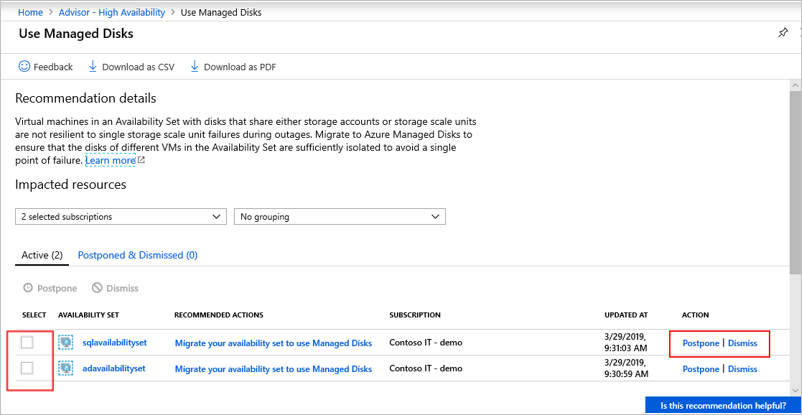
Postpone or dismiss recommendation for multiple resources
Open Azure Advisor in the Azure portal.
To view your recommendations, select a recommendation category.
Select a recommendation from the list of recommendations.
Select the checkbox at the left of the row for all resources you want to postpone or dismiss the recommendation.
Select Postpone or Dismiss in the upper-left corner of the table.
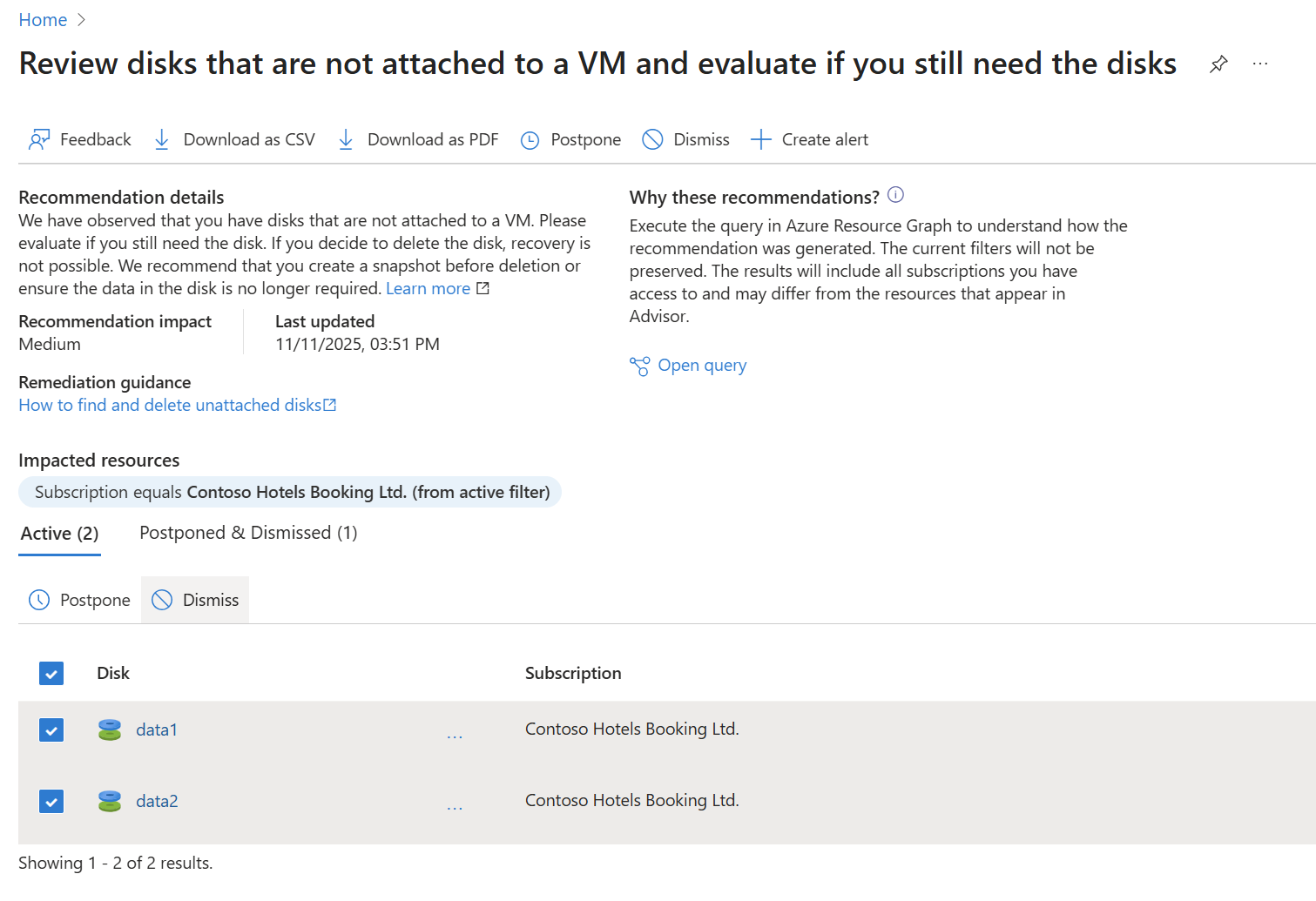
Tip
If the selection boxes are disabled, recommendations might still be loading. Wait for all recommendations to load before you try to postpone or dismiss.
Reactivate a postponed or dismissed recommendation
You can activate a recommendation that was postponed or dismissed. This action can be done in the Azure portal or programmatically. In the Azure portal:
Open Advisor in the Azure portal.
Change the filter on the Overview pane to Postponed. Advisor then displays postponed or dismissed recommendations.
Select a category to see Postponed and Dismissed recommendations.
Select a recommendation from the list of recommendations. This action opens recommendations with the Postponed & Dismissed tab already selected to show the resources for which this recommendation was postponed or dismissed.
Select Activate at the end of the row. The recommendation is now active for that resource and removed from the table. The recommendation is visible on the Active tab.
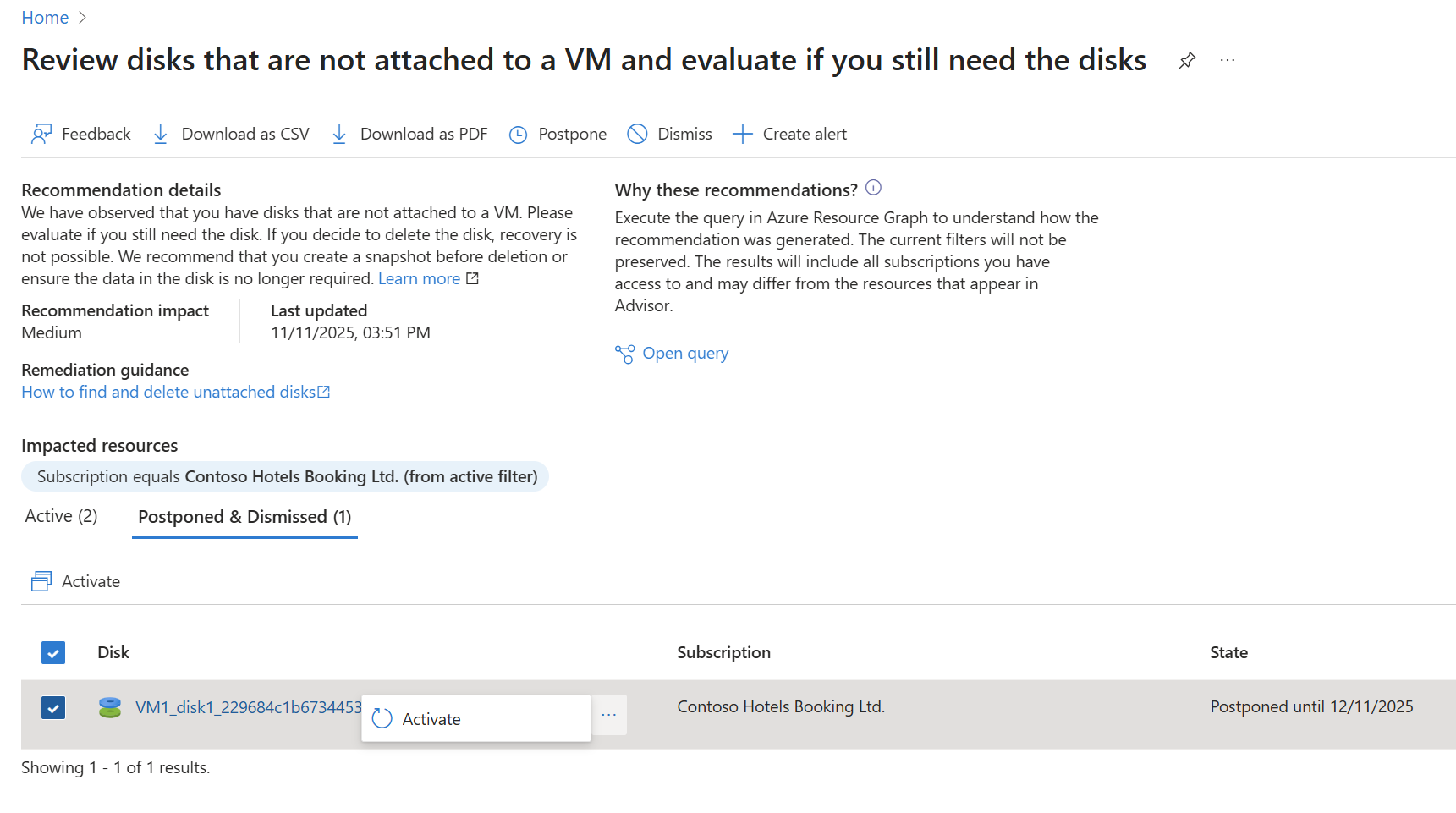
Automate with REST API
You can manage these actions programmatically. See Suppressions for details.