Note
Access to this page requires authorization. You can try signing in or changing directories.
Access to this page requires authorization. You can try changing directories.
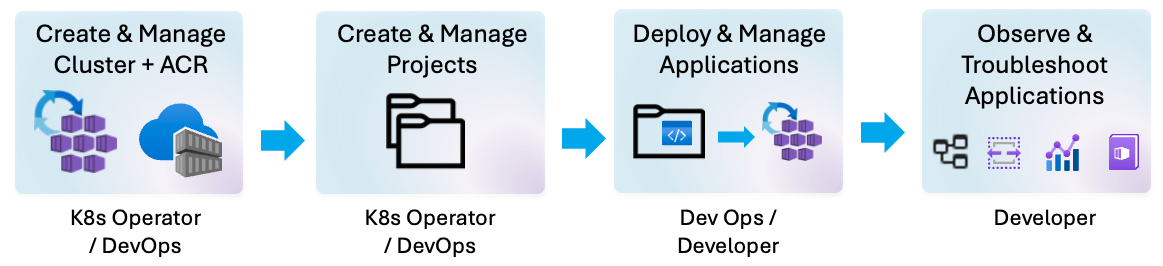
Depending on your role as a cluster operator or developer, you can provide an environment (Project) in AKS desktop for developers to deploy, migrate, or manage applications, or allow them to self-serve deploying and managing applications on a dedicated AKS cluster. Alternatively, you might want to grant more developers access to manage, observe, and troubleshoot applications.
By default, when you create a Project in AKS desktop you can share this with other people in your organization, and it sets the permissions for you. However, you might need to maintain permissions over time or automate them or define an operating model by setting the appropriate permissions.
This article describes how to manage RBAC permissions to enable team members to work with AKS desktop.
Note
AKS desktop doesn't currently provide a UI option to modify Project permissions after creation. To update permissions or grant access to additional users after a Project is created, use the Azure portal or Azure CLI as described in this article.
Note
When you create Projects in AKS desktop, AKS managed namespaces are created in the same resource group as your cluster.
Prerequisites
- An Azure subscription. If you don't have an Azure subscription, you can create a free Azure account.
- Azure CLI version 2.64.0 or later. Check your version using the
az --versioncommand. To install or upgrade, see Install Azure CLI. - The
aks-previewAzure CLI extension. Install it using theaz extension add --name aks-previewcommand. For more information, see Manage Azure CLI extensions. - A basic understanding of Azure role-based access control (RBAC), see What is Azure RBAC? and Azure built-in roles.
- An Azure resource group that contains your AKS cluster and any AKS managed Projects created through AKS desktop.
- An AKS Standard cluster that meets AKS desktop requirements, which is the Kubernetes cluster where your applications run.
- An Azure Container Registry (ACR) to store your container images for deployment.
Cluster operator responsibilities
As a cluster operator, you're responsible for provisioning and configuring the foundational infrastructure that enables development teams to build and deploy applications. Your responsibilities include:
- Creating the required Azure infrastructure (resource group, AKS cluster, ACR).
- Configuring ACR integration with your AKS cluster.
- Assigning permissions for users to create Projects.
- Optionally delegating permission management to Project creators.
Create infrastructure resources
To create the infrastructure resources, you need permissions to create resources in Azure. If you aren't assigned the Owner RBAC role, you need the Contributor role to create resources and the User Access Administrator role to assign permissions to other users. Assign permissions to users so they can create resources in the resource group using the following steps:
Set environment variables for your resource group and cluster name. Make sure to replace the placeholders with your actual resource group and cluster names.
export RESOURCE_GROUP=<infra-resource-group>
export CLUSTER_NAME=<cluster-name>
export SUBSCRIPTION_ID=$(az account show --query id --output tsv)
export ACR_NAME=<acr-name>
Assign the necessary role to create resources in the resource group using the
az role assignment createcommand. Make sure to replace<user-id>with the appropriate user or service principal ID.az role assignment create --role "Contributor" \ --assignee <user-id> \ --scope /subscriptions/$SUBSCRIPTION_ID/resourceGroups/$RESOURCE_GROUP
Integrate ACR with your AKS cluster
Attach your Azure container registry with your AKS cluster using the az aks update command.
az aks update \
    --resource-group $RESOURCE_GROUP \
    --name $CLUSTER_NAME \
    --attach-acr $ACR_NAME
Select a Project creation model
As a cluster operator, you have two options for how developers work with Projects in AKS desktop:
- Self-service model: Developers create and manage their own Projects. This approach gives developers full autonomy but requires granting them the Azure Kubernetes Service Namespace Contributor role. When developers create their own Projects, they automatically receive Owner role on the managed namespace and can immediately start deploying applications.
- Managed model: You create Projects for developers and grant them access. Currently, you can configure this during Project creation. This approach provides more control over Project creation, but if you need to assign more team members to the Project post creation, you need to assign them the necessary permissions using the Azure portal or Azure CLI as described in the next sections.
Self-service model: Allow developers to create their own Projects
To allow developers to create their own Projects, assign them the Azure Kubernetes Service Namespace Contributor role on the AKS cluster. AKS desktop Projects create AKS managed namespaces behind the scenes, and this role grants the necessary permissions.
Assign developers the Azure Kubernetes Service Namespace Contributor role using the az role assignment create command. Make sure to replace the placeholder with the appropriate user or service principal ID.
az role assignment create \
    --role "Azure Kubernetes Service Namespace Contributor" \
    --assignee <developer-user-id> \
    --scope /subscriptions/$SUBSCRIPTION_ID/resourceGroups/$RESOURCE_GROUP/providers/Microsoft.ContainerService/managedClusters/$CLUSTER_NAME
Managed model: Create Projects for developers and assign access
If you prefer to create Projects on behalf of developers, you must assign three essential roles to enable them to access the cluster and work within their assigned namespace:
- Azure Kubernetes Service Cluster User Role: Allows developers to download the cluster credentials using the
az aks get-credentialscommand. - Azure Kubernetes Service Namespace User: Grants access to the managed namespace.
- One of the Kubernetes RBAC roles (Reader, Writer, or Admin): Controls what actions they can perform in the namespace.
All three roles are required for developers to successfully access and work with their Projects in AKS desktop. Without the Azure Kubernetes Service Cluster User Role, developers can't download the kubeconfig file needed to connect to the cluster.
Assign cluster access
Assign the Azure Kubernetes Service Cluster User Role to enable kubeconfig download using the az role assignment create command. Make sure to replace the placeholder with the appropriate user or service principal ID.
az role assignment create \
    --role "Azure Kubernetes Service Cluster User Role" \
    --assignee <developer-user-id> \
    --scope /subscriptions/$SUBSCRIPTION_ID/resourceGroups/$RESOURCE_GROUP/providers/Microsoft.ContainerService/managedClusters/$CLUSTER_NAME
Assign namespace access
Assign Azure Kubernetes Service Namespace User role for the specific Project/namespace using the az role assignment create command. Make sure to replace the placeholder with the appropriate user or service principal ID.
export NAMESPACE_NAME=<namespace-or-project-name>

az role assignment create \
    --role "Azure Kubernetes Service Namespace User" \
    --assignee <developer-user-id> \
    --scope /subscriptions/$SUBSCRIPTION_ID/resourceGroups/$RESOURCE_GROUP/providers/Microsoft.ContainerService/managedClusters/$CLUSTER_NAME/namespaces/$NAMESPACE_NAME
Assign Kubernetes RBAC role
Assign the appropriate Kubernetes RBAC role based on what the developer needs to do:
- Azure Kubernetes Service RBAC Reader for read-only access.
- Azure Kubernetes Service RBAC Writer for deploying applications.
- Azure Kubernetes Service RBAC Admin for full administrative control.
Get the AKS cluster ID using the
az aks showcommand.AKS_ID=$(az aks show \ --resource-group $RESOURCE_GROUP \ --name $CLUSTER_NAME \ --query id \ --output tsv)Assign the appropriate Kubernetes RBAC role using the
az role assignment createcommand. Make sure to replace the placeholder with the appropriate user or service principal ID. The following example assigns the Azure Kubernetes Service RBAC Writer role:az role assignment create \ --role "Azure Kubernetes Service RBAC Writer" \ --assignee <developer-user-id> \ --scope $AKS_ID/namespaces/$NAMESPACE_NAME
Allow Project creators to assign access permissions (optional)
If you want Project creators to be able to assign access permissions to other users, grant them the User Access Administrator role. This permission allows the user to set permissions on any resources in the infrastructure resource group.
Assign the User Access Administrator role using the az role assignment create command. Make sure to replace the placeholder with the appropriate user or service principal ID.
az role assignment create \
    --role "User Access Administrator" \
    --assignee <user-id> \
    --scope /subscriptions/$SUBSCRIPTION_ID/resourceGroups/$RESOURCE_GROUP
Developer responsibilities
As a developer, you work within an existing AKS desktop environment to deploy applications, manage Projects, and monitor your workloads. The cluster operator grants you the necessary permissions to perform these tasks. Your responsibilities include:
- Deploying applications into Projects.
- Viewing and managing deployed applications.
- Monitoring application metrics and logs.
- Modifying Project access (if needed).
Required user roles for developers
To work with AKS desktop as a developer, your cluster operator must assign you three essential roles:
Azure Kubernetes Service Cluster User Role: Allows you to download cluster credentials using the
az aks get-credentialscommand, which is a requirement to connect to the cluster from your local machine or through AKS desktop.Azure Kubernetes Service Namespace User: Grants access to your assigned managed namespace/Project.
One of the Kubernetes RBAC roles (Reader, Writer, or Admin): Controls what actions you can perform in the namespace.
- Azure Kubernetes Service RBAC Reader for read-only access.
- Azure Kubernetes Service RBAC Writer for deploying applications.
- Azure Kubernetes Service RBAC Admin for full administrative control.
How permissions are assigned
Permissions are assigned based on how Projects are created in AKS desktop:
Project creator: Automatically receives Owner role on the managed namespace and all necessary permissions to deploy applications.
Other users: Must be granted access by the cluster operator or Project creator. They receive:
- Azure Kubernetes Service Cluster User Role on the cluster.
- Azure Kubernetes Service Namespace User role on the namespace.
- One of the Kubernetes RBAC roles (Reader, Writer, or Admin).
To deploy applications, you need the Writer or Admin role. For more information, see Managed namespaces built-in roles.
View application metrics
Note
It might take up to 10 minutes for the metrics to populate once an application is deployed.
In the Project home screen, you can view metrics for your application, such as CPU, memory, and network usage. These metrics are sourced from the Managed Prometheus endpoint backed by an Azure Monitor workspace.
To view metrics, you need the Monitoring Data Reader role on the Azure Monitor workspace. This role grants access to all metrics for the cluster, not just your specific Projects.
Your cluster operator can assign this permission using the following steps:
Identify the Azure Monitor workspace used by your cluster using the
az alerts-management prometheus-rule-group listcommand.export WORKSPACE_ACC_FOR_PROM_RULES=$(az alerts-management prometheus-rule-group list \ --resource-group "$RESOURCE_GROUP" \ --query "[?clusterName=='$CLUSTER_NAME'] | [0].scopes[0]" \ --output tsv)Assign the Monitoring Data Reader role using the
az role assignment createcommand. Make sure to replace the placeholder with the appropriate user or service principal ID.az role assignment create \ --role "Monitoring Data Reader" \ --assignee <user-id> \ --scope $WORKSPACE_ACC_FOR_PROM_RULES
Modify Project access permissions
Currently, AKS desktop doesn't provide a UI option to modify Project permissions after creation. If you need to update your permissions or grant access to others, work with your cluster operator to update permissions using the Azure portal or Azure CLI. The following steps outline how to assign the necessary roles using Azure CLI:
Assign cluster access
Assign the Azure Kubernetes Service Cluster User Role to enable kubeconfig download using the az role assignment create command. Make sure to replace the placeholder with the appropriate user or service principal ID.
az role assignment create \
    --role "Azure Kubernetes Service Cluster User Role" \
    --assignee <developer-user-id> \
    --scope /subscriptions/$SUBSCRIPTION_ID/resourceGroups/$RESOURCE_GROUP/providers/Microsoft.ContainerService/managedClusters/$CLUSTER_NAME
Assign namespace access
Assign Azure Kubernetes Service Namespace User role for the specific Project/namespace using the az role assignment create command. Make sure to replace the placeholder with the appropriate user or service principal ID.
export NAMESPACE_NAME=<namespace-or-project-name>

az role assignment create \
    --role "Azure Kubernetes Service Namespace User" \
    --assignee <developer-user-id> \
    --scope /subscriptions/$SUBSCRIPTION_ID/resourceGroups/$RESOURCE_GROUP/providers/Microsoft.ContainerService/managedClusters/$CLUSTER_NAME/namespaces/$NAMESPACE_NAME
Assign Kubernetes RBAC role
Assign the appropriate Kubernetes RBAC role based on what the developer needs to do:
- Azure Kubernetes Service RBAC Reader for read-only access.
- Azure Kubernetes Service RBAC Writer for deploying applications.
- Azure Kubernetes Service RBAC Admin for full administrative control.
Get the AKS cluster ID using the
az aks showcommand.AKS_ID=$(az aks show \ --resource-group $RESOURCE_GROUP \ --name $CLUSTER_NAME \ --query id \ --output tsv)Assign the appropriate Kubernetes RBAC role using the
az role assignment createcommand. Make sure to replace the placeholder with the appropriate user or service principal ID. The following example assigns the Azure Kubernetes Service RBAC Writer role:az role assignment create \ --role "Azure Kubernetes Service RBAC Writer" \ --assignee <developer-user-id> \ --scope $AKS_ID/namespaces/$NAMESPACE_NAME
Grant permissions for viewing metrics (optional)
To grant permissions to view metrics, follow the steps in the View application metrics section.