Note
Access to this page requires authorization. You can try signing in or changing directories.
Access to this page requires authorization. You can try changing directories.
Kubernetes Center (preview) in the Azure portal centralizes and simplifies AKS resource creation and management. This feature provides a unified experience across all your AKS resources and delivers intelligent insights and streamlined workflows, allowing platform teams to maintain control while enabling developers to move quickly and confidently.
This article shows you how to get started with Kubernetes Center (preview) in the Azure portal, including how to access it, explore its features, and leverage its capabilities to enhance your Kubernetes management experience.
Important
AKS preview features are available on a self-service, opt-in basis. Previews are provided "as is" and "as available," and they're excluded from the service-level agreements and limited warranty. AKS previews are partially covered by customer support on a best-effort basis. As such, these features aren't meant for production use. For more information, see the following support articles:
Key benefits of Kubernetes Center (preview)
Kubernetes Center (preview) offers several key benefits, including:
- Actionable insights: Identify security vulnerabilities, cluster alerts, and compliance gaps in one place.
- Streamlined management: Use a unified interface that integrates AKS, Azure Kubernetes Fleet Manager, and managed namespaces.
- Centralized learning and support: Access relevant documentation, quickstarts, and in-context help.
Prerequisites
To use Kubernetes Center (preview), ensure you have the following prerequisites:
- An active Azure subscription. If you don't have one, you can create a Trial.
Access quickstarts and documentation
From the Azure portal home page, search for and select Kubernetes center.
On the Overview page, select Browse quickstarts.

On the Kubernetes center | Quickstarts page, browse the available quickstarts and select one to view detailed instructions and documentation.
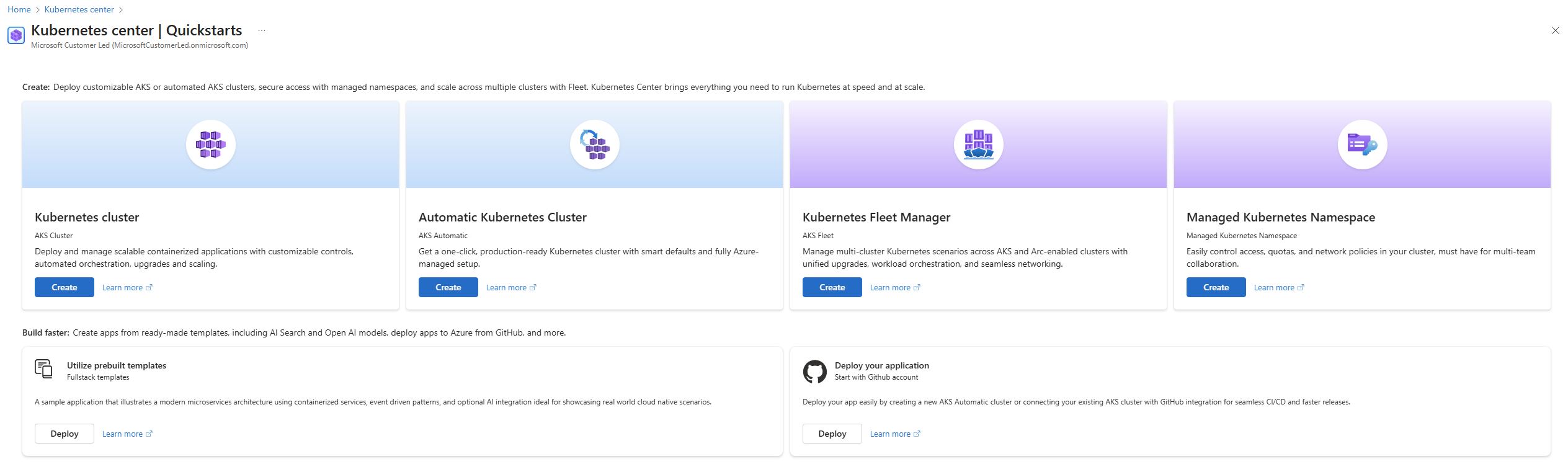
Create resources
From the Azure portal home page, search for and select Kubernetes center.
On the Overview page, select Create.

Select the type of resource you want to create from the available options:
- AKS Cluster
- AKS Automatic Cluster
- Managed Kubernetes Namespace
- Kubernetes Fleet Manager
- Deploy your application
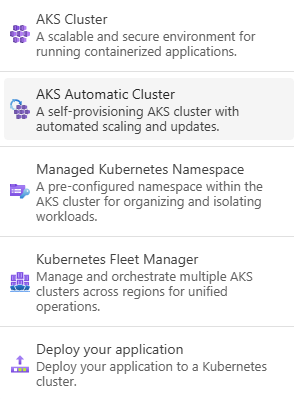
Follow the prompts to configure your resource.
Select Review + create to proceed with the creation.
Manage clusters and workloads
The Overview page provides cluster health and workload performance details, along with security alerts and upgrade recommendations.
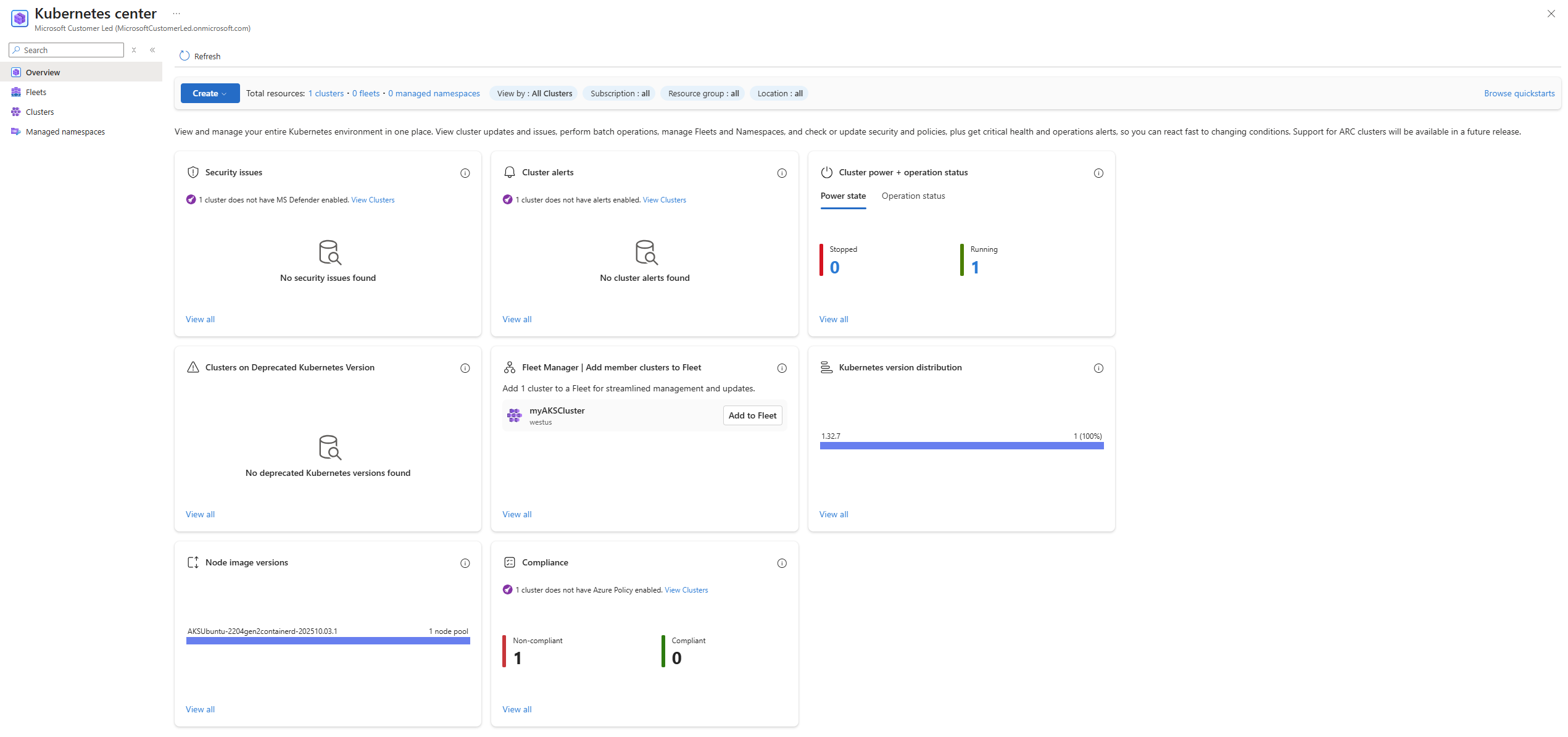
Next steps
For more information about monitoring and managing your AKS clusters, see the following articles: