This article explains how to move a Log Analytics workspace to another resource group or subscription in the same region. Moving a Log Analytics workspace in the same region does not affect your log data or data retention settings.
To move a workspace to a different region instead, see Relocate a Log Analytics workspace to another region. A cross-region move requires creating a new workspace because workspace data doesn't move across regions.
Prerequisites
The subscription or resource group where you want to move your Log Analytics workspace must be located in the same region as the Log Analytics workspace you're moving.
No services can remain linked to the workspace when you move it. Before the move, delete solutions that rely on linked services, including an Azure Automation account. Remove these solutions before you can unlink your Automation account. Data collection for the solutions stops and their tables are removed from the UI, but data remains in the workspace for the retention period defined for the table. When you add solutions back after the move, ingestion is restored and tables become visible with data. Linked services include:
- Update management
- Change tracking
- Start/Stop VMs during off-hours
- Microsoft Defender for Cloud
Connected Log Analytics agents and Azure Monitor Agent remain connected to the workspace after the move with no interruption to ingestion.
Update resource paths after a workspace move for Azure or external resources that point to the workspace, such as Azure Monitor alert rules, third-party applications, and custom scripts.
Permissions required
| Action |
Permissions required |
| Verify the Microsoft Entra tenant. |
Microsoft.AzureActiveDirectory/b2cDirectories/read permissions, as provided by the Log Analytics Reader built-in role, for example. |
| Delete a solution. |
Microsoft.OperationsManagement/solutions/delete permissions on the solution, as provided by the Log Analytics Contributor built-in role, for example. |
| Remove alert rules for the Start/Stop VMs solution. |
microsoft.insights/scheduledqueryrules/delete permissions, as provided by the Monitoring Contributor built-in role, for example. |
| Unlink the Automation account |
Microsoft.OperationalInsights/workspaces/linkedServices/delete permissions on the linked Log Analytics workspace, as provided by the Log Analytics Contributor built-in role, for example. |
| Move a Log Analytics workspace. |
Microsoft.OperationalInsights/workspaces/delete and Microsoft.OperationalInsights/workspaces/write permissions on the Log Analytics workspace, as provided by the Log Analytics Contributor built-in role, for example. |
Considerations
- It can take Azure Resource Manager a few hours to complete. Solutions might be unresponsive during the operation.
- Your log data and data retention settings remain unaffected.
- Managed solutions that are installed in the workspace move as well.
- Managed solutions are workspace objects and can't be moved independently.
- Azure regenerates workspace keys (both primary and secondary) with a workspace move operation. If you keep a copy of your workspace keys in Azure Key Vault, update them with the new keys generated after the workspace is moved.
Verify the Microsoft Entra tenant
The workspace source and destination subscriptions must exist within the same Microsoft tenant. Use Azure PowerShell to verify that both subscriptions have the same Entra tenant ID.
The following Azure CLI example uses the az account show command.
Note
The two tenant IDs must match.
# Set variables
sourceSubscriptionId="<SourceSubscriptionId>"
targetSubscriptionId="<TargetSubscriptionId>"

# Retrieve each subscription's tenant ID
az account show --subscription "$sourceSubscriptionId" --query tenantId --output tsv
az account show --subscription "$targetSubscriptionId" --query tenantId --output tsv
Note
Azure CLI commands use the Azure Resource Manager endpoint from the current CLI context, so management.chinacloudapi.cn doesn't need to be specified in the command syntax.
The following Azure PowerShell example uses the Get-AzSubscription cmdlet.
Note
The two tenant IDs must match.
# Set variables
$sourceSubscriptionId = "<SourceSubscriptionId>"
$targetSubscriptionId = "<TargetSubscriptionId>"

# Retrieve each subscription's tenant ID
(Get-AzSubscription -SubscriptionId $sourceSubscriptionId).TenantId
(Get-AzSubscription -SubscriptionId $targetSubscriptionId).TenantId
Note
Azure PowerShell cmdlets use the Azure Resource Manager endpoint from the current Az context, so management.chinacloudapi.cn doesn’t need to be specified in the cmdlet syntax.
The following REST example uses the Subscriptions - Get REST API operation.
Note
Run the request for each subscription and compare its tenantId value.
GET https://management.chinacloudapi.cn/subscriptions/{subscriptionId}?api-version={apiVersion}
Authorization: Bearer {accessToken}
Delete solutions
- Open the menu for the resource group where any solutions are installed.
- Select the solutions to remove.
- Select Delete Resources and then confirm the resources to be removed by selecting Delete.

The following Azure CLI example uses the az resource delete command.
Note
Run it for each solution you want to remove.
# Set variables
resourceGroupName="<ResourceGroupName>"
solutionName="<SolutionName>"

# Delete the solution
az resource delete \
  --name "$solutionName" \
  --resource-type Microsoft.OperationsManagement/solutions \
  --resource-group "$resourceGroupName"
Note
Azure CLI commands use the Azure Resource Manager endpoint from the current CLI context, so management.chinacloudapi.cn doesn't need to be specified in the command syntax.
The following Azure PowerShell example uses the Remove-AzResource cmdlet.
Note
Include only the solutions you want to remove.
# Set variables
$resourceGroupName = "<ResourceGroupName>"
$workspaceName = "<WorkspaceName>"
$solutionNames = @(
  "ChangeTracking($workspaceName)"
  "Updates($workspaceName)"
  "Start-Stop-VM($workspaceName)"
)

# Delete the selected solutions
foreach ($solutionName in $solutionNames) {
  $removeAzResourceParams = @{
    ResourceType      = "Microsoft.OperationsManagement/solutions"
    ResourceName      = $solutionName
    ResourceGroupName = $resourceGroupName
  }
  Remove-AzResource @removeAzResourceParams
}
Note
Azure PowerShell cmdlets use the Azure Resource Manager endpoint from the current Az context, so management.chinacloudapi.cn doesn’t need to be specified in the cmdlet syntax.
The following REST example uses the Resources - Delete REST API operation.
DELETE https://management.chinacloudapi.cn/subscriptions/{subscriptionId}/resourceGroups/{resourceGroupName}/providers/{resourceProviderNamespace}/{parentResourcePath}/{resourceType}/{resourceName}?api-version={apiVersion}
Authorization: Bearer {accessToken}
Remove alert rules for the Start/Stop VMs solution
To remove the Start/Stop VMs solution, you also need to remove the alert rules created by the solution.
Open the Monitor menu and then select Alerts.
Select Manage alert rules.
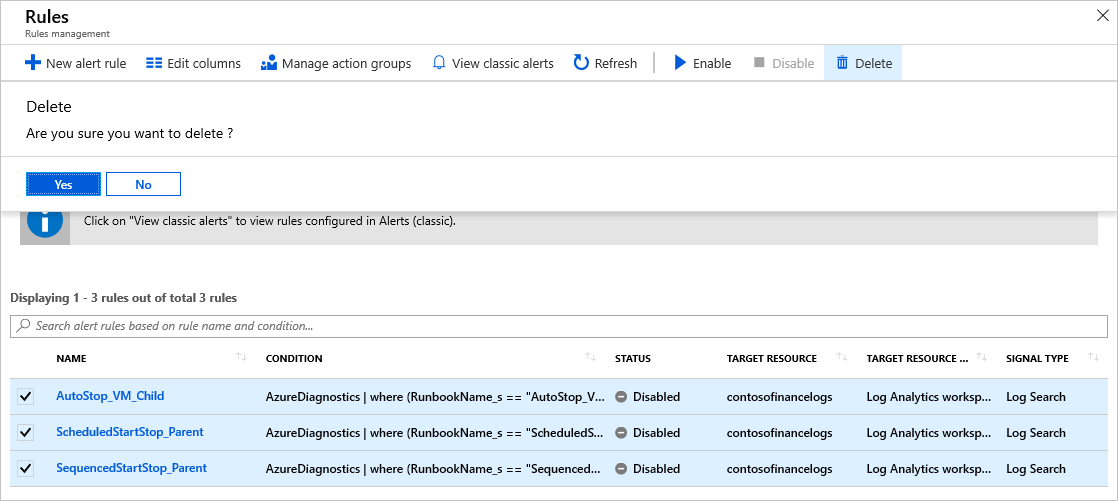
Select the following three alert rules, and then select Delete:
- AutoStop_VM_Child
- ScheduledStartStop_Parent
- SequencedStartStop_Parent
The following Azure CLI example uses the az monitor scheduled-query delete command.
Note
The example deletes these alert rules:
- AutoStop_VM_Child
- ScheduledStartStop_Parent
- SequencedStartStop_Parent
# Set variables
resourceGroupName="<ResourceGroupName>"
ruleNames=(AutoStop_VM_Child ScheduledStartStop_Parent SequencedStartStop_Parent)

# Delete the alert rules
for ruleName in "${ruleNames[@]}"; do
  az monitor scheduled-query delete \
    --name "$ruleName" \
    --resource-group "$resourceGroupName"
done
Note
Azure CLI commands use the Azure Resource Manager endpoint from the current CLI context, so management.chinacloudapi.cn doesn't need to be specified in the command syntax.
The following Azure PowerShell example uses the Remove-AzScheduledQueryRule cmdlet.
Note
The example deletes these alert rules:
- AutoStop_VM_Child
- ScheduledStartStop_Parent
- SequencedStartStop_Parent
# Set variables
$resourceGroupName = "<ResourceGroupName>"
$ruleNames = @(
  "AutoStop_VM_Child"
  "ScheduledStartStop_Parent"
  "SequencedStartStop_Parent"
)

# Delete the alert rules
foreach ($ruleName in $ruleNames) {
  $removeAzScheduledQueryRuleParams = @{
    Name              = $ruleName
    ResourceGroupName = $resourceGroupName
  }
  Remove-AzScheduledQueryRule @removeAzScheduledQueryRuleParams
}
Note
Azure PowerShell cmdlets use the Azure Resource Manager endpoint from the current Az context, so management.chinacloudapi.cn doesn’t need to be specified in the cmdlet syntax.
The following REST example uses the Scheduled Query Rules - Delete REST API operation.
Note
Run it for each of these alert rules:
- AutoStop_VM_Child
- ScheduledStartStop_Parent
- SequencedStartStop_Parent
DELETE https://management.chinacloudapi.cn/subscriptions/{subscriptionId}/resourceGroups/{resourceGroupName}/providers/Microsoft.Insights/scheduledQueryRules/{ruleName}?api-version={apiVersion}
Authorization: Bearer {accessToken}
Unlink the Automation account
The following REST example uses the Linked Services - Delete REST API operation.
DELETE https://management.chinacloudapi.cn/subscriptions/{subscriptionId}/resourceGroups/{resourceGroupName}/providers/Microsoft.OperationalInsights/workspaces/{workspaceName}/linkedServices/{linkedServiceName}?api-version={apiVersion}
Authorization: Bearer {accessToken}
Move your workspace
For a move between resource groups in the same subscription, use that subscription as the destination too. Include any related resources that must move with the workspace.
Open the Log Analytics workspaces menu and then select your workspace.
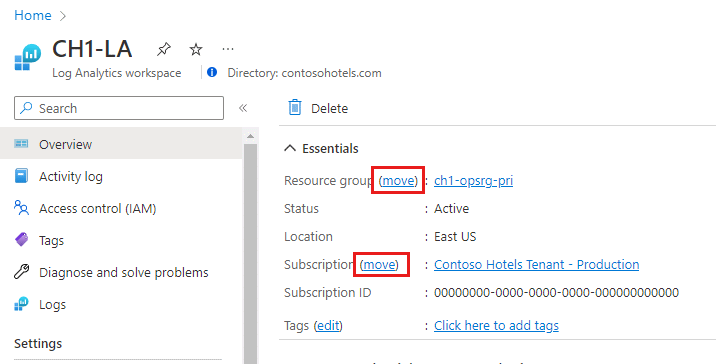
On the Overview page, select change next to either Resource group or Subscription name.
A new page opens with a list of resources related to the workspace. Select the resources to move to the same destination subscription and resource group as the workspace.
Select a destination Subscription and Resource group. If you're moving the workspace to another resource group in the same subscription, you won't see the Subscription option.
Select OK to move the workspace and selected resources.
The following Azure CLI example uses the az resource move command.
# Set variables
sourceResourceGroupName="<SourceResourceGroupName>"
workspaceName="<WorkspaceName>"
targetSubscriptionId="<TargetSubscriptionId>"
targetResourceGroupName="<TargetResourceGroupName>"

# Get the subscription ID from the current Azure CLI context
sourceSubscriptionId=$(az account show --query id --output tsv)

# Build workspace resource ID
workspacePath="/subscriptions/$sourceSubscriptionId"
workspacePath+="/resourceGroups/$sourceResourceGroupName"
workspaceProvider="Microsoft.OperationalInsights/workspaces/$workspaceName"
workspaceResourceId="$workspacePath/providers/$workspaceProvider"

# Move the workspace
az resource move \
  --destination-group "$targetResourceGroupName" \
  --destination-subscription-id "$targetSubscriptionId" \
  --ids "$workspaceResourceId"
Note
Azure CLI commands use the Azure Resource Manager endpoint from the current CLI context, so management.chinacloudapi.cn doesn't need to be specified in the command syntax.
The following Azure PowerShell example uses the Move-AzResource cmdlet.
# Set variables
$sourceResourceGroupName = "<SourceResourceGroupName>"
$workspaceName = "<WorkspaceName>"
$targetSubscriptionId = "<TargetSubscriptionId>"
$targetResourceGroupName = "<TargetResourceGroupName>"

# Get the subscription ID from the current Azure PowerShell context
$sourceSubscriptionId = (Get-AzContext).Subscription.Id

# Build workspace resource ID
$workspacePath = "/subscriptions/$sourceSubscriptionId" +
  "/resourceGroups/$sourceResourceGroupName"
$workspaceProvider = "Microsoft.OperationalInsights/workspaces/$workspaceName"
$workspaceResourceId = "$workspacePath/providers/$workspaceProvider"

# Define parameters for Move-AzResource
$moveAzResourceParams = @{
  ResourceId                   = @($workspaceResourceId)
  DestinationSubscriptionId    = $targetSubscriptionId
  DestinationResourceGroupName = $targetResourceGroupName
}

# Move the workspace
Move-AzResource @moveAzResourceParams
Note
Azure PowerShell cmdlets use the Azure Resource Manager endpoint from the current Az context, so management.chinacloudapi.cn doesn’t need to be specified in the cmdlet syntax.
The following REST example uses the Resources - Move Resources REST API operation.
POST https://management.chinacloudapi.cn/subscriptions/{sourceSubscriptionId}/resourceGroups/{sourceResourceGroupName}/moveResources?api-version={apiVersion}
Authorization: Bearer {accessToken}
Content-Type: application/json

{
  "resources": [
    "/subscriptions/<SourceSubscriptionId>/resourceGroups/<SourceResourceGroupName>/providers/Microsoft.OperationalInsights/workspaces/<WorkspaceName>"
  ],
  "targetResourceGroup": "/subscriptions/<TargetSubscriptionId>/resourceGroups/<TargetResourceGroupName>"
}
Important
After the move operation, removed solutions and the Automation account link should be reconfigured to bring the workspace back to its previous state.
Related content

