Note
Access to this page requires authorization. You can try signing in or changing directories.
Access to this page requires authorization. You can try changing directories.
Artifact streaming (preview) is a feature in Azure Container Registry that you can use to store and manage container images within a single registry. You can stream the container images to Azure Kubernetes Service (AKS) clusters in multiple regions. This feature accelerates containerized workloads for Azure customers using AKS. By using artifact streaming, you can scale workloads without waiting for slow pull times for your node.
Important
Artifact streaming is currently in PREVIEW. See the Supplemental Terms of Use for Azure Previews for legal terms that apply to Azure features that are in beta, preview, or otherwise not yet released into general availability.
How artifact streaming works
Customers with new and existing registries can start artifact streaming for specific repositories or tags. You can store both the original and the streaming artifact in the same container registry. You maintain access to the original and the streaming artifact even after turning off artifact streaming.
Artifact streaming can be particularly useful in the following scenarios:
Deploying containerized applications to multiple regions: By using artifact streaming, you can store container images within a single registry and stream them to AKS clusters in multiple regions.
Reducing image pull latency: Artifact streaming can reduce time-to-pod readiness by over 15%, depending on the size of the image. This reduction is especially helpful for images that are larger than 30 GB. This feature reduces image pull latency and helps containers start up faster.
Effective scaling of containerized applications: Artifact streaming makes it easier to design, build, and deploy containerized applications at a high scale.
Artifact streaming works across regions, regardless of whether geo-replication is started or not. You can also use artifact streaming with private endpoints.
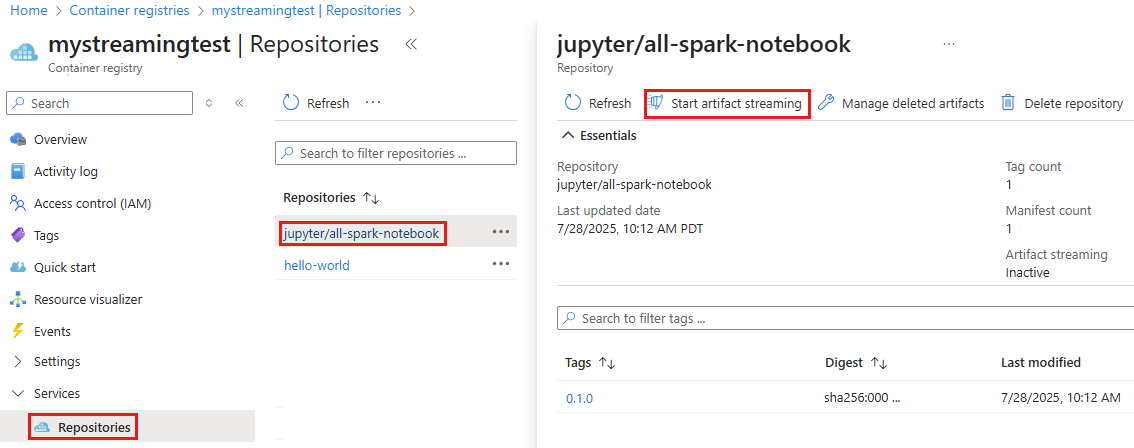
The state of artifact streaming in a repository (inactive or active) determines whether newly pushed compatible images are automatically converted. By default, all repositories are in an inactive state for artifact streaming. This means that when new compatible images are pushed to the repository, artifact streaming isn't triggered, and the images aren't automatically converted. To enable automatic conversion of newly pushed images, set the repository's artifact streaming to the active state. Once the repository is in the active state, any new compatible container images that are pushed to the repository are automatically converted.
Pricing and availability
Artifact streaming is currently available only for the Premium service tier (SKU).
Use of artifact streaming might increase overall registry storage consumption. If consumption exceeds the included 500 GiB Premium SKU threshold, you might incur additional charges, as outlined in the pricing.
Current limitations and requirements
Artifact streaming is currently in preview. The following limitations apply:
- Only images with Linux AMD64 architecture are supported in the preview release.
- The preview release doesn't support Windows-based container images and ARM64 images.
- The preview release partially supports multi-architecture images; only the AMD64 architecture is supported.
- To create an Ubuntu-based node pool in AKS, you must use Ubuntu version 20.04 or higher.
- For Kubernetes, you must use Kubernetes version 1.26 or higher.
- CMK (Customer-Managed Keys) registries aren't currently supported.
- Kubernetes
regcredisn't currently supported.
Use the Azure portal or the Azure CLI to manage artifact streaming. For Azure CLI, you can use the Azure a local installation of the Azure CLI to run the command examples in this article. To install or upgrade, see Install Azure CLI. We recommend using the latest version of the Azure CLI. The commands in this article require Azure CLI version 2.54.0 or above.
Note
If you use artifact streaming with a soft delete policy enabled, and you delete an artifact, both the original and artifact streaming versions are deleted. However, only the original version can be viewed or restored during the retention period.
Enable and manage artifact streaming
Start artifact streaming to enable pushing, importing, and generating streaming artifacts for container images in an Azure container registry. These instructions outline the process for generating a streaming artifact and managing automatic conversion of streaming artifacts.
To enable artifact streaming, you must use a Premium service tier (SKU) registry. If you don't already have one, create a new registry and select the Premium service tier, or change the SKU for an existing registry.
These examples use the Azure CLI to work with a premium Azure Container Registry named mystreamingtest in the my-streaming-test resource group located in the China East 2 region, along with an example Jupyter Notebook image. Replace these names with your own values.
Import an image and create artifact streaming
First, run the az config command to set your registry name as the default for az acr commands:
az config set defaults.acr="mystreamingtest"
If you don't already have an image that you want to use, run the az acr import command to import a Jupyter Notebook image from Docker Hub:
az acr import --source dockerhub.azk8s.cn/jupyter/all-spark-notebook:latest -t jupyter/all-spark-notebook:latest
Note
If you see an error from the docker registry, it might be due to rate limiting. To avoid this error, consider authenticating with Docker Hub by providing your Docker ID and password by using the --username and --password parameters in the az acr import command.
To create a streaming artifact from the image, run the az acr artifact-streaming create command:
az acr artifact-streaming create --image jupyter/all-spark-notebook:latest
An operation ID is generated during this process. If you want to stop the process of creating the streaming artifact, run az acr artifact-streaming operation cancel with the operation ID:
az acr artifact-streaming operation cancel --repository jupyter/all-spark-notebook --id c015067a-7463-4a5a-9168-3b17dbe42ca3
After the streaming artifact is generated, you can confirm its creation by using az acr manifest list-referrers to list streaming artifacts:
az acr manifest list-referrers -n jupyter/all-spark-notebook:latest
Manage artifact streaming for new images in the repository
By default, newly pushed or imported images in a repository aren't automatically enabled for artifact streaming. To ensure that new images pushed into the repository automatically trigger the generation of streaming artifacts, use the az acr artifact-streaming update command on the repository:
az acr artifact-streaming update --repository jupyter/all-spark-notebook --enable-streaming true
Note
Existing images in the repository aren't automatically converted when you run this command.
To verify that automatic conversion is working, push a new image to the repository, and then run the az acr artifact-streaming operation show command:
az acr artifact-streaming operation show --image jupyter/all-spark-notebook:newtag
After confirming that the conversion is working, you can stream images from ACR to Azure Kubernetes Service (AKS) clusters.
To disable automatic conversion of streaming artifacts in the repository, run az acr artifact-streaming update and set --enable-streaming to false:
az acr artifact-streaming update --repository jupyter/all-spark-notebook --enable-streaming false
Related content
- Get tips for troubleshooting artifact streaming problems.
- Learn more about registries, repositories, and artifacts.