Note
Access to this page requires authorization. You can try signing in or changing directories.
Access to this page requires authorization. You can try changing directories.
APPLIES TO:  Azure Data Factory
Azure Synapse Analytics
Azure Data Factory
Azure Synapse Analytics
This article describes how the Azure Data Factory copy activity performs schema mapping and data type mapping from source data to sink data.
Schema mapping
Default mapping
By default, copy activity maps source data to sink by column names in a case-sensitive manner. If the sink doesn't exist, such as when writing to files, the source field names become the sink names. If the sink already exists, it must contain all columns being copied from the source. This default mapping supports flexible schemas and schema drift from source to sink from execution to execution - all the data returned by source data store can be copied to sink.
If your source is a text file without a header line, you need to use explicit mapping because the source doesn't contain column names.
Explicit mapping
Specify explicit mapping to customize the column and field mapping from source to sink. By using explicit mapping, you can copy only part of the source data to the sink, map source data to sink with different names, or reshape tabular or hierarchical data. The copy activity:
- Reads the data from the source and determines the source schema.
- Applies your defined mapping.
- Writes the data to the sink.
Learn more about:
- Tabular source to tabular sink
- Hierarchical source to tabular sink
- Tabular/Hierarchical source to hierarchical sink
Configure the mapping in the Authoring UI by going to the copy activity and selecting the mapping tab. Or, programmatically specify the mapping in the copy activity by using the translator property. The following properties are supported in translator -> mappings array -> objects -> source and sink, which point to the specific column or field to map data.
| Property | Description | Required |
|---|---|---|
| name | Name of the source or sink column or field. Applies to tabular source and sink. | Yes |
| ordinal | Column index. Starts from 1. Applies and required when using delimited text without header line. | No |
| path | JSON path expression for each field to extract or map. Applies to hierarchical source and sink, for example, Azure Cosmos DB, Azure DocumentDB (with MongoDB compatibility), MongoDB, or REST connectors. For fields under the root object, the JSON path starts with root $; for fields inside the array chosen by collectionReference property, JSON path starts from the array element without $. |
No |
| type | Interim data type of the source or sink column. In general, you don't need to specify or change this property. To learn more, see data type mapping. | No |
| culture | Culture of the source or sink column. Applies when type is Datetime or Datetimeoffset. The default is en-us. In general, you don't need to specify or change this property. To learn more, see data type mapping. |
No |
| format | Format string to use when type is Datetime or Datetimeoffset. Refer to Custom Date and Time Format Strings on how to format datetime. In general, you don't need to specify or change this property. To learn more, see data type mapping. |
No |
The following properties are supported under translator in addition to mappings:
| Property | Description | Required |
|---|---|---|
| collectionReference | Applies when copying data from a hierarchical source, such as Azure Cosmos DB, Azure DocumentDB (with MongoDB compatibility), MongoDB, or REST connectors. If you want to iterate and extract data from the objects inside an array field with the same pattern and convert to per row per object, specify the JSON path of that array to do cross-apply. | No |
Tabular source to tabular sink
For example, to copy data from Salesforce to Azure SQL Database and explicitly map three columns:
On the copy activity, select the mapping tab, and then select Import schemas to import both source and sink schemas.
Map the needed fields and exclude or delete the rest.

Configure the same mapping in the copy activity payload (see translator).
{
    "name": "CopyActivityTabularToTabular",
    "type": "Copy",
    "typeProperties": {
        "source": { "type": "SalesforceSource" },
        "sink": { "type": "SqlSink" },
        "translator": {
            "type": "TabularTranslator",
            "mappings": [
                {
                    "source": { "name": "Id" },
                    "sink": { "name": "CustomerID" }
                },
                {
                    "source": { "name": "Name" },
                    "sink": { "name": "LastName" }
                },
                {
                    "source": { "name": "LastModifiedDate" },
                    "sink": { "name": "ModifiedDate" }
                }
            ]
        }
    },
    ...
}
To copy data from delimited text files without a header line, represent the columns by ordinal instead of names.
{
    "name": "CopyActivityTabularToTabular",
    "type": "Copy",
    "typeProperties": {
        "source": { "type": "DelimitedTextSource" },
        "sink": { "type": "SqlSink" },
        "translator": {
            "type": "TabularTranslator",
            "mappings": [
                {
                    "source": { "ordinal": "1" },
                    "sink": { "name": "CustomerID" }
                },
                {
                    "source": { "ordinal": "2" },
                    "sink": { "name": "LastName" }
                },
                {
                    "source": { "ordinal": "3" },
                    "sink": { "name": "ModifiedDate" }
                }
            ]
        }
    },
    ...
}
Hierarchical source to tabular sink
When you copy data from a hierarchical source to a tabular sink, the copy activity supports the following capabilities:
- Extract data from objects and arrays.
- Cross apply multiple objects with the same pattern from an array, in which case to convert one JSON object into multiple records in tabular result.
For more advanced hierarchical-to-tabular transformation, use Data Flow.
For example, if you have source Azure DocumentDB or MongoDB document with the following content:
{
    "id": {
        "$oid": "592e07800000000000000000"
    },
    "number": "01",
    "date": "20170122",
    "orders": [
        {
            "prod": "p1",
            "price": 23
        },
        {
            "prod": "p2",
            "price": 13
        },
        {
            "prod": "p3",
            "price": 231
        }
    ],
    "city": [ { "name": "Seattle" } ]
}
To copy the data into a text file, use the following format with a header line. Flatten the data inside the arrays (order_pd and order_price) and use a cross join with the common root information (number, date, and city):
| orderNumber | orderDate | order_pd | order_price | city |
|---|---|---|---|---|
| 01 | 20170122 | P1 | 23 | Seattle |
| 01 | 20170122 | P2 | 13 | Seattle |
| 01 | 20170122 | P3 | 231 | Seattle |
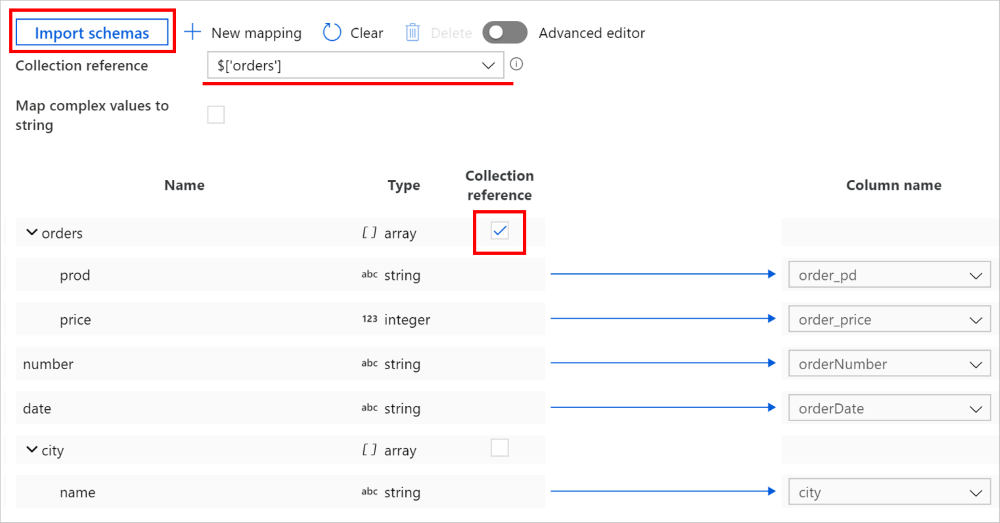
Define this mapping in the Data Factory authoring UI:
On copy activity, go to the Mapping tab and select Import schemas to import both source and sink schemas. As the service samples the top few objects when importing schema, if any field doesn't appear, add it to the correct layer in the hierarchy - hover on an existing field name and choose to add a node, an object, or an array.
Select the array from which you want to iterate and extract data. The UI autopopulates Collection reference. Note that this operation supports only a single array.
Map the needed fields to sink. The service automatically determines the corresponding JSON paths for the hierarchical side.
Note
For records where the array marked as collection reference is empty and you select the check box, the entire record is skipped.
You can also switch to Advanced editor. You can directly see and edit the fields' JSON paths. If you choose to add new mapping in this view, specify the JSON path.
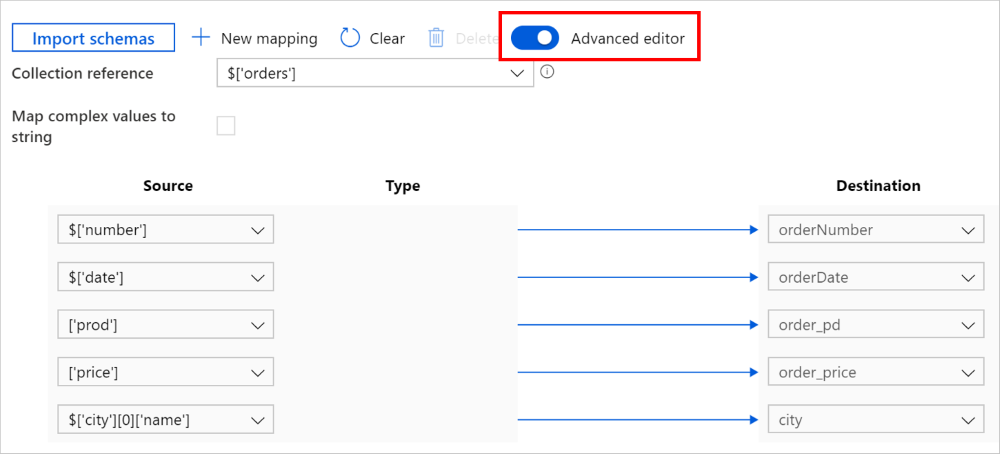
You can configure the same mapping in copy activity payload (see translator):
{
    "name": "CopyActivityHierarchicalToTabular",
    "type": "Copy",
    "typeProperties": {
        "source": { "type": "MongoDbV2Source" },
        "sink": { "type": "DelimitedTextSink" },
        "translator": {
            "type": "TabularTranslator",
            "mappings": [
                {
                    "source": { "path": "$['number']" },
                    "sink": { "name": "orderNumber" }
                },
                {
                    "source": { "path": "$['date']" },
                    "sink": { "name": "orderDate" }
                },
                {
                    "source": { "path": "['prod']" },
                    "sink": { "name": "order_pd" }
                },
                {
                    "source": { "path": "['price']" },
                    "sink": { "name": "order_price" }
                },
                {
                    "source": { "path": "$['city'][0]['name']" },
                    "sink": { "name": "city" }
                }
            ],
            "collectionReference": "$['orders']"
        }
    },
    ...
}
Tabular/Hierarchical source to hierarchical sink
The user experience flow is similar to Hierarchical source to tabular sink.
When copying data from a tabular source to a hierarchical sink, the service doesn't support writing to an array inside an object.
When copying data from a hierarchical source to a hierarchical sink, you can preserve an entire layer's hierarchy by selecting the object or array and mapping to sink without touching the inner fields.
For more advanced data reshape transformation, use Data Flow.
Parameterize mapping
To create a templatized pipeline that dynamically copies a large number of objects, first determine whether you can use the default mapping or if you need to define explicit mapping for each object.
If you need explicit mapping, follow these steps:
Define a parameter with an object type at the pipeline level, such as
mapping.Parameterize the mapping: On the copy activity, go to the mapping tab, choose to add dynamic content, and select the parameter you created. The activity payload is the following:
{
    "name": "CopyActivityHierarchicalToTabular",
    "type": "Copy",
    "typeProperties": {
        "source": {...},
        "sink": {...},
        "translator": {
            "value": "@pipeline().parameters.mapping",
            "type": "Expression"
        },
        ...
    }
}
Construct the value to pass into the mapping parameter. It should be the entire object of the
translatordefinition. For samples, see the explicit mapping section. For example, for tabular source to tabular sink copy, the value should be{"type":"TabularTranslator","mappings":[{"source":{"name":"Id"},"sink":{"name":"CustomerID"}},{"source":{"name":"Name"},"sink":{"name":"LastName"}},{"source":{"name":"LastModifiedDate"},"sink":{"name":"ModifiedDate"}}]}.
Data type mapping
Copy activity maps source types to sink types by using the following flow:
- Convert from source native data types to interim data types used by Azure Data Factory and Synapse pipelines.
- Automatically convert the interim data type as needed to match the corresponding sink types. This step applies to both default mapping and explicit mapping.
- Convert from interim data types to sink native data types.
Copy activity currently supports the following interim data types: Boolean, Byte, Byte array, Datetime, DatetimeOffset, Decimal, Double, GUID, Int16, Int32, Int64, SByte, Single, String, Timespan, UInt16, UInt32, and UInt64.
The following data type conversions are supported between the interim types from source to sink.
| Source\Sink | Boolean | Byte array | Date/Time | Decimal | Float-point | GUID | Integer | String | TimeSpan |
|---|---|---|---|---|---|---|---|---|---|
| Boolean | ✓ | ✓ | ✓ | ✓ | |||||
| Byte array | ✓ | ✓ | |||||||
| Date/Time | ✓ | ✓ | |||||||
| Decimal | ✓ | ✓ | ✓ | ✓ | |||||
| Float-point | ✓ | ✓ | ✓ | ✓ | |||||
| GUID | ✓ | ✓ | |||||||
| Integer | ✓ | ✓ | ✓ | ✓ | |||||
| String | ✓ | ✓ | ✓ | ✓ | ✓ | ✓ | ✓ | ✓ | |
| TimeSpan | ✓ | ✓ |
(1) Date/Time includes DateTime, DateTimeOffset, Date, and Time.
(2) Float-point includes Single and Double.
(3) Integer includes SByte, Byte, Int16, UInt16, Int32, UInt32, Int64, and UInt64.
Note
- Currently, such data type conversion is supported when copying between tabular data. Hierarchical sources and sinks aren't supported, which means there's no system-defined data type conversion between source and sink interim types.
- This feature works with the latest dataset model. If you don't see this option from the UI, try creating a new dataset.
Copy activity supports the following properties for data type conversion (under the translator section for programmatic authoring):
| Property | Description | Required |
|---|---|---|
| typeConversion | Enable the new data type conversion experience. Default value is false due to backward compatibility. For new copy activities created through Data Factory authoring UI since late June 2020, this data type conversion is enabled by default for the best experience. You can see the following type conversion settings on copy activity -> mapping tab for applicable scenarios. To create pipeline programmatically, you need to explicitly set typeConversion property to true to enable it. For existing copy activities created before this feature is released, you won't see type conversion options on the authoring UI for backward compatibility. |
No |
| typeConversionSettings | A group of type conversion settings. Apply when typeConversion is set to true. The following properties are all under this group. |
No |
Under typeConversionSettings |
||
| allowDataTruncation | Allow data truncation when converting source data to sink with different type during copy, for example, from decimal to integer, from DatetimeOffset to Datetime. Default value is true. |
No |
| treatBooleanAsNumber | Treat booleans as numbers, for example, true as 1. Default value is false. |
No |
| dateFormat | Format string when converting between dates and strings, such as yyyy-MM-dd. Refer to Custom Date and Time Format Strings for detailed information. |
No |
| dateTimeFormat | Format string when converting between dates without time zone offset and strings, such as yyyy-MM-dd HH:mm:ss.fff. Refer to Custom Date and Time Format Strings for detailed information. |
No |
| dateTimeOffsetFormat | Format string when converting between dates with time zone offset and strings, such as yyyy-MM-dd HH:mm:ss.fff zzz. Refer to Custom Date and Time Format Strings for detailed information. |
No |
| timeSpanFormat | Format string when converting between time periods and strings, such as dd\.hh\:mm. Refer to Custom TimeSpan Format Strings for detailed information. |
No |
| timeFormat | Format string when converting between time and strings, such as HH:mm:ss.fff. Refer to Custom Date and Time Format Strings for detailed information. |
No |
| culture | Culture information to use when converting types, such as en-us or fr-fr. |
No |
Example:
{
    "name": "CopyActivity",
    "type": "Copy",
    "typeProperties": {
        "source": {
        	"type": "ParquetSource"
        },
        "sink": {
            "type": "SqlSink"
        },
        "translator": {
            "type": "TabularTranslator",
            "typeConversion": true,
            "typeConversionSettings": {
                "allowDataTruncation": true,
                "treatBooleanAsNumber": true,
                "dateTimeFormat": "yyyy-MM-dd HH:mm:ss.fff",
                "dateTimeOffsetFormat": "yyyy-MM-dd HH:mm:ss.fff zzz",
                "timeSpanFormat": "dd\.hh\:mm",
                "culture": "en-gb"
            }
        }
	},
    ...
}
Legacy models
Note
For backward compatibility, the service still supports the following models to map source columns or fields to sink. Use the new model described in schema mapping. The authoring UI now generates the new model.
Alternative column-mapping (legacy model)
To map between tabular-shaped data, specify copy activity -> translator -> columnMappings. In this case, both input and output datasets require the structure section. Column mapping supports mapping all or a subset of columns in the source dataset structure to all columns in the sink dataset structure. The following error conditions result in an exception:
- Source data store query result doesn't have a column name that you specified in the input dataset structure section.
- Sink data store (if with predefined schema) doesn't have a column name that you specified in the output dataset structure section.
- Either fewer columns or more columns in the structure of sink dataset than specified in the mapping.
- Duplicate mapping.
In the following example, the input dataset has a structure, and it points to a table in an on-premises Oracle database.
{
    "name": "OracleDataset",
    "properties": {
        "structure":
         [
            { "name": "UserId"},
            { "name": "Name"},
            { "name": "Group"}
         ],
        "type": "OracleTable",
        "linkedServiceName": {
            "referenceName": "OracleLinkedService",
            "type": "LinkedServiceReference"
        },
        "typeProperties": {
            "tableName": "SourceTable"
        }
    }
}
In this sample, the output dataset has a structure and it points to a table in Salesforce.
{
    "name": "SalesforceDataset",
    "properties": {
        "structure":
        [
            { "name": "MyUserId"},
            { "name": "MyName" },
            { "name": "MyGroup"}
        ],
        "type": "SalesforceObject",
        "linkedServiceName": {
            "referenceName": "SalesforceLinkedService",
            "type": "LinkedServiceReference"
        },
        "typeProperties": {
            "tableName": "SinkTable"
        }
    }
}
The following JSON defines a copy activity in a pipeline. The columns from source map to columns in sink by using the translator -> columnMappings property.
{
    "name": "CopyActivity",
    "type": "Copy",
    "inputs": [
        {
            "referenceName": "OracleDataset",
            "type": "DatasetReference"
        }
    ],
    "outputs": [
        {
            "referenceName": "SalesforceDataset",
            "type": "DatasetReference"
        }
    ],
    "typeProperties":    {
        "source": { "type": "OracleSource" },
        "sink": { "type": "SalesforceSink" },
        "translator":
        {
            "type": "TabularTranslator",
            "columnMappings":
            {
                "UserId": "MyUserId",
                "Group": "MyGroup",
                "Name": "MyName"
            }
        }
    }
}
If you use the syntax "columnMappings": "UserId: MyUserId, Group: MyGroup, Name: MyName" to specify column mapping, it's still supported as-is.
Alternative schema mapping (legacy model)
You can specify copy activity -> translator -> schemaMapping to map between hierarchical-shaped data and tabular-shaped data. For example, you can copy from MongoDB or REST to a text file, and copy from Oracle to Azure Cosmos DB for MongoDB or Azure DocumentDB (with MongoDB compatibility). The copy activity translator section supports the following properties:
| Property | Description | Required |
|---|---|---|
| type | Set the type property of the copy activity translator to: TabularTranslator | Yes |
| schemaMapping | A collection of key-value pairs that represents the mapping relation from source side to sink side. - Key: represents source. For tabular source, specify the column name as defined in dataset structure. For hierarchical source, specify the JSON path expression for each field to extract and map. - Value: represents sink. For tabular sink, specify the column name as defined in dataset structure. For hierarchical sink, specify the JSON path expression for each field to extract and map. In the case of hierarchical data, for fields under root object, JSON path starts with root $; for fields inside the array chosen by collectionReference property, JSON path starts from the array element. |
Yes |
| collectionReference | If you want to iterate and extract data from the objects inside an array field with the same pattern and convert to per row per object, specify the JSON path of that array to do cross-apply. This property is supported only when hierarchical data is source. | No |
Example: copy from MongoDB to Oracle:
For example, if you have a MongoDB document with the following content:
{
    "id": {
        "$oid": "592e07800000000000000000"
    },
    "number": "01",
    "date": "20170122",
    "orders": [
        {
            "prod": "p1",
            "price": 23
        },
        {
            "prod": "p2",
            "price": 13
        },
        {
            "prod": "p3",
            "price": 231
        }
    ],
    "city": [ { "name": "Seattle" } ]
}
and you want to copy it into an Azure SQL table in the following format by flattening the data inside the array (order_pd and order_price) and cross join with the common root info (number, date, and city):
| orderNumber | orderDate | order_pd | order_price | city |
|---|---|---|---|---|
| 01 | 20170122 | P1 | 23 | Seattle |
| 01 | 20170122 | P2 | 13 | Seattle |
| 01 | 20170122 | P3 | 231 | Seattle |
Configure the schema mapping rule as the following copy activity JSON sample:
{
    "name": "CopyFromMongoDBToOracle",
    "type": "Copy",
    "typeProperties": {
        "source": {
            "type": "MongoDbV2Source"
        },
        "sink": {
            "type": "OracleSink"
        },
        "translator": {
            "type": "TabularTranslator",
            "schemaMapping": {
                "$.number": "orderNumber",
                "$.date": "orderDate",
                "prod": "order_pd",
                "price": "order_price",
                "$.city[0].name": "city"
            },
            "collectionReference":  "$.orders"
        }
    }
}
Related content
See the other Copy Activity articles: