Note
Access to this page requires authorization. You can try signing in or changing directories.
Access to this page requires authorization. You can try changing directories.
This page explains how to create and manage governed tags across your account. For an overview of governed tags, see Governed tags.
Warning
Tag data is stored as plain text and may be replicated globally. Do not use tag names, values, or descriptors that could compromise the security of your resources. For example, do not use tag names, values or descriptors that contain personal or sensitive information.
Requirements for tag keys and values
Tag keys and tag values:
- Can be up to 256 characters.
- Support UTF-8 encoding, including Unicode characters such as international letters, symbols, and emoji.
- Are case-sensitive. For example,
Departmentanddepartmentare two distinct tags. - Cannot contain the following characters:
* . / < > % & ? \ =or control characters (ASCII 0-31) - Cannot begin or end with white space.
Create a governed tag
To create a governed tag, you must have the CREATE permission at the account level. Account admins and workspace admins have CREATE by default. Account admins can revoke the CREATE permission from workspace admins.
Catalog Explorer
In your Azure Databricks workspace, click
 Catalog.
Click the
 Govern button.
In the dropdown menu, click Governed Tags.
Click Create governed tag.
Enter a tag key. See Requirements for tag keys and values.
Optionally, enter a description for the governed tag.
Optionally, enter one or more allowed values for the tag. Only these values can be assigned to this tag key. See Requirements for tag keys and values.
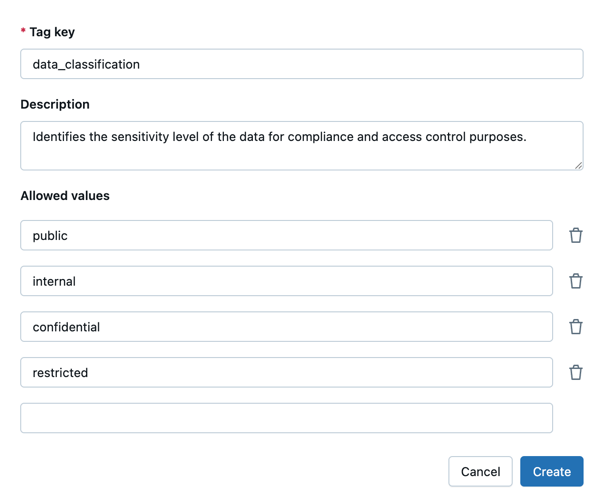
Click Create.
SQL
Use the CREATE GOVERNED TAG statement:
-- Create a key-only governed tag.
CREATE GOVERNED TAG isPii;

-- Create a governed tag with allowed values.
CREATE GOVERNED TAG sensitivity_level VALUES ('low', 'medium', 'high');

-- Create a governed tag with a description and allowed values.
CREATE GOVERNED TAG pii
  DESCRIPTION 'Indicates what kind of personal identifiable information the asset contains'
  VALUES ('ssn', 'ccn', 'dob');
See CREATE GOVERNED TAG for full syntax.
Governing existing tag assignments
If you create a governed tag with the same key as tags that are already assigned to objects, all existing tag assignments with that key automatically become governed. You do not need to reassign them.
For example, suppose several tables already have a tag with the key department and various values, such as finance, engineering, and marketing. These tags are currently ungoverned, so any user with the APPLY TAG privilege can assign them or modify their values.
If you create a governed tag with the key department and define the allowed values as finance, engineering, marketing, and sales, the following happens:
- All existing
departmenttag assignments on those tables become governed immediately. - Going forward, only users with the
ASSIGNprivilege on thedepartmentgoverned tag can assign or modifydepartmenttag values. - Tag values are restricted to the allowed values you defined (
finance,engineering,marketing,sales). - Existing tag assignments that use values outside the allowed list are not removed, but they cannot be reassigned with the same out-of-policy value.
If you later delete the governed tag, all tag assignments with that key become ungoverned. This means that any user with the APPLY TAG privilege can assign or modify those tag values without requiring the ASSIGN privilege.
Edit a governed tag
To edit a governed tag, you must have the MANAGE permission on that governed tag.
Catalog Explorer
- In your Azure Databricks workspace, click Catalog.
- Click the Govern button.
- In the dropdown menu, click Governed Tags.
- Select the governed tag.
- To edit the description, click the pencil icon
 .
. - To add an allowed value, click Add value.
- To remove an allowed value, select the checkbox next to the value and click Remove value.
SQL
Use the ALTER GOVERNED TAG statement:
-- Update the description.
ALTER GOVERNED TAG pii SET DESCRIPTION 'Indicates what kind of personal identifiable information the asset contains';

-- Replace the allowed values list.
ALTER GOVERNED TAG sensitivity_level SET VALUES ('low', 'medium', 'high');

-- Remove all allowed values.
ALTER GOVERNED TAG isPii SET VALUES ();
SET VALUES is declarative: the provided list replaces all existing allowed values.
See ALTER GOVERNED TAG for full syntax.
Delete a governed tag
Warning
Deleting a governed tag referenced in an ABAC policy causes all queries within that policy's scope to fail with an INVALID_PARAMETER_VALUE.UC_ABAC_UNKNOWN_TAG_POLICY error. To resolve this, you must update or delete the policy.
Before deleting a governed tag, ensure that it isn't referenced in any ABAC policies. See Governed tag deletion.
When you delete a governed tag, the tag itself is not removed from objects. Instead, it becomes ungoverned. This means:
- The tag key and any existing tag values remain on objects.
- The tag is no longer subject to a tag policy.
- Anyone with the ability to apply tags can assign or modify the tag without requiring special permissions.
To delete a governed tag, you must have the MANAGE permission on that governed tag.
Catalog Explorer
- In your Azure Databricks workspace, click Catalog.
- Click the Govern button.
- In the dropdown menu, click Governed Tags.
- Select the governed tag.
- Click Delete.
SQL
Use the DROP GOVERNED TAG statement:
DROP GOVERNED TAG isPii;
See DROP GOVERNED TAG for full syntax.