Note
Access to this page requires authorization. You can try signing in or changing directories.
Access to this page requires authorization. You can try changing directories.
Microsoft Entra Cloud Sync lets you test configuration changes by applying them to a single user or group before you enable the configuration for all in-scope objects.
Use this test to validate and verify that the changes you made to the configuration were applied properly and that objects are correctly synchronized to Active Directory.
This article covers on-demand provisioning for configurations that provision from Microsoft Entra ID to Active Directory. If you're looking for information about provisioning from Active Directory to Microsoft Entra ID, see On-demand provisioning - Active Directory to Microsoft Entra ID.
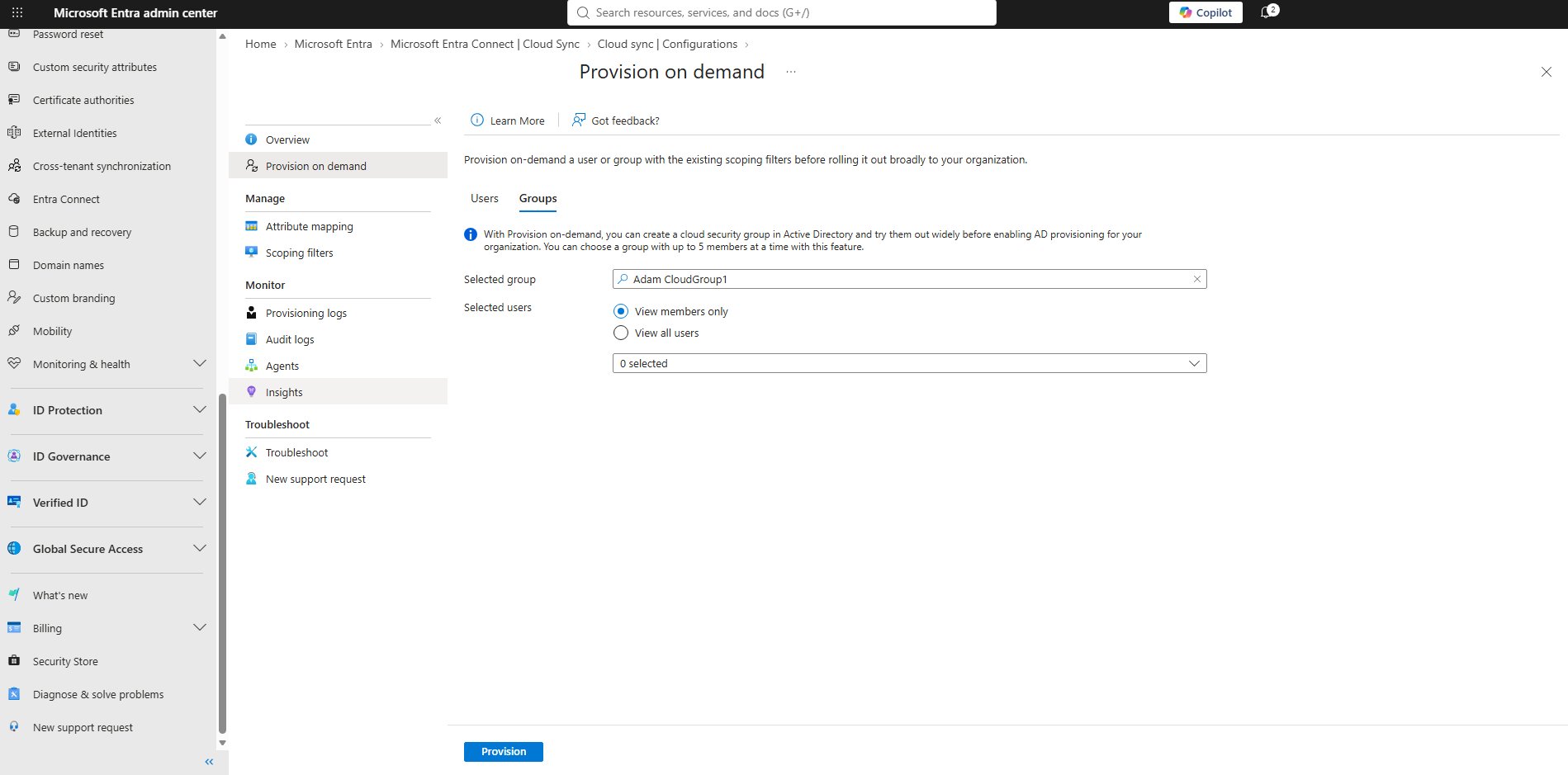
The following is true for on-demand group provisioning:
- On-demand provisioning of groups supports updating up to five members at a time.
- On-demand provisioning doesn't support deleting groups that are deleted from Microsoft Entra ID. Those groups don't appear when you search for a group.
- On-demand provisioning doesn't support nested groups that aren't directly assigned to the application.
- The on-demand provisioning request API can only accept a single group with up to five members at a time.
Verify a user or group
Sign in to the Microsoft Entra admin center as at least a Hybrid Identity Administrator.
Browse to Entra ID > Entra Connect > Cloud sync.
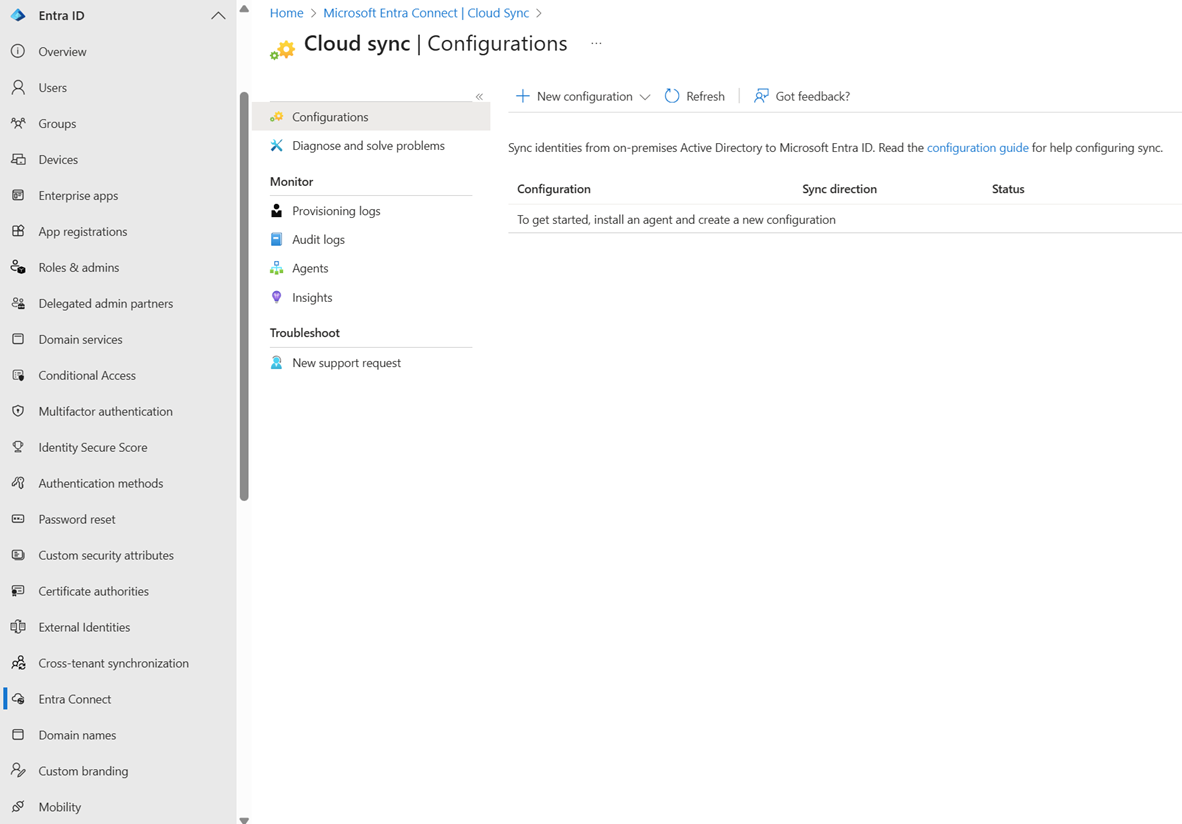
Under Configuration, select your configuration.
On the left, select Provision on demand.
Select the Users or Groups tab, depending on which object type you want to test.
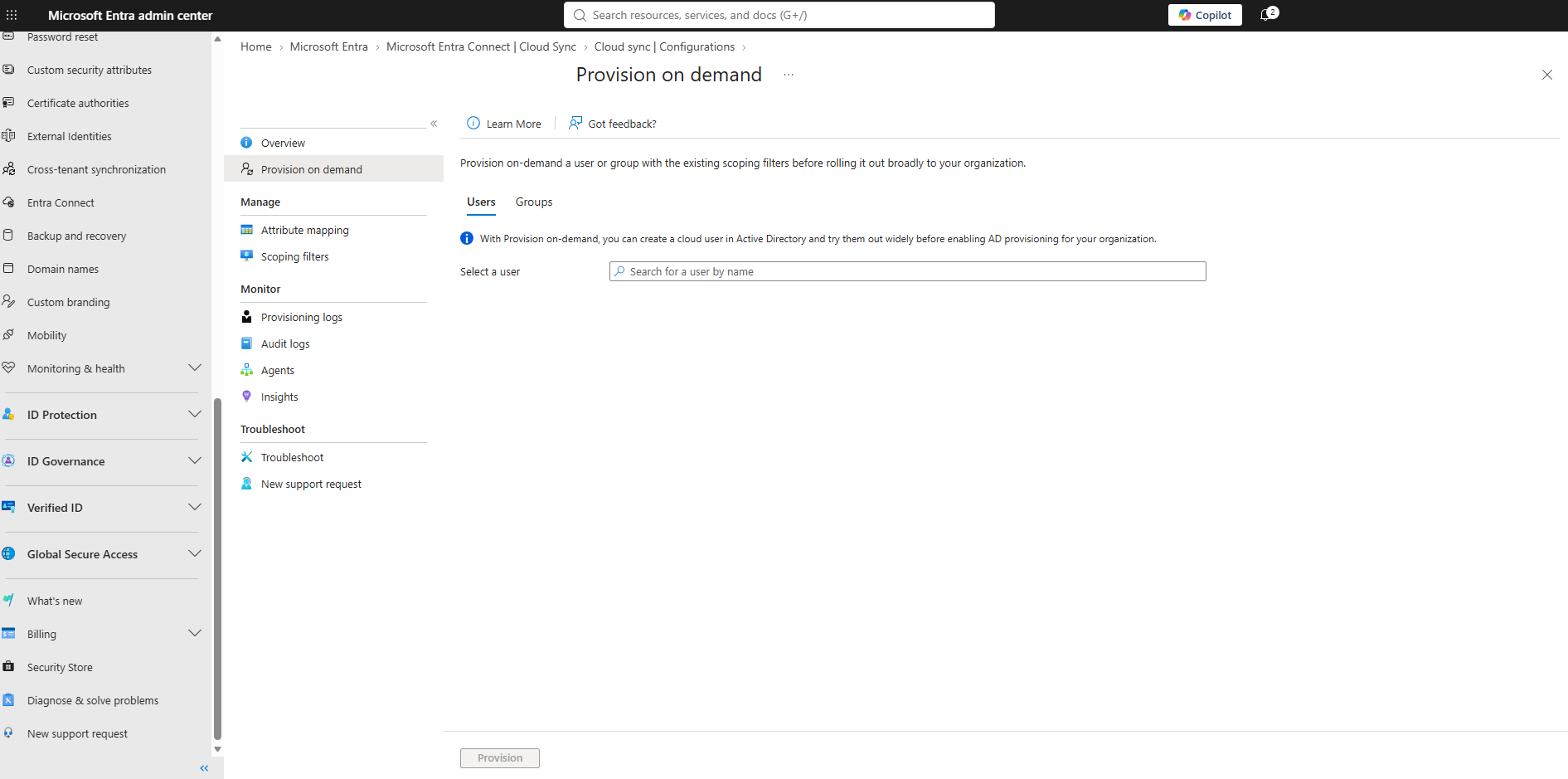
Then follow the steps for the object type you selected.
In Select a user, search for the user by name, and then select the user.
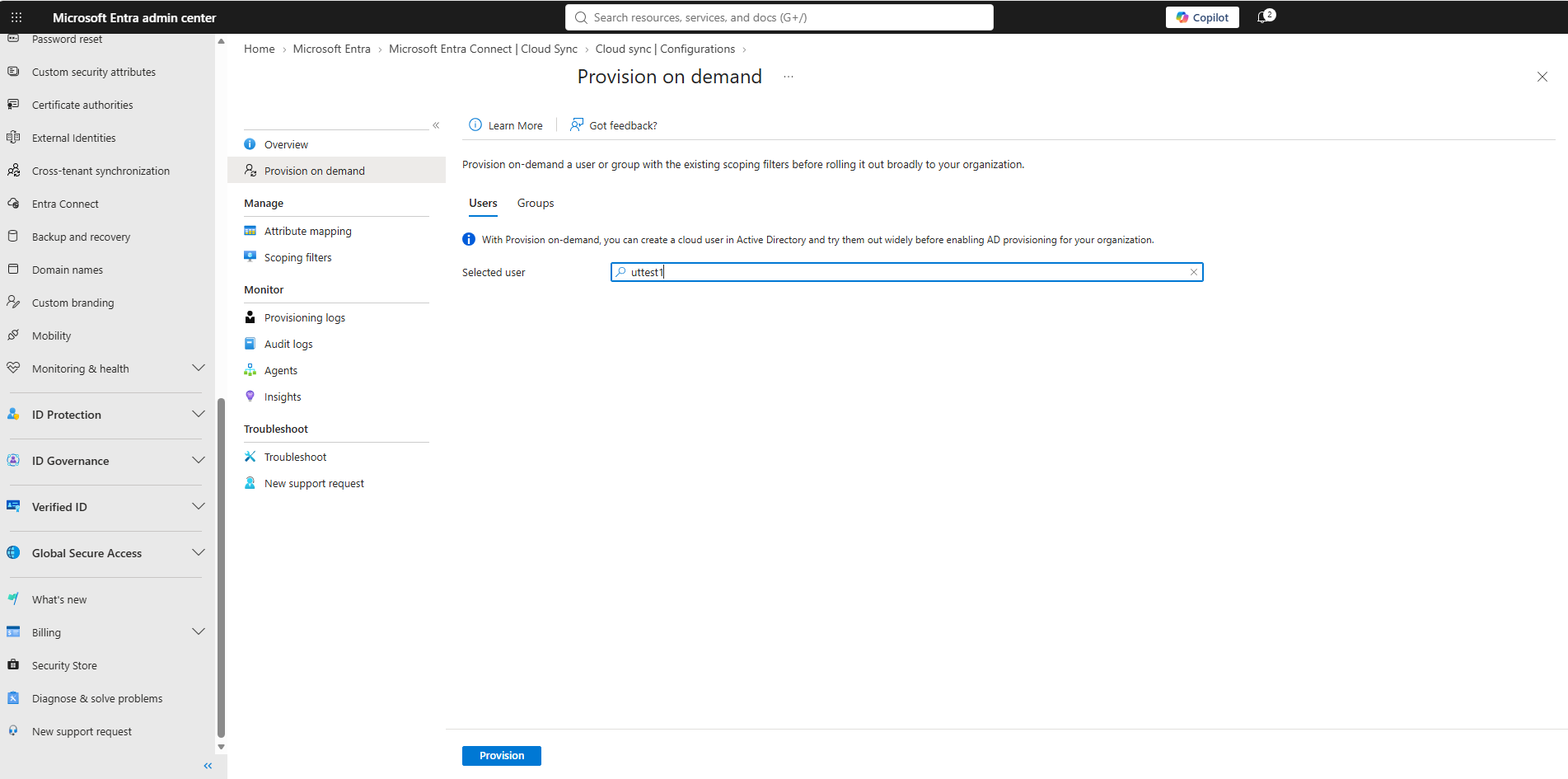
Select Provision.
Review the result
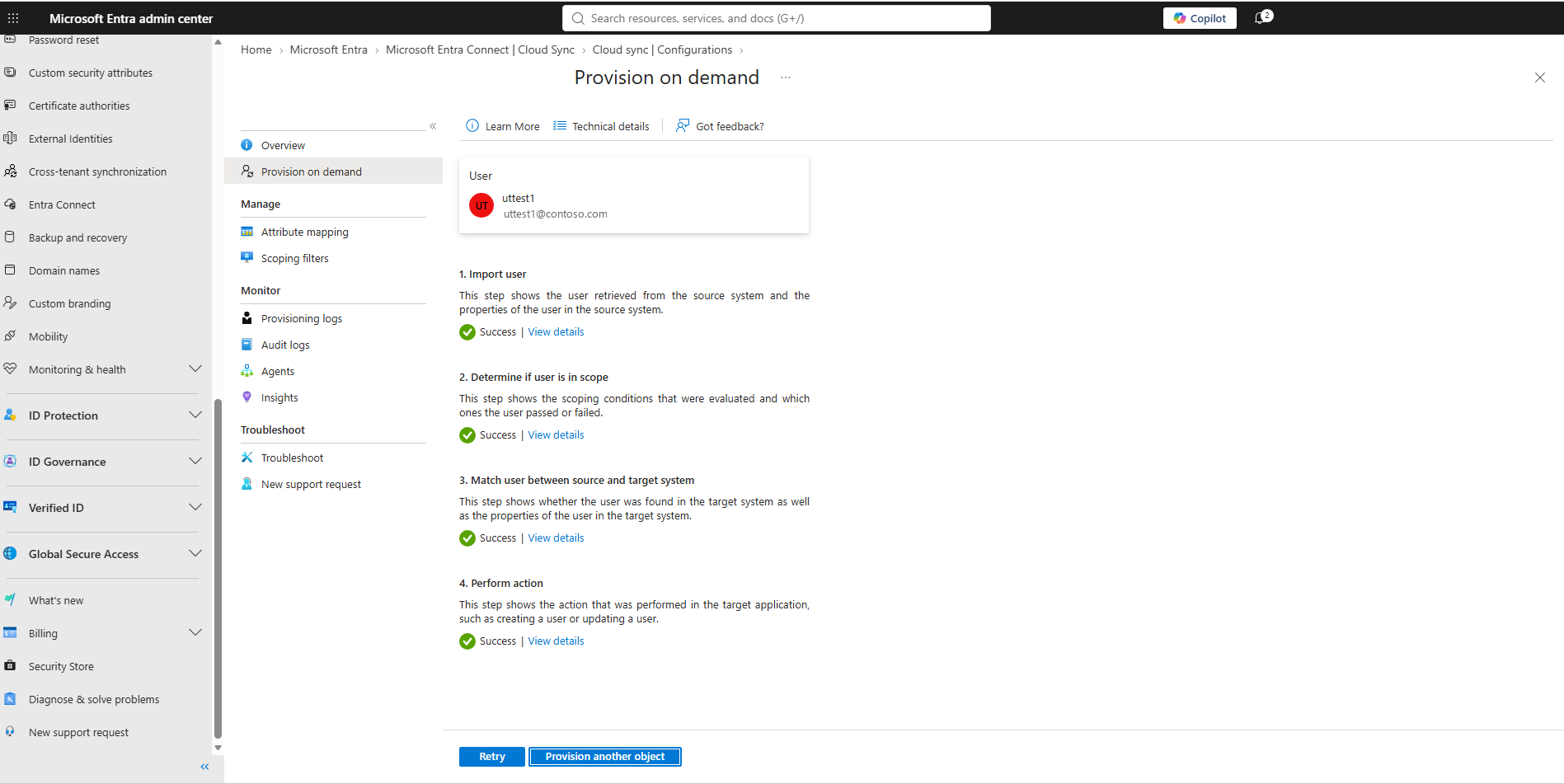
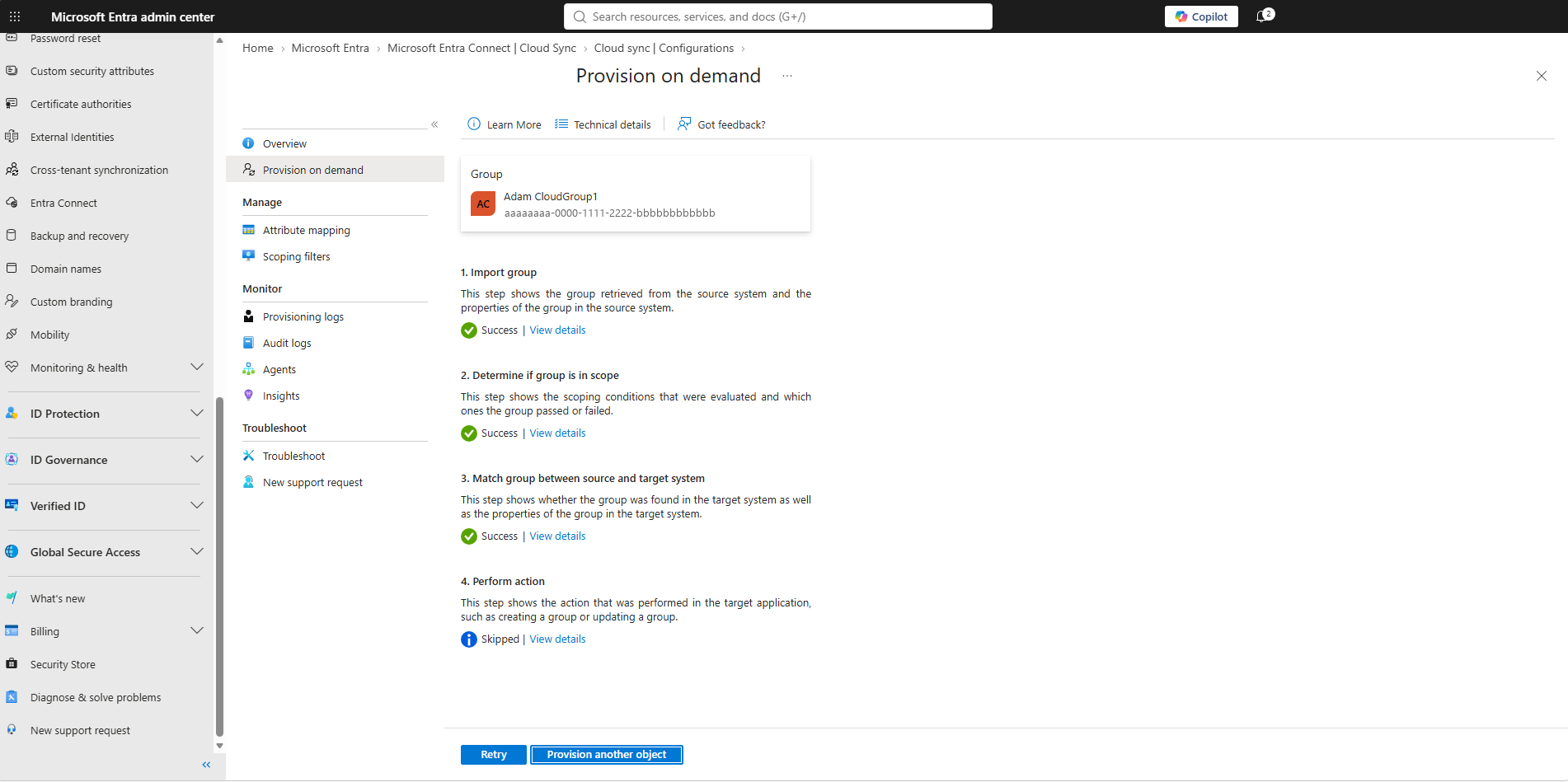
The result lists four steps: importing the object, evaluating it against your scoping filters, matching it against the target system, and performing the action in Active Directory. Select View details on any step to see what was evaluated.
A step reports Success when it completes, or Skipped when there was nothing to do, such as when the object in Active Directory already matches. To run the same test again, select Retry. To test a different object, select Provision another object.
Related content
- Configure Microsoft Entra ID to Active Directory provisioning
- Test and enable provisioning to Active Directory
- Group writeback with Microsoft Entra Cloud Sync
- Govern on-premises Active Directory based apps (Kerberos) using Microsoft Entra ID Governance
- Migrate Microsoft Entra Connect Sync group writeback V2 to Microsoft Entra Cloud Sync