Note
Access to this page requires authorization. You can try signing in or changing directories.
Access to this page requires authorization. You can try changing directories.
After you configure scoping filters and attribute mappings, test the configuration, review default properties, and enable it. These steps are the same for all deployment options: users only, groups only, or users and groups.
Prerequisites
Complete the steps in Configure Microsoft Entra ID to Active Directory provisioning before you continue.
Test with on-demand provisioning
Before you enable the configuration for all in-scope objects, apply it to a single user or group and check the outcome. On-demand provisioning reports each step separately — import, scope evaluation, match, and the action taken on the target object — so you can see exactly where an object would fail.
Groups have one extra consideration: members aren't provisioned automatically, so you select up to five members to test alongside the group.
When the test finishes, the portal shows a message with the next configuration step. Select the link in that message to continue.
For the full procedure for both users and groups, see On-demand provisioning - Microsoft Entra ID to Active Directory.
Default properties: accidental deletes and email notifications
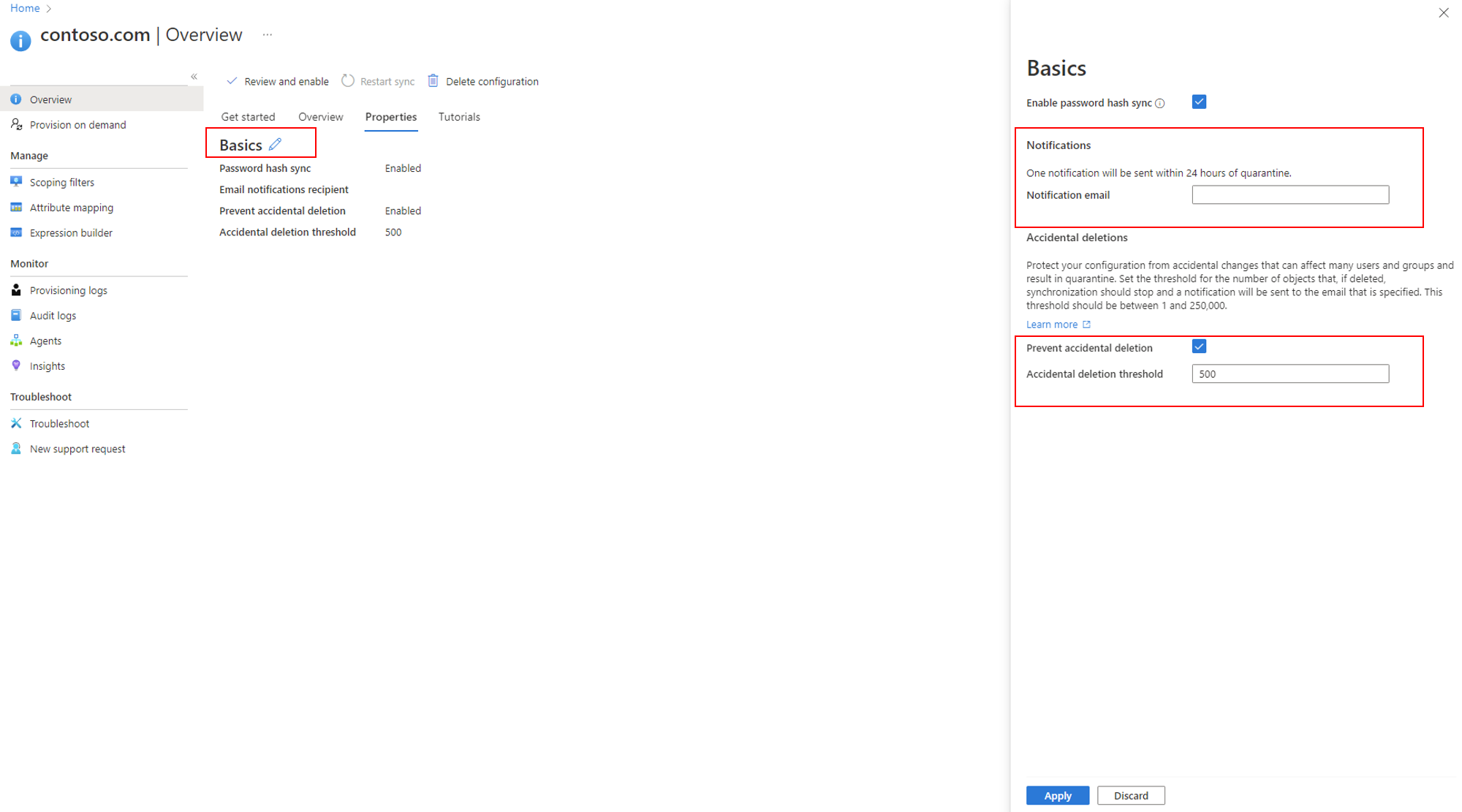
The default properties section provides settings for accidental deletions and email notifications.
The accidental delete feature protects you from configuration changes and on-premises directory changes that would affect many users and groups. It lets you:
- Prevent accidental deletes automatically.
- Set the number of objects (threshold) beyond which the protection takes effect.
- Set a notification email address for when a sync job is placed in quarantine for this scenario.
For more information, see Accidental deletes.
Select the pencil next to Basics to change the defaults in a configuration.
Enable your configuration
After you finalize and test your configuration, enable it.
On the left, select Overview > Review and enable, and then select Enable configuration.
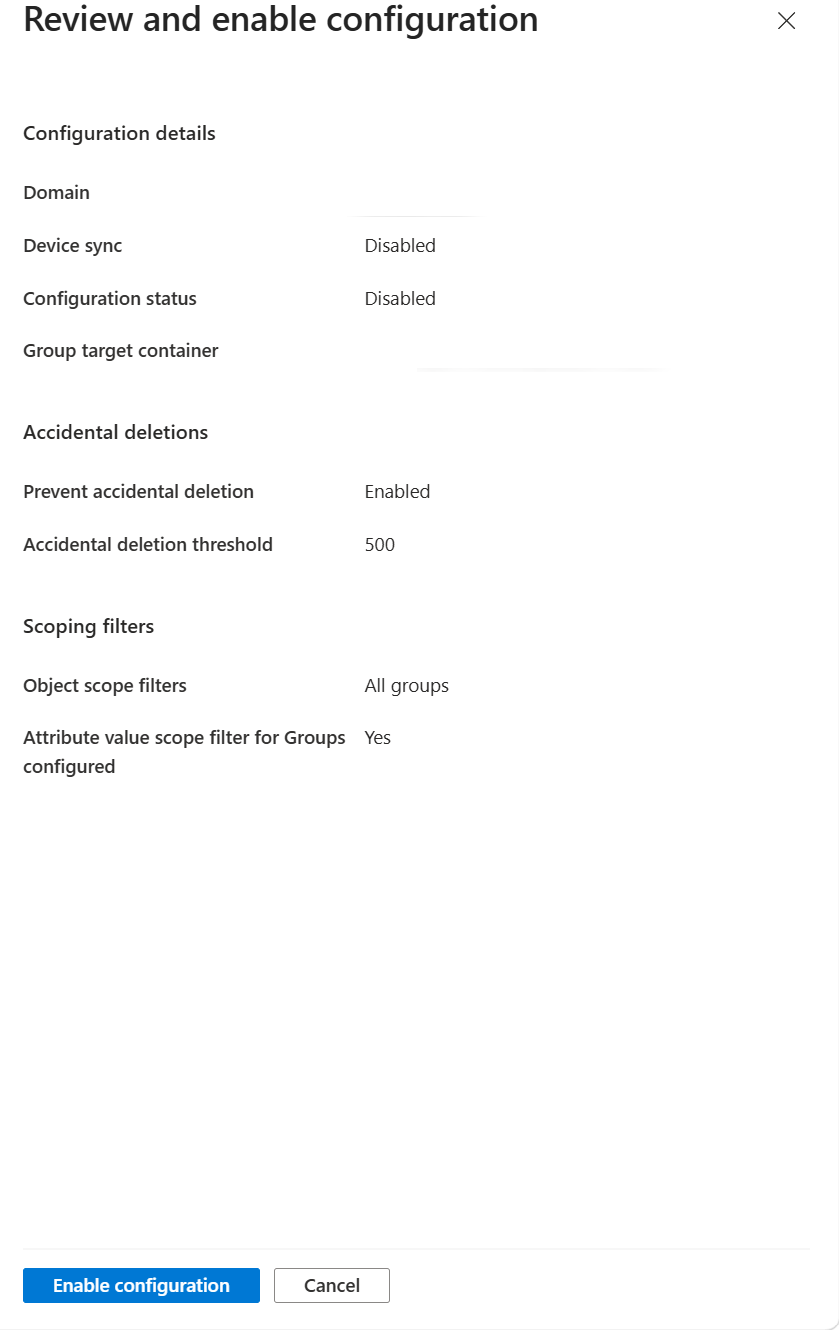
The service runs an initial cycle for all in-scope objects, followed by delta cycles on the recurring schedule.
Quarantines
Cloud Sync monitors the health of your configuration and places unhealthy objects in a quarantine state. If most or all calls made against the target system consistently fail because of an error, such as invalid admin credentials, the sync job is marked as in quarantine. For more information, see Provisioning quarantined problems.
Restart provisioning
If you don't want to wait for the next scheduled run, trigger the provisioning run by using Restart sync.
- Sign in to the Microsoft Entra admin center as at least a Hybrid Identity Administrator.
- Browse to Entra ID > Entra Connect > Cloud sync.
- Under Configuration, select your configuration.
- At the top, select Restart sync.
Remove a configuration
To delete a configuration:
- Sign in to the Microsoft Entra admin center as at least a Hybrid Identity Administrator.
- Browse to Entra ID > Entra Connect > Cloud sync.
- Under Configuration, select your configuration.
- At the top of the configuration screen, select Delete configuration.
Important
There's no confirmation before a configuration is deleted. Make sure this is the action you want to take before you select Delete.
Next step
Related content
- Tutorial: Govern access to an on-premises app from Microsoft Entra ID
- Configure provisioning to Active Directory
- How provisioning to Active Directory works
- Overview of provisioning from Microsoft Entra ID to Active Directory
- Cloud Sync provisioning quarantines
- Accidental deletes in Microsoft Entra Cloud Sync
- What is Microsoft Entra Cloud Sync?