Note
Access to this page requires authorization. You can try signing in or changing directories.
Access to this page requires authorization. You can try changing directories.
Applies to: ✔️ Fleet Manager with hub cluster
This article shows you how to use Fleet Manager to create and configure a Managed Fleet Namespace that defines resource quotas, network policies, and delegated user access for the namespaces on multiple clusters.
If you're looking to view or access existing Managed Fleet Namespaces you have access to, see view and access Managed Fleet Namespaces.
Known limitations
- When a Managed Fleet Namespace adopts a single cluster Managed Kubernetes Namespace or vice versa, it may lead to conflicting ownership. To avoid, use a delete policy of
keepfor both the Managed Fleet and Kubernetes Namespaces. - Clusters must be members managed by the Fleet Manager hosting the Managed Fleet Namespace.
- Clusters must have a Kubernetes version of at least 1.30.0. Clusters below this version will not block users on the cluster from modifying the placed Kubernetes resources.
- RBAC roles assigned to a Managed Fleet Namespace scope grant equivalent access to any unmanaged Kubernetes namespaces with the same name on member clusters.
Before you begin
- You need an Azure account with an active subscription. Create an account.
- You need a Fleet Manager with a hub cluster. If you don't have one, see create and join at least one Azure Kubernetes Service (AKS) cluster to the fleet.
- Ensure the user performing the steps has the Role Based Access Control Administrator role assigned for the Fleet Manager.
- Understand the Managed Fleet Namespace concept by reading the overview.
You need Azure CLI version 2.78.0 or later installed to complete this article. To install or upgrade, see Install Azure CLI.
You need the
fleetAzure CLI extension version 1.8.0 or later. You can install it and update to the latest version using theaz extension addandaz extension updatecommands.# Install the extension az extension add --name fleet # Update the extension az extension update --name fleetConfirm the fleet extension version is at least 1.8.0 using the
az extension showcommand.az extension show --name fleetSet the following environment variables for your subscription ID, resource group, Fleet, and Fleet Member:
export SUBSCRIPTION_ID=<subscription-id>
export GROUP=<resource-group-name>
export FLEET=<fleet-name>
export FLEET_ID=<fleet-id>
Set the default Azure subscription using the
az account setcommand.az account set --subscription ${SUBSCRIPTION_ID}
Create a new Managed Fleet Namespace
Create a new Managed Fleet Namespace using the az fleet namespace create command.
    az fleet namespace create \
        --resource-group $GROUP \
        --fleet-name $FLEET \
        --name my-managed-namespace \
        --annotations annotation1=value1 annotation2=value2 \
        --labels team=myTeam label2=value2 \
        --cpu-requests 1m \
        --cpu-limits 4m \
        --memory-requests 1Mi \
        --memory-limits 4Mi \
        --ingress-policy allowAll \
        --egress-policy allowAll \
        --delete-policy keep \
        --adoption-policy never
Note
These settings are optional: networking policies, compute quota, deletion and adoption policy, labels and annotations.
When using networking policies, users with a Microsoft.ContainerService/managedClusters/networking.k8s.io/networkpolicies/write action, such as Azure Kubernetes Service RBAC Writer, on the Microsoft Entra ID role they're assigned can add more network policies through the Kubernetes API.
For example, if an admin applies a Deny All policy for ingress/egress, and a user applies an Allow policy for a namespace via the Kubernetes API, the Allow policy takes priority over the Deny All policy, and traffic is allowed to flow for the namespace. This additive behavior is standard for networking policies.
Assign user or group access
You can now grant access to a user for the Managed Fleet Namespace across member clusters using one of the Azure RBAC built-in roles.
Create a role assignment using the az role assignment create command.
The following example assigns a user the Azure Kubernetes Fleet Manager RBAC Writer for Member Clusters role on any cluster that receives the my-managed-namespace Managed Fleet Namespace:
az role assignment create \
    --role "Azure Kubernetes Fleet Manager RBAC Writer for Member Clusters" \
    --assignee <USER-ENTRA-ID> \
    --scope "$FLEET_ID/managedNamespaces/my-managed-namespace"
Add member clusters
You can control which member clusters to deploy the managed namespace to by specifying the desired list of member cluster names.
Specify the full list of member clusters you want to deploy the managed namespace to using the az fleet namespace create command with the --member-cluster-names parameter. The managed namespace is propagated to all clusters in the list.
In this example, the managed namespace is deployed to contoso-prd-01-fm and contoso-prd-02-fm.
az fleet namespace create \
    --resource-group $GROUP \
    --fleet-name $FLEET \
    --name my-managed-namespace \
    --member-cluster-names contoso-prd-01-fm contoso-prd-02-fm
Remove member clusters
You can remove member clusters from a Managed Fleet Namespace by excluding them from the list of member clusters you want the namespace on.
Specify the list of member clusters you want the managed namespace to remain on using the az fleet namespace create command with the --member-cluster-names parameter. The managed namespace is removed from any clusters excluded from the list.
In this example, the managed namespace is removed from contoso-prd-02-fm.
az fleet namespace create \
    --resource-group $GROUP \
    --fleet-name $FLEET \
    --name my-managed-namespace \
    --member-cluster-names contoso-prd-01-fm
Configure an existing Managed Fleet Namespace
You can modify networking policies, resource quotas, labels, and annotations on an existing Managed Fleet Namespace by using the az fleet namespace create command with updated parameter values. The command performs an upsert operation, updating the namespace if it already exists.
Important
When updating an existing managed namespace, you must specify all parameters you want to retain, even if you're not changing them. Any parameters you omit are reset to their default values. This includes network policies, resource quotas, labels, annotations, delete policy, adoption policy, and member cluster names.
The following example updates the network policies, resource quotas, labels, and annotations for an existing managed namespace:
az fleet namespace create \
    --resource-group $GROUP \
    --fleet-name $FLEET \
    --name my-managed-namespace \
    --annotations "updated-annotation=new-value" \
    --labels "team=updatedTeam environment=production" \
    --cpu-requests 1000m \
    --cpu-limits 2000m \
    --memory-requests 1000Mi \
    --memory-limits 1000Mi \
    --ingress-policy allowAll \
    --egress-policy allowAll \
    --delete-policy keep \
    --adoption-policy never \
    --member-cluster-names contoso-prd-01-fm contoso-prd-02-fm
View a Managed Fleet Namespace's configuration
View a specific Managed Fleet Namespace's details by using the az fleet namespace show command.
az fleet namespace show \
    --resource-group $GROUP \
    --fleet-name $FLEET \
    --name my-managed-namespace \
    -o table
Your output should resemble the following example output:
AdoptionPolicy  DeletePolicy   ETag                                    Location   Name                  ProvisioningState   ResourceGroup
--------------  ------------   -------------------------------------   --------   --------------------  -----------------   -------------
    Always          Delete         "aaaaaaaa-0b0b-1c1c-2d2d-333333333333   chinanorth3    my-managed-namespace  Succeeded           test-rg
Delete a Managed Fleet Namespace
Delete a Managed Fleet Namespace using the az fleet namespace delete command.
az fleet namespace delete \
    --resource-group $GROUP \
    --fleet-name $FLEET \
    --name my-managed-namespace
Warning
Deleting a Fleet Managed Namespace with a DeletePolicy set to delete is a permanent action. If you're unsure, you should update the policy to keep to keep the namespace.
Azure RBAC assignments are always deleted to avoid dangling permissions.
Create a new Managed Fleet Namespace
You can create a new Managed Fleet Namespace from within Fleet Manager, or via Kubernetes center.
Starting in Fleet Manager:
- In the Azure portal, navigate to your Azure Kubernetes Fleet Manager resource.
- From the left menu, under Fleet Resources, select Namespaces.
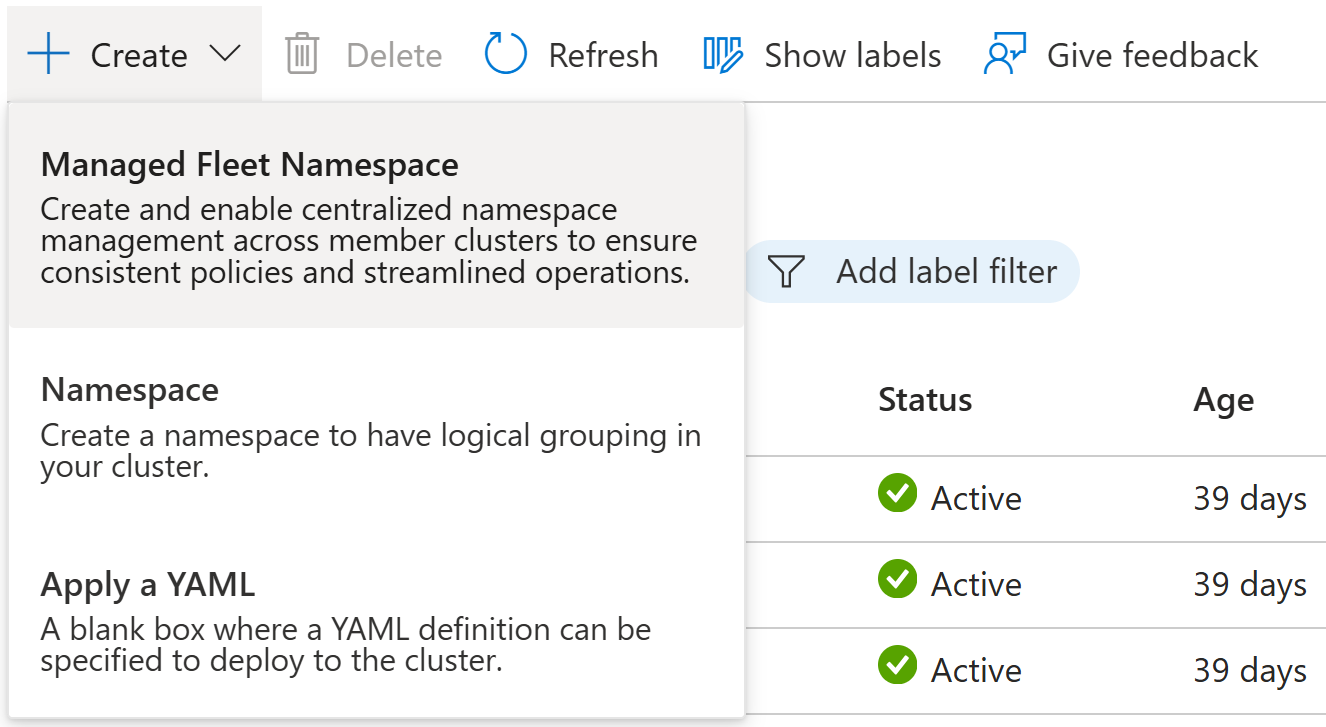
- From the menu select + Create, then Managed Fleet Namespace.
Starting in Kubernetes center:
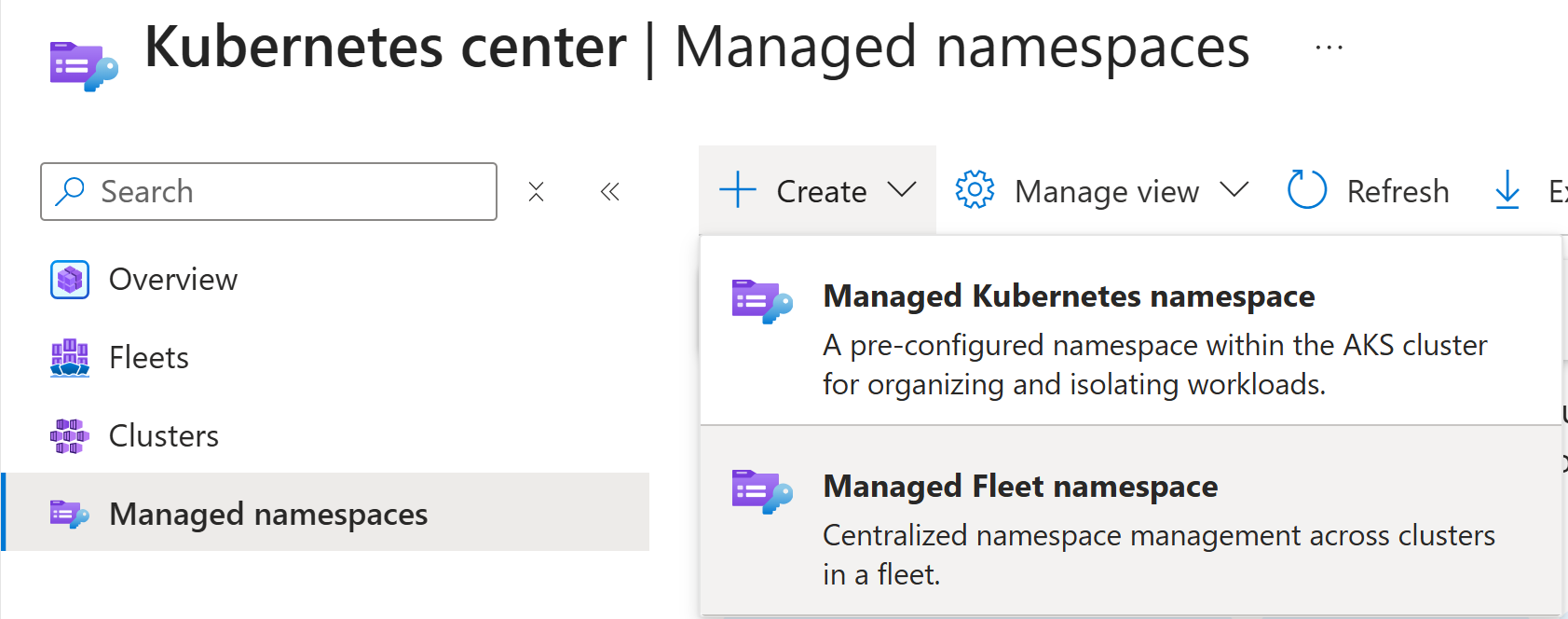
- Open Kubernetes center - Managed namespaces in the Azure portal.
- From the menu select + Create, then Managed Fleet Namespace.
- Select a Subscription and Fleet Manager instance.
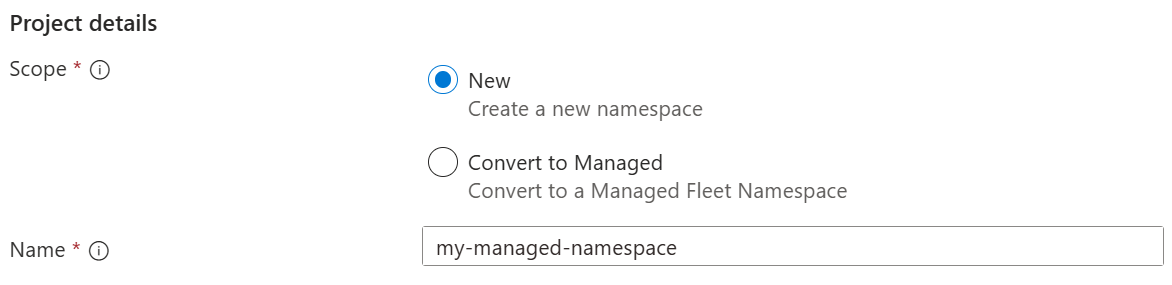
- Select one of the following options for Scope:
- New - create a new Kubernetes namespace that doesn't exist on the Fleet Manager hub cluster. Enter a Name for the new namespace.
- Convert to Managed - use an existing Kubernetes namespace on the Fleet Manager hub cluster. Select the Namespace from the list of namespaces on the Fleet Manager hub cluster.
Assign user or group access
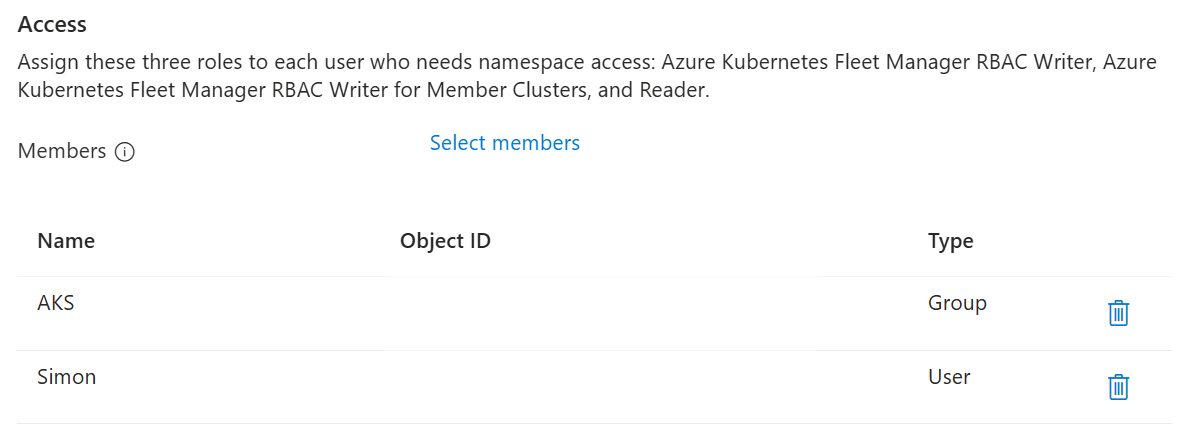
Select the Microsoft Entra users and groups that access the Managed Fleet Namespace on clusters it's distributed to.
Note
This step is optional. You can create and distribute a Managed Fleet Namespace without assigning users or groups. This allows you to distribute the namespace without granting access immediately.
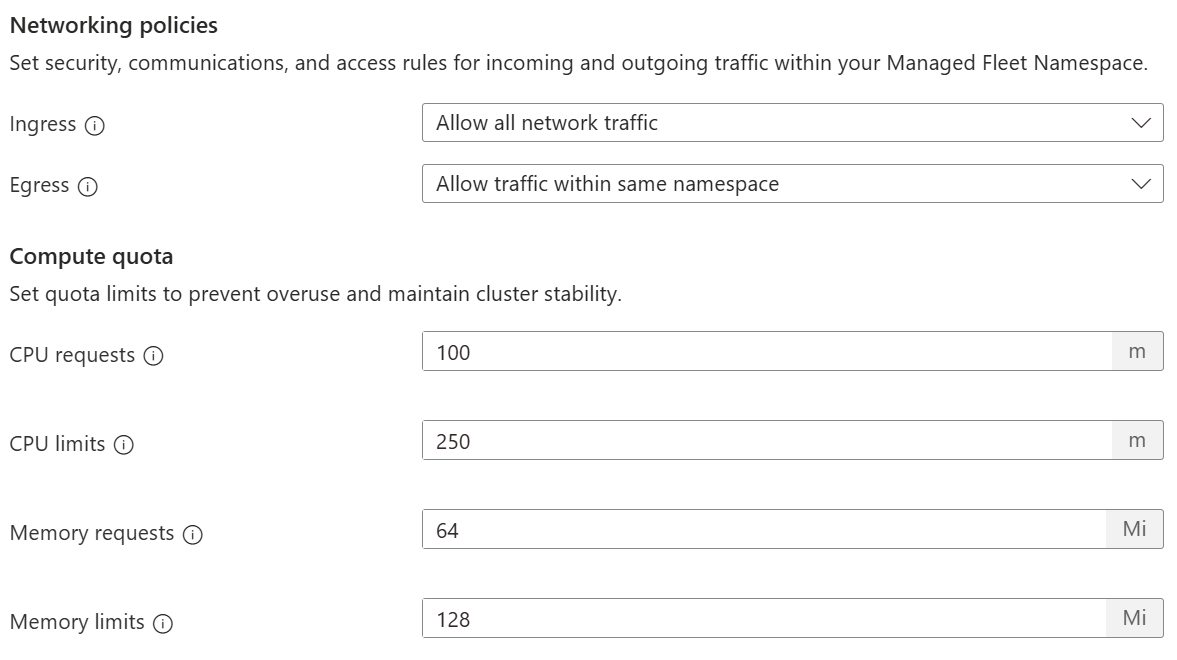
Add network policies and compute quota
Control the flow of network traffic into and out of the namespace on each cluster it's distributed to, along with defining the CPU and memory resource quotas for the namespace.
Note
These settings are optional. You can create and distribute a Managed Fleet Namespace without networking policies or quota controls applied.
Users with a Microsoft.ContainerService/managedClusters/networking.k8s.io/networkpolicies/write action, such as Azure Kubernetes Service RBAC Writer, on the Microsoft Entra ID role they're assigned can add more network policies through the Kubernetes API.
For example, if an admin applies a Deny All policy for ingress/egress, and a user applies an Allow policy for a namespace via the Kubernetes API, the Allow policy takes priority over the Deny All policy, and traffic is allowed to flow for the namespace. This additive behavior is standard for networking policies.
Select member clusters
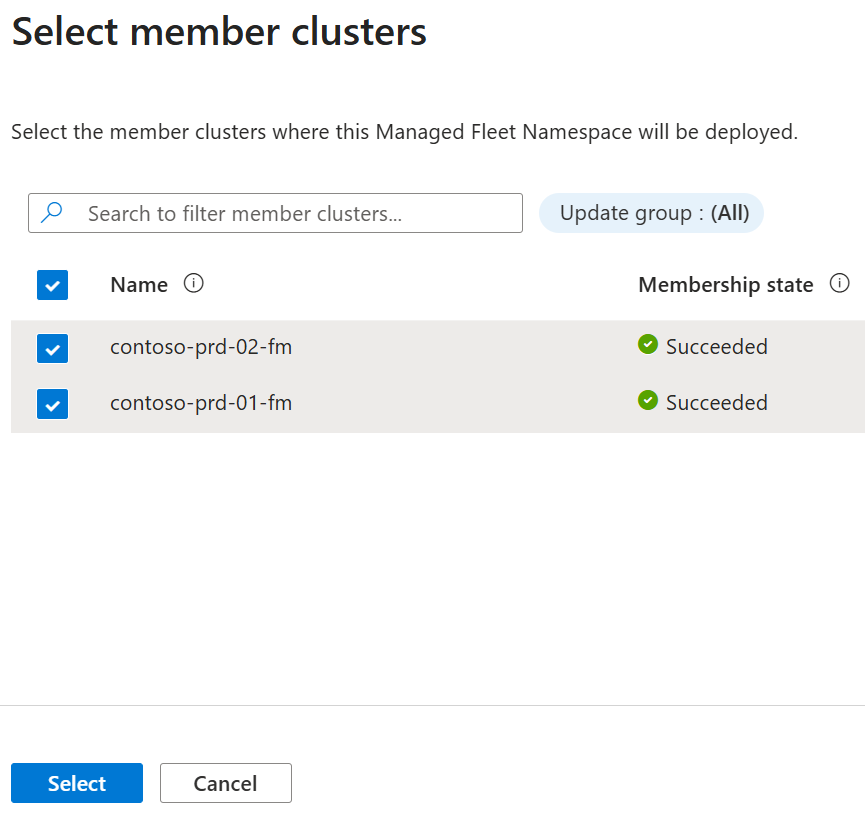
Define which member clusters to distribute the managed namespace to by adding them as follows.
- From the menu, select + Add.
- In the Select member clusters dialog, search for the member clusters and select them by checking the box.
- Finally, choose Select to add the member clusters.
Note
This step is optional. If you don't provide any member clusters the Managed Fleet Namespace is deployed only to the Fleet Manager hub cluster. You can add member clusters at a later time.
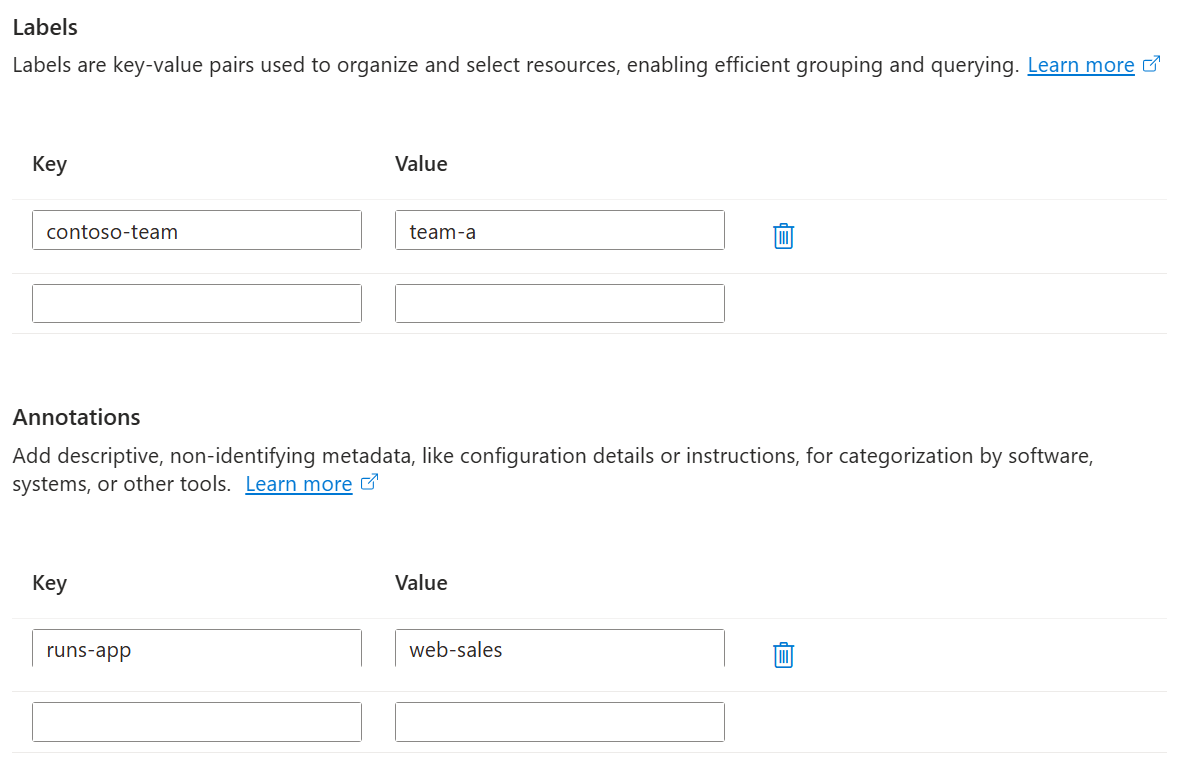
Set labels, annotations, and tags
Define optional Kubernetes labels and annotations, and Azure Resource Manager (ARM) tags that provide metadata that can be used for automation and resource management.
Note
This step is optional. You can manage labels, annotations, and tags at a later time.
Create the Managed Fleet Namespace
Once you have configured all properties for the new Managed Fleet Namespace, you can confirm the details before creating the namespace by selecting Create.
An Azure Resource Manager deployment is immediately started, which initiates a Fleet Manager workload placement to distribute the namespace to the selected clusters.
Once the deployment is completed, you can find the Managed Fleet Namespace in the list of namespaces for the Fleet Manager.
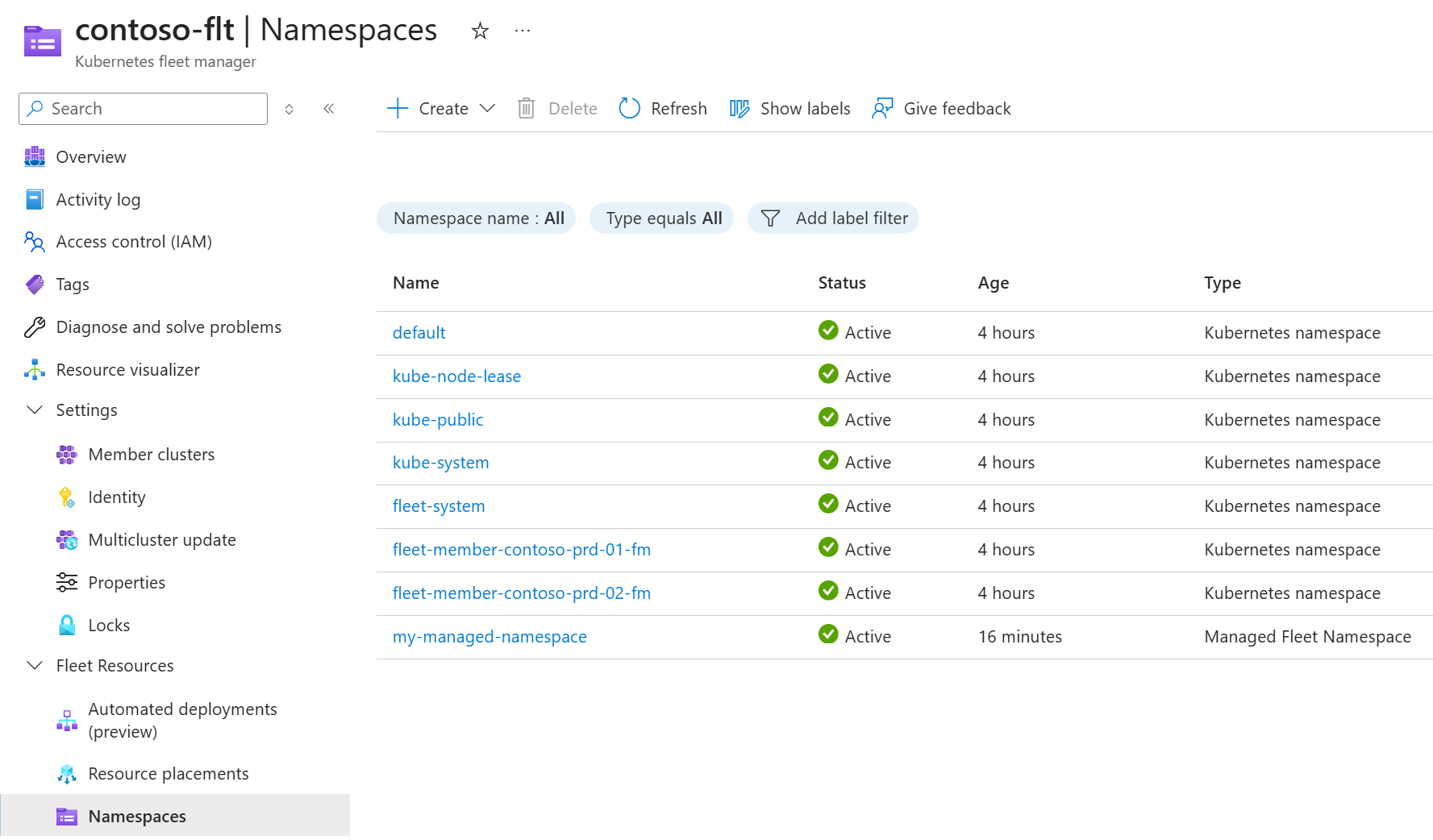
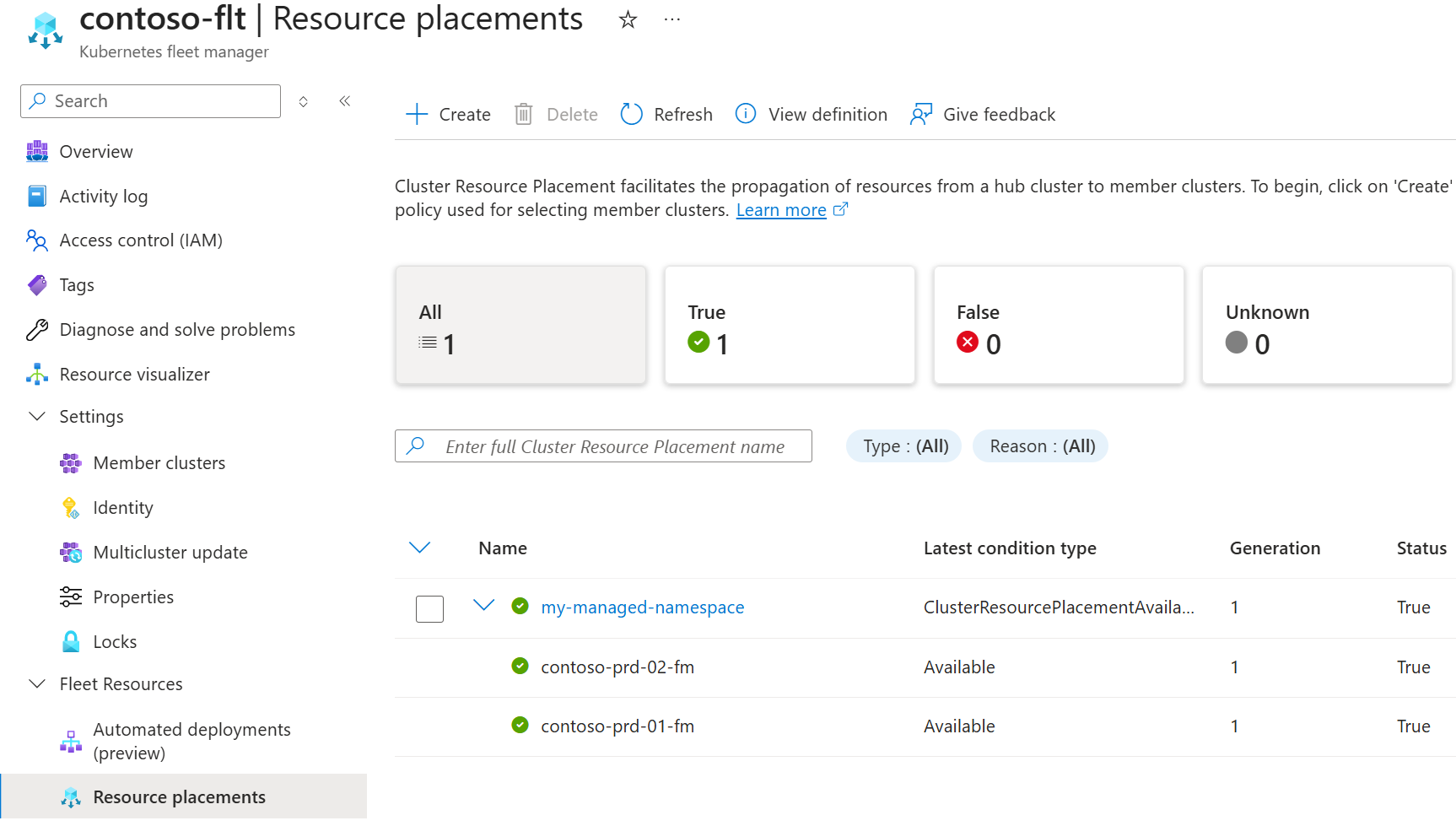
To review the rollout of the Kubernetes namespace across clusters, use Resource placements, and look for the resource placement named the same as the Managed Fleet Namespace.
Configure an existing Managed Fleet Namespace
You can locate a Managed Fleet Namespace from within Fleet Manager, or via Kubernetes center.
Starting in Fleet Manager:
- In the Azure portal, navigate to your Azure Kubernetes Fleet Manager resource.
- From the left menu, under Fleet Resources, select Namespaces.
Starting in Kubernetes center:
- Open Kubernetes center - Managed namespaces in the Azure portal.
- Set the Type filter to Managed Fleet Namespace.
Modify configuration
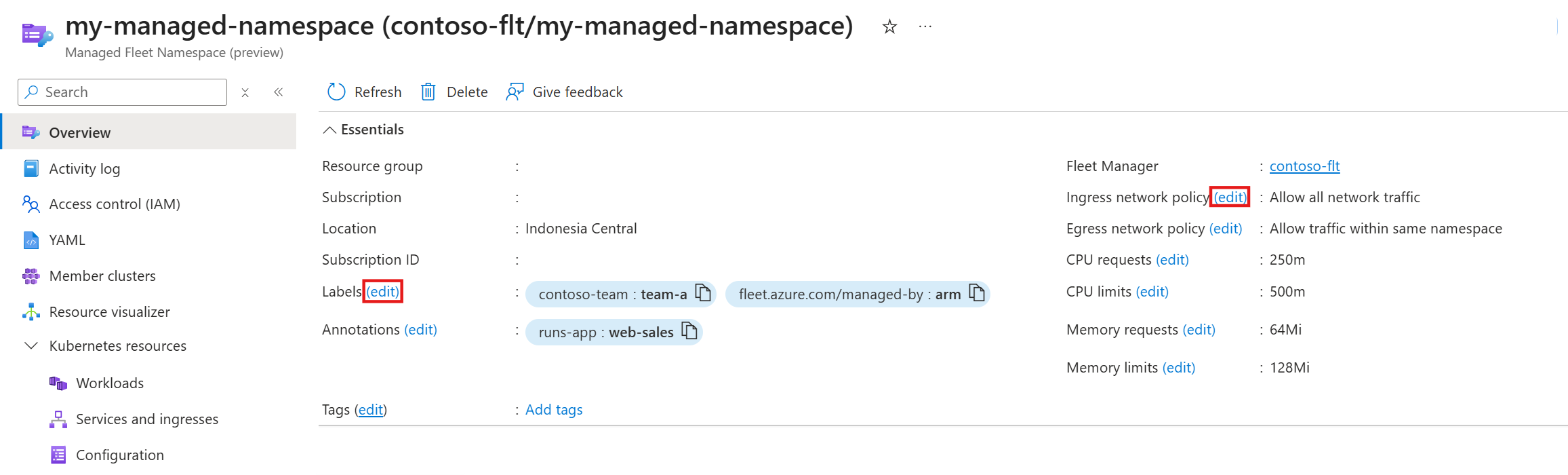
Modify networking policies, resource quotas, labels, annotations, and tags by selecting edit next to the appropriate item in the Managed Fleet Namespace overview screen.
Selecting edit next to labels, annotations or tags, opens a dialog box where you can modify any of these three items.
Selecting edit next to any of the network policy or resource quota options opens a dialog box where you can modify any of these items.
Modify user or group access
A Managed Fleet Namespace is an Azure Resource Manager (ARM) resource, so managing user and group access can be achieved by selecting Access control (IAM) in the left navigation in the Manage Fleet Namespace overview screen.
Modify member clusters
On the Managed Fleet Namespace overview select Member clusters in the left navigation.
To remove member clusters:
- Select the clusters to remove by checking the box on the left of the row.
- In the top navigation select Remove.
- Confirm the action and select Remove.
To add member clusters:
- From the menu select + Add.
- In the Add member clusters dialog, search for the member clusters and select them by checking the box.
- Finally, choose Add to add the member clusters.
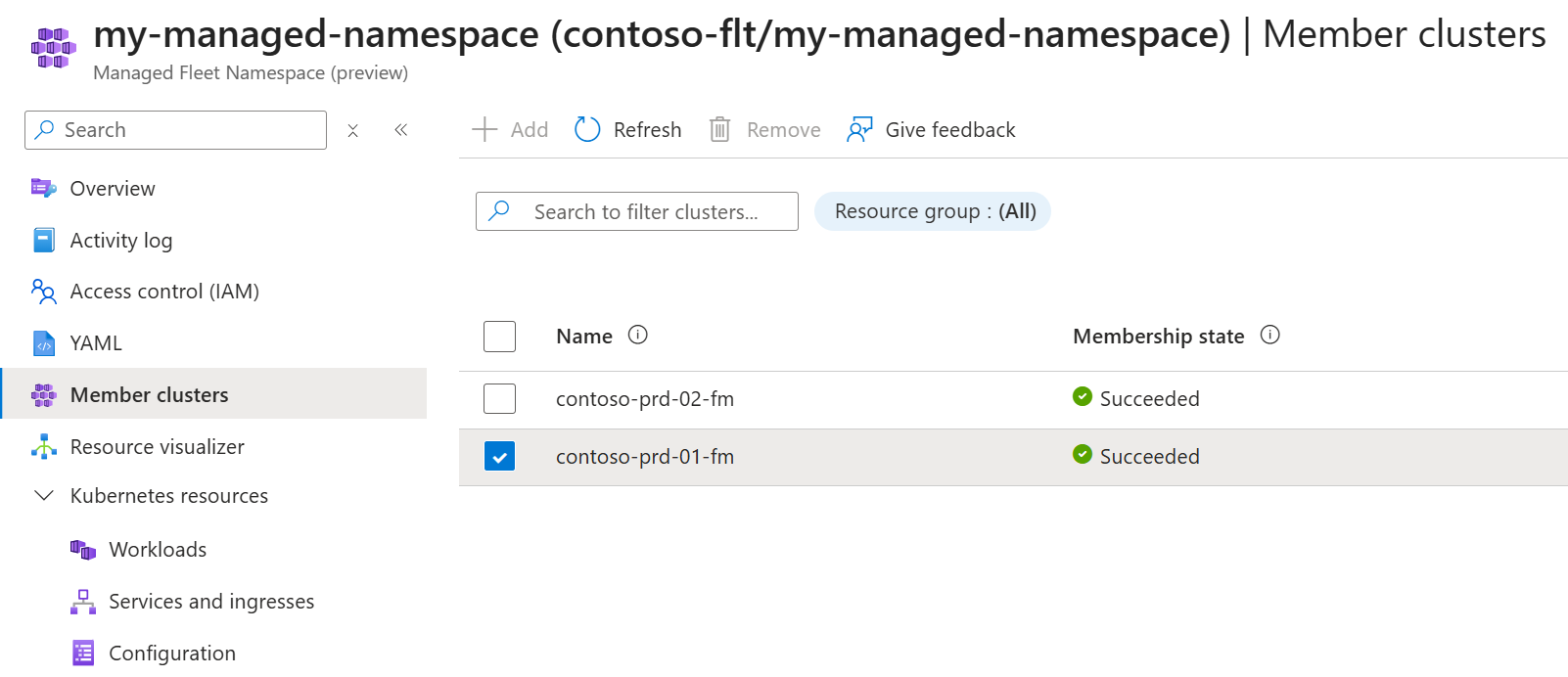
Once the clusters hosting the Managed Fleet Namespace are modified, the overview is updated to display the clusters actively hosting the namespace.
Delete a Managed Fleet Namespace
On the Managed Fleet Namespace overview select Delete in the top navigation.
In the Delete Managed Fleet Namespace confirmation select the option you want:
- Keep namespace, remove management capabilities: the Managed Fleet Namespace is converted into a standard Kubernetes namespace, remaining on the Fleet Manager hub cluster and member clusters, but no longer managed by Azure Resource Manager (ARM).
- Delete namespace and all associated resources: the Managed Fleet Namespace ARM resource is deleted, along with the Kubernetes namespace on both the Fleet Manager hub cluster and member clusters.
Warning
Deleting the namespace and all associated resources is a permanent action. If you're unsure, you should elect to keep the namespace.
In both cases Azure RBAC assignments are deleted to avoid dangling permissions.
Next steps
- Understand the concept of Managed Fleet Namespaces by reading the overview.
- Learn how to view and access Managed Fleet namespaces you have access to.