Note
Access to this page requires authorization. You can try signing in or changing directories.
Access to this page requires authorization. You can try changing directories.
APPLIES TO:  Azure Machine Learning SDK v1 for Python
Important
This article provides information on using the Azure Machine Learning SDK v1. SDK v1 is deprecated as of March 31, 2025. Support for it will end on June 30, 2026. You can install and use SDK v1 until that date. Your existing workflows using SDK v1 will continue to operate after the end-of-support date. However, they could be exposed to security risks or breaking changes in the event of architectural changes in the product.
We recommend that you transition to the SDK v2 before June 30, 2026. For more information on SDK v2, see What is Azure Machine Learning CLI and Python SDK v2? and the SDK v2 reference.
Note
This article uses Azure Machine Learning SDK v1. For the current approach using SDK v2 and MLflow, see Track experiments and models with MLflow and Configure MLflow for Azure Machine Learning.
In this article, learn how to enable MLflow tracking to connect Azure Machine Learning as the backend of your MLflow experiments.
MLflow is an open-source library for managing the lifecycle of your machine learning experiments. MLflow Tracking is a component of MLflow that logs and tracks your training run metrics and model artifacts, no matter your experiment's environment - locally on your computer, on a remote compute target, a virtual machine, or an Azure Databricks cluster.
See MLflow and Azure Machine Learning for all supported MLflow and Azure Machine Learning functionality including MLflow Project support (preview) and model deployment.
Tip
To track experiments running on Azure Databricks or Azure Synapse Analytics, see the dedicated articles Track Azure Databricks ML experiments with MLflow and Azure Machine Learning.
Note
The information in this document is primarily for data scientists and developers who want to monitor the model training process. If you're an administrator interested in monitoring resource usage and events from Azure Machine Learning, such as quotas, completed training jobs, or completed model deployments, see Monitoring Azure Machine Learning.
Prerequisites
Install the
mlflowpackage.- Use the MLflow Skinny, a lightweight MLflow package without SQL storage, server, UI, or data science dependencies. Use this package if you primarily need the tracking and logging capabilities without importing the full suite of MLflow features including deployments.
Install the
azureml-mlflowpackage.Install and set up Azure Machine Learning CLI (v1) and make sure you install the ml extension.
Important
Some of the Azure CLI commands in this article use the
azure-cli-ml, or v1, extension for Azure Machine Learning. Support for CLI v1 ended on September 30, 2025. Microsoft will no longer provide technical support or updates for this service. Your existing workflows using CLI v1 will continue to operate after the end-of-support date. However, they could be exposed to security risks or breaking changes in the event of architectural changes in the product.We recommend that you transition to the
ml, or v2, extension as soon as possible. For more information on the v2 extension, see Azure Machine Learning CLI extension and Python SDK v2.Install and set up Azure Machine Learning SDK for Python.
Track runs from your local machine or remote compute
By using MLflow with Azure Machine Learning, you can store the logged metrics and artifacts for runs that you execute on your local machine in your Azure Machine Learning workspace.
Set up tracking environment
To track a run that isn't running on Azure Machine Learning compute (referred to as local compute), you need to point your local compute to the Azure Machine Learning MLflow Tracking URI.
Note
When running on Azure Compute (Azure Notebooks, Jupyter Notebooks hosted on Azure Compute Instances or Compute Clusters), you don't have to configure the tracking URI. It's automatically configured for you.
APPLIES TO:
Azure Machine Learning SDK v1 for Python
You can get the Azure Machine Learning MLflow tracking URI by using the Azure Machine Learning SDK v1 for Python. Make sure you install the azureml-sdk library in the cluster you're using. The following sample gets the unique MLflow tracking URI associated with your workspace. Then the method set_tracking_uri() points the MLflow tracking URI to that URI.
Use the workspace configuration file:
from azureml.core import Workspace
import mlflow

ws = Workspace.from_config()
mlflow.set_tracking_uri(ws.get_mlflow_tracking_uri())
Tip
You can download the workspace configuration file by:
- Navigating to Azure Machine Learning studio
- Selecting the upper-right corner of the page -> Download config file.
- Saving the file
config.jsonin the same directory where you're working.
Use the subscription ID, resource group name, and workspace name:
from azureml.core import Workspace
import mlflow

#Enter details of your Azure Machine Learning workspace
subscription_id = '<SUBSCRIPTION_ID>'
resource_group = '<RESOURCE_GROUP>'
workspace_name = '<AZUREML_WORKSPACE_NAME>'

ws = Workspace.get(name=workspace_name,
                   subscription_id=subscription_id,
                   resource_group=resource_group)

mlflow.set_tracking_uri(ws.get_mlflow_tracking_uri())
Set experiment name
All MLflow runs log to the active experiment. By default, runs log to an experiment named Default that Azure Machine Learning automatically creates for you. To configure the experiment you want to work on, use the MLflow command mlflow.set_experiment().
experiment_name = 'experiment_with_mlflow'
mlflow.set_experiment(experiment_name)
Tip
When you submit jobs by using Azure Machine Learning SDK, set the experiment name by using the property experiment_name when you submit it. You don't have to configure it on your training script.
Start training run
After you set the MLflow experiment name, start your training run by using start_run(). Then use log_metric() to activate the MLflow logging API and begin logging your training run metrics.
import os
from random import random

with mlflow.start_run() as mlflow_run:
    mlflow.log_param("hello_param", "world")
    mlflow.log_metric("hello_metric", random())
    os.system(f"echo 'hello world' > helloworld.txt")
    mlflow.log_artifact("helloworld.txt")
For details about how to log metrics, parameters, and artifacts in a run by using MLflow, see How to log and view metrics.
Track runs running on Azure Machine Learning
APPLIES TO:
Azure Machine Learning SDK v1 for Python
Remote runs (jobs) let you train your models in a more robust and repeatable way. They can also leverage more powerful compute resources, such as Machine Learning Compute clusters. To learn about different compute options, see Use compute targets for model training.
When you submit runs, Azure Machine Learning automatically configures MLflow to work with the workspace the run is running in. This configuration means you don't need to set up the MLflow tracking URI. Also, Azure Machine Learning automatically names experiments based on the details of the experiment submission.
Important
When you submit training jobs to Azure Machine Learning, you don't need to configure the MLflow tracking URI or the experiment name in your training logic. Azure Machine Learning handles these configurations for you.
Creating a training routine
First, create a src subdirectory and add a train.py file with your training code. All your training code goes into the src subdirectory, including train.py.
The training code comes from this MLflow example in the Azure Machine Learning example repo.
Copy this code into the file:
# imports
import os
import mlflow

from random import random

# define functions
def main():
    mlflow.log_param("hello_param", "world")
    mlflow.log_metric("hello_metric", random())
    os.system(f"echo 'hello world' > helloworld.txt")
    mlflow.log_artifact("helloworld.txt")


# run functions
if __name__ == "__main__":
    # run main function
    main()
Configuring the experiment
Use Python to submit the experiment to Azure Machine Learning. In a notebook or Python file, configure your compute and training run environment by using the Environment class.
from azureml.core import Environment
from azureml.core.conda_dependencies import CondaDependencies

env = Environment(name="mlflow-env")

# Specify conda dependencies with scikit-learn and temporary pointers to mlflow extensions
cd = CondaDependencies.create(
    conda_packages=["scikit-learn", "matplotlib"],
    pip_packages=["azureml-mlflow", "pandas", "numpy"]
    )

env.python.conda_dependencies = cd
Then, create a ScriptRunConfig with your remote compute as the compute target.
from azureml.core import ScriptRunConfig

src = ScriptRunConfig(source_directory="src",
                      script=training_script,
                      compute_target="<COMPUTE_NAME>",
                      environment=env)
By using this compute and training run configuration, call the Experiment.submit() method to submit a run. This method automatically sets the MLflow tracking URI and directs the logging from MLflow to your workspace.
from azureml.core import Experiment
from azureml.core import Workspace
ws = Workspace.from_config()

experiment_name = "experiment_with_mlflow"
exp = Experiment(workspace=ws, name=experiment_name)

run = exp.submit(src)
View metrics and artifacts in your workspace
Your workspace tracks the metrics and artifacts from MLflow logging. To view them anytime, go to your workspace and find the experiment by name in Azure Machine Learning studio. Or run the following code.
Retrieve run metrics by using MLflow get_run().
from mlflow.tracking import MlflowClient

# Use MlFlow to retrieve the run that was just completed
client = MlflowClient()
run_id = mlflow_run.info.run_id
finished_mlflow_run = MlflowClient().get_run(run_id)

metrics = finished_mlflow_run.data.metrics
tags = finished_mlflow_run.data.tags
params = finished_mlflow_run.data.params

print(metrics,tags,params)
To view the artifacts of a run, use MlFlowClient.list_artifacts().
client.list_artifacts(run_id)
To download an artifact to the current directory, use mlflow.artifacts.download_artifacts().
file_path = mlflow.artifacts.download_artifacts(run_id=run_id, artifact_path="helloworld.txt")
Note
In legacy versions of MLflow (< 2.0), use MlflowClient.download_artifacts() instead.
For more details about how to retrieve information from experiments and runs in Azure Machine Learning by using MLflow, see Manage experiments and runs with MLflow.
Compare and query runs
Use the following code to compare and query all MLflow runs in your Azure Machine Learning workspace. To learn more about how to query runs with MLflow, see mlflow.
from mlflow.entities import ViewType

all_experiments = [exp.experiment_id for exp in MlflowClient().list_experiments()]
query = "metrics.hello_metric > 0"
runs = mlflow.search_runs(experiment_ids=all_experiments, filter_string=query, run_view_type=ViewType.ALL)

runs.head(10)
Automatic logging
By using Azure Machine Learning and MLflow, you can automatically log metrics, model parameters, and model artifacts when you train a model. A variety of popular machine learning libraries are supported.
To enable automatic logging, insert the following code before your training code:
mlflow.autolog()
Learn more about Automatic logging with MLflow.
Manage models
Register and track your models by using the Azure Machine Learning model registry, which supports the MLflow model registry. Azure Machine Learning models align with the MLflow model schema, so you can easily export and import these models across different workflows. The registered model also tracks MLflow-related metadata, such as run ID, for traceability. You can submit training runs, register models, and deploy models produced from MLflow runs.
To deploy and register your production ready model in one step, see Deploy and register MLflow models.
To register and view a model from a run, use the following steps:
When a run finishes, call the
register_model()method.# the model folder produced from a run is registered. This includes the MLmodel file, model.pkl and the conda.yaml. model_path = "model" model_uri = 'runs:/{}/{}'.format(run_id, model_path) mlflow.register_model(model_uri,"registered_model_name")View the registered model in your workspace by using Azure Machine Learning studio.
In the following example, the registered model
my-modelhas MLflow tracking metadata tagged.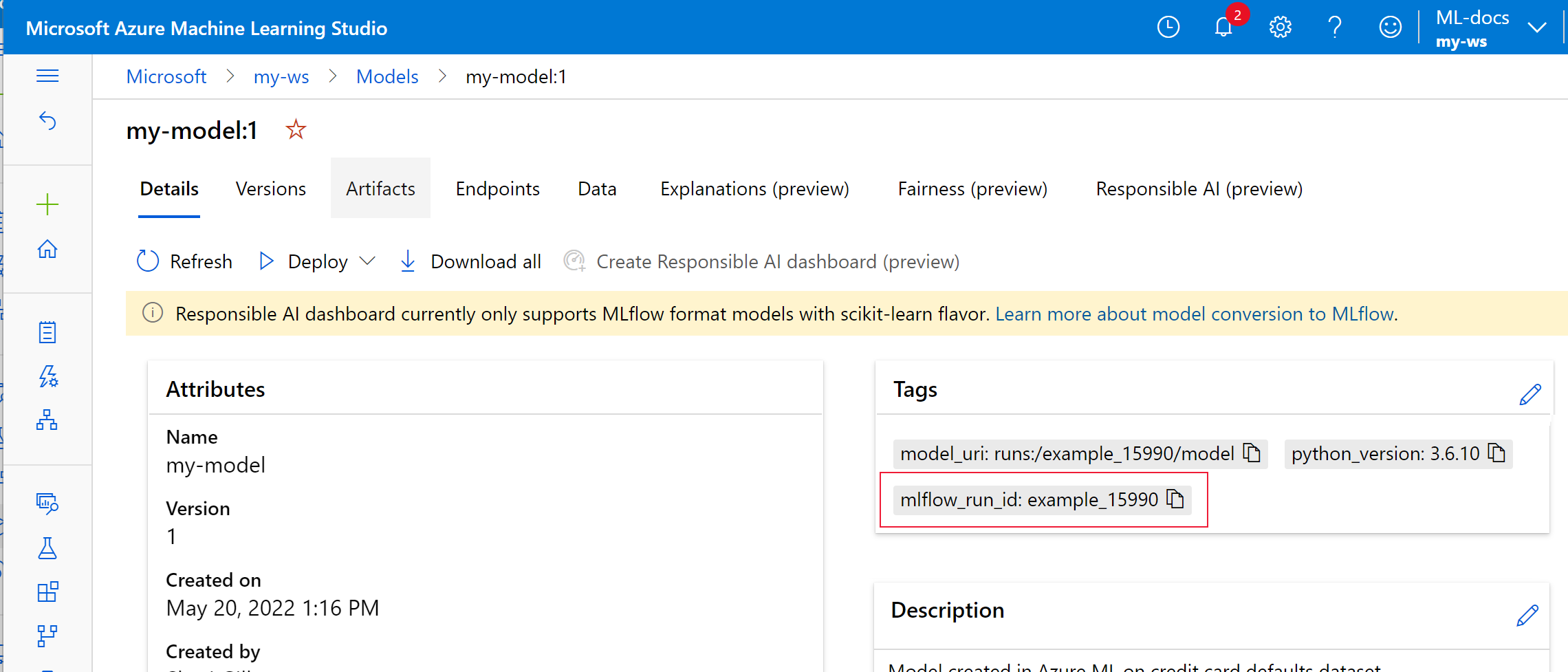
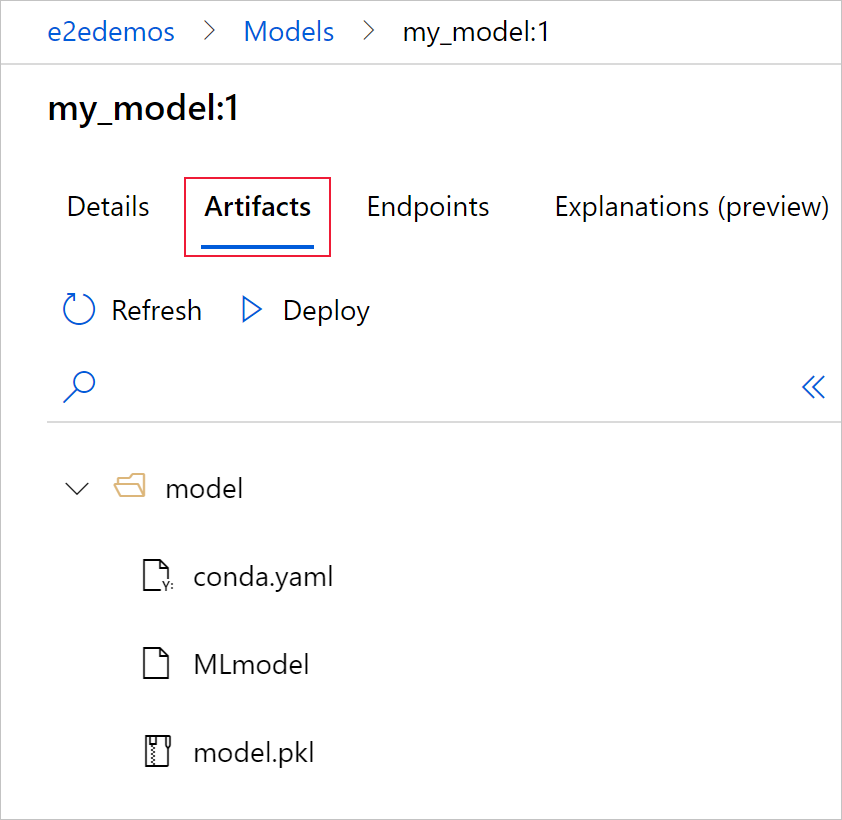
Select the Artifacts tab to see all the model files that align with the MLflow model schema (conda.yaml, MLmodel, model.pkl).
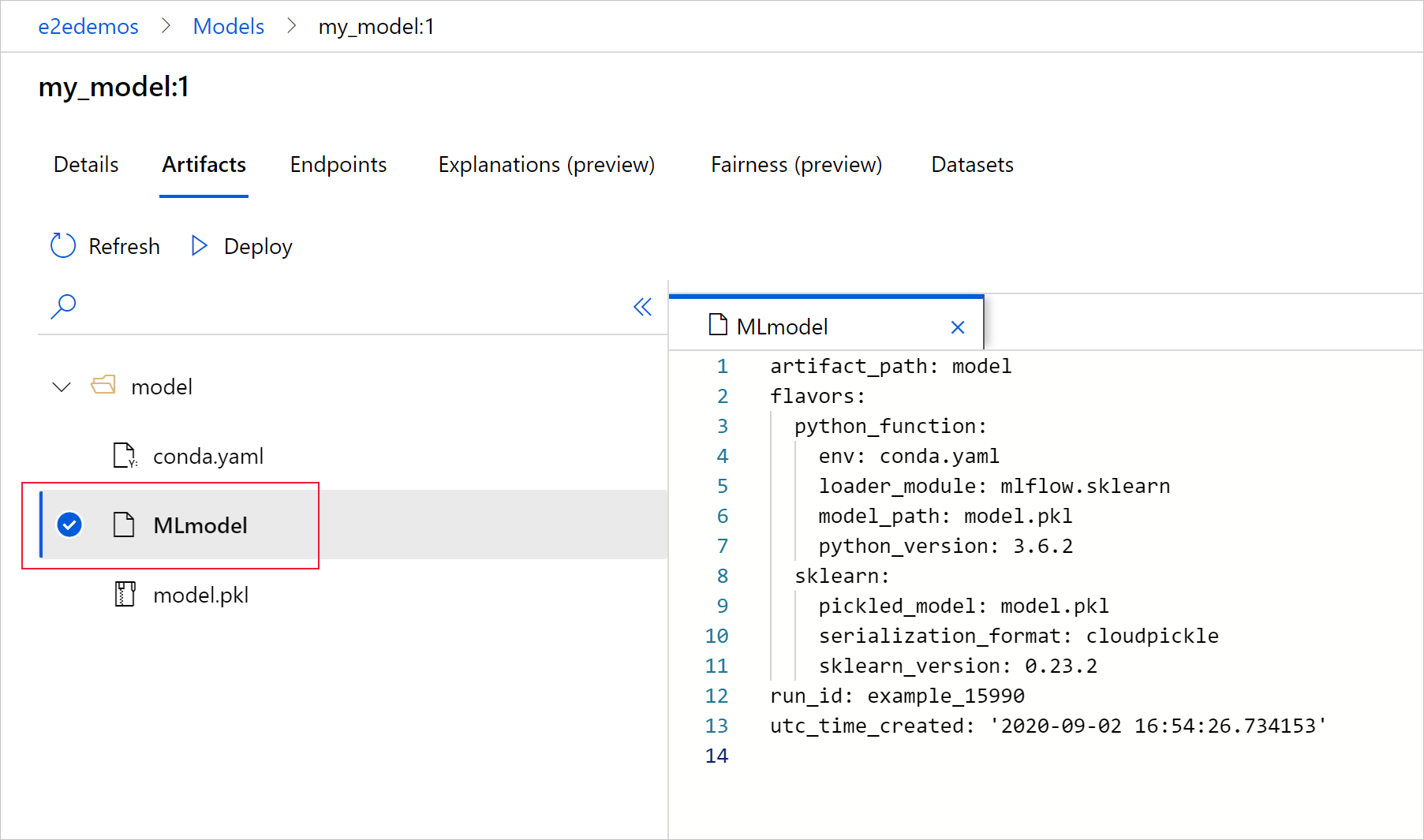
Select MLmodel to see the MLmodel file generated by the run.
Clean up resources
If you don't plan to use the logged metrics and artifacts in your workspace, you can't currently delete them individually. Instead, delete the resource group that contains the storage account and workspace so you don't incur any charges:
In the Azure portal, select Resource groups on the far left.
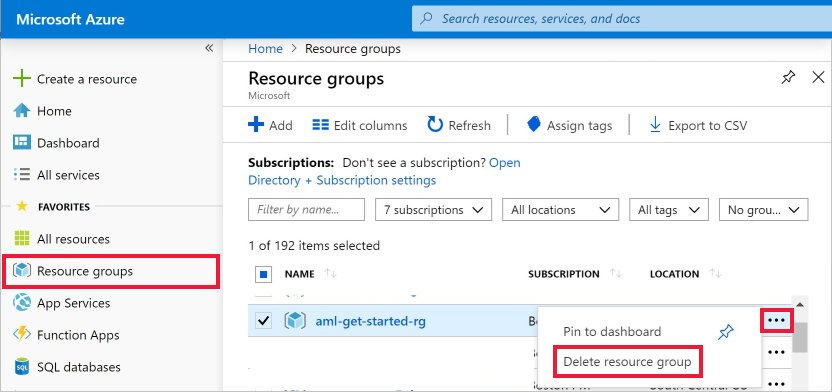
From the list, select the resource group you created.
Select Delete resource group.
Enter the resource group name. Then select Delete.
Example notebooks
The MLflow with Azure Machine Learning notebooks demonstrate and expand upon concepts presented in this article. Also see the community-driven repository, AzureML-Examples.