Note
Access to this page requires authorization. You can try signing in or changing directories.
Access to this page requires authorization. You can try changing directories.
AI coding agents — GitHub Copilot, Claude Code, OpenClaw, and others — are quickly becoming part of how engineering teams ship software. Adoption is the easy part. The harder questions follow soon after:
- How much are we spending? Which models, which teams, and which tasks drive the cost?
- Who is actually using which agent, and for what? Are tools being invoked the way you expect?
- Is the experience reliable? Where do agents stall, error out, or leave sessions stuck?
- Can we audit what the agents did? Prompts, tool calls, and model choices for security and compliance review.
Grafana gives you a single pane of glass for these questions across multiple coding agents. This guide walks through the setup end-to-end: standing up the telemetry pipeline, pointing each agent at it, and importing the ready-made dashboards.
Note
The OpenTelemetry Collector (including the contrib distribution) and the Azure Monitor Exporter are open-source components. Support for these components is provided exclusively through community channels. To submit bug reports, request new features, or report other issues, create a new issue in the opentelemetry-collector-contrib repository. Azure Support covers the Azure services in this pipeline: Application Insights, Log Analytics, and Grafana.
What you'll see
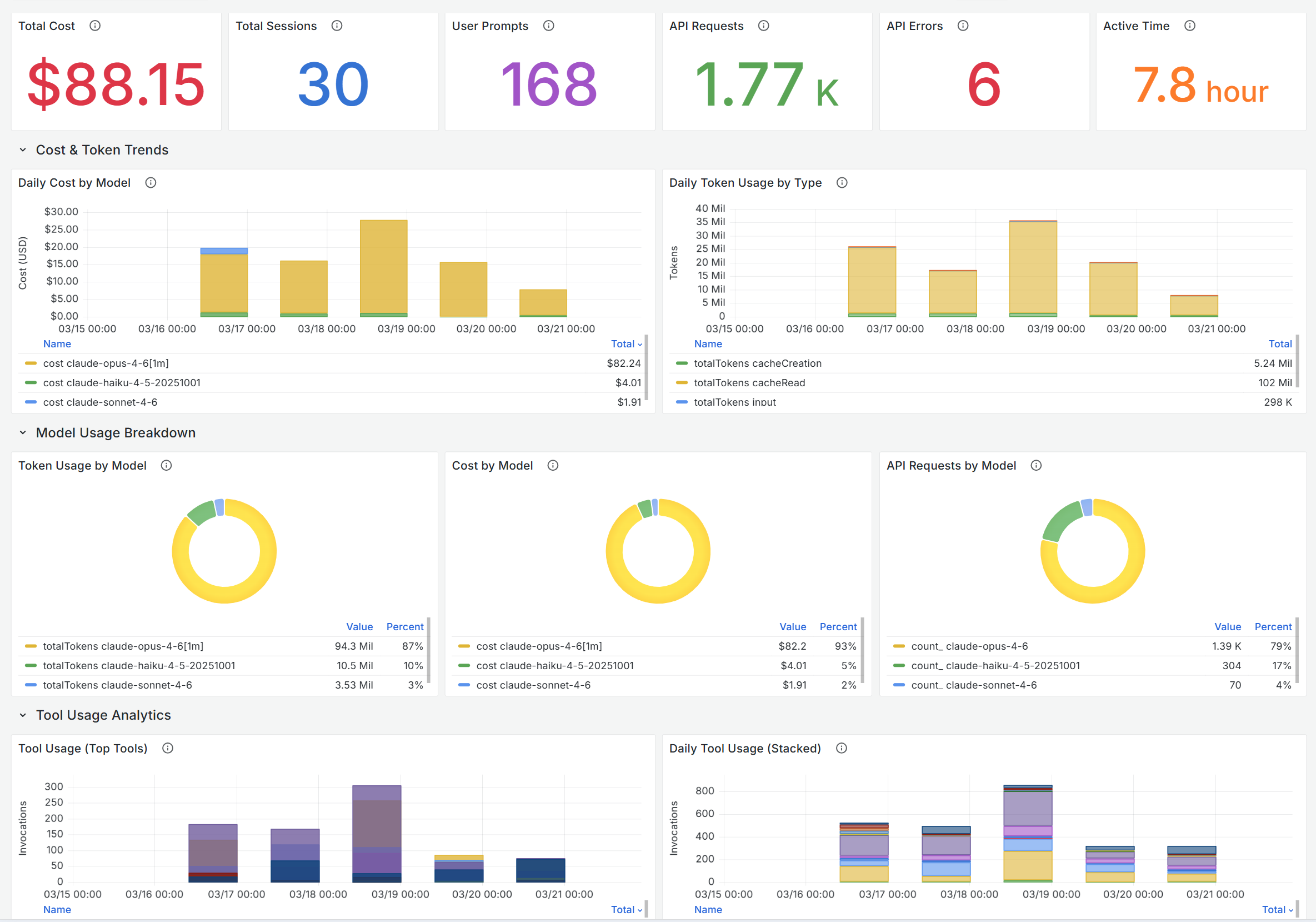
Three purpose-built Grafana dashboards visualize the signals that matter for AI coding agents — cost, token consumption, sessions, model usage, tool invocations, latency, and errors:
| Dashboard | What it shows | Link |
|---|---|---|
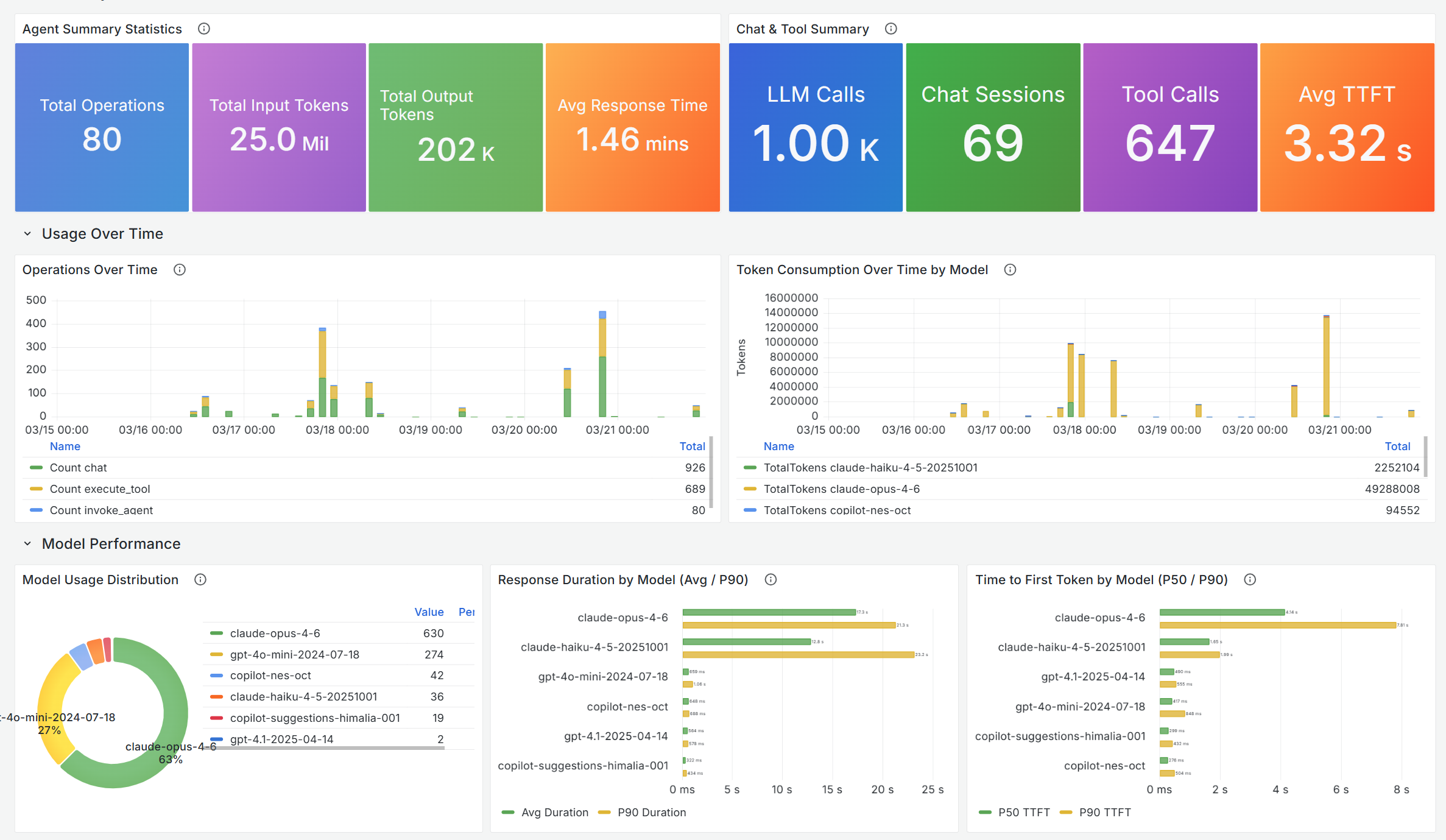
| GitHub Copilot | Operations, input/output tokens, chat sessions, tool calls, response time and TTFT by model | aka.ms/amg/dash/gh-copilot |
| Claude Code | Cost, sessions, user prompts, API requests/errors, daily cost and token trends, per-model breakdown, tool usage analytics | aka.ms/amg/dash/claude-code |
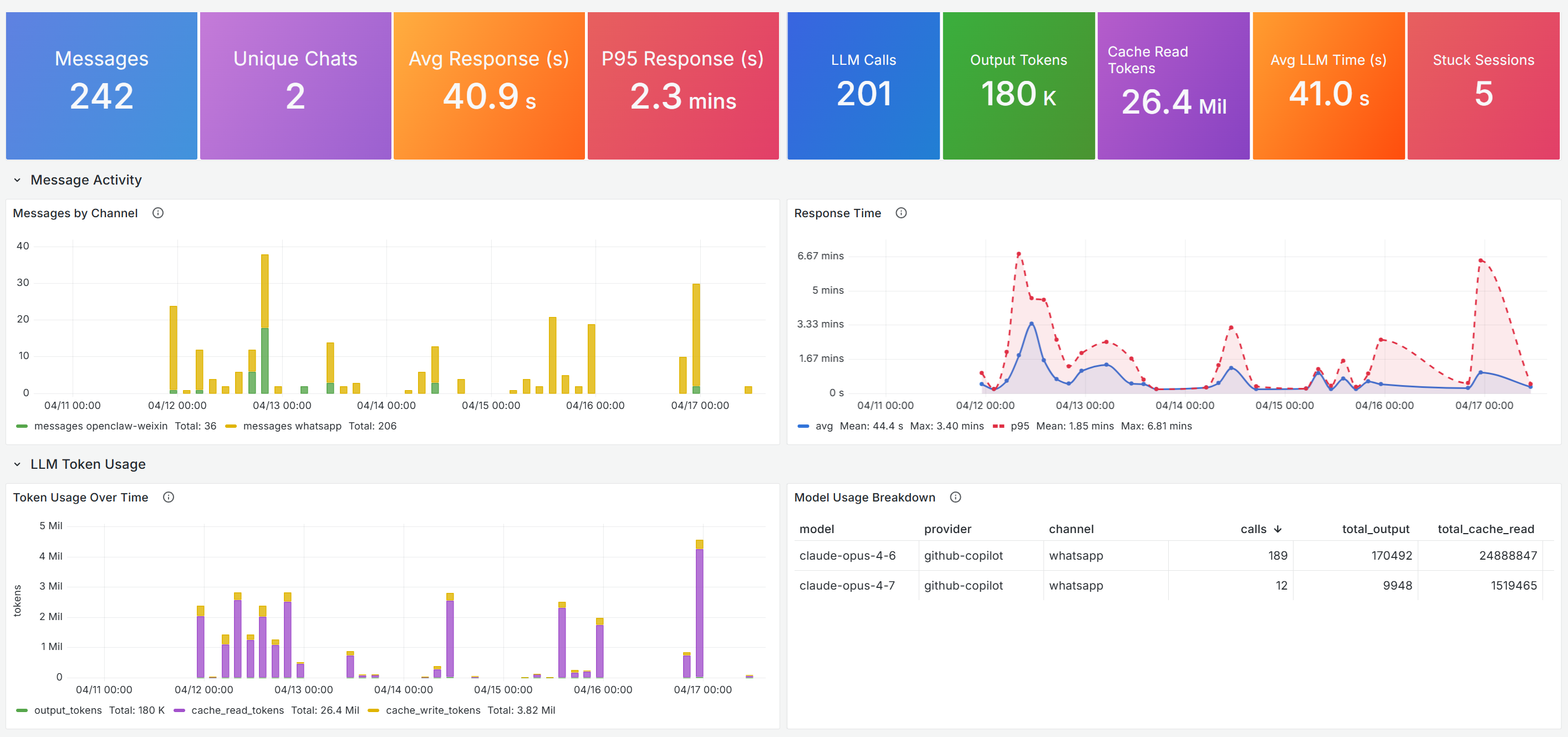
| OpenClaw | Messages, unique chats, response time, LLM calls, token usage, cache reads, stuck sessions, model usage breakdown | aka.ms/amg/dash/openclaw |
Who this guide is for
The same dashboards serve different audiences:
- Platform and developer experience teams — track adoption trends, spend by team and model, and surface inefficient usage patterns.
- Engineering leaders — correlate agent activity with delivery and answer "is this investment paying off?"
- Security and governance teams — review prompts, tool invocations, and model choices for compliance and risk.
- Individual developers and on-call engineers — debug agent behavior, slow tool calls, or stuck sessions.
How it works

- Each AI coding agent (GitHub Copilot, Claude Code, or OpenClaw) emits OpenTelemetry traces, metrics, and logs to a configured OTLP endpoint.
- An OpenTelemetry Collector terminates OTLP at that endpoint and forwards the data to Application Insights using the Azure Monitor Exporter.
- Grafana queries Application Insights via the Azure Monitor data source (Log Analytics / KQL) to render the dashboards.
The OpenTelemetry Collector and the Application Insights pipeline are infrastructure — a one-time setup. The rest of this guide walks through it.
Prerequisites
- An Application Insights resource. If you don't have one yet, create one and attach it to a Log Analytics workspace.
- Docker installed.
- Grafana 11.6 or later (for example, Azure Managed Grafana) with an Azure Monitor data source that can read your Application Insights resource.
Step 1: Run the OpenTelemetry Collector
Deploy an OpenTelemetry Collector (the contrib distribution) configured with the Azure Monitor Exporter. The collector bridges OTLP from each agent to the Application Insights ingestion API.
Get the Application Insights connection string
The collector needs an Application Insights connection string to export telemetry. To retrieve it from the Azure portal:
- Sign in to the Azure portal.
- Navigate to your Application Insights resource.
- In the left menu, select Overview.
- Locate the Connection String field in the Essentials panel and select the copy icon next to it.
The value looks like:
InstrumentationKey=00000000-0000-0000-0000-000000000000;IngestionEndpoint=https://<region>.in.applicationinsights.azure.com/;LiveEndpoint=https://<region>.livediagnostics.monitor.azure.com/;ApplicationId=00000000-0000-0000-0000-000000000000
Important
Treat the connection string as a secret. Anyone with access to it can send data to your Application Insights resource.
Create the collector configuration
Save the following as otel-collector-config.yaml, replacing the <YOUR-KEY> and <region> placeholders with values from your connection string:
receivers:
  otlp:
    protocols:
      http:
        endpoint: 0.0.0.0:4318
      grpc:
        endpoint: 0.0.0.0:4317

exporters:
  azuremonitor:
    connection_string: "InstrumentationKey=<YOUR-KEY>;IngestionEndpoint=https://<region>.in.applicationinsights.azure.com/;LiveEndpoint=https://<region>.livediagnostics.monitor.azure.com/"

service:
  pipelines:
    traces:
      receivers: [otlp]
      exporters: [azuremonitor]
    metrics:
      receivers: [otlp]
      exporters: [azuremonitor]
    logs:
      receivers: [otlp]
      exporters: [azuremonitor]
Run the collector with Docker
Start the collector with the contrib image, which includes the Azure Monitor exporter:
docker run -d --name otel-collector -p 4318:4318 -p 4317:4317 -v $(pwd)/otel-collector-config.yaml:/etc/otelcol-contrib/config.yaml otel/opentelemetry-collector-contrib:latest
The examples in the next section assume the collector is running locally and reachable at http://localhost:4318. The OTLP/HTTP receiver listens on port 4318 by default, and all three agents in this guide use OTLP/HTTP. For a shared or remote collector, substitute your own endpoint.
Step 2: Point each AI coding agent at the collector
Each agent has its own way to enable OpenTelemetry export. The shared target is the collector's OTLP/HTTP endpoint.
GitHub Copilot
GitHub Copilot emits OpenTelemetry signals when configured through Visual Studio Code settings. For more information, see Monitoring GitHub Copilot agents.
Add the following to Visual Studio Code settings.json:
{
    "github.copilot.chat.otel.enabled": true,
    "github.copilot.chat.otel.exporterType": "otlp-http",
    "github.copilot.chat.otel.otlpEndpoint": "http://localhost:4318",
    "github.copilot.chat.otel.captureContent": true
}
The GitHub Copilot dashboard surfaces total operations, input/output tokens, chat sessions, tool calls, and per-model latency (average duration and P50/P90 TTFT) — useful for spotting model-mix drift and slow tools.
Claude Code
Claude Code reads telemetry configuration from environment variables. For more information, see Monitoring Claude Code usage.
Add the following to the Claude Code settings.json:
{
  "env": {
    "CLAUDE_CODE_ENABLE_TELEMETRY": "1",
    "OTEL_METRICS_EXPORTER": "otlp",
    "OTEL_LOGS_EXPORTER": "otlp",
    "OTEL_EXPORTER_OTLP_PROTOCOL": "http/protobuf",
    "OTEL_EXPORTER_OTLP_ENDPOINT": "http://localhost:4318",
    "OTEL_LOG_USER_PROMPTS": "1",
    "OTEL_LOG_TOOL_DETAILS": "1",
    "OTEL_METRICS_INCLUDE_VERSION": "true"
  }
}
Tip
OTEL_LOG_USER_PROMPTS and OTEL_LOG_TOOL_DETAILS enrich the dashboard's per-user and tool-usage panels. Omit them if you prefer not to capture prompt text — for example, in regulated environments where prompts may contain sensitive content.
The Claude Code dashboard breaks down daily cost and token usage by model, surfaces API errors, and ranks the most-invoked tools — useful for managing spend and catching tool-call regressions.
OpenClaw
The OpenClaw gateway publishes OpenTelemetry signals via its logging and telemetry config. For more information, see OpenClaw - Export to OpenTelemetry.
Add the following to the gateway's telemetry configuration:
{
  "enabled": true,
  "endpoint": "http://localhost:4318",
  "protocol": "http/protobuf",
  "serviceName": "openclaw-gateway",
  "traces": true,
  "metrics": true,
  "logs": true,
  "sampleRate": 1,
  "flushIntervalMs": 5000
}
Important
serviceName must be openclaw-gateway. The OpenClaw dashboard filters by cloud_RoleName == "openclaw-gateway", which is derived from this field.
The OpenClaw dashboard tracks messages by channel, response-time percentiles, cache-read tokens, and stuck sessions — useful for chat-style deployments where session health and cache efficiency drive both cost and user experience.
Step 3: Verify data is reaching Application Insights
After the agents and the collector are running, confirm that telemetry is arriving before importing the dashboards.
In the Azure portal, go to your Application Insights resource and select Logs.
Run a KQL check for each source:
// GitHub Copilot
dependencies
| where timestamp > ago(1h)
| where cloud_RoleName == "copilot-chat"
| take 50
// Claude Code customMetrics | where timestamp > ago(1h) | where name startswith "claude_code" | take 50// OpenClaw dependencies | where timestamp > ago(1h) | where cloud_RoleName == "openclaw-gateway" | take 50
If rows come back, the pipeline is working. If not, check the collector logs for export errors. Typical culprits are an incorrect connection string, blocked egress to the Application Insights ingestion endpoint, or a firewalled OTLP receiver port.
Step 4: Import the dashboards into Grafana or access them in Azure portal
Each dashboard has its own import flow and variables reference:
All three require Grafana 11.6 or later with an Azure Monitor data source that has access to the subscription containing your Application Insights resource.
Where to go from here
- Add more agents. The same collector handles any OTLP-emitting tool. As your team adopts new coding agents, point them at the same endpoint and contribute or build a dashboard.
- Set alerts. Use Application Insights alert rules or Grafana alerting against the same data — for example, on daily cost above a threshold, sustained API error rate, or stuck-session count.
- Share with stakeholders. Pin the dashboards to a Grafana playlist or embed selected panels in your team's status pages so adoption, cost, and reliability stay visible to leadership.