Note
Access to this page requires authorization. You can try signing in or changing directories.
Access to this page requires authorization. You can try changing directories.
Multiple teams often need access to the same monitoring dashboards. For example, a DevOps team might monitor application performance while a support team uses the same dashboards to troubleshoot customer issues.
Use Azure role-based access control (RBAC) to grant Microsoft Entra users, groups, service principals, or managed identities access to an Azure Managed Grafana workspace. The assigned Grafana role determines what the recipient can do in Grafana. Grafana Admins can then use Grafana permissions to refine access to specific folders, dashboards, and data sources.
This article explains the supported Grafana roles, how to assign them, and how to configure permissions for Grafana components.
Prerequisites
- An Azure account with an active subscription. Create an account.
- An Azure Managed Grafana workspace. If you don't have one yet, you can create one in the Azure portal or create one using the Azure CLI.
- To assign a Grafana role, permission to create role assignments on the workspace, such as Role Based Access Control Administrator, User Access Administrator, or Owner.
- To edit folder, dashboard, or data source permissions in Grafana, the Grafana Admin role.
Learn about Grafana roles
Azure Managed Grafana supports Azure RBAC, an authorization system that lets you grant different levels of workspace access to users, groups, service principals, or managed identities.
The following built-in roles are available in Azure Managed Grafana, each providing different levels of access:
| Built-in role | Description | ID |
|---|---|---|
| Grafana Admin | Perform all Grafana operations, including managing data sources, creating dashboards, and administering Grafana teams and component permissions. | 22926164-76b3-42b3-bc55-97df8dab3e41 |
| Grafana Editor | View and edit a Grafana instance, including its dashboards and alerts. | a79a5197-3a5c-4973-a920-486035ffd60f |
| Grafana Limited Viewer | View a Grafana home page. This role contains no permissions assigned by default and it is not available for Grafana v9 workspaces. | 41e04612-9dac-4699-a02b-c82ff2cc3fb5 |
| Grafana Viewer | View a Grafana workspace, including its dashboards and alerts. | 60921a7e-fef1-4a43-9b16-a26c52ad4769 |
To access the Grafana user interface, users must possess one of the roles listed in the previous table. You can find more information about the Grafana roles from the Grafana documentation. The Grafana Limited Viewer role in Azure maps to the "No Basic Role" in the Grafana docs.
Assign a Grafana role
Grafana user roles and assignments fully integrate with Microsoft Entra ID. You can assign a Grafana role to any Microsoft Entra user, group, service principal, or managed identity, and grant them the access permissions associated with that role. You can manage these permissions from the Azure portal or the command line. This section explains how to assign Grafana roles to users in the Azure portal.
Open your Azure Managed Grafana workspace.
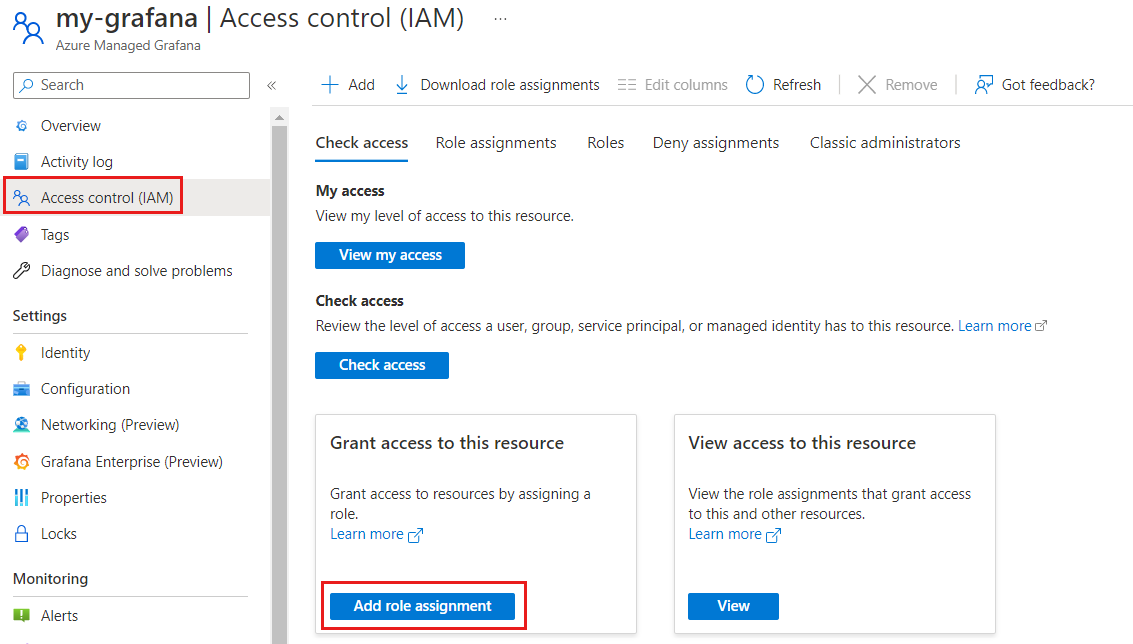
Select Access control (IAM) in the left menu.
Select Add role assignment.
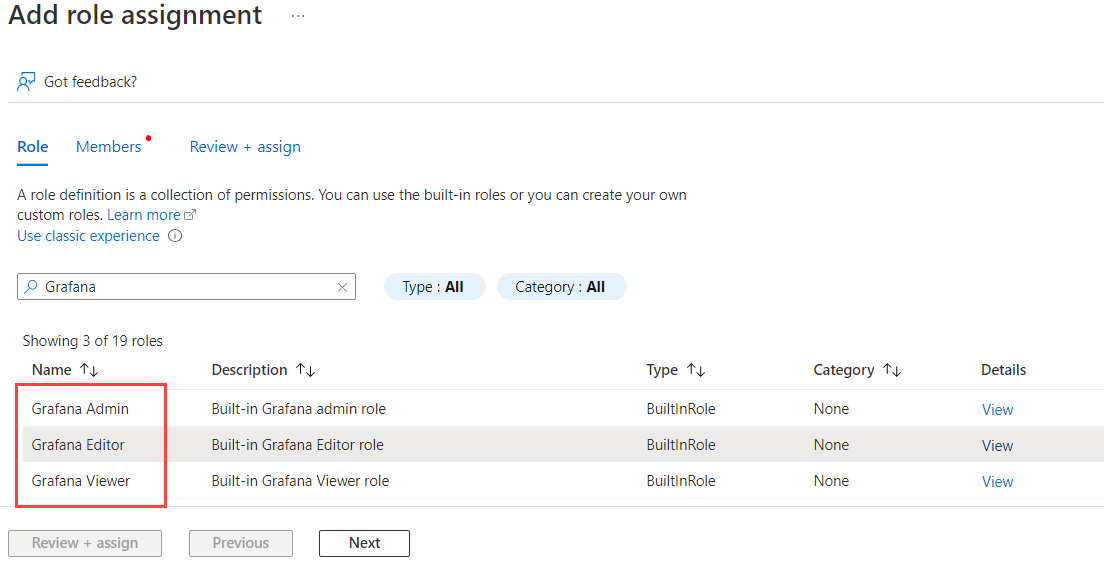
Select a Grafana role to assign among Grafana Admin, Grafana Editor, Grafana Limited Viewer, or Grafana Viewer, then select Next.
Choose if you want to assign access to a User, group, or service principal, or to a Managed identity.
Choose Select members and pick the members you want to assign to the Grafana role. Confirm your choices with Select.
Select Next, then Review + assign to complete the role assignment.
Tip
When you onboard a new user to your Azure Managed Grafana workspace, granting them the Grafana Limited Viewer role allows them limited access to the Grafana workspace.
You can then grant the user access to each relevant dashboard and data source using their management settings. This method ensures that users with the Grafana Limited Viewer role only access the specific components they need, enhancing security and data privacy.
Edit permissions for specific component elements
Edit permissions for specific components such as dashboards, folders, and data sources from the Grafana user interface following these steps:
- Open the Grafana portal and navigate to the component for which you want to manage permissions.
- Go to Settings > Permissions > Add a permission.
- Under Add permission for, select a user, service account, team, or role, and assign them the desired permission level: view, edit, or admin.
Grafana uses the highest permission a person gets from their Grafana role, an individual assignment, a team, or a parent folder. Assigning a lower permission on a component doesn't override a higher permission inherited from another source. You also can't restrict the access of a Grafana Admin by using component permissions.
For a scalable approach to component access, synchronize Grafana teams with Microsoft Entra groups.