Note
Access to this page requires authorization. You can try signing in or changing directories.
Access to this page requires authorization. You can try changing directories.
Important
Attention: All Microsoft Sentinel features will be officially retired in Azure in China regions on August 18, 2026 per the announcement posted by 21Vianet.
User and Entity Behavior Analytics (UEBA) in Microsoft Sentinel analyzes logs and alerts from connected data sources to build baseline behavioral profiles of your organization's entities-such as users, hosts, IP addresses, and applications. Using machine learning, UEBA identifies anomalous activity that might indicate a compromised asset.
You can enable UEBA and configure data sources directly from the UEBA tab. See Access UEBA from the UEBA tab.
This article explains how to enable UEBA and configure data sources from your Microsoft Sentinel workspace settings and from supported data connectors. Before you begin, review the Prerequisites section for required roles and permissions.
For more information about UEBA, see Identify threats with entity behavior analytics.
Prerequisites
To enable or disable User and Entity Behavior Analytics (UEBA) (these prerequisites aren't required to use UEBA):
Your user must be assigned to the Microsoft Entra ID Security Administrator role in your tenant or the equivalent permissions.
Your user must be assigned at least one of the following Azure roles (Azure RBAC):
- Owner at the resource group level or higher.
- Contributor at the resource group level or higher.
- (Least privileged) Microsoft Sentinel Contributor at the workspace level or higher and Log Analytics Contributor at the resource group level or higher.
Your workspace must not have any Azure resource locks applied to it. For more information, see Azure resource locking.
Note
- No special license is required to add UEBA functionality to Microsoft Sentinel, and there's no extra cost for using it.
- However, since UEBA generates new data and stores it in new tables that UEBA creates in your Log Analytics workspace, additional data storage charges apply.
Access UEBA from UEBA tab
To enable UEBA from your Microsoft Sentinel workspace settings:
Go to the Entity behavior configuration page.
Use any one of these three ways to get to the Entity behavior configuration page:
Select Entity behavior from the Microsoft Sentinel navigation menu, then select Entity behavior settings from the top menu bar.
Select Settings from the Microsoft Sentinel navigation menu, select the Settings tab, then under the Entity behavior analytics expander, select Set UEBA.
On the Entity behavior configuration page, toggle on Turn on UEBA feature.
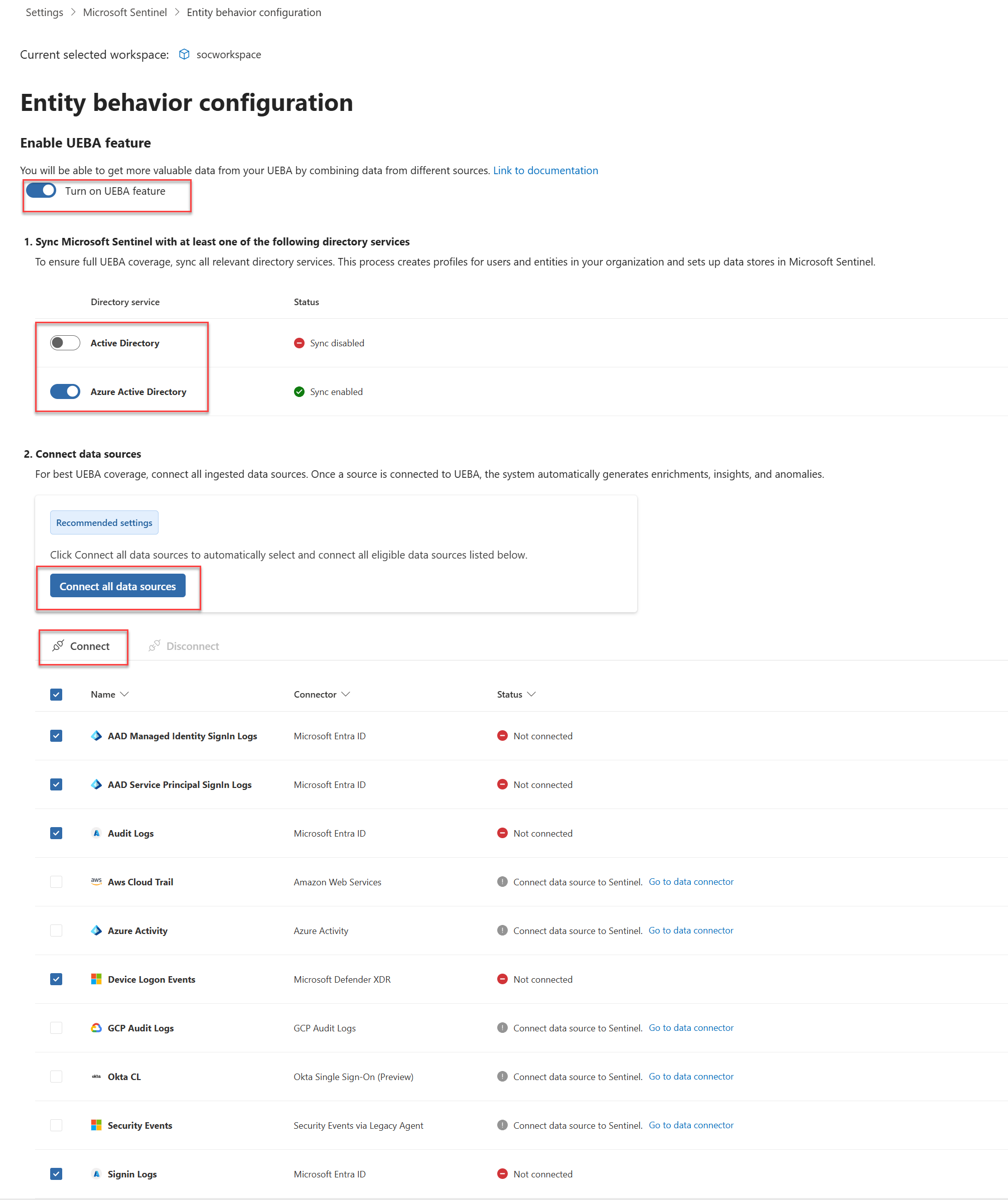
Select the directory services from which you want to synchronize user entities with Microsoft Sentinel.
- Active Directory on-premises
- Microsoft Entra ID
To sync user entities from on-premises Active Directory, you must onboard your Azure tenant to Microsoft Defender for Identity and you must have the MDI sensor installed on your Active Directory domain controller. For more information, see Microsoft Defender for Identity prerequisites.
Select Connect all data sources to connect all eligible data sources, or select specific data sources from the list.
You can only enable these data sources:
- Signin Logs
- Audit Logs
- Azure Activity
- Security Events
For more information about UEBA data sources and anomalies, see Microsoft Sentinel UEBA reference.
Note
After enabling UEBA, you can enable supported data sources for UEBA directly from the data connector pane, as described in this article.
Select Connect.
Install the UEBA Essentials solution (optional)
The UEBA Essentials solution is a collection of dozens of prebuilt hunting queries curated and maintained by Microsoft security experts. The solution includes multicloud anomaly detection queries across Azure, Amazon Web Services (AWS), and Okta.
Install the solution to get started quickly with threat hunting and investigations using UEBA data, instead of building these detection capabilities from scratch.
For more information, see Install or update Microsoft Sentinel solutions.
Related articles
- Investigate incidents with UEBA data - Learn how to investigate UEBA anomalies in your incidents.
- UEBA data sources and table schemas - Explore the data sources and schema references for UEBA.