Note
Access to this page requires authorization. You can try signing in or changing directories.
Access to this page requires authorization. You can try changing directories.
Security advisory impacted resources are considered sensitive when they include details that identify affected subscriptions, resources, or configurations. This information is sensitive because it reveals customer’s security posture, enable targeted exploitation, or enable targeted exploitation.
For these reasons, such details must be shared only with individuals who hold authorized roles. Access must also align with the elevated access requirements defined for Azure Security Advisories.
To access and view Security advisories, you must have the correct role access. For more information, see Who can view Security Advisories.
This article describes the steps to create tenant or subscription-based access.
- Subscription‑based access means you can only see Security Advisories that apply to the specific Azure subscription you’re permitted to view.
- Tenant-based access applies to the entire Microsoft Entra ID tenant, meaning it covers all subscriptions in that organization.
For more information, see Role Based Access Control (RBAC) for viewing Sensitive Security information.
Note
Role Based Access Control (RBAC) access only applies to comms that are marked Sensitive, and to view any Impacted Resources for any Security comms.
Subscription-based access
The following steps explain how to set up a subscription to view Security advisories.
1. Access the Azure portal
Log into the Azure portal and navigate to the Subscriptions section.
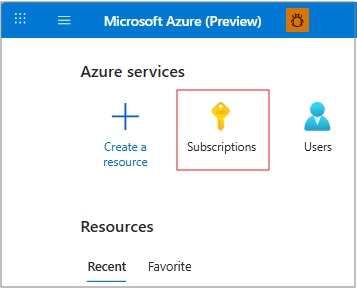
2. Select the Subscription
Choose the subscription that you want to manage for Security advisory access.
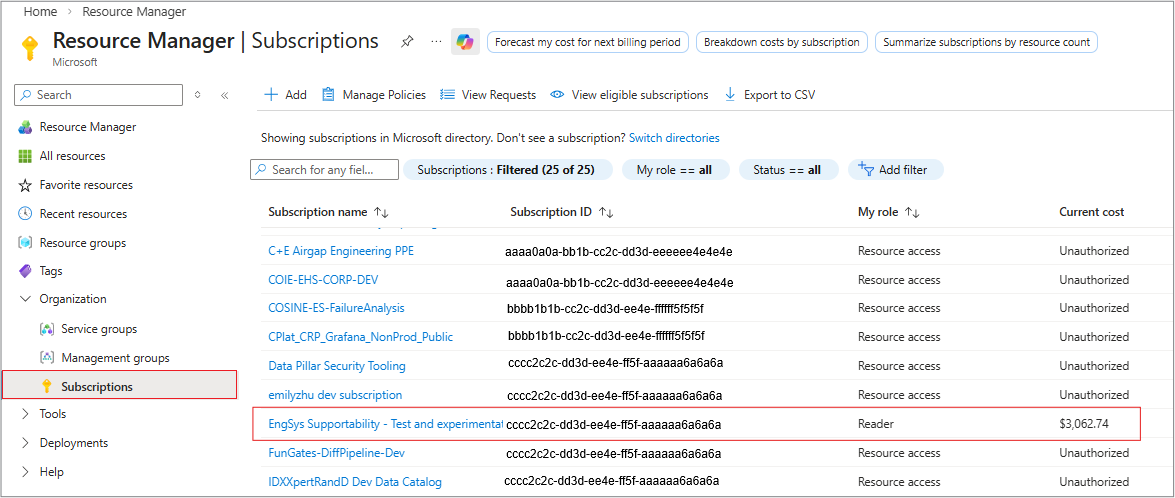
3. Navigate to Access control (IAM)
Select Access control (IAM) to manage user roles.
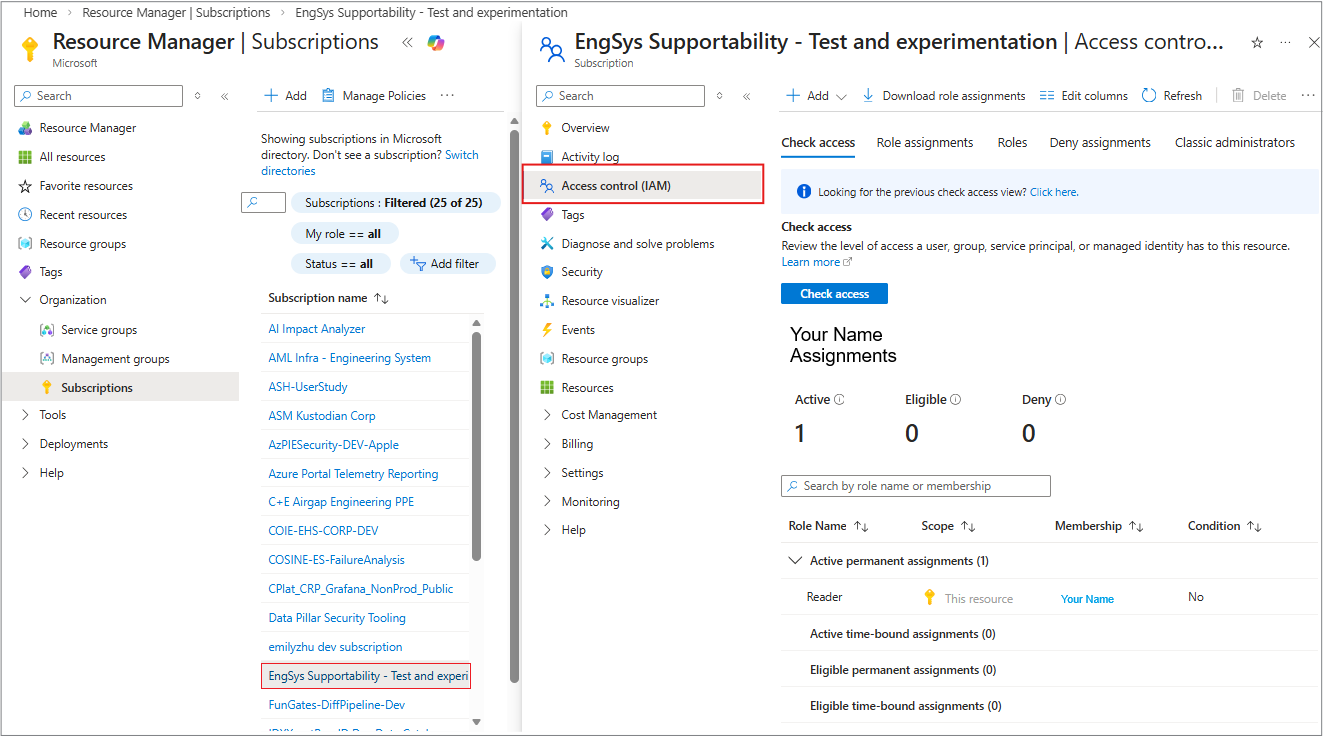
4. Add the role assignment
Select Add role assignment to assign the necessary roles.
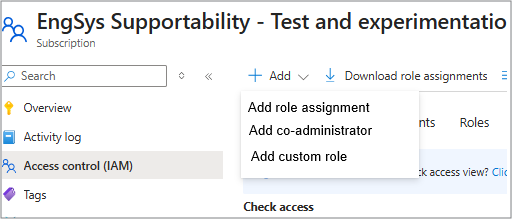
- Users must have elevated roles to view sensitive information in Security advisories.
- Only users with elevated roles can access sensitive information, see details.
Confirm that the Subscription Administrator and Tenant Global Admin roles have the right contact information to receive notifications for security issues impacting at the subscription and tenant levels.
For more information about assigning roles in Azure, see Assign Azure roles using the Azure portal.
Tenant-based access
Tenant admin access in Azure refers to the permissions granted to roles that allow users to manage and view resources at the tenant level.
These roles include Global Administrator, Application Administrator, and others. Tenant admin access enables users to manage users, groups, and permissions within the organization, and view tenant-level events in the Azure Service Health portal.
Note
Tenant-level alerts require tenant admin-level read access.
1. Identify who needs tenant-level access
Determine which users or teams require visibility into:
- Organization-wide security advisories
- Sensitive advisory details (Summary, Issue Updates, Impacted Resources)
Note
Only tenant admin level roles can view tenant scoped security advisories. For more information on who can access Security advisories, see Who can view Security advisories.
2. Access the Azure portal
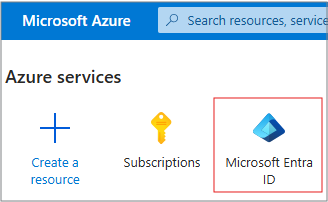
Log into the Azure portal and navigate to the Microsoft Entra ID section.
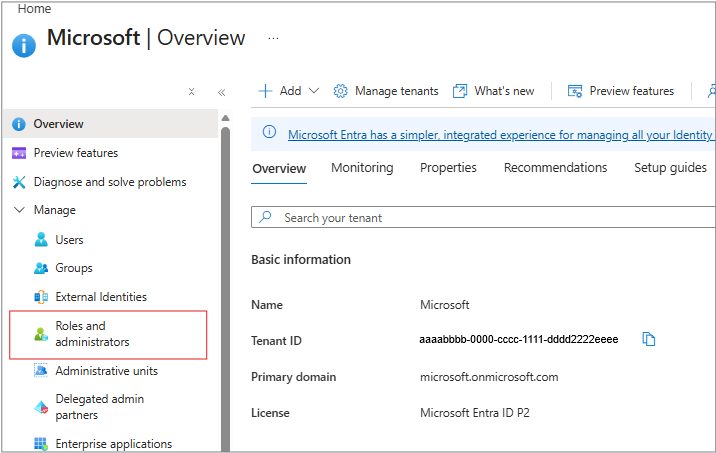
3. Add Roles and administrators
Select Roles and administrators from the side panel.
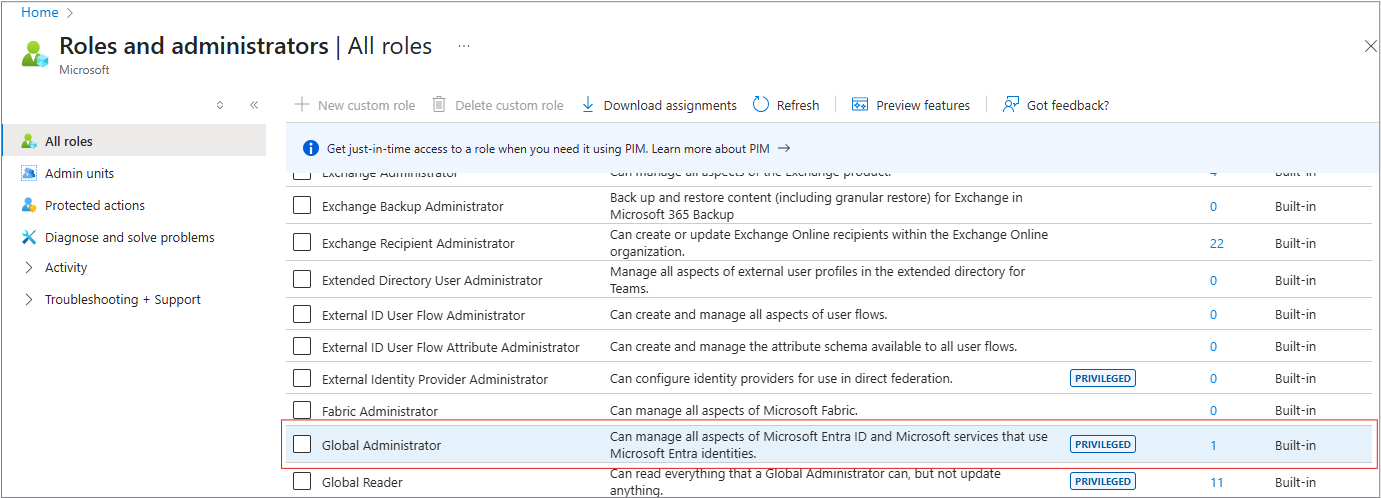
4. Select the role
Select the role directly to open a new window.
5. Add Assignment
On this panel there are three tabs, Eligible assignments, Active assignments and Expired assignments. Select + Add assignments.
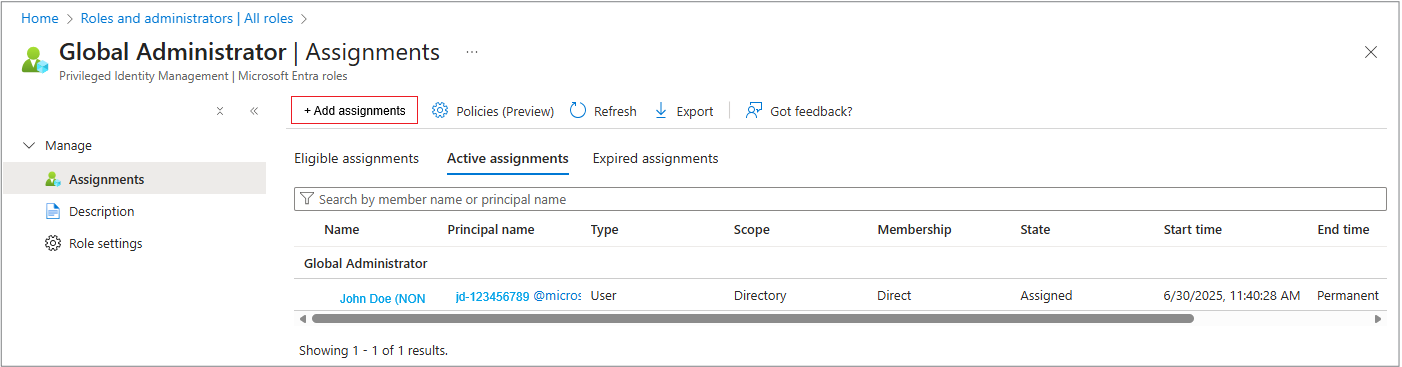
- A new pane appears where you choose who should receive this role. Use the search box to find:
- A user account
- A Microsoft 365 group
- An application / service principal (if you're assigning to identity app)
- Select the correct identity from the results.
Tip
Only groups and people who can be assigned appear on the list.
6. Confirm the assignment
- Select Next (if prompted).
- Select Assign.
- The user/group/app appears under the role's Assignments tab.
7. Verify the permissions (Optional)
- Sign out and then sign in again.
- Confirm the access to the feature they need (for instance viewing tenant-level Security advisories in Service health).