Note
Access to this page requires authorization. You can try signing in or changing directories.
Access to this page requires authorization. You can try changing directories.
You can serve static content (HTML, CSS, JavaScript, and image files) directly from a container in a general-purpose v2 or BlockBlobStorage account. To learn more, see Static website hosting in Azure Storage.
This article shows you how to enable static website hosting by using the Azure portal, the Azure CLI, or PowerShell.
Enable static website hosting
Enable static website hosting on the storage account.
Sign in to the Azure portal.
Locate your storage account and select it to display the account's Overview pane.
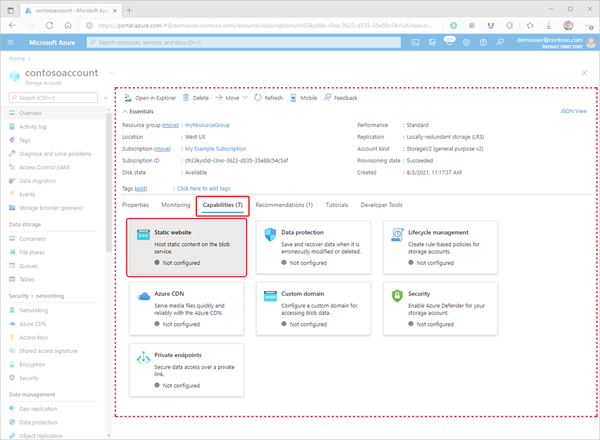
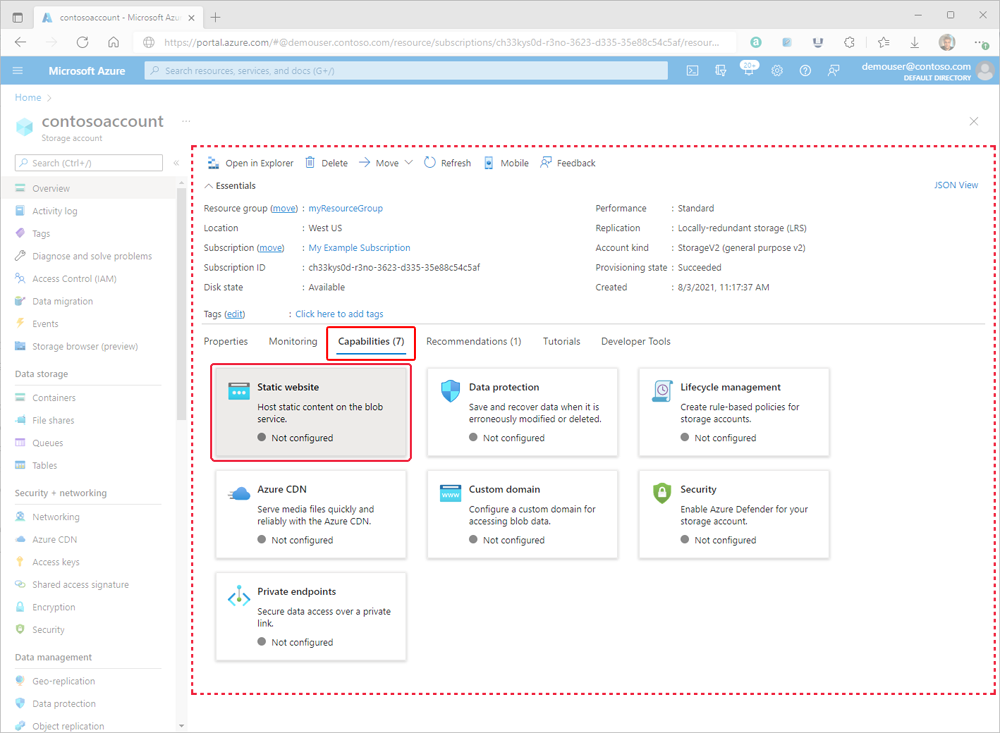
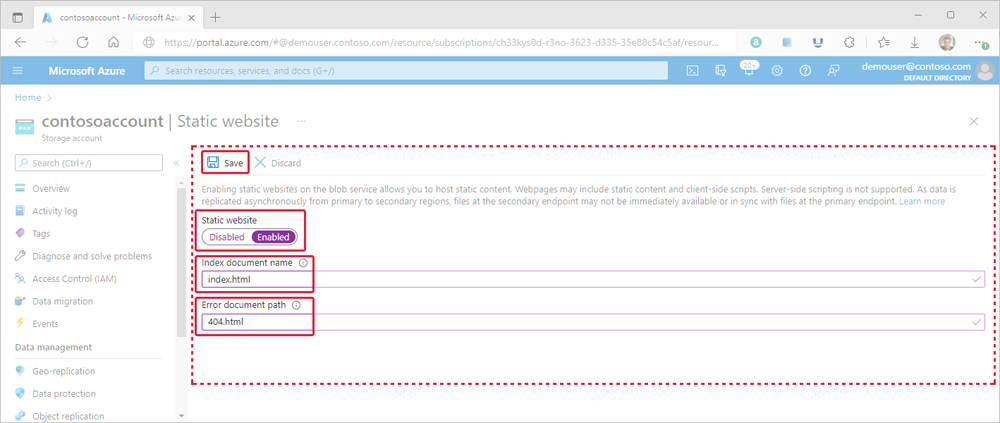
In the Overview pane, select the Capabilities tab. Next, select Static website to display the configuration page for the static website.
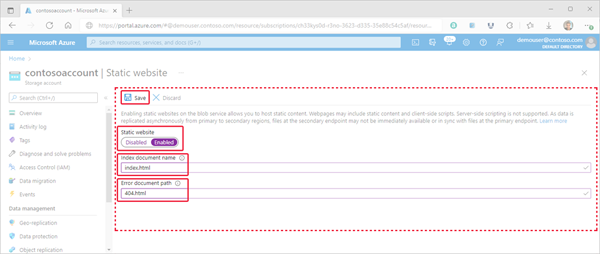
Select Enabled to enable static website hosting for the storage account.
In the Index document name field, enter a default index page (for example, index.html).
The default index page appears when you navigate to the root of your static website.
In the Error document path field, enter a default error page (for example, 404.html).
The default error page appears when you navigate to a page that doesn't exist in your static website.
Select Save to finish the static site configuration.
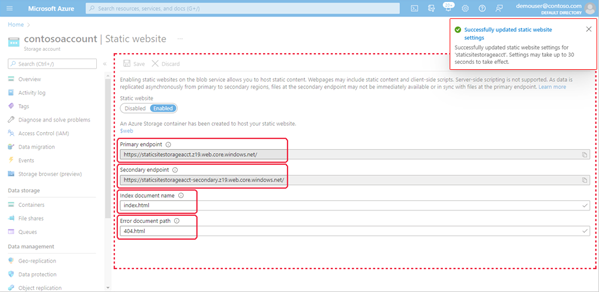
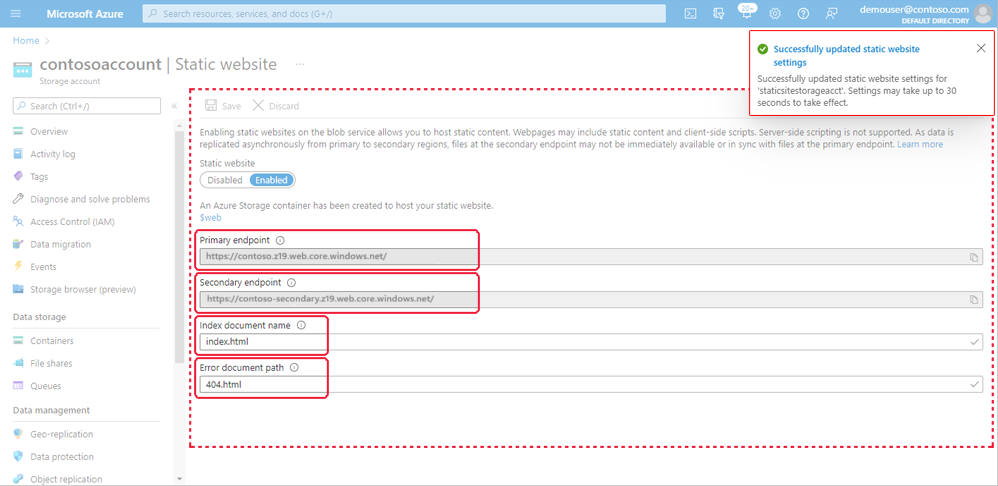
After you save the configuration, a confirmation message appears. The Overview pane shows your static website endpoints and other configuration information.
Upload files
The following instructions show you how to upload files by using the Azure portal. You can also use AzCopy, Azure PowerShell, Azure CLI, or a custom application to upload files to the $web container of your account. For a step-by-step tutorial that uploads files by using Visual Studio Code, see Tutorial: Host a static website on Blob Storage.
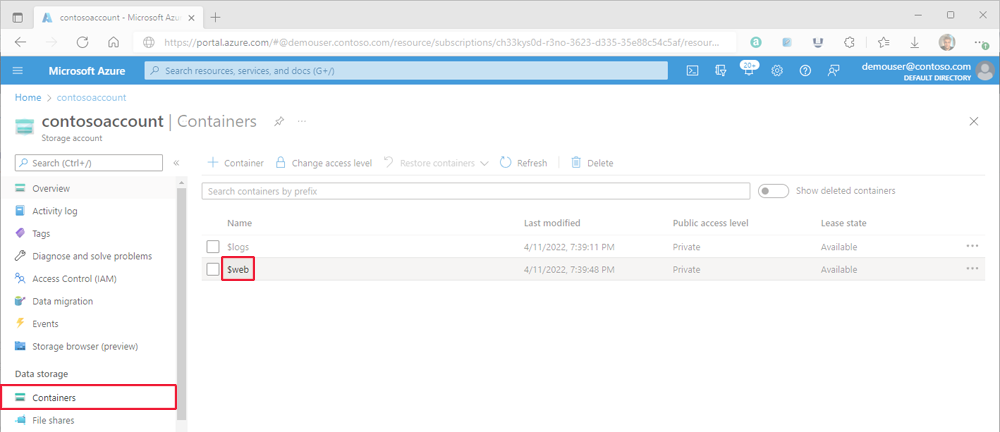
In the Azure portal, navigate to the storage account containing your static website. Select Containers in the left navigation pane to display the list of containers.
In the Containers pane, select the
$webcontainer to open the container's Overview pane.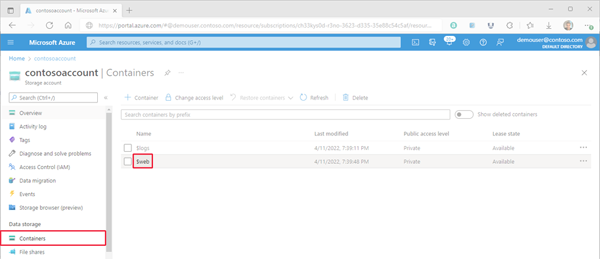
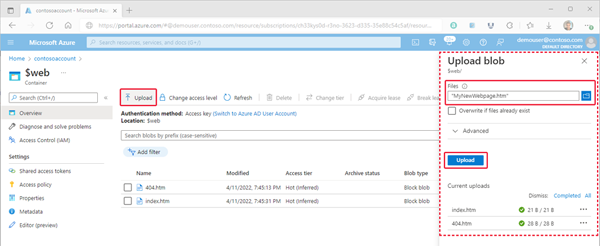
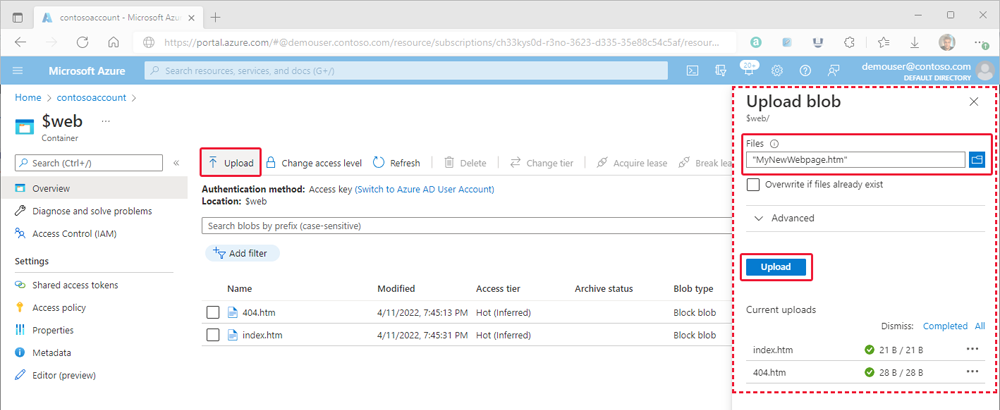
In the Overview pane, select Upload. In the Upload blob pane, select the Files field to open the file browser. Navigate to the file, select it, and then select Open. Optionally, select Overwrite if files already exist.
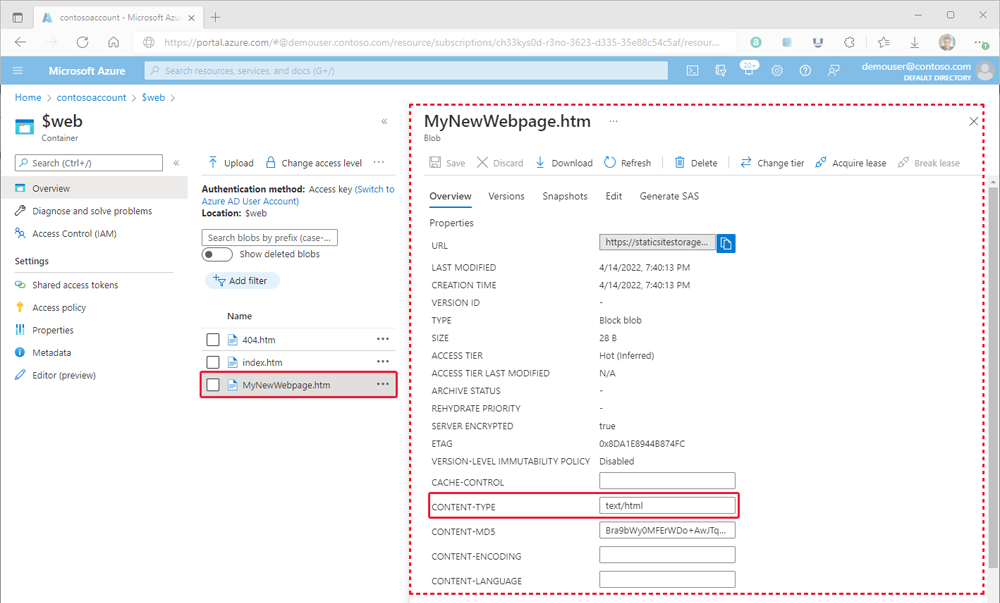
If you intend for the browser to display the contents of the file, ensure that the content type of that file is set to
text/html. To verify this setting, select the name of the blob you uploaded in the previous step to open its Overview pane. Ensure that the value is set within the CONTENT-TYPE property field.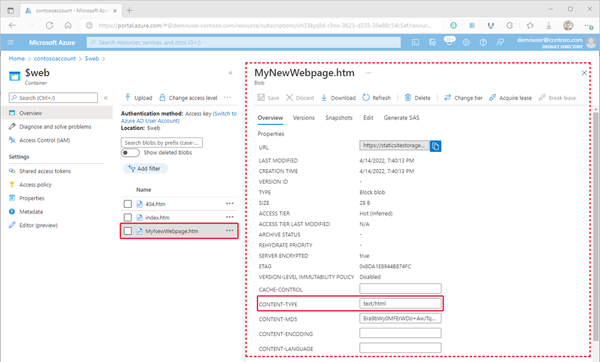
Note
This property is automatically set to
text/htmlfor commonly recognized extensions such as.html. However, in some cases, you might need to set it yourself. If you don't set this property totext/html, the browser prompts users to download the file instead of rendering the contents. You can set this property in the previous step.
Find the website URL
You can view the pages of your site from a browser by using the public URL of the website.
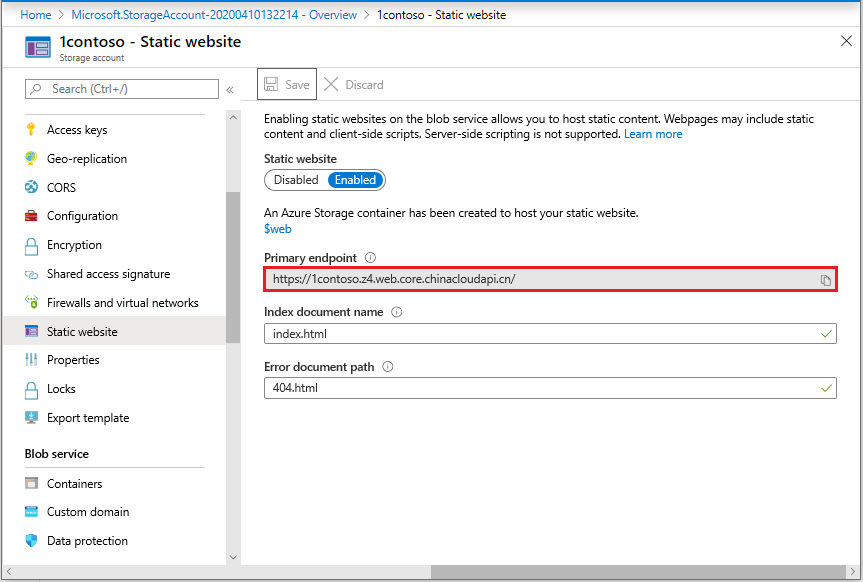
In the pane that appears beside the account overview page of your storage account, select Static Website. The URL of your site appears in the Primary endpoint field.
Enable metrics on static website pages
After you enable metrics, the metrics dashboard reports traffic statistics for files in the $web container.
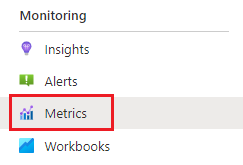
Select Metrics under the Monitor section of the storage account menu.
Note
The portal shows only API members that return data in the selected time frame. Expand the time frame to make the necessary API member available.
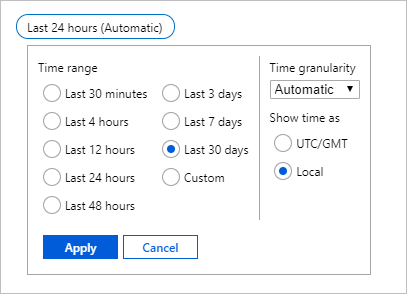
Select the time frame button, select a time frame, and then select Apply.
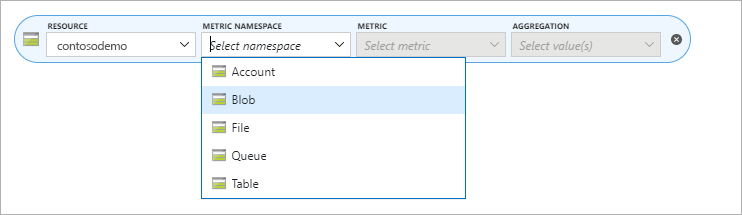
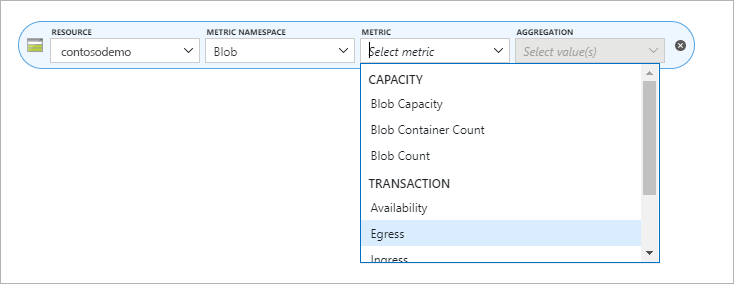
Select Blob from the Namespace dropdown.
Select the Egress metric.
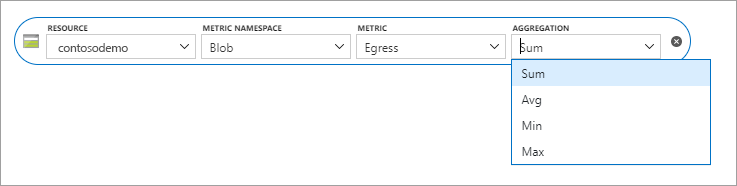
Select Sum from the Aggregation selector.
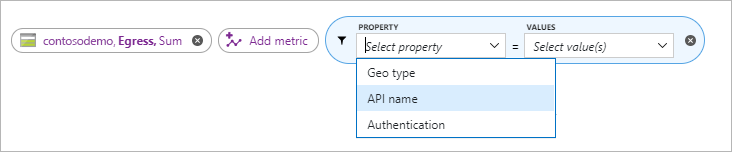
Select Add filter, and then select API name from the Property selector.
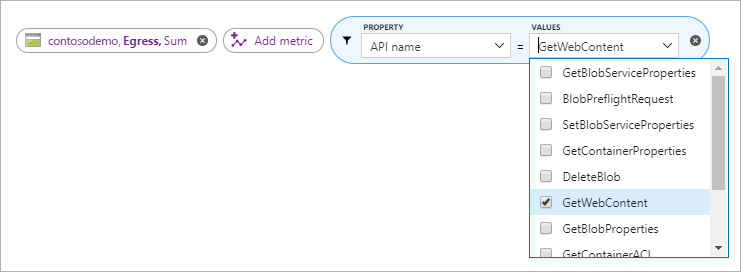
Select the checkbox next to GetWebContent in the Values selector to populate the metrics report.
Note
The GetWebContent checkbox appears only if that API member was used within the selected time frame. If you can't find it, expand the time frame.