Note
Access to this page requires authorization. You can try signing in or changing directories.
Access to this page requires authorization. You can try changing directories.
This article shows you how to use Azure PowerShell to create a site-to-site (S2S) VPN gateway connection between your on-premises network and an Azure virtual network using X.509 certificate-based authentication. Certificate authentication provides stronger security compared to preshared keys (PSK) for VPN connections.
Site-to-site certificate authentication relies on both inbound and outbound certificates to establish secure VPN tunnels. The certificates are securely stored in Azure Key Vault, and each VPN gateway accesses its certificates through a User-Assigned Managed Identity. For more information about the certificates and how the certificate flow works, see About site-to-site VPN connections with certificate authentication.
Important
Site-to-site certificate authentication isn't supported on Basic SKU VPN gateways. We recommend using VpnGw1AZ or higher.
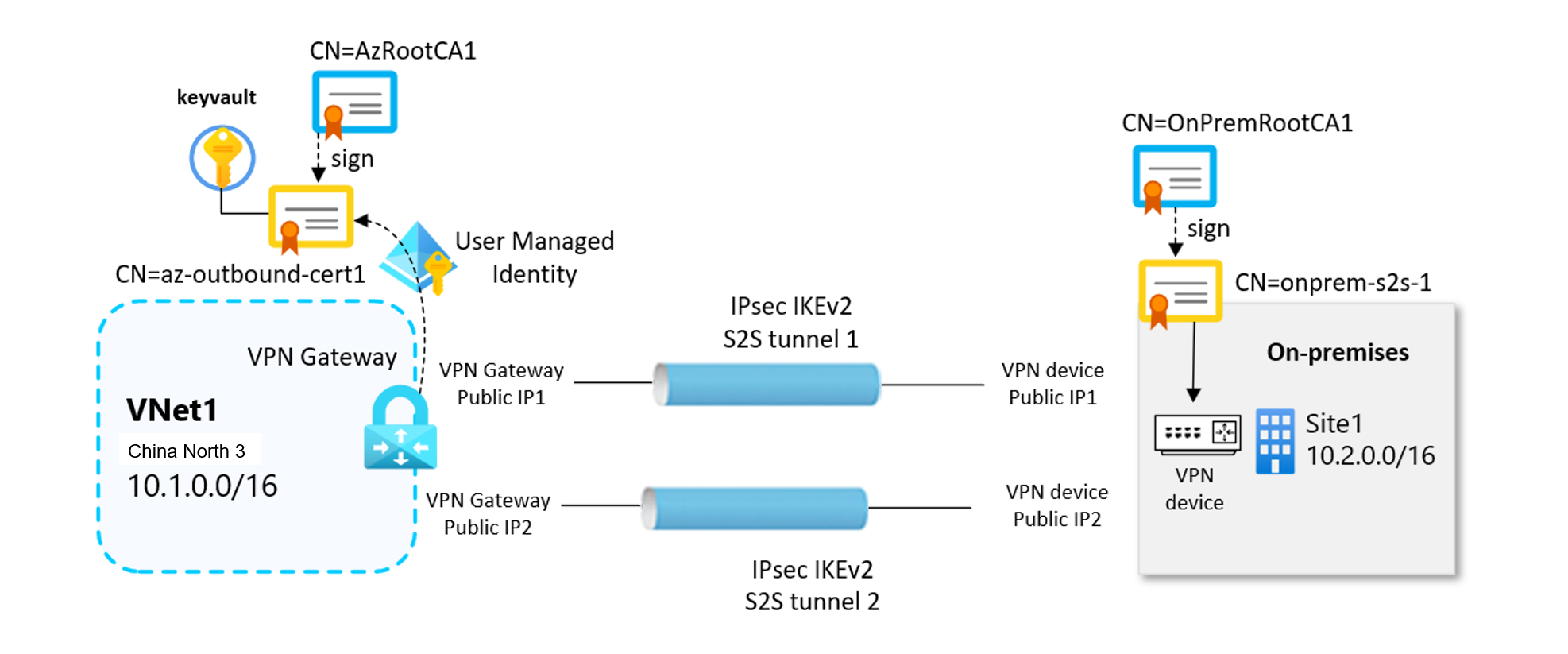
Important
Site-to-site certificate authentication is currently in Preview. See the Supplemental Terms of Use for Azure Previews for legal terms that apply to Azure features that are in beta, preview, or otherwise not yet released into general availability.
In this article, you'll generate the necessary certificates, create the required Azure resources, and configure the site-to-site VPN connection using Azure PowerShell.
Before you begin
To complete the steps in this article, ensure you have the following prerequisites:
- An Azure account with an active subscription. If you don't have one, you can create one for trial.
- Azure PowerShell installed locally. For more information, see Install the Azure PowerShell module.
- A Windows computer running Windows 10 or later, or Windows Server 2016 or later (required for certificate generation).
- Familiarity with IP address ranges in your on-premises network configuration.
- A compatible VPN device and someone who can configure it. For more information about compatible VPN devices, see About VPN devices.
- An externally facing public IPv4 address for your on-premises VPN device.
- Ensure that the subnets of your on-premises network don't overlap with the virtual network subnets you want to connect to.
Generate the digital certificates
First, generate the self signed root CA certificates and the leaf certificates required for VPN authentication. The root CA certificate establishes the trust chain and is used to sign the leaf certificates.
You have two options:
- Use the same root certificate to sign the leaf certificates for both the Azure VPN gateway and the on-premises device.
- Use separate root certificates, one to sign the leaf certificates for the Azure VPN gateway, and another to sign the leaf certificates for the on-premises VPN device.
In the following examples, two root certificates are used: one root certificate signs the leaf certificate used for outbound authentication from Azure to on-premises, and the other root certificate is used to sign the leaf certificates for the on-premises device.
Create self-signed root CA certificates
Use the New-SelfSignedCertificate cmdlet to create self-signed root certificates. The following example creates a self-signed root certificate named VPNRootCA1, which is automatically installed in 'Certificates-Current User\Personal\Certificates'. Once the certificate is created, you can view it by opening certmgr.msc, or Manage User Certificates.
Make any needed modifications before using this example. The 'NotAfter' parameter is optional. By default, without this parameter, the certificate expires in one year. Run the following commands from a Windows PowerShell console with elevated privileges.
# Define Root certificate subjects for Azure
$azureRootcertSubject1 = 'CN=AzRootCA1'

# Create Root Certificate for Azure
$params = @{
    Type              = 'Custom'
    Subject           = $azureRootcertSubject1
    KeySpec           = 'Signature'
    KeyExportPolicy   = 'Exportable'
    KeyUsage          = 'CertSign'
    KeyUsageProperty  = 'Sign'
    KeyLength         = 2048
    HashAlgorithm     = 'sha256'
    NotAfter          = (Get-Date).AddMonths(120)
    CertStoreLocation = 'Cert:\CurrentUser\My'
    TextExtension     = @('2.5.29.19={critical}{text}ca=1&pathlength=4')
}
$azureRootcert = New-SelfSignedCertificate @params

# Assign the certificate subjects for the on-premises
$onpremRootcertSubject1 = 'OnPremRootCA1'
# Create a self-sign Root Certificate for the on-premises site
$params = @{
    Type              = 'Custom'
    Subject           = $onpremRootcertSubject1
    KeySpec           = 'Signature'
    KeyExportPolicy   = 'Exportable'
    KeyUsage          = 'CertSign'
    KeyUsageProperty  = 'Sign'
    KeyLength         = 2048
    HashAlgorithm     = 'sha256'
    NotAfter          = (Get-Date).AddMonths(120)
    CertStoreLocation = 'Cert:\CurrentUser\My'
    TextExtension     = @('2.5.29.19={critical}{text}ca=1&pathlength=4')
}
$onpremRootcert = New-SelfSignedCertificate @params
Leave the PowerShell console open after running the above commands, as you'll need to reference the generated certificates in the next steps.
Generate leaf certificates signed by the root CA certificates
Generate leaf certificates signed by the root certificates. These certificates are used for site-to-site VPN authentication. These examples use the New-SelfSignedCertificate cmdlet to generate outbound and inbound leaf certificates. When created, the certificates are automatically installed in 'Certificates - Current User\Personal\Certificates' on your Windows computer.
Create outbound certificate for the VPN gateway
# Assign the leaf certificate subjects for the VPN gateway
$azureLeafcertSubject1 = 'CN=az-outbound-cert1'
$certPassword = '12345'

# Get the Root certificates from certificate store
$azureRootcert = Get-ChildItem -Path Cert:\CurrentUser\My | Where-Object { $_.Subject -eq $azureRootcertSubject1 }

# Create Leaf Certificate (signed by Azure Root CA)
$params = @{
    Type              = 'Custom'
    Subject           = $azureLeafcertSubject1
    KeySpec           = 'Signature'
    KeyExportPolicy   = 'Exportable'
    KeyLength         = 2048
    HashAlgorithm     = 'sha256'
    NotAfter          = (Get-Date).AddMonths(120)
    CertStoreLocation = 'Cert:\CurrentUser\My'
    Signer            = $azureRootcert
    TextExtension     = @('2.5.29.37={text}1.3.6.1.5.5.7.3.2,1.3.6.1.5.5.7.3.1')
}
$azureLeafcert = New-SelfSignedCertificate @params
Create outbound certificate for the on-premises device
# Assign leaf certificate subjects for the on-premises device
$onpremLeafcertSubject1 = 'CN=onprem-s2s-1'

# Get the on-premises Root certificate from the certificate store
$onpremRootcert = Get-ChildItem -Path Cert:\CurrentUser\My | Where-Object { $_.Subject -eq $onpremRootcertSubject1 }

# Create Leaf Certificate 1 (signed by on-premsies Root CA)
$params = @{
    Type              = 'Custom'
    Subject           = $onpremLeafcertSubject1
    KeySpec           = 'Signature'
    KeyExportPolicy   = 'Exportable'
    KeyLength         = 2048
    HashAlgorithm     = 'sha256'
    NotAfter          = (Get-Date).AddMonths(120)
    CertStoreLocation = 'Cert:\CurrentUser\My'
    Signer            = $certRootOnPrem
    TextExtension     = @('2.5.29.37={text}1.3.6.1.5.5.7.3.2,1.3.6.1.5.5.7.3.1')
}
$onpremLeafcert1 = New-SelfSignedCertificate @params
Note
Generation of root and leaf certificates on a Windows host for the on-premises device is shown only as an example to illustrate the correct setup workflow. Because certificate creation varies by device, consult the vendor's documentation for instructions on generating the required root and leaf certificates and importing them into the on-premises device.
Export the certificates
Export the root certificates in Base64 format (.cer) and the leaf certificates in PKCS#12 format (.pfx).
$certPath="PATH_TO_LOCAL_FOLDER_TO_STORE_EXPORTED_CERTIFICATES"

# password used in export certificates
$certPassword = '12345'

# Export root certificates
$azureRootcert = Get-ChildItem -Path Cert:\CurrentUser\My | Where-Object { $_.Subject -eq $azureRootcertSubject1 }

# Export to DER format first
Export-Certificate -Cert $azureRootcert -FilePath "$certPath\AzRootCA1.cert" -Force

# Convert the Root certificate in Base64-encoded PEM format
certutil -encode "$certPath\AzRootCA1.cert" "$certPath\AzRootCA1.cer"

# Export leaf certificates as PFX (with private key)
$mypwd = ConvertTo-SecureString -String $certPassword -Force -AsPlainText

$azureLeafcert1 = Get-ChildItem -Path Cert:\CurrentUser\My | Where-Object { $_.Subject -eq $azureLeafcertSubject1 }

Export-PfxCertificate -Cert $azureLeafcert1 -FilePath "$certPath\az-outbound-cert1.pfx" -Password $mypwd
Declare Azure environment variables
The next sections refer to the variables defined in the following code block. Update the variable values to match your environment before running the code.
# Azure subscription and resource group
$subscriptionName = '<your-subscription-name>'
$rgName = '<your-resource-group-name>'
$location = 'chinanorth3'

# Virtual network 1 configuration
$vnet1Name = 'vnet1'
$vnet1Address = '10.1.0.0/16'
$gw1SubnetAddress = '10.1.0.0/24'

# VPN gateway names
$gw1Name = 'gw1'
Create virtual networks and gateway subnets
Create a resource group.
# Create a Resource Group
$rg = New-AzResourceGroup -Name $rgName -Location $location -Force

# Add tags for organization
Set-AzResourceGroup -Name $rgName -Tags @{ usage = "s2s-digitalcert" }
Create the virtual networks with gateway subnets. The gateway subnet must be named GatewaySubnet and should be /27 or larger.
# Create Virtual Network VNet1
$vnet1 = New-AzVirtualNetwork -ResourceGroupName $rgName -Name $vnet1Name `
    -AddressPrefix $vnet1Address -Location $location

# Add subnets to VNet1
Add-AzVirtualNetworkSubnetConfig -Name 'GatewaySubnet' -VirtualNetwork $vnet1 `
    -AddressPrefix $gw1SubnetAddress
Set-AzVirtualNetwork -VirtualNetwork $vnet1
Important
Network security groups (NSGs) on the gateway subnet aren't supported. Associating an NSG to this subnet might cause your virtual network gateway to stop functioning as expected.
Create user-assigned managed identities
This configuration requires a managed identity. VPN gateways use user-assigned managed identities to securely access certificates stored in Azure Key Vault. For more information about managed identities, see What are managed identities for Azure resources.
When creating the managed identity name, use something intuitive, such as gw1-s2s-kv or vpngwy-managed. You need the name for Key Vault configuration steps. The resource group doesn't have to be the same as the resource group used for your VPN gateway.
# Create managed user identity for VPN Gateway to access to the Azure Keyvault
$gw1UserIdentityName = 'gw1-s2s-kv'
$gw1UserIdentity = New-AzUserAssignedIdentity -ResourceGroupName $rgName `
    -Name $gw1UserIdentityName -Location $location
A user assigned managed identity name doesn't need to be globally unique across subscriptions. It only needs to be unique within the resource group where it's created.
Create Key Vaults and configure RBAC permissions
This configuration requires Azure Key Vault. Create Key Vaults to store the certificates and configure RBAC permissions for secure access. For more information about Azure Key Vault, see About Azure Key Vault.
Note
When using the Azure portal to create a Key Vault for certificate authentication, ensure you select Azure role-based access control as the Permission model on the access configuration. This is the recommended approach.
# Generate a globally unique Azure Key Vault name.
# Key Vault names must be unique across all Azure regions and must not exceed 24 characters.
$suffix1 = "ALFANUMERIC_VALUE"
$keyVault1Name = "kv-$suffix1"

# Deleting the Keyvault in removed state to avoid failure
Remove-AzKeyVault -VaultName $keyVault1Name -Location $location -InRemovedState -Force -ErrorAction SilentlyContinue

# Create Key Vault 1 - Azure RBAC is the default access control model for the newly created vaults
$keyVault1 = New-AzKeyVault -VaultName $keyVault1Name -ResourceGroupName $rgName -Location $location
Assign RBAC roles to managed identities
Grant the managed identities the necessary permissions to access certificates in Key Vault using Azure RBAC.
# Define RBAC role IDs
$secretsUserRoleId = "4633458b-17de-408a-b874-0445c86b69e6"  # build-in role for Key Vault Secrets User
$certUserRoleId = "db79e9a7-68ee-4b58-9aeb-b90e7c24fcba"     # build-in role for Key Vault Certificate User
$certOfficerRoleId = "a4417e6f-fecd-4de8-b567-7b0420556985"  # build-in role for Key Vault Certificates Officer

# Assign Key Vault Certificates Officer role to current user (required to import certificates)
$currentUser = (Get-AzContext).Account.Id
$currentUserObjectId = (Get-AzADUser -UserPrincipalName $currentUser).Id
Write-Host "Assigning Key Vault Certificates Officer role to current user: $currentUser"
New-AzRoleAssignment -ObjectId $currentUserObjectId `
    -RoleDefinitionId $certOfficerRoleId -Scope $keyVault1.ResourceId

# Assign RBAC roles to user managed identity to acces to the Key Vault 1
New-AzRoleAssignment -ObjectId $gw1UserIdentity.PrincipalId `
    -RoleDefinitionId $secretsUserRoleId -Scope $keyVault1.ResourceId
New-AzRoleAssignment -ObjectId $gw1UserIdentity.PrincipalId `
    -RoleDefinitionId $certUserRoleId -Scope $keyVault1.ResourceId
RBAC permission changes don't take effect immediately. As a best practice, allow roughly two minutes for the updated role assignments to propagate before validating that the permissions have reached the user assigned managed identity. If RBAC hasn't yet propagated, the next steps might fail.
Note
Azure recommends using Azure RBAC for Key Vault access control instead of the legacy Access Policy model. For more information, see Migrate from access policy to Azure RBAC.
Import certificates to Key Vault
Upload the outbound leaf certificate (with the private key) to Azure Key Vault. The certificate file must be in .pfx format.
# Import leaf certificate in the Key Vault 1
$certPath="PATH_TO_LOCAL_FOLDER_TO_STORE_EXPORTED_CERTIFICATES"
$gw1OutboundCertName = 'gw1-cert'
$certPassword = ConvertTo-SecureString -String "12345" -Force -AsPlainText

Import-AzKeyVaultCertificate -VaultName $keyVault1Name -Name $gw1OutboundCertName `
    -FilePath "$certPath\az-outbound-cert1.pfx" -Password $certPassword
Create public IP addresses for VPN gateways
Create zone-redundant Standard SKU public IP addresses for the VPN gateways. The VPN gateway is configured in active-active mode, then two public IP addresses are required.
# Create public IP for Gateway 1
$gw1pubIP1Name = $gw1Name + "pip1"
Write-Host "Creating public IP: $gw1pubIP1Name"
$gw1pubIP1 = New-AzPublicIpAddress -ResourceGroupName $rgName -Name $gw1pubIP1Name `
    -Location $location -AllocationMethod Static -Sku Standard -Tier Regional `
    -Zone @("1", "2", "3")

# Create public IP for Gateway 2
$gw1pubIP2Name = $gw1Name + "pip2"
Write-Host "Creating public IP: $gw1pubIP2Name"
$gw1pubIP2 = New-AzPublicIpAddress -ResourceGroupName $rgName -Name $gw1pubIP2Name `
    -Location $location -AllocationMethod Static -Sku Standard -Tier Regional `
    -Zone @("1", "2", "3")
Create VPN gateways
When you create the VPN gateway, specify the user-assigned managed identity so that the gateway can access the certificates in Key Vault for authentication. The VPN gateway uses the outbound certificate to authenticate to the on-premises VPN device, and it validates the incoming connection from the on-premises device using the root certificate chain configured in the gateway.
Create VPN gateways with the user-assigned managed identities for Key Vault access.
Note
VPN gateway deployment can take 30-45 minutes.
# Get virtual network and subnet references
$vnet1 = Get-AzVirtualNetwork -ResourceGroupName $rgName -Name $vnet1Name
$gw1Subnet = Get-AzVirtualNetworkSubnetConfig -Name 'GatewaySubnet' -VirtualNetwork $vnet1

# Create IP configuration for Gateway 1
$gw1IpConfig = New-AzVirtualNetworkGatewayIpConfig -Name 'gw1-config' `
    -PublicIpAddress $gw1pubIP1 -Subnet $gw1Subnet

# Create VPN gateway 1 with user assigned managed identity and Key Vault access enabled
# Creation of VPN gateway may take 30-45 minutes
$gw1 = New-AzVirtualNetworkGateway -ResourceGroupName $rgName -Name $gw1Name `
    -Location $location `
    -IpConfigurations @($gw1IpConfig1, $gw1IpConfig2) `
    -GatewayType Vpn `
    -VpnType RouteBased `
    -EnableBgp $false `
    -GatewaySku VpnGw2AZ `
    -EnableActiveActiveFeature `
    -VpnGatewayGeneration Generation2 `
    -UserAssignedIdentityId $gw1UserIdentity.Id
You can check the VPN gateway provisioning state by using the following command.
write-host "vpn gateway provisioning state: "$gw1.ProvisioningState
Create local network gateways
The local network gateway is a specific object that represents your on-premises location (the site) for routing purposes. You give the site a name by which Azure can refer to it, and then specify the IP address of the on-premises VPN device to which you create a connection. You also specify the IP address prefixes that are routed through the VPN gateway to the VPN device. The address prefixes you specify are the prefixes located on your on-premises network. If your on-premises network changes or you need to change the public IP address for the VPN device, you can easily update the values later.
Note
The local network gateway object is deployed in Azure, not to your on-premises location.
Configuration considerations:
- FQDN support: If you have a dynamic public IP address, you can use a constant DNS name with a Dynamic DNS service to point to your current public IP address. Your Azure VPN gateway resolves the FQDN to determine the public IP address to connect to.
- Single IP address: VPN Gateway supports only one IPv4 address for each FQDN. If the domain name resolves to multiple IP addresses, VPN Gateway uses the first IP address returned by the DNS servers. Azure recommends that your FQDN always resolve to a single IPv4 address. IPv6 isn't supported.
- DNS cache: VPN Gateway maintains a DNS cache that's refreshed every 5 minutes. The gateway tries to resolve the FQDNs for disconnected tunnels only. Resetting the gateway also triggers FQDN resolution.
- Multiple connections: Although VPN Gateway supports multiple connections to different local network gateways with different FQDNs, all FQDNs must resolve to different IP addresses.
Create local network gateways to represent the on-premises network site. Each local network gateway specifies the public IP address and address prefixes of the remote on-premises site.
# Get public IP addresses of the on-premises VPN device
$site1publicIP1 = "PUBLIC_IP_ADDRESS_1_ON_PREMISES_DEVICE"
$site1publicIP2 = "PUBLIC_IP_ADDRESS_2_ON_PREMISES_DEVICE"
$onpremAddressPrefix ="10.2.0.0/16"

# Create Local Network Gateway for the Site1
# The remote peer is the first on-premises public IP: $site1publicIP1
$localNetGwSite11Name = 'localNetSite11'
$localNetGwSite11 = New-AzLocalNetworkGateway -Name $localNetGwSite11Name `
    -ResourceGroupName $rgName `
    -Location $location `
    -AddressPrefix $onpremAddressPrefix `
    -GatewayIpAddress $site1publicIP1

# Create Local Network Gateway for the Site1
# The remote peer is the second on-premises public IP: $site1publicIP2
$localNetGwSite12Name = 'localNetSite12'
$localNetGwSite12 = New-AzLocalNetworkGateway -Name $localNetGwSite12Name `
    -ResourceGroupName $rgName `
    -Location $location `
    -AddressPrefix $onpremAddressPrefix `
    -GatewayIpAddress $site1publicIP2
Configure your on-premises VPN device
Site-to-site connections to an on-premises network require a VPN device. When you configure your VPN device, you need the following values:
- Certificate: You need the certificate data used for authentication. This certificate is also used as the inbound certificate when creating the VPN connection.
- Public IP address values for your virtual network gateway: To find the public IP address for your VPN gateway VM instance using the Azure portal, go to your virtual network gateway and look under Settings > Properties. If you have an active-active mode gateway (recommended), make sure to set up tunnels to each VPN gateway instance. Both tunnels are part of the same connection. Active-active mode VPN gateways have two public IP addresses, one for each gateway VM instance.
Depending on the VPN device that you have, you might be able to download a VPN device configuration script. For more information, see Download VPN device configuration scripts. See the following table for VPN device configuration resources.
| Resource | Description |
|---|---|
| VPN devices | Information about compatible VPN devices |
| Validated VPN devices | Links to device configuration settings |
| About cryptographic requirements | Cryptographic requirements for Azure VPN gateways |
| IPsec/IKE parameters | IKE version, Diffie-Hellman Group, encryption, and hashing algorithms |
| IPsec/IKE policy configuration | Configure custom IPsec/IKE policy |
Create VPN connections with certificate authentication
Create the VPN connections using certificate authentication. Each connection uses the outbound certificate from Azure Key Vault and validates inbound connections against the remote site's root certificate chain.
Prepare outbound certificate authentication objects for the VPN gateway
Use the following commands to get the reference to the outbound certificate stored in Azure Key Vault and prepare the authentication parameters for the connection.
# Get certificate information from Key Vault
$gw1certOutbound = Get-AzKeyVaultCertificate -VaultName $keyVault1Name -Name $gw1OutboundCertName
$gw1OutboundCertUrl = $gw1certOutbound.Id
$gw1OutboundcertData = Get-AzKeyVaultCertificate -VaultName $keyVault1Name -Name $gw1OutboundCertName
$gw1OutboundcertSubjectName = $gw1OutboundcertData.Certificate.Subject -replace "^CN=", ""
The $gw1OutboundCertUrl variable contains the path to the outbound certificate in Azure Key Vault. The path is specific to the certificate and looks like: https://your-keyvault.vault.azure.cn/certificates/certificate-name/<certificate-value>. To check the value, use the following command.
Write-Host $gw1OutboundCertUrl
Prepare inbound certificate information for the VPN gateway
In this section, the following steps assume that the root certificate has been exported and stored in local computer in the path specified from the variable $certPath with name RootOnPrem1.cer (encoded-Based64) and the certificate chain is loaded in a variable $onpremcertChainInbound1. The certificate information in $onpremcertChainInbound1 is used to verify the incoming inbound certificate in VPN Gateway and doesn't contain private keys.
Run the following commands:
# Read inbound certificate chain files (Root CA certificates in Base64 format for on-premises device)
$certPath = "PATH_TO_LOCAL_FOLDER_TO_STORE_EXPORTED_CERTIFICATES"
$onpremInboundCert1Data = Get-Content -Path "$certPath\OnPremRootCA1.cer" -Raw

# Remove PEM headers and get only the encoded-Base64 certificate content
$onpremInboundCert1Base64 = $onpremInboundCert1Data -replace "-----BEGIN CERTIFICATE-----", "" `
    -replace "-----END CERTIFICATE-----", ""

$onpremcertChainInbound1 = @($onpremInboundCert1Base64)
You should always have at least two certificates in the inbound certificate section when using intermediate CAs.
Important
If you have intermediate CAs in your certificate chain, first add the root certificate as the first intermediate certificate, then follow that with the inbound intermediate certificate.
Declare the variable
At this stage, we assume that the on-premises device's leaf certificate has already been created and that you can retrieve the certificate's Subject Name. On the on-premises device, extract the Common Name (CN) from the outbound leaf certificate. In the example workflow, the CN is s2s onprem1, but you should verify the CN value used in your own environment. Assign the extracted CN from the on-premises leaf certificate to the variable:
$onpremLeafcertSubject1="onprem-s2s-1"
Don't include the "CN=" in the variable $onpremLeafcertSubject1
Create certificate authentication objects
# Create certificate authentication object for Gateway 1
# Gateway 1 uses its own certificate for outbound, and trusts Root CA 2 for inbound
$gw1certAuth = New-AzVirtualNetworkGatewayCertificateAuthentication `
    -OutboundAuthCertificate $gw1OutboundCertUrl `
    -InboundAuthCertificateSubjectName $onpremLeafcertSubject1 `
    -InboundAuthCertificateChain $onpremcertChainInbound1
Create the VPN connections
Two connections are deployed to connect with two site-to-site tunnels the VPN gateway to the on-premises device:
# Get VPN gateway object
$gw1 = Get-AzVirtualNetworkGateway -Name $gw1Name -ResourceGroupName $rgName

# Create connection from Gateway1 to site1-tunnel1
$gw1Connection1Name = 'Connection11'
$vpnConnection11 = New-AzVirtualNetworkGatewayConnection -Name $gw1Connection1Name `
    -ResourceGroupName $rgName `
    -Location $location `
    -VirtualNetworkGateway1 $gw1 `
    -LocalNetworkGateway2 $localNetGwSite11 `
    -ConnectionType IPsec `
    -AuthenticationType "Certificate" `
    -CertificateAuthentication $gw1certAuth

# Create connection from Gateway1 to site1-tunnel2
$gw1Connection2Name = 'Connection12'
$vpnConnection12 = New-AzVirtualNetworkGatewayConnection -Name $gw2Connection1Name `
    -ResourceGroupName $rgName `
    -Location $location `
    -VirtualNetworkGateway1 $gw1 `
    -LocalNetworkGateway2 $localNetGwSite12 `
    -ConnectionType IPsec `
    -AuthenticationType "Certificate" `
    -CertificateAuthentication $gw2certAuth
Verify the VPN connection
After the connections are created, verify the VPN gateway setting:
# Verify connection was created successfully
write-host "gw1-connection name....: "$vpnConnnection11.Name
write-host "gw1-auth type..........: "$vpnConnnection11.AuthenticationType
write-host "gw1-cert authetication.: "$vpnConnnection11.CertificateAuthentication
write-host "gw1-outboundCertUrl....: "$vpnConnnection11.CertificateAuthentication.OutboundAuthCertificate
write-host "gw1-Inbound CertSubject: "$vpnConnnection11.CertificateAuthentication.InboundAuthCertificateSubjectName

# Verify the status of VPN tunnels
$connection1 = Get-AzVirtualNetworkGatewayConnection -Name $gw1Connection1Name `
    -ResourceGroupName $rgName
$connection2 = Get-AzVirtualNetworkGatewayConnection -Name $gw1Connection2Name `
    -ResourceGroupName $rgName

Write-Host "Connection 1 Status: $($connection1.ConnectionStatus)"
Write-Host "Connection 2 Status: $($connection2.ConnectionStatus)"
When the VPN tunnels are successfully established, the connection status should show as Connected.
You can also verify the connection in the Azure portal:
- Go to your virtual network gateway in the portal.
- Select Connections in the left pane.
- Verify the connection status shows Connected.
Next steps
Once your connection is complete, you can configure additional VPN Gateway settings. For more information, see the following articles: