Note
Access to this page requires authorization. You can try signing in or changing directories.
Access to this page requires authorization. You can try changing directories.
This article helps you create an active-active site-to-site (S2S) VPN connection in IPv4 and IPv6 dual stack from your on-premises network to an Azure virtual network (VNet). Choose the Azure portal, Azure PowerShell, or Azure CLI to configure the connection.
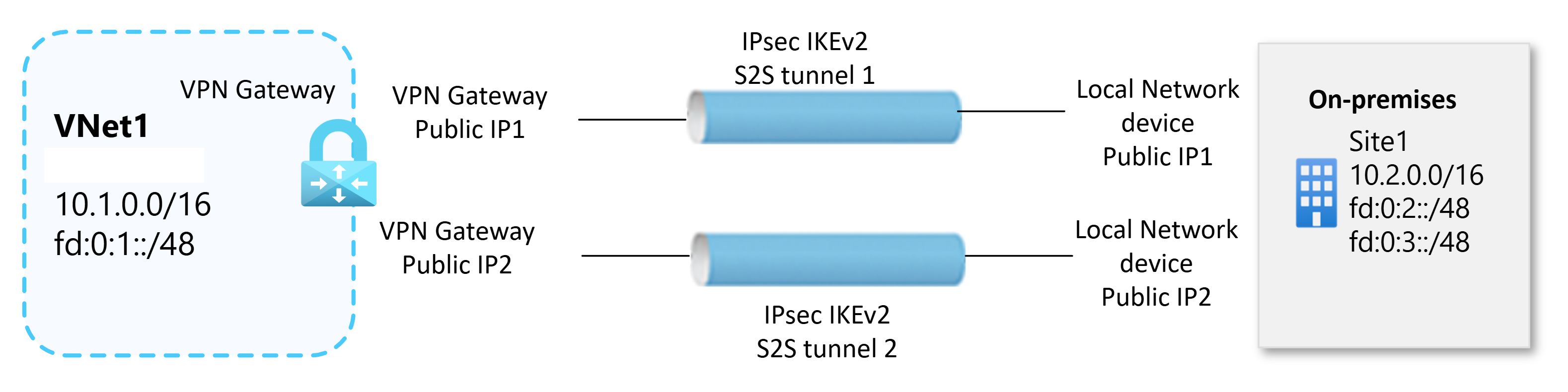
A site-to-site VPN gateway connection connects your on-premises network to an Azure virtual network over an IPsec/IKE VPN tunnel. This type of connection requires a VPN device located on-premises with externally facing public IP addresses. The current site-to-site VPN configuration with dual-stack support allows only IPv6 traffic in the inner tunnel. The inner tunnel supports IPv6 traffic only with IKEv2.
The steps in this article create two connections between the VPN gateway and one on-premises VPN device that has two public IP addresses. Each on-premises public IP address is represented by a separate local network gateway in Azure. Both connections use a shared key and are part of the active-active configuration, with one tunnel to each gateway instance. For more information about VPN gateways, see About VPN Gateway.
Note
This article covers IPv6 for S2S connections. For point-to-site (P2S) connections, use the P2S configuration article for your authentication type. P2S supports IPv6 with IKEv2 and OpenVPN, but not with SSTP. For more information, see About point-to-site VPN.
Before you begin
Verify that your environment meets the following criteria before beginning configuration:
Verify that you have a functioning route-based VPN gateway. To create a VPN gateway, see Create a VPN gateway in the Azure portal, Create a VPN gateway with Azure PowerShell, or Create a route-based VPN gateway with Azure CLI.
If you're unfamiliar with the IP address ranges in your on-premises network configuration, coordinate with someone who can provide those details. When you create this configuration, you must specify the IP address prefixes that Azure routes to your on-premises location. None of the subnets in your on-premises network can overlap with the virtual network subnets that you want to connect to.
Ensure you have a compatible VPN device and someone who can configure it. For more information about compatible VPN devices and device configuration, see About VPN devices.
Determine if your VPN device supports active-active mode gateways. This article creates an active-active mode VPN gateway. We recommend active-active mode for highly available connectivity. Active-active mode specifies that both gateway VM instances are active. This mode requires two public IP addresses, one for each gateway VM instance. You configure your VPN device to connect to the IP address for each gateway VM instance.
If your VPN device doesn't support this mode, don't enable this mode for your gateway. For more information, see Design highly available connectivity for cross-premises and VNet-to-VNet connections and About active-active mode VPN gateways.
If your virtual network gateway and local network gateway reside in different subscriptions and different tenants, you'll need to use slightly different steps. Review the Connections with different tenants and different subscriptions section.
Limitations
The following limitations apply to IPv4 and IPv6 dual-stack VPN Gateway deployments, regardless of the deployment method:
- VpnGw1AZ through VpnGw5AZ support IPv6 dual-stack deployments.
- You can't change a VPN gateway deployed in IPv6 dual-stack mode to an IPv4-only configuration.
- S2S VPN gateways don't support IPv6 traffic with IKEv1. Use IKEv2.
- IPv6 is supported for traffic inside the VPN tunnel only. Azure VPN Gateway doesn't support IPv6 endpoints for the outer VPN tunnel.
Azure portal
The examples for all three deployment methods use the same values. Replace the example address spaces and resource names with values for your environment.
The screenshots show representative dual-stack settings. The values in the screenshots might differ from the examples in this procedure.
Create an Azure virtual network
Create a virtual network with both IPv4 and IPv6 address spaces.
In the Azure portal, search for and select Virtual networks.
Select Create.
On the Basics tab, select your subscription and resource group. Enter VNet1 for the name and select your Azure region.
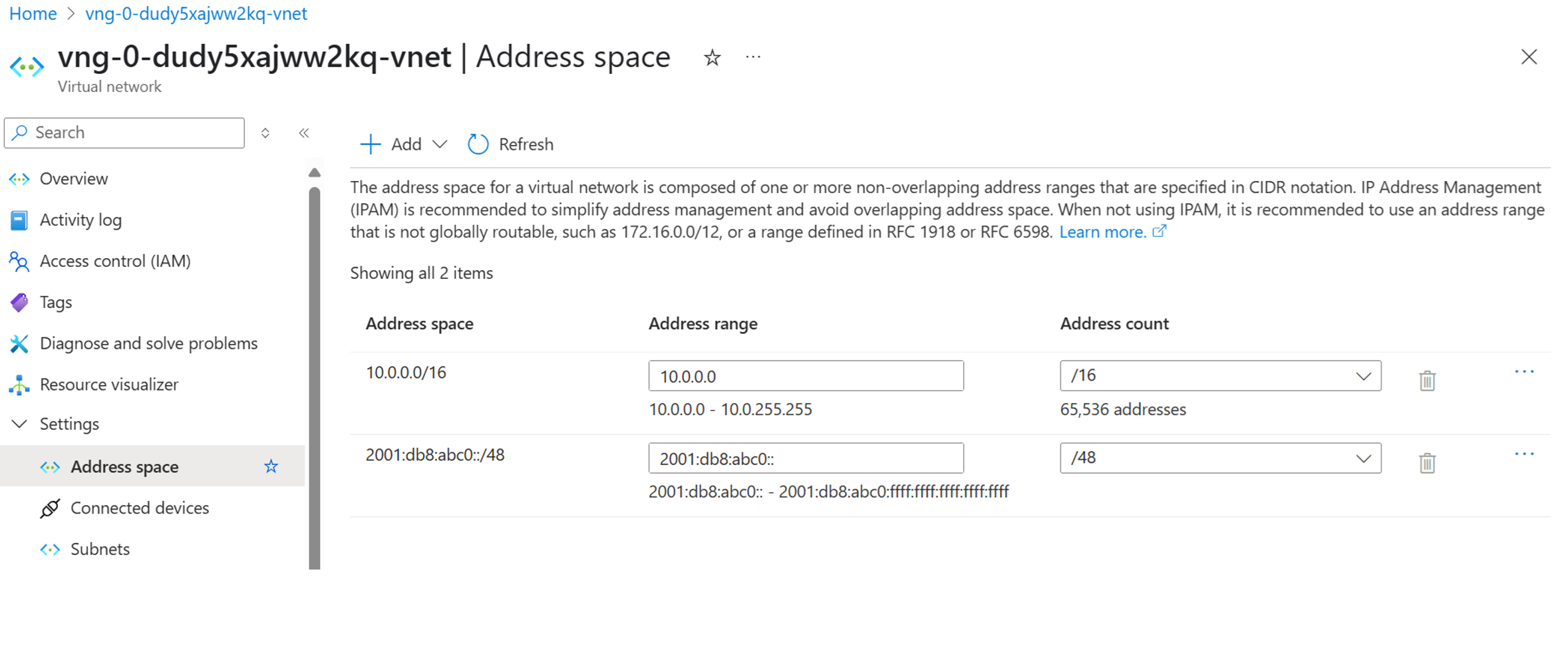
On the IP addresses tab, configure these address spaces:
- IPv4 address space:
10.1.0.0/16 - IPv6 address space:
fd:0:1::/48
- IPv4 address space:
Add a workload subnet named subnet1 with these address ranges:
- IPv4 address range:
10.1.1.0/24 - IPv6 address range:
fd:0:1:1::/64
- IPv4 address range:
Select Review + create, and then select Create.
Create the gateway subnet
Go to VNet1 in the Azure portal.
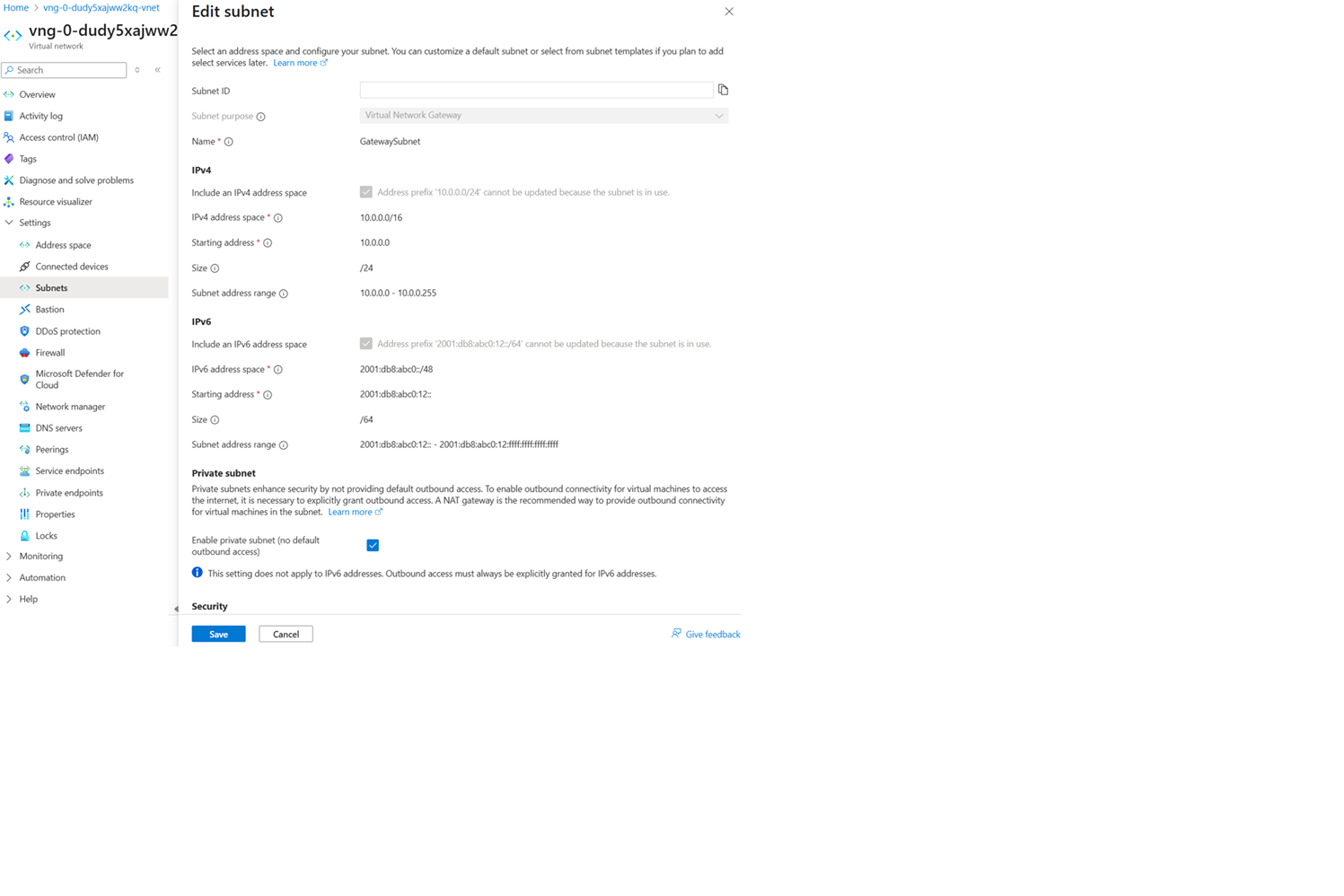
Under Settings, select Subnets, and then select + Gateway subnet.
Configure these address ranges:
- IPv4 address range:
10.1.0.0/24 - IPv6 address range:
fd:0:1:e::/64
- IPv4 address range:
Select Save.
Create the active-active dual-stack VPN gateway
Create an active-active VPN gateway by using these values:
IPv6 support applies to traffic inside the VPN tunnel and requires IKEv2. Azure doesn't support IPv6 endpoints for the outer VPN tunnel. This example uses the supported VpnGw2AZ SKU.
- Name: VNet1GW
- Gateway type: VPN
- SKU: VpnGw2AZ
- Generation: Generation 2
- Virtual network: VNet1
- Public IP address name: VNet1GWpip1
- Second public IP address name: VNet1GWpip2
- Enable active-active mode: Enabled
- Configure BGP: Disabled
In Search resources, services, and docs (G+/), enter virtual network gateway. Locate Virtual network gateway in the Marketplace search results and select it to open the Create virtual network gateway page.
On the Basics tab, fill in the values for Project details and Instance details.
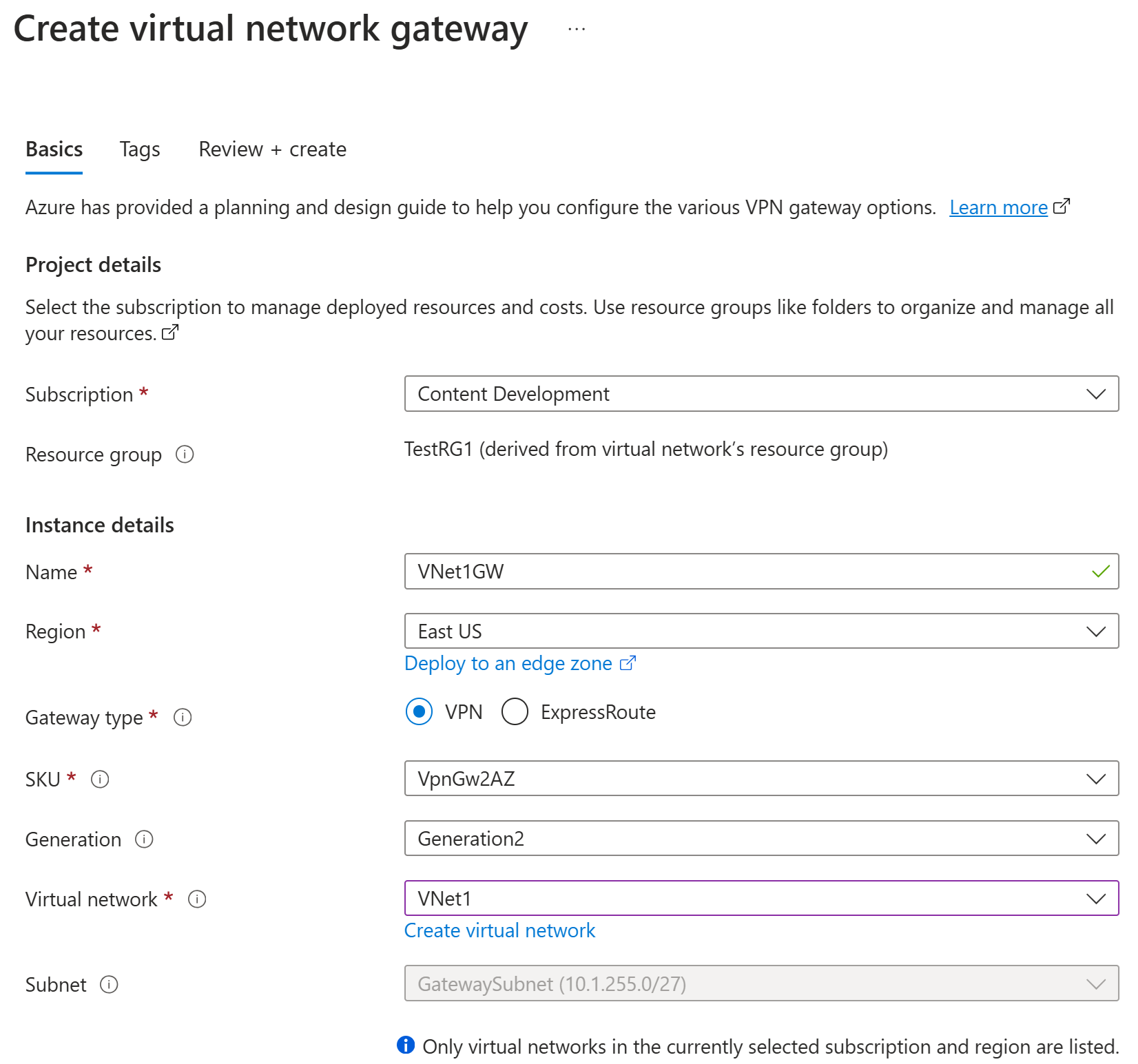
Subscription: Select the subscription you want to use from the dropdown list.
Resource group: This value is autofilled when you select your virtual network on this page.
Name: This is the name of the gateway object you're creating. This is different than the gateway subnet to which gateway resources will be deployed.
Region: Select the region in which you want to create this resource. The region for the gateway must be the same as the virtual network.
Gateway type: Select VPN. VPN gateways use the virtual network gateway type VPN.
SKU: From the dropdown list, select a gateway SKU that supports the features you want to use.
- We recommend that you select a SKU that ends in AZ when possible. AZ SKUs support availability zones.
- The Basic SKU isn't available in the portal. To configure a Basic SKU gateway, you must use PowerShell or CLI.
Generation: Select Generation2 from the dropdown.
Virtual network: From the dropdown list, select the virtual network to which you want to add this gateway. If you can't see the virtual network you want to use, make sure you selected the correct subscription and region in the previous settings.
Gateway subnet address range or Subnet: The gateway subnet is required to create a VPN gateway.
Currently, this field can show different settings options, depending on the virtual network address space and whether you already created a subnet named GatewaySubnet for your virtual network.
If you don't have a gateway subnet and you don't see the option to create one on this page, go back to your virtual network and create the gateway subnet. Then, return to this page and configure the VPN gateway.
Specify the values for Public IP address. These settings specify the public IP address objects that will be associated to the VPN gateway. A public IP address is assigned to each public IP address object when the VPN gateway is created. The only time the assigned public IP address changes is when the gateway is deleted and re-created. IP addresses don't change across resizing, resetting, or other internal maintenance/upgrades of your VPN gateway.
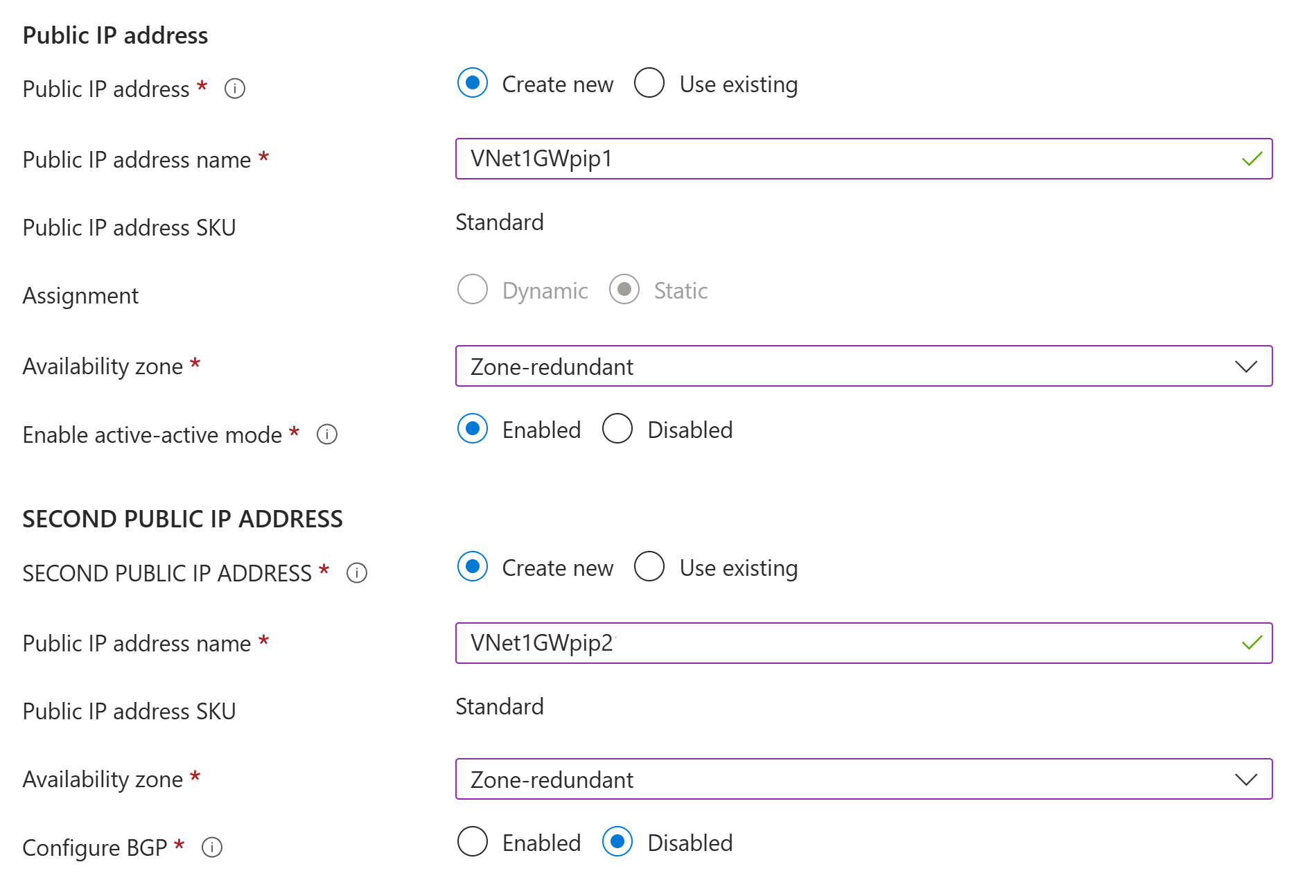
Public IP address type: If this option appears, select Standard.
Public IP address: Leave Create new selected.
Public IP address name: In the text box, enter a name for your public IP address instance.
Public IP address SKU: Setting is autoselected to Standard SKU.
Assignment: The assignment is typically autoselected and should be Static.
Availability zone: This setting is available for AZ gateway SKUs in regions that support availability zones. Select Zone-redundant, unless you know you want to specify a zone.
Enable active-active mode: We recommend that you select Enabled to take advantage of the benefits of an active-active mode gateway. If you plan to use this gateway for a site-to-site connection, take into consideration the following:
- Verify the active-active design that you want to use. Connections with your on-premises VPN device must be configured specifically to take advantage of active-active mode.
- Some VPN devices don't support active-active mode. If you're not sure, check with your VPN device vendor. If you're using a VPN device that doesn't support active-active mode, you can select Disabled for this setting.
Second public IP address: Select Create new. This is available only if you selected Enabled for the Enable active-active mode setting.
Public IP address name: In the text box, enter a name for your public IP address instance.
Public IP address SKU: Setting is autoselected to Standard SKU.
Availability zone: Select Zone-redundant, unless you know you want to specify a zone.
Configure BGP: Select Disabled unless your configuration specifically requires this setting. If you do require this setting, the default ASN is 65515, although this value can be changed.
Enable Key Vault Access: Select Disabled unless your configuration specifically requires this setting.
Select Review + create to run validation.
After validation passes, select Create to deploy the VPN gateway.
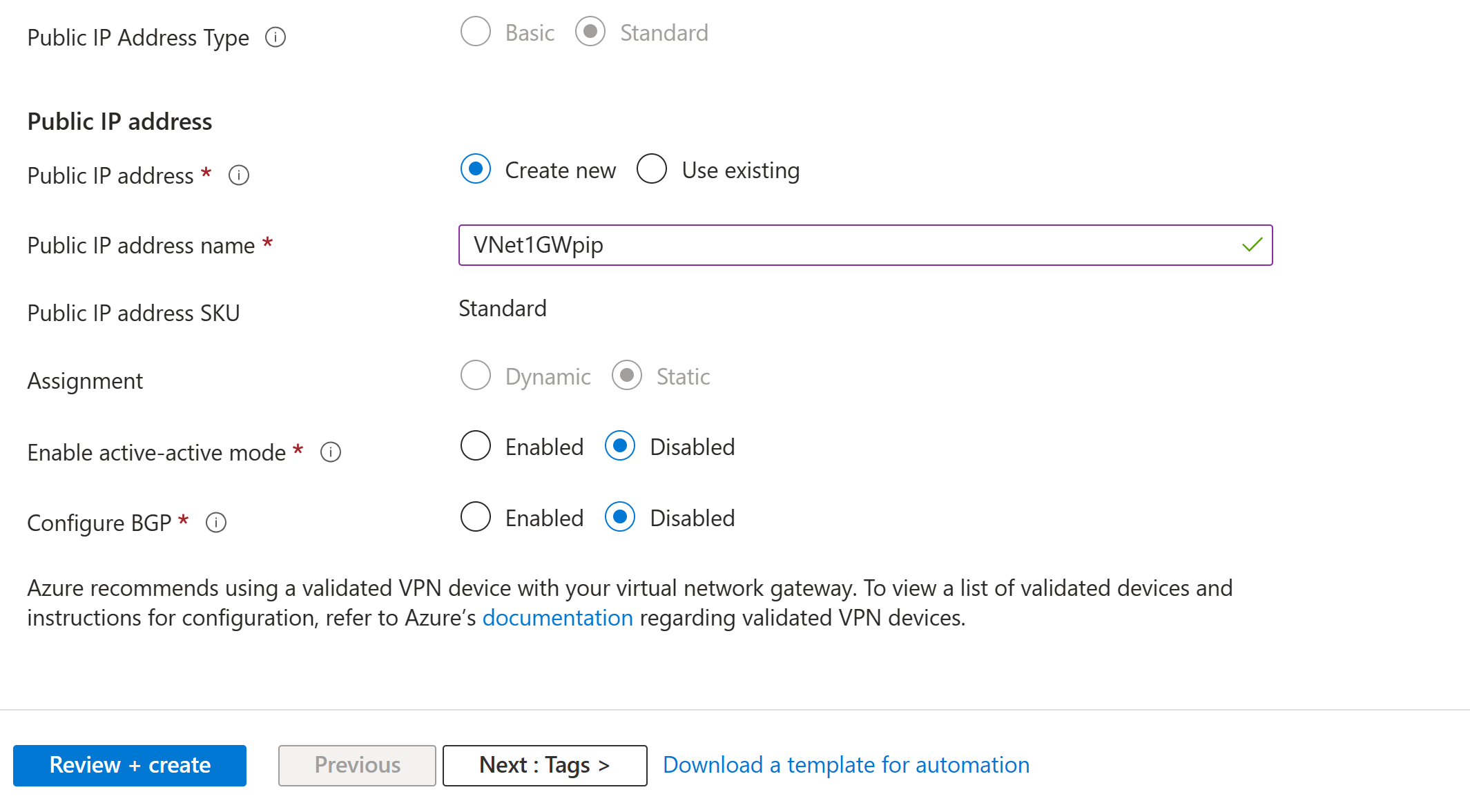
Creating a gateway can take 45 minutes or more. You can view the deployment status on the Overview page for the gateway.
View the VPN gateway public IP addresses
- Go to VNet1GW in the Azure portal.
- Under Settings, select Properties.
- Record both public IP addresses. When you configure your on-premises VPN device, create one tunnel to each address.
Create local network gateways
Each local network gateway represents one public IP address on the same on-premises VPN device. Both local network gateways contain the same on-premises IPv4 and IPv6 address prefixes.
Create the first local network gateway by using these values:
- Name: lngSite11
- Endpoint: IP address
- IP address: The first public IP address on your on-premises VPN device
- Address spaces:
10.0.0.0/16,fd:0:2::/48, andfd:0:3::/48
Configuration considerations:
- VPN Gateway supports only one IPv4 address for each FQDN. If the domain name resolves to multiple IP addresses, VPN Gateway uses the first IP address returned by the DNS servers. To eliminate the uncertainty, we recommend that your FQDN always resolve to a single IPv4 address. IPv6 isn't supported.
- VPN Gateway maintains a DNS cache that's refreshed every 5 minutes. The gateway tries to resolve the FQDNs for disconnected tunnels only. Resetting the gateway also triggers FQDN resolution.
- Although VPN Gateway supports multiple connections to different local network gateways with different FQDNs, all FQDNs must resolve to different IP addresses.
In the portal, go to Local network gateways and open the Create local network gateway page.
On the Basics tab, specify the values for your local network gateway.
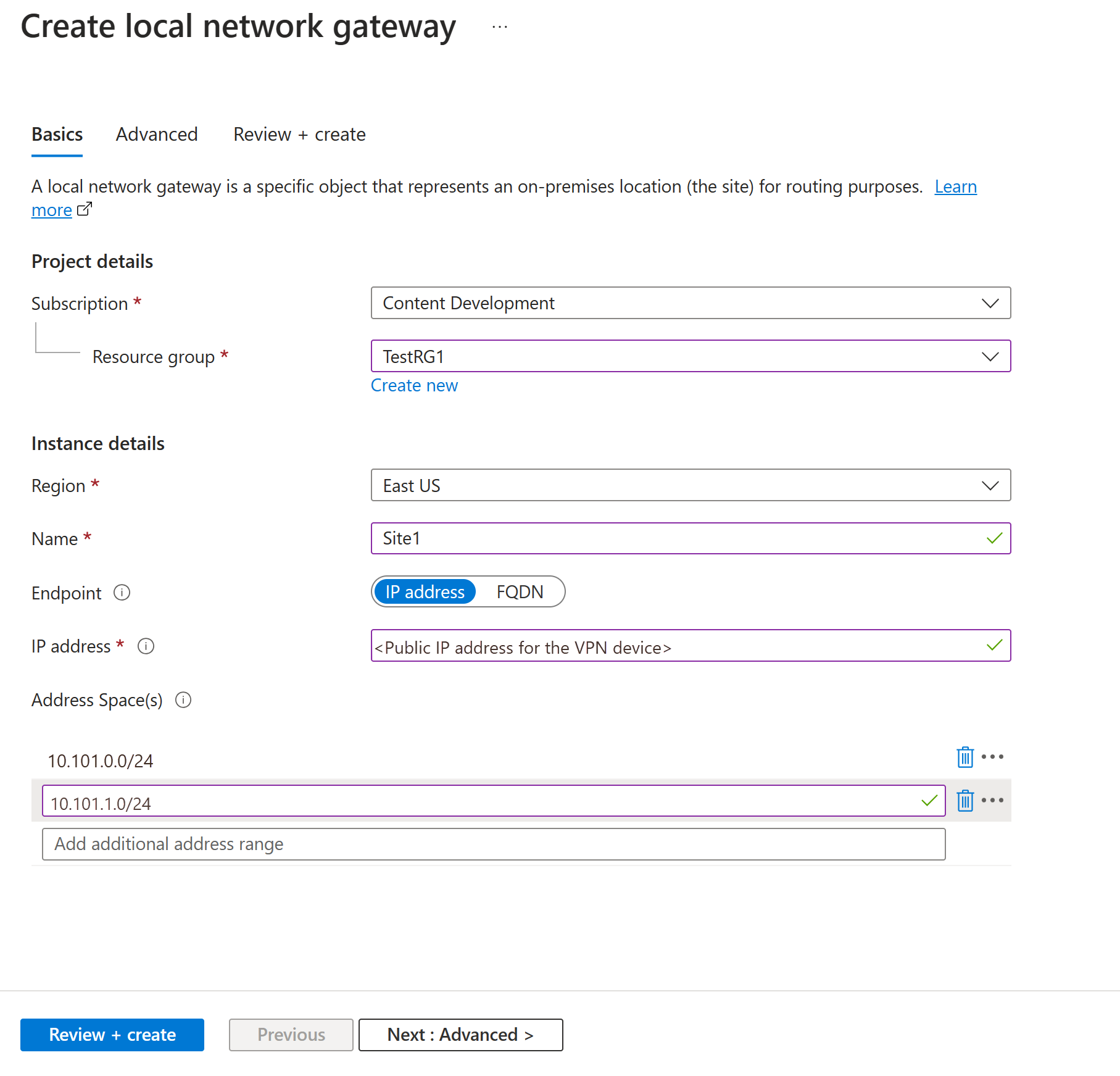
- Subscription: Verify that the correct subscription is showing.
- Resource group: Select the resource group that you want to use. You can either create a new resource group or select one that you've already created.
- Region: Select the region for this object. You might want to select the same location where your virtual network resides, but you aren't required to do so.
- Name: Specify a name for your local network gateway object.
- Endpoint: Select the endpoint type for the on-premises VPN device as IP address or FQDN (Fully Qualified Domain Name).
- IP address: If you have a static public IP address allocated from your internet service provider (ISP) for your VPN device, select the IP address option. Fill in the IP address as shown in the example. This address is the public IP address of the VPN device that you want Azure VPN Gateway to connect to. If you don't have the IP address right now, you can use the values shown in the example. Later, you must go back and replace your placeholder IP address with the public IP address of your VPN device. Otherwise, Azure can't connect.
- FQDN: If you have a dynamic public IP address that could change after a certain period of time, often determined by your ISP, you can use a constant DNS name with a Dynamic DNS service to point to your current public IP address of your VPN device. Your Azure VPN gateway resolves the FQDN to determine the public IP address to connect to.
- Address space: The address space refers to the address ranges for the network that this local network represents. You can add multiple address space ranges. Make sure that the ranges you specify here don't overlap with ranges of other networks that you want to connect to. Azure routes the address range that you specify to the on-premises VPN device IP address. Use your own values here if you want to connect to your on-premises site, not the values shown in the example.
On the Advanced tab, you can configure BGP settings, if needed.
After you specify the values, select Review + create at the bottom of the page to validate the page.
Select Create to create the local network gateway object.
Repeat the preceding steps to create lngSite12. Use the second public IP address on the same on-premises VPN device, and add the same IPv4 and IPv6 address spaces.
Configure your VPN device
Site-to-site connections require a compatible on-premises VPN device. Configure the device with the following values:
- Shared key: Use the same shared key for the on-premises device and both Azure connections. Generate a strong key that your VPN device supports.
- Azure gateway public IP addresses: Configure one tunnel to each public IP address of the active-active VPN gateway.
- IKE version: Use IKEv2. IPv6 traffic isn't supported with IKEv1.
- Remote address spaces: Configure the IPv4 and IPv6 address spaces for your Azure VNet.
For device-specific configuration guidance, see Configure your VPN device.
Create the VPN connections
Create the first connection by using these values:
- Connection type: Site-to-site (IPsec)
- Name: conn11
- Virtual network gateway: VNet1GW
- Local network gateway: lngSite11
- Shared key: The shared key configured on your VPN device
- IKE protocol: IKEv2
In the portal, go to the virtual network gateway and open it.
On the page for the gateway, select Connections.
At the top of the Connections page, select + Add to open the Create connection page.
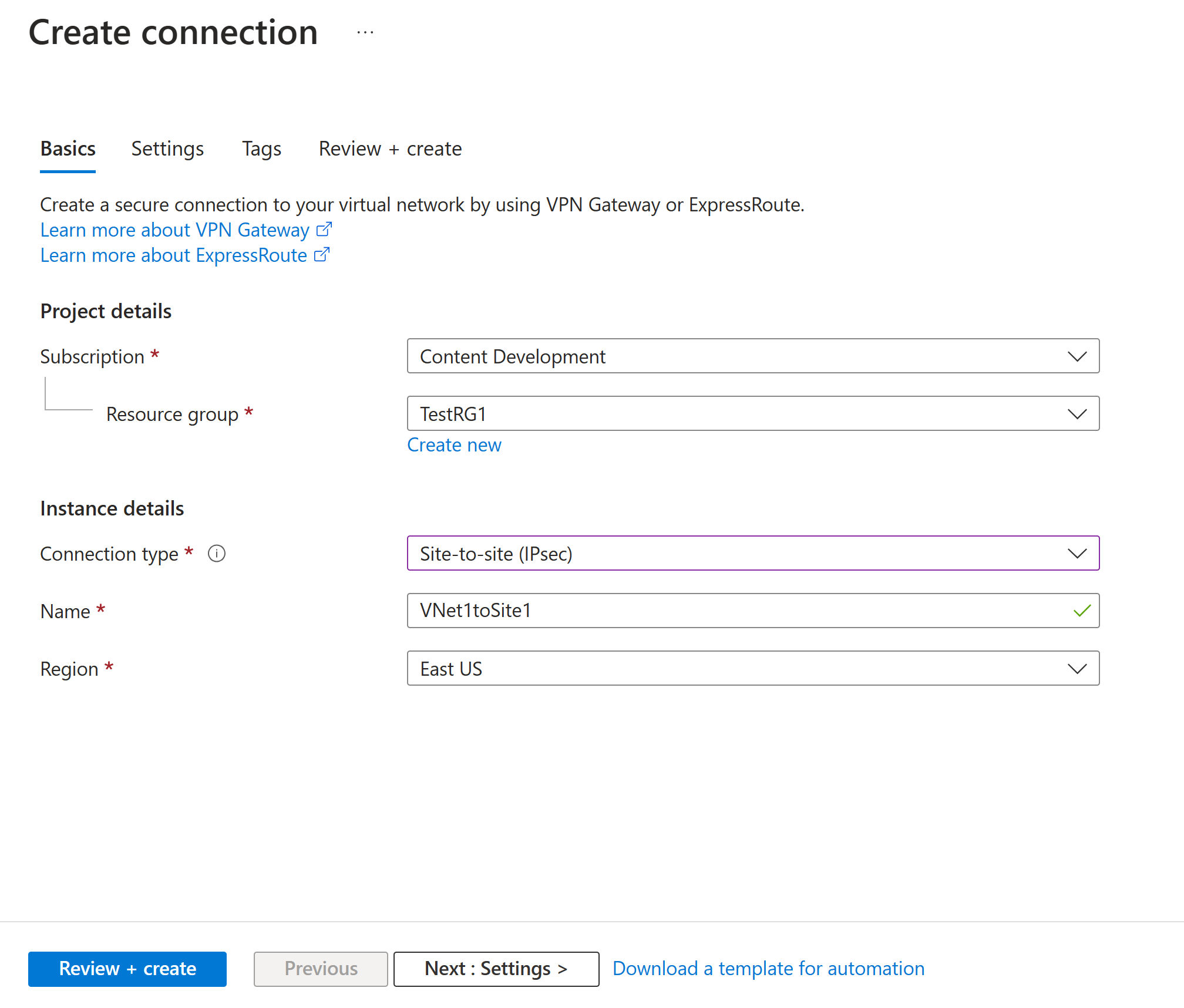
On the Create connection page, on the Basics tab, configure the values for your connection:
Under Project details, select the subscription and the resource group where your resources are located.
Under Instance details, configure the following settings:
- Connection type: Select Site-to-site (IPSec).
- Name: Name your connection.
- Region: Select the region for this connection.
Select the Settings tab and configure the following values:
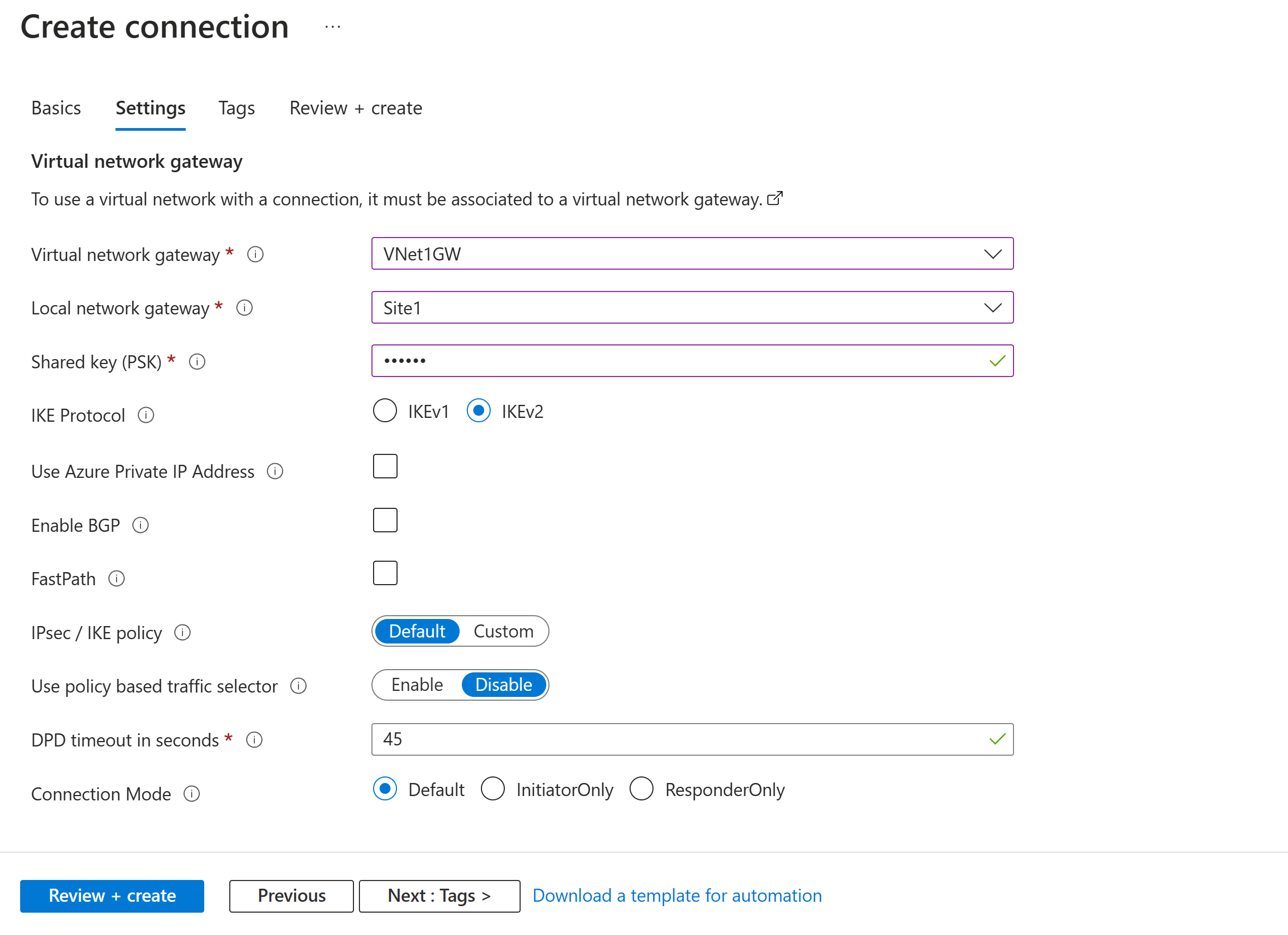
- Virtual network gateway: Select the virtual network gateway from the dropdown list.
- Local network gateway: Select the local network gateway from the dropdown list.
- Shared key: The value here must match the value that you're using for your local on-premises VPN device. If this field doesn't appear on your portal page, or you want to later update this key, you can do so once the connection object is created. Go to the connection object you created (example name: VNet1toSite1) and update the key on the Authentication page.
- IKE Protocol: Select IKEv2.
- Use Azure Private IP Address: Don't select.
- Enable BGP: Don't select.
- FastPath: Don't select.
- IPsec/IKE policy: Select Default.
- Use policy based traffic selector: Select Disable.
- DPD timeout in seconds: Select 45.
- Connection Mode: Select Default. This setting is used to specify which gateway can initiate the connection. For more information, see VPN Gateway settings - Connection modes.
For NAT Rules Associations, leave both Ingress and Egress as 0 selected.
Select Review + create to validate your connection settings.
Select Create to create the connection.
After the deployment is finished, you can view the connection on the Connections page of the virtual network gateway. The status changes from Unknown to Connecting and then to Succeeded.
Repeat the preceding steps to create conn12. Select lngSite12 as the local network gateway and use the same shared key.
Verify the VPN connections
- Go to VNet1GW in the Azure portal.
- Under Settings, select Connections.
- Verify that conn11 and conn12 both show a status of Connected.
- Select each connection to view its ingress and egress data transfer values.
Modify IP address prefixes for a local network gateway
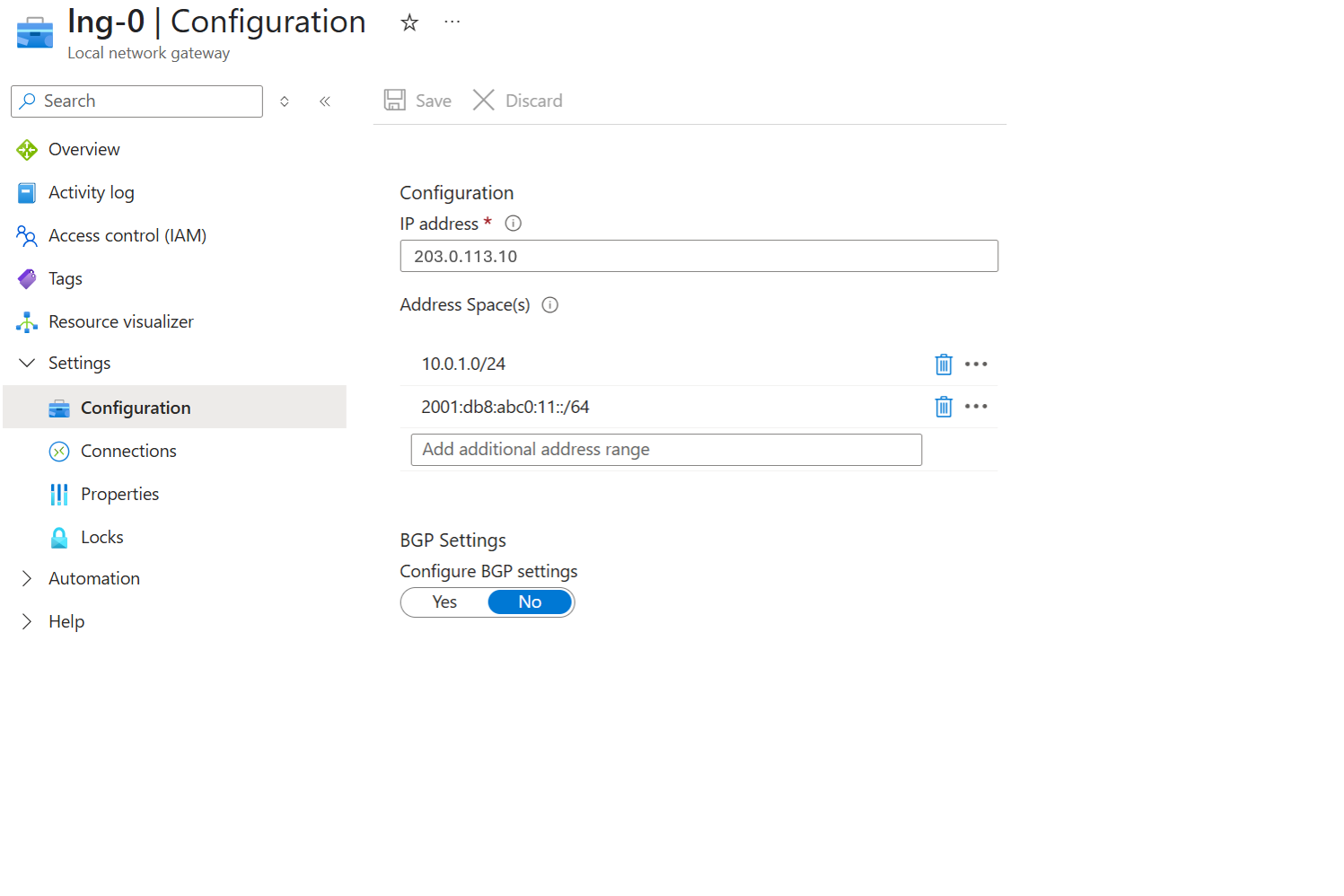
- In the Azure portal, go to Local network gateways and select the local network gateway that you want to modify.
- Under Settings, select Configuration.
- Add or remove IPv4 and IPv6 address spaces. The complete set must represent the networks that Azure routes through this local network gateway.
- Select Save.
If both local network gateways represent the same on-premises networks, make the same prefix changes to lngSite11 and lngSite12.
Modify the gateway IP address for a local network gateway
- Go to the local network gateway in the Azure portal.
- Under Settings, select Configuration.
- Change IP address to the updated public IP address of your on-premises VPN device.
- Select Save.
Delete a gateway connection
- Go to VNet1GW in the Azure portal.
- Under Settings, select Connections.
- Select the connection that you want to remove, and then select Delete.
- Confirm the deletion.
Azure PowerShell
This article uses PowerShell cmdlets. To run the cmdlets, use PowerShell installed locally on your computer. Ensure you have the latest Azure PowerShell module installed. For installation instructions, see Install Azure PowerShell.
Assign the variables used in the configuration.
$ResourceGroup = 'resource-group-name'
$Location = 'name-of-the-azure-region'
$vnetName = 'VNet1'
$VNetAddressPrefix = "10.1.0.0/16", "fd:0:1::/48"
$WorkloadSubnetName = 'subnet1'
$GatewaySubnet = @('10.1.0.0/24', 'fd:0:1:e::/64')
$WorkloadSubnet = @('10.1.1.0/24', 'fd:0:1:1::/64')
$GatewayName = 'gw1'

# name of the first and second public IP of the VPN Gateway
$PublicIP1 = "$GatewayName-pip1"
$PublicIP2 = "$GatewayName-pip2"

# name of the configurations of the VPN Gateway
$GatewayIPConfig1 = "$GatewayName-ipconfig1"
$GatewayIPConfig2 = "$GatewayName-ipconfig2"

# VPN type Route based
$VPNType = 'RouteBased'
$GatewayType = 'Vpn'
Create an Azure virtual network
# Create the configuration for the GatewaySubnet
$subnet1 = New-AzVirtualNetworkSubnetConfig -Name 'GatewaySubnet' -AddressPrefix $GatewaySubnet

# Create the configuration for the workload subnet
$subnet2 = New-AzVirtualNetworkSubnetConfig -Name $WorkloadSubnetName -AddressPrefix $WorkloadSubnet

# Create the VNet with name specified in the variable $vnetName
New-AzVirtualNetwork -Name $vnetName -ResourceGroupName $ResourceGroup `
  -Location $Location `
  -AddressPrefix $VNetAddressPrefix `
  -Subnet $subnet1, $subnet2
Create the active-active dual-stack VPN gateway
Deploy the Azure VPN Gateway with a zonal SKU in the GatewaySubnet. IPv6 support applies to traffic inside the VPN tunnel and requires IKEv2. IPv6 endpoints for the outer VPN tunnel aren't supported. In active-active mode, the gateway requires two public IP addresses with Standard SKU. This example uses the supported VpnGw2AZ SKU. Create the public IP addresses, and then create the VPN gateway.
# Create the first public IP for the VPN Gateway
$gwpip1 = New-AzPublicIpAddress -Name $PublicIP1 -ResourceGroupName $ResourceGroup -Location $Location -AllocationMethod Static -Sku Standard -Tier Regional -Zone 1,2,3

# Create the second public IP for the VPN Gateway
$gwpip2 = New-AzPublicIpAddress -Name $PublicIP2 -ResourceGroupName $ResourceGroup -Location $Location -AllocationMethod Static -Sku Standard -Tier Regional -Zone 1,2,3

# Retrieve the VNet and GatewaySubnet for the gateway IP configurations
$vnet = Get-AzVirtualNetwork -Name $vnetName -ResourceGroupName $ResourceGroup
$gatewaySubnet = Get-AzVirtualNetworkSubnetConfig -Name 'GatewaySubnet' -VirtualNetwork $vnet
$gwipconfig1 = New-AzVirtualNetworkGatewayIpConfig -Name $GatewayIPConfig1 -SubnetId $gatewaySubnet.Id -PublicIpAddressId $gwpip1.Id
$gwipconfig2 = New-AzVirtualNetworkGatewayIpConfig -Name $GatewayIPConfig2 -SubnetId $gatewaySubnet.Id -PublicIpAddressId $gwpip2.Id

# Create the VPN Gateway with VpnGw2AZ SKU in active-active mode
New-AzVirtualNetworkGateway -Name $GatewayName -ResourceGroupName $ResourceGroup `
  -Location $Location -IpConfigurations $gwipconfig1, $gwipconfig2 `
  -GatewayType $GatewayType `
  -VpnType $VPNType -GatewaySku VpnGw2AZ -EnableActiveActiveFeature
View the VPN gateway
Use the Get-AzVirtualNetworkGateway cmdlet to view the VPN gateway.
Get-AzVirtualNetworkGateway -Name $GatewayName -ResourceGroupName $ResourceGroup
Create local network gateways
The local network gateway (LNG) represents your on-premises location. It isn't the same as a virtual network gateway. VPN Gateway supports static routing and dynamic routing through BGP. In this article, you configure static routing in IPsec tunnels. You give the site a name that Azure uses to refer to it, and then specify the IP address of the on-premises VPN device to which you create a connection. You also specify the IP address prefixes that route through the VPN gateway to the VPN device. The address prefixes you specify are the prefixes located on your on-premises network. If your on-premises network changes, you can easily update the prefixes.
Use the following values:
- The public-IP1-onpremises-device is the first public IP address of your on-premises VPN device, not your Azure VPN gateway.
- The public-IP2-onpremises-device is the second public IP address of your on-premises VPN device, not your Azure VPN gateway.
# Collect the first public IP assigned to the on-premises VPN device
# Replace public-IP1-onpremises-device with the first IP address of your on-premises device
$OnpremIpAddress1 = 'public-IP1-onpremises-device'

# Collect the second public IP assigned to the on-premises VPN device
# Replace public-IP2-onpremises-device with the second IP address of your on-premises device
$OnpremIpAddress2 = 'public-IP2-onpremises-device'

# Define the local network gateway name for the first IPsec tunnel
$LocalNetworkGatewayName1 = 'lngSite11'

# Define the local network gateway name for the second IPsec tunnel
$LocalNetworkGatewayName2 = 'lngSite12'

# Specify the list of IPv4 and IPv6 on-premises networks
$LocalAddressPrefixes = @("10.0.0.0/16", "fd:0:2::/48", "fd:0:3::/48")

New-AzLocalNetworkGateway -Name $LocalNetworkGatewayName1 `
  -ResourceGroupName $ResourceGroup `
  -Location $Location `
  -GatewayIpAddress $OnpremIpAddress1 `
  -AddressPrefix $LocalAddressPrefixes

New-AzLocalNetworkGateway -Name $LocalNetworkGatewayName2 `
  -ResourceGroupName $ResourceGroup `
  -Location $Location `
  -GatewayIpAddress $OnpremIpAddress2 `
  -AddressPrefix $LocalAddressPrefixes
Configure your VPN device
Site-to-site connections to an on-premises network require a VPN device. For information to help you configure your device, see Configure your VPN device. When you configure your VPN device, you need the following items.
Shared key: This shared key is the same one that you specify when you create your site-to-site VPN connection. In the examples, a simple shared key is used. Generate a more complex key for your use.
Public IP addresses of your virtual network gateway instances: Obtain the IP address for each VM instance. If your gateway is in active-active mode, you have an IP address for each gateway VM instance. Be sure to configure your device with both IP addresses, one for each active gateway VM.
Ensure you configure your VPN device to connect to both gateway IP addresses of the active-active mode VPN gateway. If your VPN device doesn't support active-active mode, you can still connect to both gateway IP addresses, but only one connection is active at a time. For more information, see Design highly available connectivity for cross-premises and VNet-to-VNet connections and About active-active mode VPN gateways.
Create the VPN connections
Create site-to-site VPN connections between your virtual network gateway and your on-premises VPN device. You're using an active-active mode gateway, so each gateway VM instance has a separate IP address. To properly configure highly available connectivity, you must establish a tunnel between each VM instance and your VPN device. Both tunnels are part of the active-active configuration. If your local network gateway and virtual network gateway reside in different subscriptions and different tenants, see the Connections with different tenants and different subscriptions section.
The shared key must match the value you used for your VPN device configuration. Notice that the -ConnectionType for site-to-site is IPsec.
Set the variables.
$ConnectionName1 = 'conn11'
$ConnectionName2 = 'conn12'
$LocalNetworkGatewayName1 = 'lngSite11'
$LocalNetworkGatewayName2 = 'lngSite12'
$SharedKey = 'abc123'

# Collect the VPN Gateway and store the object in the variable $gateway
$gateway = Get-AzVirtualNetworkGateway -Name $GatewayName -ResourceGroupName $ResourceGroup

# Collect the local network gateway for the first S2S tunnel
$localNetw1 = Get-AzLocalNetworkGateway -Name $LocalNetworkGatewayName1 -ResourceGroupName $ResourceGroup

# Collect the local network gateway for the second S2S tunnel
$localNetw2 = Get-AzLocalNetworkGateway -Name $LocalNetworkGatewayName2 -ResourceGroupName $ResourceGroup
Create the connections.
# Create the VPN connection for the first S2S tunnel
New-AzVirtualNetworkGatewayConnection -Name $ConnectionName1 `
  -ResourceGroupName $ResourceGroup `
  -Location $Location `
  -VirtualNetworkGateway1 $gateway `
  -LocalNetworkGateway2 $localNetw1 `
  -ConnectionType IPsec -SharedKey $SharedKey

# Create the VPN connection for the second S2S tunnel
New-AzVirtualNetworkGatewayConnection -Name $ConnectionName2 `
  -ResourceGroupName $ResourceGroup `
  -Location $Location `
  -VirtualNetworkGateway1 $gateway `
  -LocalNetworkGateway2 $localNetw2 `
  -ConnectionType IPsec -SharedKey $SharedKey
Verify the VPN connection
Use the Get-AzVirtualNetworkGatewayConnection cmdlet, with or without -Debug, to verify that your connection succeeded.
Use the following cmdlet example, configuring the values to match your own. If prompted, select A to run All. In the example,
-Namerefers to the name of the connection that you want to test.Get-AzVirtualNetworkGatewayConnection -Name $ConnectionName1 -ResourceGroupName $ResourceGroupAfter the cmdlet finishes, view the values. In the following example, the connection status shows as Connected and you can see ingress and egress bytes.
"connectionStatus": "Connected",
"ingressBytesTransferred": 33509044,
"egressBytesTransferred": 4142431
Modify IP address prefixes for a local network gateway
If the IP address prefixes that you want routed to your on-premises location change, you can modify the local network gateway. When you use these examples, modify the values to match your environment.
To add more address prefixes
Set the variable for the local network gateway.
$local1 = Get-AzLocalNetworkGateway -Name $LocalNetworkGatewayName1 -ResourceGroupName $ResourceGroup
Modify the prefixes. The values you specify overwrite the previous values.
Set-AzLocalNetworkGateway -LocalNetworkGateway $local1 `
  -AddressPrefix @('10.0.0.0/16','10.5.0.0/16', 'fd:0:2::/48', 'fd:0:3::/48','fd:0:5::/48')
To remove address prefixes
Leave out the prefixes that you no longer need. In this example, you no longer need prefix fd:0:5::/48 from the previous example, so you update the local network gateway and exclude that prefix.
Set the variable for the local network gateway.
$local1 = Get-AzLocalNetworkGateway -Name $LocalNetworkGatewayName1 `
  -ResourceGroupName $ResourceGroup
Set the gateway with the updated prefixes.
Set-AzLocalNetworkGateway -LocalNetworkGateway $local1 `
  -AddressPrefix @("10.0.0.0/16", "fd:0:2::/48")
Modify the gateway IP address for a local network gateway
If you change the public IP address for your VPN device, you need to modify the local network gateway with the updated IP address. When modifying this value, you can also modify the address prefixes at the same time. When modifying, be sure to use the existing name of your local network gateway.
# Retrieve the local network gateway
$local1 = Get-AzLocalNetworkGateway -Name $LocalNetworkGatewayName1 `
  -ResourceGroupName $ResourceGroup

# Assign the new value to the public IP of the local network gateway
$local1.GatewayIpAddress = "5.4.3.2"

# Commit the change
Set-AzLocalNetworkGateway -LocalNetworkGateway $local1
Delete a gateway connection
If you don't know the name of your connection, use the Get-AzVirtualNetworkGatewayConnection cmdlet to find it.
Remove-AzVirtualNetworkGatewayConnection -Name $ConnectionName1 `
  -ResourceGroupName $ResourceGroup
Azure CLI
This article uses Azure CLI commands. To run the commands, use Azure CLI installed locally on your computer. The syntax of commands is in Bash shell but you can convert it to PowerShell.
Assign the variables used in the configuration.
ResourceGroup="resource-group-name"
Location="name-of-the-azure-region"
vnetName="VNet1"
VNetAddressPrefixIPv4="10.1.0.0/16"
VNetAddressPrefixIPv6="fd:0:1::/48"
GatewaySubnetPrefix1="10.1.0.0/24"
GatewaySubnetPrefix2="fd:0:1:e::/64"
GatewayName="VNet1GW"

# Name of the first and second public IP address of the gateway
PublicIP1="${GatewayName}-pip1"
PublicIP2="${GatewayName}-pip2"

# VPN type Route based
VPNType="RouteBased"
GatewayType="Vpn"
Create an Azure virtual network
# Create a resource group
az group create --name "$ResourceGroup" --location "$Location"

# Create an Azure VNet
az network vnet create \
  --name "$vnetName" \
  --resource-group "$ResourceGroup" \
  --location "$Location" \
  --address-prefixes "$VNetAddressPrefixIPv4" "$VNetAddressPrefixIPv6"

# Create the GatewaySubnet
az network vnet subnet create \
  --name "GatewaySubnet" \
  --vnet-name "$vnetName" \
  --resource-group "$ResourceGroup" \
  --address-prefixes "$GatewaySubnetPrefix1" "$GatewaySubnetPrefix2"
Create the active-active dual-stack VPN gateway
Deploy the Azure VPN Gateway with a zonal SKU in the GatewaySubnet. IPv6 support applies to traffic inside the VPN tunnel and requires IKEv2. IPv6 endpoints for the outer VPN tunnel aren't supported. In active-active mode, the gateway requires two public IP addresses with Standard SKU. This example uses the supported VpnGw2AZ SKU. Create the public IP addresses, and then create the VPN gateway.
# Create the first public IP of the VPN Gateway
az network public-ip create \
  --name "$PublicIP1" \
  --resource-group "$ResourceGroup" \
  --location "$Location" \
  --allocation-method Static \
  --sku Standard \
  --tier Regional \
  --zone 1 2 3

# Create the second public IP of the VPN Gateway
az network public-ip create \
  --name "$PublicIP2" \
  --resource-group "$ResourceGroup" \
  --location "$Location" \
  --allocation-method Static \
  --sku Standard \
  --tier Regional \
  --zone 1 2 3

# Create the VPN Gateway with VpnGw2AZ SKU in active-active mode
az network vnet-gateway create \
  --name "$GatewayName" \
  --resource-group "$ResourceGroup" \
  --location "$Location" \
  --vnet "$vnetName" \
  --gateway-type "$GatewayType" \
  --vpn-type "$VPNType" \
  --sku VpnGw2AZ \
  --public-ip-addresses "$PublicIP1" "$PublicIP2"
View the VPN gateway
Use the az network vnet-gateway show command to view the VPN gateway.
az network vnet-gateway show \
  --name "$GatewayName" \
  --resource-group "$ResourceGroup"
Create local network gateways
The local network gateway (LNG) represents your on-premises location. It isn't the same as a virtual network gateway. VPN Gateway supports static routing and dynamic routing through BGP. In this article, you configure static routing in IPsec tunnels. You give the site a name that Azure uses to refer to it, and then specify the IP address of the on-premises VPN device to which you create a connection. You also specify the IP address prefixes that route through the VPN gateway to the VPN device. The address prefixes you specify are the prefixes located on your on-premises network. If your on-premises network changes, you can easily update the prefixes.
Use the following values:
- The OnpremDevPubIPv4Address1 is the first public IPv4 address of your on-premises VPN device, not your Azure VPN gateway.
- The OnpremDevPubIPv4Address2 is the second public IPv4 address of your on-premises VPN device, not your Azure VPN gateway.
# Collect the first public IP assigned to the on-premises VPN device
# Replace public-IPv4Address1-onpremises-device with the first IPv4 address of your on-premises device
OnpremDevPubIPv4Address1="public-IPv4Address1-onpremises-device"

# Collect the second public IP assigned to the on-premises VPN device
# Replace public-IPv4Address2-onpremises-device with the second IPv4 address of your on-premises device
OnpremDevPubIPv4Address2="public-IPv4Address2-onpremises-device"

# Local network gateway to use for the first IPsec tunnel
LocalNetworkGatewayName1="lngSite11"

# Local network gateway to use for the second IPsec tunnel
LocalNetworkGatewayName2="lngSite12"

# Specify the list of IPv4 and IPv6 on-premises networks
OnpremIPv4AddressPrefix1="10.0.0.0/16"
OnpremIPv6AddressPrefix1="fd:0:2::/48"
OnpremIPv6AddressPrefix2="fd:0:3::/48"

# Create the local network gateway for the first tunnel
az network local-gateway create \
  --name "$LocalNetworkGatewayName1" \
  --resource-group "$ResourceGroup" \
  --location "$Location" \
  --gateway-ip-address "$OnpremDevPubIPv4Address1" \
  --local-address-prefixes "$OnpremIPv4AddressPrefix1" "$OnpremIPv6AddressPrefix1" "$OnpremIPv6AddressPrefix2"

# Create the local network gateway for the second tunnel
az network local-gateway create \
  --name "$LocalNetworkGatewayName2" \
  --resource-group "$ResourceGroup" \
  --location "$Location" \
  --gateway-ip-address "$OnpremDevPubIPv4Address2" \
  --local-address-prefixes "$OnpremIPv4AddressPrefix1" "$OnpremIPv6AddressPrefix1" "$OnpremIPv6AddressPrefix2"
Configure your VPN device
Site-to-site connections to an on-premises network require a VPN device. For information to help you configure your device, see Configure your VPN device. When you configure your VPN device, you need the following items.
Shared key: This shared key is the same one that you specify when you create your site-to-site VPN connection. In the examples, a simple shared key is used. Generate a more complex key for your use.
Public IP addresses of your virtual network gateway instances: Obtain the IP address for each VM instance. If your gateway is in active-active mode, you have an IP address for each gateway VM instance. Be sure to configure your device with both IP addresses, one for each active gateway VM.
Ensure you configure your VPN device to connect to both gateway IP addresses of the active-active mode VPN gateway. If your VPN device doesn't support active-active mode, you can still connect to both gateway IP addresses, but only one connection is active at a time. For more information, see Design highly available connectivity for cross-premises and VNet-to-VNet connections and About active-active mode VPN gateways.
Create the VPN connections
Create site-to-site VPN connections between your virtual network gateway and your on-premises VPN device. When you use an active-active mode gateway, each gateway VM instance has a separate IP address. To properly configure highly available connectivity, you must establish a tunnel between each VM instance and your VPN device. If your local network gateway and virtual network gateway reside in different subscriptions and different tenants, see the Connections with different tenants and different subscriptions section.
The shared key must match the value you used for your VPN device configuration.
Set the variables.
LocalNetworkGatewayName1="lngSite11"
LocalNetworkGatewayName2="lngSite12"
GatewayName="VNet1GW"
ConnectionName1="conn11"
ConnectionName2="conn12"
sharedKey='abc123'
Create the connections.
# Create the VPN connection for the first S2S tunnel
az network vpn-connection create \
  --name "$ConnectionName1" \
  --resource-group "$ResourceGroup" \
  --location "$Location" \
  --vnet-gateway1 "$GatewayName" \
  --local-gateway2 "$LocalNetworkGatewayName1" \
  --shared-key "$sharedKey"

# Create the VPN connection for the second S2S tunnel
az network vpn-connection create \
  --name "$ConnectionName2" \
  --resource-group "$ResourceGroup" \
  --location "$Location" \
  --vnet-gateway1 "$GatewayName" \
  --local-gateway2 "$LocalNetworkGatewayName2" \
  --shared-key "$sharedKey"
Verify the VPN connection
To get the list of VPN connections in a resource group:
az network vpn-connection list \
  --resource-group "$ResourceGroup" \
  --output table
You can verify that your connection succeeded by using the az network vpn-connection show command.
az network vpn-connection show \
  --name "$ConnectionName1" \
  --resource-group "$ResourceGroup"
Filter the command output to extract only the ConnectionStatus and ProvisioningState values:
az network vpn-connection show \
  --name "$ConnectionName1" \
  --resource-group "$ResourceGroup" \
  --query "{ProvisioningState:provisioningState, ConnectionStatus:connectionStatus}"
A successful deployment returns the following values:
{
  "ConnectionStatus": "Connected",
  "ProvisioningState": "Succeeded"
}
Modify IP address prefixes for a local network gateway
If the IP address prefixes that you want routed to your on-premises location change, you can modify the local network gateway. When you use these examples, modify the values to match your environment.
To add more address prefixes
The --local-address-prefixes parameter replaces all existing prefixes with the new values. Include all prefixes you want to keep. In this example, you add two new prefixes:
az network local-gateway update \
  --name "$LocalNetworkGatewayName1" \
  --resource-group "$ResourceGroup" \
  --local-address-prefixes "10.0.0.0/16" "10.5.0.0/16" "fd:0:2::/48" "fd:0:3::/48" "fd:0:5::/48"
To remove address prefixes
Leave out the prefixes that you no longer need. In this example, you no longer need prefixes 10.5.0.0/16 and fd:0:5::/48 from the previous example, so you update the local network gateway and exclude those prefixes.
Check the network prefixes specified in the local network gateway.
# View current prefixes
az network local-gateway show \
  --name "$LocalNetworkGatewayName1" \
  --resource-group "$ResourceGroup" \
  --query "localNetworkAddressSpace.addressPrefixes"
Update with the modified list.
# Update with the modified list
az network local-gateway update \
  --name "$LocalNetworkGatewayName1" \
  --resource-group "$ResourceGroup" \
  --local-address-prefixes "10.0.0.0/16" "fd:0:2::/48" "fd:0:3::/48"
Modify the gateway IP address for a local network gateway
If you change the public IP address for your VPN device, you need to modify the local network gateway with the updated IP address. When modifying, be sure to use the existing name of your local network gateway.
# Get the public IP of the local network gateway
az network local-gateway show \
  --name "$LocalNetworkGatewayName1" \
  --resource-group "$ResourceGroup" \
  --query "gatewayIpAddress" -o tsv

# Change the gateway IP address of the local network gateway
az network local-gateway update \
  --name "$LocalNetworkGatewayName1" \
  --resource-group "$ResourceGroup" \
  --gateway-ip-address "198.51.100.1"
Delete a gateway connection
If you don't know the name of your connection, use the az network vpn-connection list command to find it.
# Delete connection 1
az network vpn-connection delete \
  --name "$ConnectionName1" \
  --resource-group "$ResourceGroup"
Next steps
When your connection is complete, you can add virtual machines to your virtual networks. For more information, see Virtual Machines.
For information about BGP, see the BGP overview and How to configure BGP.