本文介绍如何在Azure计算库中查看、更新和删除已发布的 VM 应用程序。 然后,它介绍如何在Azure虚拟机(VM)或Virtual Machine Scale Sets上查看、监视、更新和删除已部署的 VM 应用程序资源。
Azure 计算画廊中发布的托管虚拟机应用
本部分介绍如何在 Azure 计算库中查看、更新和删除发布的 VM 应用程序。
查看已发布的 VM 应用程序
若要在 Azure 门户中查看已发布的 VM 应用程序的属性,请执行以下作:
- 登录到 Azure 门户。
- 搜索 Azure 计算画廊。
- 选择包含虚拟机应用程序的图库。
- 单击要查看的 VM 应用程序名称 。
-
概述/属性 面板显示有关 VM 应用的信息。
- “ 概述/版本 ”边栏选项卡显示所有已发布版本及其基本属性,如目标区域、预配状态和复制状态。
- 选择 特定版本 以查看其所有详细信息。
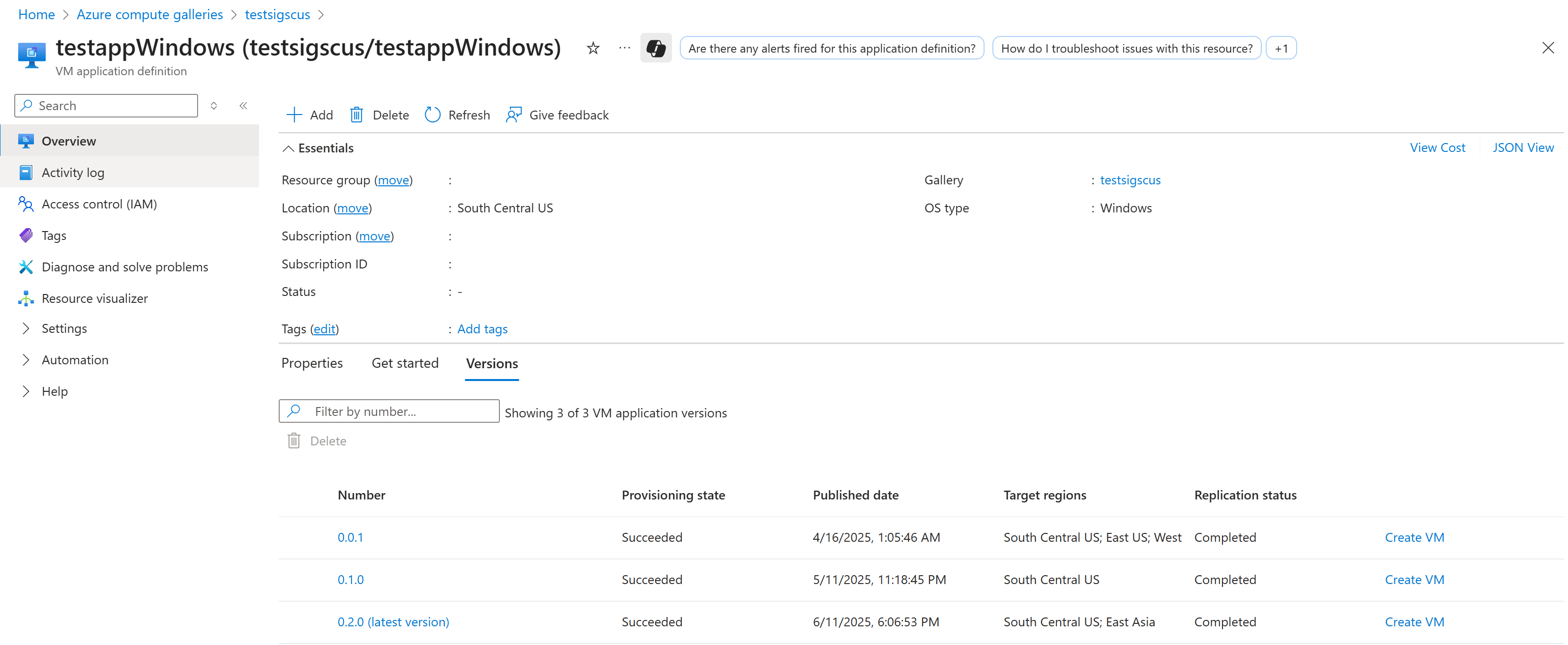
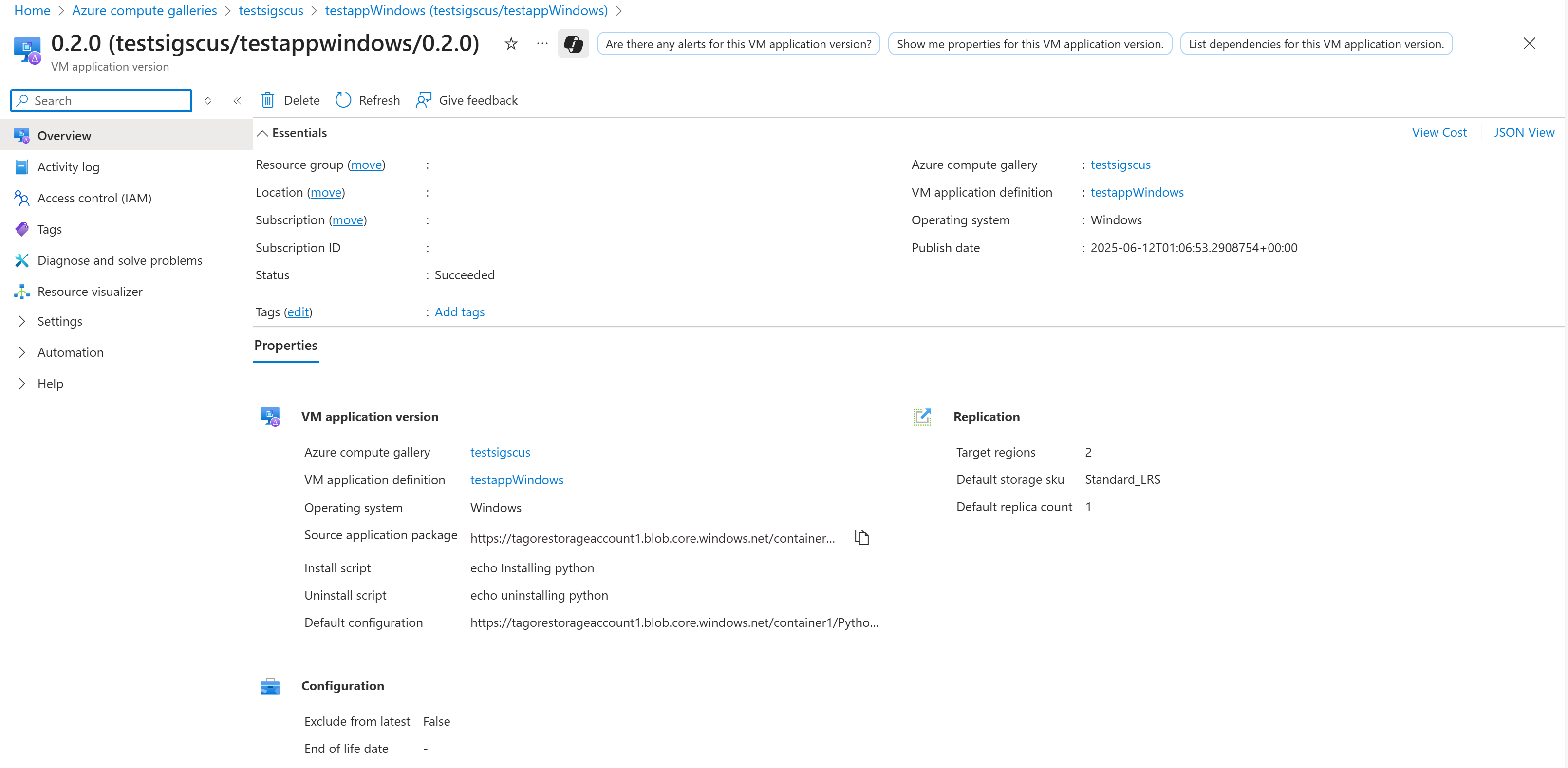
使用 REST API 查看已发布的 VM 应用程序或特定版本的属性:
获取 VM 应用程序详细信息:
GET
https://management.chinacloudapi.cn/subscriptions/{subscriptionId}/resourceGroups/{resourceGroupName}/providers/Microsoft.Compute/galleries/{galleryName}/applications/{galleryApplicationName}?api-version=2024-03-03
示例响应:
{
    "id": "/subscriptions/{subscriptionId}/resourceGroups/{resourceGroupName}/providers/Microsoft.Compute/galleries/{galleryName}/applications/{galleryApplicationName}",
    "name": "{galleryApplicationName}",
    "type": "Microsoft.Compute/galleries/applications",
    "location": "chinanorth2",
    "properties": {
        "description": "Sample VM Application",
        "provisioningState": "Succeeded",
        "supportedOSTypes": ["Windows", "Linux"],
        "endOfLifeDate": null,
        "privacyStatementUri": "https://contoso.com/privacy",
        "releaseNoteUri": "https://contoso.com/release-notes"
    }
}
获取 VM 应用程序版本详细信息:
GET
https://management.chinacloudapi.cn/subscriptions/{subscriptionId}/resourceGroups/{resourceGroupName}/providers/Microsoft.Compute/galleries/{galleryName}/applications/{galleryApplicationName}/versions/{galleryApplicationVersionName}?api-version=2024-03-03
示例响应:
{
    "id": "/subscriptions/{subscriptionId}/resourceGroups/{resourceGroupName}/providers/Microsoft.Compute/galleries/{galleryName}/applications/{galleryApplicationName}/versions/{galleryApplicationVersionName}",
    "name": "{galleryApplicationVersionName}",
    "type": "Microsoft.Compute/galleries/applications/versions",
    "location": "chinanorth2",
    "properties": {
        "provisioningState": "Succeeded",
        "publishingProfile": {
            "source": {
                "mediaLink": "https://storageaccount.blob.core.chinacloudapi.cn/vmapps/app.zip"
            },
            "replicaCount": 1,
            "targetRegions": [
                {
                    "name": "chinanorth2",
                    "regionalReplicaCount": 1
                }
            ]
        },
        "storageAccountType": "Standard_LRS"
    }
}
响应包括有关应用程序或版本的属性,例如名称、位置、预配状态、说明和其他元数据。
设置变量:
rgName="myResourceGroup"
galleryName="myGallery"
appName="myVmApp"
versionName="1.0.0"
列出库中的所有 VM 应用程序:
az sig gallery-application list \
    --resource-group $rgName \
    --gallery-name $galleryName \
    -o table
显示 VM 应用程序的属性:
az sig gallery-application show \
    --resource-group $rgName \
    --gallery-name $galleryName \
    --application-name $appName
列出 VM 应用程序的所有版本:
az sig gallery-application version list \
    --resource-group $rgName \
    --gallery-name $galleryName \
    --application-name $appName \
    --query "[].{version:name, provisioningState:properties.provisioningState}" -o table
显示特定 VM 应用程序版本的属性:
az sig gallery-application version show \
    --resource-group $rgName \
    --gallery-name $galleryName \
    --application-name $appName \
    --version-name $versionName
使用 Azure PowerShell 查看 Azure 计算库中的 VM 应用程序和版本详细信息。
设置变量:
$rgName      = "myResourceGroup"
$galleryName = "myGallery"
$appName     = "myVmApp"
$versionName = "1.0.0"
列出库中的所有 VM 应用程序:
Get-AzGalleryApplication `
    -ResourceGroupName $rgName `
    -GalleryName $galleryName |
    Select-Object Name, Location, ProvisioningState
显示 VM 应用程序的属性:
Get-AzGalleryApplication `
    -ResourceGroupName $rgName `
    -GalleryName $galleryName `
    -Name $appName |
    ConvertTo-Json -Depth 5
列出 VM 应用程序的所有版本:
Get-AzGalleryApplicationVersion `
    -ResourceGroupName $rgName `
    -GalleryName $galleryName `
    -GalleryApplicationName $appName |
    Select-Object Name, @{n="ProvisioningState";e={$_.ProvisioningState}}
显示特定 VM 应用程序版本的属性:
Get-AzGalleryApplicationVersion `
    -ResourceGroupName $rgName `
    -GalleryName $galleryName `
    -GalleryApplicationName $appName `
    -Name $versionName |
    ConvertTo-Json -Depth 6
使用Azure Resource Graph查看已发布的 VM 应用程序
Azure资源图查询可用于查看所有已发布的 VM 应用程序及其所有计算库的属性。 它提供了一种以编程方式查看应用程序清单及其属性的高效解决方案。 使用此方法与仪表板和自定义报表集成。
查看所有计算图库的列表
resources
| where type == "microsoft.compute/galleries"
| where subscriptionId == "85236c53-92ad-4e66-97a4-8253a5246b99"
| extend provisioningState = properties["provisioningState"]
| extend permissions = properties["sharingProfile"]["permissions"]
| extend communityGalleryInfo = properties["sharingProfile"]["communityGalleryInfo"]
| project subscriptionId, resourceGroup, location, name, provisioningState, permissions, communityGalleryInfo
查看所有图库中所有已发布的 VM 应用程序的列表
resources
| where subscriptionId == "85236c53-92ad-4e66-97a4-8253a5246b99"
| where type == "microsoft.compute/galleries/applications"
| extend OSType = properties["supportedOSType"]
| extend description = properties["description"]
| extend endOfLifeDate = properties["endOfLifeDate"]
| parse id with  "/subscriptions/" SubId "/resourceGroups/" rgName "/providers/Microsoft.Compute/galleries/" gallaryName "/applications/" appName
| project subscriptionId, resourceGroup, location, gallaryName, name, OSType, description
查看所有应用程序及图库中已发布的 VM 应用程序版本列表
resources
| where type == "microsoft.compute/galleries/applications/versions"
| project subscriptionId, resourceGroup, id, location, properties
| parse id with  "/subscriptions/" SubId "/resourceGroups/" rgName "/providers/Microsoft.Compute/galleries/" gallaryName "/applications/" appName "/versions/" versionNumber
| extend provisioningState = properties["provisioningState"]
| extend publishingProfile = properties["publishingProfile"]
| extend storageAccountType = publishingProfile["storageAccountType"]
| extend scriptBehaviorAfterReboot = publishingProfile["settings"]["scriptBehaviorAfterReboot"]
| extend packageFileName = publishingProfile["settings"]["packageFileName"]
| extend configFileName = publishingProfile["settings"]["configFileName"]
| extend mediaLink = publishingProfile["source"]["mediaLink"]
| extend defaultConfigurationLink = publishingProfile["source"]["defaultConfigurationLink"]
| extend excludeFromLatest = publishingProfile["excludeFromLatest"]
| extend targetRegions = publishingProfile["targetRegions"]
| extend replicaCount = publishingProfile["replicaCount"]
| extend publishedDate = publishingProfile["publishedDate"]
| extend installScript = publishingProfile["manageActions"]["install"]
| extend removeScript = publishingProfile["manageActions"]["remove"]
| extend safetyProfile = properties["safetyProfile"]
| extend allowDeletionOfReplicatedLocations = safetyProfile["allowDeletionOfReplicatedLocations"]
| project-away safetyProfile, publishingProfile, SubId, rgName, id, properties
更新已发布的 VM 应用程序
更新 VM 应用程序资源:
PATCH
https://management.chinacloudapi.cn/subscriptions/{subscriptionId}/resourceGroups/{resourceGroupName}/providers/Microsoft.Compute/galleries/{galleryName}/applications/{galleryApplicationName}?api-version=2024-03-03

Body
{
    "properties": {
        "description": "Updated description",
        "endOfLifeDate": "2026-12-31T00:00:00Z",
        "eula": "Updated EULA text",
        "privacyStatementUri": "https://contoso.com/privacy",
        "releaseNoteUri": "https://contoso.com/release-notes"
    }
}
更新 VM 应用程序版本资源:
PATCH
https://management.chinacloudapi.cn/subscriptions/{subscriptionId}/resourceGroups/{resourceGroupName}/providers/Microsoft.Compute/galleries/{galleryName}/applications/{galleryApplicationName}/versions/{galleryApplicationVersionName}?api-version=2024-03-03

Body
{
    "properties": {
        "publishingProfile": {
            "targetRegions": [
                {
                    "name": "chinanorth2",
                    "regionalReplicaCount": 2,
                    "storageAccountType": "Standard_LRS"
                },
                {
                    "name": "chinanorth2",
                    "regionalReplicaCount": 1,
                    "storageAccountType": "Standard_LRS"
                }
            ],
            "excludeFromLatest": false
        }
    }
}
更新 VM 应用程序资源:
az sig gallery-application update \
    --resource-group $rgName \
    --gallery-name $galleryName \
    --application-name $appName \
    --description "Updated description for the VM Application"
更新 VM 应用程序版本资源:
az sig gallery-application version update \
    --resource-group $rgName \
    --gallery-name $galleryName \
    --application-name $appName \
    --version-name $versionName \
    --target-regions "chinanorth2" "chinaneast2"
设置变量:
$rgName      = "myResourceGroup"
$galleryName = "myGallery"
$appName     = "myVmApp"
$versionName = "1.0.0"
更新 VM 应用程序资源:
$app = Get-AzGalleryApplication `
    -ResourceGroupName $rgName `
    -GalleryName $galleryName `
    -Name $appName

Update-AzGalleryApplication `
    -ResourceGroupName $rgName `
    -GalleryName $galleryName `
    -Name $appName `
    -Description "Updated description for the VM Application"
更新 VM 应用程序版本资源:
$targetRegions = @(
    @{
        Name = "chinanorth2"
        RegionalReplicaCount = 2
        StorageAccountType = "Standard_LRS"
    },
    @{
        Name = "chinanorth2"
        RegionalReplicaCount = 1
        StorageAccountType = "Standard_LRS"
    }
)

Update-AzGalleryApplicationVersion `
    -ResourceGroupName $rgName `
    -GalleryName $galleryName `
    -GalleryApplicationName $appName `
    -Name $versionName `
    -PublishingProfileTargetRegion $targetRegions `
    -PublishingProfileExcludeFromLatest:$false
从 Azure 计算库中删除已发布的 VM 应用程序
若要删除 VM 应用程序资源,首先需要删除其所有版本。 删除应用程序版本会导致从 Azure 计算库及其所有副本中删除应用程序版本资源。 用于创建应用程序版本的存储帐户中的应用程序 Blob 不受影响。
警告
删除应用程序版本会导致使用该版本的 VM 上的后续 PUT 操作失败。 若要防止此失败,请使用 latest 关键字作为版本号中的 applicationProfile 版本号,而不是对版本号进行硬编码。
删除部署在任何 VM 或虚拟机规模集上的 VM 应用程序会导致这些资源的后续 PUT 操作失败(例如,更新、缩放或重置镜像)。 在删除之前,请确保所有 VM/Virtual Machine Scale Sets 实例停止使用应用程序,方法是将其从其 applicationProfile 中删除。
若要防止意外删除,请在发布版本时设置为safetyProfile/allowDeletionOfReplicatedLocations在 false VM 应用程序资源上应用 Azure 资源管理器锁(CanNotDelete 或 ReadOnly)。
- 登录到 Azure 门户。
- 搜索 Azure Compute Gallery 并打开目标库。
- 选择要删除的 VM 应用程序。
- 选择要删除的一个或多个版本。
- 若要删除 VM 应用程序,请先删除所有版本。 然后点击“删除”(在界面顶部)。
- 监控通知以检查完成情况。 如果删除被阻止,请删除任何锁,并确保没有虚拟机(VM)或虚拟机规模集引用该应用程序。
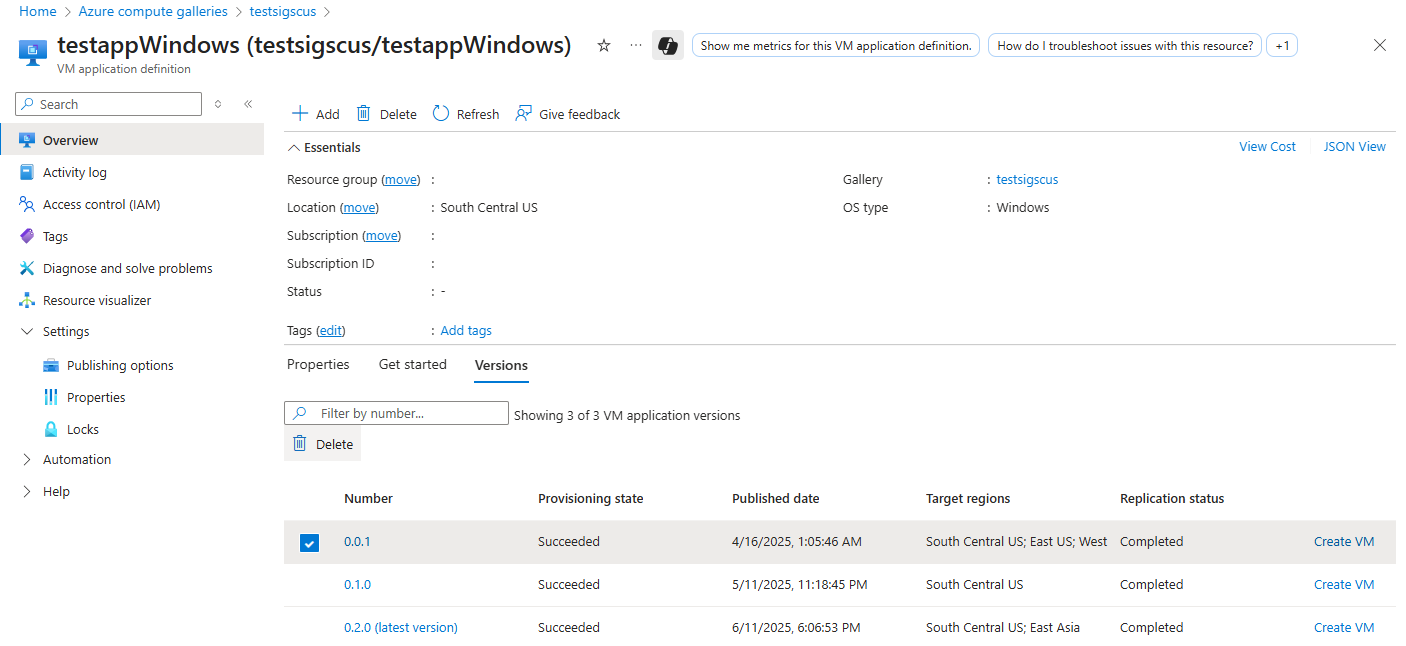
删除 VM 应用程序版本:
DELETE
https://management.chinacloudapi.cn/subscriptions/{subscriptionId}/resourceGroups/{resourceGroupName}/providers/Microsoft.Compute/galleries/{galleryName}/applications/{galleryApplicationName}/versions/{galleryApplicationVersionName}?api-version=2024-03-03
请在删除 VM 应用程序的所有版本后删除该应用程序。
DELETE
https://management.chinacloudapi.cn/subscriptions/{subscriptionId}/resourceGroups/{resourceGroupName}/providers/Microsoft.Compute/galleries/{galleryName}/applications/{galleryApplicationName}?api-version=2024-03-03
删除 VM 应用程序版本:
az sig gallery-application version delete --resource-group $rg-name --gallery-name $gallery-name --application-name $app-name --version-name $version-name
请在删除 VM 应用程序的所有版本后删除该应用程序。
az sig gallery-application delete --resource-group $rg-name --gallery-name $gallery-name --application-name $app-name
删除 VM 应用程序版本:
Remove-AzGalleryApplicationVersion -ResourceGroupName $rgNmae -GalleryName $galleryName -GalleryApplicationName $galleryApplicationName -Name $name
请在删除 VM 应用程序的所有版本后删除该应用程序。
Remove-AzGalleryApplication -ResourceGroupName $rgNmae -GalleryName $galleryName -Name $name
在 Azure VM 和 Virtual Machine Scale Sets 上管理已部署的 VM 应用程序
本部分介绍如何查看已部署的应用程序详细信息,以及如何跨基础结构监视已部署的应用程序。 它还介绍了如何在 Azure VM 和 Virtual Machine Scale Sets 上更新和删除 部署的 VM 应用程序。
查看已部署的 VM 应用程序及其状态
Azure使用 VMAppExtension 在 VM 上部署、监视和管理 VM 应用程序。 因此,部署的 VM 应用程序的预配状态在 VMAppExtension 的状态中进行了说明。
若要显示 VM 应用程序状态,请转到设置下的“ 扩展 + 应用程序 ”选项卡,并检查 VMAppExtension 的状态:
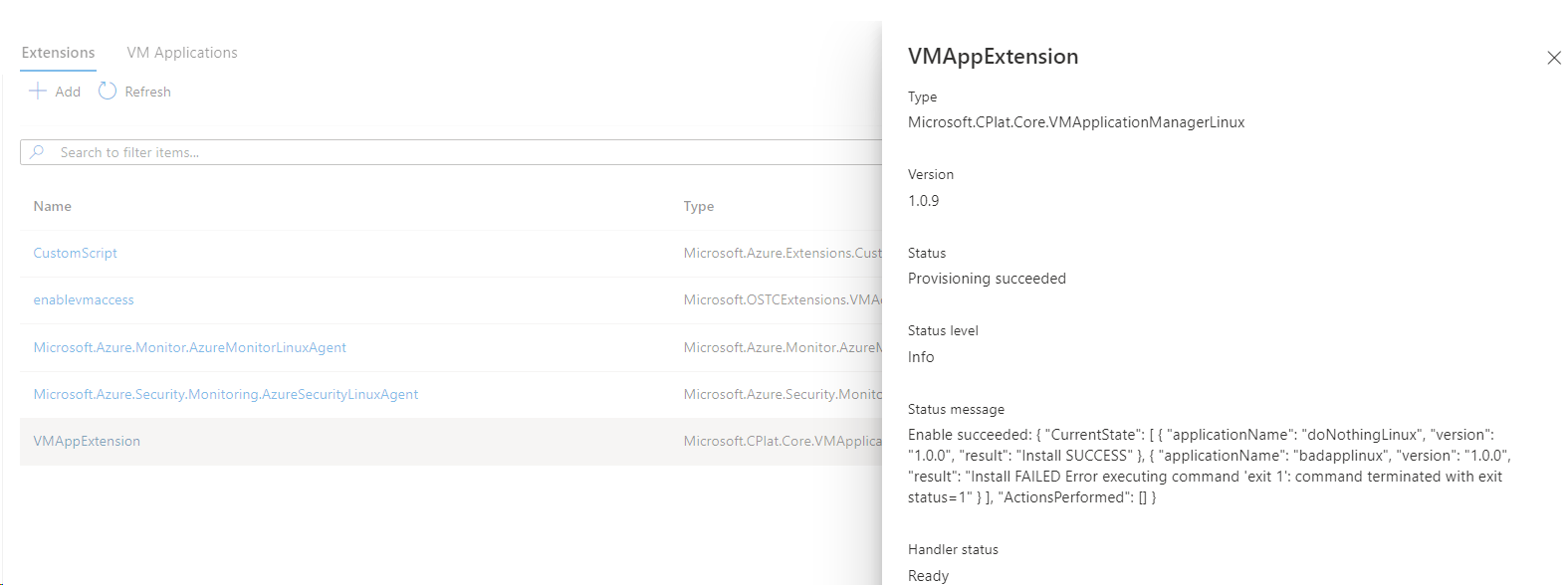
若要显示Virtual Machine Scale Sets的 VM 应用程序状态,请转到Azure门户Virtual Machine Scale Sets页。 在“实例”部分中,选择其中一个实例。 然后转到“设置”下的“ 扩展 + 应用程序 ”选项卡,并检查 VMAppExtension 的状态:
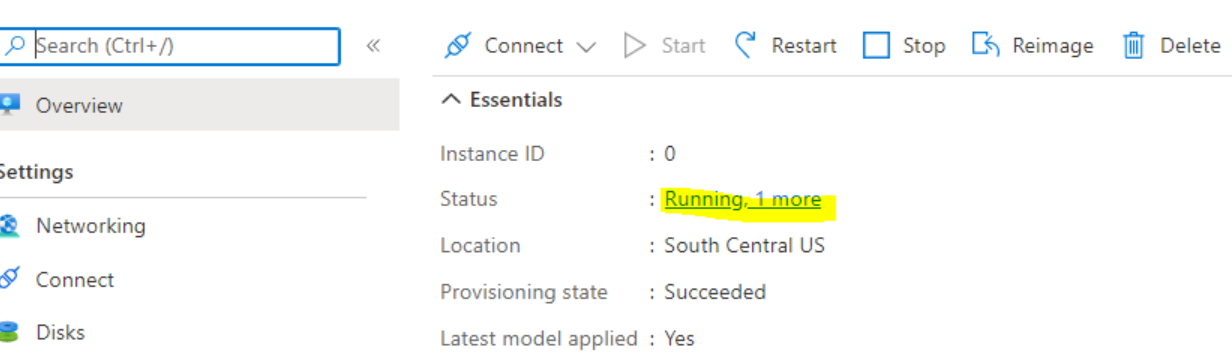
如果未在 VM 上安装 VM 应用程序,该值为空。
若要获取 VM 实例视图的结果,请执行以下作:
GET
/subscriptions/{subscriptionId}/resourceGroups/{resourceGroupName}/providers/Microsoft.Compute/virtualMachines/{VMName}/instanceView?api-version=2024-03-03
结果如下所示:
{
    ...
    "extensions"  [
    ...
        {
            "name":  "VMAppExtension",
            "type":  "Microsoft.CPlat.Core.VMApplicationManagerLinux",
            "typeHandlerVersion":  "1.0.9",
            "statuses":  [
                            {
                                "code":  "ProvisioningState/succeeded",
                                "level":  "Info",
                                "displayStatus":  "Provisioning succeeded",
                                "message":  "Enable succeeded: {\n \"CurrentState\": [\n  {\n   \"applicationName\": \"doNothingLinux\",\n   \"version\": \"1.0.0\",\n   \"result\": \"Install SUCCESS\"\n  },\n  {
        \n   \"applicationName\": \"badapplinux\",\n   \"version\": \"1.0.0\",\n   \"result\": \"Install FAILED Error executing command \u0027exit 1\u0027: command terminated with exit status=1\"\n  }\n ],\n \"ActionsPerformed\": []\n}
        "
                            }
                        ]
        }
    ...
    ]
}
VM 应用状态处于实例视图中 VM 应用扩展结果的状态消息中。
若要在Virtual Machine Scale Sets上获取应用程序的状态,请执行以下步骤:
GET
/subscriptions/{subscriptionId}/resourceGroups/{resourceGroupName}/providers/Microsoft.Compute/ virtualMachineScaleSets/{VMSSName}/virtualMachines/{instanceId}/instanceView?api-version=2019-03-01
输出类似于前面的 VM 示例。
若要验证 VM 上的应用程序部署状态,请使用 “az vm get-instance-view”:
az vm get-instance-view -g myResourceGroup -n myVM --query "instanceView.extensions[?name == 'VMAppExtension']"
若要验证Virtual Machine Scale Sets上的应用程序部署状态,请使用 'az vmss get-instance-view':
az vmss get-instance-view --ids (az vmss list-instances -g myResourceGroup -n myVmss --query "[*].id" -o tsv) --query "[*].extensions[?name == 'VMAppExtension']"
若要查看Azure VM 上已部署的 VM 应用程序的预配状态,请使用 Get-AzVM 命令。
$rgName = "myResourceGroup"
$vmName = "myVM"
$result = Get-AzVM -ResourceGroupName $rgName -VMName $vmName -Status
$result.Extensions | Where-Object {$_.Name -eq "VMAppExtension"} | ConvertTo-Json
若要查看Virtual Machine Scale Sets上已部署的 VM 应用程序的预配状态,请使用 Get-AzVMSS 命令。
$rgName = "myResourceGroup"
$vmssName = "myVMss"
$result = Get-AzVmssVM -ResourceGroupName $rgName -VMScaleSetName $vmssName -InstanceView
$resultSummary  = New-Object System.Collections.ArrayList
$result | ForEach-Object {
    $res = @{ instanceId = $_.InstanceId; vmappStatus = $_.InstanceView.Extensions | Where-Object {$_.Name -eq "VMAppExtension"}}
    $resultSummary.Add($res) | Out-Null
}
$resultSummary | ConvertTo-Json -Depth 5
使用“运行”命令查看应用程序安装的日志
Azure VM 应用程序在 Azure VM 或 Virtual Machine Scale Sets 上下载并安装应用程序时,它会通过管道将所有 stdout 结果传递给应用程序存储库中的 stdout 文件。 客户可以使用installScript启用应用程序安装的详细日志记录并编写自定义日志。 然后,客户可以手动检查 stdout 和 stderr 文件或使用 Runcommand 获取文件内容。
在托管运行命令中使用以下 PowerShell 脚本。 更新应用程序中的appName变量和appVersion变量
$appName = "vm-application-name"        # VM Application definition name
$appVersion = "1.0.0"                   # VM Application version name

$VMAppManagerVersion = "1.0.16"         # Version of the VMApplicationManagerWindows extension on the VM
$StdoutFilePath = "C:\Packages\Plugins\Microsoft.CPlat.Core.VMApplicationManagerWindows\$VMAppManagerVersion\Downloads\$appName\$appVersion\stdout"
$StderrFilePath = "C:\Packages\Plugins\Microsoft.CPlat.Core.VMApplicationManagerWindows\$VMAppManagerVersion\Downloads\$appName\$appVersion\stderr"

Write-Host "`n=== Contents of stdout ==="
Get-Content -Path $StdoutFilePath

Write-Host "`n=== Contents of stderr ==="
Get-Content -Path $StderrFilePath
appName="vm-application-name"       # VM Application definition name
appVersion="1.0.0"                  # VM Application version name

stdoutFilePath="/var/lib/waagent/Microsoft.CPlat.Core.VMApplicationManagerLinux/$appName/$appVersion/stdout"
stderrFilePath="/var/lib/waagent/Microsoft.CPlat.Core.VMApplicationManagerLinux/$appName/$appVersion/stderr"

printf "=== Contents of stdout ===\n%s \n" "$(cat $stdoutFilePath)"
printf '=== Contents of stderr ===\n%s \n' "$(cat $stderrFilePath)"
使用脚本执行 run 命令并获取应用程序安装日志。
选项 1:使用动作运行命令:
rgName="myResourceGroup"
vmName="myVM"
az vm run-command invoke \
  --resource-group myResourceGroup \
  --name myVm \
  --command-id RunShellScript \
  --scripts @./path/to/script.sh
详细了解 操作运行命令,以便在 VM 上执行本地脚本。
选项 2:使用托管运行命令:
rgName="myResourceGroup"
vmName="myVM"
subId="mySubscriptionId"
vmLocation="myVMLocation"

az vm run-command create \
    --name view-vmapp-install-logs \
    --vm-name $vmName \
    --resource-group $rgName \
    --subscription $subId \
    --location $vmLocation \
    --script @.\path\to\script.sh \
    --timeout-in-seconds 600

az vm run-command show \
    --name view-vmapp-install-logs \
    --vm-name $vmName \
    --resource-group $rgName \
    --subscription $subId \
    --instance-view
了解有关在 VM 上运行脚本 的托管运行命令 的详细信息。
选项 1:使用 Action 运行命令
$rgName = "myResourceGroup"
$vmName = "myVM"
$scriptPath = ".\path\to\script.ps1"

$result = Invoke-AzVMRunCommand `
    -ResourceGroupName $rgName `
    -Name $vmName `
    -CommandId "RunPowerShellScript" `
    -ScriptPath $scriptPath

$result.Value[0].Message
详细了解 操作运行命令,以便在 VM 上运行本地 PowerShell 脚本。
选项 2:使用托管运行
$rgName = "myResourceGroup"
$vmName = "myVM"
$runCommandName = "GetInstallLogsRunCommand"
$vmlocation = "myVMLocation"

Set-AzVMRunCommand `
    -ResourceGroupName $rgName `
    -VMName $vmName `
    -RunCommandName $runCommandName `
    -Location $vmLocation `
    -SourceScript $(Get-Content -Path "./GetInstallLogs.ps1" -Raw)

$result = Get-AzVMRunCommand `
    -ResourceGroupName $rgName `
    -VMName $vmName `
    -RunCommandName $runCommandName `
    -Expand InstanceView

$result.InstanceView
了解有关在 VM 上运行本地 PowerShell 脚本 的托管运行命令 的详细信息。
使用Azure Resource Graph查看所有已部署的 VM 应用程序
Azure资源图查询可用于查看所有已部署的VM应用程序及其在所有虚拟机与虚拟机规模集上的属性。 它提供了一种编程方式,用于大规模查看应用程序清单、状态和部署的版本。 使用此方法与仪表板和自定义报表集成。
resources
| where type == "microsoft.compute/virtualmachines" or type == "microsoft.compute/virtualmachinescalesets"
| where properties has "applicationProfile"
| extend resourceType = iff(type == "microsoft.compute/virtualmachines", "VM", "VMSS")
| extend applications = iff(resourceType == "VM", parse_json(properties["applicationProfile"]["galleryApplications"]), parse_json(properties["virtualMachineProfile"]["applicationProfile"]["galleryApplications"]))
| mv-expand applications
| extend enableAutomaticUpgrade = applications["enableAutomaticUpgrade"]
| extend packageReferenceId = applications["packageReferenceId"]
| extend treatFailureAsDeploymentFailure = applications["treatFailureAsDeploymentFailure"]
| parse packageReferenceId with "/subscriptions/" publisherSubcriptionId "/resourceGroups/" publisherResourceGroup "/providers/Microsoft.Compute/galleries/" galleryName "/applications/" appName "/versions/" version
| project tenantId, subscriptionId, resourceGroup, resourceName = name, type, location, appName, version, enableAutomaticUpgrade, treatFailureAsDeploymentFailure, galleryName, publisherSubcriptionId, publisherResourceGroup, properties
使用 Azure Policy 审核所需的 VM 应用程序
Azure Policy通过审核所需的 VM 应用程序是否在你的 VM 和虚拟机规模集上部署,来帮助实施治理。 可以创建和分配自定义策略来检查符合性并确保基础结构上存在特定应用程序。
有关如何使用 Azure Policy 审核 VM 应用程序部署的分步说明,请参阅使用 Azure Policy 审核所需的 VM 应用程序。
更新部署的 VM 应用程序
若要更新已部署的 VM 应用程序,请修改 applicationProfile 以引用较新版本或更改部署设置,例如 treatFailureAsDeploymentFailure 或 order。
更新单个 VM 上的 VM 应用程序版本或设置:
PATCH
https://management.chinacloudapi.cn/subscriptions/{subscriptionId}/resourceGroups/{resourceGroupName}/providers/Microsoft.Compute/virtualMachines/{vmName}?api-version=2024-03-03

Body
{
    "properties": {
        "applicationProfile": {
            "galleryApplications": [
                {
                    "packageReferenceId": "/subscriptions/{subscriptionId}/resourceGroups/{resourceGroupName}/providers/Microsoft.Compute/galleries/{galleryName}/applications/{applicationName}/versions/{newVersion}",
                    "treatFailureAsDeploymentFailure": true,
                    "enableAutomaticUpgrade": true
                }
            ]
        }
    }
}
在虚拟机规模集(模型)上更新 VM 应用程序:
PATCH
https://management.chinacloudapi.cn/subscriptions/{subscriptionId}/resourceGroups/{resourceGroupName}/providers/Microsoft.Compute/virtualMachineScaleSets/{vmssName}?api-version=2024-03-03

Body
{
    "properties": {
        "virtualMachineProfile": {
            "applicationProfile": {
                "galleryApplications": [
                    {
                        "packageReferenceId": "/subscriptions/{subscriptionId}/resourceGroups/{resourceGroupName}/providers/Microsoft.Compute/galleries/{galleryName}/applications/{applicationName}/versions/{newVersion | latest}",
                        "treatFailureAsDeploymentFailure": true,
                        "order": 2
                    }
                ]
            }
        }
    }
}
将更改应用于现有的虚拟机规模集实例(当 upgradePolicy.mode 为手动时需要):
POST
https://management.chinacloudapi.cn/subscriptions/{subscriptionId}/resourceGroups/{resourceGroupName}/providers/Microsoft.Compute/virtualMachineScaleSets/{vmssName}/updateInstances?api-version=2024-03-03

Body
{
    "instanceIds": ["*"]
}
在单个 VM 上更新 VM 应用程序:
az vm application set \
    --resource-group myResourceGroup \
    --name myVM \
    --app-version-ids /subscriptions/{subscriptionId}/resourceGroups/myResourceGroup/providers/Microsoft.Compute/galleries/myGallery/applications/myApp/versions/latest \
    --treat-deployment-as-failure true
在虚拟机规模集(模型)上更新 VM 应用程序:
az vmss application set \
    --resource-group myResourceGroup \
    --name myVMss \
    --app-version-ids /subscriptions/{subscriptionId}/resourceGroups/myResourceGroup/providers/Microsoft.Compute/galleries/myGallery/applications/myApp/versions/latest \
    --treat-deployment-as-failure true
将更改应用于现有Virtual Machine Scale Sets实例(如果 upgradeMode 设置为手动):
az vmss update-instances -g myResourceGroup -n myVMss --instance-ids "*"
在单个 VM 上更新 VM 应用程序:
$rgName = "myResourceGroup"
$vmName = "myVM"
$galleryName = "myGallery"
$applicationName = "myApp"
$newVersion = "latest"

$vm = Get-AzVM -ResourceGroupName $rgName -Name $vmName
$appVersion = Get-AzGalleryApplicationVersion `
    -ResourceGroupName $rgName `
    -GalleryName $galleryName `
    -GalleryApplicationName $applicationName `
    -Name $newVersion
$packageId = $appVersion.Id

$app = New-AzVmGalleryApplication -PackageReferenceId $packageId -TreatFailureAsDeploymentFailure
$vm.ApplicationProfile.GalleryApplications = @($app)
Update-AzVM -ResourceGroupName $rgName -VM $vm
在虚拟机规模集(模型)上更新 VM 应用程序:
$rgName = "myResourceGroup"
$vmssName = "myVMss"
$galleryName = "myGallery"
$applicationName = "myApp"
$newVersion = "latest"

$vmss = Get-AzVmss -ResourceGroupName $rgName -VMScaleSetName $vmssName
$appVersion = Get-AzGalleryApplicationVersion `
    -ResourceGroupName $rgName `
    -GalleryName $galleryName `
    -GalleryApplicationName $applicationName `
    -Name $newVersion
$packageId = $appVersion.Id

$app = New-AzVmssGalleryApplication -PackageReferenceId $packageId -TreatFailureAsDeploymentFailure
$vmss.VirtualMachineProfile.ApplicationProfile.GalleryApplications = @($app)
Update-AzVmss -ResourceGroupName $rgName -VMScaleSetName $vmssName -VirtualMachineScaleSet $vmss
将更改应用于现有 VMSS 实例(如果 upgradeMode 设置为“手动”):
$instanceIds = (Get-AzVmssVM -ResourceGroupName $rgName -VMScaleSetName $vmssName).InstanceId
Update-AzVmssInstance -ResourceGroupName $rgName -VMScaleSetName $vmssName -InstanceId $instanceIds
小窍门
将 latest 用作版本标识符,在 packageReferenceId 中自动部署最新发布的版本,而无需手动更新部署。
从Azure VM 或Virtual Machine Scale Sets中删除 VM 应用程序
- 打开 Azure 门户,转到目标虚拟机(VM)或虚拟机规模集。
- 在“设置”中,选择“ 扩展 + 应用程序”,然后选择“ VM 应用程序 ”选项卡。
- 单击 VM 应用程序上的“卸载”按钮并保存。
- 在“通知”中跟踪进度,或检查 VMAppExtension 状态的实例视图。
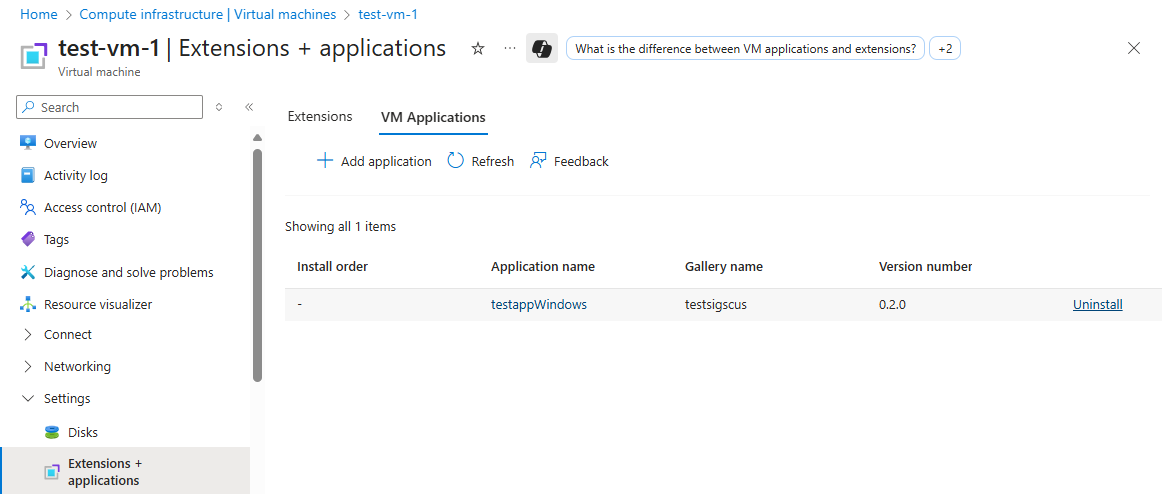
为了移除 VM 应用程序,请更新 applicationProfile,通过清除或排除目标应用程序。
从单个 VM 中删除:
PATCH
https://management.chinacloudapi.cn/subscriptions/{subscriptionId}/resourceGroups/{resourceGroupName}/providers/Microsoft.Compute/virtualMachines/{vmName}?api-version=2024-03-03

Body
{
    "properties": {
        "applicationProfile": {
            "galleryApplications": []
        }
    }
}
从Virtual Machine Scale Sets中删除(模型):
PATCH
https://management.chinacloudapi.cn/subscriptions/{subscriptionId}/resourceGroups/{resourceGroupName}/providers/Microsoft.Compute/virtualMachineScaleSets/{vmssName}?api-version=2024-03-03

Body
{
    "properties": {
        "virtualMachineProfile": {
            "applicationProfile": {
                "galleryApplications": []
            }
        }
    }
}
将更改应用于现有的虚拟机规模集实例(当 upgradePolicy.mode 为手动时需要):
POST
https://management.chinacloudapi.cn/subscriptions/{subscriptionId}/resourceGroups/{resourceGroupName}/providers/Microsoft.Compute/virtualMachineScaleSets/{vmssName}/updateInstances?api-version=2024-03-03

Body
{
    "instanceIds": ["0", "1"]
}
从单个 VM 中删除:
az vm update -g myResourceGroup -n myVM --set "properties.applicationProfile.galleryApplications=[]"
从Virtual Machine Scale Sets中删除(模型):
az vmss update -g myResourceGroup -n myVMss --set "virtualMachineProfile.applicationProfile.galleryApplications=[]"
将更改应用到现有 VMSS 实例(手动升级策略):
az vmss update-instances -g myResourceGroup -n myVMss --instance-ids "*"
从单个 VM 中删除:
$rgName = "myResourceGroup"
$vmName = "myVM"

$vm = Get-AzVM -ResourceGroupName $rgName -Name $vmName
$vm.ApplicationProfile.GalleryApplications = @()
Update-AzVM -ResourceGroupName $rgName -VM $vm
从 Virtual Machine Scale Sets 模型中移除,并将其应用于实例:
$rgName   = "myResourceGroup"
$vmssName = "myVMss"

$vmss = Get-AzVmss -ResourceGroupName $rgName -VMScaleSetName $vmssName
$vmss.VirtualMachineProfile.ApplicationProfile.GalleryApplications = @()
Update-AzVmss -ResourceGroupName $rgName -VMScaleSetName $vmssName -VirtualMachineScaleSet $vmss

$instanceIds = (Get-AzVmssVM -ResourceGroupName $rgName -VMScaleSetName $vmssName).InstanceId
Update-AzVmssInstance -ResourceGroupName $rgName -VMScaleSetName $vmssName -InstanceId $instanceIds
后续步骤