通过使用 Azure 资源管理器 (ARM) 模板部署 AKS 群集,开始使用 AKS 的 Azure 容器 Linux (ACL)。
在此快速入门中,您将学习如何:
- 使用适用于 AKS 的 ACL 创建 AKS 集群。
- 使用 ARM 模板部署群集。
- 运行一个示例多容器应用程序,其中的一组微服务和 Web 前端模拟零售场景。
注释
为了开始快速预配 AKS 群集,本文介绍了仅针对评估目的部署具有默认设置的群集的步骤。 在部署生产就绪群集之前,建议熟悉我们的基线参考体系结构,考虑它如何与你的业务需求保持一致。
Important
如果在 AKS 上使用 Azure 容器 Linux (ACL),请确保查看以下注意事项和限制:
- ACL 自 AKS v1.34 起正式发布。
- ACL 需要有安全启动和 vTPM 的受信任启动。 非受信任的启动变体不可用。
- Arm64 上的 ACL 要求使用基于 Cobalt 的 (v6) SKU,以支持受信任启动兼容性。
-
NodeImage并且None是唯一受支持的 操作系统(OS)升级通道。Unmanaged和SecurityPatch由于不可变的/usr目录而与 ACL 不兼容。 - 不支持工件流式传输。
- 不支持 Pod Sandboxing。
- 不支持机密虚拟机(CVM)。
- 不支持第 1 代 VM。
- 不支持启用 FIPS 的节点。
先决条件
- 本文假定你对 Kubernetes 概念有基本的了解。 有关详细信息,请参阅 Azure Kubernetes 服务 (AKS) 的 Kubernetes 核心概念。
- 如果你没有 Azure 帐户,请在开始之前创建一个试用帐户。
- 确保用于创建群集的标识具有合适的的最低权限。 有关 AKS 访问和标识的详细信息,请参阅 Azure Kubernetes 服务 (AKS) 的访问和标识选项。
- 若要部署 ARM 模板,需要对要部署的资源进行写入访问权限,并访问
Microsoft.Resources/deployments资源类型上的所有操作。 例如,若要部署虚拟机,需要Microsoft.Compute/virtualMachines/write和Microsoft.Resources/deployments/*权限。 有关角色和权限的列表,请参阅 Azure 内置角色。
从模板部署群集后,可以使用 Azure CLI 或 Azure PowerShell 连接到群集并部署示例应用程序。
注册必需的资源提供程序
可能需要在Azure订阅中注册所需的资源提供程序,例如 Microsoft.ContainerService。
检查注册状态
使用 az provider show 命令检查注册状态。
az provider show --namespace Microsoft.ContainerService --query registrationState
注册资源提供程序
如有必要,请使用 Microsoft.ContainerService 命令注册 az provider register 资源提供程序。
az provider register --namespace Microsoft.ContainerService
创建 SSH 密钥对
若要使用 ARM 模板创建 AKS 群集,请提供 SSH 公钥。 如果需要此资源,请按照本部分的步骤操作。 否则,请跳到查看模板部分。
若要访问 AKS 节点,请使用通过 ssh-keygen 命令生成的 SSH 密钥对(公钥和私钥)进行连接。 默认情况下,这些文件在 ~/.ssh 目录中创建。 运行 ssh-keygen 命令会覆盖给定位置中同名的任何 SSH 密钥对。 有关创建 SSH 密钥的详细信息,请参阅在 Azure 中创建和管理用于身份验证的 SSH 密钥。
使用
az group create命令创建资源组。 以下示例在“中国北部3”区域中创建名为 myResourceGroup 的资源组:az group create \ --name myResourceGroup \ --location chinanorth3使用
az sshkey create命令或ssh-keygen命令创建 SSH 密钥对。az sshkey create --name mySSHKey --resource-group myResourceGroup或者使用
ssh-keygen创建 SSH 密钥对:ssh-keygen -t rsa -b 4096若要部署此模板,必须提供 SSH 对中的公钥。 使用
az sshkey show命令检索公钥。az sshkey show --name mySSHKey --resource-group myResourceGroup --query publicKey
查看模板
以下部署使用来自 Azure 快速入门模板的 ARM 模板:
{
  "$schema": "https://schema.management.azure.com/schemas/2019-04-01/deploymentTemplate.json#",
  "contentVersion": "1.0.0.0",
  "metadata": {
    "_generator": {
      "name": "bicep",
      "version": "0.26.170.59819",
      "templateHash": "14823542069333410776"
    }
  },
  "parameters": {
    "clusterName": {
      "type": "string",
      "defaultValue": "aks101cluster",
      "metadata": {
        "description": "The name of the Managed Cluster resource."
      }
    },
    "location": {
      "type": "string",
      "defaultValue": "[resourceGroup().location]",
      "metadata": {
        "description": "The location of the Managed Cluster resource."
      }
    },
    "dnsPrefix": {
      "type": "string",
      "metadata": {
        "description": "Optional DNS prefix to use with hosted Kubernetes API server FQDN."
      }
    },
    "osDiskSizeGB": {
      "type": "int",
      "defaultValue": 0,
      "minValue": 0,
      "maxValue": 1023,
      "metadata": {
        "description": "Disk size (in GB) to provision for each of the agent pool nodes. This value ranges from 0 to 1023. Specifying 0 will apply the default disk size for that agentVMSize."
      }
    },
    "agentCount": {
      "type": "int",
      "defaultValue": 3,
      "minValue": 1,
      "maxValue": 50,
      "metadata": {
        "description": "The number of nodes for the cluster."
      }
    },
    "agentVMSize": {
      "type": "string",
      "defaultValue": "standard_d2s_v3",
      "metadata": {
        "description": "The size of the Virtual Machine."
      }
    },
    "linuxAdminUsername": {
      "type": "string",
      "metadata": {
        "description": "User name for the Linux Virtual Machines."
      }
    },
    "sshRSAPublicKey": {
      "type": "string",
      "metadata": {
        "description": "Configure all linux machines with the SSH RSA public key string. Your key should include three parts, for example 'ssh-rsa AAAAB...snip...UcyupgH azureuser@linuxvm'"
      }
    }
  },
  "resources": [
    {
      "type": "Microsoft.ContainerService/managedClusters",
      "apiVersion": "2026-03-01",
      "name": "[parameters('clusterName')]",
      "location": "[parameters('location')]",
      "identity": {
        "type": "SystemAssigned"
      },
      "properties": {
        "dnsPrefix": "[parameters('dnsPrefix')]",
        "agentPoolProfiles": [
          {
            "name": "agentpool",
            "osDiskSizeGB": "[parameters('osDiskSizeGB')]",
            "count": "[parameters('agentCount')]",
            "vmSize": "[parameters('agentVMSize')]",
            "osType": "Linux",
            "osSKU": "AzureContainerLinux",
            "mode": "System"
          }
        ],
        "linuxProfile": {
          "adminUsername": "[parameters('linuxAdminUsername')]",
          "ssh": {
            "publicKeys": [
              {
                "keyData": "[parameters('sshRSAPublicKey')]"
              }
            ]
          }
        }
      }
    }
  ],
  "outputs": {
    "controlPlaneFQDN": {
      "type": "string",
      "value": "[reference(resourceId('Microsoft.ContainerService/managedClusters', parameters('clusterName')), '2026-03-01').fqdn]"
    }
  }
}
ARM 模板中定义的资源类型为 Microsoft.ContainerService/managedClusters。
有关更多 AKS 示例,请参阅 AKS 快速入门模板站点。
部署模板
选择“部署到 Azure”,登录并打开模板。
在 “自定义部署 ”页中配置模板参数。 对于本快速入门,请保留 OS 磁盘大小 GB、 代理计数、 代理 VM 大小和 OS 类型的默认值。 为以下参数提供自己的值:
- Subscription:选择Azure订阅。
- 资源组:选择“新建”。 输入资源组的唯一名称(例如 myResourceGroup),然后选择“确定”。
-
OS SKU:指定 AzureContainerLinux。 如果未更新 OS SKU,则默认值为
Ubuntu。 - 位置:选择位置,如 中国北部 3。
- 群集名称:输入 AKS 群集的唯一名称,例如 myAKSCluster。
- DNS 前缀:输入群集的唯一 DNS 前缀,例如 myakscluster。
- Linux 管理员用户名:输入一个用户名用于通过 SSH 进行连接,例如 azureuser。
- “SSH 公钥源”:选择“使用现有公钥”。
- 密钥对名称:复制并粘贴 SSH 密钥对的 public 部分(默认为 ~/.ssh/id_rsa.pub 的内容)。
选择“查看 + 创建”>“创建”。
创建 AKS 群集需要几分钟时间。 等待群集成功部署,然后转到下一步骤。
连接至群集
若要管理 Kubernetes 群集,请使用 Kubernetes 命令行客户端 kubectl。
若要在本地安装和运行 kubectl ,请使用 az aks install-cli 命令。
使用
kubectl命令将az aks get-credentials配置为连接到你的 Kubernetes 群集。 此命令将下载凭据,并将 Kubernetes CLI 配置为使用这些凭据。az aks get-credentials \ --resource-group myResourceGroup \ --name myAKSCluster使用
kubectl get命令验证与群集之间的连接。 此命令将返回群集节点的列表。kubectl get nodes以下示例输出显示在上一步骤中创建的三个节点。 确保节点状态为 Ready:
NAME                                STATUS   ROLES   AGE   VERSION
aks-agentpool-12345678-vmss000000   Ready    <none>   5m53s   v1.32.7
aks-agentpool-12345678-vmss000001   Ready    <none>   6m31s   v1.32.7
aks-agentpool-12345678-vmss000002   Ready    <none>   6m35s   v1.32.7
部署应用程序
若要部署应用程序,请使用清单文件创建运行 AKS Store 应用程序所需的所有对象。 Kubernetes 清单文件定义群集的所需状态,例如要运行的容器映像。 该清单包含以下 Kubernetes 部署和服务:

- 门店:Web 应用程序,供客户查看产品和下单。
- 产品服务:显示产品信息。
- 订单服务:负责下单。
- Rabbit MQ:工单队列的消息队列。
注释
不建议在没有持久性存储用于生产的情况下,运行有状态容器(例如 Rabbit MQ)。 此处使用这些服务是为了简单起见,但我们建议使用托管服务,例如Azure Cosmos DB或Azure 服务总线。
创建名为
aks-store-quickstart.yaml的文件,并将以下清单复制到其中:apiVersion: apps/v1 kind: Deployment metadata: name: rabbitmq spec: replicas: 1 selector: matchLabels: app: rabbitmq template: metadata: labels: app: rabbitmq spec: nodeSelector: "kubernetes.io/os": linux containers: - name: rabbitmq image: mcr.microsoft.com/mirror/docker/library/rabbitmq:3.10-management-alpine ports: - containerPort: 5672 name: rabbitmq-amqp - containerPort: 15672 name: rabbitmq-http env: - name: RABBITMQ_DEFAULT_USER value: "username" - name: RABBITMQ_DEFAULT_PASS value: "password" resources: requests: cpu: 10m memory: 128Mi limits: cpu: 250m memory: 256Mi volumeMounts: - name: rabbitmq-enabled-plugins mountPath: /etc/rabbitmq/enabled_plugins subPath: enabled_plugins volumes: - name: rabbitmq-enabled-plugins configMap: name: rabbitmq-enabled-plugins items: - key: rabbitmq_enabled_plugins path: enabled_plugins --- apiVersion: v1 data: rabbitmq_enabled_plugins: | [rabbitmq_management,rabbitmq_prometheus,rabbitmq_amqp1_0]. kind: ConfigMap metadata: name: rabbitmq-enabled-plugins --- apiVersion: v1 kind: Service metadata: name: rabbitmq spec: selector: app: rabbitmq ports: - name: rabbitmq-amqp port: 5672 targetPort: 5672 - name: rabbitmq-http port: 15672 targetPort: 15672 type: ClusterIP --- apiVersion: apps/v1 kind: Deployment metadata: name: order-service spec: replicas: 1 selector: matchLabels: app: order-service template: metadata: labels: app: order-service spec: nodeSelector: "kubernetes.io/os": linux containers: - name: order-service image: ghcr.io/azure-samples/aks-store-demo/order-service:latest ports: - containerPort: 3000 env: - name: ORDER_QUEUE_HOSTNAME value: "rabbitmq" - name: ORDER_QUEUE_PORT value: "5672" - name: ORDER_QUEUE_USERNAME value: "username" - name: ORDER_QUEUE_PASSWORD value: "password" - name: ORDER_QUEUE_NAME value: "orders" - name: FASTIFY_ADDRESS value: "0.0.0.0" resources: requests: cpu: 1m memory: 50Mi limits: cpu: 75m memory: 128Mi initContainers: - name: wait-for-rabbitmq image: busybox command: ['sh', '-c', 'until nc -zv rabbitmq 5672; do echo waiting for rabbitmq; sleep 2; done;'] resources: requests: cpu: 1m memory: 50Mi limits: cpu: 75m memory: 128Mi --- apiVersion: v1 kind: Service metadata: name: order-service spec: type: ClusterIP ports: - name: http port: 3000 targetPort: 3000 selector: app: order-service --- apiVersion: apps/v1 kind: Deployment metadata: name: product-service spec: replicas: 1 selector: matchLabels: app: product-service template: metadata: labels: app: product-service spec: nodeSelector: "kubernetes.io/os": linux containers: - name: product-service image: ghcr.io/azure-samples/aks-store-demo/product-service:latest ports: - containerPort: 3002 resources: requests: cpu: 1m memory: 1Mi limits: cpu: 1m memory: 7Mi --- apiVersion: v1 kind: Service metadata: name: product-service spec: type: ClusterIP ports: - name: http port: 3002 targetPort: 3002 selector: app: product-service --- apiVersion: apps/v1 kind: Deployment metadata: name: store-front spec: replicas: 1 selector: matchLabels: app: store-front template: metadata: labels: app: store-front spec: nodeSelector: "kubernetes.io/os": linux containers: - name: store-front image: ghcr.io/azure-samples/aks-store-demo/store-front:latest ports: - containerPort: 8080 name: store-front env: - name: VUE_APP_ORDER_SERVICE_URL value: "http://order-service:3000/" - name: VUE_APP_PRODUCT_SERVICE_URL value: "http://product-service:3002/" resources: requests: cpu: 1m memory: 200Mi limits: cpu: 1000m memory: 512Mi --- apiVersion: v1 kind: Service metadata: name: store-front spec: ports: - port: 80 targetPort: 8080 selector: app: store-front type: LoadBalancer有关 YAML 清单文件的明细,请参阅部署和 YAML 清单。
如果在本地创建并保存 YAML 文件,则可以通过选择“上传/下载文件”按钮并从本地文件系统中选择文件,将清单文件上传到 CloudShell 中的默认目录。
使用
kubectl apply命令部署应用程序,并指定 YAML 清单的名称。kubectl apply -f aks-store-quickstart.yaml以下示例输出显示部署和服务:
deployment.apps/rabbitmq created
service/rabbitmq created
deployment.apps/order-service created
service/order-service created
deployment.apps/product-service created
service/product-service created
deployment.apps/store-front created
service/store-front created
测试应用程序
使用
kubectl get pods命令查看已部署的 Pod 的状态。 在继续操作之前,将所有 Pod 都设置为Running。kubectl get pods检查应用商店前端应用程序的公共 IP 地址。 使用带有
kubectl get service参数的--watch命令来监视进度。kubectl get service store-front --watch服务的 EXTERNAL-IP
store-front输出最初显示为“pending”:NAME TYPE CLUSTER-IP EXTERNAL-IP PORT(S) AGE store-front LoadBalancer 10.0.100.10 <pending> 80:30025/TCP 4h4m在 EXTERNAL-IP 地址从 pending 更改为实际公共 IP 地址后,请使用
CTRL-C来停止kubectl监视进程。以下示例输出显示向服务分配了有效的公共 IP 地址:
NAME          TYPE           CLUSTER-IP    EXTERNAL-IP    PORT(S)        AGE
store-front   LoadBalancer   10.0.100.10   20.62.159.19   80:30025/TCP   4h5m
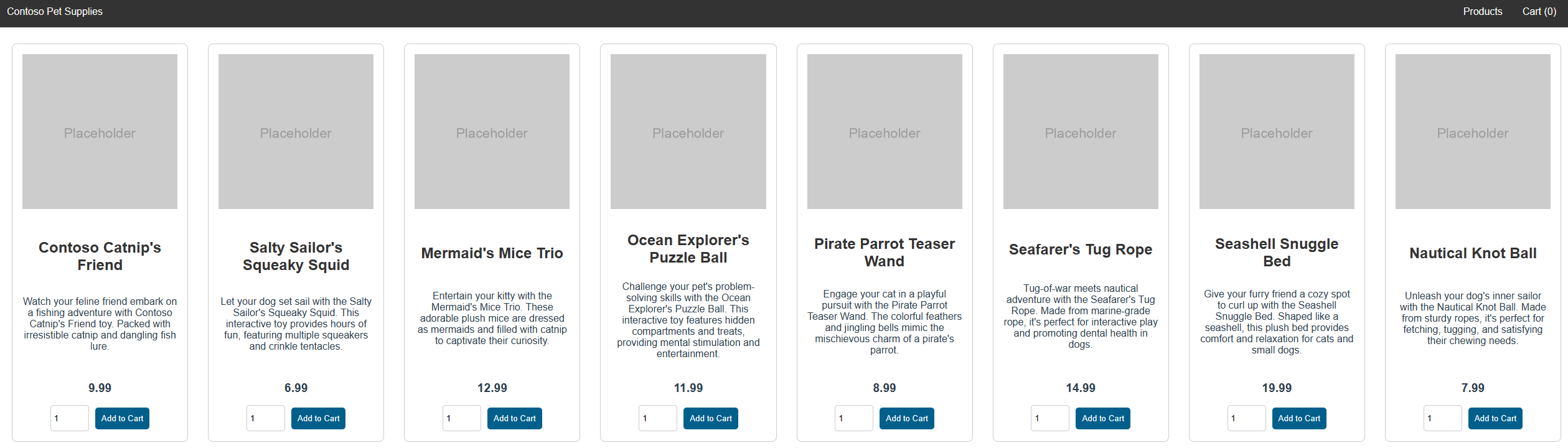
打开 Web 浏览器并访问您服务的外部 IP 地址,以查看 Azure 应用商店应用程序的实际运行效果:
删除群集
如果不打算完成 AKS 教程,请清理不必要的资源以避免产生 Azure 费用。
使用 az group delete 命令删除资源组、容器服务和所有相关资源。
az group delete --name myResourceGroup --yes --no-wait
注释
AKS 群集是使用系统分配的托管标识创建的,这是本快速入门中使用的默认标识选项。 平台负责管理此标识,因此你无需手动移除它。
相关内容
在本快速入门中,你已使用 ARM 模板为 AKS 部署了 AKS 群集,其中包含 ACL。 若要详细了解 AKS 的 ACL,请参阅 用于 Azure Kubernetes 服务 (AKS) 的 Azure Container Linux (ACL)。