在本快速入门中,你将使用 Go 创建基本的 Azure DocumentDB 应用程序。 Azure DocumentDB 是一种NoSQL数据存储,允许应用程序将文档存储在云中,并使用官方 MongoDB 驱动程序访问文档。 本指南演示如何使用 Go 在 Azure DocumentDB 群集中创建文档和执行基本任务。
先决条件
- 一份 Azure 订阅。 如果没有 Azure 订阅,请创建一个试用帐户。
- Go 1.18 或更高版本
创建 Azure DocumentDB 群集
若要开始,首先需要创建一个 Azure DocumentDB 群集,该群集充当存储和管理NoSQL数据的基础。
登录到 Azure 门户(https://portal.azure.cn)。
在Azure门户菜单或 Home 页面中,选择创建资源。
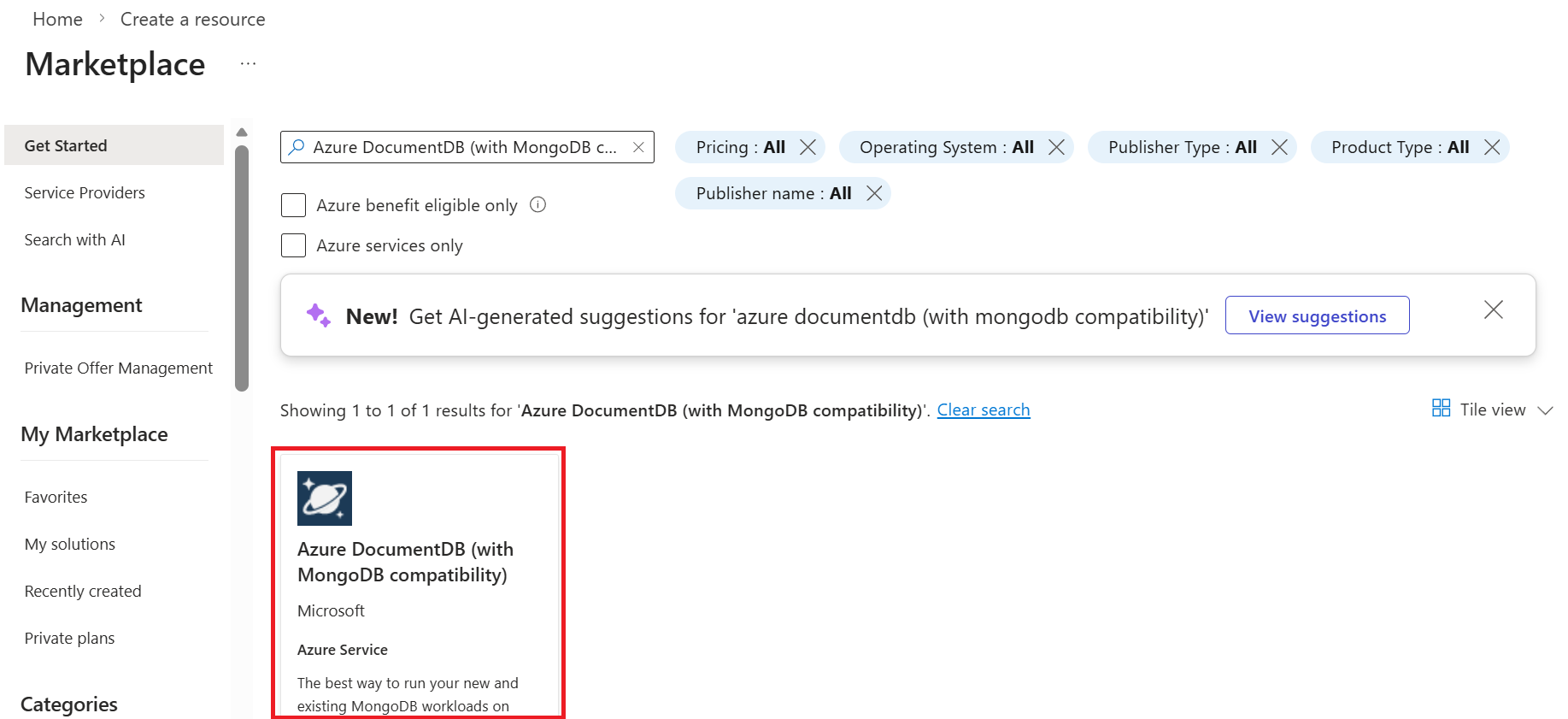
在 New 页上,搜索并选择 Azure DocumentDB。
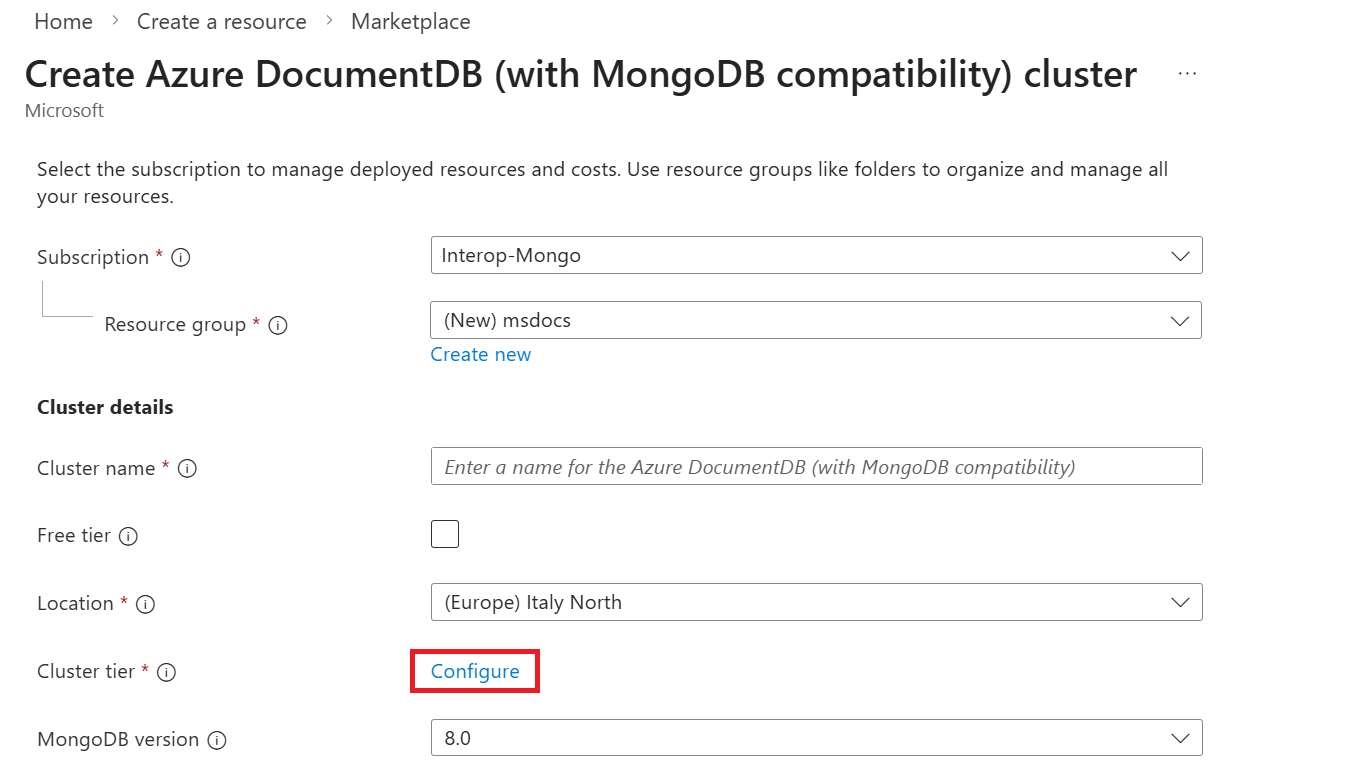
在 Create Azure DocumentDB 群集页上,并在 Basics 节中, 在 Cluster 层节中选择 Configure 选项。
在“ 缩放 ”页上,配置这些选项,然后选择“ 保存 ”以将更改保存到群集层。
价值 群集层 M30 tier, 2 vCore, 8-GiB RAM每个分片的存储量 128 GiB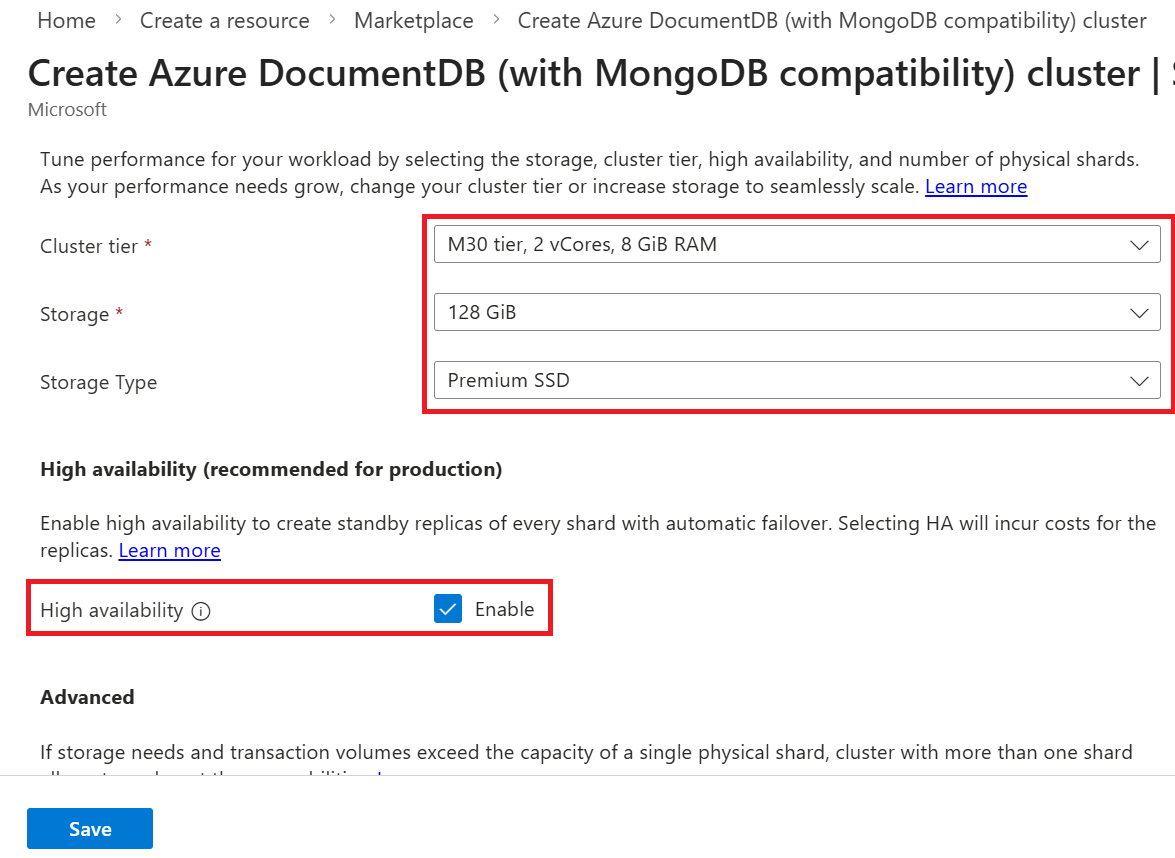
返回 “基本信息 ”部分,配置以下选项:
价值 Subscription 选择Azure订阅 资源组 创建新的资源组,或选择现有资源组 群集名称 提供一个全局唯一的名称 位置 为订阅选择受支持的Azure区域 MongoDB 版本 选择 8.0管理员用户名 创建用户名以以用户管理员身份访问群集 密码 使用与用户名关联的唯一密码 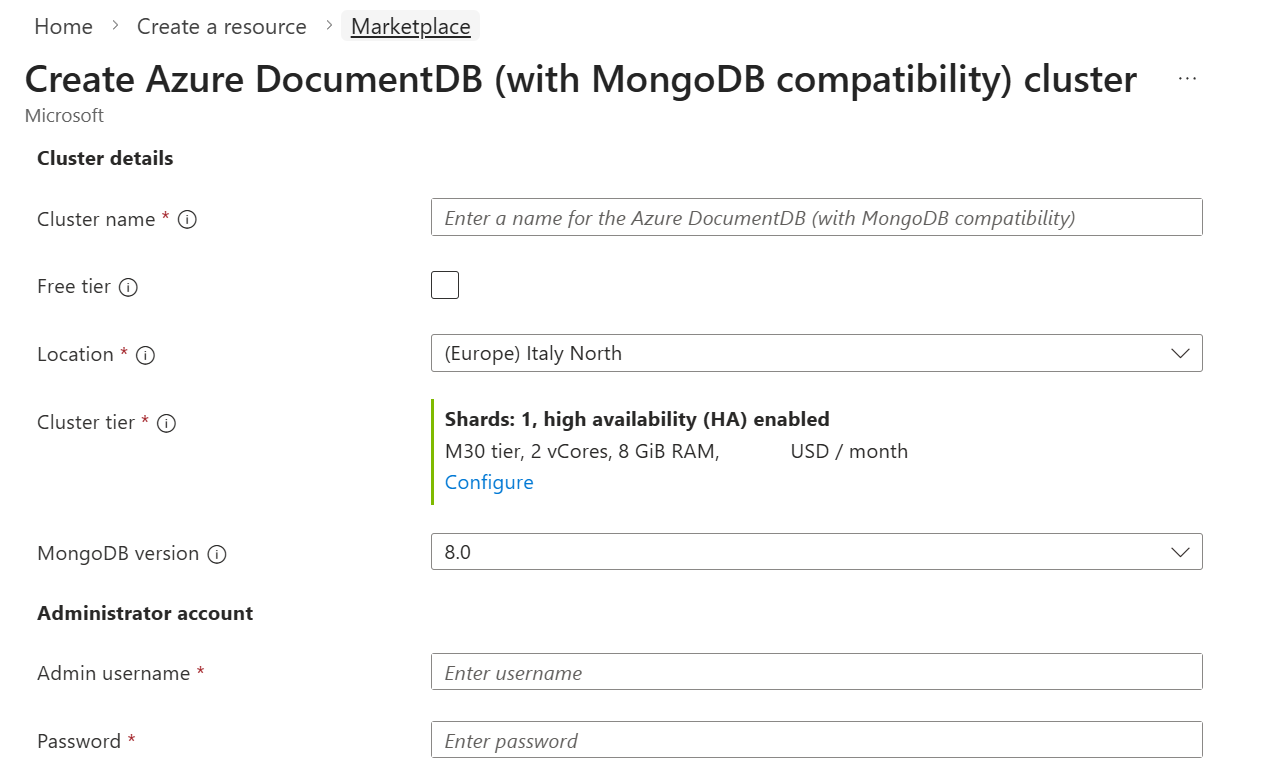
小窍门
记录用于用户名和密码的值。 本指南稍后会使用这些值。 有关有效值的详细信息,请参阅 群集限制。
选择下一步:网络。
在“网络”选项卡上的“防火墙规则”部分中,配置以下选项:
价值 连接方法 Public access允许Azure中的服务和资源公开访问此群集 已启用 为当前客户端设备添加防火墙规则,通过选择 “+ 添加当前客户端 IP 地址”来授予对群集的访问权限。
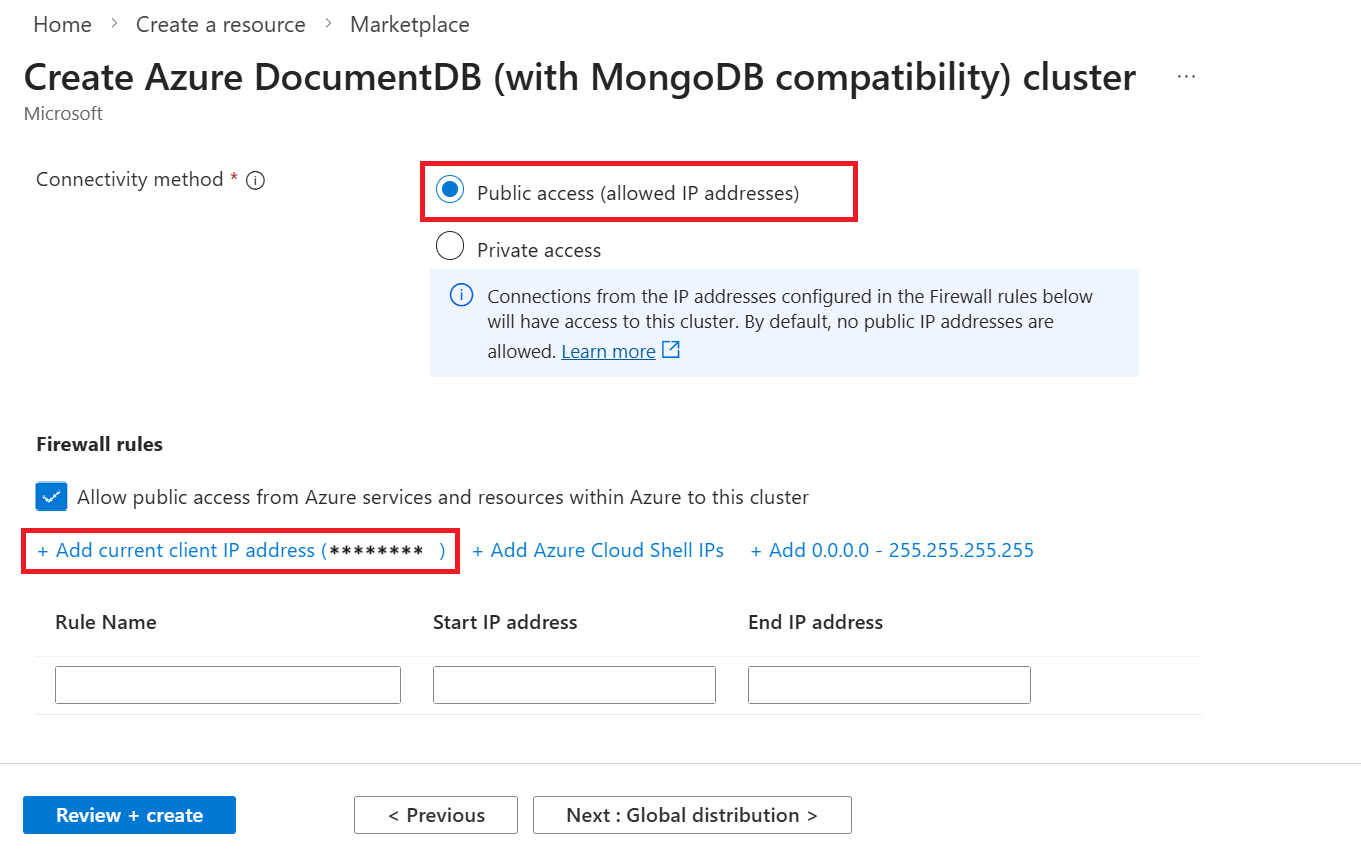
小窍门
在许多企业环境中,由于 VPN 或其他企业网络的设置,开发人员计算机 IP 地址会隐藏。 在这些情况下,可以通过将 IP 地址范围添加
0.0.0.0-255.255.255.255为防火墙规则来暂时允许访问所有 IP 地址。 将此防火墙规则暂时用作连接测试和开发的一部分。选择“查看 + 创建”。
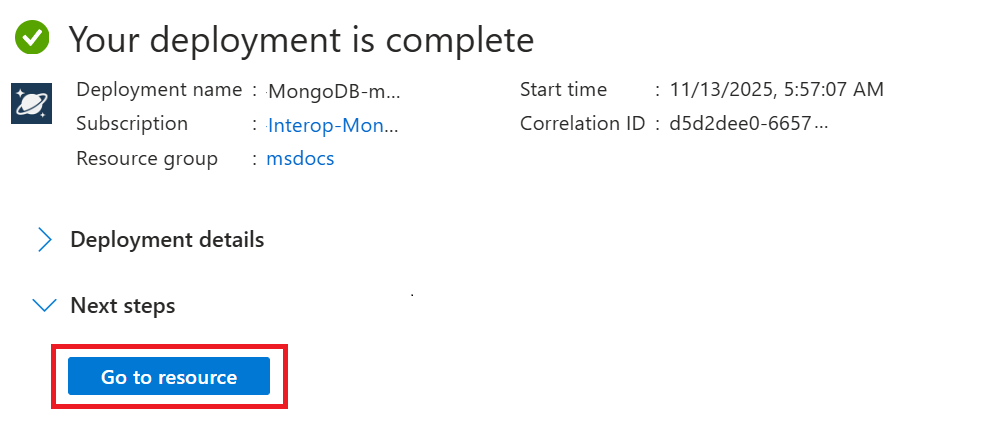
查看提供的设置,然后选择“创建”。 创建群集需要几分钟时间。 等待资源部署完成。
最后,选择转到资源导航到门户中的 Azure DocumentDB 群集。
获取群集凭据
获取用于连接到群集的凭据。
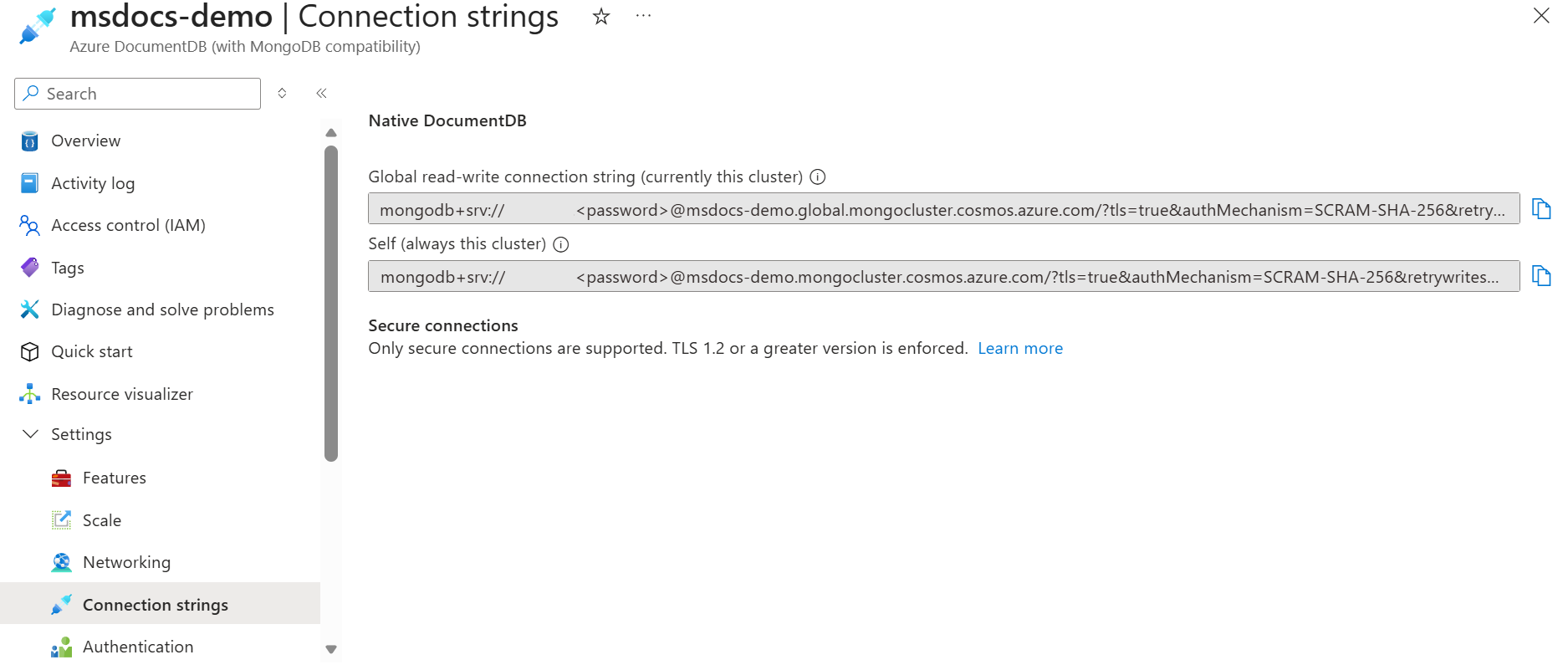
在群集页上,在资源菜单中选择 “连接字符串 ”选项。
在 “连接字符串 ”部分中,复制或记录 “连接字符串 ”字段中的值。
重要
门户中的连接字符串不包含密码值。 必须将占位符替换为 <password> 在创建群集时输入的凭据,或以交互方式输入密码。
初始化项目
在当前目录中创建新的 Go 模块。
从空目录中开始。
在当前目录中打开终端。
初始化新的 Go 模块。
go mod init azure-documentdb-go-quickstart
安装客户端库
客户端库通过 Go 提供,作为 go.mongodb.org/mongo-driver/v2/mongo 模块。
使用
go get.. 安装 MongoDB Go 驱动程序。go get go.mongodb.org/mongo-driver/v2/mongo创建一个名为应用程序代码的新 Go 文件
main.go。将所需的包导入应用程序代码:
import (
    "context"
    "fmt"
    "log"
    "time"

    "go.mongodb.org/mongo-driver/v2/bson"
    "go.mongodb.org/mongo-driver/v2/mongo"
    "go.mongodb.org/mongo-driver/v2/mongo/options"
)
对象模型
| Name | Description |
|---|---|
mongo.Client |
用于连接到 MongoDB 的类型。 |
mongo.Database |
表示群集中的数据库。 |
mongo.Collection |
表示群集中数据库内的集合。 |
代码示例
此应用程序中的代码连接到名为adventureworks的数据库和名为products的集合。 该 products 集合包含每个产品的名称、类别、数量、唯一标识符和销售标志等详细信息。 此处的代码示例在处理集合时执行最常见的作。
对客户端进行身份验证
首先,使用基本的连接字符串连接到客户端。
创建主函数并设置连接字符串。 替换
<your-cluster-name>、<your-username>和<your-password>为实际群集信息。func main() { // Connection string for Azure DocumentDB cluster connectionString := "mongodb+srv://<your-username>:<your-password>@<your-cluster-name>.global.mongocluster.cosmos.azure.cn/?tls=true&authMechanism=SCRAM-SHA-256&retrywrites=false&maxIdleTimeMS=120000" // Create client options clientOptions := options.Client().ApplyURI(connectionString)连接到 MongoDB 客户端并验证连接。
    // Create a new client and connect to the server
    ctx, cancel := context.WithTimeout(context.Background(), 10*time.Second)
    defer cancel()

    client, err := mongo.Connect(clientOptions)
    if err != nil {
        log.Fatal(err)
    }
    defer client.Disconnect(ctx)

    // Ping the primary
    err = client.Ping(ctx, nil)
    if err != nil {
        log.Fatal(err)
    }

    fmt.Println("Successfully connected and pinged Azure DocumentDB")
获取集合
现在获取数据库和集合。 如果数据库和集合尚不存在,请使用驱动程序自动创建它。
获取对数据库的引用。
    // Get database reference
    database := client.Database("adventureworks")
    fmt.Println("Connected to database:", database.Name())
获取对数据库中集合的引用。
    // Get collection reference
    collection := database.Collection("products")
    fmt.Println("Connected to collection:", collection.Name())
创建文档
然后,在集合中创建几个新文档。 向上插入文档,以确保它已使用同一唯一标识符替换任何现有文档。
定义产品类型并创建示例产品文档。
    type Product struct {
        ID       string  `bson:"_id,omitempty"`
        Name     string  `bson:"name"`
        Category string  `bson:"category"`
        Quantity int     `bson:"quantity"`
        Price    float64 `bson:"price"`
        Sale     bool    `bson:"sale"`
    }

    // Create sample products
    products := []Product{
        {
            ID:       "00000000-0000-0000-0000-000000004018",
            Name:     "Windry Mittens",
            Category: "apparel-accessories-gloves-and-mittens",
            Quantity: 121,
            Price:    35.00,
            Sale:     false,
        },
        {
            ID:       "00000000-0000-0000-0000-000000004318",
            Name:     "Niborio Tent",
            Category: "gear-camp-tents",
            Quantity: 140,
            Price:    420.00,
            Sale:     true,
        },
    }
通过upsert操作插入文档。
    // Insert documents with upsert
    for _, product := range products {
        filter := bson.M{"_id": product.ID}
        update := bson.M{"$set": product}
        opts := options.UpdateOne().SetUpsert(true)

        result, err := collection.UpdateOne(ctx, filter, update, opts)
        if err != nil {
            log.Fatal(err)
        }

        if result.UpsertedID != nil {
            fmt.Printf("Inserted document with ID: %v\n", result.UpsertedID)
        } else {
            fmt.Printf("Updated document with ID: %s\n", product.ID)
        }
    }
检索文档
接下来,执行点读取操作,从集合中检索特定文档。
定义筛选器以按 ID 查找特定文档。
    // Retrieve a specific document by ID
    filter := bson.M{"_id": "00000000-0000-0000-0000-000000004018"}
    var retrievedProduct Product
执行查询并解码结果。
    err = collection.FindOne(ctx, filter).Decode(&retrievedProduct)
    if err != nil {
        log.Fatal(err)
    }

    fmt.Printf("Retrieved product: %+v\n", retrievedProduct)
查询文档
最后,使用 MongoDB 查询语言(MQL)查询多个文档。
定义查询以查找符合特定条件的文档。
    // Query for products on sale
    queryFilter := bson.M{"sale": true}
    cursor, err := collection.Find(ctx, queryFilter)
    if err != nil {
        log.Fatal(err)
    }
    defer cursor.Close(ctx)
遍历游标以检索所有匹配的文档。
    fmt.Println("Products on sale:")
    for cursor.Next(ctx) {
        var product Product
        if err := cursor.Decode(&product); err != nil {
            log.Fatal(err)
        }
        fmt.Printf("- %s: $%.2f (Category: %s)\n", product.Name, product.Price, product.Category)
    }

    if err := cursor.Err(); err != nil {
        log.Fatal(err)
    }
}
使用 Visual Studio Code 浏览数据
在Visual Studio Code中使用 DocumentDB 扩展来执行核心数据库操作,包括查询、插入、更新和删除数据。
打开 Visual Studio Code。
导航到 “扩展 ”视图并搜索术语
DocumentDB。 找到 DocumentDB for VS Code 扩展。选择扩展的 “安装 ”按钮。 等待安装完成。 如果系统提示,请重新加载Visual Studio Code。
在活动栏中选择相应的图标,导航到 DocumentDB 扩展。
在 “DocumentDB 连接 ”窗格中,选择“ + 新建连接...”。
在对话框中,选择 Service Discovery,然后选择 Azure DocumentDB - Azure Service Discovery。
选择Azure订阅和新创建的 Azure DocumentDB 群集。
小窍门
在许多企业环境中,由于 VPN 或其他企业网络的设置,开发人员计算机 IP 地址会隐藏。 在这些情况下,可以通过将 IP 地址范围添加
0.0.0.0-255.255.255.255为防火墙规则来暂时允许访问所有 IP 地址。 将此防火墙规则暂时用作连接测试和开发的一部分。 有关详细信息,请参阅 配置防火墙。返回到“DocumentDB 连接”面板,展开你的群集节点,然后导航到现有文档和集合节点。
打开集合的上下文菜单,然后选择 DocumentDB 剪贴簿 > “新建 DocumentDB 剪贴簿”。
输入以下 MongoDB 查询语言 (MQL) 命令,然后选择“ 全部运行”。 观察命令的输出。
db.products.find({
  price: { $gt: 200 },
  sale: true
})
.sort({ price: -1 })
.limit(3)
清理资源
完成 Azure DocumentDB 群集后,可以删除创建的Azure资源,以免产生更多费用。
在Azure门户搜索栏中,搜索并选择资源组。
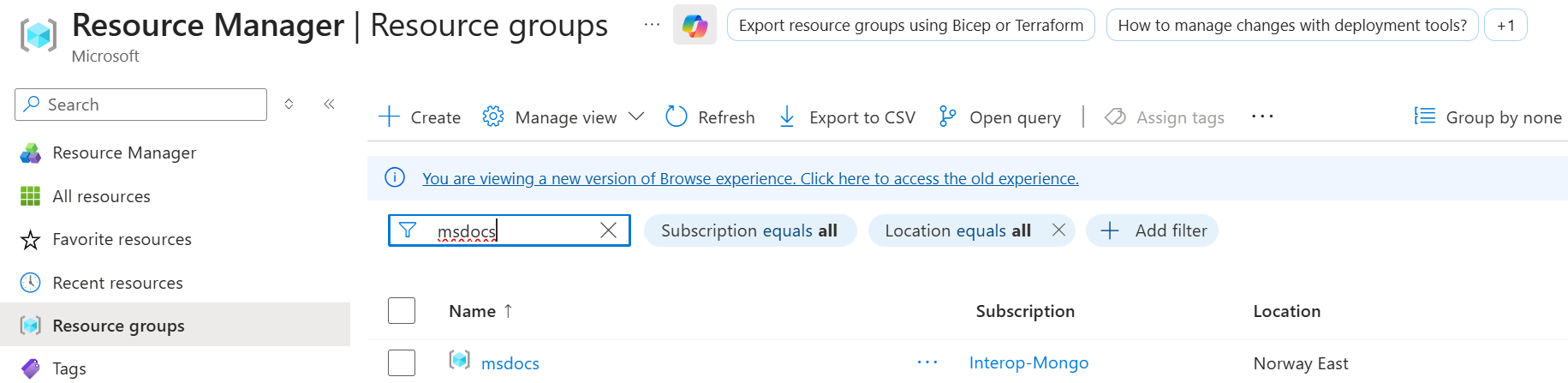
在列表中选择为本快速入门使用的资源组。
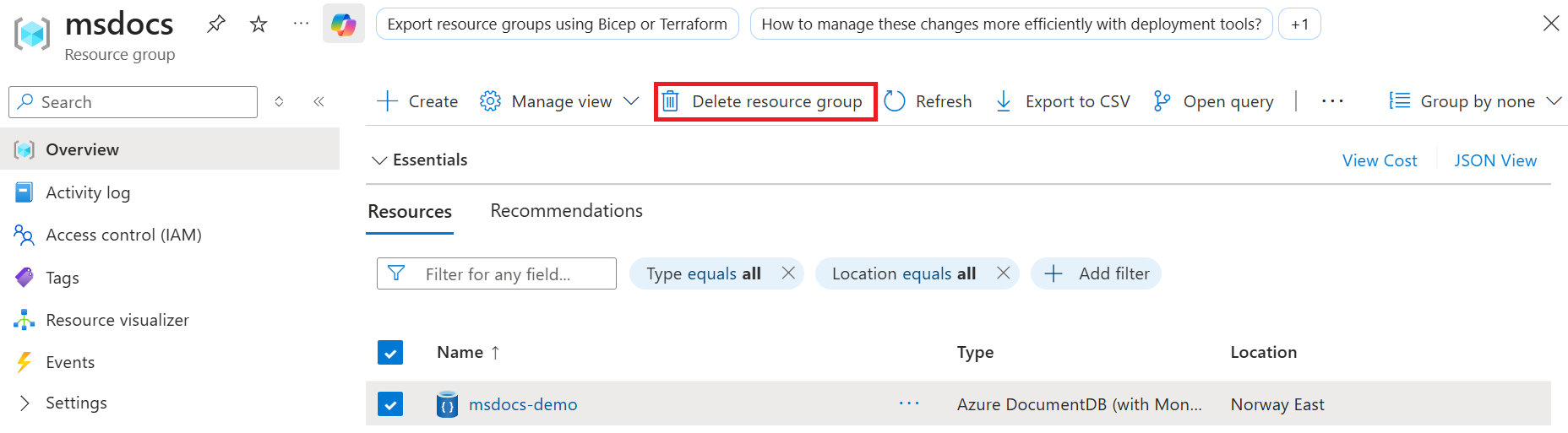
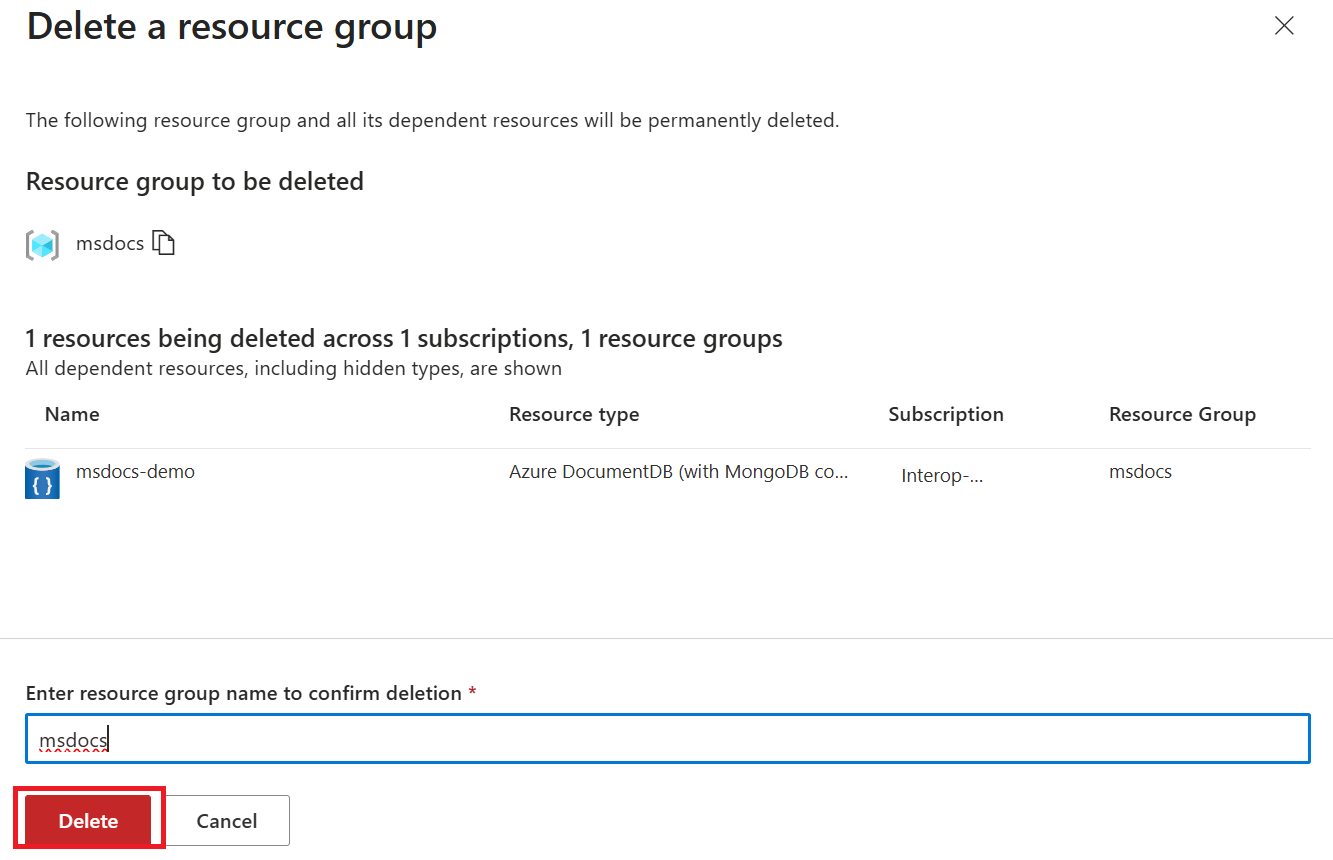
在资源组页上,选择“删除资源组”。
在删除确认对话框中,输入资源组的名称以确认要删除它。 最后,选择“删除”以永久删除资源组。