Observação
O acesso a essa página exige autorização. Você pode tentar entrar ou alterar diretórios.
O acesso a essa página exige autorização. Você pode tentar alterar os diretórios.
如今,企业正逐步向最终用户(外部)或员工(内部)创建移动应用程序。 它们现有的后端系统是大型机或某些 LoB 应用程序,这些应用程序必须集成到移动应用程序体系结构中。 本指南讨论如何最佳地进行此集成,并推荐针对常见场景的解决方案。
频繁要求是在后端系统中发生相关事件时,通过移动应用程序向用户发送推送通知。 例如,在 iPhone 上安装了银行应用的银行客户希望在其账户有超过特定金额的借记交易时收到通知;或者在一个内联网场景中,来自财务部门的员工在 Windows Phone 上拥有预算审批应用,并希望在收到审批请求时得到通知。
银行帐户或审批处理可能在某些后端系统中完成,这必须向用户发起推送。 可能有多个此类后端系统,这些系统必须在事件触发通知时生成相同的逻辑进行推送。 此处的复杂性在于将多个后端系统与单个推送系统集成,最终用户可能订阅了不同的通知,甚至可能有多个移动应用程序。 例如,一个移动应用程序可能需要从多个此类后端系统接收通知的 Intranet 移动应用。 后端系统不知道或需要知道推送语义/技术,因此,这里的常见解决方案是引入一个组件,该组件轮询后端系统是否有任何感兴趣的事件,并负责将推送消息发送到客户端。
更好的解决方案是使用 Azure Service Bus - 主题/订阅模型,这可以减少复杂性,同时使解决方案可缩放。
下面是解决方案的一般体系结构(使用多个移动应用通用化,但当只有一个移动应用时同样适用)
Architecture

在此架构图中,关键部分是Azure Service Bus,它提供了主题/订阅的编程模型(更多信息请参考Service Bus Pub/Sub 编程)。 在这种情况下,接收方是移动后端(通常为
- 后端系统(LoB/传统系统)
- 创建 Service Bus 主题
- 发送消息
- 移动后端
- 创建服务订阅
- 接收消息(来自后端系统)
- 将通知发送到客户端(通过Azure通知中心)
- 移动应用程序
- 接收和显示通知
优点
- 接收者(通过通知中心的移动应用/服务)与发送者(后端系统)之间的解耦,使得其他后端系统能够以最小的变更进行集成。
- 它还使多个移动应用能够从一个或多个后端系统接收事件。
Sample
先决条件
完成以下教程,熟悉概念以及常见的创建和配置步骤:
- Service Bus Pub/Sub 编程 - 本教程介绍了如何使用 Service Bus Topics/Subscriptions、如何创建包含主题/订阅的命名空间、如何从主题/订阅发送和接收消息的详细信息。
- 通知中心 - Windows 通用教程 - 本教程介绍如何设置 Windows 应用商店应用并使用通知中心注册并接收通知。
代码示例
完整的示例代码可在 Notification Hub Samples 获取。 它分为三个组件:
EnterprisePushBackendSystem
a。 此项目使用 Azure.Messaging.ServiceBus NuGet 包,并基于 Service Bus Pub/Sub 编程。
b. 此应用程序是一个简单的 C# 控制台应用,用于模拟 LoB 系统,它启动要传递到移动应用的消息。
static async Task Main(string[] args)
{
    string connectionString =
        ConfigurationManager.AppSettings.Get("Azure.ServiceBus.ConnectionString");

    // Create the topic
    await CreateTopicAsync(connectionString);

    // Send message
    await SendMessageAsync(connectionString);
}
c.
CreateTopicAsync用于创建Service Bus主题。public static async Task CreateTopicAsync(string connectionString) { // Create the topic if it does not exist already ServiceBusAdministrationClient client = new ServiceBusAdministrationClient(connectionString); if (!await client.TopicExistsAsync(topicName)) { await client.CreateTopicAsync(topicName); } }d.
SendMessageAsync用于将消息发送到此 Service Bus 主题。 此代码只是为了示例目的定期向主题发送一组随机消息。 通常有一个后端系统,在事件发生时发送消息。public static sync Task SendMessageAsync(string connectionString) { await using var client = new ServiceBusClient(connectionString); ServiceBusSender sender = client.CreateSender(topicName); // Sends random messages every 10 seconds to the topic string[] messages = { "Employee Id '{0}' has joined.", "Employee Id '{0}' has left.", "Employee Id '{0}' has switched to a different team." }; while (true) { Random rnd = new Random(); string employeeId = rnd.Next(10000, 99999).ToString(); string notification = String.Format(messages[rnd.Next(0,messages.Length)], employeeId); // Send Notification ServiceBusMessage message = new ServiceBusMessage(notification); await sender.SendMessageAsync(message); Console.WriteLine("{0} Message sent - '{1}'", DateTime.Now, notification); System.Threading.Thread.Sleep(new TimeSpan(0, 0, 10)); } }ReceiveAndSendNotification
a。 此项目使用 Azure.Messaging.ServiceBus 和 Microsoft.Web.WebJobs.Publish NuGet 包,并基于 服务总线发布/订阅编程。
b. 以下控制台应用作为 Azure WebJob 运行,因为它必须连续运行以侦听来自 LoB/后端系统的消息。 此应用程序是移动后端的一部分。
static async Task Main(string[] args)
{
    string connectionString =
             ConfigurationManager.AppSettings.Get("Azure.ServiceBus.ConnectionString");

    // Create the subscription that receives messages
    await CreateSubscriptionAsync(connectionString);

    // Receive message
    await ReceiveMessageAndSendNotificationAsync(connectionString);
}
c.
CreateSubscriptionAsync用于为后端系统发送消息的主题创建服务总线订阅。 根据业务方案,此组件会创建一个或多个相应主题的订阅(例如,有些订阅可能从 HR 系统接收消息,部分订阅来自Finance系统,等等)static async Task CreateSubscriptionAsync(string connectionString) { // Create the subscription if it does not exist already ServiceBusAdministrationClient client = new ServiceBusAdministrationClient(connectionString); if (!await client.SubscriptionExistsAsync(topicName, subscriptionName)) { await client.CreateSubscriptionAsync(topicName, subscriptionName); } }d.
ReceiveMessageAndSendNotificationAsync用于使用其订阅从主题中读取消息,如果读取成功,则创建通知(例如:Windows 系统的原生 Toast 通知),通过 Azure 通知中心发送到移动应用程序。static async Task ReceiveMessageAndSendNotificationAsync(string connectionString) { // Initialize the Notification Hub string hubConnectionString = ConfigurationManager.AppSettings.Get ("Microsoft.NotificationHub.ConnectionString"); hub = NotificationHubClient.CreateClientFromConnectionString (hubConnectionString, "enterprisepushservicehub"); ServiceBusClient Client = new ServiceBusClient(connectionString); ServiceBusReceiver receiver = Client.CreateReceiver(topicName, subscriptionName); // Continuously process messages received from the subscription while (true) { ServiceBusReceivedMessage message = await receiver.ReceiveMessageAsync(); var toastMessage = @"<toast><visual><binding template=""ToastText01""><text id=""1"">{messagepayload}</text></binding></visual></toast>"; if (message != null) { try { Console.WriteLine(message.MessageId); Console.WriteLine(message.SequenceNumber); string messageBody = message.Body.ToString(); Console.WriteLine("Body: " + messageBody + "\n"); toastMessage = toastMessage.Replace("{messagepayload}", messageBody); SendNotificationAsync(toastMessage); // Remove message from subscription await receiver.CompleteMessageAsync(message); } catch (Exception) { // Indicate a problem, unlock message in subscription await receiver.AbandonMessageAsync(message); } } } } static async void SendNotificationAsync(string message) { await hub.SendWindowsNativeNotificationAsync(message); }e. 若要将此应用发布为 WebJob,请在 Visual Studio 中右键单击解决方案,然后选择 Publish 作为 WebJob

f. 选择您的发布配置文件,并在尚无 Azure 网站时创建一个新的网站(该网站托管此 WebJob),拥有网站后就可以 发布。

“发布 Web”对话框的屏幕截图,其中选择了“Azure网站”选项,绿色箭头指向“选择现有网站”对话框,其中“新建”选项以红色显示,绿色箭头指向“Azure”对话框的“创建网站”对话框,其中“网站名称”和“创建”选项以红色显示。
g. 将作业配置为“连续运行”,以便您在登录 Azure portal 时看到如下内容:
&
& Azure 门户的屏幕截图,显示企业推送后端 Web 作业以及其中名称、计划和日志的值被红色框标出。& &EnterprisePushMobileApp
a。 此应用程序是 Windows 应用商店应用程序,它从作为移动后端的一部分运行的 WebJob 接收 Toast 通知并显示它。 此代码基于 通知中心 - Windows 通用教程。
b. 确保启用应用程序以接收 Toast 通知。
c. 确保在应用启动时调用以下通知中心注册代码(在替换
HubName和DefaultListenSharedAccessSignature值后)。private async void InitNotificationsAsync() { var channel = await PushNotificationChannelManager.CreatePushNotificationChannelForApplicationAsync(); var hub = new NotificationHub("[HubName]", "[DefaultListenSharedAccessSignature]"); var result = await hub.RegisterNativeAsync(channel.Uri); // Displays the registration ID so you know it was successful if (result.RegistrationId != null) { var dialog = new MessageDialog("Registration successful: " + result.RegistrationId); dialog.Commands.Add(new UICommand("OK")); await dialog.ShowAsync(); } }
运行示例
确保您的 WebJob 正在成功运行,并已设置为持续运行。
运行启动 Windows 应用商店应用的 EnterprisePushMobileApp。
运行 EnterprisePushBackendSystem 控制台应用程序,该应用程序模拟 LoB 后端并开始发送消息,应会看到 Toast 通知如下图所示:
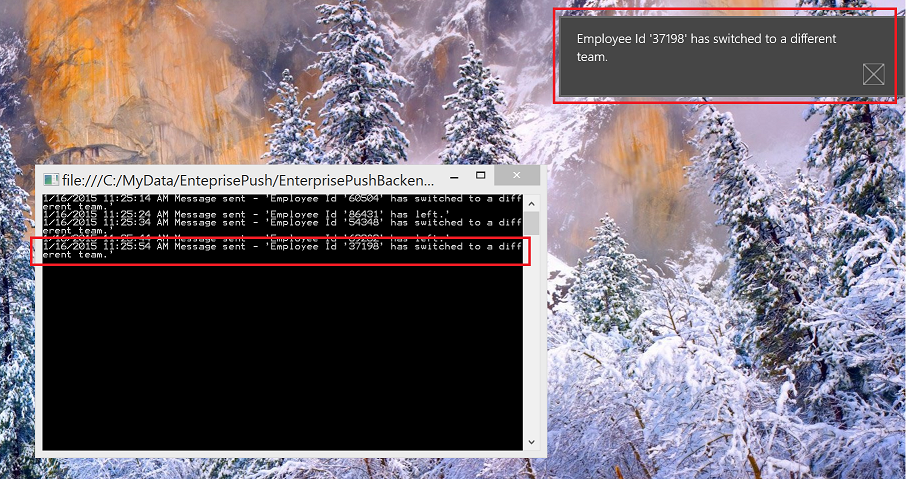
这些消息最初被发送到Service Bus主题,这些主题由您的WebJob中的Service Bus订阅进行监视。 收到消息后,将创建通知并将其发送到移动应用。 在 Azure portal 中,您可以单击“日志”链接查看 WebJob 日志,以确认处理过程。
