可以使用 Microsoft Entra Kerberos 为设备执行Microsoft Entra混合联接,而无需Active Directory 联合身份验证服务(AD FS)或Microsoft Entra Connect 同步。无需设置 AD FS 即可立即获取Microsoft Entra混合加入行为。
用例
为预览版启用了以下用例:
- 在托管环境中部署具有Microsoft Entra混合联接的非持久性虚拟桌面基础结构 (VDI)。
- 为有 Microsoft Entra Cloud Sync 或想要使用该服务的客户部署 Microsoft Entra 混合加入。
- 改善Azure 虚拟桌面和Windows 365混合部署的预配体验。
- 为无法使用 Microsoft Entra Connect Sync 的断开连接环境实施 Microsoft Entra 混合联接。
先决条件
请确保您已设置以下权限和配置,以使用 Microsoft Entra Kerberos 执行 Microsoft Entra 混合联接。 没有许可证要求。
角色要求:创建和配置 Entra Kerberos 受信任域对象的用户需要以下角色:
- 本地Active Directory 域服务域管理员和企业管理员组的成员
- Microsoft Entra ID中的 Hybrid Identity Administrator
有关详细信息,请参阅 创建并配置 Microsoft Entra Kerberos 受信任的域对象。
配置密钥分发中心(KDC)代理服务器组策略对象(GPO):仅当将 KDC 代理服务器 GPO 部署到客户端计算机时,才需要满足此先决条件。 配置 GPO 的用户必须是域管理员或委派权限才能配置 GPO。
配置Microsoft Entra设备注册服务主体:向Microsoft Entra设备注册服务主体添加 Kerberos 条目。 配置服务主体的用户必须具有 应用程序管理员 角色。
部署运行 Windows Server 2025 的域控制器:在 Active Directory 域中安装至少一个运行 Windows Server 2025 build 26100.6905 或更高版本的域控制器。
为使用 Entra Kerberos 的联接配置客户端计算机:需要在希望使用 Entra Kerberos 进行 Entra 混合联接注册的客户端计算机上部署Windows 11 内部版本 26100.6584或更高版本。
注释
客户端计算机在加入域期间必须与运行Windows Server 2025的域控制器保持畅通的网络连接。
配置服务连接点(SCP):可以使用 Microsoft Entra Connect,或使用 PowerShell 写入 Active Directory 域服务(AD DS)。 有关详细信息,请参阅 配置服务连接点。
创建和配置 Microsoft Entra Kerberos 受信任域对象
请按照 为Microsoft Entra ID传入的基于信任的流设置Windows身份验证的步骤。
配置 KDC 代理服务器 GPO
如果未在客户端计算机上部署 KDC 代理服务器 GPO,请跳过本部分。
- 查找 Microsoft Entra 租户 ID。
- 使用基于传入信任的流将以下组策略设置部署到客户端计算机:
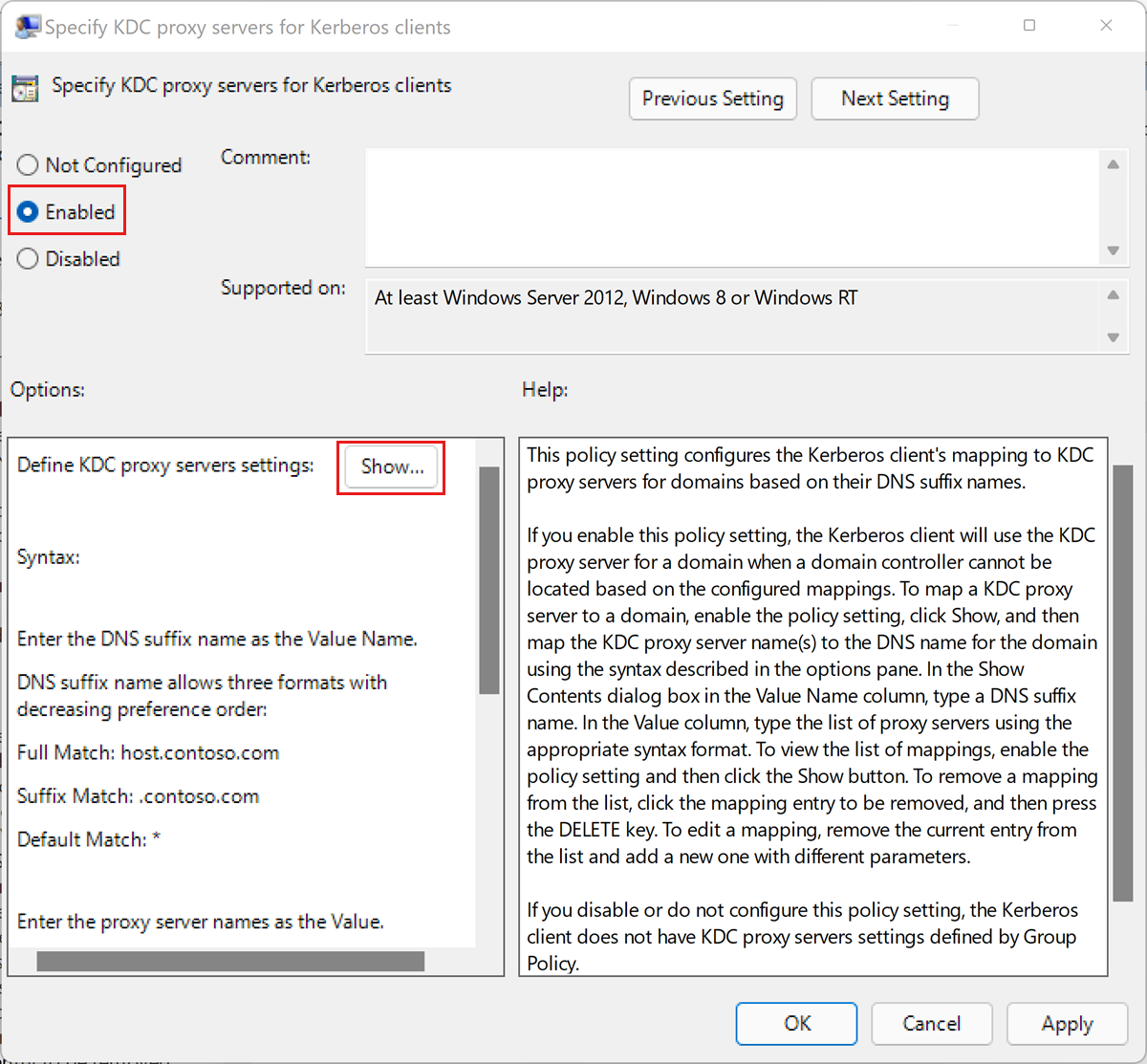
编辑“管理模板\系统\Kerberos\指定 Kerberos 客户端的 KDC 代理服务器”策略设置。
- 如果策略 未配置,请转到步骤 e。
- 如果策略 为“已禁用”,请选择“ 已启用”。
在 “选项”下,选择“ 显示...”。这将打开“ 显示内容 ”对话框。
使用以下映射定义 KDC 代理服务器设置。 将 Microsoft Entra 租户 ID 替换为
your_Microsoft Entra_tenant_id。 在 https 之后和值映射中的结束/之前,会出现空白空间。值名称 价值 KERBEROS.MICROSOFTONLINE.COM https login.partner.microsoftonline.cn:443:your_Microsoft Entra_tenant_id/kerberos /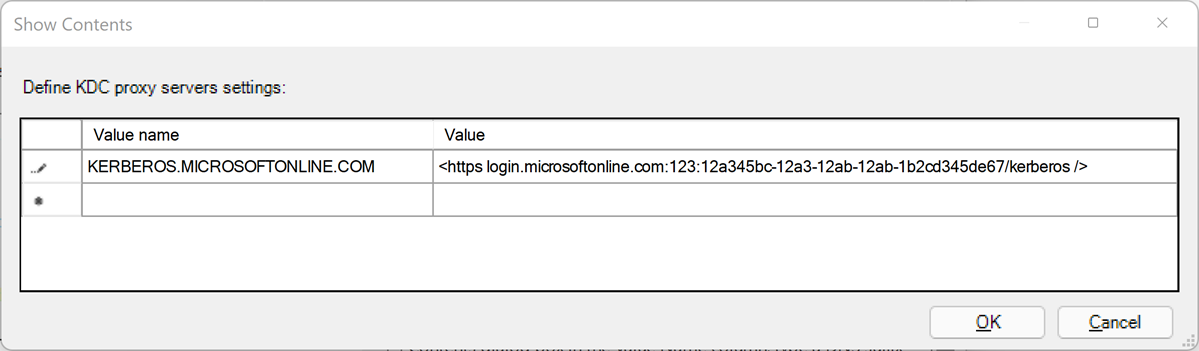
选择 “确定 ”关闭“ 显示内容 ”对话框。
在“指定 Kerberos 客户端的 KDC 代理服务器”对话框中,选择“应用”。
配置Microsoft Entra设备注册服务主体
通过选择“ 以管理员身份运行”打开提升的 PowerShell 会话。
运行以下 PowerShell 命令,并使用具有 Application Administrator 角色的 Microsoft Entra 帐户进行身份验证。
Connect-Entra -Environment China -ClientId 'YOUR_CLIENT_ID' -TenantId 'YOUR_TENANT_ID' -Scopes "Application.ReadWrite.All"运行以下命令来检查服务主体设置:
$drsSP = Get-EntraServicePrincipal -Filter "AppId eq '01cb2876-7ebd-4aa4-9cc9-d28bd4d359a9'"
$drsSP.ServicePrincipalNames
检查显示的服务主体名称。 如果
adrs/enterpriseregistration.partner.microsoftonline.cn未被列出,请运行以下命令来添加它:$spns = [System.Collections.Generic.List[string]]::new($drsSP.ServicePrincipalNames) $kerbSpn = "adrs/enterpriseregistration.partner.microsoftonline.cn" $spns.Add($kerbSpn) Set-EntraServicePrincipal -ObjectId $drsSp.ObjectId -ServicePrincipalNames $spns $drsSP.ServicePrincipalNames注释
再次检查显示的服务主体名称。
adrs/enterpriseregistration.partner.microsoftonline.cn应列出服务主体名称。 Microsoft Azure主权云具有不同的服务主体名称。运行以下命令来检查服务主体的标记:
$drsSP.Tags检查显示的标记。 如果
KerberosPolicy:ExchangeForJwt未列出,请运行以下命令以添加它。$tags = [System.Collections.Generic.List[string]]::new($drsSP.Tags) $tags.Add("KerberosPolicy:ExchangeForJwt") Set-EntraServicePrincipal -ObjectId $drsSP.ObjectId -Tags $tags
也可以运行以下脚本:
# Use specific environment for your sovereign cloud
# Run Get-EntraEnvironment to retrieve the list of predefined environments

Connect-Entra -Environment China -ClientId 'YOUR_CLIENT_ID' -TenantId 'YOUR_TENANT_ID' -Scopes "Application.ReadWrite.All"

# Get the service principal

$drsSP = Get-EntraServicePrincipal -Filter "AppId eq '01cb2876-7ebd-4aa4-9cc9-d28bd4d359a9'"

# Prepare both updates

$needsUpdate = $false
$spns = [System.Collections.Generic.List[string]]::new($drsSP.ServicePrincipalNames)
$tags = [System.Collections.Generic.List[string]]::new($drsSP.Tags)

# Configure Kerberos SPN

$kerbSpn = "adrs/enterpriseregistration.partner.microsoftonline.cn"
if ($drsSP.ServicePrincipalNames -notcontains $kerbSpn) {
Write-Host "Kerberos SPN needs to be added"
$spns.Add($kerbSpn)
$needsUpdate = $true

}

# Configure Kerberos policy tag

$kerberosTag = "KerberosPolicy:ExchangeForJwt"
if ($drsSP.Tags -notcontains $kerberosTag) {
Write-Host "Kerberos policy tag needs to be added"
$tags.Add($kerberosTag)
$needsUpdate = $true

}

# Single update operation

if ($needsUpdate) {
Write-Host "Updating service principal configuration..."
Set-EntraServicePrincipal -ObjectId $drsSP.Id -ServicePrincipalNames $spns -Tags $tags
Write-Host "Service principal configuration updated successfully"
} else {
Write-Host "Service principal already configured correctly"

}

# Display final configuration

$drsSP = Get-EntraServicePrincipal -Filter "AppId eq '01cb2876-7ebd-4aa4-9cc9-d28bd4d359a9'"
Write-Host "`nFinal Configuration:"
Write-Host "SPNs:"
$drsSP.ServicePrincipalNames | ForEach-Object { Write-Host " $_" }
Write-Host "Tags:"
$drsSP.Tags | ForEach-Object { Write-Host " $_" }
部署运行 Windows Server 2025 的域控制器
按照以下 说明 将域控制器部署到域。 请确保域控制器运行 Windows Server 2025 build 26100.6905 或更高版本。
注释
需要在每个要使用 Microsoft Entra Kerberos 执行 Microsoft Entra 混合联接的域中安装一个运行 Windows Server 2025 的域控制器。
为 Microsoft Entra Kerberos 联接配置客户端计算机
- 在客户端计算机上部署 Windows 11 内部版本 26100.6584 或更高版本,或使用Windows更新更新现有Windows 11客户端计算机。
- 将客户端计算机加入Active Directory域并重启它。
FAQ
Question:使用 Entra Kerberos 的 Microsoft Entra 混合加入能否失败?
Answer:如果在加入期间与运行 Windows Server 2025 的域控制器的网络连接受阻,或者如果其他 先决条件 不完整,则会发生故障。
故障排除
帮助排查错误的指南,请参阅以下文章:
若要收集 Kerberos 日志,请执行以下步骤:
从 https://aka.ms/authscripts中下载和解压缩日志记录脚本。
如果有多个域控制器运行 Windows Server 2025,请禁用除一个域控制器以外的所有域控制器上的 KDC 服务。 运行以下命令以停止域控制器上的 KDC 服务:
net stop kdc在运行 KDC 服务的 Windows Server 2025 的剩余域控制器上,打开具有管理员权限的 PowerShell 窗口,运行以下脚本:
start-auth.ps1在客户端计算机上,使用管理员权限打开 PowerShell 窗口,运行以下脚本:
start-auth.ps1在客户端计算机上,打开具有管理员权限的 cmd 窗口,运行以下命令:
dsregcmd /join在客户端计算机上的 PowerShell 窗口中,运行以下脚本:
stop-auth.ps1在运行 Windows Server 2025 且 KDC 服务正在运行的域控制器上,在 PowerShell 窗口中运行以下脚本:
stop-auth.ps1可以在运行 Windows Server 2025 的额外域控制器上重启 KDC 服务。 运行以下命令,在域控制器上启动 KDC 服务:
net start kdc
Kerberos 错误
| 错误代码 | 说明 | 原因 | 解决方案 |
|---|---|---|---|
| DSREG_TOKEN_MISSING_ON_PREM_ID(0x801c0095) | 令牌不包含本地部署的 ID。 | 来自本地 Kerberos 机构的 Kerberos 票证不包含Microsoft Entra ID所需的信息。 | 对于 Active Directory 域中运行 Windows Server 2025 的每个域控制器,请确保其运行的是内部版本 26100.6905或更高版本。 |
| SEC_E_NO_AUTHENTICATING_AUTHORITY(0x80090311) | 无法联系任何机构进行身份验证。 | 无法联系运行 Windows Server 2025 的功能域控制器。 | 在 Active Directory 域中安装至少一个运行 Windows Server 2025 内部版本 26100.6905 或更高版本的域控制器。 确保 KDC 服务在此域控制器上运行,并且尝试执行混合联接的计算机可以联系此域控制器。 在域控制器上运行 dcdiag.exe,确保它正在发布其服务。 |
| Kerberos 事件日志中的SEC_E_TARGET_UNKNOWN(0x80090303)错误代码:KDC_ERR_S_PRINCIPAL_UNKNOWN(0x7) | 指定的目标未知或无法访问。 | ||
| Kerberos 事件日志中的SEC_E_LOGON_DENIED(0x8009030c)错误代码:KDC_ERR_NULL_KEY(0x9) | 登录尝试失败。 Kerberos 错误: No KerberosKeyInformation Keys found. |
找不到Microsoft Entra设备注册服务主体的 Kerberos 密钥。 | 将标记 KerberosPolicy:ExchangeForJwt 添加到服务主体。 |