适用于: Python SDK azure-ai-ml v2(当前)
了解如何为 Azure Machine Learning配置 Python 开发环境。
下表描述了本文所述的每个开发环境及其优点和缺点。
| 环境 | 优点 | 缺点 |
|---|---|---|
| 本地环境 | 可以全面控制开发环境和依赖项。 使用所选的任何生成工具、环境或 IDE 来运行。 | 启动需要更长的时间。 必须安装必要的 SDK 包,此外,必须安装一个环境(如果尚未安装)。 |
| Azure Machine Learning计算实例 | 开始的最简单方法。 SDK 已安装在工作区 VM 中,笔记本教程已预先克隆,随时可供运行。 | 缺少对开发环境和依赖项的控制。 Linux VM 会产生成本(VM 在不使用以避免费用时可以停止)。 请参阅 分类详细信息。 |
| Data Science Virtual Machine (DSVM) | 类似于基于云的计算实例(Python 已预安装),但还预安装了其他常用的数据科学和机器学习工具。 易于缩放,并可与其他自定义工具和工作流结合使用。 | 与基于云的计算实例相比,入门体验较慢。 |
本文还提供了以下工具的其他用法提示:
Jupyter Notebook:如果已在使用 Jupyter Notebook,则应安装 SDK 的某些附加功能。
Visual Studio代码:如果使用 Visual Studio Code,则 Azure Machine Learning 扩展包括对 Python 的语言支持,以及使Azure Machine Learning更方便、更高效地使用的功能。
先决条件
- Azure Machine Learning工作区。 如果没有工作区,可以通过
Azure portal 、Azure CLI 和Azure Resource Manager 模板2 创建Azure Machine Learning工作区。
仅限本地环境和 DSVM:创建一个工作区配置文件
工作区配置文件是一个 JSON 文件,它告知 SDK 如何与Azure Machine Learning工作区通信。 该文件命名为 config.json,其格式如下:
{
    "subscription_id": "<subscription-id>",
    "resource_group": "<resource-group>",
    "workspace_name": "<workspace-name>"
}
必须将此 JSON 文件放置在包含 Python 脚本或 Jupyter Notebook 的目录结构中。 可以将它放入同一目录、名为 azureml 的子目录或父目录。
若要从代码使用此文件,请使用 MLClient.from_config 方法。 此代码从文件中加载信息,并连接到工作区。
使用以下方法之一创建工作区配置文件:
Azure Machine Learning studio
下载文件:
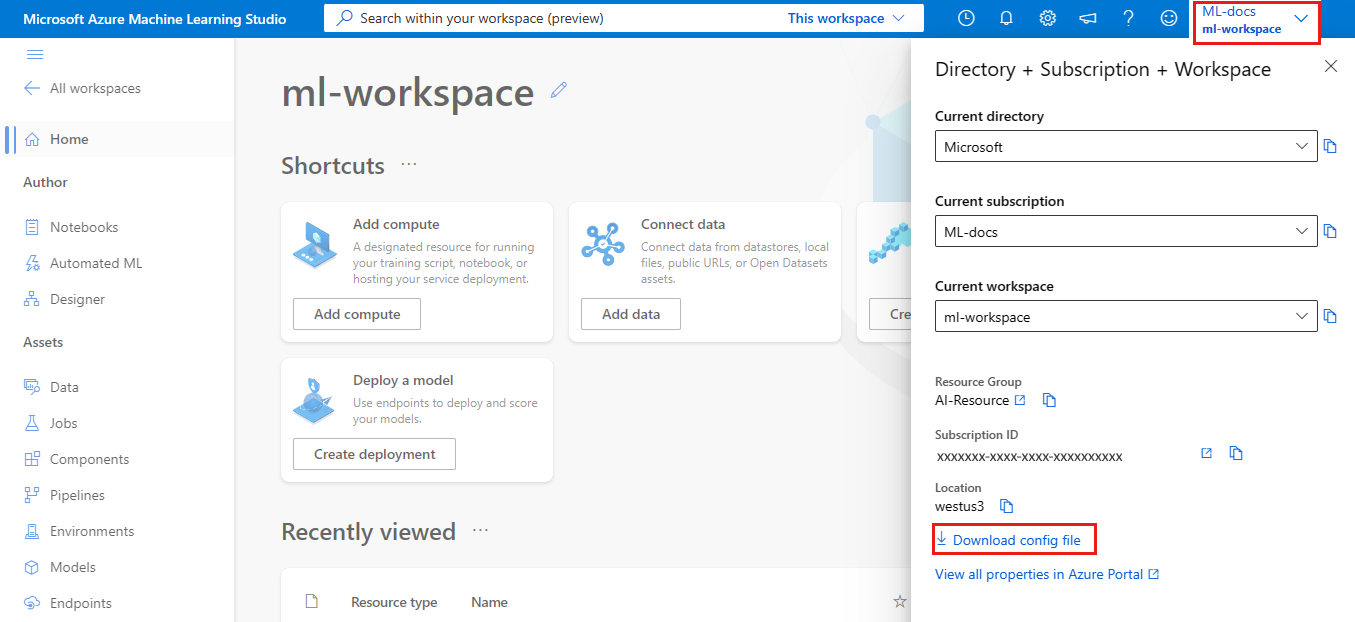
- 登录到 Azure Machine Learning studio
- 在右上角Azure Machine Learning studio工具栏中,选择工作区名称。
- 选择“下载配置文件”链接。
Azure Machine Learning Python SDK
创建用于连接到Azure Machine Learning工作区的脚本。 确保将
subscription_id、resource_group和workspace_name替换为你自己的值。适用于:
Python SDK azure-ai-ml v2(当前)#import required libraries from azure.ai.ml import MLClient from azure.identity import DefaultAzureCredential #Enter details of your Azure Machine Learning workspace subscription_id = '<SUBSCRIPTION_ID>' resource_group = '<RESOURCE_GROUP>' workspace = '<AZUREML_WORKSPACE_NAME>' #connect to the workspace ml_client = MLClient(DefaultAzureCredential(), subscription_id, resource_group, workspace)
本地计算机或远程 VM 环境
可以在本地计算机或远程虚拟机(例如Azure Machine Learning计算实例或数据科学 VM)上设置环境。
若要配置本地开发环境或远程 VM,请执行以下操作:
创建 Python 虚拟环境(virtualenv,conda)。
重要
如果使用的是 Linux 或 macOS 并使用 bash 以外的 shell(例如 zsh),则运行某些命令时可能会收到错误。 若要解决此问题,请使用
bash命令启动新的 bash shell 并运行命令。激活新创建的 Python 虚拟环境。
若要将本地环境配置为使用Azure Machine Learning工作区,创建工作区配置文件或使用现有工作区配置文件。
设置本地环境后,即可开始使用Azure Machine Learning。 请参阅 Azure 机器学习一日教程 以开始入门。
Jupyter Notebook
运行本地Jupyter Notebook服务器时,请为 Python 虚拟环境创建 IPython 内核。 此方法有助于确保预期的内核和包导入行为。
启用环境特定的 IPython 内核
conda install notebook ipykernel为你的 Python 虚拟环境创建一个内核。 将
<myenv>替换为您的 Python 虚拟环境的名称。ipython kernel install --user --name <myenv> --display-name "Python (myenv)"启动Jupyter Notebook服务器
提示
有关示例笔记本,请参阅 AzureML-Examples 存储库。 SDK 示例位于 /sdk/python 下。 例如,Configuration notebook 示例。
Visual Studio代码
若要使用 Visual Studio Code 进行开发,
安装 Visual Studio Code 扩展后,使用它可以:
Azure Machine Learning计算实例
Azure Machine Learning 计算实例是一个安全的基于云的Azure工作站,它为数据科学家提供了Jupyter Notebook服务器、JupyterLab和一个完全托管的机器学习环境。
无需为计算实例安装或配置任何组件。
随时从Azure Machine Learning工作区中创建一个。 仅提供一个名称并指定Azure VM 类型。 立即尝试使用 创建资源以开始。
若要详细了解计算实例(包括如何安装包),请参阅 创建Azure Machine Learning计算实例。
提示
若要防止未使用的计算实例产生费用, 请启用空闲关闭。
除了 Jupyter Notebook 服务器和 JupyterLab 之外,您还可以在 Azure Machine Learning Studio 的集成笔记本功能中使用计算实例。
还可以使用 Azure Machine Learning Visual Studio Code 扩展将 连接到使用 VS Code 的远程计算实例。
Data Science Virtual Machine
Data Science VM 是一种可用作开发环境的自定义虚拟机 (VM) 映像。 它专为数据科学工作而设计,并预配置了工具和软件,例如:
- TensorFlow、PyTorch、Scikit-learn、XGBoost 和 Azure Machine Learning SDK 等包
- Spark Standalone 和 Drill 等常用数据科学工具
- Azure工具,例如 Azure CLI、AzCopy 和 Storage Explorer
- 集成开发环境(例如 Visual Studio Code 和 PyCharm)
- Jupyter Notebook服务器
有关更全面的工具列表,请参阅 Data Science VM 工具指南。
重要
如果你计划将 Data Science VM 用作训练或推理作业的计算目标,则仅 Ubuntu 受支持。
若要使用 Data Science VM 作为开发环境,请执行以下操作:
使用下列方法之一创建一个 Data Science VM:
使用Azure CLI
若要创建 Ubuntu Data Science VM,请使用以下命令:
# create a Ubuntu Data Science VM in your resource group
# note you need to be at least a contributor to the resource group in order to execute this command successfully
# If you need to create a new resource group use: "az group create --name YOUR-RESOURCE-GROUP-NAME --location YOUR-REGION (For example: chinaeast2)"
az vm create --resource-group YOUR-RESOURCE-GROUP-NAME --name YOUR-VM-NAME --image microsoft-dsvm:ubuntu-2004:2004-gen2:latest --admin-username YOUR-USERNAME --admin-password YOUR-PASSWORD --generate-ssh-keys --authentication-type password
若要创建 Windows DSVM,请使用以下命令:
# create a Windows Server 2022 DSVM in your resource group
# note you need to be at least a contributor to the resource group in order to execute this command successfully
az vm create --resource-group YOUR-RESOURCE-GROUP-NAME --name YOUR-VM-NAME --image microsoft-dsvm:dsvm-windows:server-2022:latest --admin-username YOUR-USERNAME --admin-password YOUR-PASSWORD --authentication-type password
为 Azure Machine Learning SDK 创建 conda 环境:
conda create -n py310 python=3.10创建环境后,激活它并安装 SDK
conda activate py310
pip install azure-ai-ml azure-identity
若要将数据科学 VM 配置为使用Azure Machine Learning工作区,创建工作区配置文件或使用现有工作区配置文件。
提示
与本地环境类似,可以使用 Visual Studio Code 和 Azure Machine Learning Visual Studio Code 扩展与Azure Machine Learning进行交互。
有关详细信息,请参阅 Data Science Virtual Machines。
后续步骤
- 开始使用 Azure Machine Learning。
- 请参阅适用于 Python 的 Azure Machine Learning SDK 参考。