本文介绍如何使用示例数据收集规则(DCR)创建自定义表,以及如何使用自定义列管理表架构。
数据收集规则(DCR)控制Azure Monitor收集数据的方式。 它们允许在日志数据到达Azure或自定义表之前对其进行筛选和转换。
自定义列扩展表的架构,以适应数据源或组织的分析要求的变化。 更新表架构时,更新向该表发送数据的任何 DCR。
先决条件
| Action |
所需权限 |
| 管理数据表 |
Microsoft.OperationalInsights/workspaces/* Log Analytics 工作区范围或更高级别的权限。
例如,由特权内置角色 Log Analytics参与者 提供。 |
若要将数据引入表中,可能需要以下项:
请考虑以下附加要求:
- Log Analytics工作区中的所有表都必须有一列
TimeGenerated,该列标识记录的引入时间。 如果缺少该列,Azure Monitor 会自动将其添加到你的 DCR 中该表的转换里。 有关详细信息,请参阅 支持的日期/时间格式。
- 辅助/Lake 表计划仅支持采用 ISO 8601 格式且精度为六位小数(微秒)的
TimeGenerated 列。 有关详细信息,请参阅 支持的 ISO 8601 日期/时间格式。
创建自定义表
Azure 表具有预定义的架构。 若要将日志数据存储在不同的架构中,请使用数据收集规则来定义如何收集数据、转换数据以及将数据发送到 Log Analytics 工作区中的自定义表。 创建自定义表时,请根据数据使用情况和成本要求选择 表计划(分析(默认)、基本或 辅助 / 数据湖)。
自定义表的后缀为“_CL”;例如,tablename_CL。 Azure 门户会自动将 _CL 后缀添加到表名。 使用其他方法创建自定义表时,需要自行添加 _CL 后缀。 数据收集规则内数据流属性中的 tablename_CL 必须与 Log Analytics 工作区中的 tablename_CL 名称匹配。
警告
Azure使用表名称进行计费,因此不要在名称中包含敏感信息。
若要使用 Azure 门户创建自定义表,请执行以下操作:
从“Log Analytics 工作区”菜单中,选择“Tables”。
选择“创建”。
输入名称,以及表的可选描述。 无需将 _CL 后缀添加到自定义表的名称。 门户会自动将后缀添加到指定的名称。
在 “表计划”下,选择 “分析 ”(默认值)、 “基本”或 “辅助”/“湖”。
从“数据收集规则”下拉列表中选择现有的数据收集规则,或选择“创建新的数据收集规则”并指定新数据收集规则的“订阅”、“资源组”和“名称”。
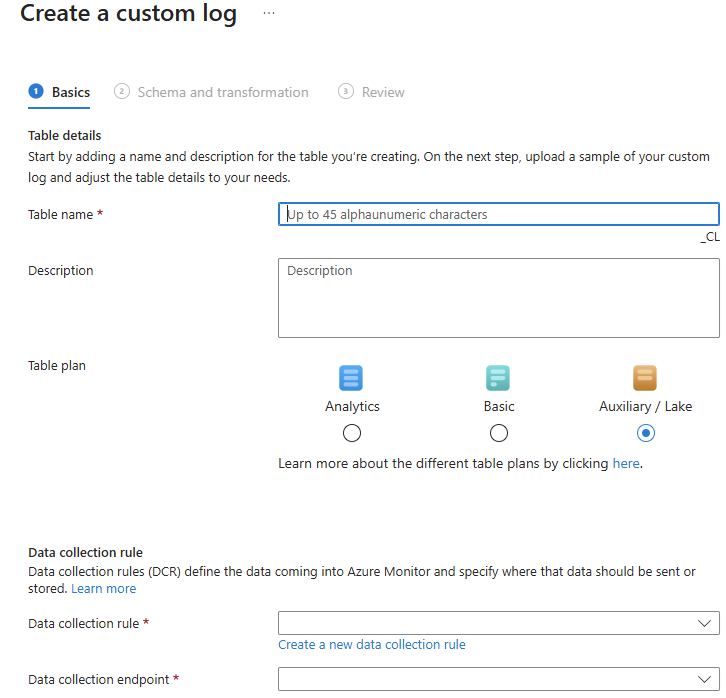
选择一个数据收集终结点,然后选择“下一步”。 如果选择了已与 DCE 关联的 DCR,则此下拉列表不可用。
选择“浏览文件”,找到具有新表的示例数据的 JSON 文件。 以下屏幕截图使用教程中脚本中的示例 JSON 文件:将数据发送到Azure Monitor日志。
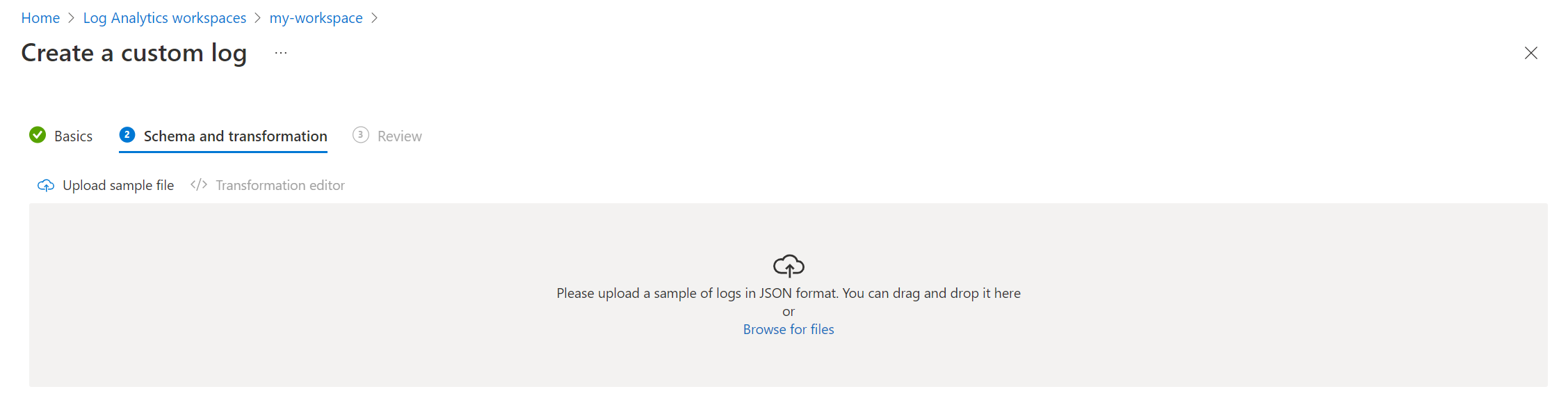
如果示例数据不包含 TimeGenerated 列,则会收到一条消息,指出门户会创建一个包含此列的转换。
如果要在将日志数据引入到表中之前对其进行转换,请执行以下操作:
选择“转换编辑器”。
使用转换编辑器可以为传入数据流创建转换。 该转换是一个对每条传入记录运行的 Kusto 查询语言 (KQL) 查询。 Azure Monitor 日志将查询结果存储在目标表中。

选择“运行”以查看结果。
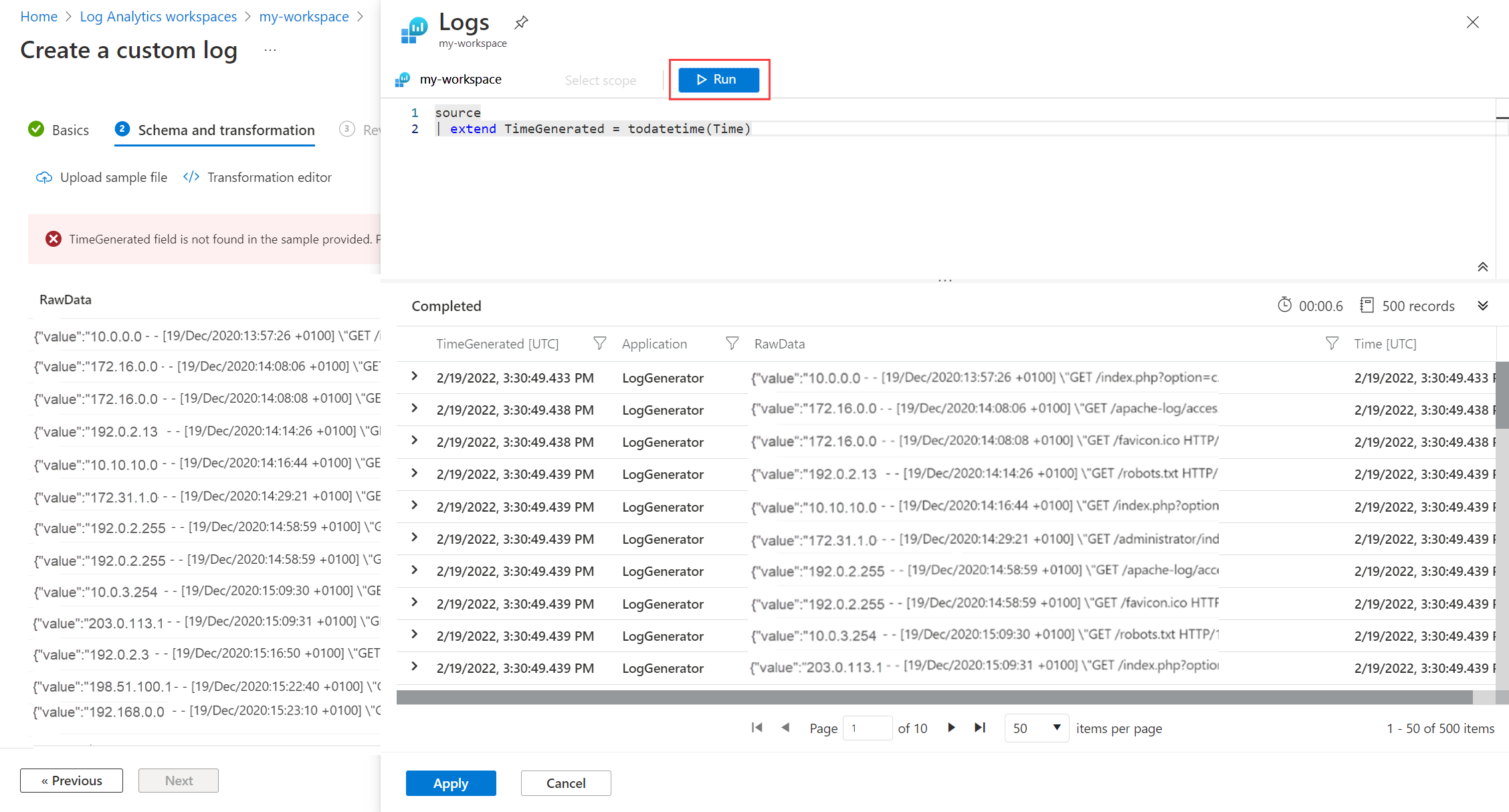
选择 “应用” 保存转换并查看新表的架构。 选择“下一步”。
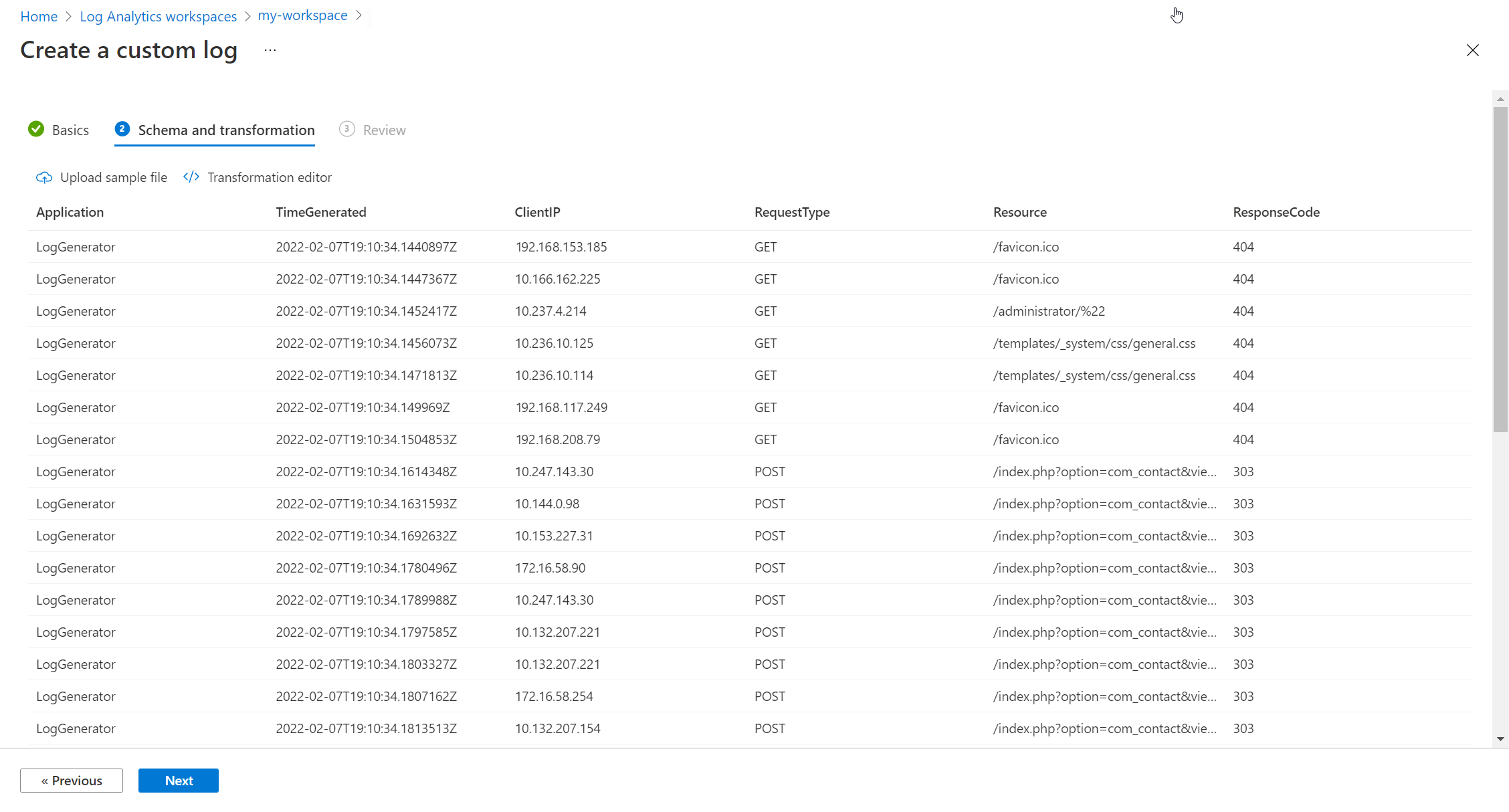
验证最终详细信息,然后选择“创建”以保存自定义日志。

以下Azure CLI示例使用az monitor log-analytics workspace table create和az monitor data-collection rule create命令。 辅助计划示例使用 az rest 调用 表 REST API 操作。
创建自定义表。 此示例使用 Analytics 计划创建自定义表。 然后,它会创建一个 DCR,该 DCR 定义如何从数据源收集数据并将其发送到自定义表。
# Set variables
resourceGroupName="<ResourceGroupName>"
workspaceName="<WorkspaceName>"
tableName="<TableName>_CL"

# Create the custom table
az monitor log-analytics workspace table create \
  --resource-group "$resourceGroupName" \
  --workspace-name "$workspaceName" \
  --name "$tableName" \
  --plan Analytics \
  --columns TimeGenerated=datetime RawData=string
若要使用 Auxiliary 计划创建自定义表,请使用 az rest 命令将请求发送到 PUT 日志管理 REST API。 请求正文指定表架构和表计划。
# Set variables
resourceGroupName="<ResourceGroupName>"
workspaceName="<WorkspaceName>"
tableName="<TableName>_CL"
apiVersion="<ApiVersion>"
payloadFile="./my-table.json"

# Get the subscription ID from the current Azure CLI context
subscriptionId=$(az account show --query id --output tsv)

# Build the request URL
path="/subscriptions/$subscriptionId/resourceGroups/$resourceGroupName"
provider="Microsoft.OperationalInsights/workspaces/$workspaceName/tables/$tableName"
url="$path/providers/$provider"

# Create the custom table
az rest \
  --method put \
  --url "$url?api-version=$apiVersion" \
  --body @"$payloadFile"
注释
此示例列出了除 之外 guid的所有受支持的列数据类型。 Log Analytics将 GUID 存储并查询为string类型,即使将列定义为guid类型。
定义辅助表架构和保留设置
{
  "properties": {
    "schema": {
      "name": "<TableName>_CL",
      "columns": [
        {
          "name": "TimeGenerated",
          "type": "dateTime"
        },
        {
          "name": "StringProperty",
          "type": "string"
        },
        {
          "name": "IntProperty",
          "type": "int"
        },
        {
          "name": "LongProperty",
          "type": "long"
        },
        {
          "name": "RealProperty",
          "type": "real"
        },
        {
          "name": "BooleanProperty",
          "type": "boolean"
        },
        {
          "name": "DateTimeProperty",
          "type": "dateTime"
        },
        {
          "name": "DynamicProperty",
          "type": "dynamic"
        }
      ]
    },
    "totalRetentionInDays": 365,
    "plan": "Auxiliary"
  }
}
创建一个数据收集规则,用于将通过日志引入 API 发送的数据路由到自定义表。 此示例使用 az monitor 数据收集规则 命令组创建 Direct DCR。
# Set variables
resourceGroupName="<ResourceGroupName>"
dataCollectionRuleName="<DataCollectionRuleName>"
ruleFile="./my-dcr.json"

# Add the extension that provides the data collection commands
az extension add --name monitor-control-service

# Create the data collection rule
az monitor data-collection rule create \
  --resource-group "$resourceGroupName" \
  --name "$dataCollectionRuleName" \
  --rule-file "$ruleFile"
注释
Azure CLI命令使用当前 CLI 上下文中的Azure 资源管理器终结点,因此无需在命令语法中指定 management.chinacloudapi.cn。
该文件 my-dcr.json 是上述命令的资源请求正文,而不是 ARM 部署模板。 对现有 DCR 进行调整时:
- 在
properties.streamDeclarations 下添加该表的流声明,并在 properties.dataFlows 下添加其路由。
- 重用或在
properties.destinations.logAnalytics 下添加工作区目标。 保留所有其他流、目标条目、数据流和资源设置。
定义引入流、工作区目标和数据流
{
  "location": "<Location>",
  "kind": "Direct",
  "properties": {
    "streamDeclarations": {
      "Custom-<TableName>_CL": {
        "columns": [
          {
            "name": "TimeGenerated",
            "type": "datetime"
          },
          {
            "name": "StringProperty",
            "type": "string"
          },
          {
            "name": "IntProperty",
            "type": "int"
          },
          {
            "name": "LongProperty",
            "type": "long"
          },
          {
            "name": "RealProperty",
            "type": "real"
          },
          {
            "name": "BooleanProperty",
            "type": "boolean"
          },
          {
            "name": "DateTimeProperty",
            "type": "datetime"
          },
          {
            "name": "DynamicProperty",
            "type": "dynamic"
          }
        ]
      }
    },
    "destinations": {
      "logAnalytics": [
        {
          "workspaceResourceId": "/subscriptions/<SubscriptionId>/resourceGroups/<ResourceGroupName>/providers/Microsoft.OperationalInsights/workspaces/<WorkspaceName>",
          "name": "<WorkspaceName>"
        }
      ]
    },
    "dataFlows": [
      {
        "streams": [
          "Custom-<TableName>_CL"
        ],
        "transformKql": "source",
        "destinations": [
          "<WorkspaceName>"
        ],
        "outputStream": "Custom-<TableName>_CL"
      }
    ]
  }
}
以下Azure PowerShell示例使用 New-AzOperationalInsightsTable cmdlet。 辅助计划示例使用 Invoke-AzRestMethod 调用 表 REST API 操作。
创建表。 此示例使用 Analytics 计划创建自定义表。
# Set variables
$resourceGroupName = "<ResourceGroupName>"
$workspaceName = "<WorkspaceName>"
$tableName = "<TableName>_CL"

# Define parameters for New-AzOperationalInsightsTable
$newAzOperationalInsightsTableParams = @{
    ResourceGroupName = $resourceGroupName
    WorkspaceName = $workspaceName
    TableName = $tableName
    RetentionInDays = 31
    TotalRetentionInDays = 365
    Plan = 'Analytics'
    Description = 'My custom table created with PowerShell'
    Column = @{'TimeGenerated'='DateTime'; 'RawData'='String'}
}

New-AzOperationalInsightsTable @newAzOperationalInsightsTableParams
若要使用 Auxiliary 计划创建自定义表,请使用 Invoke-AzRestMethod 命令将请求发送到 PUT 日志管理 REST API。 请求正文指定表架构和表计划。
# Set variables
$resourceGroupName = "<ResourceGroupName>"
$workspaceName = "<WorkspaceName>"
$tableName = "<TableName>_CL"
$apiVersion = "<ApiVersion>"
$payloadFile = ".\my-table.json"

# Get the subscription ID from the current Azure PowerShell context
$subscriptionId = (Get-AzContext).Subscription.Id

# Build the request URL
$path = "/subscriptions/$subscriptionId/resourceGroups/$resourceGroupName"
$provider = "Microsoft.OperationalInsights/workspaces/$workspaceName/tables/$tableName"
$url = "$path/providers/$provider"

# Define parameters for Invoke-AzRestMethod
$invokeAzRestMethodParams = @{
    Method  = "PUT"
    Path    = "$url?api-version=$apiVersion"
    Payload = Get-Content -Raw -Path $payloadFile
}

# Create the custom table
Invoke-AzRestMethod @invokeAzRestMethodParams
注释
此示例列出了除 之外 guid的所有受支持的列数据类型。 Log Analytics将 GUID 存储并查询为string类型,即使将列定义为guid类型。
定义辅助表架构和保留设置
{
  "properties": {
    "schema": {
      "name": "<TableName>_CL",
      "columns": [
        {
          "name": "TimeGenerated",
          "type": "dateTime"
        },
        {
          "name": "StringProperty",
          "type": "string"
        },
        {
          "name": "IntProperty",
          "type": "int"
        },
        {
          "name": "LongProperty",
          "type": "long"
        },
        {
          "name": "RealProperty",
          "type": "real"
        },
        {
          "name": "BooleanProperty",
          "type": "boolean"
        },
        {
          "name": "DateTimeProperty",
          "type": "dateTime"
        },
        {
          "name": "DynamicProperty",
          "type": "dynamic"
        }
      ]
    },
    "totalRetentionInDays": 365,
    "plan": "Auxiliary"
  }
}
创建一个数据收集规则,用于将通过日志引入 API 发送的数据路由到自定义表。 此 PowerShell 示例使用 New-AzDataCollectionRule cmdlet 创建 Direct DCR。
# Set variables
$resourceGroupName = "<ResourceGroupName>"
$dataCollectionRuleName = "<DataCollectionRuleName>"
$jsonFilePath = ".\my-dcr.json"

$newAzDataCollectionRuleParams = @{
    Name              = $dataCollectionRuleName
    ResourceGroupName = $resourceGroupName
    JsonFilePath      = $jsonFilePath
}

New-AzDataCollectionRule @newAzDataCollectionRuleParams
注释
Azure PowerShell cmdlet 使用当前 Az 上下文中的Azure 资源管理器终结点,因此无需在 cmdlet 语法中指定management.chinacloudapi.cn。
该文件 my-dcr.json 是上述命令的资源请求正文,而不是 ARM 部署模板。 对现有 DCR 进行调整时:
- 在
properties.streamDeclarations 下添加该表的流声明,并在 properties.dataFlows 下添加其路由。
- 重用或在
properties.destinations.logAnalytics 下添加工作区目标。 保留所有其他流、目标条目、数据流和资源设置。
定义引入流、工作区目标和数据流
{
  "location": "<Location>",
  "kind": "Direct",
  "properties": {
    "streamDeclarations": {
      "Custom-<TableName>_CL": {
        "columns": [
          {
            "name": "TimeGenerated",
            "type": "datetime"
          },
          {
            "name": "StringProperty",
            "type": "string"
          },
          {
            "name": "IntProperty",
            "type": "int"
          },
          {
            "name": "LongProperty",
            "type": "long"
          },
          {
            "name": "RealProperty",
            "type": "real"
          },
          {
            "name": "BooleanProperty",
            "type": "boolean"
          },
          {
            "name": "DateTimeProperty",
            "type": "datetime"
          },
          {
            "name": "DynamicProperty",
            "type": "dynamic"
          }
        ]
      }
    },
    "destinations": {
      "logAnalytics": [
        {
          "workspaceResourceId": "/subscriptions/<SubscriptionId>/resourceGroups/<ResourceGroupName>/providers/Microsoft.OperationalInsights/workspaces/<WorkspaceName>",
          "name": "<WorkspaceName>"
        }
      ]
    },
    "dataFlows": [
      {
        "streams": [
          "Custom-<TableName>_CL"
        ],
        "transformKql": "source",
        "destinations": [
          "<WorkspaceName>"
        ],
        "outputStream": "Custom-<TableName>_CL"
      }
    ]
  }
}
以下 REST 示例使用 表 和 数据收集规则 REST API 操作。
创建表。 此示例在请求有效负载中创建一个自定义表 "plan": "Auxiliary" 。
注释
此示例列出了除 之外 guid的所有受支持的列数据类型。 Log Analytics将 GUID 存储并查询为string类型,即使将列定义为guid类型。
PUT https://management.chinacloudapi.cn/subscriptions/{subscriptionId}/resourceGroups/{resourceGroupName}/providers/Microsoft.OperationalInsights/workspaces/{workspaceName}/tables/{tableName}_CL?api-version={apiVersion}
Authorization: Bearer {accessToken}
Content-Type: application/json

{
  "properties": {
    "schema": {
      "name": "<TableName>_CL",
      "columns": [
        {"name": "TimeGenerated",
          "type": "dateTime"},
        {"name": "StringProperty",
          "type": "string"},
        {"name": "IntProperty",
          "type": "int"},
        {"name": "LongProperty",
          "type": "long"},
        {"name": "RealProperty",
          "type": "real"},
        {"name": "BooleanProperty",
          "type": "boolean"},
        {"name": "DateTimeProperty",
          "type": "dateTime"},
        {"name": "DynamicProperty",
          "type": "dynamic"}
      ]
    },
    "totalRetentionInDays": 365,
    "plan": "Auxiliary"
  }
}
创建数据收集规则。 这是一个将 kind 设置为 Direct 的示例。 此 DCR 类型不需要数据收集终结点(DCE),因为它会创建自己的 logsIngestion 终结点。
-
<WorkspaceName> 是 Log Analytics 工作区的名称。
-
<TableName>_CL 是表的名称。
-
columns 包括创建表时定义的相同列。
创建 DCR 以将日志引入 API 数据路由到表
PUT https://management.chinacloudapi.cn/subscriptions/{subscriptionId}/resourceGroups/{resourceGroupName}/providers/Microsoft.Insights/dataCollectionRules/{dataCollectionRuleName}?api-version={apiVersion}
Authorization: Bearer {accessToken}
Content-Type: application/json

{
  "location": "<Location>",
  "kind": "Direct",
  "properties": {
    "streamDeclarations": {
      "Custom-<TableName>_CL": {
        "columns": [
          {
            "name": "TimeGenerated",
            "type": "datetime"
          },
          {
            "name": "StringProperty",
            "type": "string"
          },
          {
            "name": "IntProperty",
            "type": "int"
          },
          {
            "name": "LongProperty",
            "type": "long"
          },
          {
            "name": "RealProperty",
            "type": "real"
          },
          {
            "name": "BooleanProperty",
            "type": "boolean"
          },
          {
            "name": "DateTimeProperty",
            "type": "datetime"
          },
          {
            "name": "DynamicProperty",
            "type": "dynamic"
          }
        ]
      }
    },
    "destinations": {
      "logAnalytics": [
        {
          "workspaceResourceId": "/subscriptions/<SubscriptionId>/resourceGroups/<ResourceGroupName>/providers/Microsoft.OperationalInsights/workspaces/<WorkspaceName>",
          "name": "<WorkspaceName>"
        }
      ]
    },
    "dataFlows": [
      {
        "streams": [
          "Custom-<TableName>_CL"
        ],
        "transformKql": "source",
        "destinations": [
          "<WorkspaceName>"
        ],
        "outputStream": "Custom-<TableName>_CL"
      }
    ]
  }
}
使用以下 Bicep 示例创建表。 此示例使用Microsoft。OperationalInsights 工作区/表资源类型,用于创建具有自定义架构的辅助表。
该示例列出了除 之外 guid的所有受支持的列数据类型。 Log Analytics将 GUID 存储并查询为string类型,即使将列定义为guid类型。
使用自定义列架构创建辅助表
param workspaceName string = '<WorkspaceName>'
param tableName string = '<TableName>_CL'

resource workspace 'Microsoft.OperationalInsights/workspaces@<ApiVersion>' existing = {
  name: workspaceName
}

resource table 'Microsoft.OperationalInsights/workspaces/tables@<ApiVersion>' = {
  parent: workspace
  name: tableName
  properties: {
    schema: {
      name: tableName
      columns: [
        {
          name: 'TimeGenerated'
          type: 'dateTime'
        }
        {
          name: 'StringProperty'
          type: 'string'
        }
        {
          name: 'IntProperty'
          type: 'int'
        }
        {
          name: 'LongProperty'
          type: 'long'
        }
        {
          name: 'RealProperty'
          type: 'real'
        }
        {
          name: 'BooleanProperty'
          type: 'boolean'
        }
        {
          name: 'DateTimeProperty'
          type: 'dateTime'
        }
        {
          name: 'DynamicProperty'
          type: 'dynamic'
        }
      ]
    }
    totalRetentionInDays: 365
    plan: 'Auxiliary'
  }
}
使用以下 Bicep 示例创建 DCR,该示例中使用了 Microsoft.Insights dataCollectionRules 资源类型。
创建 DCR 以将日志引入 API 数据路由到表
@description('Specifies the name of the data collection rule to create.')
param dataCollectionRuleName string = '<DataCollectionRuleName>'

@description('Specifies the region in which to create the data collection rule. It must be the same region as the destination Log Analytics workspace.')
param location string = '<Location>'

@description('Specifies the ID of the subscription that contains the Log Analytics workspace.')
param subscriptionId string = '<SubscriptionId>'

@description('Specifies the name of the resource group that contains the Log Analytics workspace.')
param resourceGroupName string = '<ResourceGroupName>'

@description('Specifies the name of the Log Analytics workspace in which you created a custom table with the Auxiliary plan.')
param workspaceName string = '<WorkspaceName>'

var workspaceResourceId = resourceId(
  subscriptionId,
  resourceGroupName,
  'Microsoft.OperationalInsights/workspaces',
  workspaceName
)

resource dataCollectionRule 'Microsoft.Insights/dataCollectionRules@<ApiVersion>' = {
  name: dataCollectionRuleName
  location: location
  kind: 'Direct'
  properties: {
    streamDeclarations: {
      'Custom-<TableName>_CL': {
        columns: [
          {
            name: 'TimeGenerated'
            type: 'datetime'
          }
          {
            name: 'StringProperty'
            type: 'string'
          }
          {
            name: 'IntProperty'
            type: 'int'
          }
          {
            name: 'LongProperty'
            type: 'long'
          }
          {
            name: 'RealProperty'
            type: 'real'
          }
          {
            name: 'BooleanProperty'
            type: 'boolean'
          }
          {
            name: 'DateTimeProperty'
            type: 'datetime'
          }
          {
            name: 'DynamicProperty'
            type: 'dynamic'
          }
        ]
      }
    }
    destinations: {
      logAnalytics: [
        {
          workspaceResourceId: workspaceResourceId
          name: workspaceName
        }
      ]
    }
    dataFlows: [
      {
        streams: [
          'Custom-<TableName>_CL'
        ]
        transformKql: 'source'
        destinations: [
          workspaceName
        ]
        outputStream: 'Custom-<TableName>_CL'
      }
    ]
  }
}

output dataCollectionRuleId string = dataCollectionRule.id
使用以下示例Azure 资源管理器模板(ARM 模板)创建表。 此 JSON 示例使用 Microsoft.OperationalInsights 工作区/表 资源类型来创建具有自定义架构的 辅助 / Lake 表。
注释
此示例列出了除 之外 guid的所有受支持的列数据类型。 Log Analytics将 GUID 存储并查询为string类型,即使将列定义为guid类型。
使用自定义列架构创建辅助表
{
  "$schema": "https://schema.management.azure.com/schemas/2019-04-01/deploymentTemplate.json#",
  "contentVersion": "1.0.0.0",
  "parameters": {
    "workspaceName": {
      "type": "string",
      "defaultValue": "<WorkspaceName>"
    },
    "tableName": {
      "type": "string",
      "defaultValue": "<TableName>_CL"
    }
  },
  "resources": [
    {
      "type": "Microsoft.OperationalInsights/workspaces/tables",
      "apiVersion": "<ApiVersion>",
      "name": "[format('{0}/{1}', parameters('workspaceName'), parameters('tableName'))]",
      "properties": {
        "schema": {
          "name": "[parameters('tableName')]",
          "columns": [
            {
              "name": "TimeGenerated",
              "type": "dateTime"
            },
            {
              "name": "StringProperty",
              "type": "string"
            },
            {
              "name": "IntProperty",
              "type": "int"
            },
            {
              "name": "LongProperty",
              "type": "long"
            },
            {
              "name": "RealProperty",
              "type": "real"
            },
            {
              "name": "BooleanProperty",
              "type": "boolean"
            },
            {
              "name": "DateTimeProperty",
              "type": "dateTime"
            },
            {
              "name": "DynamicProperty",
              "type": "dynamic"
            }
          ]
        },
        "totalRetentionInDays": 365,
        "plan": "Auxiliary"
      }
    }
  ]
}
创建从数据源收集数据并将其发送到自定义表的数据收集规则。 以下 ARM 模板示例使用Microsoft。Insights dataCollectionRules 资源类型。
创建 DCR 以将日志引入 API 数据路由到表
{
  "$schema": "https://schema.management.azure.com/schemas/2019-04-01/deploymentTemplate.json#",
  "contentVersion": "1.0.0.0",
  "parameters": {
    "dataCollectionRuleName": {
      "type": "string",
      "defaultValue": "<DataCollectionRuleName>",
      "metadata": {
        "description": "Specifies the name of the data collection rule to create."
      }
    },
    "location": {
      "type": "string",
      "defaultValue": "<Location>",
      "metadata": {
        "description": "Specifies the region in which to create the data collection rule. It must be the same region as the destination Log Analytics workspace."
      }
    },
    "subscriptionId": {
      "type": "string",
      "defaultValue": "<SubscriptionId>",
      "metadata": {
        "description": "Specifies the ID of the subscription that contains the Log Analytics workspace."
      }
    },
    "resourceGroupName": {
      "type": "string",
      "defaultValue": "<ResourceGroupName>",
      "metadata": {
        "description": "Specifies the name of the resource group that contains the Log Analytics workspace."
      }
    },
    "workspaceName": {
      "type": "string",
      "defaultValue": "<WorkspaceName>",
      "metadata": {
        "description": "Specifies the name of the Log Analytics workspace in which you created a custom table with the Auxiliary plan."
      }
    }
  },
  "variables": {
    "workspaceResourceId": "[resourceId(parameters('subscriptionId'), parameters('resourceGroupName'), 'Microsoft.OperationalInsights/workspaces', parameters('workspaceName'))]"
  },
  "resources": [
    {
      "type": "Microsoft.Insights/dataCollectionRules",
      "name": "[parameters('dataCollectionRuleName')]",
      "location": "[parameters('location')]",
      "apiVersion": "<ApiVersion>",
      "kind": "Direct",
      "properties": {
        "streamDeclarations": {
          "Custom-<TableName>_CL": {
            "columns": [
              {
                "name": "TimeGenerated",
                "type": "datetime"
              },
              {
                "name": "StringProperty",
                "type": "string"
              },
              {
                "name": "IntProperty",
                "type": "int"
              },
              {
                "name": "LongProperty",
                "type": "long"
              },
              {
                "name": "RealProperty",
                "type": "real"
              },
              {
                "name": "BooleanProperty",
                "type": "boolean"
              },
              {
                "name": "DateTimeProperty",
                "type": "datetime"
              },
              {
                "name": "DynamicProperty",
                "type": "dynamic"
              }
            ]
          }
        },
        "destinations": {
          "logAnalytics": [
            {
              "workspaceResourceId": "[variables('workspaceResourceId')]",
              "name": "[parameters('workspaceName')]"
            }
          ]
        },
        "dataFlows": [
          {
            "streams": [
              "Custom-<TableName>_CL"
            ],
            "transformKql": "source",
            "destinations": [
              "[parameters('workspaceName')]"
            ],
            "outputStream": "Custom-<TableName>_CL"
          }
        ]
      }
    }
  ],
  "outputs": {
    "dataCollectionRuleId": {
      "type": "string",
      "value": "[resourceId('Microsoft.Insights/dataCollectionRules', parameters('dataCollectionRuleName'))]"
    }
  }
}
删除表
无法删除Azure表。 删除任何其他表时,Azure删除数据的方式取决于表类型。
有关详细信息,请参阅删除 Log Analytics 工作区中的表时数据会发生什么情况。
若要从 Azure 门户中删除表,请执行以下操作:
在“Log Analytics 工作区”菜单中,选择“表”。
按名称搜索要删除的表,或在“类型”字段中选择“搜索结果”。
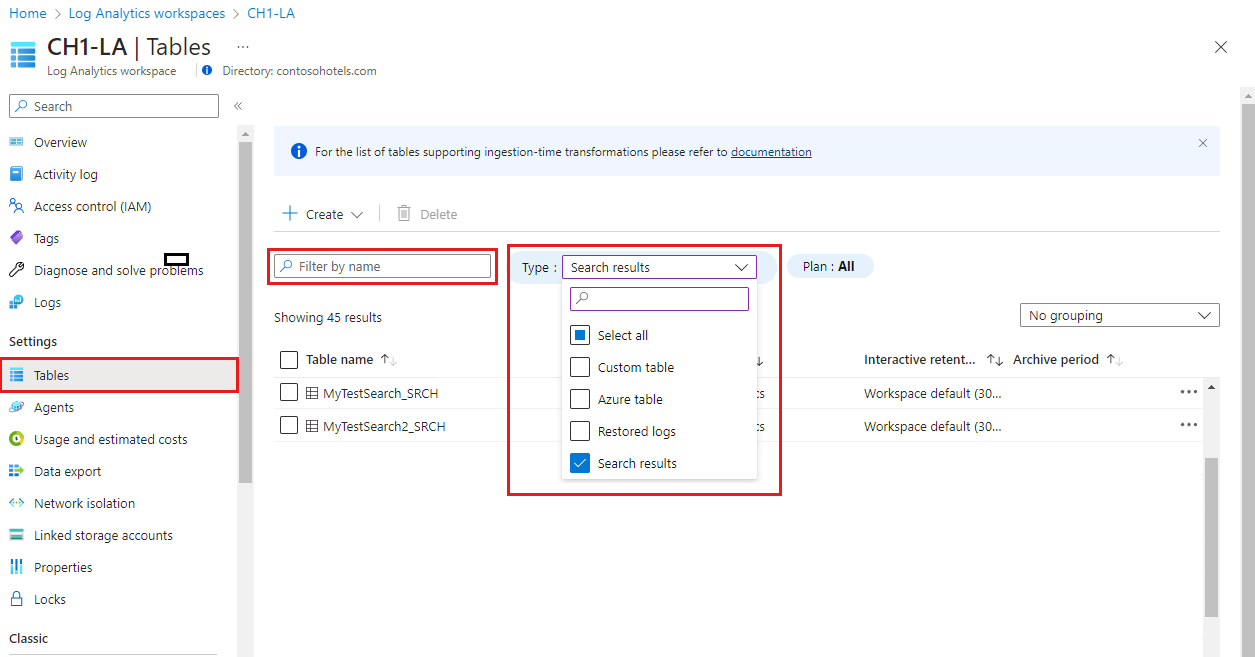
选择要删除的表,点击表右侧的省略号按钮 (...),选择删除,并通过输入yes确认删除。

以下Azure CLI示例使用az monitor log-analytics workspace table delete命令。
# Set variables
resourceGroupName="<ResourceGroupName>"
workspaceName="<WorkspaceName>"
tableName="<TableName>_CL"

# Delete the table
az monitor log-analytics workspace table delete \
  --resource-group "$resourceGroupName" \
  --workspace-name "$workspaceName" \
  --name "$tableName" \
  --yes
以下Azure PowerShell示例使用 Invoke-AzRestMethod 调用表 REST API 操作。
# Set variables
$resourceGroupName = "<ResourceGroupName>"
$workspaceName = "<WorkspaceName>"
$tableName = "<TableName>_CL"
$apiVersion = "<ApiVersion>"

# Get the subscription ID from the current Azure PowerShell context
$subscriptionId = (Get-AzContext).Subscription.Id

# Build the request URL
$path = "/subscriptions/$subscriptionId/resourceGroups/$resourceGroupName"
$provider = "Microsoft.OperationalInsights/workspaces/$workspaceName/tables/$tableName"
$url = "$path/providers/$provider"

# Define parameters for Invoke-AzRestMethod
$invokeAzRestMethodParams = @{
    Method = "DELETE"
    Path   = "$url?api-version=$apiVersion"
}

# Delete the table
Invoke-AzRestMethod @invokeAzRestMethodParams
以下 REST 示例使用 表 REST API 操作。
DELETE https://management.chinacloudapi.cn/subscriptions/{subscriptionId}/resourceGroups/{resourceGroupName}/providers/Microsoft.OperationalInsights/workspaces/{workspaceName}/tables/{tableName}_CL?api-version={apiVersion}
Authorization: Bearer {accessToken}
添加或删除自定义列
自定义表允许在创建表后通过添加或删除列来修改架构。 在Azure表中,只能添加和删除自定义列。
重要
每当更新表架构时,务必更新向表发送数据的数据收集规则。 在数据收集规则中定义的表架构决定了 Azure Monitor 如何将数据流式传输到目标表。 进行表架构更改时,Azure Monitor 不会自动更新数据收集规则。
定义自定义表的列名时,请使用以下规则:
- 列名必须以字母(A-Z 或 a-z)开头。
- 在第一个字符之后,仅使用字母、数字或下划线。
- 不要在列名中使用空格、点、短划线或其他标点符号。
- 列名不支持非 ASCII 字母(例如 Ö、É、Ö)。
- 对于 Analytics 和 Basic 表,列名仅区分大小写。 当重复列名之间唯一的差异只是大小写时,辅助日志表的数据引入会丢弃数据。
- 列名长度必须为 2 到 45 个字符。
- Azure表中的自定义列名必须以
_CF 结尾。
-
GUID 类型是一个逻辑批注,但值以字符串的形式存储和查询。 有关详细信息,请参阅 Azure Monitor Logs 中的 Column 数据类型。
- 不要使用与系统或保留列冲突的名称,包括
id、BilledSize、IsBillableInvalidTimeGeneratedTenantIdTitleTypeUniqueId_ItemId、_ResourceGroup、_ResourceId、、 _SubscriptionId、 。 _TimeReceived
这些架构规则比 常规 Kusto 标识符规则更严格。 Kusto 可以在查询中使用引号引用不寻常的属性名称,但自定义表架构仅接受列名中的字母、数字和下划线。
若要将自定义列添加到 Log Analytics 工作区中的表,或者要删除列,请执行以下操作:
从“Log Analytics 工作区”菜单中,选择“Tables”。
选择要编辑的表右侧的省略号 (...),然后选择“编辑架构”。
此操作将打开 “架构编辑器” 屏幕。
请向下滚动到“模式编辑器”屏幕的“自定义列”部分。

若要添加新列,请执行以下操作:
- 选择添加列。
- 设置列名和说明(可选),然后从“类型”下拉列表中选择预期的值类型。
- 选择“保存”,以保存新列。
若要删除列,请选择要删除的列左侧的“删除”图标。
以下Azure CLI示例使用az monitor log-analytics workspace table update命令。
该 --columns 参数替换自定义列集,而不是添加到该列集。 列出希望表保留的每个自定义列。 删除任何省略的列,因此相同的命令同时添加和删除列。 若要删除所有自定义列,请使用 REST 或 Azure PowerShell 示例和空columns数组。
# Set variables
resourceGroupName="<ResourceGroupName>"
workspaceName="<WorkspaceName>"
tableName="<TableName>"

# Replace the custom column set
az monitor log-analytics workspace table update \
  --resource-group "$resourceGroupName" \
  --workspace-name "$workspaceName" \
  --name "$tableName" \
  --columns Custom1_CF=string
以下Azure PowerShell示例使用 Invoke-AzRestMethod 调用表 REST API 操作。
添加自定义列
# Set variables
$resourceGroupName = "<ResourceGroupName>"
$workspaceName = "<WorkspaceName>"
$tableName = "<TableName>"
$apiVersion = "<ApiVersion>"
$payloadFile = ".\add-column.json"

# Get the subscription ID from the current Azure PowerShell context
$subscriptionId = (Get-AzContext).Subscription.Id

# Build the request URL
$path = "/subscriptions/$subscriptionId/resourceGroups/$resourceGroupName"
$provider = "Microsoft.OperationalInsights/workspaces/$workspaceName/tables/$tableName"
$url = "$path/providers/$provider"

# Define parameters for Invoke-AzRestMethod
$invokeAzRestMethodParams = @{
    Method  = "PUT"
    Path    = "$url?api-version=$apiVersion"
    Payload = Get-Content -Raw -Path $payloadFile
}

# Add the custom column
Invoke-AzRestMethod @invokeAzRestMethodParams
{
  "properties": {
    "schema": {
      "name": "<TableName>",
      "columns": [
        {
          "name": "Custom1_CF",
          "type": "string",
          "description": "First custom column"
        }
      ]
    }
  }
}
调用 PUT 返回更新的表属性,其中包括新添加的列。
替换自定义列
若要删除列并添加另一列 PUT ,请发送仅包含要保留的列的请求。 以下示例将 Custom1_CF 替换为 Custom2_CF:
{
  "properties": {
    "schema": {
      "name": "<TableName>",
      "columns": [
        {
          "name": "Custom2_CF",
          "type": "datetime",
          "description": "Replacement custom column"
        }
      ]
    }
  }
}
删除所有自定义列
若要从表中删除所有自定义列,请发送 PUT 包含空 columns 数组的请求:
{
  "properties": {
    "schema": {
      "name": "<TableName>",
      "columns": []
    }
  }
}
以下 REST 示例使用 表 REST API 操作。
若要添加自定义列,请发送包含更新后架构定义的 PUT 请求。 将新列包含在 columns 数组中。 请求返回更新的表属性。
若要删除自定义列,请发送相同的 PUT 请求,但省略数组中的 columns 列。 若要删除所有自定义列,请发送一个空 columns 数组。
PUT https://management.chinacloudapi.cn/subscriptions/{subscriptionId}/resourceGroups/{resourceGroupName}/providers/Microsoft.OperationalInsights/workspaces/{workspaceName}/tables/{tableName}?api-version={apiVersion}
Authorization: Bearer {accessToken}
Content-Type: application/json

{
  "properties": {
    "schema": {
      "name": "<TableName>",
      "columns": [
        {"name": "<ColumnName>",
          "type": "string",
          "description": "Custom column description"}
      ]
    }
  }
}
相关内容


