适用于:✔️ Windows VM ✔️ Linux VM ✔️ 本地环境 ✔️ Azure VM ✔️ 已启用 Azure Arc 的服务器。
可以使用预维护事件和维护后事件在计划修补程序安装前后执行用户定义的操作。 最常见的方案之一是启动和停止虚拟机(VM)。 使用预维护事件,可以在启动计划修补过程之前运行脚本来启动 VM。 计划修补完成后,服务器重新启动后,可以运行脚本来安全地关闭 VM。
本教程介绍如何使用 Webhook 创建预维护和维护后事件,以在计划的修补工作流中启动和停止 VM。
在本教程中,你将:
- 创建并发布 Azure 自动化运行手册。
- 添加 Webhook。
- 创建事件订阅。
先决条件
确保使用的是 PowerShell 7.4 运行手册。
向适当的托管标识分配权限。 Runbook 可以使用自动化帐户的系统分配的托管标识或用户分配的托管标识。
以下脚本示例(启动和停止 VM)需要具有这些特定权限的虚拟机参与者角色或自定义角色:
- Microsoft.Compute/virtualMachines/start/action
- Microsoft.Compute/virtualMachines/deallocate/action
- Microsoft.Compute/虚拟机/重启/操作
- Microsoft.Compute/virtualMachines/powerOff/action
可以使用 Azure 门户或 Azure PowerShell cmdlet 为每个标识分配权限:
- Azure 门户
- Azure PowerShell
若要分配权限,请按照 使用 Azure 门户分配 Azure 角色中的步骤作。
- 导入
Az.ResourceGraph模块。 确保将模块更新到 2.0.3 版的 ThreadJob。
创建和发布自动化流程手册
登录到 Azure 门户 并转到 Azure 自动化 帐户。
如果在 Azure 自动化更新管理中使用运维脚本 (Runbook) 执行预维护和维护后任务,必须遵循以下步骤,以避免对计算机造成意外影响或导致维护运行失败:
对于您的运行手册,请解析 Webhook 有效负载,以确保它仅在
Microsoft.Maintenance.PreMaintenanceEvent或Microsoft.Maintenance.PostMaintenanceEvent事件时被触发。 根据设计,如果使用相同的终结点添加任何其他事件,则会在其他订阅事件上触发 Webhook。请查看“Azure 事件网格事件架构”。
请参阅以下代码:
param
(
  [Parameter(Mandatory=$false)]
  [object] $WebhookData

)
$notificationPayload = ConvertFrom-Json -InputObject $WebhookData.RequestBody
$eventType = $notificationPayload[0].eventType

if ($eventType -ne "Microsoft.Maintenance.PreMaintenanceEvent" -and $eventType –ne "Microsoft.Maintenance.PostMaintenanceEvent" ) {
Write-Output "Webhook not triggered as part of pre or post patching for maintenance run"
return
}
SoftwareUpdateConfigurationRunContext 参数包含有关更新部署中计算机列表的信息。 使用自动化 Webhook 进行预维护或维护后事件时,信息不会传递给脚本。 可以在 Azure Resource Graph 中查询计算机列表,也可以在脚本中编码计算机列表。
确保向脚本中使用的托管标识授予适当的角色和权限,以执行 Resource Graph 查询以及启动或停止计算机。
请参阅与 Resource Graph 查询相关的权限。
请参阅 “虚拟机贡献者”角色职能。
请参阅 Webhook 有效负载。
请参阅以下代码:
param
(
    [Parameter(Mandatory=$false)]
    [object] $WebhookData
)

Connect-AzAccount -Environment AzureChinaCloud -Identity

# Install the Resource Graph module from PowerShell Gallery
# Install-Module -Name Az.ResourceGraph

$notificationPayload = ConvertFrom-Json -InputObject $WebhookData.RequestBody
$maintenanceRunId = $notificationPayload[0].data.CorrelationId
$resourceSubscriptionIds = $notificationPayload[0].data.ResourceSubscriptionIds

if ($resourceSubscriptionIds.Count -gt 0) {

    Write-Output "Querying ARG to get machine details[MaintenanceRunId=$maintenanceRunId][ResourceSubscriptionIdsCount=$($resourceSubscriptionIds.Count)]"
    $argQuery = @"maintenanceresources
    | where type =~ 'microsoft.maintenance/applyupdates'
    | where properties.correlationId =~ '$($maintenanceRunId)'
    | where id has '/providers/microsoft.compute/virtualmachines/'
    | project id, resourceId = tostring(properties.resourceId)
    | order by id asc
"@

Write-Output "Arg Query Used: $argQuery"
$allMachines = [System.Collections.ArrayList]@()
$skipToken = $null
$res = Search-AzGraph -Query $argQuery -First 1000 -SkipToken $skipToken -Subscription $resourceSubscriptionIds
$skipToken = $res.SkipToken
$allMachines.AddRange($res.Data)
} while ($skipToken -ne $null -and $skipToken.Length -ne 0)

if ($allMachines.Count -eq 0) {
Write-Output "No Machines were found."
break
}
}
若要自定义,可以将现有脚本与上述修改一起使用,也可以使用以下脚本。
示例脚本
param
(
    [Parameter(Mandatory=$false)]
    [object] $WebhookData
)
Connect-AzAccount -Environment AzureChinaCloud -Identity

# Install the Resource Graph module from PowerShell Gallery
# Install-Module -Name Az.ResourceGraph

$notificationPayload = ConvertFrom-Json -InputObject $WebhookData.RequestBody
$eventType = $notificationPayload[0].eventType

if ($eventType -ne "Microsoft.Maintenance.PreMaintenanceEvent") {
    Write-Output "Webhook not triggered as part of pre-patching for maintenance run"
    return
}

$maintenanceRunId = $notificationPayload[0].data.CorrelationId
$resourceSubscriptionIds = $notificationPayload[0].data.ResourceSubscriptionIds

if ($resourceSubscriptionIds.Count -eq 0) {
    Write-Output "Resource subscriptions are not present."
    break
}

Write-Output "Querying ARG to get machine details [MaintenanceRunId=$maintenanceRunId][ResourceSubscriptionIdsCount=$($resourceSubscriptionIds.Count)]"

$argQuery = @"
    maintenanceresources
    | where type =~ 'microsoft.maintenance/applyupdates'
    | where properties.correlationId =~ '$($maintenanceRunId)'
    | where id has '/providers/microsoft.compute/virtualmachines/'
    | project id, resourceId = tostring(properties.resourceId)
    | order by id asc
"@

Write-Output "Arg Query Used: $argQuery"


$allMachines = [System.Collections.ArrayList]@()
$skipToken = $null

do
{
    $res = Search-AzGraph -Query $argQuery -First 1000 -SkipToken $skipToken -Subscription $resourceSubscriptionIds
    $skipToken = $res.SkipToken
    $allMachines.AddRange($res.Data)
} while ($skipToken -ne $null -and $skipToken.Length -ne 0)

if ($allMachines.Count -eq 0) {
    Write-Output "No Machines were found."
    break
}

$jobIDs= New-Object System.Collections.Generic.List[System.Object]
$startableStates = "stopped" , "stopping", "deallocated", "deallocating"
$allMachines | ForEach-Object {
    $vmId =  $_.resourceId
    $split = $vmId -split "/";
    $subscriptionId = $split[2];
    $rg = $split[4];
    $name = $split[8];

    Write-Output ("Subscription Id: " + $subscriptionId)
    $mute = Set-AzContext -Subscription $subscriptionId
    $vm = Get-AzVM -ResourceGroupName $rg -Name $name -Status -DefaultProfile $mute
    $state = ($vm.Statuses[1].DisplayStatus -split " ")[1]
    if($state -in $startableStates) {
        Write-Output "Starting '$($name)' ..."
        $newJob = Start-ThreadJob -ScriptBlock { param($resource, $vmname, $sub) $context = Set-AzContext -Subscription $sub; Start-AzVM -ResourceGroupName $resource -Name $vmname -DefaultProfile $context} -ArgumentList $rg, $name, $subscriptionId
        $jobIDs.Add($newJob.Id)
    } else {
        Write-Output ($name + ": no action taken. State: " + $state)
    }
}

$jobsList = $jobIDs.ToArray()
if ($jobsList)
{
    Write-Output "Waiting for machines to finish starting..."
    Wait-Job -Id $jobsList
}
foreach($id in $jobsList)
{
    $job = Get-Job -Id $id
    if ($job.Error)
    {
        Write-Output $job.Error
    }
}
添加 Webhook
将 Webhooks 添加到 前面已发布的运行手册,并复制 Webhook 的 URL。
注意
创建 Webhook 后,请务必复制 URL。 无法再次检索 URL。
创建事件订阅
登录到 Azure 门户,然后转到“Azure 更新管理器”。
在“ 管理”下,选择“ 计算机>维护配置”。
在“ 维护配置 ”窗格中,选择配置。
在“设置”下,选择“事件”。
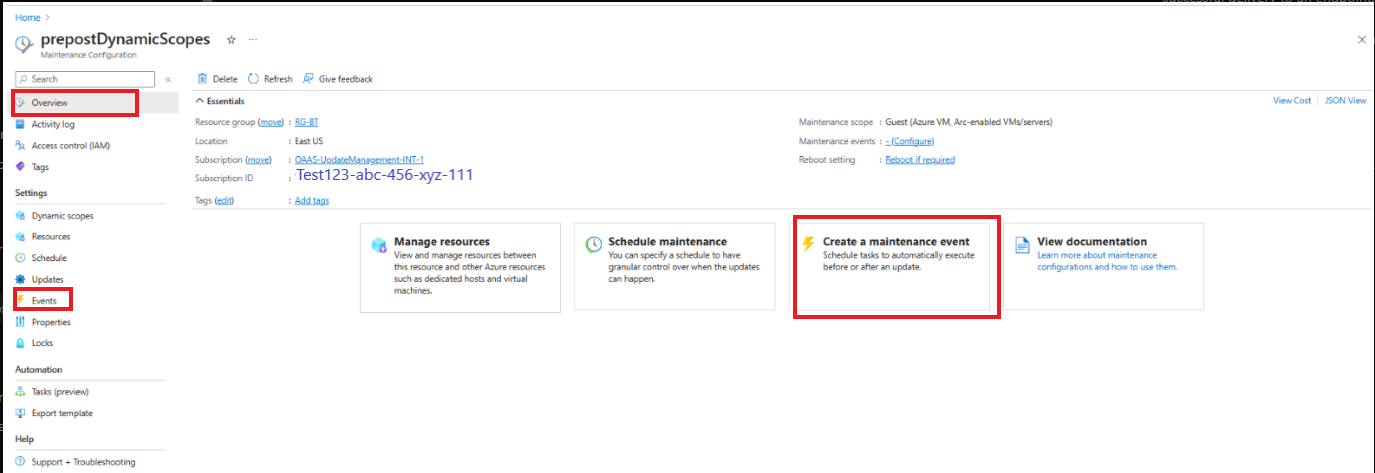
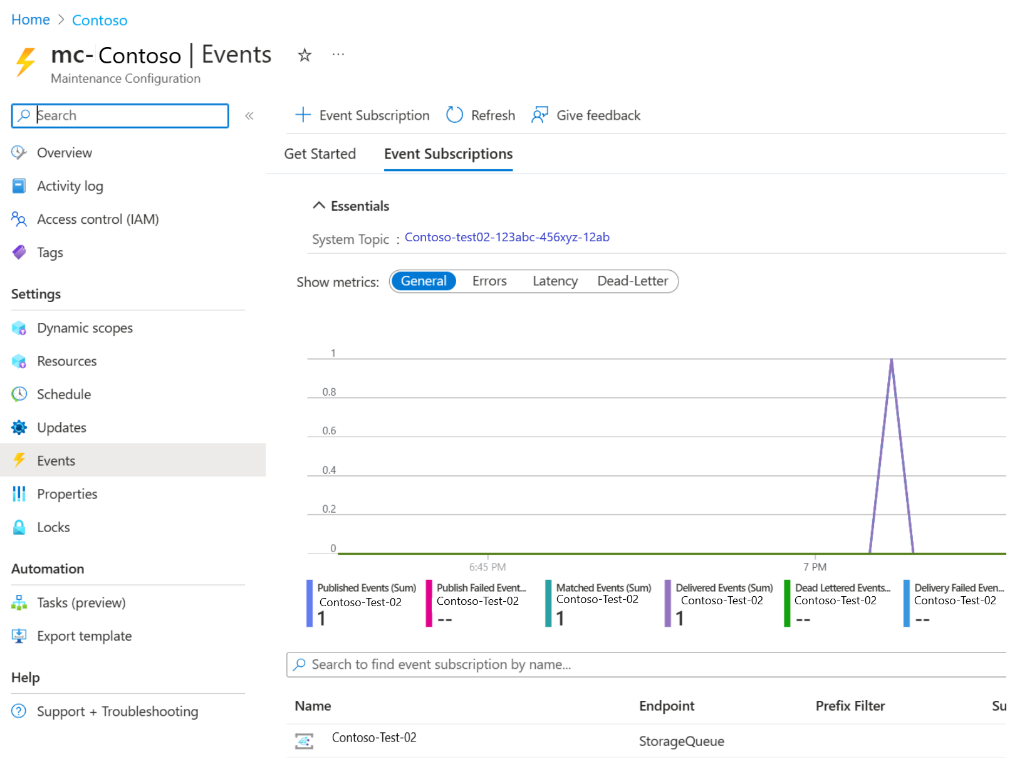
选择 “+事件订阅 ”以创建维护前或维护后事件。
在“ 创建事件订阅 ”窗格的“ 事件订阅详细信息 ”部分中,提供适当的名称。 将架构保留为“事件网格架构”。
在“事件类型”部分中,对于“筛选事件类型”,请选择“预维护事件”或“维护后事件”。
在 “终结点详细信息 ”部分中,选择 “Web 挂钩 终结点”,然后选择“ 配置终结点”。
提供适当的详细信息,例如预维护或维护后事件的 Webhook URL 来触发事件。
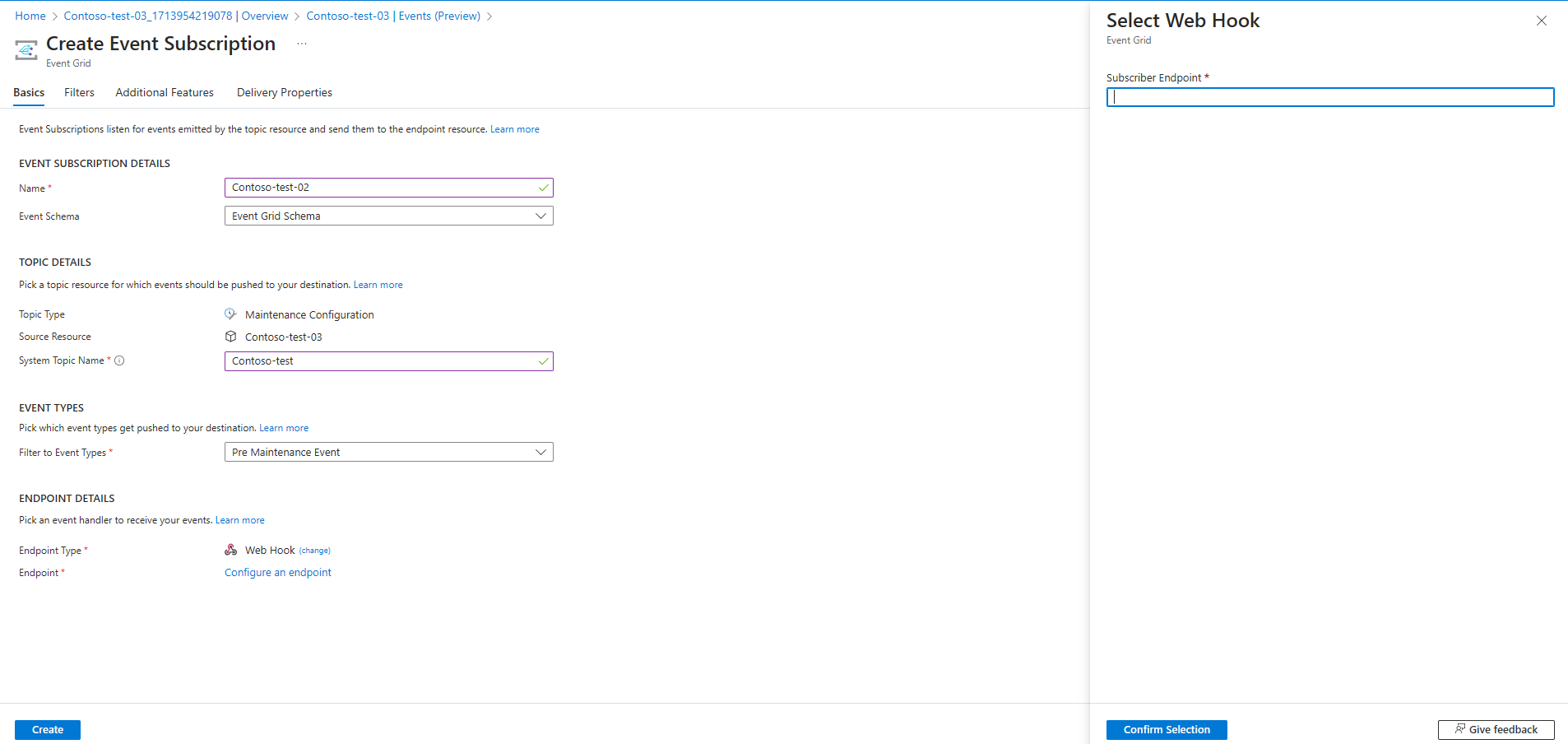
选择“创建”。
相关内容
- 获取 Azure 更新管理器中的维护前和维护后事件的综览。
- 详细了解 如何创建维护前事件和维护后事件。
- 了解如何管理维护前和维护后事件或取消计划的运行。
- 了解如何使用 Azure Functions 创建预维护和维护后事件。