Note
Access to this page requires authorization. You can try signing in or changing directories.
Access to this page requires authorization. You can try changing directories.
Use batch transcription to transcribe a large amount of audio data in storage. Batch transcription can access audio files from inside or outside of Azure.
When you store source audio files outside of Azure, the service can access them through a public URI (such as https://crbn.us/hello.wav). Make sure you can access files directly: the service doesn't support URIs that require authentication or that invoke interactive scripts before the file can be accessed.
Access audio files stored in Azure Blob storage through one of two methods:
Specify one or multiple audio files when you create a transcription. Provide multiple files per request or point to an Azure Blob storage container with the audio files to transcribe. The batch transcription service can handle a large number of submitted transcriptions. The service transcribes the files concurrently, which reduces the turnaround time.
Supported input formats and codecs
The batch transcription API and fast transcription API support multiple formats and codecs, such as:
- WAV
- MP3
- OPUS/OGG
- FLAC
- WMA
- AAC
- ALAW in WAV container
- MULAW in WAV container
- AMR
- WebM
- SPEEX
Note
Batch transcription service integrates GStreamer and might accept more formats and codecs without returning errors. To ensure the best transcription quality, use lossless formats such as WAV (PCM encoding) and FLAC.
Upload to Azure Blob Storage
When audio files are in an Azure Blob Storage account, you can request transcription of individual audio files or an entire Azure Blob Storage container. You can also write transcription results to a Blob container.
Note
For blob and container limits, see batch transcription quotas and limits.
Follow these steps to create a storage account and upload WAV files from your local directory to a new container.
- Go to the Azure portal and sign in to your Azure account.
- Create a Storage account resource in the Azure portal. Use the same subscription and resource group as your Speech resource.
- Select the storage account.
- In the Data storage group in the left pane, select Containers.
- Select + Container.
- Enter a name for the new container and select Create.
- Select the new container.
- Select Upload.
- Choose the files to upload and select Upload.
Trusted Azure services security mechanism
This section explains how to set up and limit access to your batch transcription source audio files in an Azure Storage account by using the trusted Azure services security mechanism.
Note
By using the trusted Azure services security mechanism, you need to use Azure Blob storage to store audio files. Usage of Azure Files isn't supported.
If you perform all actions in this section, your Storage account is configured as follows:
- Access to all external network traffic is prohibited.
- Access to Storage account using Storage account key is prohibited.
- Access to Storage account blob storage using shared access signatures (SAS) is prohibited.
- Access to the selected Speech resource is allowed using the resource system assigned managed identity.
In effect, your Storage account becomes completely locked and can't be used in any scenario apart from transcribing audio files that were already present by the time the new configuration was applied. Consider this configuration as a model for the security of your audio data and customize it according to your needs.
For example, you can allow traffic from selected public IP addresses and Azure Virtual networks. You can also set up access to your Storage account by using private endpoints (see as well this tutorial), re-enable access by using Storage account key, allow access to other Azure trusted services, and so on.
Note
Using private endpoints for Speech isn't required to secure the storage account. You can use a private endpoint for batch transcription API requests, while separately accessing the source audio files from a secure storage account, or the other way around.
By following the steps in this section, you severely restrict access to the storage account. Then you assign the minimum required permissions for the Speech resource managed identity to access the Storage account.
Enable system assigned managed identity for the Speech resource
Follow these steps to enable system assigned managed identity for the Speech resource that you use for batch transcription.
Go to the Azure portal and sign in to your Azure account.
Select the Speech resource.
In the Resource Management group in the left pane, select Identity.
On the System assigned tab, select On for the status.
Important
User assigned managed identity doesn't meet requirements for the batch transcription storage account scenario. Be sure to enable system assigned managed identity.
Select Save.
Now you can grant the managed identity for your Speech resource access to your storage account.
Restrict access to the storage account
Follow these steps to restrict access to the storage account.
Important
Upload audio files in a Blob container before locking down the storage account access.
- Go to the Azure portal and sign in to your Azure account.
- Select the storage account.
- In the Settings group in the left pane, select Configuration.
- Select Disabled for Allow Blob anonymous access.
- Select Disabled for Allow storage account key access.
- Select Save.
For more information, see Prevent anonymous public read access to containers and blobs and Prevent Shared Key authorization for an Azure Storage account.
Configure Azure Storage firewall
After you restrict access to the Storage account, grant access to specific managed identities. Follow these steps to add access for the Speech resource.
Go to the Azure portal and sign in to your Azure account.
Select the storage account.
In the Security + networking group in the left pane, select Networking.
In the Firewalls and virtual networks tab, select Enabled from selected virtual networks and IP addresses.
Deselect all check boxes.
Make sure Microsoft network routing is selected.
Under the Resource instances section, select Microsoft.CognitiveServices/accounts as the resource type and select your Speech resource as the instance name.
Select Save.
Note
It might take up to five minutes for the network changes to propagate.
Although the network access is now permitted, the Speech resource can't yet access the data in the Storage account. You need to assign a specific access role for the Speech resource managed identity.
Assign resource access role
Follow these steps to assign the Storage Blob Data Reader role to the managed identity of your Speech resource.
Important
To perform the operation in the next steps, you need to be assigned the Owner role of the Storage account or higher scope (like Subscription). This requirement exists because only the Owner role can assign roles to others. See details here.
Go to the Azure portal and sign in to your Azure account.
Select the storage account.
Select the Access Control (IAM) menu in the left pane.
Select Add role assignment in the Grant access to this resource tile.
Select Storage Blob Data Reader under Role and then select Next.
Select Managed identity under Members > Assign access to.
Assign the managed identity of your Speech resource and then select Review + assign.
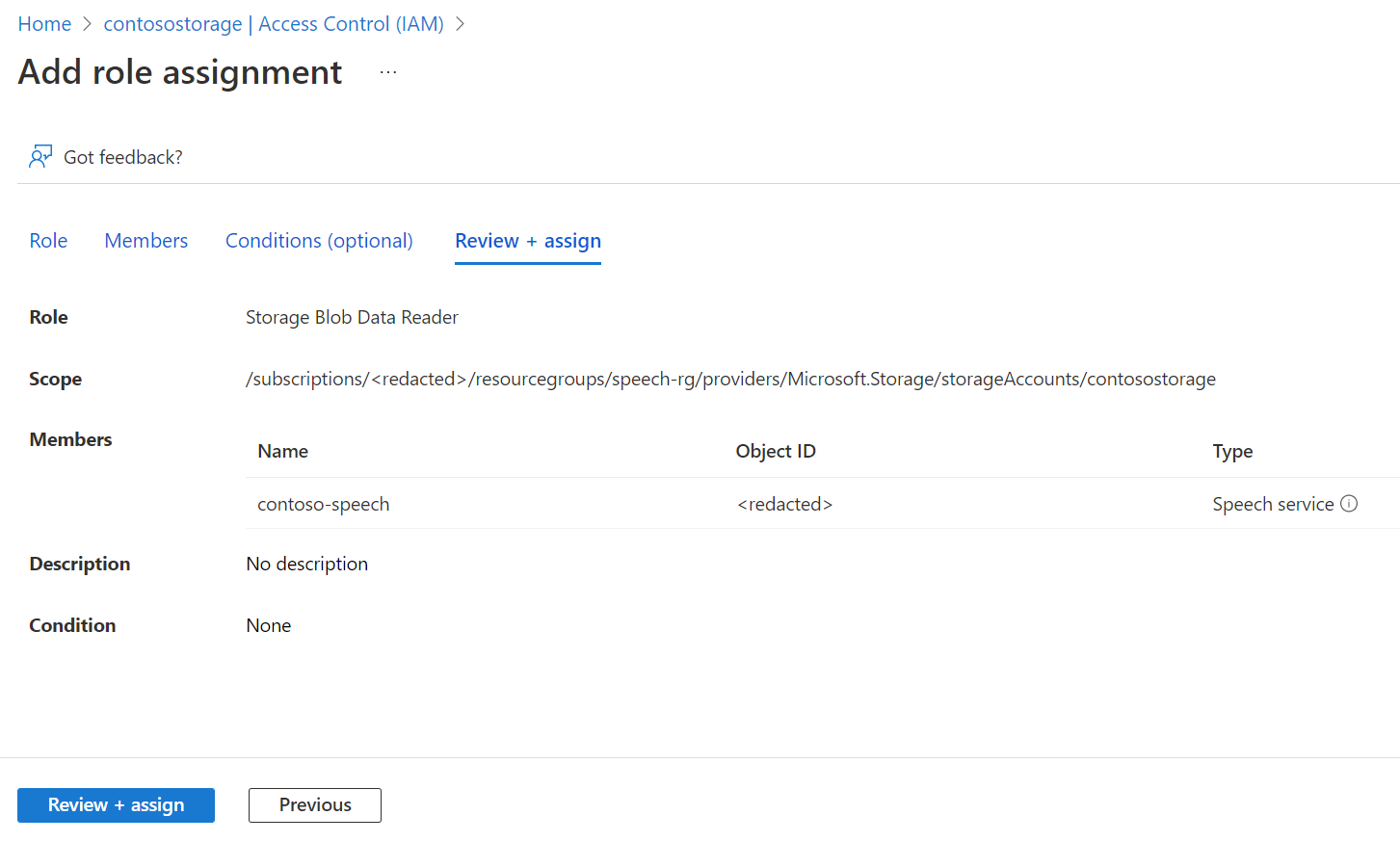
After confirming the settings, select Review + assign.
Now the Speech resource managed identity has access to the Storage account and can access the audio files for batch transcription.
With system assigned managed identity, use a plain Storage Account URL (no SAS or other additions) when you create a batch transcription request. For example:
{
    "contentContainerUrl": "https://<storage_account_name>.blob.core.chinacloudapi.cn/<container_name>"
}
You could otherwise specify individual files in the container. For example:
{
    "contentUrls": [
        "https://<storage_account_name>.blob.core.chinacloudapi.cn/<container_name>/<file_name_1>",
        "https://<storage_account_name>.blob.core.chinacloudapi.cn/<container_name>/<file_name_2>"
    ]
}
SAS URL for batch transcription
A shared access signature (SAS) is a URI that grants restricted access to an Azure Storage container. Use it when you want to grant access to your batch transcription files for a specific time range without sharing your storage account key.
Tip
If you want your Speech resource to access the container with batch transcription source files, use the trusted Azure services security mechanism instead.
Follow these steps to generate a SAS URL that you can use for batch transcriptions.
Complete the steps in Azure Blob Storage upload to create a Storage account and upload audio files to a new container.
Select the new container.
In the Settings group in the left pane, select Shared access tokens.
Note
Make sure you navigate to the container first before opening Shared access tokens, so the token is scoped to that container.
Select Read and List for Permissions.
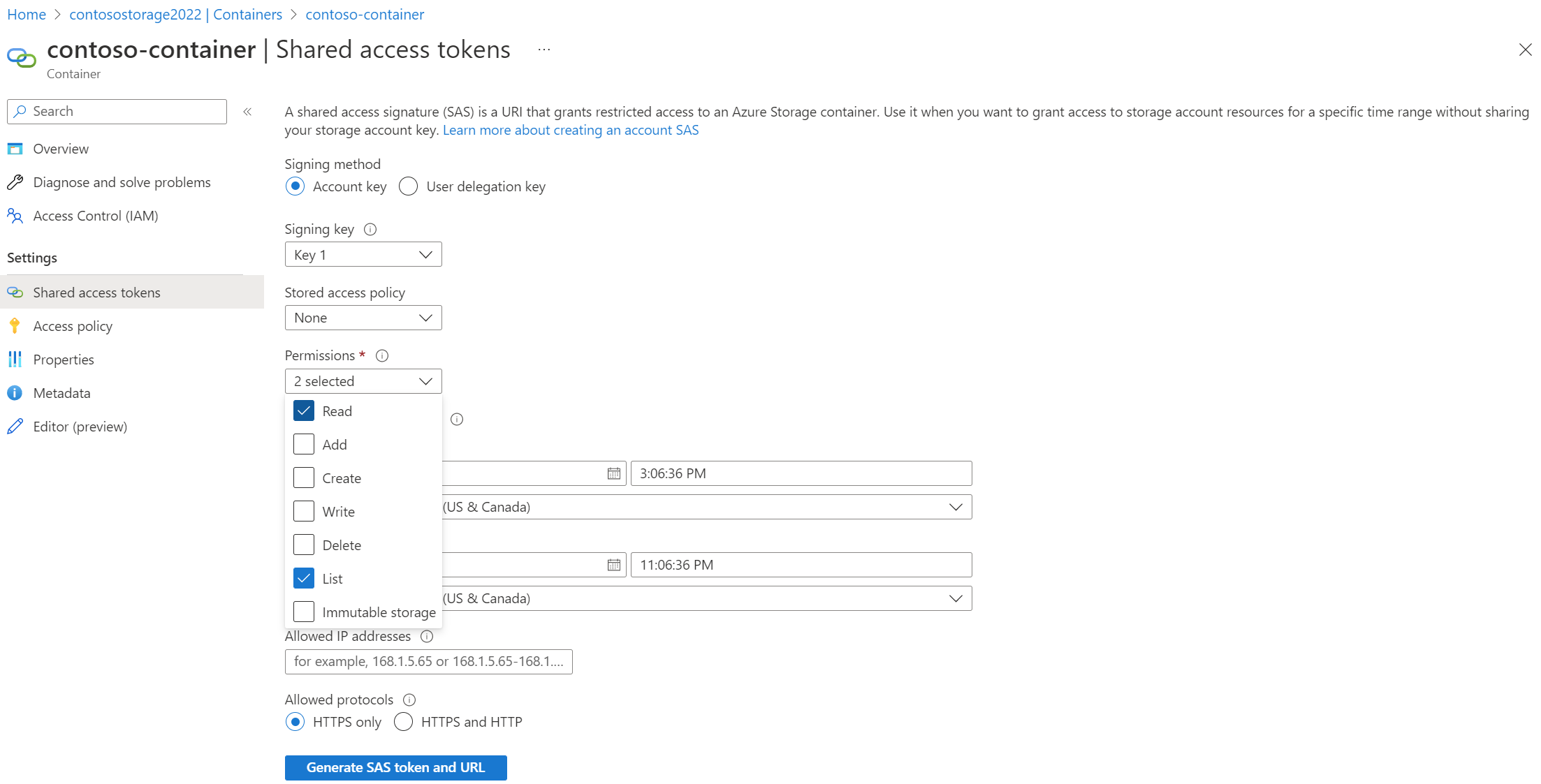
Enter the start and expiry times for the SAS URI, or leave the defaults.
Select Generate SAS token and URL.
You use the SAS URL when you create a batch transcription request. For example:
{
    "contentContainerUrl": "https://<storage_account_name>.blob.core.chinacloudapi.cn/<container_name>?SAS_TOKEN"
}
You could otherwise specify individual files in the container. You must generate and use a different SAS URL with read (r) permissions for each file. For example:
{
    "contentUrls": [
        "https://<storage_account_name>.blob.core.chinacloudapi.cn/<container_name>/<file_name_1>?SAS_TOKEN_1",
        "https://<storage_account_name>.blob.core.chinacloudapi.cn/<container_name>/<file_name_2>?SAS_TOKEN_2"
    ]
}