Note
Access to this page requires authorization. You can try signing in or changing directories.
Access to this page requires authorization. You can try changing directories.
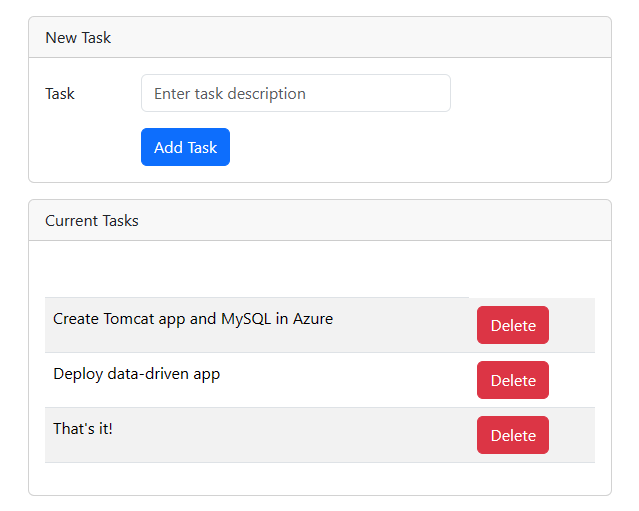
This tutorial shows how to build, configure, and deploy a secure Tomcat application in Azure App Service that connects to a MySQL database (using Azure Database for MySQL). Azure App Service is a highly scalable, self-patching, web-hosting service that can easily deploy apps on Windows or Linux. When you're finished, you have a Tomcat app running on Azure App Service on Linux.
In this tutorial, you learn how to:
- Create a secure-by-default architecture for Azure App Service and Azure Database for MySQL.
- Secure connection secrets using a managed identity and Key Vault references.
- Deploy a Tomcat sample app to App Service from a GitHub repository.
- Access App Service app settings in the application code.
- Make updates and redeploy the application code.
- Stream diagnostic logs from App Service.
- Manage the app in the Azure portal.
- Provision the same architecture and deploy by using Azure Developer CLI.
- Optimize your development workflow with GitHub Codespaces and GitHub Copilot.
Prerequisites
- An Azure account with an active subscription. If you don't have an Azure account, you can create one for free.
- A GitHub account. you can also get one for free.
- Knowledge of Java with Tomcat development.
- (Optional) To try GitHub Copilot, a GitHub Copilot account. A 30-day trial is available.
- An Azure account with an active subscription. If you don't have an Azure account, you can create one.
- Azure Developer CLI installed.
- Knowledge of Java with Tomcat development.
- (Optional) To try GitHub Copilot, a GitHub Copilot account. A 30-day trial is available.
Skip to the end
You can quickly deploy the sample app in this tutorial and see it running in Azure. Just run the following commands in the Azure Ci, and follow the prompt:
mkdir msdocs-tomcat-mysql-sample-app
cd msdocs-tomcat-mysql-sample-app
azd init --template msdocs-tomcat-mysql-sample-app
azd up
1. Run the sample
First, you set up a sample data-driven app as a starting point. For your convenience, the sample repository, includes a dev container configuration. The dev container has everything you need to develop an application, including the database, cache, and all environment variables needed by the sample application. The dev container can run in a GitHub codespace, which means you can run the sample on any computer with a web browser.
Step 1: In a new browser window:
- Sign in to your GitHub account.
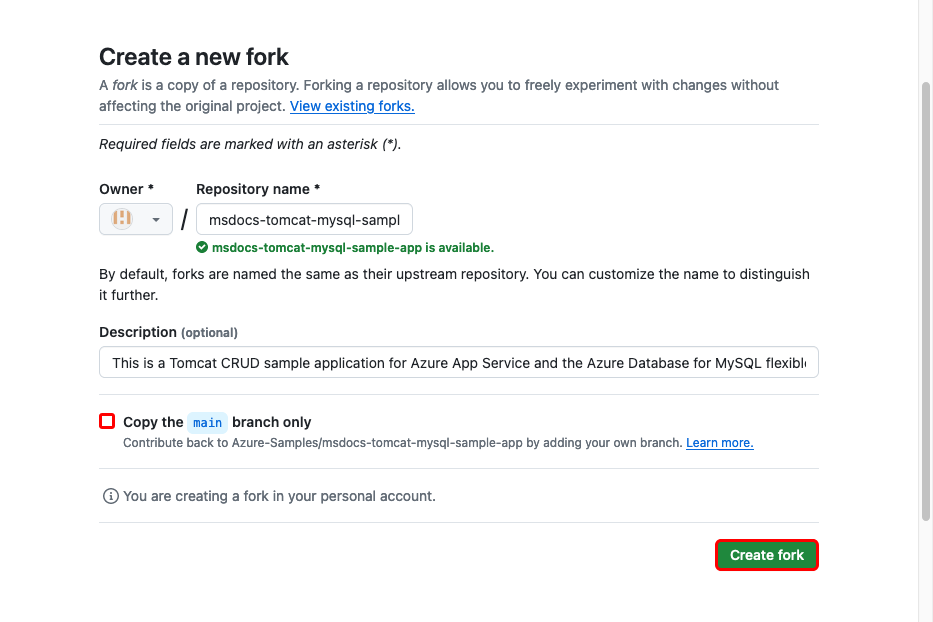
- Navigate to https://github.com/Azure-Samples/msdocs-tomcat-mysql-sample-app/fork.
- Unselect Copy the main branch only. You want all the branches.
- Select Create fork.
Step 2: In the GitHub fork:
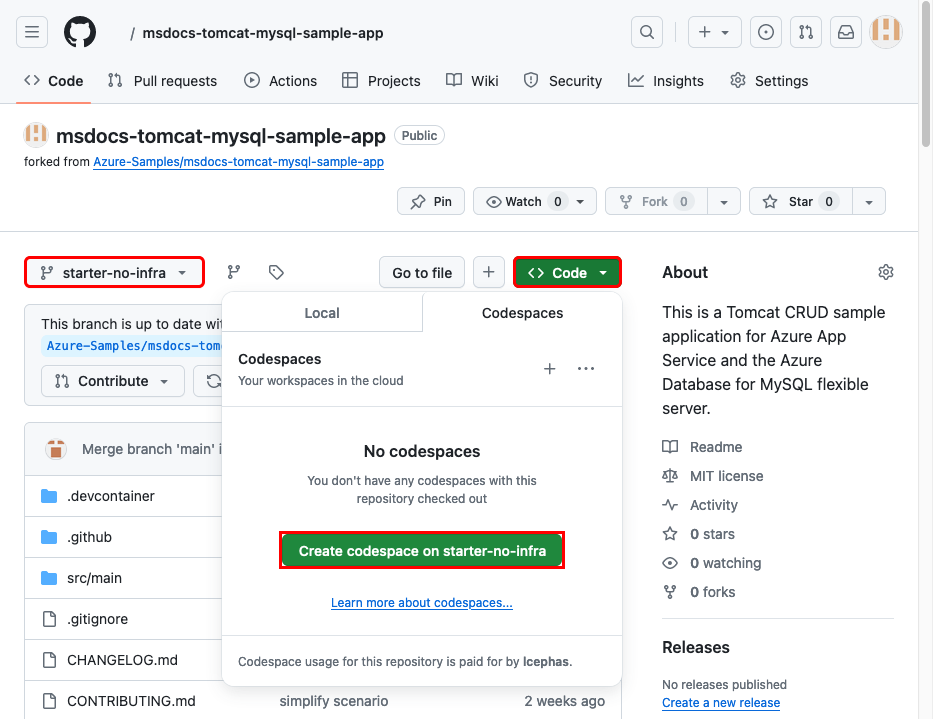
- Select main > starter-no-infra for the starter branch. This branch contains just the sample project and no Azure-related files or configuration.
- Select Code > Create codespace on starter-no-infra. The codespace takes a few minutes to set up.
Step 3: In the codespace terminal:
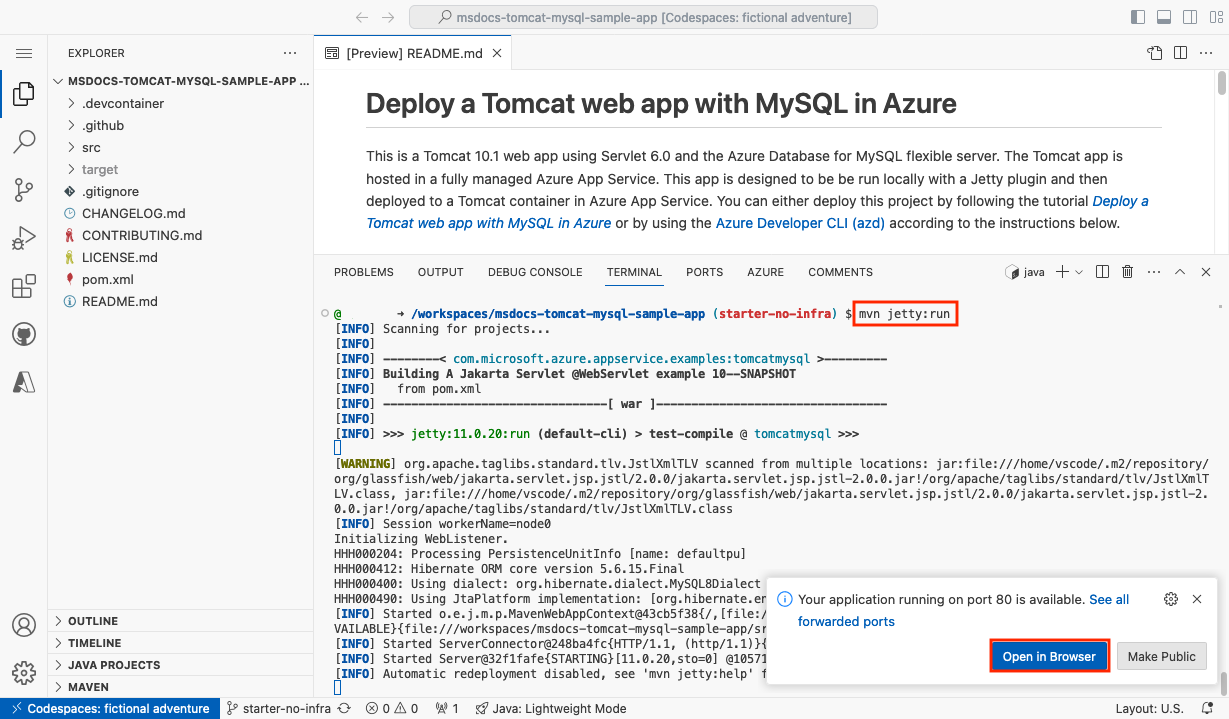
- Run
mvn jetty:run. - When you see the notification
Your application running on port 80 is available., select Open in Browser. You should see the sample application in a new browser tab. To stop the Jetty server, typeCtrl+C.
Tip
You can ask GitHub Copilot about this repository. For example:
- @workspace What does this project do?
- @workspace What does the .devcontainer folder do?
Having issues? Check the Troubleshooting section.
2. Create App Service and MySQL
First, you create the Azure resources. The steps used in this tutorial create a set of secure-by-default resources that include App Service and Azure Database for MySQL. For the creation process, you specify:
- The Name for the web app. It's used as part of the DNS name.
- The Region to run the app physically in the world. It's also used as part of the DNS name for your app.
- The Runtime stack for the app. It's where you select the version of Java to use for your app.
- The Hosting plan for the app. It's the pricing tier that includes the set of features and scaling capacity for your app.
- The Resource Group for the app. A resource group lets you group (in a logical container) all the Azure resources needed for the application.
Sign in to the Azure portal and follow these steps to create your Azure App Service resources.
In the Azure portal:
- In the search bar at the top, enter app service.
- Under the Services heading, select App Service.
- Select Create > Web App.
You can also go directly to the creation wizard.
In the Create Web App page, on the Basics tab, fill out the form as follows:
- Resource Group: Select Create new and use a name of msdocs-tomcat-mysql-tutorial.
- Name: msdocs-tomcat-mysql-XYZ, where XYZ is any three random characters.
- Runtime stack: Java 25.
- Java web server stack: Apache Tomcat 11.0.
- Operating System: Linux.
- Region: Any Azure region near you.
- Pricing plan: Basic. When you're ready, you can scale up to a production pricing tier.
Select the Database tab and configure the database:
- Select Create a Database.
- In Engine, select MySQL - Flexible Server. Azure Database for MySQL - Flexible Server is a fully managed MySQL database as a service on Azure, compatible with the latest community editions.
- Don't select Create an Azure Cache for Redis.
Select Review + create. After validation completes, select Create.
When deployment finishes, select the Go to resource button. You're taken directly to the App Service app.
The following resources are created:
- Resource group: The container for all the created resources.
- App Service plan: Defines the compute resources for App Service. A Linux plan in the Basic tier is created.
- App Service: Represents your app and runs in the App Service plan.
- Virtual network: Integrated with the App Service app and isolates back-end network traffic.
- Azure Database for MySQL Flexible Server: Accessible only from the virtual network. A database and a user are created for you on the server.
- Private DNS zones: Enable DNS resolution of the database server in the virtual network.
Having issues? Check the Troubleshooting section.
3. Confirm JNDI data source
If your app settings contain a valid JDBC connection string for Oracle, SQL Server, PostgreSQL, or MySQL, and the app setting WEBSITE_AUTOCONFIGURE_DATABASE is set to true, App Service adds a Java Naming and Directory Interface (JNDI) data source for it in the Tomcat server's context.xml file. In this step, you add this app setting, then use the SSH connection to the app container to verify the JNDI data source. In the process, you learn how to access the SSH shell for the Tomcat container.
Step 1: You're still on the Environment variables page from the previous section. Add an app setting to enable data-source autoconfiguration:
- Select Add.
- Set Name to
WEBSITE_AUTOCONFIGURE_DATABASEand Value totrue. - Select Apply, then Apply again to save and restart the app.
Step 2: Back in the App Service page:
- In the left menu, select SSH.
- Select Go.
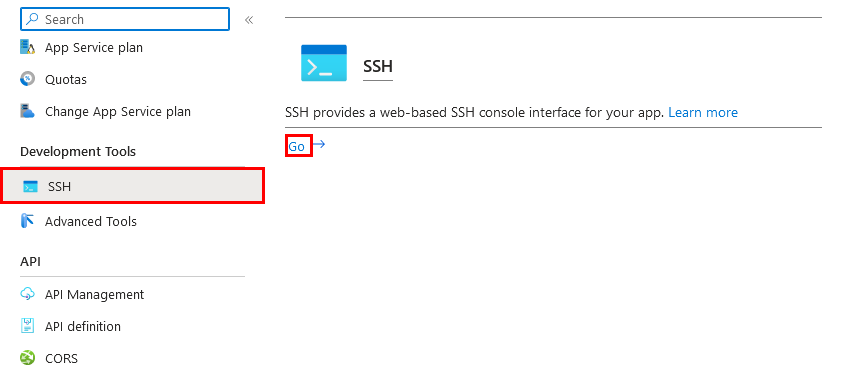
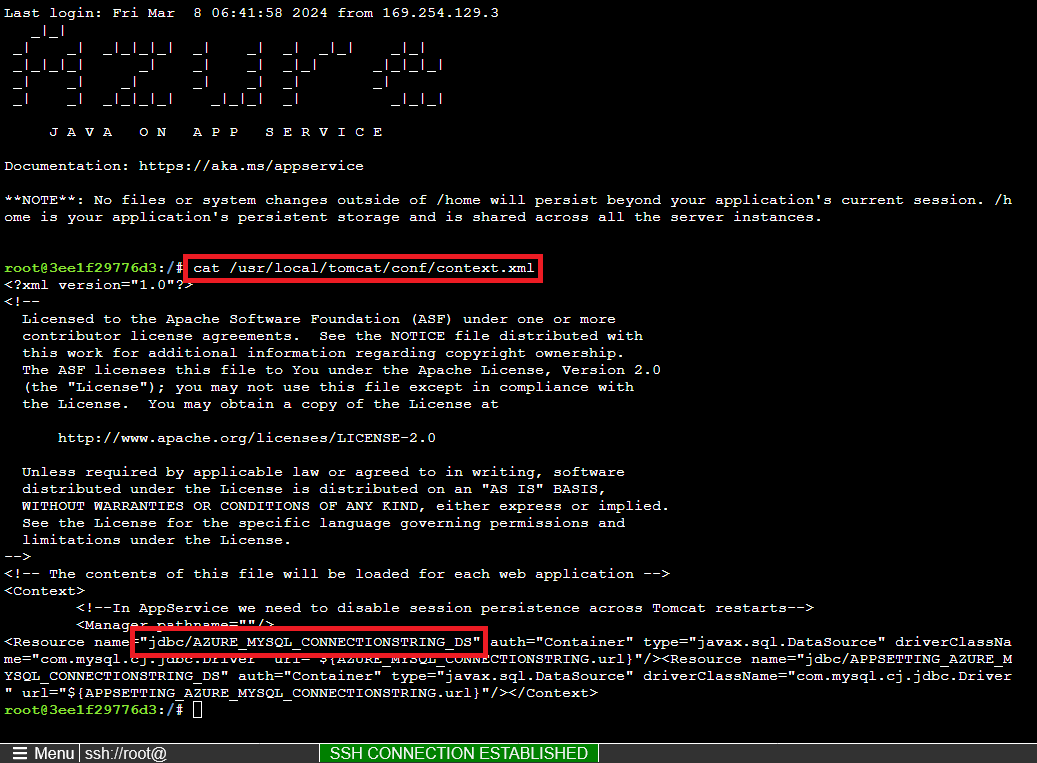
Step 3: In the SSH terminal, run cat /usr/local/tomcat/conf/context.xml. You should see that a JNDI resource called jdbc/AZURE_MYSQL_CONNECTIONSTRING_DS was added. You use this data source later.
Note
Only changes to files in /home can persist beyond app restarts. For example, if you edit /usr/local/tomcat/conf/server.xml, the changes won't persist beyond an app restart.
Having issues? Check the Troubleshooting section.
6. Browse to the app
Step 1: In the App Service page:
- From the left menu, select Overview.
- Select the URL of your app.
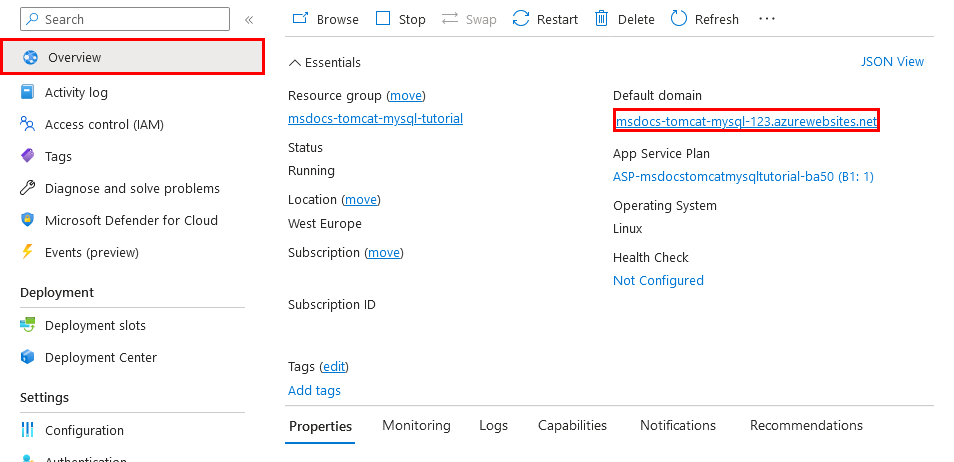
Step 2: Add a few tasks to the list. Congratulations, you're running a web app in Azure App Service, with secure connectivity to Azure Database for MySQL.
Having issues? Check the Troubleshooting section.
7. Stream diagnostic logs
Azure App Service captures all messages output to the console to help you diagnose issues with your application. The sample application includes standard Log4j logging statements to demonstrate this capability, as shown in the following snippet:
@WebServlet(urlPatterns = "/")
public class ViewServlet extends HttpServlet {
    private static Logger logger = LogManager.getLogger(ViewServlet.class.getName());

    @Override
    protected void doGet(HttpServletRequest req, HttpServletResponse resp) throws ServletException, IOException {

        logger.info("GET /");

        EntityManagerFactory emf = (EntityManagerFactory) req.getServletContext().getAttribute("EMFactory");
Step 1: In the App Service page:
- From the left menu, select App Service logs.
- Under Application logging, select File System.
- In the top menu, select Save.
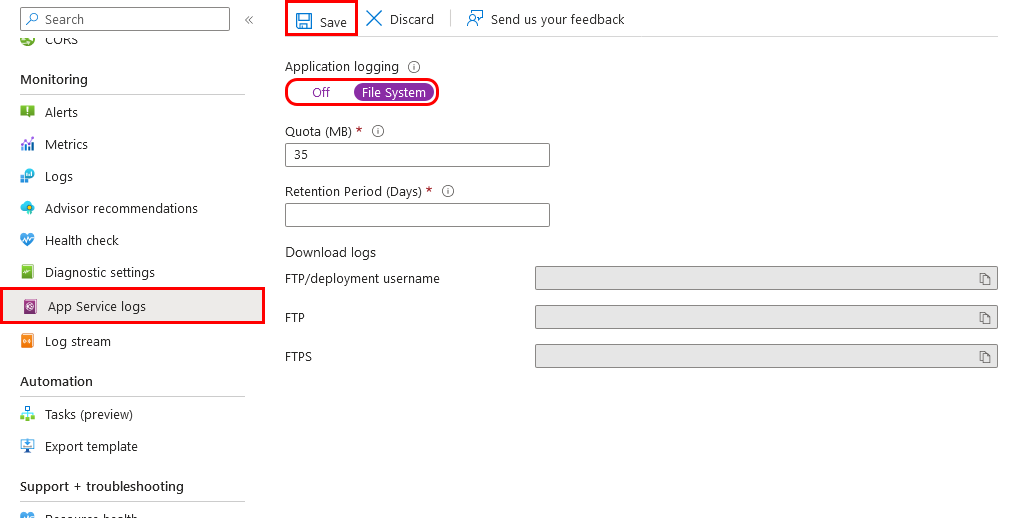
Step 2: From the left menu, select Log stream. You see the logs for your app, including platform logs and logs from inside the container.
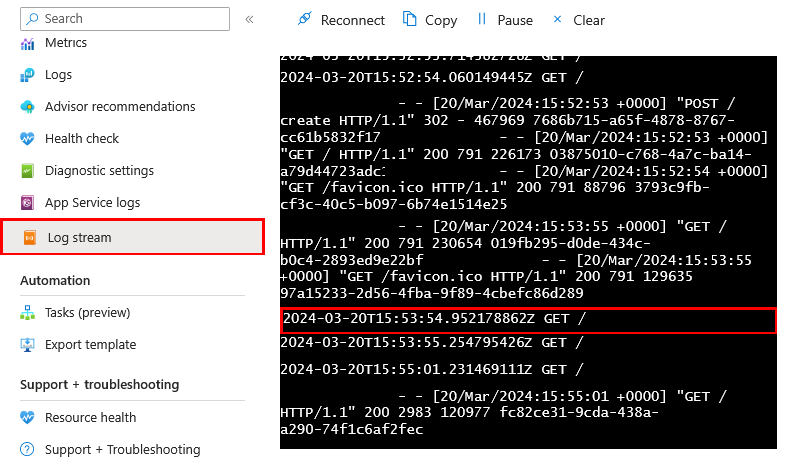
Learn more about logging in Java apps in the series on Enable Azure Monitor OpenTelemetry for .NET, Node.js, Python, and Java applications.
Having issues? Check the Troubleshooting section.
8. Clean up resources
When you're finished, you can delete all of the resources from your Azure subscription by deleting the resource group.
Step 1: In the search bar at the top of the Azure portal:
- Enter the resource group name.
- Select the resource group.
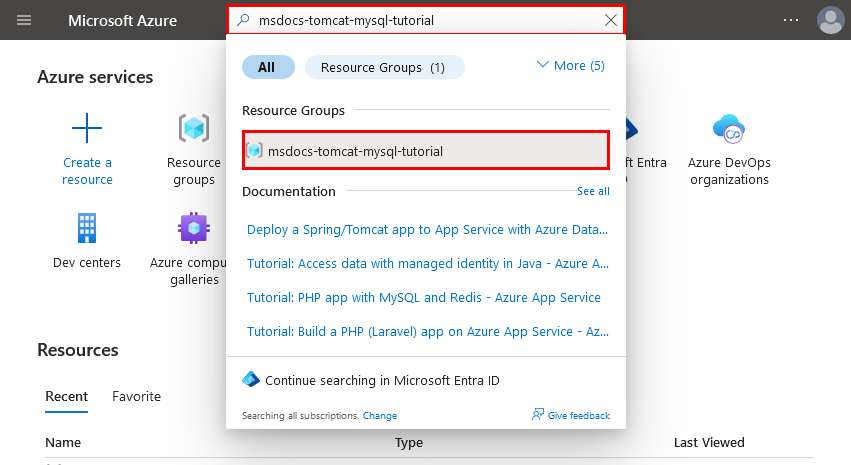
Step 2: In the resource group page, select Delete resource group.
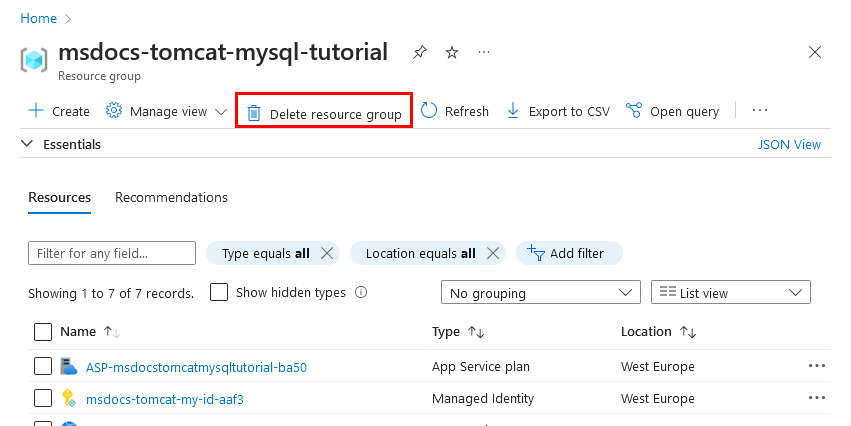
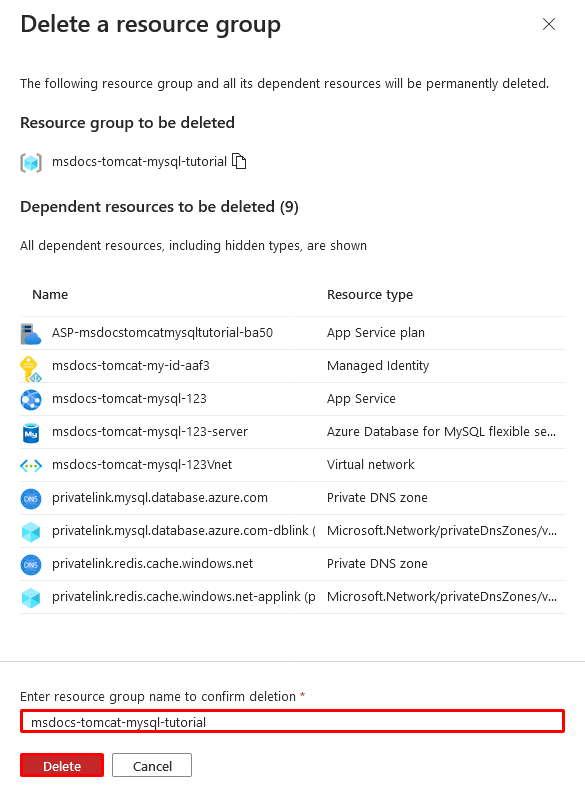
Step 3:
- Confirm your deletion by typing the resource group name.
- Select Delete.
- Confirm with Delete again.
2. Create Azure resources and deploy a sample app
In this step, you create the Azure resources and deploy a sample app to App Service on Linux. The steps used in this tutorial create a set of secure-by-default resources that include App Service and Azure Database for MySQL.
The dev container already has the Azure Developer CLI (AZD).
From the repository root, run
azd init.azd init --template tomcat-app-service-mysql-infra .When prompted, give the following answers:
Question Answer The current directory is not empty. Would you like to initialize a project here in '<your-directory>'? Y What would you like to do with these files? Keep my existing files unchanged Enter a new environment name Type a unique name. The AZD template uses this name as part of the DNS name of your web app in Azure ( <app-name>-<hash>.chinacloudsites.cn). Alphanumeric characters and hyphens are allowed.Sign into Azure by running the
azd auth logincommand and following the prompt:azd auth loginCreate the necessary Azure resources and deploy the app code with the
azd upcommand. Follow the prompt to select the desired subscription and location for the Azure resources.azd upThe
azd upcommand takes about 10 minutes to complete. It also compiles and deploys your application code, but you modify your code later to work with App Service. While it's running, the command provides messages about the provisioning and deployment process, including a link to the deployment in Azure. When it finishes, the command also displays a link to the deploy application.This AZD template contains files (azure.yaml and the infra directory) that generate a secure-by-default architecture with the following Azure resources:
- Resource group: The container for all the created resources.
- App Service plan: Defines the compute resources for App Service. A Linux plan in the B1 tier is created.
- App Service: Represents your app and runs in the App Service plan.
- Virtual network: Integrated with the App Service app and isolates back-end network traffic.
- Azure Database for MySQL Flexible Server: Accessible only from the virtual network through the DNS zone integration. A database is created for you on the server.
- Azure Managed Redis: Accessible only from within the virtual network.
- Private endpoints: Access endpoints for the key vault and the Managed Redis instance in the virtual network.
- Private DNS zones: Enable DNS resolution of the key vault, the database server, and the Managed Redis instance in the virtual network.
- Log Analytics workspace: Acts as the target container for your app to ship its logs, where you can also query the logs.
- Key vault: Used to keep your database password the same when you redeploy with AZD.
Once the command finishes creating resources and deploying the application code the first time, the deployed sample app doesn't work yet because you must make small changes to make it connect to the database in Azure.
Having issues? Check the Troubleshooting section.
3. Verify connection strings
The AZD template you use generated the connectivity variables for you already as app settings and outputs the them to the terminal for your convenience. App settings are one way to keep connection secrets out of your code repository.
In the AZD output, find the app setting
AZURE_MYSQL_CONNECTIONSTRING. Only the setting names are displayed. They look like this in the AZD output:App Service app has the following connection strings: - AZURE_MYSQL_CONNECTIONSTRING - AZURE_REDIS_CONNECTIONSTRING - AZURE_KEYVAULT_RESOURCEENDPOINT - AZURE_KEYVAULT_SCOPEAZURE_MYSQL_CONNECTIONSTRINGcontains the connection string to the MySQL database in Azure. You need to use it in your code later.For your convenience, the AZD template shows you the direct link to the app's app settings page. Find the link and open it in a new browser tab.
If you add an app setting that contains a valid Oracle, SQL Server, PostgreSQL, or MySQL connection string, App Service adds it as a Java Naming and Directory Interface (JNDI) data source in the Tomcat server's context.xml file.
Having issues? Check the Troubleshooting section.
4. Confirm JNDI data source
In this step, you use the SSH connection to the app container to verify the JNDI data source in the Tomcat server. In the process, you learn how to access the SSH shell for the Tomcat container.
In the AZD output, find the URL for the SSH session and navigate to it in the browser. It looks like this in the output:
Open SSH session to App Service container at: <URL>
In the SSH terminal, run
cat /usr/local/tomcat/conf/context.xml. You should see that a JNDI resource calledjdbc/AZURE_MYSQL_CONNECTIONSTRING_DSwas added. You use this data source later. App Service automatically creates this data source because the AZD template sets the app settingWEBSITE_AUTOCONFIGURE_DATABASEtotrue.
Note
Only changes to files in /home can persist beyond app restarts. For example, if you edit /usr/local/tomcat/conf/server.xml, the changes won't persist beyond an app restart.
Having issues? Check the Troubleshooting section.
5. Modify sample code and redeploy
In the GitHub codespace, start a new chat session by clicking the Chat view, then clicking +.
Ask, "@workspace How does the app connect to the database?" Copilot might give you some explanation about the
jdbc/MYSQLDSdata source and how it's configured.Ask, "@workspace I want to replace the data source defined in persistence.xml with an existing JNDI data source in Tomcat but I want to do it dynamically." Copilot might give you a code suggestion similar to the one in the Option 2: without GitHub Copilot steps below and even tell you to make the change in the ContextListener class.
Open src/main/java/com/microsoft/azure/appservice/examples/tomcatmysql/ContextListener.java in the explorer and add the code suggestion in the
contextInitializedmethod.GitHub Copilot doesn't give you the same response every time, you might need to ask other questions to fine-tune its response. For tips, see What can I do with GitHub Copilot in my codespace?.
In the codespace terminal, run
azd deploy.azd deploy
Tip
You can also just use azd up always, which does all of azd package, azd provision, and azd deploy.
To find out how the War file is packaged, you can run azd package --debug by itself.
Having issues? Check the Troubleshooting section.
6. Browse to the app
In the AZD output, find the URL of your app and navigate to it in the browser. The URL looks like this in the AZD output:
 Deploying services (azd deploy)

   (✓) Done: Deploying service web
   - Endpoint: <URL>
Add a few tasks to the list.
Congratulations, you're running a web app in Azure App Service, with secure connectivity to Azure Database for MySQL.
Having issues? Check the Troubleshooting section.
7. Stream diagnostic logs
Azure App Service can capture console logs to help you diagnose issues with your application. For convenience, the AZD template already enabled logging to the local file system and is shipping the logs to a Log Analytics workspace.
The sample application includes standard Log4j logging statements to demonstrate this capability, as shown in the following snippet:
@WebServlet(urlPatterns = "/")
public class ViewServlet extends HttpServlet {
    private static Logger logger = LogManager.getLogger(ViewServlet.class.getName());

    @Override
    protected void doGet(HttpServletRequest req, HttpServletResponse resp) throws ServletException, IOException {

        logger.info("GET /");

        EntityManagerFactory emf = (EntityManagerFactory) req.getServletContext().getAttribute("EMFactory");
In the AZD output, find the link to stream App Service logs and navigate to it in the browser. The link looks like this in the AZD output:
Stream App Service logs at: <URL>
Learn more about logging in Java apps in the series on Enable Azure Monitor OpenTelemetry for .NET, Node.js, Python, and Java applications.
Having issues? Check the Troubleshooting section.
8. Clean up resources
To delete all Azure resources in the current deployment environment, run azd down and follow the prompts.
azd down
Troubleshooting
- I see many <Class> scanned from multiple locations warnings with mvn jetty:run
- The portal deployment view for Azure Database for MySQL Flexible Server shows a Conflict status
- The deployed sample app doesn't show the tasks list app
- I see a 404 Page Not Found error in the deployed sample app
I see many <Class> scanned from multiple locations warnings with mvn jetty:run
You can ignore the warnings. The Maven Jetty plugin shows the warnings because the app's pom.xml contains the dependency for jakarta.servlet.jsp.jstl, which the Jetty already provides out of the box. You need the dependency for Tomcat.
The portal deployment view for Azure Database for MySQL Flexible Server shows a Conflict status
Depending on your subscription and the region you select, you might see the deployment status for Azure Database for MySQL Flexible Server to be Conflict, with the following message in Operation details:
InternalServerError: An unexpected error occurred while processing the request.
This error is most likely caused by a limit on your subscription for the region you select. Try choosing a different region for your deployment.
The deployed sample app doesn't show the tasks list app
If you see a Hey, Java developers! page instead of the tasks list app, App Service is most likely still loading the updated container from your most recent code deployment. Wait a few minutes and refresh the page.
I see a 404 Page Not Found error in the deployed sample app
Make sure that you made the code changes to use the java:comp/env/jdbc/AZURE_MYSQL_CONNECTIONSTRING_DS data source. If you made the changes and redeployed your code, App Service is most likely still loading the updated container. Wait a few minutes and refresh the page.
Frequently asked questions
- How much does this setup cost?
- How do I connect to the MySQL server behind the virtual network with other tools?
- How does local app development work with GitHub Actions?
- I don't have permissions to create a user-assigned identity
- What can I do with GitHub Copilot in my codespace?
How much does this setup cost?
Pricing for the created resources is as follows:
- The App Service plan is created in Basic tier and can be scaled up or down. See App Service pricing.
- The MySQL flexible server is created in B1ms tier and can be scaled up or down. With an Azure Trial, B1ms tier is free for 12 months, up to the monthly limits. See Azure Database for MySQL pricing.
- The Azure Managed Redis instance is created in the Balanced B0 tier with the minimum cache size. There's a small cost associated with this tier. You can scale it up to higher performance tiers for higher availability, clustering, and other features. See Azure Managed Redis pricing.
- The virtual network doesn't incur a charge unless you configure extra functionality, such as peering. See Azure Virtual Network pricing.
- The private DNS zone incurs a small charge. See Azure DNS pricing.
How do I connect to the MySQL server behind the virtual network with other tools?
- The Tomcat container currently doesn't have the
mysql-clientterminal too. If you want, you must manually install it. Remember that anything you install doesn't persist across app restarts. - To connect from a desktop tool like MySQL Workbench, your machine must be within the virtual network. For example, it could be an Azure VM in one of the subnets, or a machine in an on-premises network that has a site-to-site VPN connection with the Azure virtual network.
How does local app development work with GitHub Actions?
Using the autogenerated workflow file from App Service as an example, each git push kicks off a new build and deployment run. From a local clone of the GitHub repository, you make the desired updates and push to GitHub. For example:
git add .
git commit -m "<some-message>"
git push origin main
I don't have permissions to create a user-assigned identity
See Set up GitHub Actions deployment from the Deployment Center.
What can I do with GitHub Copilot in my codespace?
You might notice that the GitHub Copilot chat view was already there for you when you created the codespace. For your convenience, we include the GitHub Copilot chat extension in the container definition (see .devcontainer/devcontainer.json). However, you need a GitHub Copilot account (30-day trial available).
A few tips for you when you talk to GitHub Copilot:
- In a single chat session, the questions and answers build on each other and you can adjust your questions to fine-tune the answer you get.
- By default, GitHub Copilot doesn't have access to any file in your repository. To ask questions about a file, open the file in the editor first.
- To let GitHub Copilot have access to all of the files in the repository when preparing its answers, begin your question with
@workspace. For more information, see Use the @workspace agent. - In the chat session, GitHub Copilot can suggest changes and (with
@workspace) even where to make the changes, but it's not allowed to make the changes for you. It's up to you to add the suggested changes and test it.
Here are some other things you can say to fine-tune the answer you get:
- Change this code to use the data source jdbc/AZURE_MYSQL_CONNECTIONSTRING_DS.
- Some imports in your code are using javax but I have a Jakarta app.
- I want this code to run only if the environment variable AZURE_MYSQL_CONNECTIONSTRING is set.
- I want this code to run only in Azure App Service and not locally.
Next steps
Learn more about running Java apps on App Service in the developer guide.
Learn how to secure your app with a custom domain and certificate.