Note
Access to this page requires authorization. You can try signing in or changing directories.
Access to this page requires authorization. You can try changing directories.
Bicep supports an optional configuration file named bicepconfig.json. Within this file, you can add values that customize your Bicep development experience. This file is merged with the default configuration file. For more information, see Understand the merge process. To customize a configuration, create a configuration file in the same directory or a parent directory of your Bicep files, or pass a configuration file path with --config when running Bicep CLI commands. If there are multiple parent directories containing bicepconfig.json files, Bicep uses the configuration from the nearest one. For more information, see Understand the file resolution process.
To configure Bicep extension settings, see Visual Studio Code and Bicep extension.
Create the configuration file in Visual Studio Code
You can use any text editor to create the config file.
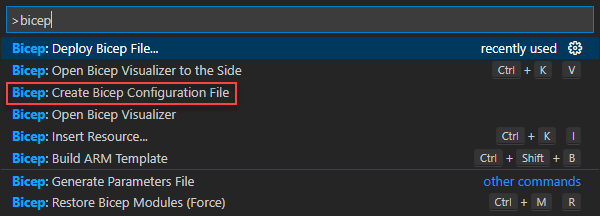
To create a bicepconfig.json file in Visual Studio Code, open the Command Palette ([CTRL/CMD]+[SHIFT]+P), and then select Bicep: Create Bicep Configuration File. For more information, see Create Bicep configuration file.
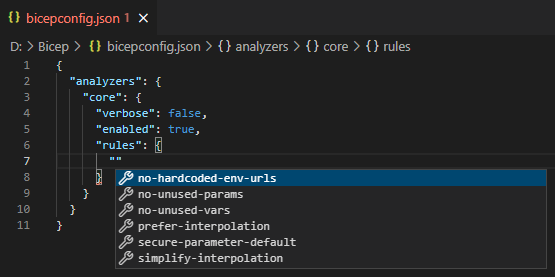
The Bicep extension for Visual Studio Code supports IntelliSense for bicepconfig.json files. Use the IntelliSense to discover available properties and values.
Understand the merge process
The bicepconfig.json file undergoes a recursive bottom-up merging process with the default configuration file. During the merging process, Bicep examines each path in both configurations. If a path isn't present in the default configuration, the path and its associated value are added in the final result. Conversely, if a path exists in the default configuration with a different value, the value from bicepconfig.json takes precedence in the merged result.
Consider a scenario where the default configuration is defined as follows:
{
  "cloud": {
    ...
    "credentialPrecedence": [
      "AzureCLI",
      "AzurePowerShell"
    ]
  },
  "moduleAliases": {
    "ts": {},
    "br": {
      "public": {
        "registry": "mcr.microsoft.com",
        "modulePath": "bicep"
      }
    }
  },
  ...
}
And the bicepconfig.json is defined as follows:
{
  "cloud": {
    "credentialPrecedence": [
      "AzurePowerShell",
      "AzureCLI"
    ]
  },
  "moduleAliases": {
    "br": {
      "ContosoRegistry": {
        "registry": "contosoregistry.azurecr.io"
      },
      "CoreModules": {
        "registry": "contosoregistry.azurecr.io",
        "modulePath": "bicep/modules/core"
      }
    }
  }
}
The resulting merged configuration would be:
{
  "cloud": {
    ...
    "credentialPrecedence": [
      "AzurePowerShell",
      "AzureCLI"
    ]
  },
  "moduleAliases": {
    "ts": {},
    "br": {
      "public": {
        "registry": "mcr.microsoft.com",
        "modulePath": "bicep"
      },
      "ContosoRegistry": {
        "registry": "contosoregistry.azurecr.io"
      },
      "CoreModules": {
        "registry": "contosoregistry.azurecr.io",
        "modulePath": "bicep/modules/core"
      }
    }
  },
  ...
}
In the preceding example, the value of cloud.credentialPrecedence is replaced, while the values of cloud.moduleAliases.ContosoRegistry and cloud.moduleAliases.CoreModules are appended in the merged configuration.
Understand the file resolution process
The bicepconfig.json file can be placed in the same directory or a parent directory of your Bicep files. If there are multiple parent directories containing bicepconfig.json files, Bicep uses the configuration file from the nearest one. For instance, in the given folder structure where each folder has a bicepconfig.json file:
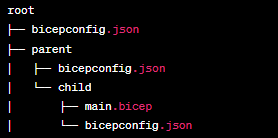
If you compile main.bicep in the child folder, the bicepconfig.json file in the child folder is used. The configuration files in the parent folder and the root folder are ignored. If the child folder doesn't contain a configuration file, Bicep searches for a configuration in the parent folder and then the root folder. If a configuration file isn't found in any of the folders, Bicep defaults to using the default values.
In the context of a Bicep file invoking multiple modules, each module undergoes compilation using the nearest bicepconfig.json. Then, the main Bicep file is compiled with its corresponding bicepconfig.json. In the following scenario, modA.bicep is compiled using the bicepconfig.json located in the A folder, modB.bicep is compiled with the bicepconfig.json in the B folder, and finally, main.bicep is compiled using the bicepconfig.json in the root folder.
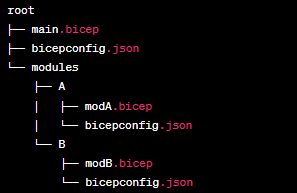
In the absence of a bicepconfig.json file in the A and B folders, all three Bicep files are compiled using the bicepconfig.json found in the root folder. If bicepconfig.json isn't present in any of the folders, the compilation defaults to using the default values.
Configure compiler version requirements
Use bicep.version in bicepconfig.json to declare an exact compiler version or an allowed range. Bicep checks the running compiler against this requirement; the setting doesn't itself install or switch versions.
For supported syntax, examples, CLI and editor behavior, and troubleshooting, see Configure Bicep compiler version requirements.
Specify a configuration file in the Bicep CLI
Starting in Bicep CLI v0.49, you can pass --config <path> to Bicep CLI commands to use a specific configuration file instead of automatic bicepconfig.json discovery. This option is useful when you need environment-specific settings (such as separate module registries for test and production) or a central configuration in a CI/CD pipeline.
<path> can be an absolute or relative local file path with any file name. When you specify --config, Bicep uses that file for every source file loaded during the command—including the entrypoint file, referenced local modules, and the using target of a .bicepparam file. Any bicepconfig.json files in the directory hierarchy are ignored unless the specified configuration file inherits from them with extends.
The following example uses bicepconfig.prod.json to extend a base bicepconfig.json file and override a module registry alias for a production build:
{
  "extends": "./bicepconfig.json",
  "moduleAliases": {
    "br": {
      "shared": {
        "registry": "contosoprodregistry.azurecr.io",
        "modulePath": "bicep/modules"
      }
    }
  }
}
Run bicep build or bicep lint with --config to apply the configuration file:
bicep build ./main.bicep --config ./bicepconfig.prod.json
bicep lint ./services/api/main.bicep --config ./eng/common/bicepconfig.json
When using --config, keep these behaviors in mind:
- Supported commands:
build,build-params,lint,format,publish,publish-extension,restore,generate-params,snapshot,test,deploy,what-if,teardown,local-deploy,console, anddocs generate. - Missing file error: If the file at
<path>doesn't exist, the command fails immediately withCould not find configuration file "<path>".instead of falling back to directory discovery. - Editor behavior: The
--configoption applies only to Bicep CLI commands. The Bicep extension for Visual Studio Code continues to use automatic bicepconfig.json discovery. - Azure CLI:
az bicepcommands such asaz bicep builddon't support--configyet. Useaz bicep run(Azure CLI 2.88.0 or later) to pass the command directly to the Bicep CLI, for exampleaz bicep run --command "build main.bicep --config ./bicepconfig.prod.json". The Bicep CLI that Azure CLI uses must be v0.49 or later. To update it, runaz bicep upgrade.
Configure Bicep modules
When working with modules, you can add aliases for module paths. These aliases simplify your Bicep file because you don't have to repeat complicated paths. You can also configure cloud profile and credential precedence for authenticating to Azure from Bicep CLI and Visual Studio Code. The credentials are used to publish modules to registries and to restore external modules to the local cache when using the insert resource function. For more information, see Add module settings to Bicep config.
Configure Linter rules
The Bicep linter checks Bicep files for syntax errors and best practice violations. You can modify a bicepconfig.json file to override the default settings for how a Bicep file is validated. For more information, see Add linter settings to Bicep config.
Enable experimental features
You can enable experimental features by adding the following section to your bicepconfig.json file. Using experimental features automatically enables language version 2.0 code generation.
Warning
Microsoft Customer Support doesn't provide assistance for issues resulting from the use of Bicep experimental features; use them at your own risk.
Here's an example of enabling features 'assertions' and 'testFramework`.
{
  "experimentalFeaturesEnabled": {
    "assertions": true,
    "testFramework": true
  }
}
See Experimental Features for more information about Bicep experimental features.
Next steps
- Learn how to add module settings and linter settings in the Bicep config file.
- Learn about the Bicep linter.