Note
Access to this page requires authorization. You can try signing in or changing directories.
Access to this page requires authorization. You can try changing directories.
Data discovery is the ability for users across your organization to find, understand, and trust data assets in the catalog. As an administrator, you shape discoverability through the browsing experiences you enable, the tagging metadata and trust signals you apply, and the semantic layer that defines what your data means. This page provides an overview of the data discovery capabilities in Unity Catalog and links to detailed documentation for each.
Catalog Explorer
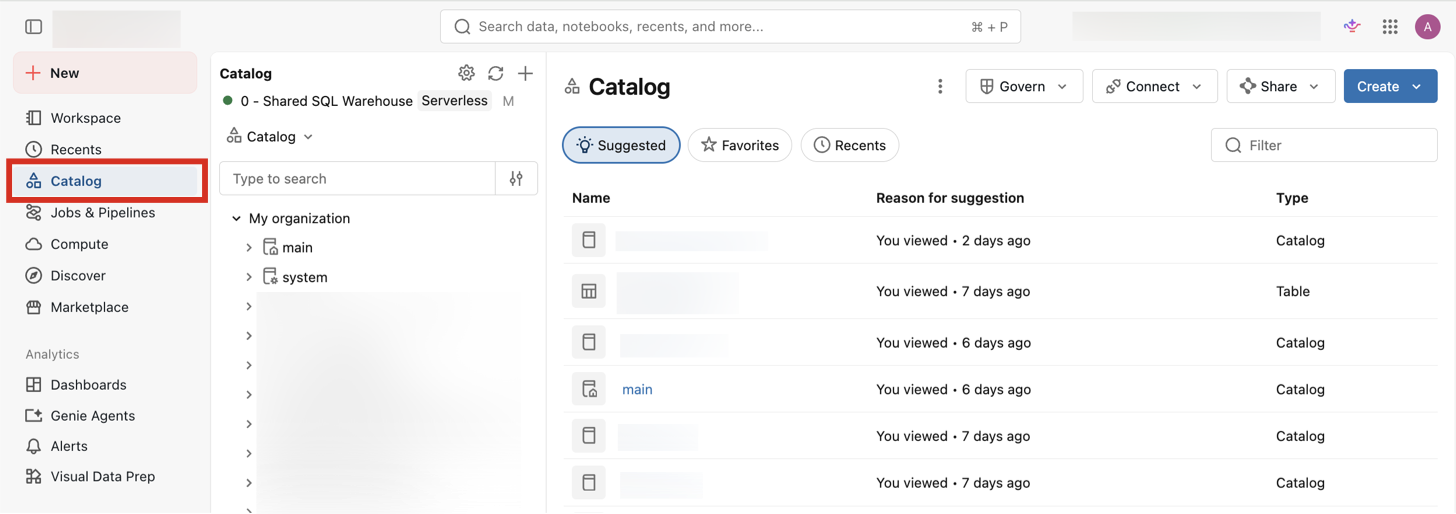
Catalog Explorer shows everything in your catalogs, in the catalog hierarchy rather than a business-aligned one. It's the interface for browsing and inspecting data objects directly, including details that the curated view doesn't surface: object properties, permissions, sample data, and lineage. Point users at Catalog Explorer page when they need the complete picture or need to inspect and configure a specific object.
To open Catalog Explorer, click  Catalog in the sidebar.
| Page | Description |
|---|---|
| Catalog Explorer | Browse and inspect Unity Catalog objects, and view their details, permissions, and relationships. |
| Explore database objects | Find and examine catalogs, schemas, tables, and other database objects in Catalog Explorer. |
Unity Catalog semantics
Unity Catalog semantics is a collection of tools to help you define standard business metrics, terms, and organizational structures on top of your catalog data. This helps your organization and its AI tools work from one shared interpretation of what your data means. Unity Catalog semantics consists of the following components:
- Metric views define and govern reusable business KPIs.
- Domains and subdomains organize assets into a business-aligned hierarchy for browsing in the Discover page.
- Pages give each business concept and term an authoritative definition.
- Certification and deprecation flag which assets your organization has vetted, and which ones are outdated.
These definitions make up the human-modeled layer of the Genie Ontology : the business context that you define and govern explicitly. Genie One combines this modeled context with context it infers automatically from your assets and usage, forming a unified context layer that it draws on to answer questions.
Use the following pages to learn more about Unity Catalog semantics and its components:
| Page | Description |
|---|---|
| Metric views | Define and govern consistent, reusable business KPIs as Unity Catalog objects. |
| Flag data as certified or deprecated | Signal which data assets your organization trusts, and which are outdated. |
Tagging
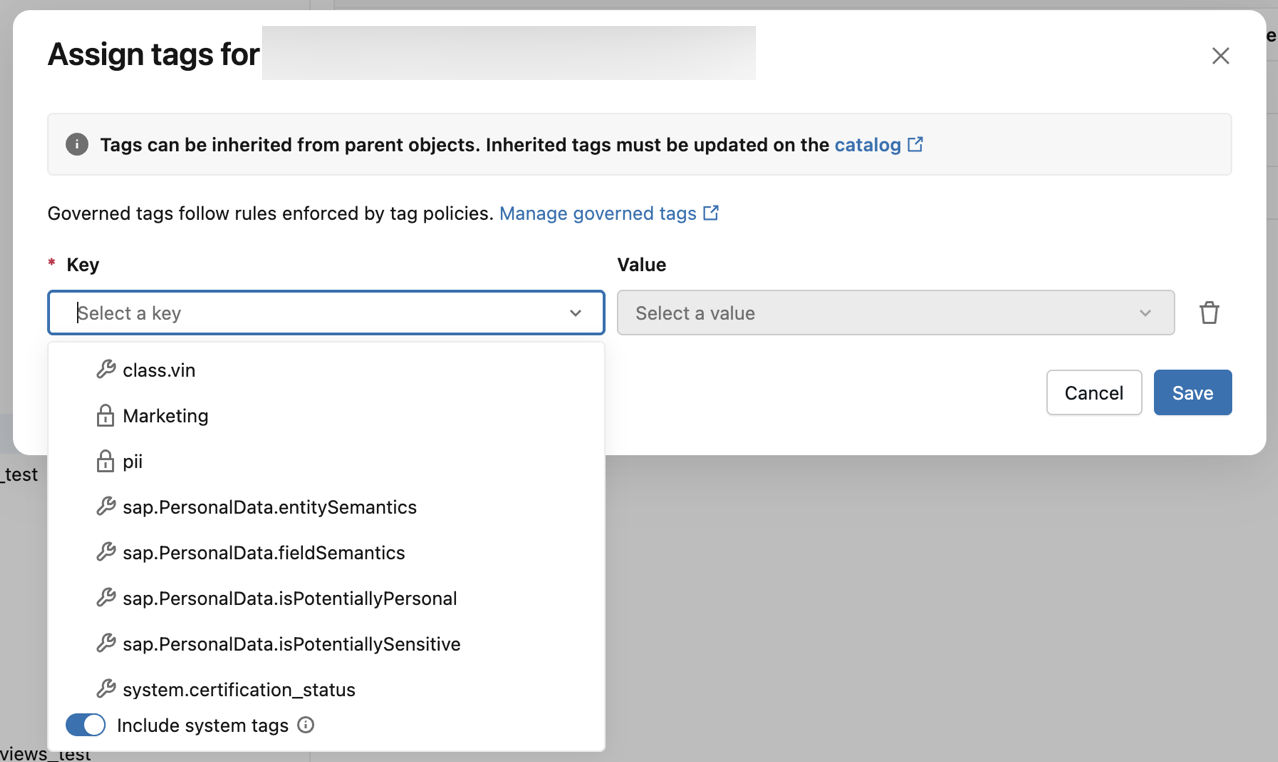
Tags are attributes that you apply to Unity Catalog securable objects to organize and categorize them, which makes data easier to search for and filter. With governed tags, admins mark specific tag keys as governed and define the set of allowed values for each.
For example, a governed sensitivity tag might permit only public, internal, or restricted, so the same tag is applied the same way across the catalog.
| Page | Description |
|---|---|
| Apply tags to Unity Catalog securable objects | Apply and manage tags on catalog objects to organize and categorize your data. |
| Governed tags | Mark specific tag keys as governed and define their allowed values for consistent tagging. |
Lineage
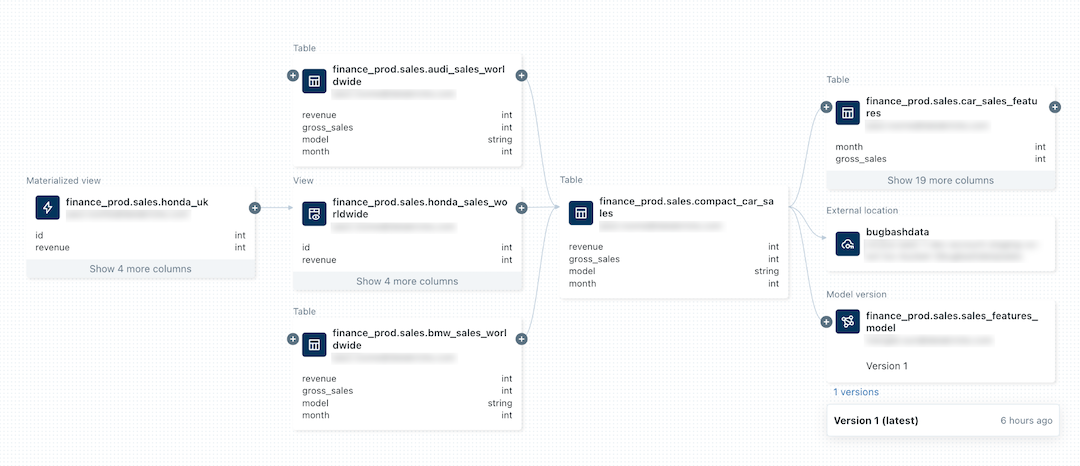
Lineage tracks how data flows across tables, columns, and AI assets, so users can trace where data comes from and how it's used before they trust it. Unity Catalog captures lineage automatically for queries run on Azure Databricks and displays it in Catalog Explorer.
| Page | Description |
|---|---|
| Lineage in Unity Catalog | Capture and view how data flows across tables, columns, notebooks, and other assets. |
| External lineage | Track lineage for data that moves between Azure Databricks and external systems. |
Certification and deprecation
You can certify a data asset to signal that it meets your organization's standards, or deprecate it to warn that it's outdated and shouldn't be used. These signals appear next to the asset in the workspace and influence how it surfaces in search, so users can judge whether to trust an asset before they use it.
For example, a blue check mark next to a data asset indicates that it has been certified.

| Page | Description |
|---|---|
| Flag data as certified or deprecated | Apply system tags to mark assets as certified or deprecated. |