Note
Access to this page requires authorization. You can try signing in or changing directories.
Access to this page requires authorization. You can try changing directories.
In this article, you learn how to set up event-driven applications, processes, or CI/CD workflows based on Azure Machine Learning events. For example, you can set up failure notification emails or ML pipeline runs when certain conditions are detected by using Azure Event Grid.
Azure Machine Learning manages the entire lifecycle of the machine learning process, including model training, model deployment, and monitoring. By using Event Grid, you can react to Azure Machine Learning events, such as the completion of training runs and the registration and deployment of models, by using modern serverless architectures. You can then subscribe to and consume events such as run status changed, run completion, model registration, and model deployment within a workspace.
Use Event Grid for event driven actions:
- Send emails on run failure and run completion
- Use an Azure function after a model is registered
- Stream events from Azure Machine Learning to various endpoints
Important
Items marked (preview) in this article are currently in public preview. The preview version is provided without a service level agreement, and it's not recommended for production workloads. Certain features might not be supported or might have constrained capabilities. For more information, see Supplemental Terms of Use for Azure Previews.
Prerequisites
To use Event Grid, you need contributor or owner access to the Azure Machine Learning workspace you create events for.
Register the
Microsoft.EventGridresource provider in your Azure subscription. This registration is required before you can create event subscriptions.az provider register --namespace Microsoft.EventGrid --waitIf you plan to use the Logic Apps example, register the
Microsoft.Logicprovider as well.az provider register --namespace Microsoft.Logic --waitIf you plan to follow the CLI example, install the
eventgridAzure CLI extension.az extension add --name eventgridIf you plan to follow the CLI example with Event Hub as the destination, you need an existing Event Hub namespace and hub. See Create an event hub if you need to create one.
The event model and types
Azure Event Grid reads events from sources, such as Azure Machine Learning and other Azure services. It sends these events to event handlers such as Azure Event Hubs, Azure Functions, Logic Apps, and others. The following diagram shows how Event Grid connects sources and handlers, but it isn't a comprehensive list of supported integrations.
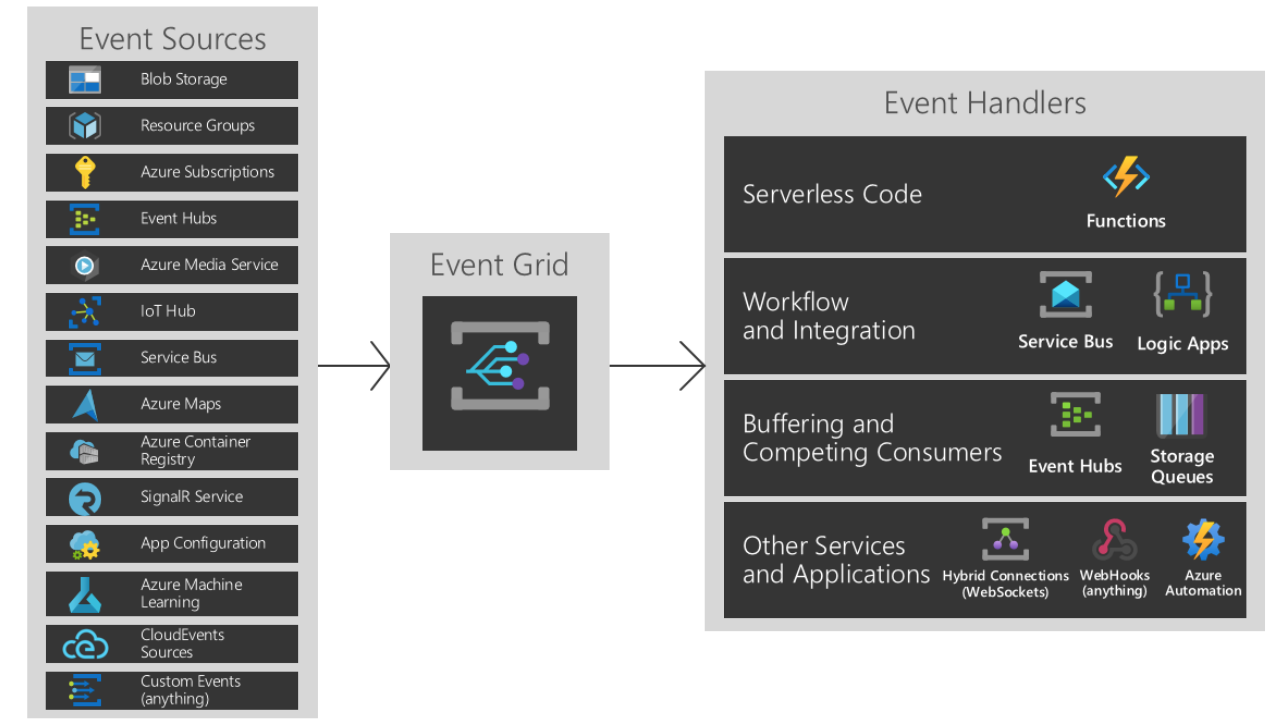
For more information on event sources and event handlers, see What is Event Grid?.
Event types for Azure Machine Learning
Azure Machine Learning provides events at various points of the machine learning lifecycle:
| Event type | Description |
|---|---|
Microsoft.MachineLearningServices.RunCompleted |
Raised when a machine learning experiment run completes |
Microsoft.MachineLearningServices.ModelRegistered |
Raised when a new model or model version is successfully registered |
Microsoft.MachineLearningServices.ModelDeployed |
Raised when one or more models are successfully deployed to an endpoint |
Microsoft.MachineLearningServices.RunStatusChanged |
Raised when a run status changes |
Filter and subscribe to events
Azure Event Grid publishes these events. From the Azure portal, PowerShell, or Azure CLI, you can easily subscribe to events by specifying one or more event types, and filtering conditions.
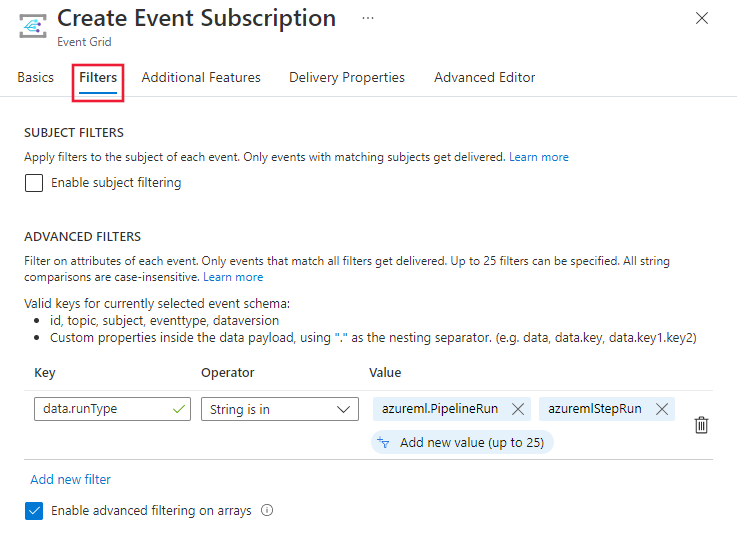
When setting up your events, apply filters to only trigger on specific event data. In the following example, for run status changed events, you can filter by run types. The event only triggers when the criteria are met. For more information on the event data you can filter on, see the Azure Machine Learning Event Grid schema.
Azure role-based access control (Azure RBAC) protects subscriptions for Azure Machine Learning events. Only contributor or owner of a workspace can create, update, and delete event subscriptions. You can apply filters to event subscriptions either during the creation of the event subscription or at a later time.
Go to the Azure portal, select a new subscription or an existing one.
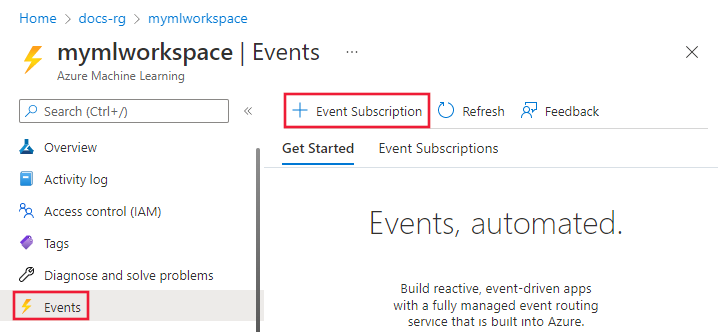
Select the Events entry from the left pane, and then select + Event subscription.
Select the filters tab and scroll down to Advanced filters. For the Key and Value, provide the property types you want to filter by. Here you can see the event triggers when the run type is a pipeline run or pipeline step run.
Filter by event type: An event subscription can specify one or more Azure Machine Learning event types.
Filter by event subject: Azure Event Grid supports subject filters based on begins with and ends with matches, so that events with a matching subject are delivered to the subscriber. Different machine learning events have different subject format.
Event type Subject format Sample subject Microsoft.MachineLearningServices.RunCompletedexperiments/{ExperimentId}/runs/{RunId}experiments/b1d7966c-f73a-4c68-b846-992ace89551f/runs/my_exp1_1554835758_38dbaa94Microsoft.MachineLearningServices.ModelRegisteredmodels/{modelName}:{modelVersion}models/sklearn_regression_model:3Microsoft.MachineLearningServices.ModelDeployedendpoints/{serviceId}endpoints/my_sklearn_aksMicrosoft.MachineLearningServices.RunStatusChangedexperiments/{ExperimentId}/runs/{RunId}experiments/b1d7966c-f73a-4c68-b846-992ace89551f/runs/my_exp1_1554835758_38dbaa94Advanced filtering: Azure Event Grid also supports advanced filtering based on published event schema. Azure Machine Learning event schema details can be found in Azure Event Grid event schema for Azure Machine Learning. For
Microsoft.MachineLearningServices.ModelRegisteredevent, to filter model's tag value:--advanced-filter data.ModelTags.key1 StringIn value1To learn more about how to apply filters, see Filter events for Event Grid.
Consume Machine Learning events
Applications that handle Machine Learning events should follow a few recommended practices:
- As multiple subscriptions can route events to the same event handler, don't assume events are from a particular source. Check the topic of the message to ensure that it comes from the machine learning workspace you expect.
- Similarly, check that the eventType is one you can process. Don't assume that all events you receive are the types you expect.
- As messages can arrive out of order and after some delay, use the etag fields to understand if your information about objects is still up-to-date. Also, use the sequencer fields to understand the order of events on any particular object.
- Ignore fields you don't understand. This practice helps keep you resilient to new features that might be added in the future.
- Failed or canceled Azure Machine Learning operations don't trigger an event. For example, if a model deployment fails, Microsoft.MachineLearningServices.ModelDeployed isn't triggered. Consider such failure mode when design your applications. You can always use Azure Machine Learning SDK, CLI, or portal to check the status of an operation and understand the detailed failure reasons.
Azure Event Grid allows you to build decoupled message handlers, which Azure Machine Learning events can trigger. Some notable examples of message handlers include:
- Azure Functions
- Azure Logic Apps
- Azure Event Hubs
- Azure Data Factory Pipeline
- Generic webhooks, which you might host on the Azure platform or elsewhere
Set up in Azure portal
Open the Azure portal and go to your Azure Machine Learning workspace.
From the left bar, select Events and then select Event Subscriptions.
Select the event type to consume.
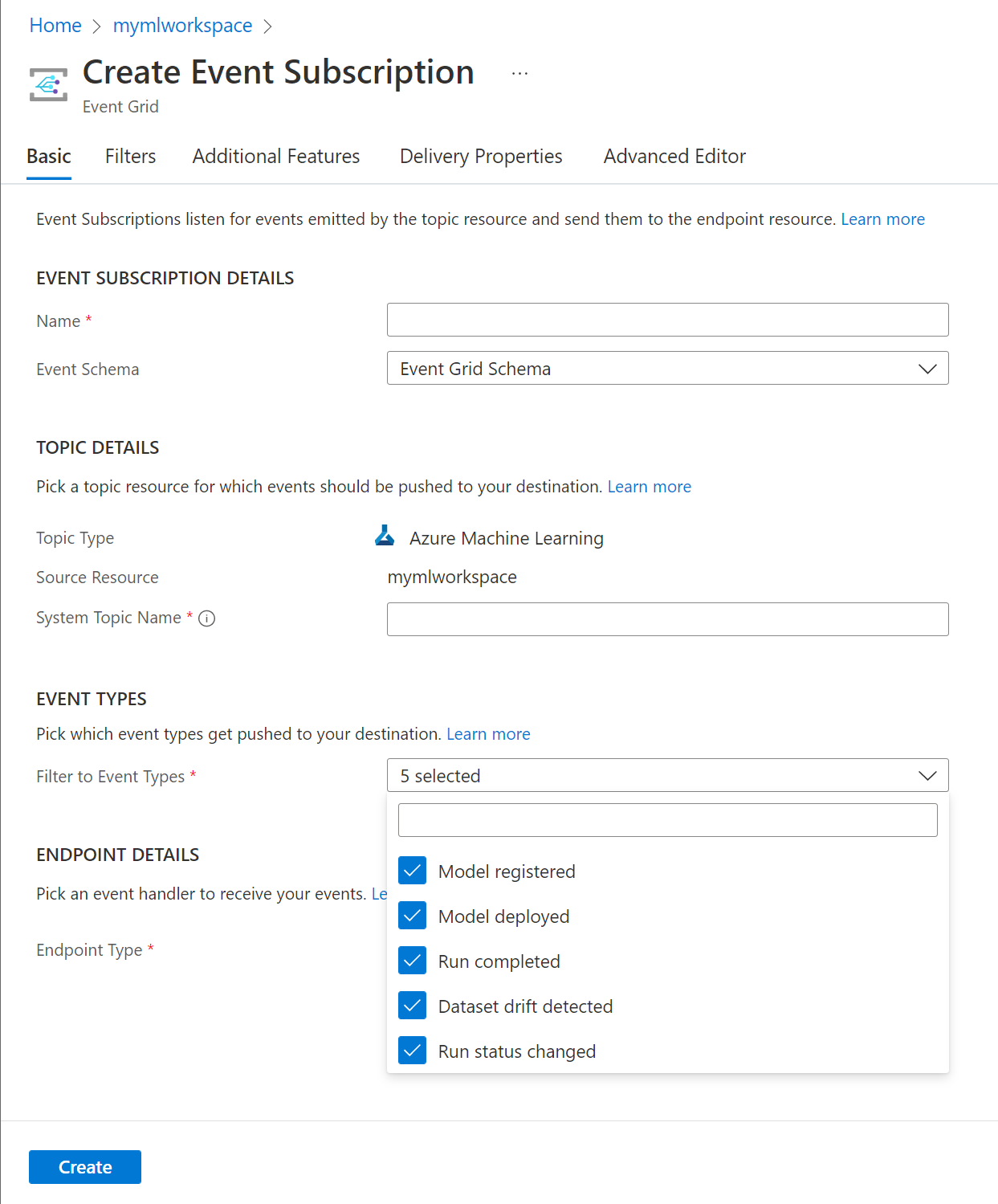
Select the endpoint to publish the event to. In the following screenshot, Event hub is the selected endpoint:
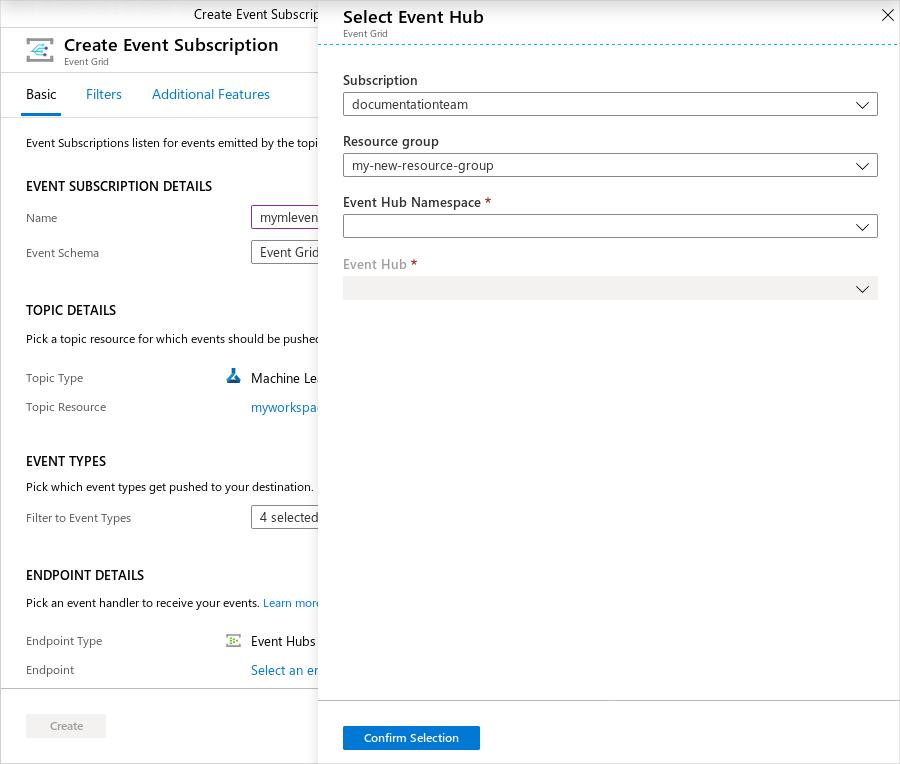
When you confirm your selection, select Create. After configuration, these events are pushed to your endpoint.
To confirm the subscription was created, select Events > Event Subscriptions in your workspace and verify that your new subscription appears in the list.
Set up with the CLI
You can either install the latest Azure CLI. Make sure you install the eventgrid extension, as described in Prerequisites.
The following example demonstrates how to select an Azure subscription and create a new event subscription for Azure Machine Learning:
# Select the Azure subscription that contains the workspace
az account set --subscription "<name or ID of the subscription>"

# Subscribe to the machine learning workspace. This example uses EventHub as a destination.
az eventgrid event-subscription create --name {eventGridFilterName} \
  --source-resource-id /subscriptions/{subId}/resourceGroups/{RG}/providers/Microsoft.MachineLearningServices/workspaces/{wsName} \
  --endpoint-type eventhub \
  --endpoint /subscriptions/{SubID}/resourceGroups/TestRG/providers/Microsoft.EventHub/namespaces/n1/eventhubs/EH1 \
  --included-event-types Microsoft.MachineLearningServices.ModelRegistered \
  --subject-begins-with "models/mymodelname"
To confirm the subscription was created successfully, run:
az eventgrid event-subscription show \
  --name {eventGridFilterName} \
  --source-resource-id /subscriptions/{subId}/resourceGroups/{RG}/providers/Microsoft.MachineLearningServices/workspaces/{wsName}
Examples
Example: Send email alerts
Use Azure Logic Apps to configure emails for all your events. Customize with conditions and specify recipients to enable collaboration and awareness across teams working together.
In the Azure portal, go to your Azure Machine Learning workspace and select the events tab from the left bar. From here, select Logic apps.
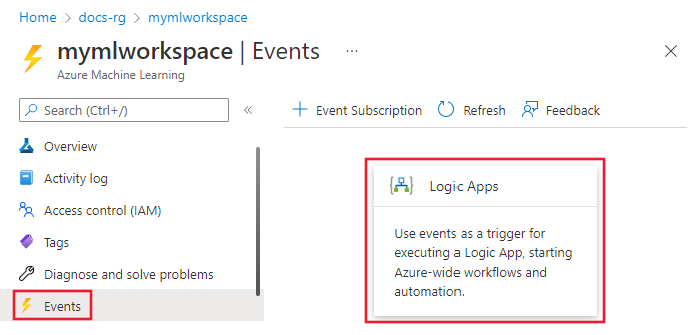
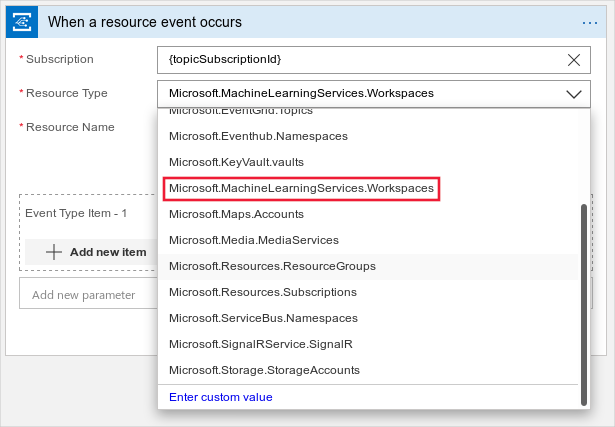
Sign in to the Logic App UI and select Machine Learning service as the topic type.
Select the event you want to be notified for. For example, the following screenshot shows RunCompleted.
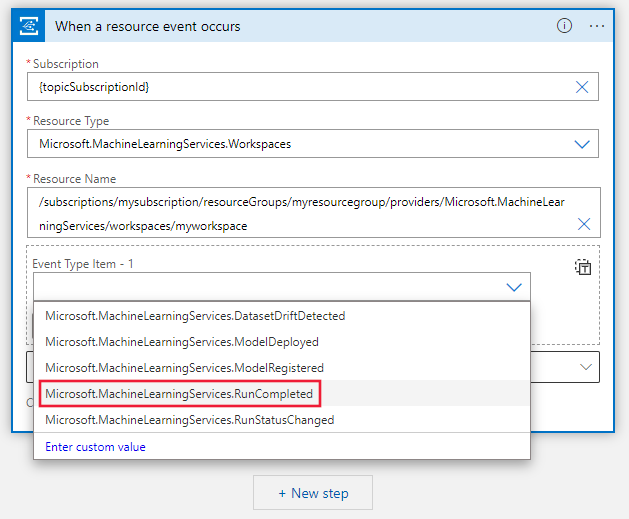
Next, add a step to consume this event and search for email. There are several different mail accounts you can use to receive events. You can also configure conditions on when to send an email alert.
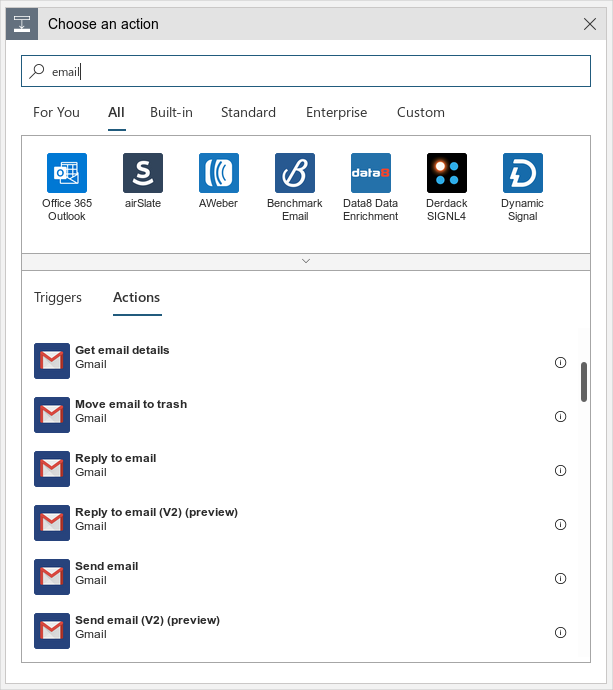
Select Send an email and fill in the parameters. In the subject, include the Event Type and Topic to help filter events. You can also include a link to the workspace page for runs in the message body.
To save this action, select Save As on the left corner of the page.
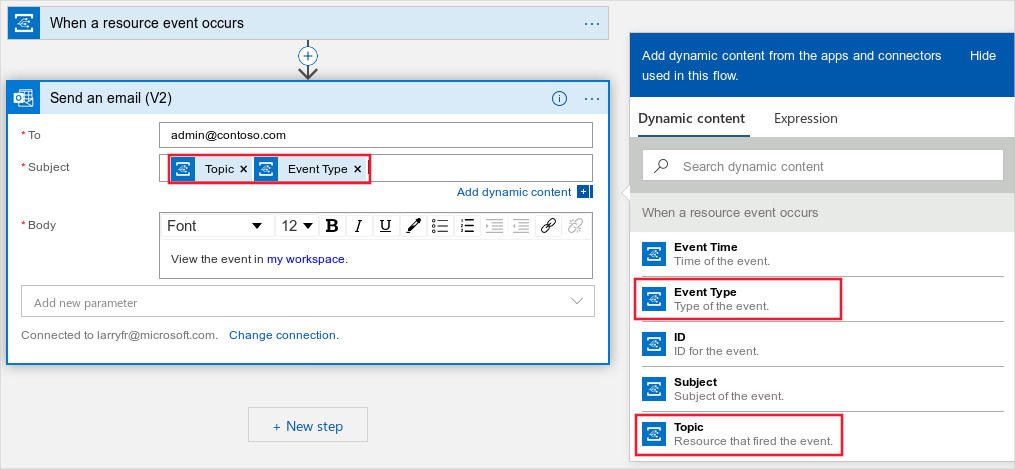
To verify the alert works, trigger a qualifying event - for example, complete a training run - and confirm that the email arrives at the specified recipients.
Next steps
To learn more about Event Grid and try Azure Machine Learning events, see: