Note
Access to this page requires authorization. You can try signing in or changing directories.
Access to this page requires authorization. You can try changing directories.
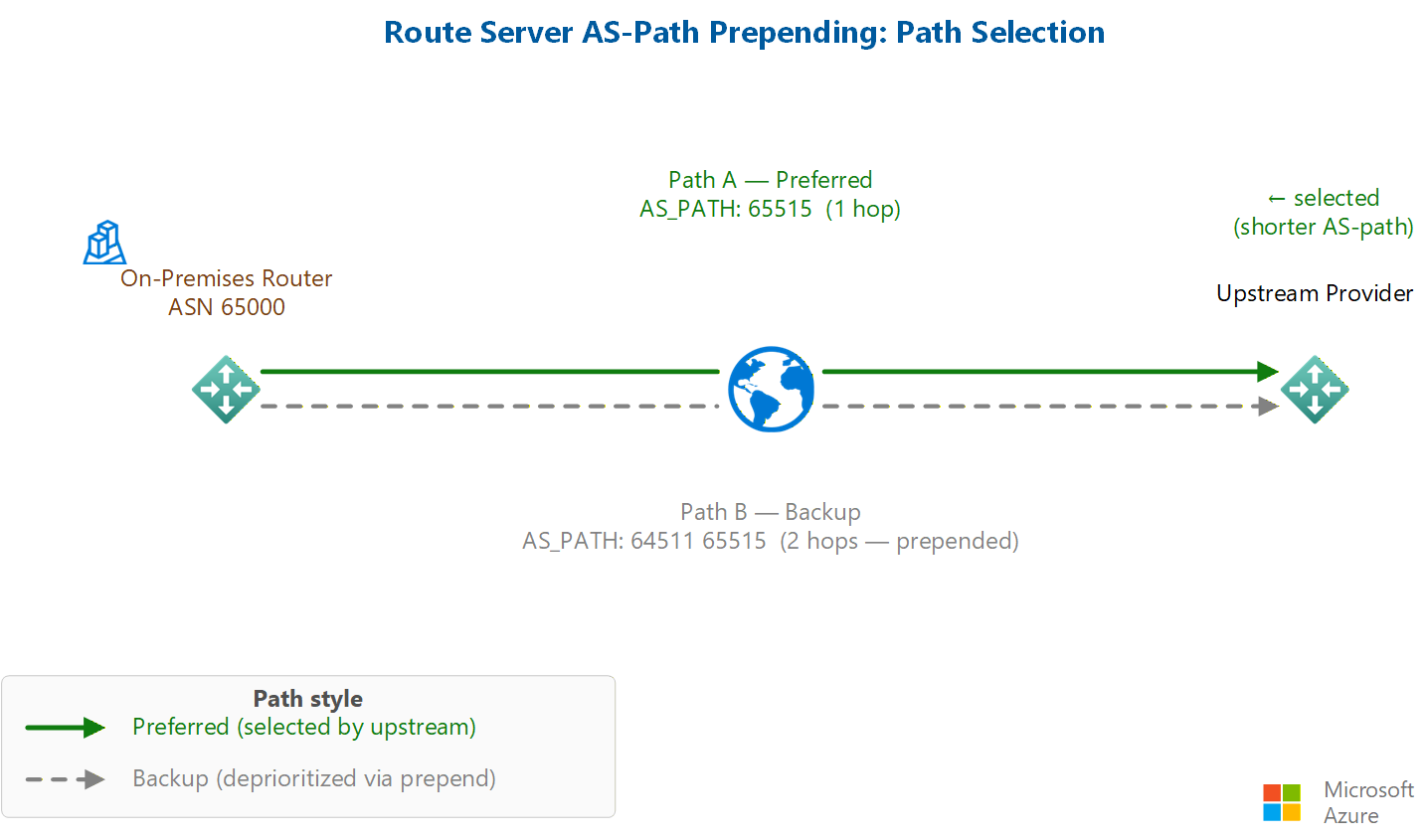
AS path prepending is a common Border Gateway Protocol (BGP) traffic-engineering technique. When you prepend one or more autonomous system numbers (ASNs) to the AS path of a route, the route appears longer and becomes less preferred to downstream BGP peers, which typically favor shorter AS paths. You can use this technique to design primary and backup connectivity, influence inbound traffic paths, and steer traffic in active-active architectures.
This article shows you how to use route maps for Azure Route Server to prepend ASNs to the AS path of matched routes by using the Azure portal. For an overview of route maps, see About route maps for Azure Route Server.
Prerequisites
- An Azure account with an active subscription. Create an account for trial.
- An Azure Route Server deployed in a virtual network, with at least one BGP peering to a network virtual appliance (NVA), an ExpressRoute gateway connection, or a VPN gateway connection. For the full list of prerequisites, see Configure route maps: Prerequisites.
- Verify that routes are learned through Azure Route Server before you configure a route map. Use the Effective Routes view on your route server to confirm the routes and their current AS path values.
Considerations
Review the following considerations before you prepend routes:
- Route-map rules are evaluated in order. A route that matches a rule is evaluated by later rules only if that rule's Next step is Continue.
- You can prepend multiple ASNs in a single action by using comma-separated values. Within a single Add action, ASNs are prepended in the order that you list them. You can also prepend the same ASN multiple times to further lengthen the path.
- AS path prepending affects route advertisements only. It doesn't affect route reachability.
- Don't use Azure-reserved ASNs when you prepend routes. Reserved public ASNs are 8074, 8075, and 12076. Reserved private ASNs are 65515, 65517, 65518, 65519, and 65520.
- Routes advertised over ExpressRoute have private ASNs removed by the Microsoft Enterprise Edge (MSEE) routers. Don't use private ASNs for AS path prepending when routes traverse ExpressRoute, because the MSEE routers strip them before the route reaches your equipment. Routes advertised over a VPN gateway or to an NVA can use public or private ASNs.
For the complete list of route maps limitations, see About route maps: Considerations and limitations.
Understand the scenario
In this scenario, a workload subnet uses the prefix 10.0.0.0/16 and Azure Route Server uses ASN 65515. You create a route map that matches the workload prefix and prepends ASN 64511 to its AS path before the route is advertised to downstream peers. The longer AS path makes the route less attractive, so downstream BGP peers prefer an alternate path.
The following table shows the AS path before and after the route map is applied:
| Prefix | AS path | |
|---|---|---|
| Before the route map | 10.0.0.0/16 | 65515 |
| After the route map | 10.0.0.0/16 | 64511 65515 |
Configure the route map
Configure a route map rule that matches the workload prefix and prepends the ASN.
In the Azure portal, go to your Azure Route Server resource.
In the left menu under Routing, select Route Maps.
On Route Maps, select + Add Route-map.
On Create Route-map, enter a Name for the route map, and then select + Add rule.
On Create Route-map rule, enter a Name for the rule, and configure the following settings:
Next step: Select Continue if later rules in the route map should also process matched routes. Select Terminate if this rule is the last rule that should act on matched routes.
Match condition
Property Criterion Value RoutePrefix Equals 10.0.0.0/16 Action on matched routes: Select Modify.
Route modifications
Property Action Value AsPath Add 64511 To prepend multiple ASNs, enter comma-separated values such as
64511,64510,64511. The ASNs are prepended in the order that you enter them.Select Add to save the rule to the route map.
On Create Route-map, select Save to save the route map and its rules.
It takes a few minutes to save. After the save completes, the Provisioning state shows Succeeded.
Note
The first time you create a route map on an Azure Route Server, the route server undergoes a one-time upgrade that can take up to 30 minutes.
Apply and verify the route map
Apply the route map to the outbound direction of the BGP peering or gateway connection that advertises the workload route. For steps, see Apply a route map to BGP peerings and gateway connections.
Under Routing, select Route Maps, and then open Connections Dashboard. Select the connection and the outbound direction to confirm that the AS path is modified as expected.
On the receiving BGP peer, verify the advertised route. The prepended ASN values appear in the AS path of the advertised route.
Frequently asked questions
Does the order of prepended ASNs matter?
Yes. The ASNs are prepended in the exact order that you configure them. For example, 64511,64510 results in an AS path of 64511 64510 65515, while 64510,64511 results in 64510 64511 65515.
Can I prepend the same ASN multiple times?
Yes. For example, 64510,64510,64510 results in an AS path of 64510 64510 64510 65515. Repeating an ASN increases the path length and further de-preferences the route.
Can I use private ASNs for prepending?
Private ASNs work in some BGP environments, but if the routes traverse ExpressRoute, the MSEE routers can strip private ASNs before the route reaches your equipment. Use public ASNs when routes traverse ExpressRoute.
Can multiple route-map rules modify the same route?
Yes. If a route matches multiple rules, the rules are processed in the order defined in the route map. A later rule processes the route only if the earlier matching rule's Next step is Continue. Plan your rule sequencing carefully.
How do I verify that prepending is working?
Check the route advertisement on the receiving BGP peer. The additional ASN values appear in the advertised AS path. You can also use Connections Dashboard on the Route Maps page of the route server.
Clean up resources
If you created the route map only to test this scenario, remove it when you're done:
- Remove the route map from each connection where you applied it. Set Outbound Route-map to None for the connection, and then select Save. For steps, see Remove a route map from a connection.
- If no other connection uses the route map, delete it. For steps, see Modify or remove a route map.