Note
Access to this page requires authorization. You can try signing in or changing directories.
Access to this page requires authorization. You can try changing directories.
Note
This feature is currently in public preview. This preview is provided without a service-level agreement and isn't recommended for production workloads. Certain features might not be supported or might have constrained capabilities. For more information, see Supplemental Terms of Use for Azure Previews.
Learn how to create an intelligent, MCP-enabled solution that integrates Azure AI Search with Foundry Agent Service for agentic retrieval. You can use this architecture for conversational applications that require complex reasoning over large knowledge domains, such as customer support or technical troubleshooting.
In this tutorial, you:
- Configure role-based access for Azure AI Search and Microsoft Foundry
- Create a search index, knowledge source, and knowledge base in Azure AI Search
- Create a project connection for MCP communication between Azure AI Search and Microsoft Foundry
- Create an agent in Microsoft Foundry that uses the MCP tool for retrieval
- Test the solution by chatting with the agent
- Review tips for optimizing the solution
Tip
Want to get started right away? Clone the agentic-retrieval-pipeline-example Python notebook on GitHub. The notebook contains the code from this tutorial in a ready-to-run format.
Prerequisites
An Azure AI Search service in any region that provides agentic retrieval.
A Microsoft Foundry project and resource. When you create a project, the resource is automatically created.
A text embedding model deployed to your project for query-time vectorization. This solution uses
text-embedding-3-large.An LLM deployed to your project for the agent. This solution uses
gpt-4.1-mini.The Azure CLI for keyless authentication with Microsoft Entra ID.
The latest version of Python.
Visual Studio Code with the Python and Jupyter extensions.
Understand the solution
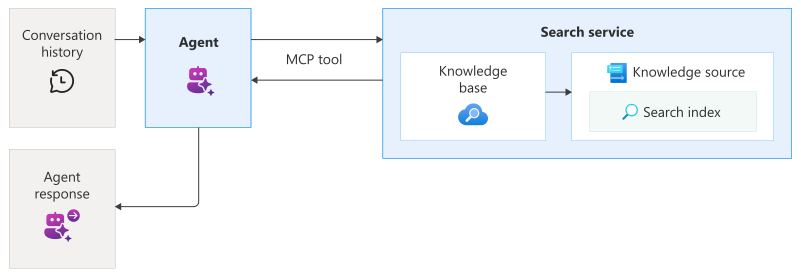
This solution combines Azure AI Search and Microsoft Foundry to create an end-to-end retrieval pipeline:
Azure AI Search hosts your knowledge base, which handles query planning, query execution, and result synthesis. You create a search index to store content, a knowledge source that references the index, and a knowledge base that performs hybrid retrieval from the knowledge source.
Microsoft Foundry hosts your Azure OpenAI model deployments, project connection, and agent. You create a project connection that points to the MCP endpoint of your knowledge base, and then you create an agent that uses the MCP tool to access the knowledge base.
A user initiates query processing by interacting with a client app, such as a chatbot, that calls the agent. The agent uses the MCP tool to orchestrate requests to the knowledge base and synthesize responses. When the chatbot calls the agent, the MCP tool calls the knowledge base in Azure AI Search and sends the response to the agent and chatbot.
Configure access
Before you begin, make sure you have permissions to access content and operations. We recommend Microsoft Entra ID for authentication and role-based access for authorization. You must be an Owner or User Access Administrator to assign roles. If roles aren't feasible, use key-based authentication instead.
To configure access for this solution:
Sign in to the Azure portal.
Enable a system-assigned managed identity for both your search service and your project. You can do so on the Identity page of each resource.
On your search service, enable role-based access and assign the following roles.
Role Assignee Purpose Search Service Contributor Your user account Create objects Search Index Data Contributor Your user account Load data Search Index Data Reader Your user account and project managed identity Read indexed content On your project's parent resource, assign the following roles.
Role Assignee Purpose Azure AI User Your user account Access model deployments and create agents Azure AI Project Manager Your user account Create project connection and use MCP tool in agents Cognitive Services User Search service managed identity Access knowledge base
Set up your environment
Create a folder named
tutorial-agentic-retrievalon your local system.Open the folder in Visual Studio Code.
Select View > Command Palette, and then select Python: Create Environment. Follow the prompts to create a virtual environment.
Select Terminal > New Terminal.
Install the required packages.
pip install azure-ai-projects==2.0.0b1 azure-mgmt-cognitiveservices azure-identity ipykernel dotenv azure-search-documents==11.7.0b2 requests openaiCreate a file named
.envin thetutorial-agentic-retrievalfolder.Add the following variables to the
.envfile, replacing the placeholder values with your own.AZURE_SEARCH_ENDPOINT = https://{your-service-name}.search.azure.cn PROJECT_ENDPOINT = https://{your-resource-name}.services.ai.azure.com/api/projects/{your-project-name} PROJECT_RESOURCE_ID = /subscriptions/{subscription-id}/resourceGroups/{resource-group-name}/providers/Microsoft.CognitiveServices/accounts/{account-name}/projects/{project-name} AZURE_OPENAI_ENDPOINT = https://{your-resource-name}.openai.azure.com AZURE_OPENAI_EMBEDDING_DEPLOYMENT = text-embedding-3-large AGENT_MODEL = gpt-4.1-miniYou can find the endpoints and resource ID in the Azure portal:
AZURE_SEARCH_ENDPOINTis on the Overview page of your search service.PROJECT_ENDPOINTis on the Endpoints page of your project.PROJECT_RESOURCE_IDis on the Properties page of your project.AZURE_OPENAI_ENDPOINTis on the Endpoints page of your project's parent resource.
For keyless authentication with Microsoft Entra ID, sign in to your Azure account. If you have multiple subscriptions, select the one that contains your Azure AI Search and Microsoft Foundry resources.
az loginCreate a file named
tutorial.ipynbin thetutorial-agentic-retrievalfolder. You add code cells to this file in the next section.
Build the solution
In this section, you create the components of the agentic retrieval solution. Add each code snippet to a separate code cell in the tutorial.ipynb notebook and run the cells sequentially.
Steps in this section include:
- Load connections
- Create a search index
- Upload documents to the index
- Create a knowledge source
- Create a knowledge base
- Set up a project client
- Create a project connection
- Create an agent with the MCP tool
- Chat with the agent
- Clean up resources
Load connections
The following code loads the environment variables from your .env file and establishes connections to Azure AI Search and Microsoft Foundry.
import os

from azure.identity import DefaultAzureCredential
from azure.mgmt.core.tools import parse_resource_id
from dotenv import load_dotenv

load_dotenv(override=True) # Take environment variables from .env

project_endpoint = os.environ["PROJECT_ENDPOINT"]
project_resource_id = os.environ["PROJECT_RESOURCE_ID"]
project_connection_name = os.getenv("PROJECT_CONNECTION_NAME", "earthknowledgeconnection")
agent_model = os.getenv("AGENT_MODEL", "gpt-4.1-mini")
agent_name = os.getenv("AGENT_NAME", "earth-knowledge-agent")
endpoint = os.environ["AZURE_SEARCH_ENDPOINT"]
credential = DefaultAzureCredential()
knowledge_source_name = os.getenv("AZURE_SEARCH_KNOWLEDGE_SOURCE_NAME", "earth-knowledge-source")
index_name = os.getenv("AZURE_SEARCH_INDEX", "earth-at-night")
azure_openai_endpoint = os.environ["AZURE_OPENAI_ENDPOINT"]
azure_openai_embedding_deployment = os.getenv("AZURE_OPENAI_EMBEDDING_DEPLOYMENT", "text-embedding-3-large")
azure_openai_embedding_model = os.getenv("AZURE_OPENAI_EMBEDDING_MODEL", "text-embedding-3-large")
base_name = os.getenv("AZURE_SEARCH_AGENT_NAME", "earth-knowledge-base")

# Parse the resource ID to extract subscription and other components
parsed_resource_id = parse_resource_id(project_resource_id)
subscription_id = parsed_resource_id['subscription']
resource_group = parsed_resource_id['resource_group']
account_name = parsed_resource_id['name']
project_name = parsed_resource_id['child_name_1']
Create a search index
In Azure AI Search, an index is a structured collection of data. The following code creates an index to store searchable content for your knowledge base.
The index schema contains fields for document identification and page content, embeddings, and numbers. The schema also includes configurations for semantic ranking and vector search, which uses your text-embedding-3-large deployment to vectorize text and match documents based on semantic similarity.
For more information about this step, see Create an index for agentic retrieval in Azure AI Search.
from azure.search.documents.indexes import SearchIndexClient
from azure.search.documents.indexes.models import (
    AzureOpenAIVectorizer, AzureOpenAIVectorizerParameters,
    HnswAlgorithmConfiguration, SearchField, SearchIndex,
    SemanticConfiguration, SemanticField, SemanticPrioritizedFields,
    SemanticSearch, VectorSearch, VectorSearchProfile
)

index = SearchIndex(
    name=index_name,
    fields=[
        SearchField(name="id", type="Edm.String", key=True, filterable=True, sortable=True, facetable=True),
        SearchField(name="page_chunk", type="Edm.String", filterable=False, sortable=False, facetable=False),
        SearchField(name="page_embedding_text_3_large", type="Collection(Edm.Single)", stored=False, vector_search_dimensions=3072, vector_search_profile_name="hnsw_text_3_large"),
        SearchField(name="page_number", type="Edm.Int32", filterable=True, sortable=True, facetable=True)
    ],
    vector_search=VectorSearch(
        profiles=[VectorSearchProfile(name="hnsw_text_3_large", algorithm_configuration_name="alg", vectorizer_name="azure_openai_text_3_large")],
        algorithms=[HnswAlgorithmConfiguration(name="alg")],
        vectorizers=[
            AzureOpenAIVectorizer(
                vectorizer_name="azure_openai_text_3_large",
                parameters=AzureOpenAIVectorizerParameters(
                    resource_url=azure_openai_endpoint,
                    deployment_name=azure_openai_embedding_deployment,
                    model_name=azure_openai_embedding_model
                )
            )
        ]
    ),
    semantic_search=SemanticSearch(
        default_configuration_name="semantic_config",
        configurations=[
            SemanticConfiguration(
                name="semantic_config",
                prioritized_fields=SemanticPrioritizedFields(
                    content_fields=[
                        SemanticField(field_name="page_chunk")
                    ]
                )
            )
        ]
    )
)

index_client = SearchIndexClient(endpoint=endpoint, credential=credential)
index_client.create_or_update_index(index)
print(f"Index '{index_name}' created or updated successfully")
Upload documents to the index
Currently, the index is empty. The following code populates the index with JSON documents from NASA's Earth at Night e-book. As required by Azure AI Search, each document conforms to the fields and data types defined in the index schema.
For more information about this step, see Pushing data to an index.
import requests
from azure.search.documents import SearchIndexingBufferedSender

url = "https://raw.githubusercontent.com/Azure-Samples/azure-search-sample-data/refs/heads/main/nasa-e-book/earth-at-night-json/documents.json"
documents = requests.get(url).json()

with SearchIndexingBufferedSender(endpoint=endpoint, index_name=index_name, credential=credential) as client:
    client.upload_documents(documents=documents)

print(f"Documents uploaded to index '{index_name}'")
Create a knowledge source
A knowledge source is a reusable reference to source data. The following code creates a knowledge source that targets the index you previously created.
source_data_fields specifies which index fields are included in citation references. This example includes only human-readable fields to avoid lengthy, uninterpretable embeddings in responses.
For more information about this step, see Create a search index knowledge source.
from azure.search.documents.indexes import SearchIndexClient
from azure.search.documents.indexes.models import (
    SearchIndexFieldReference, SearchIndexKnowledgeSource,
    SearchIndexKnowledgeSourceParameters
)

ks = SearchIndexKnowledgeSource(
    name=knowledge_source_name,
    description="Knowledge source for Earth at night data",
    search_index_parameters=SearchIndexKnowledgeSourceParameters(
        search_index_name=index_name,
        source_data_fields=[SearchIndexFieldReference(name="id"), SearchIndexFieldReference(name="page_number")]
    ),
)

index_client = SearchIndexClient(endpoint=endpoint, credential=credential)
index_client.create_or_update_knowledge_source(knowledge_source=ks)
print(f"Knowledge source '{knowledge_source_name}' created or updated successfully.")
Create a knowledge base
The following code creates a knowledge base that orchestrates agentic retrieval from your knowledge source. The code also stores the MCP endpoint of the knowledge base, which your agent will use to access the knowledge base.
For integration with Foundry Agent Service, the knowledge base is configured with the following parameters:
output_modeis set to extractive data, which provides the agent with verbatim, unprocessed content for grounding and reasoning. The alternative mode, answer synthesis, returns pregenerated answers that limit the agent's ability to reason over source content.retrieval_reasoning_effortis set to minimal effort, which bypasses LLM-based query planning to reduce costs and latency. For other reasoning efforts, the knowledge base uses an LLM to reformulate user queries before retrieval.
For more information about this step, see Create a knowledge base in Azure AI Search.
from azure.search.documents.indexes import SearchIndexClient
from azure.search.documents.indexes.models import (
    KnowledgeBase, KnowledgeRetrievalMinimalReasoningEffort,
    KnowledgeRetrievalOutputMode, KnowledgeSourceReference
)

knowledge_base = KnowledgeBase(
    name=base_name,
    knowledge_sources=[
        KnowledgeSourceReference(
            name=knowledge_source_name
        )
    ],
    output_mode=KnowledgeRetrievalOutputMode.EXTRACTIVE_DATA,
    retrieval_reasoning_effort=KnowledgeRetrievalMinimalReasoningEffort()
)

index_client = SearchIndexClient(endpoint=endpoint, credential=credential)
index_client.create_or_update_knowledge_base(knowledge_base=knowledge_base)
print(f"Knowledge base '{base_name}' created or updated successfully")

mcp_endpoint = f"{endpoint}/knowledgebases/{base_name}/mcp?api-version=2025-11-01-Preview"
Set up a project client
Use AIProjectClient to create a client connection to your Microsoft Foundry project. Your project might not contain any agents yet, but if you've already completed this tutorial, the agent is listed here.
from azure.ai.projects import AIProjectClient

project_client = AIProjectClient(endpoint=project_endpoint, credential=credential)

list(project_client.agents.list())
Create a project connection
The following code creates a project connection in Microsoft Foundry that points to the MCP endpoint of your knowledge base. This connection uses your project managed identity to authenticate to Azure AI Search.
import requests
from azure.identity import get_bearer_token_provider

bearer_token_provider = get_bearer_token_provider(credential, "https://management.chinacloudapi.cn/.default")
headers = {
    "Authorization": f"Bearer {bearer_token_provider()}",
}

response = requests.put(
    f"https://management.chinacloudapi.cn{project_resource_id}/connections/{project_connection_name}?api-version=2025-10-01-preview",
    headers=headers,
    json={
        "name": project_connection_name,
        "type": "Microsoft.MachineLearningServices/workspaces/connections",
        "properties": {
            "authType": "ProjectManagedIdentity",
            "category": "RemoteTool",
            "target": mcp_endpoint,
            "isSharedToAll": True,
            "audience": "https://search.azure.cn/",
            "metadata": { "ApiType": "Azure" }
        }
    }
)

response.raise_for_status()
print(f"Connection '{project_connection_name}' created or updated successfully.")
Create an agent with the MCP tool
The following code creates an agent configured with the MCP tool. When the agent receives a user query, it can call your knowledge base through the MCP tool to retrieve relevant content for response grounding.
The agent definition includes instructions that specify its behavior and the project connection you previously created. Based on our experiments, these instructions are effective in maximizing the accuracy of knowledge base invocations and ensuring proper citation formatting.
For more information about this step, see Quickstart: Create a new agent.
from azure.ai.projects.models import PromptAgentDefinition, MCPTool

instructions = """
You are a helpful assistant that must use the knowledge base to answer all the questions from user. You must never answer from your own knowledge under any circumstances.
Every answer must always provide annotations for using the MCP knowledge base tool and render them as: `【message_idx:search_idx†source_name】`
If you cannot find the answer in the provided knowledge base you must respond with "I don't know".
"""

mcp_kb_tool = MCPTool(
    server_label="knowledge-base",
    server_url=mcp_endpoint,
    require_approval="never",
    allowed_tools=["knowledge_base_retrieve"],
    project_connection_id=project_connection_name
)

agent = project_client.agents.create_version(
    agent_name=agent_name,
    definition=PromptAgentDefinition(
        model=agent_model,
        instructions=instructions,
        tools=[mcp_kb_tool]
    )
)

print(f"AI agent '{agent_name}' created or updated successfully")
Chat with the agent
Your client app uses the Conversations and Responses APIs from Azure OpenAI to interact with the agent.
The following code creates a conversation and passes user messages to the agent, resembling a typical chat experience. The agent determines when to call your knowledge base through the MCP tool and returns a natural-language answer with references. Setting tool_choice="required" ensures the agent always uses the knowledge base tool when processing queries.
# Get the OpenAI client for responses and conversations
openai_client = project_client.get_openai_client()

conversation = openai_client.conversations.create()

# Send initial request that will trigger the MCP tool
response = openai_client.responses.create(
    conversation=conversation.id,
    tool_choice="required",
    input="""
        Why do suburban belts display larger December brightening than urban cores even though absolute light levels are higher downtown?
        Why is the Phoenix nighttime street grid is so sharply visible from space, whereas large stretches of the interstate between midwestern cities remain comparatively dim?
    """,
    extra_body={"agent": {"name": agent.name, "type": "agent_reference"}},
)

print(f"Response: {response.output_text}")
The response should be similar to the following:
Response: Here are evidence-based explanations to your questions:

---

**1. Why do suburban belts display larger December brightening than urban cores, even though absolute light levels are higher downtown?**

- Suburban belts show a *larger percentage increase* in night brightness during December compared to urban cores, largely because suburban residential areas feature more single-family homes and larger yards, which are typically decorated with holiday lights. These areas start from a lower baseline (less bright overall at night compared to dense urban centers), so the relative change (brightening) is much more noticeable.

- In contrast, the downtown core is already very bright at night due to dense commercial lighting and streetlights. While it also sees a December increase (often 20-30% brighter), the *absolute* change is less striking because it begins at a much higher base of illumination.

- This pattern is observed across U.S. cities, with the phenomenon driven by widespread cultural practices and the suburban landscape's suitability for holiday lighting displays. The effect is visible in satellite data and was quantified at 20-50% brighter in December, especially in suburbs and city outskirts.

---

**2. Why is the Phoenix nighttime street grid so sharply visible from space, whereas large stretches of the interstate between midwestern cities remain comparatively dim?**

- Phoenix's sharply visible nighttime street grid from space is a result of its urban layout: the city (like many western U.S. cities) was developed using a regular grid system, with extensive and uniform street lighting and strong urban sprawl. The grid pattern, and the dense network of intersecting surface streets, is brightly illuminated, particularly at intersections, commercial areas, and major thoroughfares.

- The interstate highways between midwestern cities, though significant in length and crucial to national infrastructure, traverse sparsely populated rural areas. These stretches typically have very little artificial lighting (due to low traffic volumes at night and cost considerations), making them much less visible in nighttime satellite imagery. Only nodes (cities and towns) along the route show as bright "pearls" in the darkness, while the "strings" (highways) connecting them remain faint or invisible.

- In summary:
  - Urban areas like Phoenix stand out with strong, connected patterns of light due to dense development and extensive lighting.
  - Rural interstates are sparsely lit, and only their endpoints—cities and large towns—generate notable light visible from space.

---

**References**:
- [Holiday Lights increase most dramatically in suburbs, not downtowns: earth_at_night_508_page_176_verbalized, page 160](4:5)
- [Lighting paths and urban grids are visible from space, while rural highways remain dim: earth_at_night_508_page_124_verbalized, page 108](4:3)
- [Phoenix's grid and surrounding urban structure: earth_at_night_508_page_104_verbalized, page 88](4:1)
Inspect the response
The underlying response from the agent contains metadata about the queries sent to the knowledge base and the citations found. You can inspect this metadata to understand how the agent processed the user input.
response.to_dict()
Clean up resources
When you work in your own subscription, it's a good idea to finish a project by removing the resources you no longer need. Resources that are left running can cost you money.
In the Azure portal, select All resources or Resource groups from the left pane to find and manage resources. You can delete resources individually or delete the resource group to remove all resources at once.
You can also run the following code to delete individual objects:
# Delete the agent
project_client.agents.delete_version(agent.name, agent.version)
print(f"AI agent '{agent.name}' version '{agent.version}' deleted successfully")

# Delete the knowledge base
index_client.delete_knowledge_base(base_name)
print(f"Knowledge base '{base_name}' deleted successfully")

# Delete the knowledge source
index_client.delete_knowledge_source(knowledge_source=knowledge_source_name)
print(f"Knowledge source '{knowledge_source_name}' deleted successfully.")

# Delete the search index
index_client.delete_index(index)
print(f"Index '{index_name}' deleted successfully")
Improve data quality
By default, search results from knowledge bases are consolidated into a large, unified string that can be passed to agents for grounding. Azure AI Search provides the following indexing and relevance-tuning features to help you generate high-quality results. You can implement these features in the search index, and the improvements in search relevance are evident in the quality of retrieval responses.
Scoring profiles provide built-in boosting criteria. Your index must specify a default scoring profile, which is used by the retrieval engine when queries include fields associated with that profile.
Semantic configuration is required, but you determine which fields are prioritized and used for ranking.
For plain-text content, you can use analyzers to control tokenization during indexing.
For multimodal or image content, you can use image verbalization for LLM-generated descriptions of your images or classic OCR and image analysis via skillsets during indexing.
Control the number of subqueries
You can control the number of subqueries by setting the retrieval reasoning effort on the knowledge base. The reasoning effort determines the level of LLM processing for query planning, ranging from minimal (no LLM processing) to medium (deeper search and follow-up iterations).
For non-minimal reasoning efforts, the LLM determines the number of subqueries based on the following factors:
- User query
- Chat history
- Semantic ranker input constraints
Control the context sent to the agent
The Responses API controls what is sent to the agent and knowledge base. To optimize performance and relevance, adjust the agent instructions to summarize or filter the chat history before sending it to the MCP tool.
Control costs and limit operations
For insights into the query plan, look at output tokens in the activity array of knowledge base responses.
Improve performance
To optimize performance and reduce latency, consider the following strategies:
Summarize message threads.
Use
gpt-4.1-minior a smaller model that performs faster.Set
maxOutputSizeon the retrieve action to govern the size of the response ormaxRuntimeInSecondsfor time-bound processing.