Note
Access to this page requires authorization. You can try signing in or changing directories.
Access to this page requires authorization. You can try changing directories.
Note
Azure AI Search is available through the Azure portal, REST APIs, and Azure SDKs.
Important
Features, capabilities, or properties marked (preview) aren't covered by a service-level agreement, aren't recommended for production workloads, and might change or be constrained before they become generally available. The Azure AI Search preview terms apply to all preview functionality, whether it's standalone or part of a generally available feature.
In this quickstart, you use agentic retrieval in the Azure portal to create a conversational search experience powered by documents indexed in Azure AI Search and a large language model (LLM) from Azure AI services in Azure AI services Models.
The portal guides you through the process of creating the following objects:
A knowledge source that references a container in Azure Blob Storage. When you create a blob knowledge source, Azure AI Search automatically generates an index and other pipeline objects to ingest and enrich your content for agentic retrieval.
A knowledge base that uses agentic retrieval to infer the underlying information need, plan and execute subqueries, and formulate a natural-language answer using the optional answer synthesis output mode.
Afterwards, you test the knowledge base by submitting a complex query that requires information from multiple documents and reviewing the synthesized answer.
Important
The portal now uses the 2026-05-01-preview REST APIs for knowledge sources and knowledge bases. If you previously created agentic retrieval objects in the portal, those objects use the 2025-08-01-preview and are subject to breaking changes.
Prerequisites
An Azure account with an active subscription. Create an account for free.
An Azure AI Search service in any region that provides agentic retrieval. This quickstart requires the Basic tier or higher for managed identity support.
Supported LLMs
Although agentic retrieval programmatically supports several LLMs, the portal currently supports the following LLMs:
gpt-4ogpt-4o-minigpt-5gpt-5-minigpt-5-nano
Configure access
Before you begin, make sure you have permissions to access content and operations. This quickstart uses Microsoft Entra ID for authentication and role-based access for authorization. You must be an Owner or User Access Administrator to assign roles. If roles aren't feasible, use key-based authentication instead.
To configure access for this quickstart:
Sign in to the Azure portal.
On your Azure AI Search service:
Assign the following roles to your user account: Search Service Contributor, Search Index Data Contributor, and Search Index Data Reader.
On your Azure Blob Storage account, assign Storage Blob Data Contributor to the managed identity of your search service.
Important
Agentic retrieval has two token-based billing models:
- Billing from Azure AI Search for agentic retrieval.
- Billing from Azure AI services for query planning and answer synthesis.
For more information, see Availability and pricing of agentic retrieval.
Prepare sample data
This quickstart uses sample JSON documents from NASA's Earth at Night e-book, but you can also use your own files. The documents describe general science topics and images of Earth at night as observed from space.
To prepare the sample data for this quickstart:
Go to your Azure Storage account in the Azure portal.
From the left pane, select Data storage > Containers.
Create a container named earth-at-night-data.
Upload the sample JSON documents to the container.
Create a knowledge source
A knowledge source is a reusable reference to your source data. In this section, you create a blob knowledge source, which triggers the creation of a data source, skillset, index, and indexer to automate data indexing and enrichment. You review these objects in a later section.
You also configure a vectorizer, which uses your deployed embedding model to convert text into vectors and match documents based on semantic similarity. The vectorizer, vector fields, and vectors are added to the auto-generated index.
To create the knowledge source for this quickstart:
Go to your search service in the Azure portal.
From the left pane, select Agentic retrieval > Knowledge sources.
Select Add knowledge source > Add knowledge source.
Select Azure blob (Indexed).
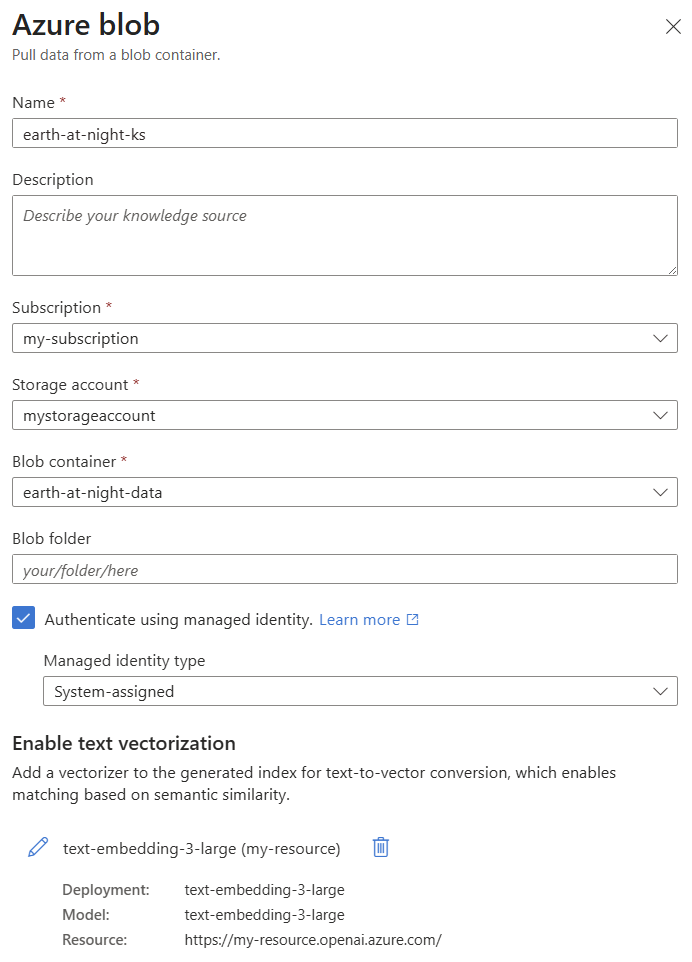
Enter earth-at-night-ks for the name, and then select your subscription, storage account, and container with the sample data.
Select the Authenticate using managed identity checkbox. Leave the identity type as System-assigned.
Under Enable text vectorization, select Add vectorizer.
Select System assigned identity for the authentication type.
Save the vectorizer.
Create the knowledge source.
Create a knowledge base
A knowledge base uses your knowledge source and deployed LLM to orchestrate agentic retrieval. When a user submits a complex query, the LLM generates subqueries that are sent simultaneously to your knowledge source. Azure AI Search then semantically ranks the results for relevance and combines the best results into a single, unified response.
The output mode determines how the knowledge base formulates answers. You can either use extractive data for verbatim content or answer synthesis for natural-language answer generation. By default, the portal uses answer synthesis.
To create the knowledge base for this quickstart:
From the left pane, select Agentic retrieval > Knowledge bases.
Select Add knowledge base > Add knowledge base.
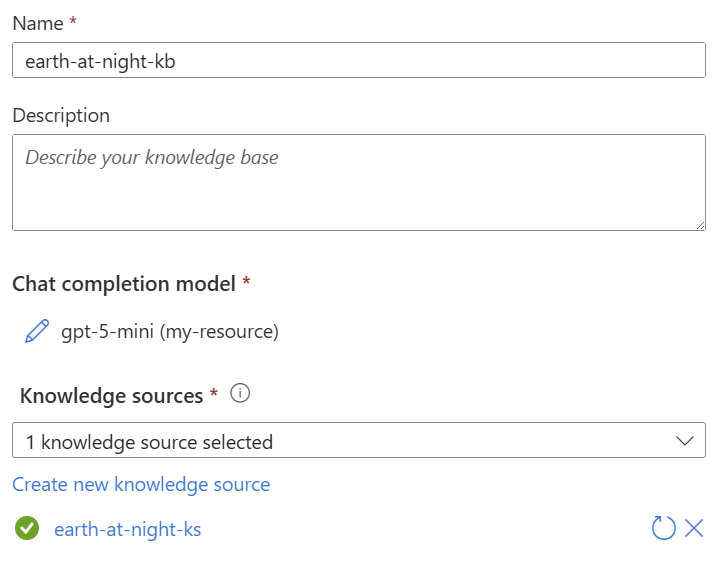
Enter earth-at-night-kb for the name.
Under Chat completion model, select Add model deployment.
Select System assigned identity for the authentication type.
Save the model deployment.
Under Knowledge sources, select earth-at-night-ks.
Create the knowledge base.
Test agentic retrieval
The portal provides a chat playground where you can submit retrieve requests to the knowledge base. The responses include references to your knowledge sources and debug information about the retrieval process.
To query the knowledge base:
Use the chat box to send the following query.
Why do suburban belts display larger December brightening than urban cores even though absolute light levels are higher downtown? Why is the Phoenix nighttime street grid is so sharply visible from space, whereas large stretches of the interstate between midwestern cities remain comparatively dim?Review the synthesized, citation-backed answer, which should be similar to the following example.
Suburban belts show larger December brightening in satellite nighttime lights than urban cores mainly because of relative (percentage) change effects and differences in how light is used and distributed. Areas with lower baseline light (suburbs, residential streets) can increase lighting use or reflect more light in winter and so show a bigger percent change, while bright urban cores are already near sensor saturation so their relative increase is small. The retrieved material explains that brightest lights are generally the most urbanized but not necessarily the most populated, and that poor or low‑light areas can have large populations but low availability or use of electric lights; thus lower‑light suburbs can exhibit larger relative changes when seasonal lighting rises.Select the debug icon to review the activity log, which should be similar to the following JSON.
[
  {
    "type": "modelQueryPlanning",
    "id": 0,
    "inputTokens": 1518,
    "outputTokens": 284,
    "elapsedMs": 3001
  },
  {
    "type": "azureBlob",
    "id": 1,
    "knowledgeSourceName": "earth-at-night-ks",
    "queryTime": "2025-12-12T18:54:28.792Z",
    "count": 1,
    "elapsedMs": 456,
    "azureBlobArguments": {
      "search": "causes of December brightening in satellite nighttime lights suburban vs urban cores"
    }
  },
  {
    "type": "azureBlob",
    "id": 2,
    "knowledgeSourceName": "earth-at-night-ks",
    "queryTime": "2025-12-12T18:54:29.389Z",
    "count": 3,
    "elapsedMs": 596,
    "azureBlobArguments": {
      "search": "factors affecting seasonal variation in nighttime lights December winter brightening suburban belts urban cores"
    }
  },
  {
    "type": "azureBlob",
    "id": 3,
    "knowledgeSourceName": "earth-at-night-ks",
    "queryTime": "2025-12-12T18:54:29.862Z",
    "count": 6,
    "elapsedMs": 472,
    "azureBlobArguments": {
      "search": "why is Phoenix street grid highly visible at night from space compared to dim interstates in the Midwest reasons lighting patterns road lighting urban form"
    }
  },
  {
    "type": "agenticReasoning",
    "id": 4,
    "retrievalReasoningEffort": {
      "kind": "low"
    },
    "reasoningTokens": 111243
  },
  {
    "type": "modelAnswerSynthesis",
    "id": 5,
    "inputTokens": 7514,
    "outputTokens": 1058,
    "elapsedMs": 12334
  }
]
The activity log offers insight into the steps taken during retrieval, including query planning and execution, semantic ranking, and answer synthesis. For more information, see Review the activity array.
Review the generated objects
Azure AI Search automatically generates a data source, skillset, index, and indexer for each blob knowledge source. These objects form an end-to-end pipeline for data ingestion, enrichment, chunking, and vectorization. You can review these objects to learn how your data is processed for agentic retrieval.
To review the auto-generated objects:
From the left pane, select Search management.
Check the indexer for success or failure messages. Connection or quota errors appear here.
Check the data source to verify the connection to your blob storage container.
Check the skillset to see how your content is chunked and vectorized using your embedding model.
Check the index to see how your content is indexed and exposed for retrieval, including which fields are searchable and filterable and which fields store vectors for similarity search. Use Search Explorer to run queries against the generated index.
Clean up resources
When you work in your own subscription, it's a good idea to finish a project by removing the resources you no longer need. Resources that are left running can cost you money.
In the Azure portal, select All resources or Resource groups from the left pane to find and manage resources. You can delete resources individually or delete the resource group to remove all resources at once.
You can also delete the knowledge source and knowledge base on their respective portal pages. When you delete the knowledge source, the portal prompts you to delete the associated data source, skillset, index, and indexer.