Note
Access to this page requires authorization. You can try signing in or changing directories.
Access to this page requires authorization. You can try changing directories.
Note
Azure AI Search is available through the Azure portal, REST APIs, and Azure SDKs.
This article explains how to restrict inbound network access to a search service's public endpoint. You can configure IP firewall rules to allow access only from specific IP addresses, address ranges, or subnets. You can also enable exceptions for trusted Azure services.
Firewall rules control which clients can send requests (queries, indexing, management operations) to your search service. They don't affect outbound connections from the search service to external resources. For outbound security, see Indexer access to content protected by Azure network security.
Tip
To block all data plane access to the public endpoint, use a private endpoint or network security perimeter instead.
Prerequisites
An Azure AI Search service (Basic tier or higher). Firewall configuration isn't supported on the Free tier.
Owner or Contributor permissions on the search service.
Limitations and considerations
Some workflows require access to a public endpoint. Specifically, the Import data wizard in the Azure portal connects to built-in (hosted) sample data and embedding models over a public endpoint. For more information, see Secure connections in the import wizard.
Network rules are scoped to data plane operations against the search service's public endpoint, which include creating indexes, querying indexes, and all other actions described in the Search Service REST APIs.
For control plane operations that target service administration, see the network protections supported by Azure Resource Manager.
If you're in early stages of proof-of-concept testing with sample data, consider deferring network access controls until you need them.
Configure network access
This section explains how to configure network access for your search service in the Azure portal. Alternatively, you can use the Search Management REST API, Azure PowerShell, or Azure CLI.
To configure network access:
Go to your search service in the Azure portal.
From the left pane, select Settings > Networking.
For Public network access, select Selected IP addresses. Select Disabled only if you're configuring a private endpoint.
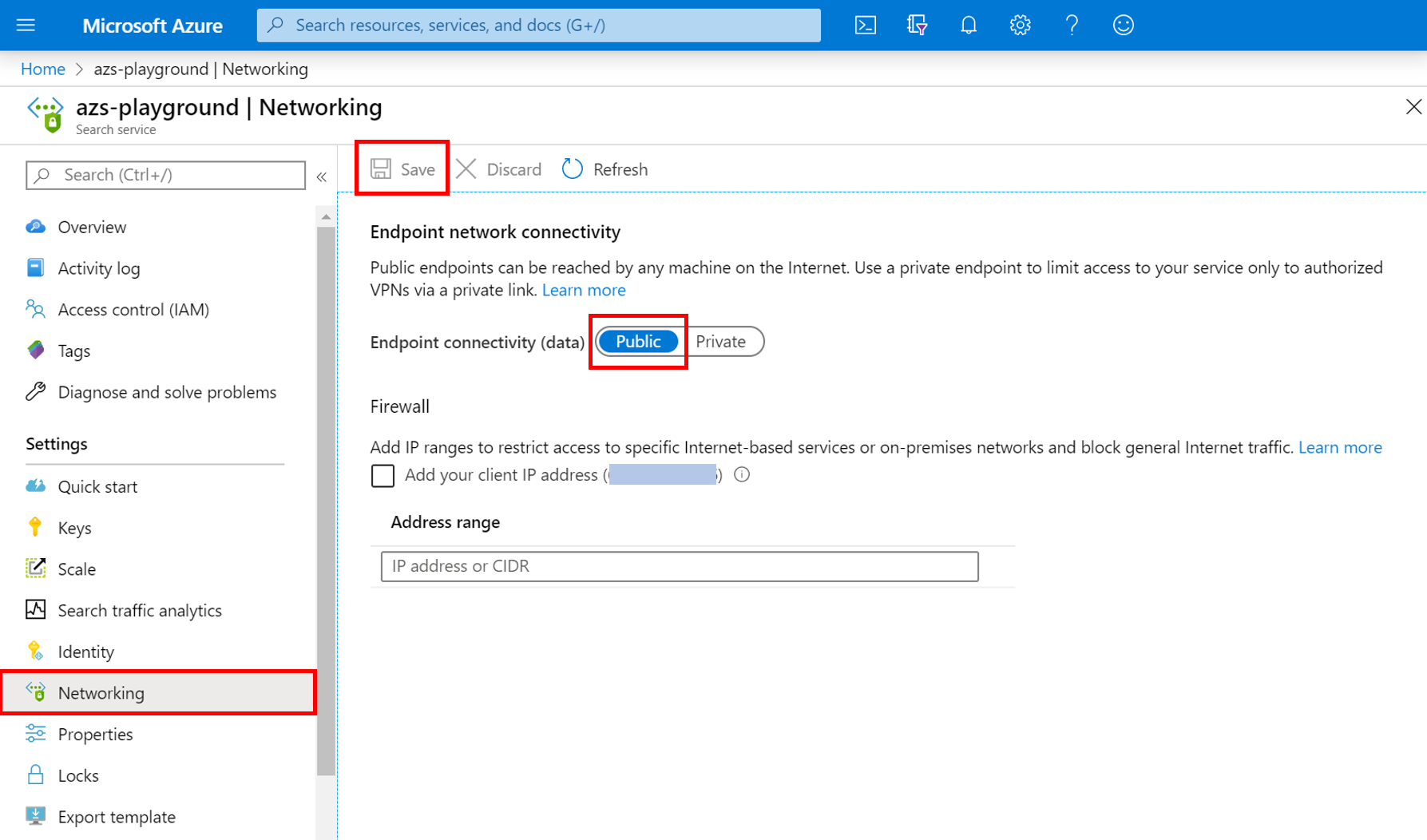
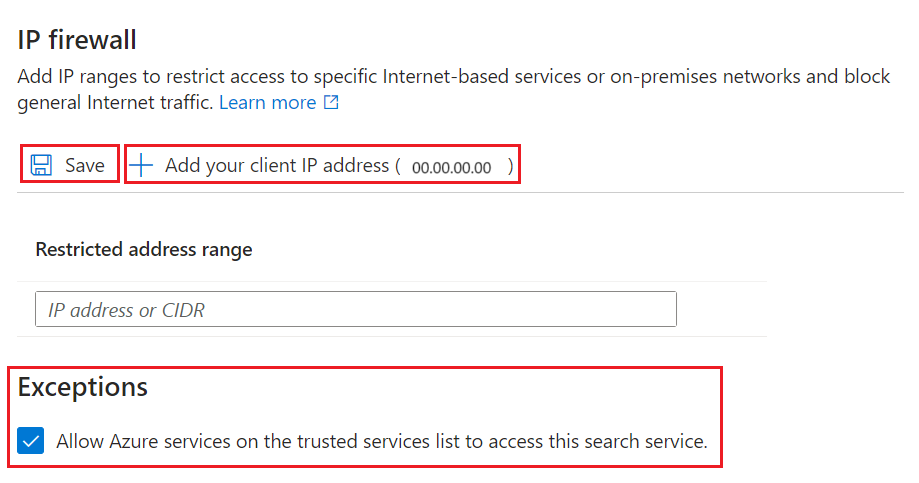
Under IP Firewall, select Add your client IP address.
This step creates an inbound rule that allows your device's public IP address to reach the search service.
Tip
The portal uses your client IP address for a direct connection. If your client is in the allowed IP list, you can use all portal capabilities with no extra configuration.
Add client IP addresses for other devices or services that send requests to the search service. Use the CIDR format. For example, 8.8.8.0/24 represents IP addresses ranging from 8.8.8.0 to 8.8.8.255.
To get the public IP addresses of Azure services, see Azure IP Ranges and Service Tags. If your search client is hosted within an Azure function, see IP addresses in Azure Functions.
(Optional) Under Exceptions, select Allow Azure services on the trusted services list to access this search service.
This exception allows trusted Azure services with a valid managed identity and role assignment to bypass the firewall. For more information, see Grant access to trusted Azure services.

Save your changes.
It can take several minutes for changes to take effect. Wait at least 15 minutes before you troubleshoot problems related to network configuration.
After you enable the IP access control policy, requests from IP addresses outside the allowed list are rejected with a 403 Forbidden response.
Grant access to trusted Azure services
If you enabled the trusted services exception, your search service accepts requests from trusted Azure resources without checking the IP address. Each trusted resource must have a managed identity (system-assigned or user-assigned, but usually system-assigned) and a role assignment on Azure AI Search that grants permissions for data and operations.
The trusted service list for Azure AI Search includes:
Microsoft.MachineLearningServicesfor Azure Machine Learning.
This exception is commonly used when Azure Machine Learning sends requests to Azure AI Search, such as during agentic retrieval or integrated vectorization.
Trusted resources must have a managed identity
To set up a managed identity for Azure Machine Learning, see the following articles:
To set up a managed identity:
- Go to your search resource in the Azure portal.
- From the left pane, select Resource Management > Identity.
- Use the toggle to enable a system-assigned managed identity.
Trusted resources must have a role assignment
After your Azure resource has a managed identity, assign roles on Azure AI Search to grant the managed identity permissions. The role you assign depends on the workload:
- Search Service Contributor for object-level operations, such as creating indexes or knowledge bases.
- Search Index Data Contributor for read-write content access.
- Search Index Data Reader for read-only content access.
When you assign the role, select Managed identity as the member type and choose the system-assigned identity of your AI search service or Azure Machine Learning resource.
Note
This article covers the trusted exception for inbound requests to your search service. Azure AI Search is also on the trusted services list of other Azure resources. For example, you can use the trusted service exception for indexer connections from Azure AI Search to Azure Storage.
Next step
After a request is allowed through the firewall, it must be authenticated and authorized. You have two options:
Key-based authentication, where an admin or query API key is provided on the request. This option is the default.
Role-based access control, where the caller is a member of a security role on a search service. This option is the most secure. It uses Microsoft Entra ID for authentication and role assignments on Azure AI Search for permissions to access data and perform operations.