Note
Access to this page requires authorization. You can try signing in or changing directories.
Access to this page requires authorization. You can try changing directories.
Applies to: ✔️ SMB file shares
Azure Files supports identity-based authentication for Windows file shares over Server Message Block (SMB) using the Kerberos authentication protocol through the following methods:
- On-premises Active Directory Domain Services
- Microsoft Entra Domain Services
- Microsoft Entra Kerberos for hybrid identities
This article explains how to enable Microsoft Entra Domain Services (formerly Azure Active Directory Domain Services) for identity-based authentication with Azure file shares. In this authentication scenario, Microsoft Entra credentials and Microsoft Entra Domain Services credentials are the same, and you can use them interchangeably.
Review the supported authentication scenarios to select the right identity source for your storage account. The setup is different depending on the identity source you choose.
If you're new to Azure Files, read the planning guide before reading this article.
Note
Azure Files supports Kerberos authentication with Microsoft Entra Domain Services with AES-256 encryption (recommended).
Azure Files supports authentication for Microsoft Entra Domain Services with full or partial (scoped) synchronization with Microsoft Entra ID. For environments with scoped synchronization, Azure Files only honors Azure RBAC role assignments granted to principals that are synchronized. Role assignments granted to identities not synchronized from Microsoft Entra ID to Microsoft Entra Domain Services are ignored by the Azure Files service.
Prerequisites
Before you enable Microsoft Entra Domain Services over SMB for Azure file shares, complete the following prerequisites:
Select or create a Microsoft Entra tenant.
You can use an existing tenant or create a new tenant in Microsoft Entra ID. The tenant and the file share that you want to access must be associated with the same subscription.
Enable Microsoft Entra Domain Services on the Microsoft Entra tenant.
To support authentication with Microsoft Entra credentials, you must enable Microsoft Entra Domain Services for your Microsoft Entra tenant. If you aren't the administrator of the Microsoft Entra tenant, contact the administrator and follow the step-by-step guidance to Create and configure a Microsoft Entra Domain Services managed domain.
It typically takes about 15 minutes for a Microsoft Entra Domain Services deployment to complete. Verify that the health status of Microsoft Entra Domain Services shows Running, with password hash synchronization enabled, before proceeding to the next step.
Note
Check the health of Microsoft Entra Domain Services after deployment and resolve any critical or warning alerts in the health dashboard. See Check the health of a Microsoft Entra Domain Services managed domain.
Domain-join a VM with Microsoft Entra Domain Services.
To access an Azure file share by using Microsoft Entra credentials from a VM, your VM must be domain-joined to Microsoft Entra Domain Services. For more information, see Join a Windows Server virtual machine to a Microsoft Entra Domain Services managed domain. Microsoft Entra Domain Services authentication over SMB with Azure file shares is supported only on Windows VMs running OS versions later than Windows 7 or Windows Server 2008 R2, or on Linux VMs running Ubuntu 18.04+ or an equivalent RHEL or SLES VM.
Note
Non-domain-joined VMs can access Azure file shares using Microsoft Entra Domain Services authentication only if the VM has unimpeded network connectivity to the domain controllers for Microsoft Entra Domain Services. Usually this connectivity requires either site-to-site or point-to-site VPN.
Select or create an SMB Azure file share.
Select a new or existing SMB Azure file share that's associated with the same subscription as your Microsoft Entra tenant. See Create an SMB Azure file share. For optimal performance, your file share should be in the same region as the VM from which you plan to access the share.
Regional availability
Azure Files authentication with Microsoft Entra Domain Services is available in all regions.
Overview of the workflow
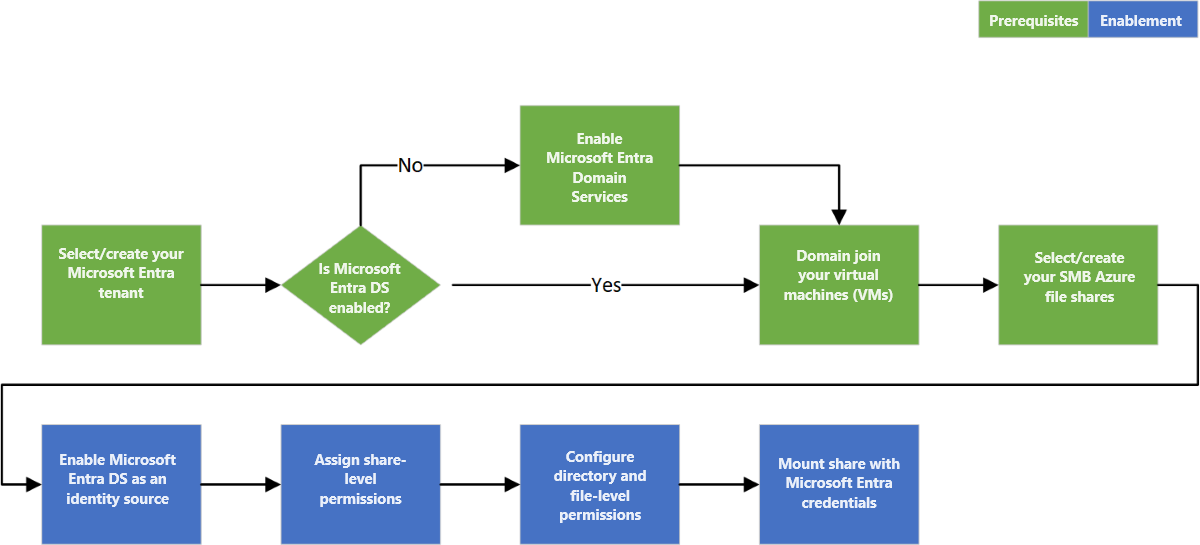
The following diagram shows the end-to-end workflow for enabling Microsoft Entra Domain Services authentication over SMB for Azure Files.
Enable Microsoft Entra Domain Services authentication for your account
To enable Microsoft Entra Domain Services authentication for all new and existing file shares in the storage account, set a property on the storage account by using the Azure portal, Azure PowerShell, or Azure CLI. When you set this property, you implicitly "domain join" the storage account with the associated Microsoft Entra Domain Services deployment.
You can enable Microsoft Entra Domain Services authentication over SMB only after you successfully enable Microsoft Entra Domain Services on your Microsoft Entra tenant. For more information, see the prerequisites.
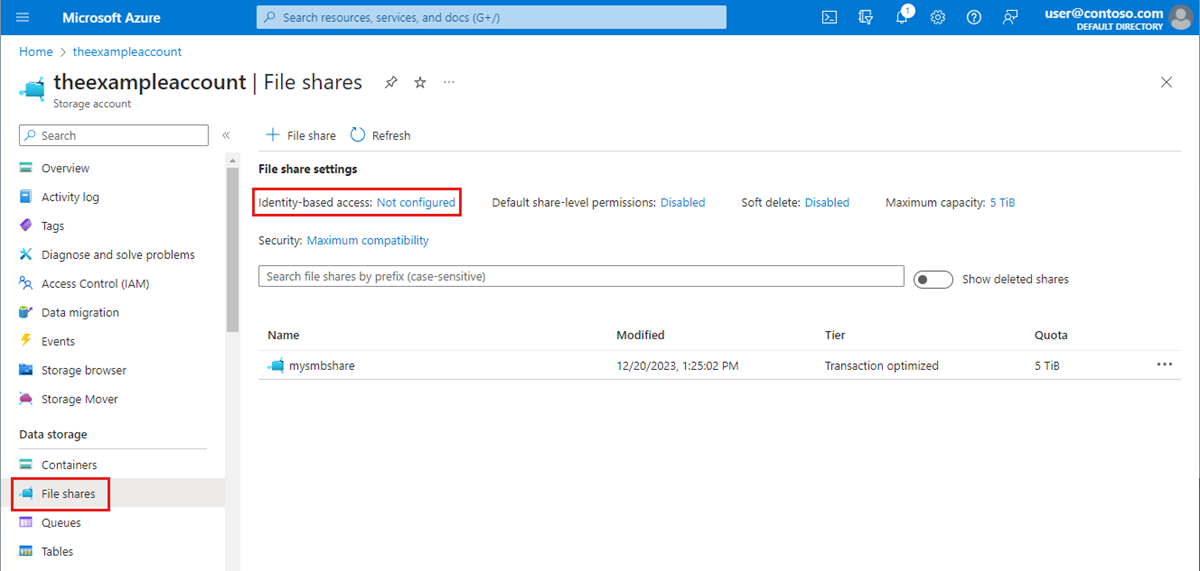
To enable Microsoft Entra Domain Services authentication over SMB by using the Azure portal, follow these steps:
In the Azure portal, go to your existing storage account, or create a storage account.
From the service menu, under Data storage, select Classic file shares.
In the File share settings section, select Identity-based access: Not configured.
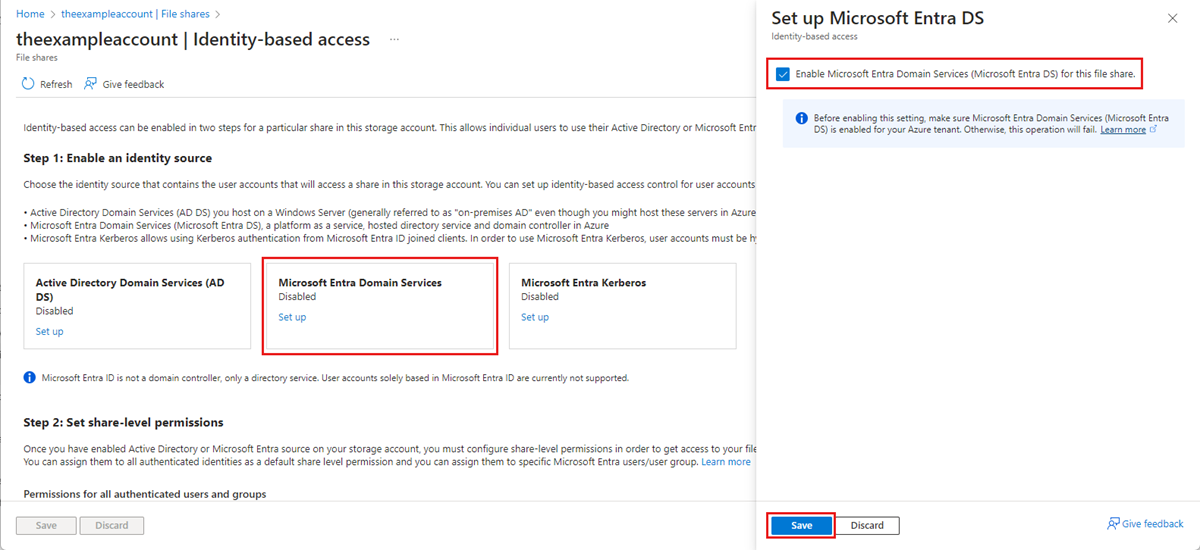
Under Microsoft Entra Domain Services, select Set up, then enable the feature by selecting the checkbox.
Select Save.
Recommended: Use AES-256 encryption
Configure your storage account to use Kerberos AES-256 encryption by following these instructions.
This action requires running an operation on the domain that's managed by Microsoft Entra Domain Services to reach a domain controller and request a property change to the domain object. The cmdlets in the following section are Windows Server Active Directory PowerShell cmdlets, not Azure PowerShell cmdlets.
Important
The Windows Server Active Directory PowerShell cmdlets in this section must be run in Windows PowerShell 5.1 from a client machine that's domain-joined to the Microsoft Entra Domain Services domain. PowerShell 7.x won't work in this scenario.
Sign in to the domain-joined client machine as a Microsoft Entra Domain Services user with the required permissions. You must have write access to the msDS-SupportedEncryptionTypes attribute of the domain object. Typically, members of the AAD DC Administrators group have the necessary permissions. Open a normal (non-elevated) PowerShell session and execute the following commands.
# 1. Find the service account in your managed domain that represents the storage account.

$storageAccountName= "<InsertStorageAccountNameHere>"
$searchFilter = "Name -like '*{0}*'" -f $storageAccountName
$userObject = Get-ADUser -filter $searchFilter

if ($userObject -eq $null)
{
   Write-Error "Cannot find AD object for storage account:$storageAccountName" -ErrorAction Stop
}

# 2. Set the KerberosEncryptionType of the object

Set-ADUser $userObject -KerberosEncryptionType AES256

# 3. Validate that the object now has the expected (AES256) encryption type.

Get-ADUser $userObject -properties KerberosEncryptionType
Important
If you previously used RC4 encryption and updated the storage account to use AES-256 (recommended), run klist purge on the client and then remount the file share to get new Kerberos tickets with AES-256.
Next step
- To grant users access to your file share, you must Assign share-level permissions.