Note
Access to this page requires authorization. You can try signing in or changing directories.
Access to this page requires authorization. You can try changing directories.
This tutorial shows how you can enable dynamic configuration updates in an Aspire solution. It builds on the web app introduced in the quickstart. Your app will leverage the App Configuration provider library for its built-in configuration caching and refreshing capabilities. Before you continue, finish Create an Aspire solution with Azure App Configuration first.
In this tutorial, you learn how to:
- Set up your app to update its configuration in response to changes in an App Configuration store.
- Inject the latest configuration into your app.
Prerequisites
Finish the quickstart: Create an Aspire solution with Azure App Configuration.
Reload data from App Configuration
Go to the
Webproject's directory (created in the Prerequisites steps). Run the following command to add theMicrosoft.Azure.AppConfiguration.AspNetCoreNuGet package.dotnet add package Microsoft.Azure.AppConfiguration.AspNetCoreOpen the Web project's Program.cs file and update the
AddAzureAppConfigurationcall you added during the quickstart.builder.AddAzureAppConfiguration( "appconfiguration", configureOptions: options => { // Load all keys that start with `TestApp:` and have no label. options.Select("TestApp:*", LabelFilter.Null); // Reload configuration if any selected key-values have changed. options.ConfigureRefresh(refreshOptions => refreshOptions.RegisterAll()); });The
Selectmethod is used to load all key-values whose key name starts with TestApp: and that have no label. You can call theSelectmethod more than once to load configurations with different prefixes or labels. If you share one App Configuration store with multiple apps, this approach helps load configuration only relevant to your current app instead of loading everything from your store.Inside the
ConfigureRefreshmethod, you call theRegisterAllmethod to instruct the App Configuration provider to reload the entire configuration whenever it detects a change in any of the selected key-values (those starting with TestApp: and having no label). For more information about monitoring configuration changes, see Best practices for configuration refresh.For more information about configuring the Aspire client integration, see Connect to Azure App Configuration.
Add Azure App Configuration middleware to the service collection of your app.
Update Program.cs with the following code.
// Existing code in Program.cs
// ... ...

// Add Azure App Configuration middleware to the container of services.
builder.Services.AddAzureAppConfiguration();

var app = builder.Build();

// The rest of existing code in program.cs
// ... ...
Call the
UseAzureAppConfigurationmethod. It enables your app to use the App Configuration middleware to update the configuration for you automatically.Update Program.cs with the following code.
// Existing code in Program.cs
// ... ...

var app = builder.Build();

if (!app.Environment.IsDevelopment())
{
    app.UseExceptionHandler("/Error");
    app.UseHsts();
}

// Use Azure App Configuration middleware for dynamic configuration refresh.
app.UseAzureAppConfiguration();

// The rest of existing code in program.cs
// ... ...
Request-driven configuration refresh
The configuration refresh is triggered by the incoming requests to your web app. No refresh will occur if your app is idle. When your app is active, the App Configuration middleware monitors any keys you registered for refreshing in the ConfigureRefresh call. The middleware is triggered upon every incoming request to your app. However, the middleware will only send requests to check the value in App Configuration when the refresh interval you set has passed.
- If a request to App Configuration for change detection fails, your app will continue to use the cached configuration. New attempts to check for changes will be made periodically while there are new incoming requests to your app.
- The configuration refresh happens asynchronously to the processing of your app's incoming requests. It will not block or slow down the incoming request that triggered the refresh. The request that triggered the refresh may not get the updated configuration values, but later requests will get new configuration values.
- To ensure the middleware is triggered, call the
app.UseAzureAppConfiguration()method as early as appropriate in your request pipeline so another middleware won't skip it in your app.
Run the app locally
From the solution root, run
aspire run. Go to the Aspire dashboard and open the web app.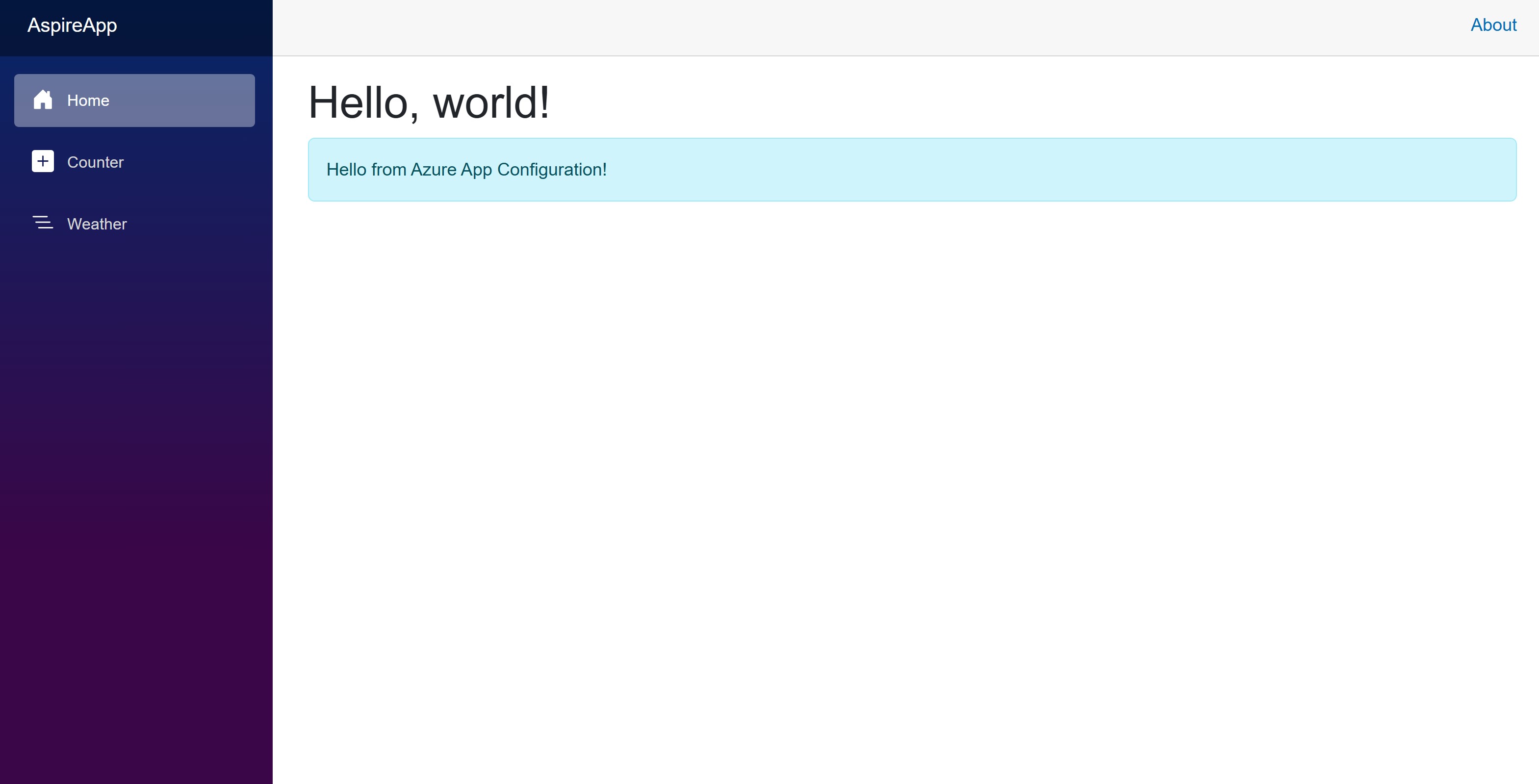
In the Azure portal, navigate to the Configuration explorer of your App Configuration store, and update the value of the following key.
Key Value TestApp:Settings:Message Hello from Azure App Configuration - Updated! Refresh the browser a few times. When the refresh interval elapses after 30 seconds, the page shows with updated content.
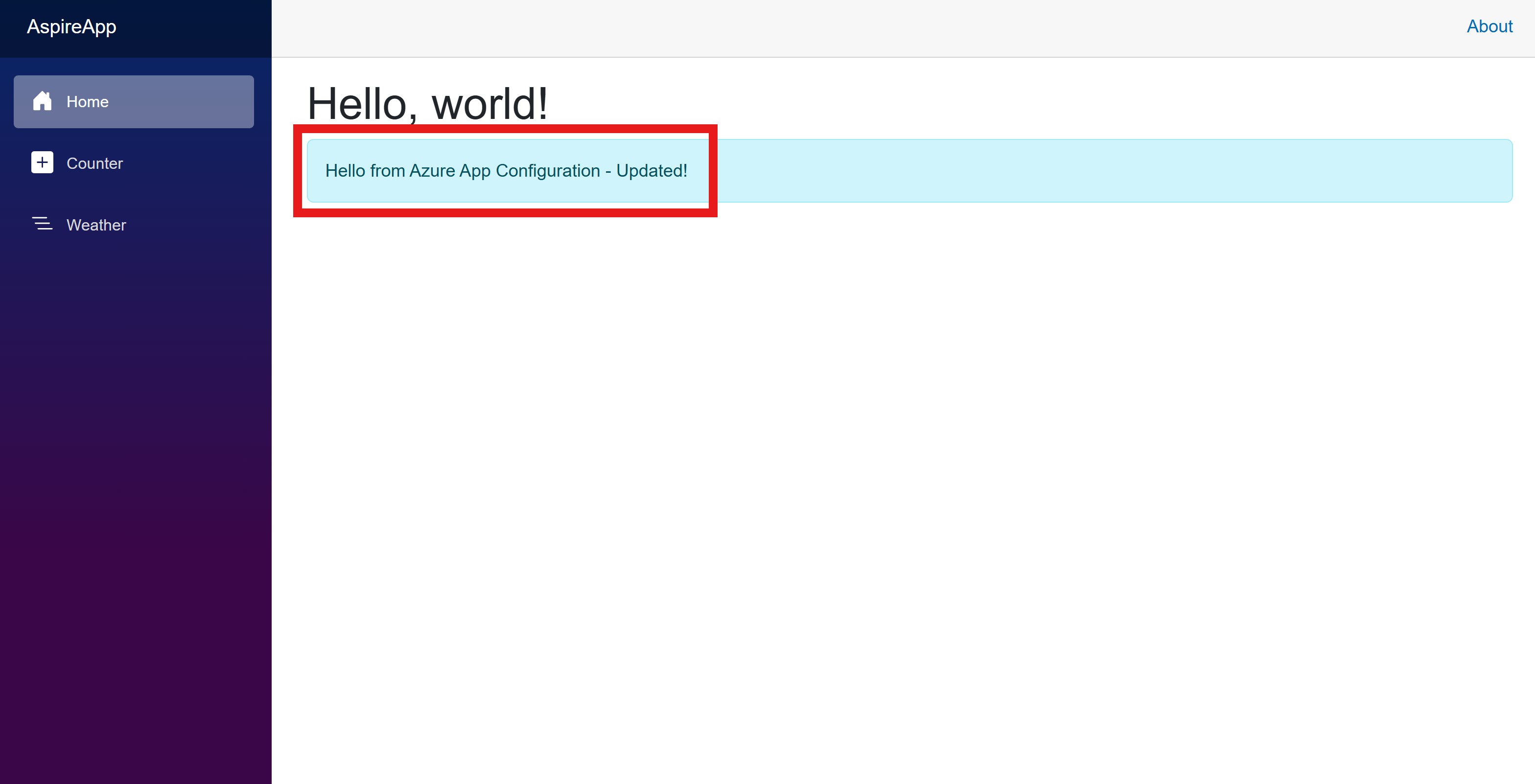
Go to the Aspire dashboard and open the structured logs. You see that the
webfrontendresource has a log with the message "Configuration reloaded."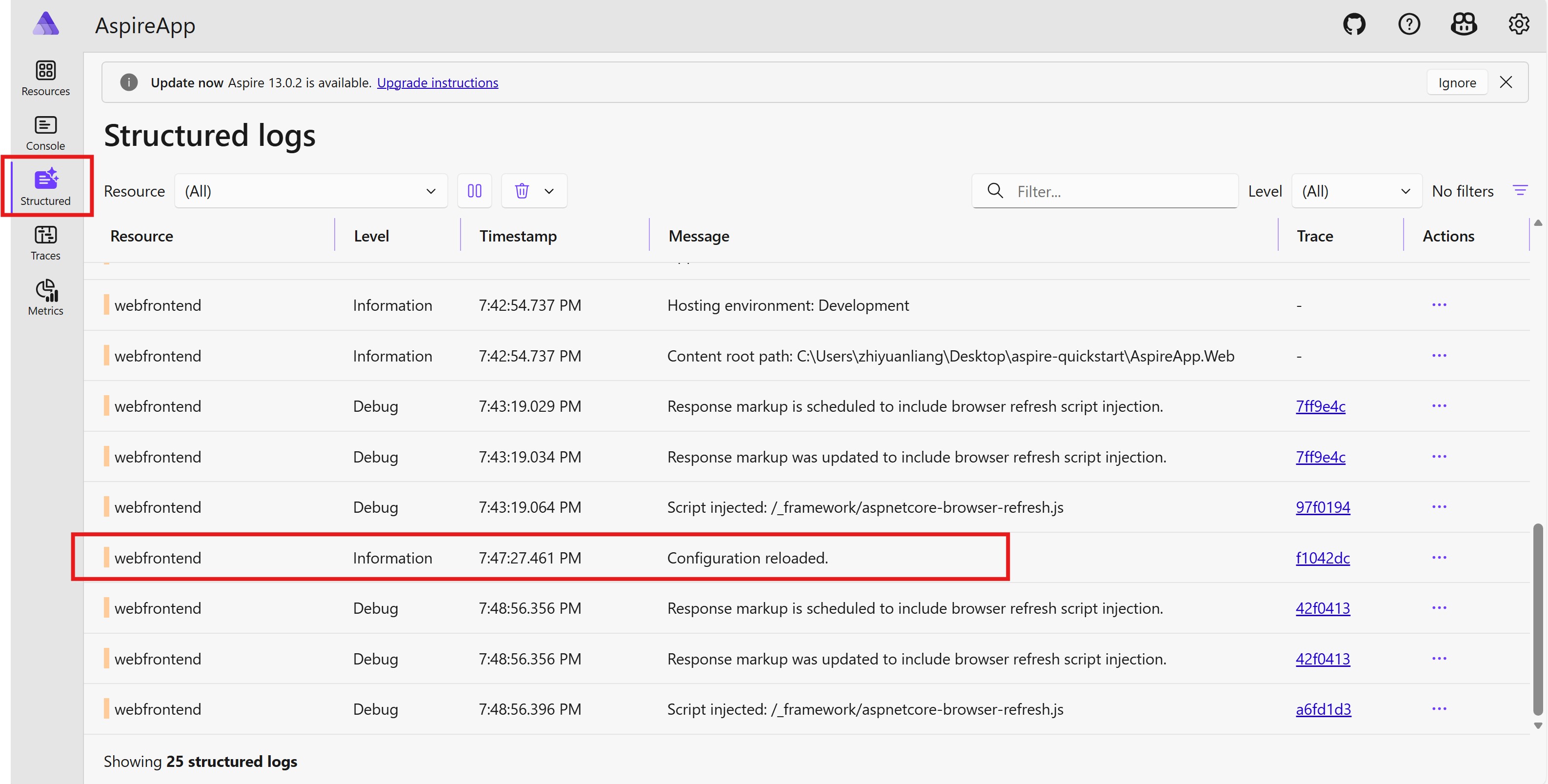
Run the app locally
From the solution root, run
aspire run. Go to the Aspire dashboard and open the web app.
Go to the emulator UI, edit the value of the following key.
Key Value TestApp:Settings:Message Hello from Azure App Configuration - Updated! Refresh the browser a few times. When the refresh interval elapses after 30 seconds, the page shows with updated content.
Go to the Aspire dashboard and open the structured logs. You see that the
webfrontendresource has a log with the message "Configuration reloaded."
Next steps
In this tutorial, you enabled your Aspire app to dynamically refresh configuration settings from App Configuration. To learn how to add a feature flag to your Aspire app, continue to the next tutorial.