Note
Access to this page requires authorization. You can try signing in or changing directories.
Access to this page requires authorization. You can try changing directories.
Applies to:  Azure SQL Managed Instance
This article describes the update policy for Azure SQL Managed Instance, and how to modify it. The update policy is an instance setting that controls access to the latest SQL engine features in Azure.
Azure SQL Managed Instance offers the following two update policies:
- SQL Server 2025 update policy: The instance can only use SQL engine features available in SQL Server 2025 because the internal database format is aligned with SQL Server 2025.
- SQL Server 2022 update policy: The instance can only use SQL engine features available in SQL Server 2022 because the internal database format is aligned with SQL Server 2022.
Important
- Regardless of the configured update policy, all instances continue receiving updates and features that don't require changes to the SQL engine, such as the following features: zone redundancy, and instance stop and start.
- The SQL Server 2025 update policy is the default update policy for newly deployed instances using Azure portal or REST API starting with version 2026-08-01-preview.
- The SQL Server 2022 update policy is the default update policy newly deployed instances using PowerShell, CLI or versions of REST API prior to 2026-08-01-preview.
SQL Server 2025 update policy
The SQL Server 2025 update policy aligns your database format with SQL Server 2025 (17.x).
When you use the SQL Server 2025 update policy, consider the following points:
- The SQL Server 2025 update policy is the default update policy for newly deployed instances by using Azure portal or REST API starting with version 2026-08-01-preview.
- Your internal database format stays aligned with SQL Server 2025 (17.x).
- You receive all the latest updates available for SQL Server 2025 (17.x).
- You can restore your database to SQL Server 2025 (17.x) from Azure SQL Managed Instance.
- You can configure a link for real-time data replication, bidirectional failover, and disaster recovery between SQL Server 2025 (17.x) and Azure SQL Managed Instance.
- The SQL Server 2025 update policy is available until the end of mainstream support of SQL Server 2025 (17.x), at which point, the update policy for instances with the SQL Server 2025 update policy automatically updates to the update policy that corresponds to the latest major SQL Server release available at that time.
SQL Server 2022 update policy
The SQL Server 2022 update policy aligns your database format with SQL Server 2022.
When you use the SQL Server 2022 update policy, consider the following points:
- The SQL Server 2022 update policy is the default update policy for newly deployed instances by using PowerShell, CLI, or versions of REST API prior to 2026-08-01-preview.
- Your internal database format stays aligned with SQL Server 2022.
- You receive all the latest updates available for SQL Server 2022.
- You can restore your database to SQL Server 2022 from Azure SQL Managed Instance.
- You can configure a link for real-time data replication, bidirectional failover, and disaster recovery between SQL Server 2022 and Azure SQL Managed Instance.
- The SQL Server 2022 update policy is available until mainstream support for SQL Server 2022 ends. At that time, instances automatically move to the update policy for the latest major SQL Server release.
Feature comparison
The following table lists all the features that are only available to instances with the designated update policy:
| Update policy | Features |
|---|---|
| SQL Server 2025 update policy | - Automatic backup immutability - Change event streaming (Preview) - DATEADD (Transact-SQL) - Degree of parallelism (DOP) feedback - Fuzzy string matching - Invoke an HTTPS REST endpoint SP - JSON data type - JSON_ARRAYAGG and JSON_OBJECTAGG aggregate functions - Link with bidirectional failover and disaster recovery with SQL Server 2025 - Optimized locking - Regular expression functions - Restore database to SQL Server 2025 - || (String concatenation) - ||= (Compound assignment) - UNISTR (Transact-SQL) |
| SQL Server 2022 update policy | - Link with bidirectional failover and disaster recovery with SQL Server 2022 - Restore database to SQL Server 2022 |
The following features are affected by the configured update policy:
- Automated backups and copy-only backups:
- You can restore database backups taken from instances configured with the SQL Server 2022 update policy to instances configured with either the SQL Server 2022, or SQL Server 2025 update policy.
- You can restore database backups taken from instances configured with the SQL Server 2025 update policy to instances configured with the SQL Server 2025 update policy.
- Managed Instance link:
- Only instances with the SQL Server 2022 update policy can establish a link from SQL Managed Instance to SQL Server 2022 or fail back from SQL Server 2022 to SQL Managed Instance.
- Only instances with the SQL Server 2025 update policy can establish a link from SQL Managed Instance to SQL Server 2025 (17.x) or fail back from SQL Server 2025 (17.x) to SQL Managed Instance.
- Database copy and move: You can only copy and move databases to instances with matching, or higher version, update policies. Copying or moving a database to an instance with a lower version update policy is not supported.
- Failover groups: Instances in a failover group must have matching update policies.
Existing instances
For an existing instance, you can enable the SQL Server 2025 update policy by using the Azure portal, PowerShell, the Azure CLI, or REST API.
Caution
- When you change the update policy from SQL Server 2022 to SQL Server 2025, the internal database format is upgraded permanently. You can't change the update policy back to SQL Server 2022 and you can no longer use the features and benefits that require the SQL Server 2022 update policy.
To change the update policy for an existing instance in the Azure portal, follow these steps:
Go to your SQL managed instance resource in the Azure portal.
Select Maintenance and updates under Settings.
Select the bubble to enable the SQL Server 2025 update policy:
Select Yes on the Confirm update policy change popup to save your changes. Once the SQL Server 2025 update policy is enabled, the SQL Server 2022 update policy is no longer available.
New instances
When you create your instance, select the SQL Server 2022, or SQL Server 2025 policy. Use the Azure portal, PowerShell, Azure CLI, or REST API to create your instance.
Important
Make sure to add update policy configuration to your deployment templates, so that you don't rely on system defaults that might change over time.
To create a new SQL managed instance with the SQL Server 2025 policy in the Azure portal, follow these steps:
Go to the Azure SQL hub.
Under Azure SQL Managed Instance, select SQL managed instances to open the SQL managed instances pane.
On the SQL managed instances pane, select + Create and then choose the SQL managed instance offer to open the Create a SQL managed instance page.
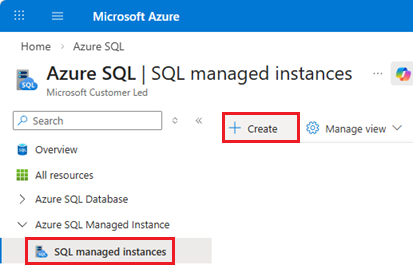
On the Create Azure SQL Managed Instance page, follow these steps:
Fill out details for your instance. For complete steps to create a new SQL managed instance, see Quickstart: Create Azure SQL Managed Instance.
On the Additional settings tab, under SQL engine updates, choose the SQL Server 2025 policy.
Confirm the designated policy under Update policy on the Review + create tab before you create your new instance.
Check update policy
You can check the current update policy by using the Azure portal or Transact-SQL (T-SQL).
To check the current update policy in the Azure portal, go to your SQL managed instance resource. Check the Update policy field under Updates and maintenance in the resource menu.
You can also use the serverproperty T-SQL command:
select serverproperty('ProductUpdateType')
The following values for ProductUpdateType indicate the update policy for the current instance:
CU: Updates are deployed via cumulative updates (CUs) for the corresponding major SQL Server release (SQL Server 2022, or SQL Server 2025 update policy)