Note
Access to this page requires authorization. You can try signing in or changing directories.
Access to this page requires authorization. You can try changing directories.
Stay informed about Azure Container Registry (ACR) service issues, planned maintenance, and health advisories by configuring Service Health alerts. This guide shows you how to set up proactive notifications so your team can respond quickly to any ACR availability issues or outages affecting your workloads.
Why configure Service Health alerts for ACR?
For organizations with strict availability requirements, container registry availability directly impacts CI/CD pipelines and production deployments. Service Health alerts notify you when:
- Service issues affect ACR in your regions (outages, degraded performance)
- Planned maintenance may impact registry operations
- Health advisories require action on your part
- Security advisories affect ACR services
With ACR's Service Level Indicators (SLIs) for Pull operations (GetBlob, GetManifest, GetBlobRedirection) and Auth operations (GetToken, PostExchange, PostToken) now available for outage auto-detection and auto-communication, you can monitor registry health and receive alerts before issues impact your applications.
Prerequisites
- An Azure subscription. If you don't have one, create a trial subscription.
- An Azure Container Registry. If you don't have one, see Quickstart: Create a container registry.
- Read permission on your subscription to view Service Health events.
- Write permission on a resource group to create alert rules.
- (Optional) An existing action group for notifications.
View current ACR service health status
Before creating alerts, check the current health status of Azure Container Registry in your regions.
- In the Azure portal, search for and select Service Health.
- Select Service issues from the left menu.
- Use the filters at the top to narrow results:
- Subscription: Select subscriptions containing your registries
- Service: Select Container Registry
- Region: Select regions where your registries are deployed
- Review any active issues. Select an issue name to view details including:
- Tracking ID: Unique incident identifier
- Status: Active or Resolved
- Impacted Resources: Your affected registries
- Issue Updates: Timeline with mitigation steps and RCA information
Create a Service Health alert for ACR
Configure an alert rule to receive notifications when ACR service issues occur.
Azure portal
- In the Azure portal, search for and select Service Health.
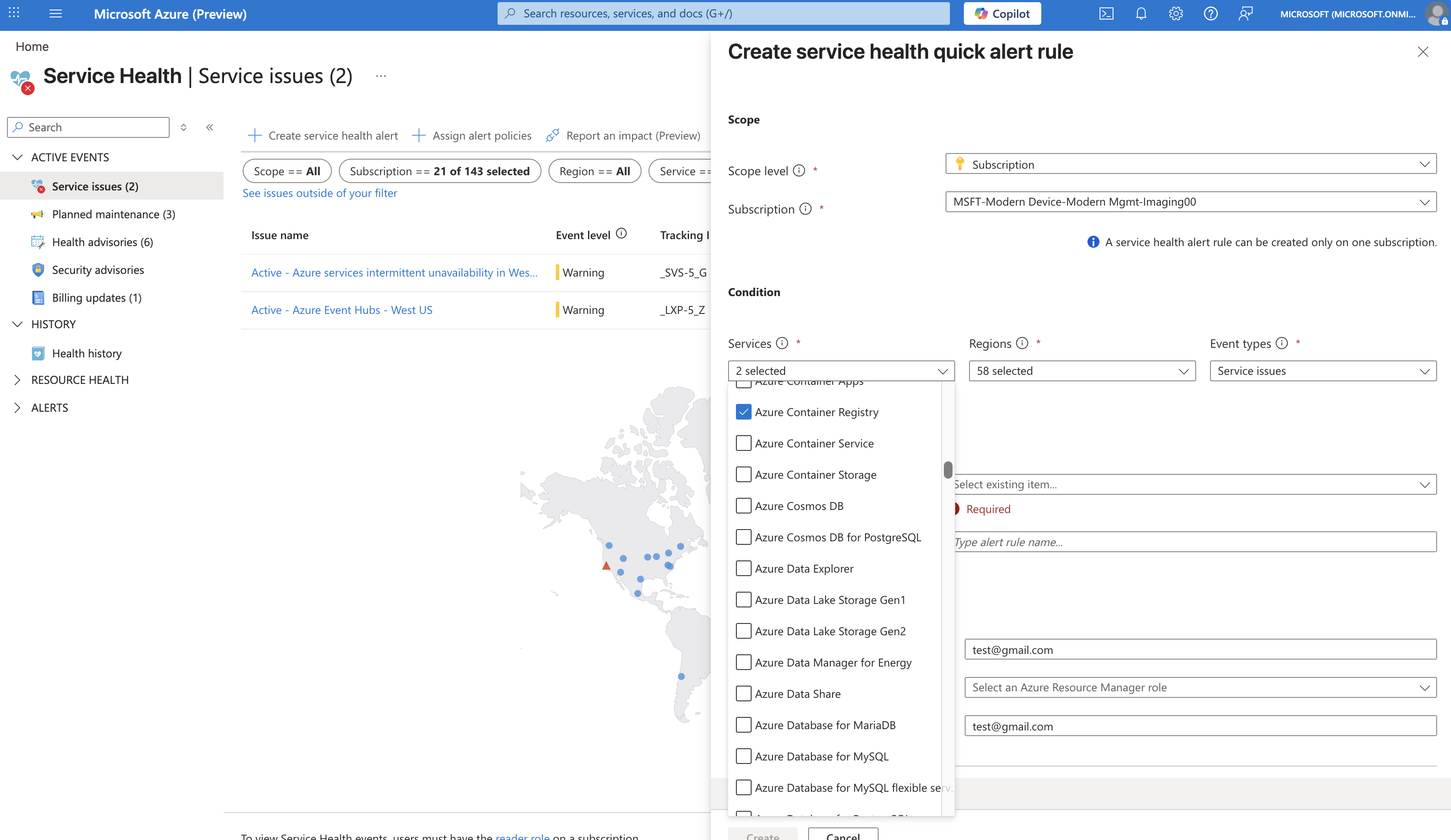
- In the Service issues pane, select Create service health alert.
- On the Scope tab:
- Subscription: Select the subscription containing your registries.
- On the Condition tab, configure the alert trigger:
- Services: Select Container Registry.
- Regions: Select regions where your registries are deployed, or select All to monitor all regions (recommended—alerts only trigger for regions where you have resources).
- Event types: Select one or more:
- Service issue: Outages and degraded performance
- Planned maintenance: Scheduled maintenance windows
- Health advisory: Issues requiring customer action
- Security advisory: Security-related notifications
- On the Actions tab, configure how you receive notifications:
- Select Select action groups to use an existing action group, or
- Select Create action group to set up new notifications.
- If creating a new action group:
- Action group name: Enter a name (e.g.,
acr-health-alerts-ag) - Region: Select Global (required for Service Health alerts)
- On the Notifications tab, add notification methods:
- Email/SMS message: Enter email addresses for your operations team
- Email Azure Resource Manager Role: Notify users by role (e.g., Owner, Contributor)
- Select Review + create, then Create.
- Action group name: Enter a name (e.g.,
- On the Details tab:
- Resource group: Select a resource group to store the alert rule.
- Alert rule name: Enter a descriptive name
(e.g.,
ACR-ServiceHealth-CriticalAlerts). - Description: Add context
(e.g.,
Alerts for ACR service issues in production regions).
- On the Tags tab, optionally add tags for organization
(e.g.,
environment: production,team: platform). - Select Review + create, then Create.
Tip
You can also create Service Health alerts programmatically using Azure Resource Manager (ARM) templates or Bicep. For more information, see Create activity log alerts on service notifications using an ARM template and Create activity log alerts on service notifications using Bicep.
Configure alerts for specific ACR scenarios
Depending on your availability requirements, consider creating multiple alert rules for different scenarios.
Critical production alerts
For immediate notification of outages affecting production registries:
| Setting | Value |
|---|---|
| Services | Container Registry |
| Regions | Your production regions (e.g., China East 2 , China North 2 ) |
| Event types | Service issue, Security advisory |
| Action group | Email + SMS to on-call team |
Maintenance awareness alerts
For advance notice of planned maintenance:
| Setting | Value |
|---|---|
| Services | Container Registry |
| Regions | All regions |
| Event types | Planned maintenance |
| Action group | Email to platform team |
Comprehensive monitoring
For complete visibility across all event types:
| Setting | Value |
|---|---|
| Services | Container Registry |
| Regions | All regions |
| Event types | All event types |
| Action group | Email to operations distribution list |
Verify your alert configuration
Confirm that your Service Health alert is active and correctly configured.
- In the Azure portal, search for and select Monitor.
- Select Alerts from the left menu.
- Select Alert rules from the top menu.
- Locate your ACR Service Health alert rule and verify:
- Status shows Enabled
- Condition shows Service Issues
- Actions shows your configured action group
View service health notifications
Once your Service Health alerts are configured, you can view notifications when service events occur.
- In the Azure portal, search for and select Service Health.
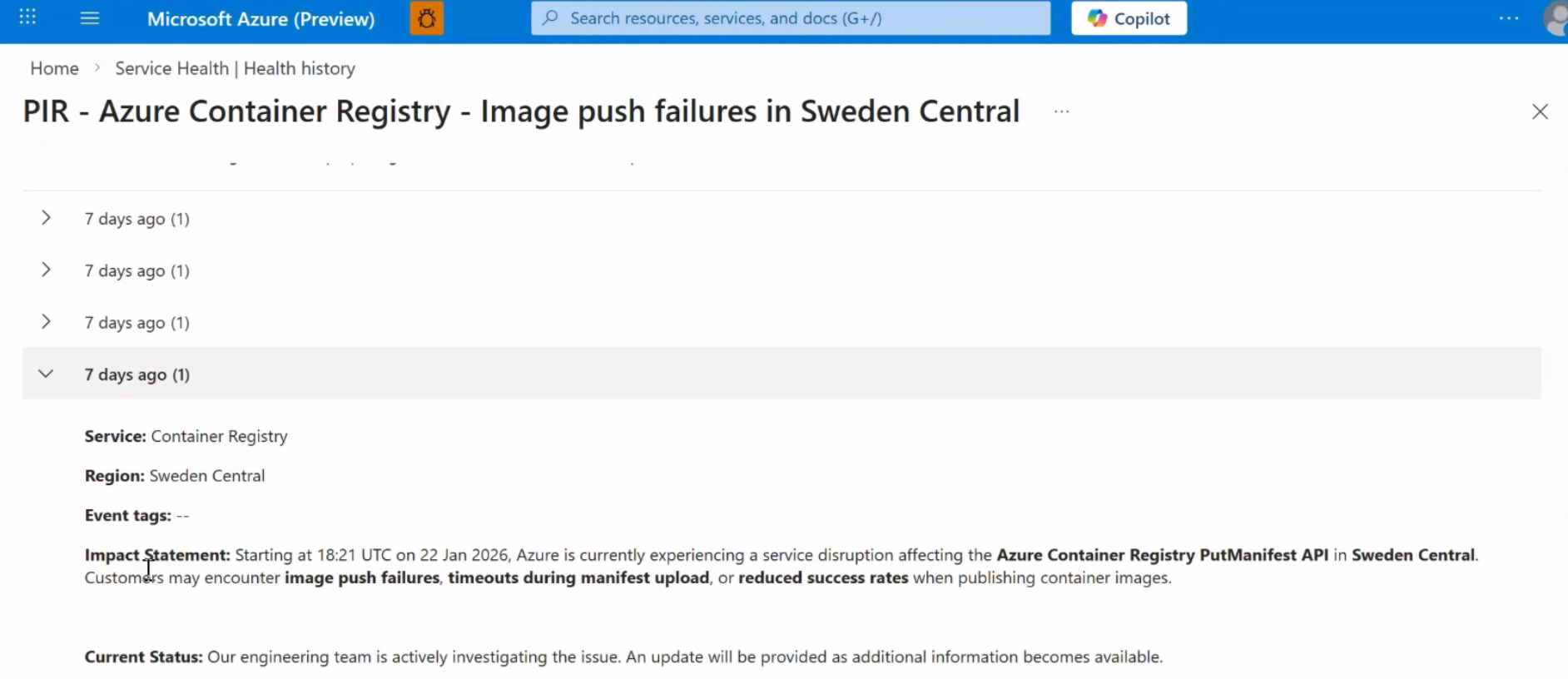
- Select Health history from the left menu to view past service events.
- Select any event to view detailed information including:
- Event summary and timeline
- Affected services and regions
- Recommended actions and updates
For more information about viewing and managing service health notifications, see View service health notifications in the Azure portal.
Respond to Service Health alerts
When you receive a Service Health alert for ACR:
- Review the alert details: Check the tracking ID, affected regions, and impacted resources.
- Assess impact: Determine if your registries and workloads are affected.
- Monitor updates: Service Health issues include a timeline with mitigation progress and root cause analysis.
- Take action if needed: For health advisories, follow the recommended actions in the alert.
- Request a Post Incident Review (PIR): For significant outages, you can request a detailed review from the Service issues pane.
Integrate with enterprise alerting systems
Service Health alerts can be integrated with enterprise on-call alerting systems through webhooks. This enables you to route Service Health notifications to your existing incident management platforms.
To configure webhook integration, add a webhook action to your action group when creating Service Health alerts. For detailed information about webhook schemas and integration patterns, see Configure health notifications for existing problem management systems using a webhook.
Troubleshooting
| Issue | Possible cause | Solution |
|---|---|---|
| No alerts received during known outage | Alert rule not configured for affected region | Verify region selection in alert condition; consider selecting "All regions" |
| Alert not triggering | Action group not set to Global region | Edit action group and set region to Global |
| Email notifications not arriving | Email address incorrect or blocked | Verify email in action group; check spam folder; add Azure emails to allowlist |
| Cannot create alert rule | Insufficient permissions | Ensure you have write permission on the resource group |