Note
Access to this page requires authorization. You can try signing in or changing directories.
Access to this page requires authorization. You can try changing directories.
APPLIES TO:  Azure Data Factory
Azure Synapse Analytics
Azure Data Factory
Azure Synapse Analytics
This article outlines how to use the Copy Activity in Azure Data Factory and Synapse Analytics pipelines to copy data from and to a MongoDB database. It builds on the copy activity overview article that presents a general overview of copy activity.
Important
The new MongoDB connector provides improved native MongoDB support. If you're using the legacy MongoDB connector in your solution, supported as-is for backward compatibility only, see MongoDB connector (legacy). You can use this connector to copy data from and to an Azure DocumentDB (with MongoDB compatibility).
Supported capabilities
This MongoDB connector supports the following capabilities:
| Supported capabilities | IR |
|---|---|
| Copy activity (source/sink) | ① ② |
① Azure integration runtime ② Self-hosted integration runtime
For a list of data stores that are supported as sources and sinks, see the Supported data stores table.
Specifically, this MongoDB connector supports versions up to 4.2. If your work requires versions newer than 4.2, consider using MongoDB Atlas with the MongoDB Atlas connector, which provides more comprehensive support and features.
Prerequisites
If your data store is located inside an on-premises network, an Azure virtual network, or Amazon Virtual Private Cloud, you need to configure a self-hosted integration runtime to connect to it.
If your data store is a managed cloud data service, you can use the Azure Integration Runtime. If the access is restricted to IPs that are approved in the firewall rules, you can add Azure Integration Runtime IPs to the allow list.
You can also use the managed virtual network integration runtime feature in Azure Data Factory to access the on-premises network without installing and configuring a self-hosted integration runtime.
For more information about the network security mechanisms and options supported by Data Factory, see Data access strategies.
Getting started
To perform the copy activity with a pipeline, you can use one of the following tools or SDKs:
- Copy Data tool
- Azure portal
- .NET SDK
- Python SDK
- Azure PowerShell
- REST API
- Azure Resource Manager template
Create a linked service to MongoDB by using the UI
Use the following steps to create a linked service to MongoDB in the Azure portal UI.
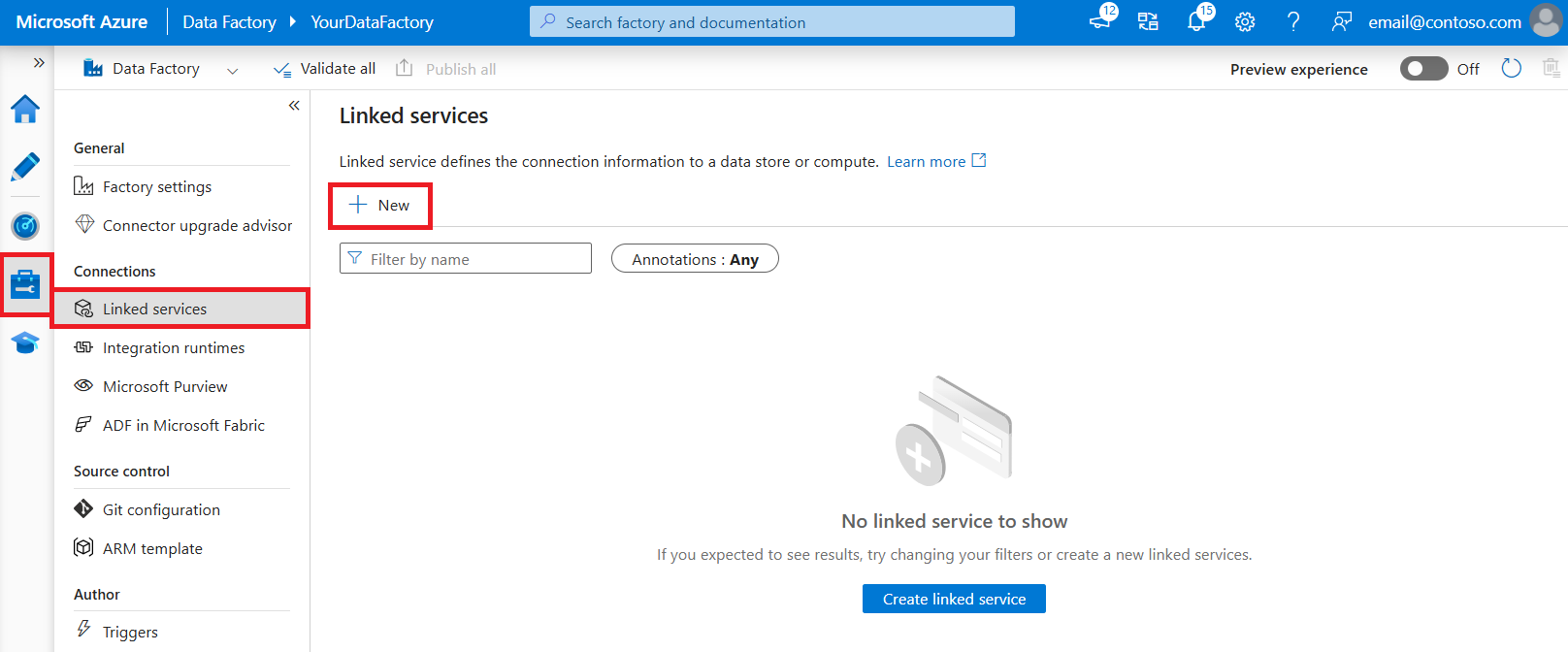
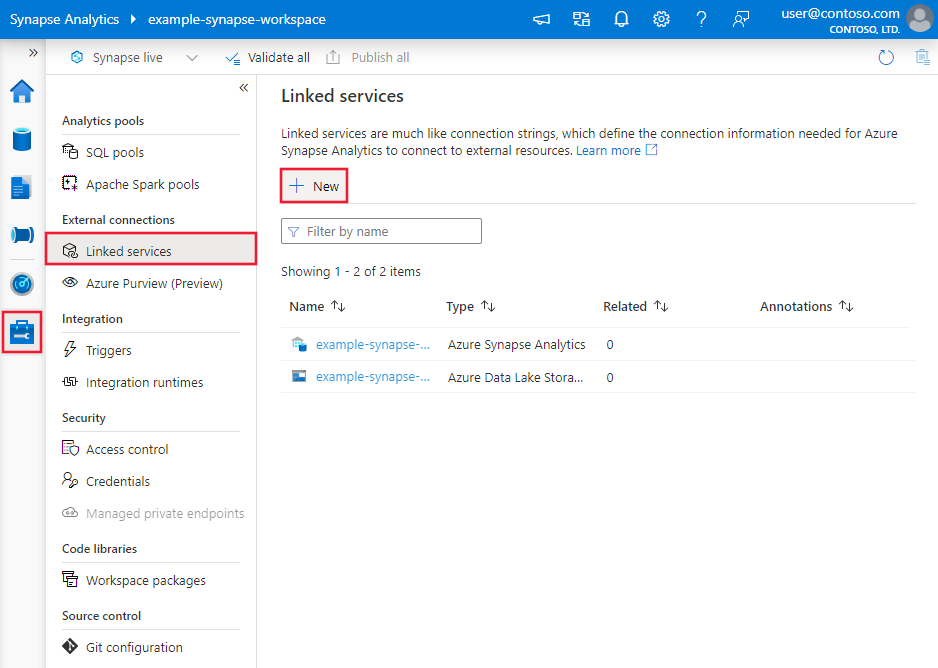
Browse to the Manage tab in your Azure Data Factory or Synapse workspace and select Linked Services. Then select New:
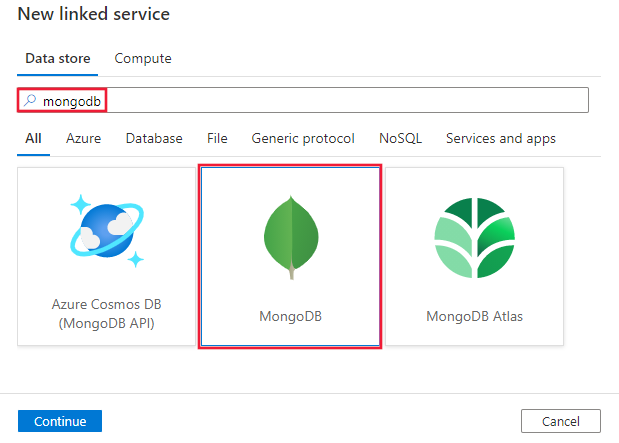
Search for MongoDB and select the MongoDB connector.
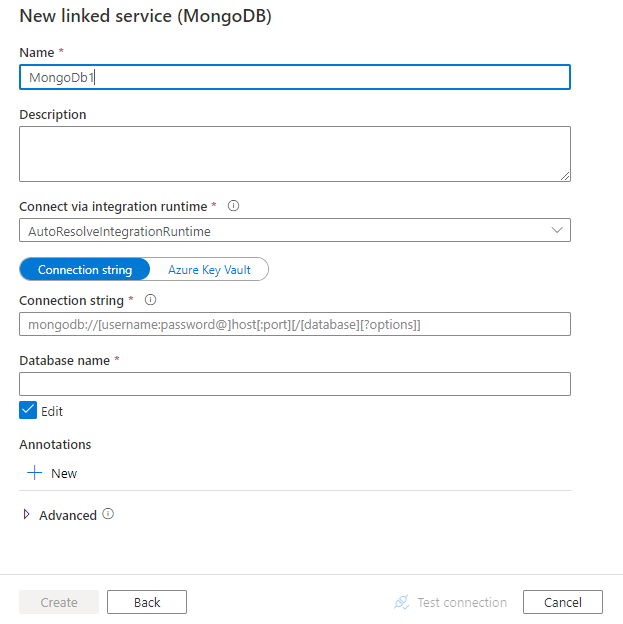
Configure the service details, test the connection, and create the new linked service.
Connector configuration details
The following sections provide details about properties that are used to define Data Factory entities specific to MongoDB connector.
Linked service properties
The following table lists the supported properties for a MongoDB linked service:
| Property | Description | Required |
|---|---|---|
| type | Set the type property to: MongoDbV2 | Yes |
| connectionString | Specify the MongoDB connection string, such as mongodb://[username:password@]host[:port][/[database][?options]]. For more details, see MongoDB manual on connection string.You can also put a connection string in Azure Key Vault. For more details, see Store credentials in Azure Key Vault. |
Yes |
| database | Name of the database that you want to access. | Yes |
| connectVia | The Integration Runtime to use to connect to the data store. To learn more, see the Prerequisites section. If you don't specify this property, the default Azure Integration Runtime is used. | No |
Example:
{
    "name": "MongoDBLinkedService",
    "properties": {
        "type": "MongoDbV2",
        "typeProperties": {
            "connectionString": "mongodb://[username:password@]host[:port][/[database][?options]]",
            "database": "myDatabase"
        },
        "connectVia": {
            "referenceName": "<name of Integration Runtime>",
            "type": "IntegrationRuntimeReference"
        }
    }
}
Dataset properties
For a full list of sections and properties that you can use to define datasets, see Datasets and linked services. The following table lists the supported properties for a MongoDB dataset:
| Property | Description | Required |
|---|---|---|
| type | Set the type property of the dataset to: MongoDbV2Collection | Yes |
| collectionName | Name of the collection in MongoDB database. | Yes |
Example:
{
    "name": "MongoDbDataset",
    "properties": {
        "type": "MongoDbV2Collection",
        "typeProperties": {
            "collectionName": "<Collection name>"
        },
        "schema": [],
        "linkedServiceName": {
            "referenceName": "<MongoDB linked service name>",
            "type": "LinkedServiceReference"
        }
    }
}
Copy activity properties
For a full list of sections and properties available for defining activities, see the Pipelines article. This section provides a list of properties supported by MongoDB source and sink.
MongoDB as source
The copy activity source section supports the following properties:
| Property | Description | Required |
|---|---|---|
| type | Set the type property of the copy activity source to: MongoDbV2Source | Yes |
| filter | Specifies selection filter using query operators. To return all documents in a collection, omit this parameter or pass an empty document ({}). | No |
| cursorMethods.project | Specifies the fields to return in the documents for projection. To return all fields in the matching documents, omit this parameter. | No |
| cursorMethods.sort | Specifies the order in which the query returns matching documents. Refer to cursor.sort(). | No |
| cursorMethods.limit | Specifies the maximum number of documents the server returns. Refer to cursor.limit(). | No |
| cursorMethods.skip | Specifies the number of documents to skip and from where MongoDB begins to return results. Refer to cursor.skip(). | No |
| batchSize | Specifies the number of documents to return in each batch of the response from MongoDB instance. In most cases, modifying the batch size doesn't affect the user or the application. Azure Cosmos DB limits each batch can't exceed 40 MB in size, which is the sum of the batchSize number of documents' size, so decrease this value if your document size is large. | No (the default is 100) |
Tip
The service supports consuming BSON document in Strict mode. Ensure your filter query is in Strict mode instead of Shell mode. For more information, see MongoDB manual.
Example:
"activities":[
    {
        "name": "CopyFromMongoDB",
        "type": "Copy",
        "inputs": [
            {
                "referenceName": "<MongoDB input dataset name>",
                "type": "DatasetReference"
            }
        ],
        "outputs": [
            {
                "referenceName": "<output dataset name>",
                "type": "DatasetReference"
            }
        ],
        "typeProperties": {
            "source": {
                "type": "MongoDbV2Source",
                "filter": "{datetimeData: {$gte: ISODate(\"2018-12-11T00:00:00.000Z\"),$lt: ISODate(\"2018-12-12T00:00:00.000Z\")}, _id: ObjectId(\"5acd7c3d0000000000000000\") }",
                "cursorMethods": {
                    "project": "{ _id : 1, name : 1, age: 1, datetimeData: 1 }",
                    "sort": "{ age : 1 }",
                    "skip": 3,
                    "limit": 3
                }
            },
            "sink": {
                "type": "<sink type>"
            }
        }
    }
]
MongoDB as sink
The Copy Activity sink section supports the following properties:
| Property | Description | Required |
|---|---|---|
| type | Set the type property of the copy activity sink to MongoDbV2Sink. | Yes |
| writeBehavior | Describes how to write data to MongoDB. Allowed values: insert and upsert. The behavior of upsert is to replace the document if a document with the same _id already exists; otherwise, insert the document.Note: The service automatically generates an _id for a document if an _id isn't specified either in the original document or by column mapping. This means that you must ensure that, for upsert to work as expected, your document has an ID. |
No (the default is insert) |
| writeBatchSize | The writeBatchSize property controls the number of documents to write in each batch. To improve performance, try increasing the value. If your document size is large, try decreasing the value. | No (the default is 10,000) |
| writeBatchTimeout | The wait time for the batch insert operation to finish before it times out. The allowed value is timespan. | No (the default is 00:30:00 - 30 minutes) |
Tip
To import JSON documents as-is, see the Import or export JSON documents section. To copy from tabular-shaped data, see Schema mapping.
Example
"activities":[
    {
        "name": "CopyToMongoDB",
        "type": "Copy",
        "inputs": [
            {
                "referenceName": "<input dataset name>",
                "type": "DatasetReference"
            }
        ],
        "outputs": [
            {
                "referenceName": "<Document DB output dataset name>",
                "type": "DatasetReference"
            }
        ],
        "typeProperties": {
            "source": {
                "type": "<source type>"
            },
            "sink": {
                "type": "MongoDbV2Sink",
                "writeBehavior": "upsert"
            }
        }
    }
]
Import and export JSON documents
Use this MongoDB connector to easily:
- Copy documents between two MongoDB collections as-is.
- Import JSON documents from various sources to MongoDB, including from Azure Cosmos DB, Azure Blob storage, Azure Data Lake Storage, and other supported file-based stores.
- Export JSON documents from a MongoDB collection to various file-based stores.
To achieve such schema-agnostic copy, skip the "structure" (also called schema) section in dataset and schema mapping in copy activity.
Data type mapping for MongoDB
When you copy data from MongoDB, the service uses the following mappings from MongoDB data types to interim data types. For more information about how copy activity maps the source schema and data type to the sink, see Schema and data type mappings.
| MongoDB data Type | Interim Service Data Type |
|---|---|
| Date | Int64 |
| ObjectId | String |
| Decimal128 | String |
| TimeStamp | The most significant 32 bits -> Int64 The least significant 32 bits -> Int64 |
| String | String |
| Double | String |
| Int32 | Int64 |
| Int64 | Int64 |
| Boolean | Boolean |
| Null | Null |
| JavaScript | String |
| Regular Expression | String |
| Min key | Int64 |
| Max key | Int64 |
| Binary | String |
MongoDB connector lifecycle and upgrade
The following table shows the release stage and change logs for different versions of the MongoDB connector:
| Version | Release stage | Change log |
|---|---|---|
| MongoDB (legacy) | Removed | Not applicable. |
| MongoDB | GA version available | • Support the equivalent MongoDB queries only. • Double is read as String data type. |
Upgrade the MongoDB linked service
Create a new MongoDB linked service and configure it by referring to Linked service properties.
Related content
For a list of data stores supported as sources and sinks by the copy activity, see supported data stores.