Note
Access to this page requires authorization. You can try signing in or changing directories.
Access to this page requires authorization. You can try changing directories.
Important
Attention: All Microsoft Sentinel features will be officially retired in Azure in China regions on August 18, 2026 per the announcement posted by 21Vianet.
If you installed an out-of-the-box solution, you can remove content items or delete the solution. To restore deleted content items, select Reinstall on the solution. You can also restore the solution by reinstalling it.
Delete content items
Delete content items from a solution you installed from the content hub.
Go to the Azure portal, under Content management, select Content hub.
Select an installed solution with version 2.0.0 or higher.
On the solutions details page, select Manage.
Select the content item or items you want to delete.
Select Delete.
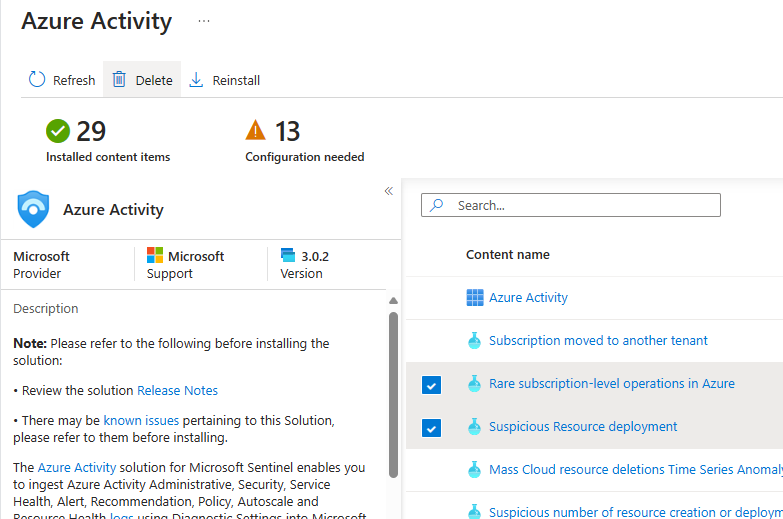
To restore deleted content items, select Reinstall on the solution.
Delete the solution
Delete a solution and its content templates from the content hub or the manage solution view. Deleting a solution doesn't delete active, cloned, saved, or custom items.
In the content hub, select an installed solution.
On the solutions details page, select Delete.
Select Yes to delete the solution and the templates.
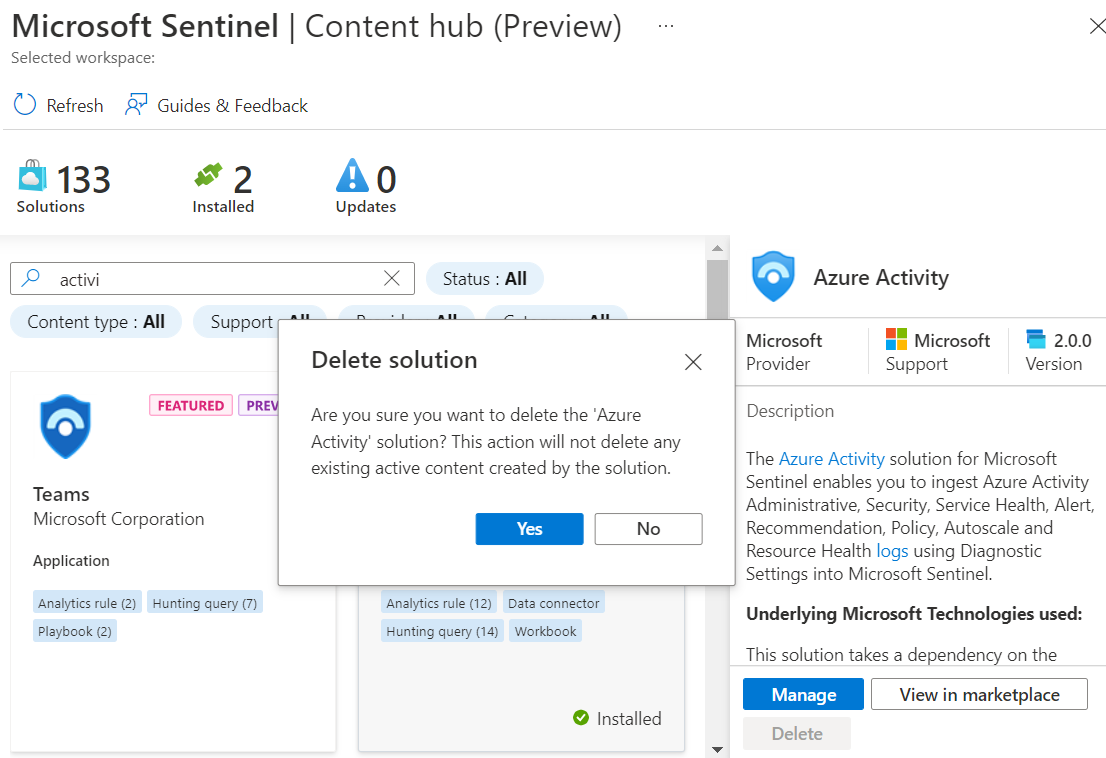
To restore an out-of-the-box solution from the content hub, select the solution and Install.