函数是 Azure Monitor 中的日志查询,可在其他日志查询中使用,如同它是命令一样。 可以使用函数为不同的客户提供解决方案,还可以在自己的环境中重复使用查询逻辑。 本文介绍如何使用函数以及如何创建自己的函数。
所需的权限
| 操作 |
所需的权限 |
| 查看或使用函数 |
对 Log Analytics 工作区具有 Microsoft.OperationalInsights/workspaces/query/*/read 权限,例如,Log Analytics 读者内置角色所提供的权限。 |
| 创建或编辑函数 |
对 Log Analytics 工作区拥有 microsoft.operationalinsights/workspaces/savedSearches/write 权限,例如由 Log Analytics 贡献者内置角色提供的权限。 |
函数类型
Azure Monitor 中有两种类型的函数:
视图函数
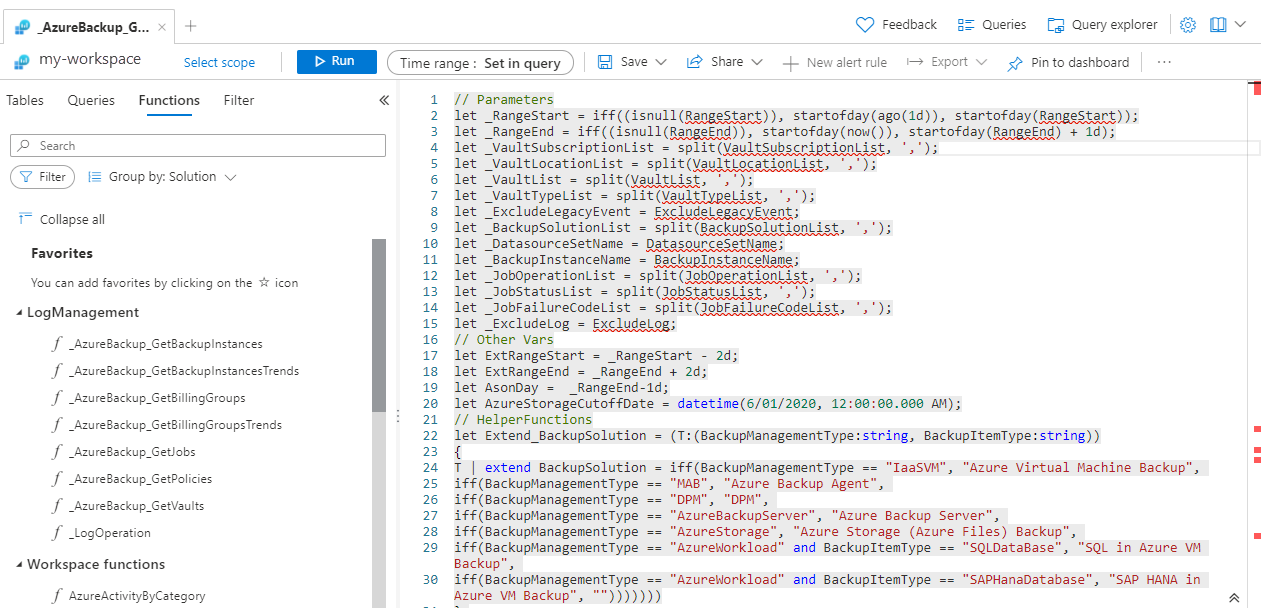
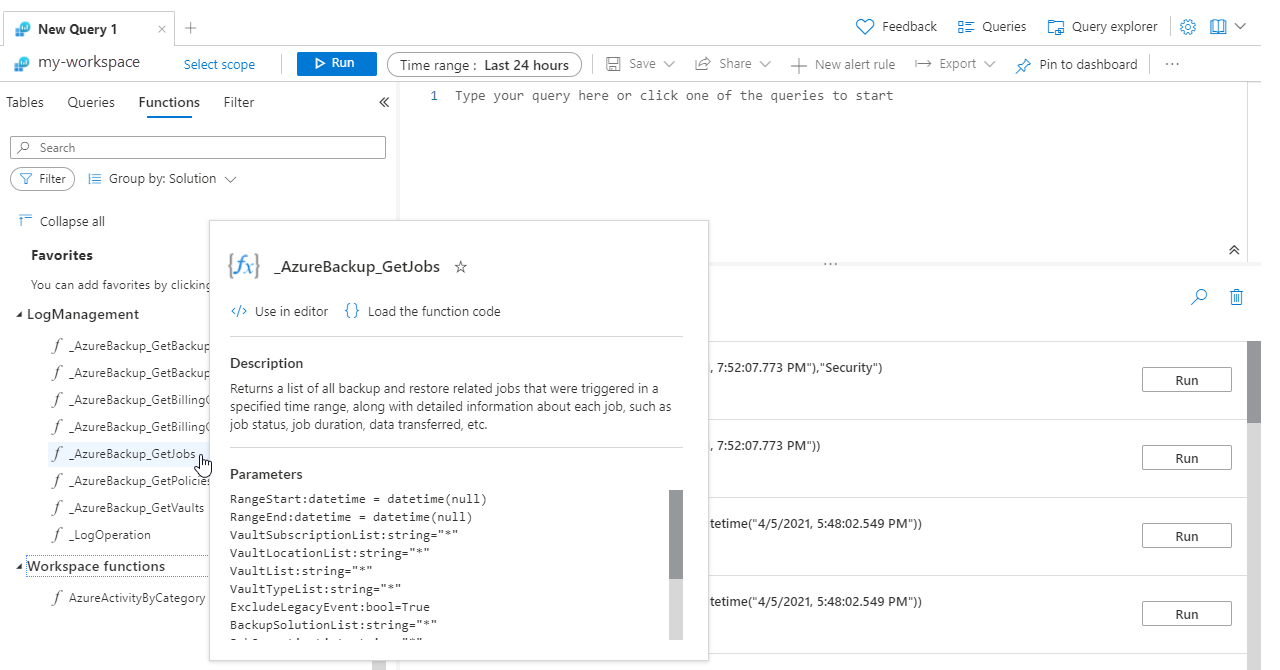
可以在 Log Analytics 工作区左窗格的“函数”选项卡查看当前工作区中的解决方案函数和工作区函数。 使用“筛选器”筛选列表中包含的函数。 使用“分组依据”更改它们的组合方式。 在“搜索”框中输入字符串以查找特定函数。 将鼠标悬停在函数上方以查看其详细信息,包括说明和参数。
使用函数
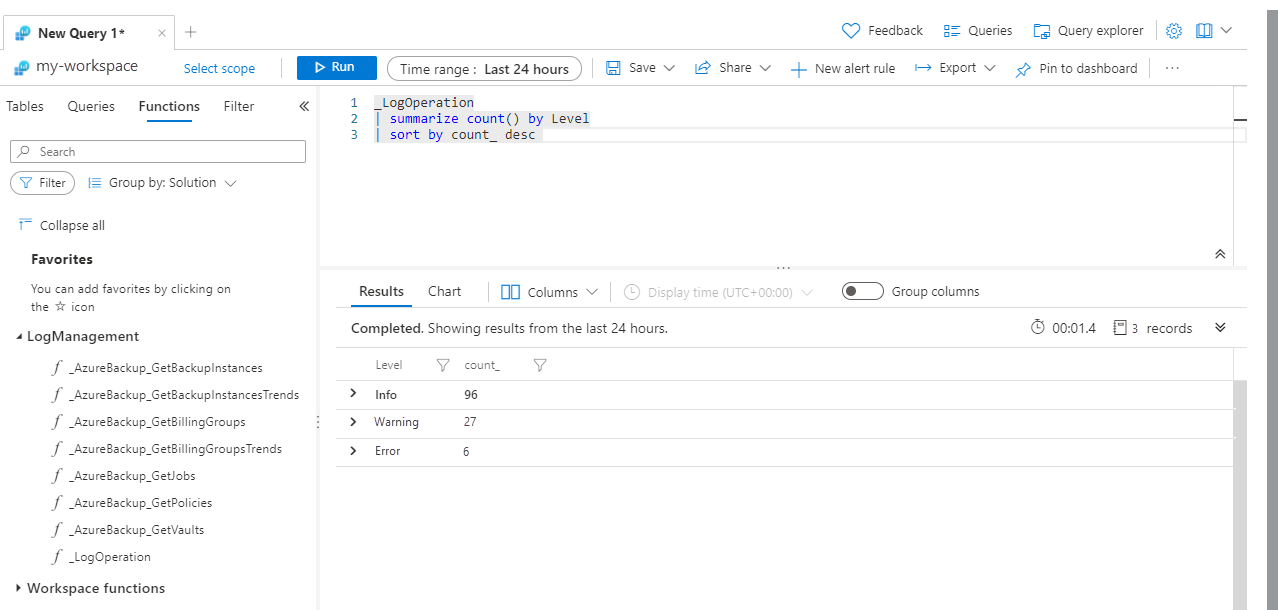
在查询中使用函数时,请像在命令中输入那样输入其名称,并为任何参数输入相应的值。 函数的输出可以作为结果返回或通过管道传递给另一个命令。
双击函数名称,或是将鼠标悬停其上方,然后选择“在编辑器中使用”,可将函数添加到当前查询中。 在你输入查询时,工作区中的函数也将被 IntelliSense 包含进去。
如果查询需要参数,请使用语法 function_name(param1,param2,...) 提供它们。
创建函数
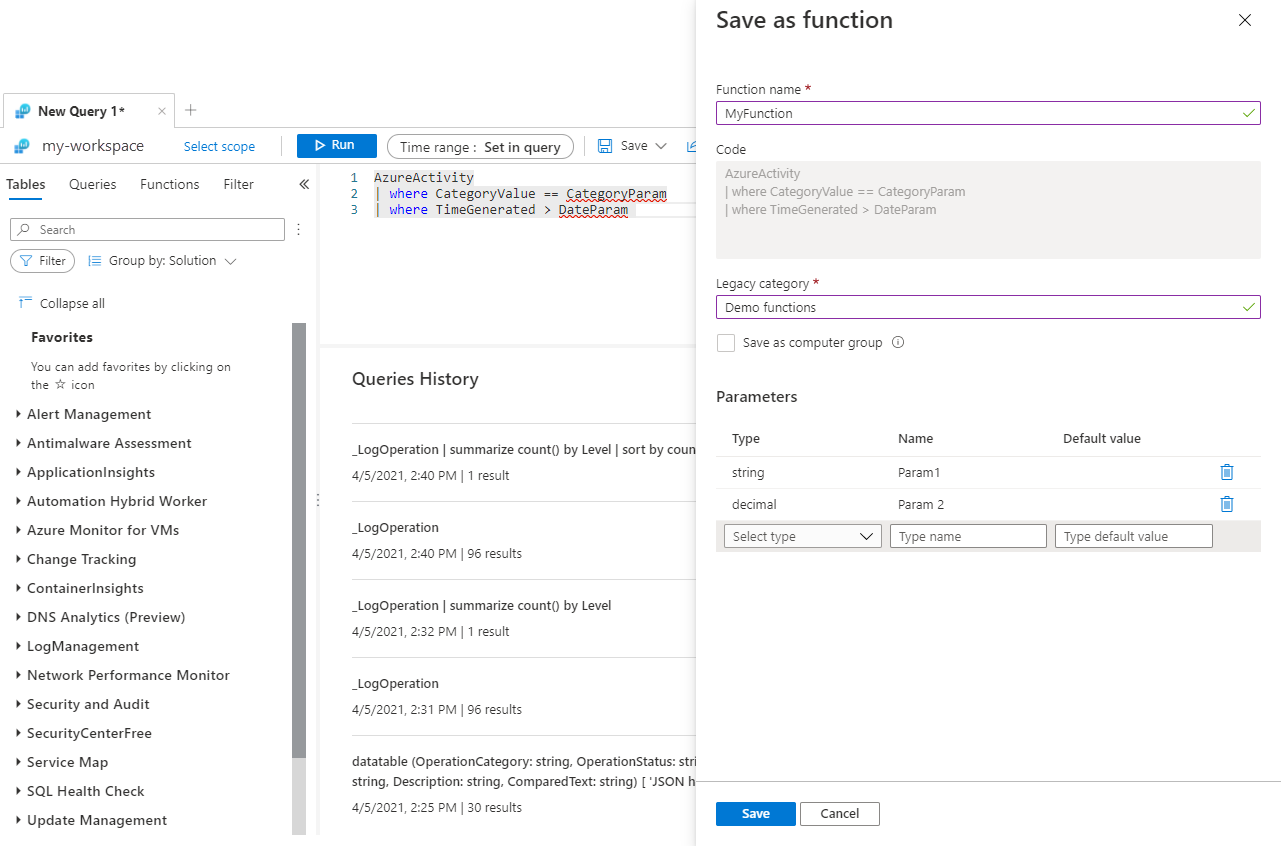
若要在编辑器中通过当前查询创建函数,请选择“保存”>“保存为函数”。

在 Azure 门户中通过 Log Analytics 创建函数,方法是选择“保存”,然后提供下表中的信息:
| 设置 |
说明 |
| 函数名称 |
函数的名称。 此名称不能包含空格或任何特殊字符。 它也不能以下划线 (_) 开头,因为此字符被保留用于解决方案函数中的使用。 |
| 遗留类别 |
用户定义的类别,用于帮助对函数进行筛选和分组。 |
| 保存为计算机组 |
将查询保存为计算机组。 |
| 参数 |
为函数中在使用时需要值的每个变量都添加一个参数。 有关详细信息,请参阅函数参数。 |
以下示例使用 Microsoft.OperationalInsights workspaces/savedSearches 模板创建函数。 有关 Azure 资源管理器模板的更多信息,请参阅了解 ARM 模板的结构和语法。
要详细了解如何从自定义模板部署资源,请转到使用 ARM 模板和 Azure 门户部署资源。
注意
有关可用示例的列表以及在 Azure 订阅中部署这些示例的指南,请参阅 Azure Monitor 的 Azure 资源管理器示例。
模板文件
{
"$schema": "https://schema.management.azure.com/schemas/2019-04-01/deploymentTemplate.json#",
"contentVersion": "1.0.0.0",
"resources": [
{
"type": "Microsoft.OperationalInsights/workspaces/savedSearches",
"apiVersion": "2025-07-01",
"name": "[concat(parameters('workspaceName'), '/', parameters('functionName'))]",
"location": "[parameters('location')]",
"properties": {
"etag": "*",
"displayName": "[parameters('functionDisplayName')]",
"category": "[parameters('category')]",
"query": "[parameters('query')]",
"functionAlias": "[parameters('functionAlias')]",
"version": 1
}
}
],
"parameters": {
"workspaceName": {
"type": "string",
"metadata": {
"description": "Name of the Log Analytics workspace"
}
},
"functionName": {
"type": "string",
"metadata": {
"description": "Name of the function"
}
},
"location": {
"type": "string",
"metadata": {
"description": "Location of the Log Analytics workspace"
}
},
"functionDisplayName": {
"type": "string",
"metadata": {
"description": "Display name of the function"
}
},
"category": {
"type": "string",
"metadata": {
"description": "Category of the function"
}
},
"query": {
"type": "string",
"metadata": {
"description": "Kusto query for the function"
}
},
"functionAlias": {
"type": "string",
"metadata": {
"description": "Alias for the function"
}
}
}
}
以下示例使用 Microsoft.OperationalInsights workspaces/savedSearches 模板创建函数。 有关Bicep模板的详细信息,请参阅 Bicep 文件结构和语法。
@description('Name of the Log Analytics workspace')
param workspaceName string
@description('Name of the function')
param functionName string
@description('Location of the Log Analytics workspace')
param location string
@description('Display name of the function')
param functionDisplayName string
@description('Category of the function')
param category string
@description('Kusto query for the function')
param query string
@description('Alias for the function')
param functionAlias string
resource workspaceName_function 'Microsoft.OperationalInsights/workspaces/savedSearches@2025-07-01' = {
name: '${workspaceName}/${functionName}'
location: location
properties: {
etag: '*'
displayName: functionDisplayName
category: category
query: query
functionAlias: functionAlias
version: 1
}
}
函数参数
可以为函数添加参数,以便在调用该函数时为某些变量提供值。 这样一来,可在不同查询中使用同一函数,每个都为参数提供不同值。 参数由以下属性定义:
| 设置 |
说明 |
| 类型 |
值的数据类型。 |
| 名称 |
参数的名称。 此名称必须在查询中用于替换参数值。 |
| 默认值 |
在未提供值时要用于参数的值。 |
参数在创建时进行排序。 没有默认值的参数排在具有默认值的参数值之前。
使用函数代码
可以查看函数的代码以深入了解其工作原理或修改工作区函数的代码。 选择“加载函数代码”可将函数代码添加到编辑器中的当前查询。
如果将函数代码添加到空查询或现有查询的第一行,则函数名称会添加到选项卡。工作区函数会启用编辑函数详细信息的选项。
示例
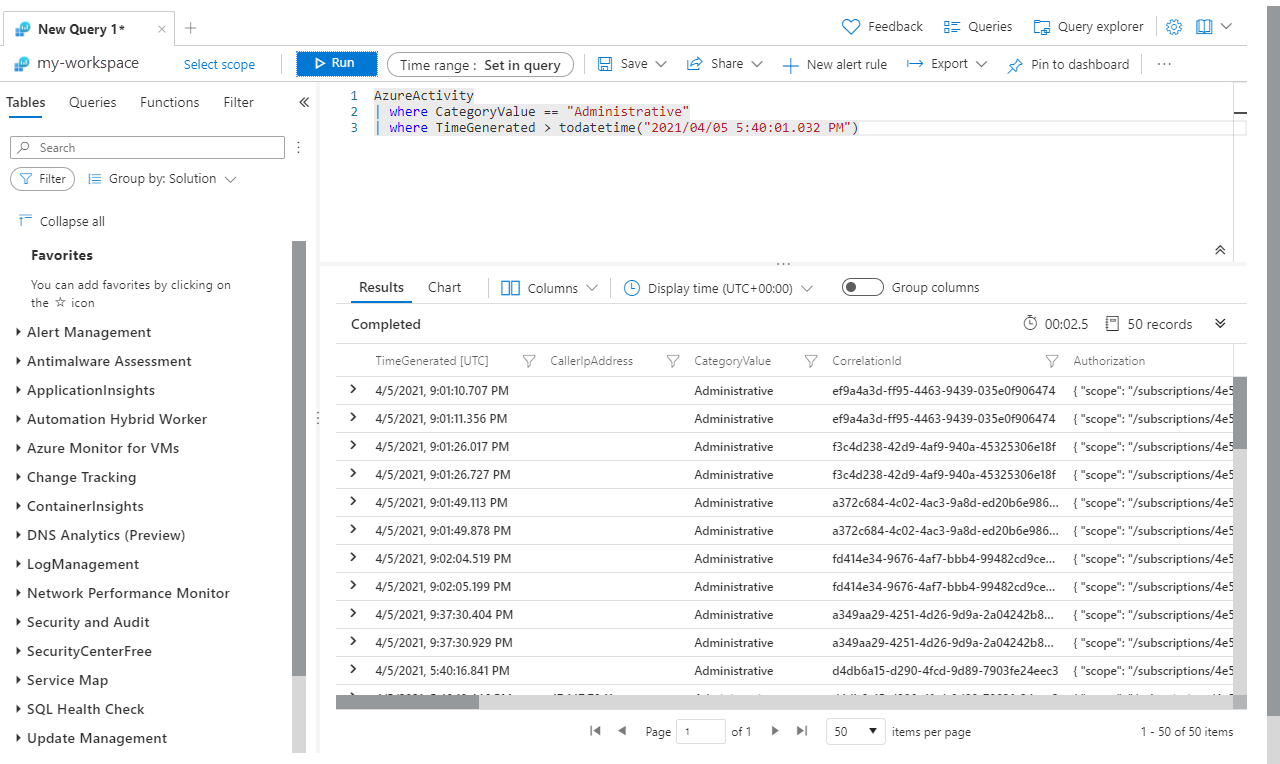
下面的示例函数返回 Azure 活动日志中自特定日期以来,与特定类别匹配的所有事件。
从以下查询开始,使用硬编码值验证查询是否按预期工作。
AzureActivity
| where CategoryValue == "Administrative"
| where TimeGenerated > todatetime("2021/04/05 5:40:01.032 PM")
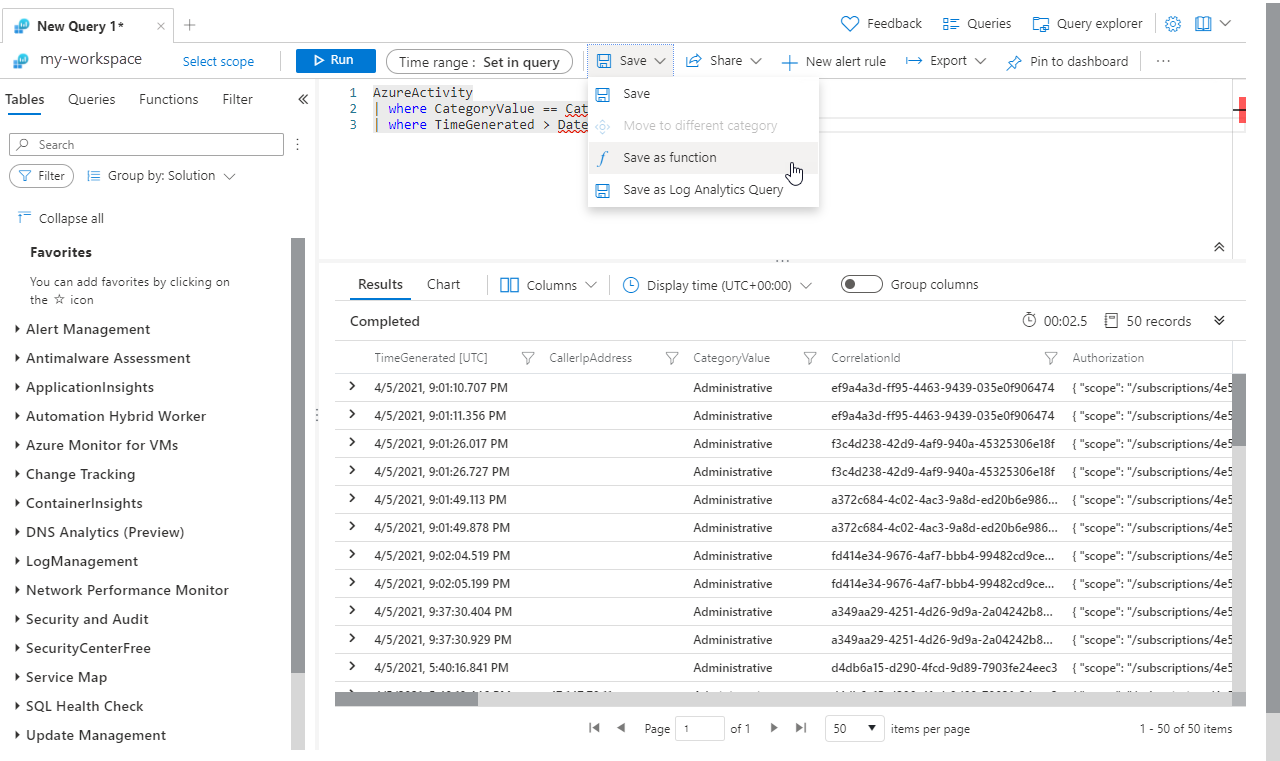
接下来,将硬编码的值替换为参数名称。 然后,通过选择“保存”>“另存为函数”来保存函数。
AzureActivity
| where CategoryValue == CategoryParam
| where TimeGenerated > DateParam
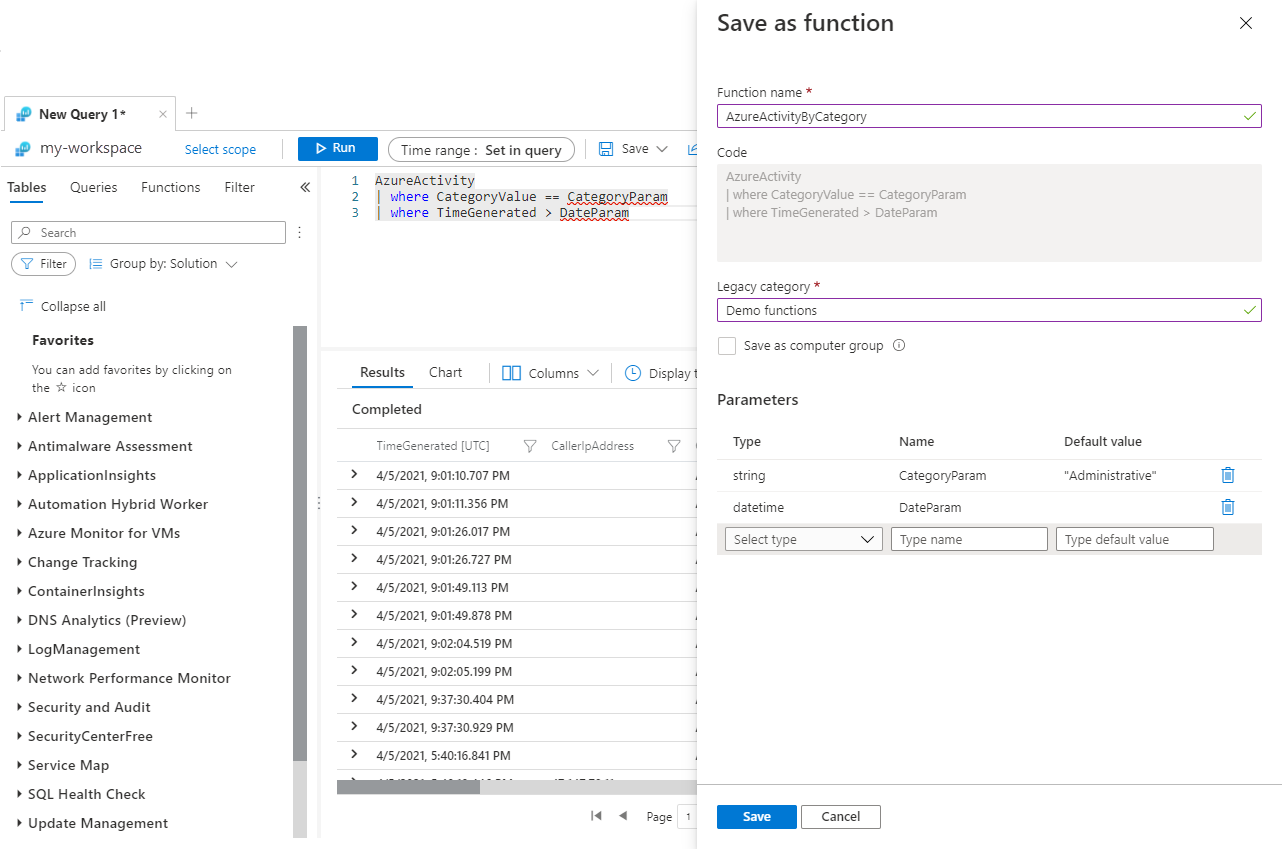
为函数属性提供以下值:
| 属性 |
值 |
| 函数名称 |
Azure活动按类别 |
| 遗留类别 |
演示函数 |
在保存函数之前定义以下参数:
| 类型 |
名称 |
默认值 |
| 字符串 |
CategoryParam |
行政 |
| 日期/时间 |
DateParam |
|
创建一个新查询,并通过鼠标悬停在其上方来查看新函数。 查看参数的顺序。 使用函数时,必须按此顺序指定它们。
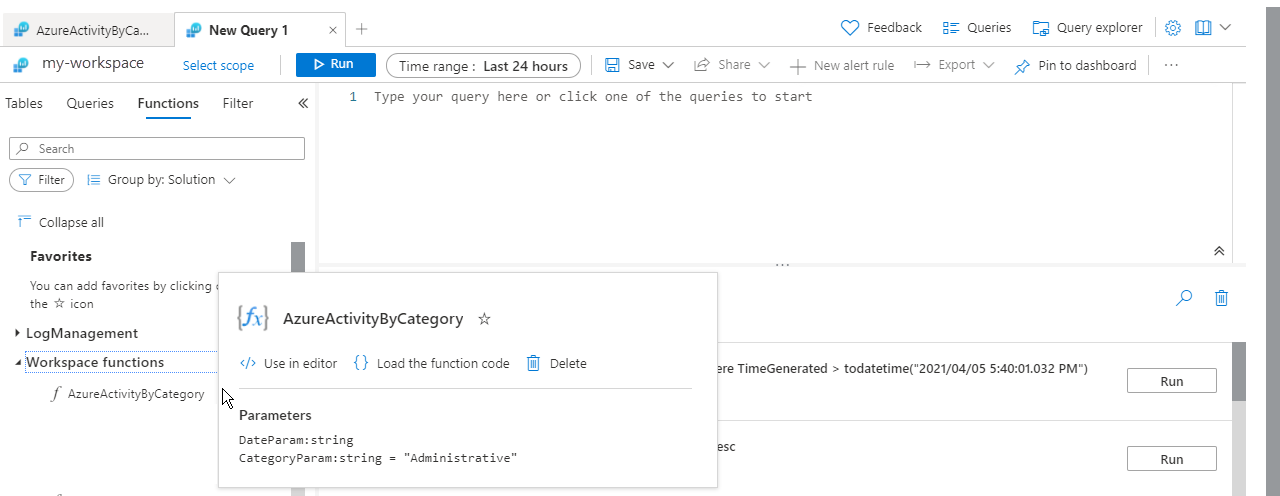
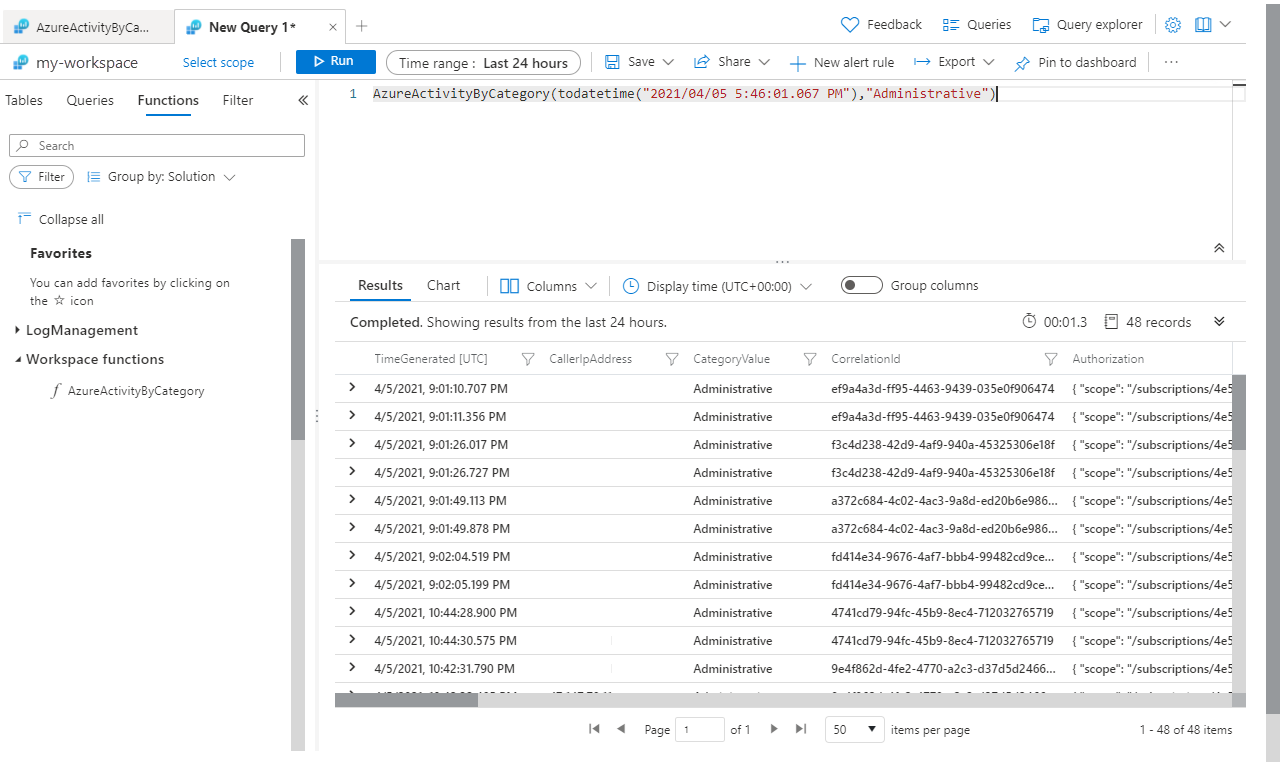
选择“在编辑器中使用”以将新函数添加到查询。 然后为参数添加值。 无需指定 CategoryParam 的值,因为它具有默认值。
后续步骤
有关如何编写 Azure Monitor 日志查询的详细信息,请参阅字符串操作。